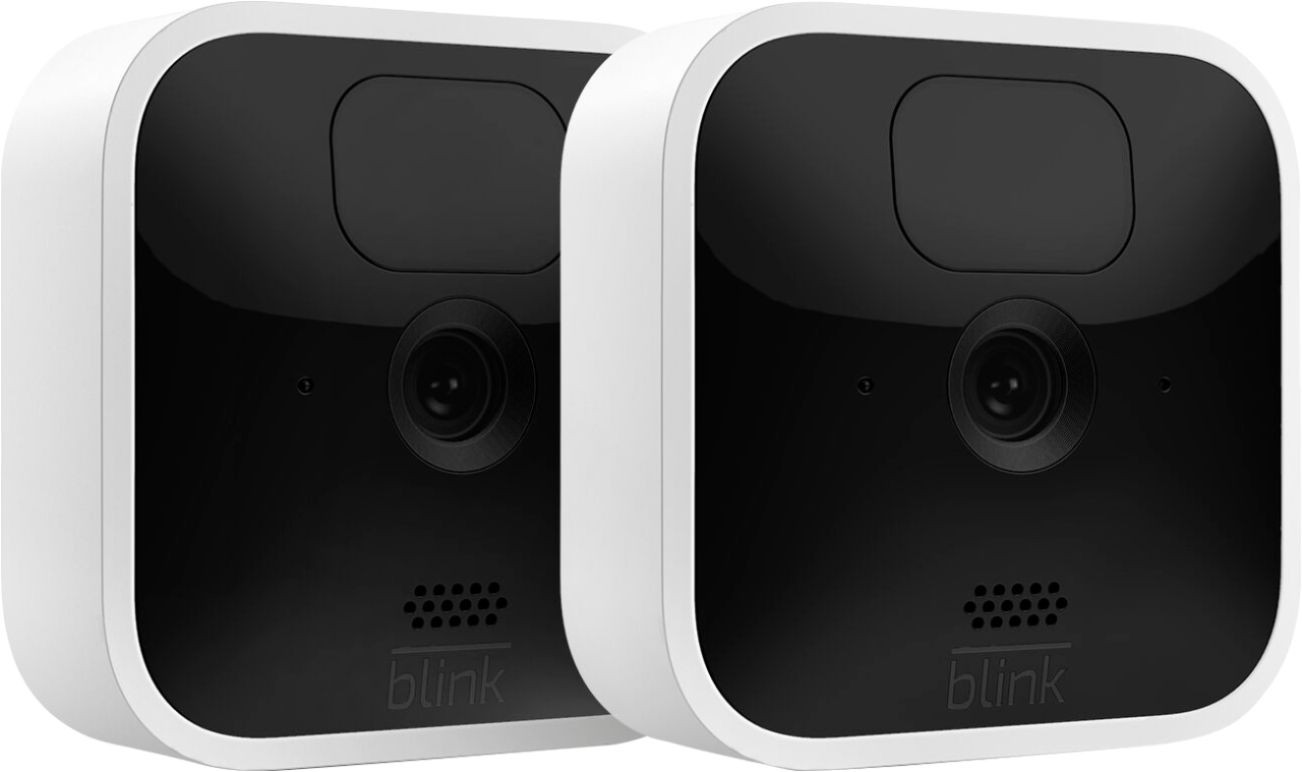
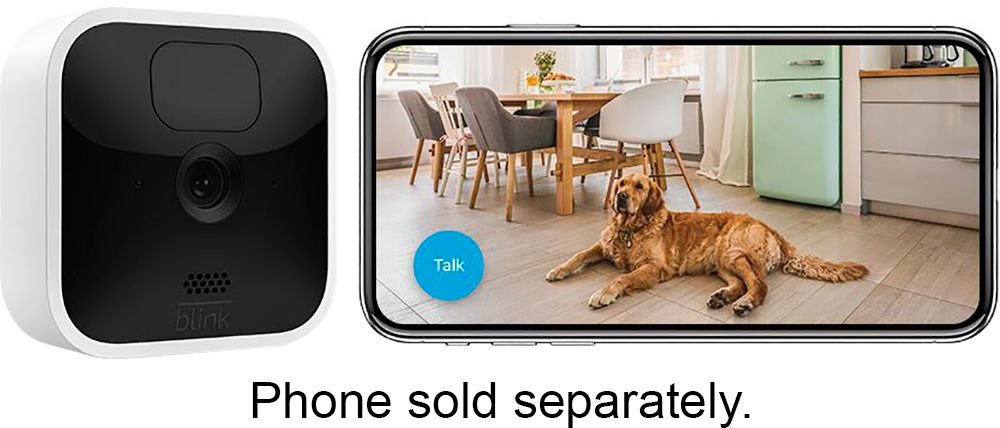
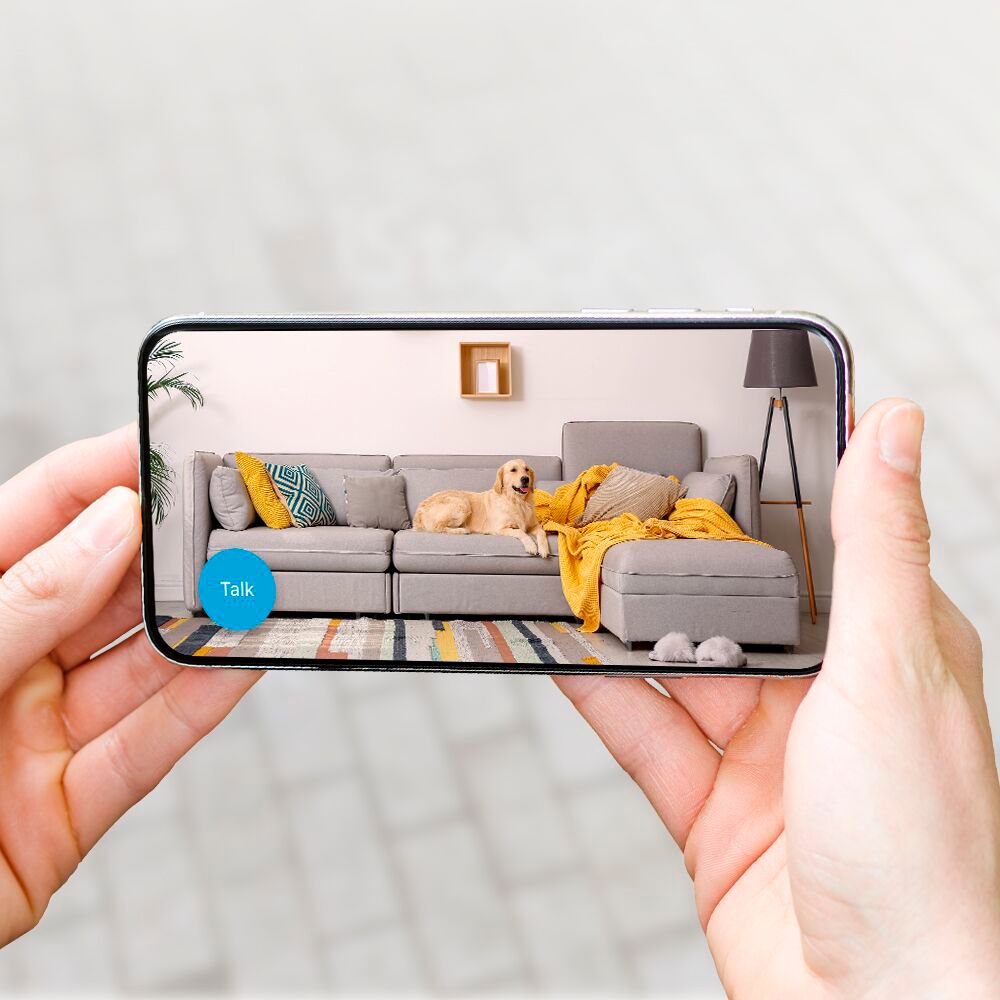
A:AnswerNo, you cannot access your Blink cameras and systems from a computer. A mobile device is needed to use the Blink app where you can access your Blink cameras and system settings.
If you have a Sync Module 2, you can store up to 256GB of video files on a removable USB drive. For eligible cameras, visit the Sync Module 2 FAQ.
You can view the video files on a computer by removing the USB from the Sync Module and inserting it into your computer. To learn more, visit Accessing clips on your USB from your PC.
A:AnswerWhen the system is in armed mode, video clips are recorded when motion is detected if you have a storage plan in place at the time. You can also live view at any time.
A:AnswerHello,
Blink Devices are made for ease of use in both setup as well as app functionality. The Blink Indoor can be set up within minutes using the QR Code that comes in the box. The Code in the box will direct you to set up a new account as well as download the Blink App. Once the app is downloaded, and you input your sign in and password, there is a code on the back of the camera which you scan and will add the device to your app. Once that's complete, your off and running! I just recently set up a Blink Mini indoor camera for my parents, the entire process took about 5 minutes. I think it took more time positioning the camera correctly to get the right view than it did to set up the device.
I hope this helps!
A:AnswerAll Blink cameras require a 2.4 GHz Wi-Fi Internet connection. The cameras use Wi-Fi to send images and notifications so you can view them from the Blink app on your mobile device. At minimum, Blink systems need a connection of at least 2 Mbps upload speed.
A:AnswerIf you own both a Blink Mini Camera and a Blink Video Doorbell, your Mini can work as a chime. This is useful if you don't have a doorbell chime installed in your home.
How it works
When the doorbell's button is pressed, a chime will play from its speaker. The same chime sound plays from each Mini camera that you have connected.