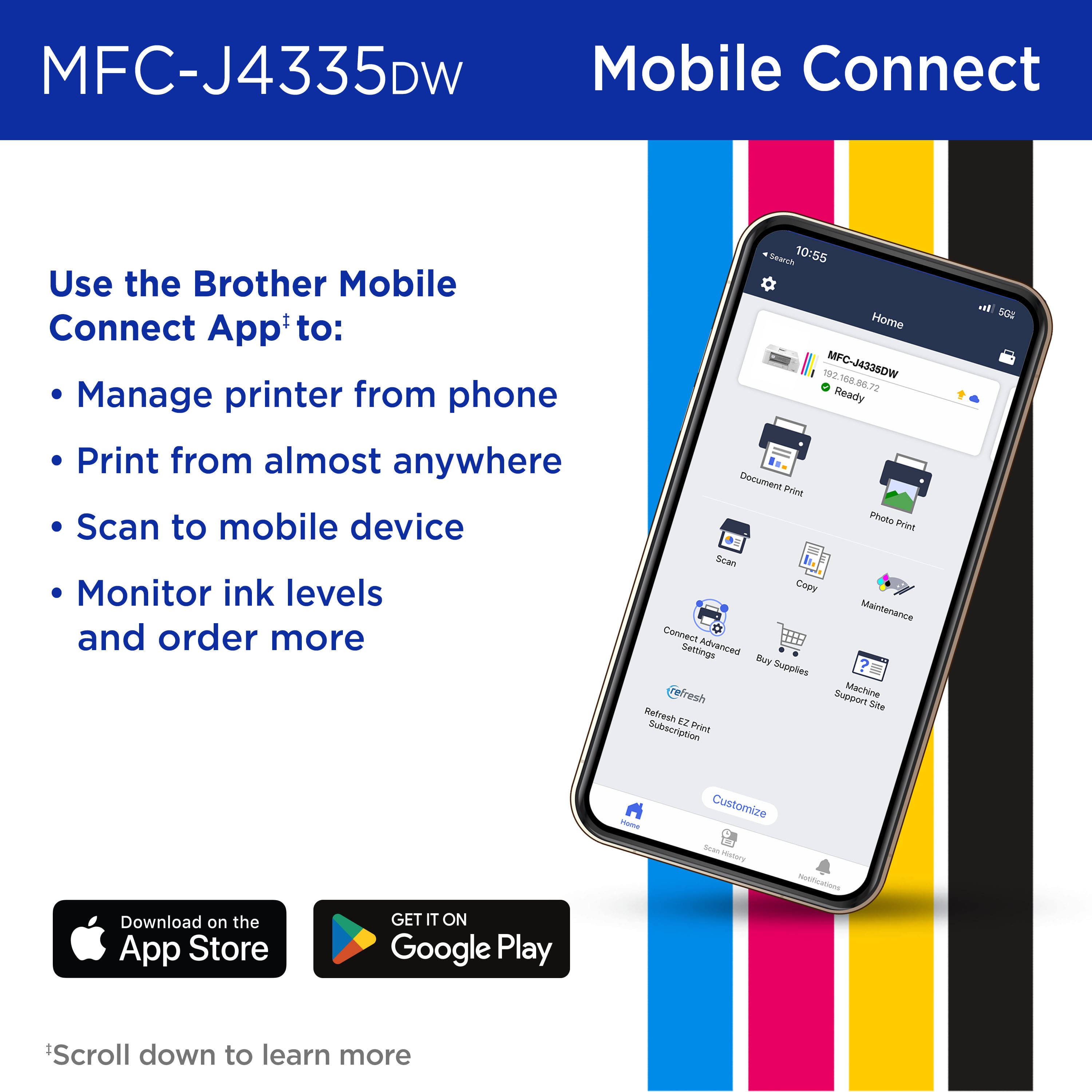
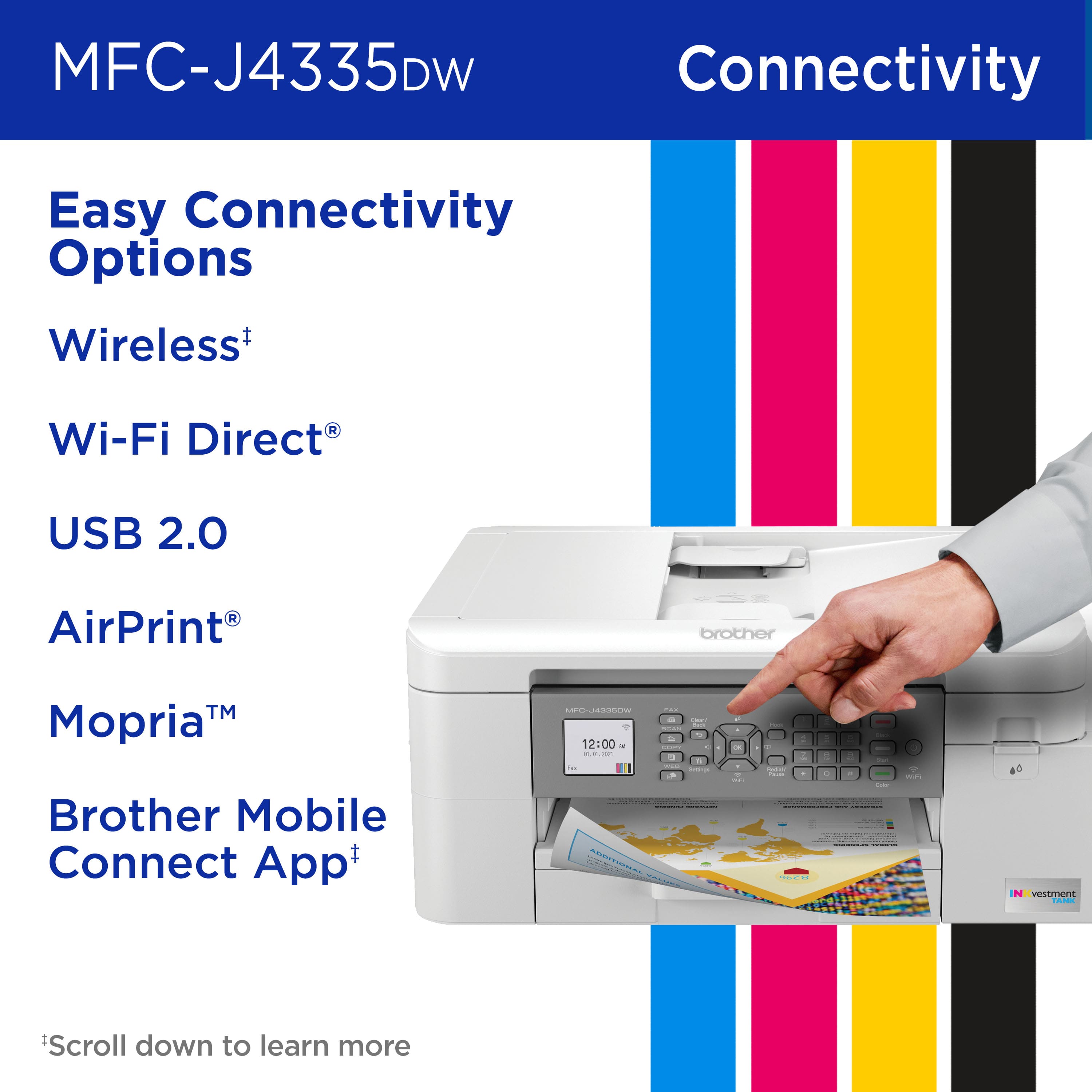
A:AnswerThe fax function uses a standard landline connection to work since fax machines use analog technology to pair and transmit; thus necessitating the landline. I'm not aware of any app-based fax options with this particular printer; at least nothing that is available on their iPhone app (just print and scan). I would recommend looking into third-party fax apps (usually these are subscription apps) to allow you to send scanned documents digitally from your smartphone.
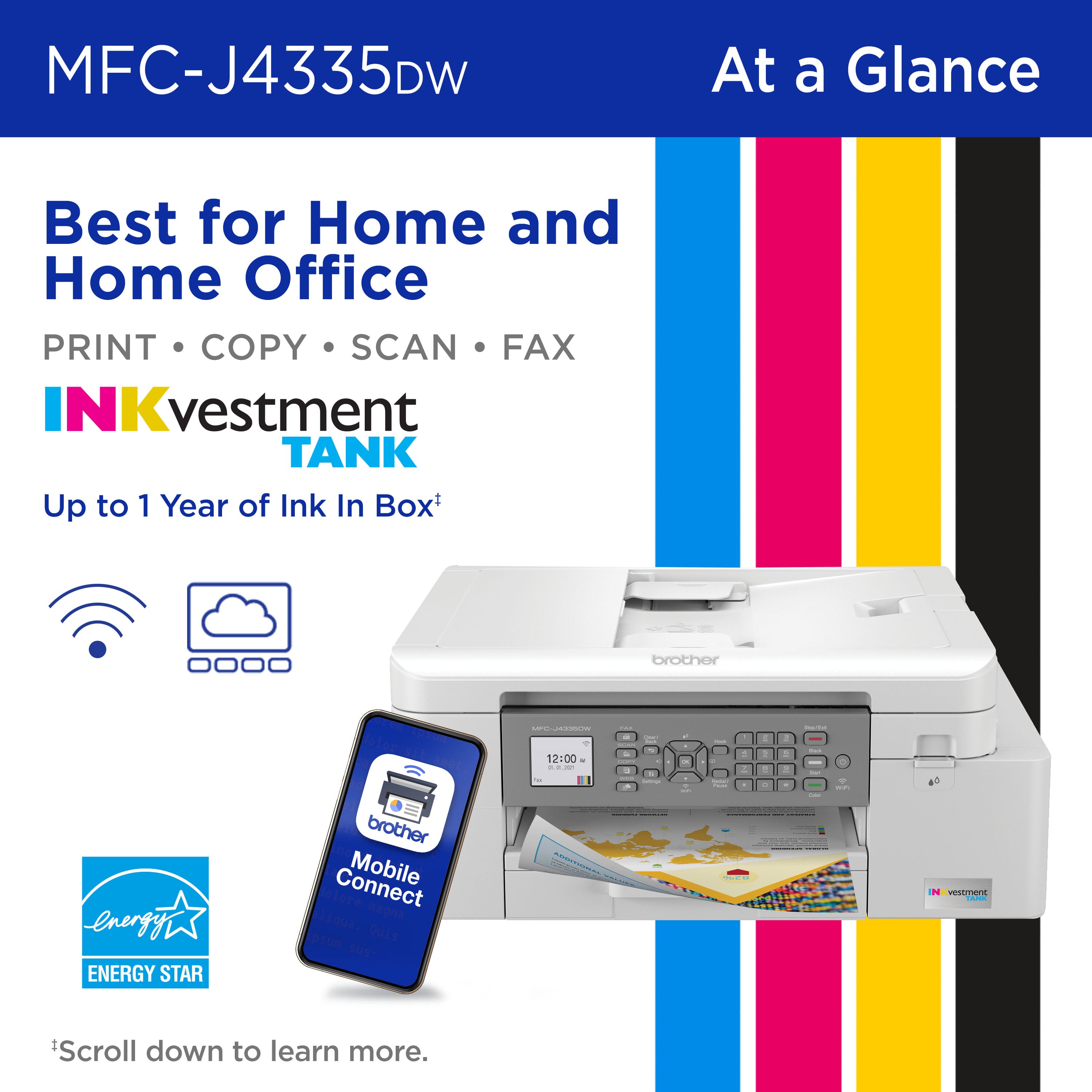
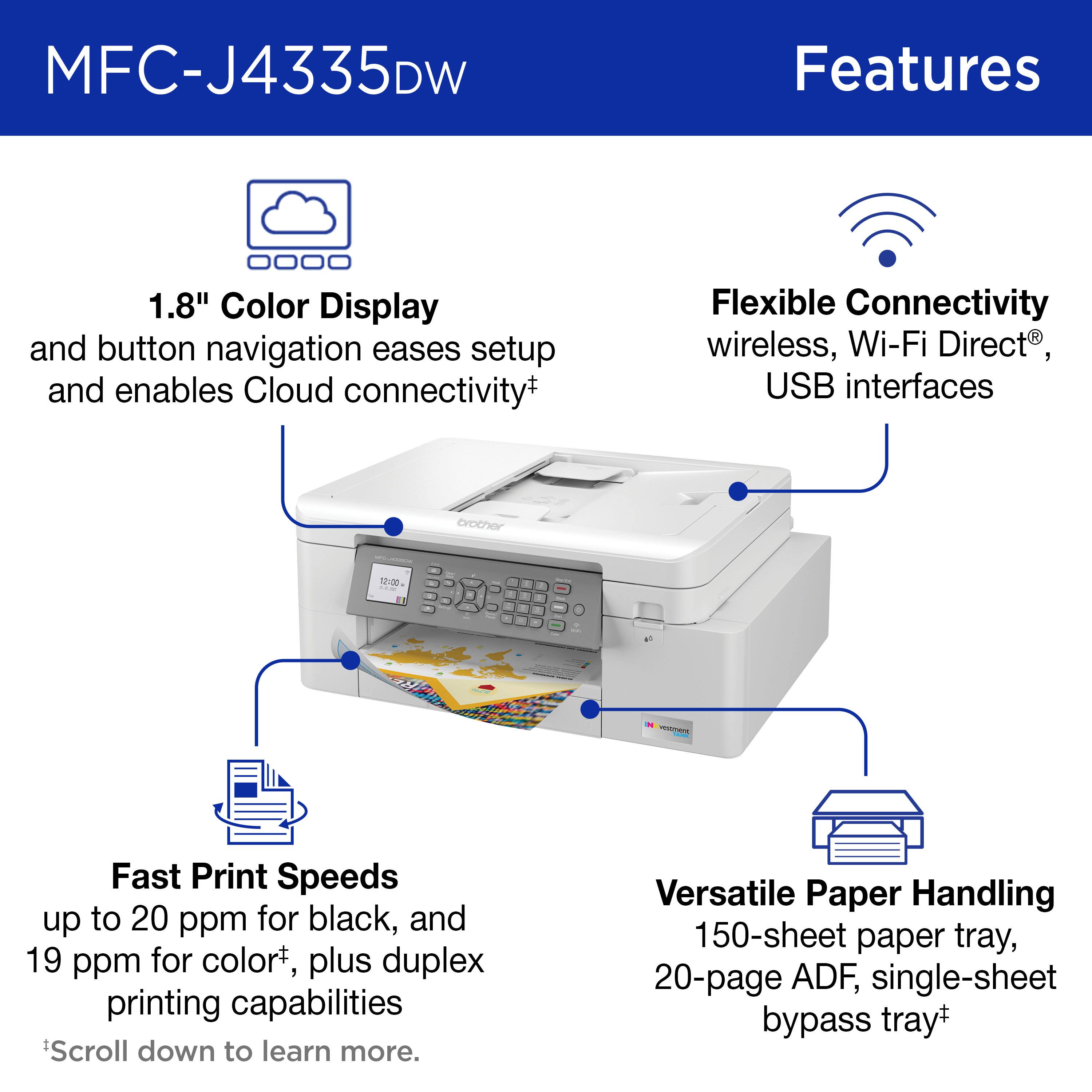
A:Answer3 in 1 normally is print copy scan. 4 in 1 adds fax capability. The other most asked for feature is Wi-Fi connectivity. This printer has all of these features plus large ink tanks.
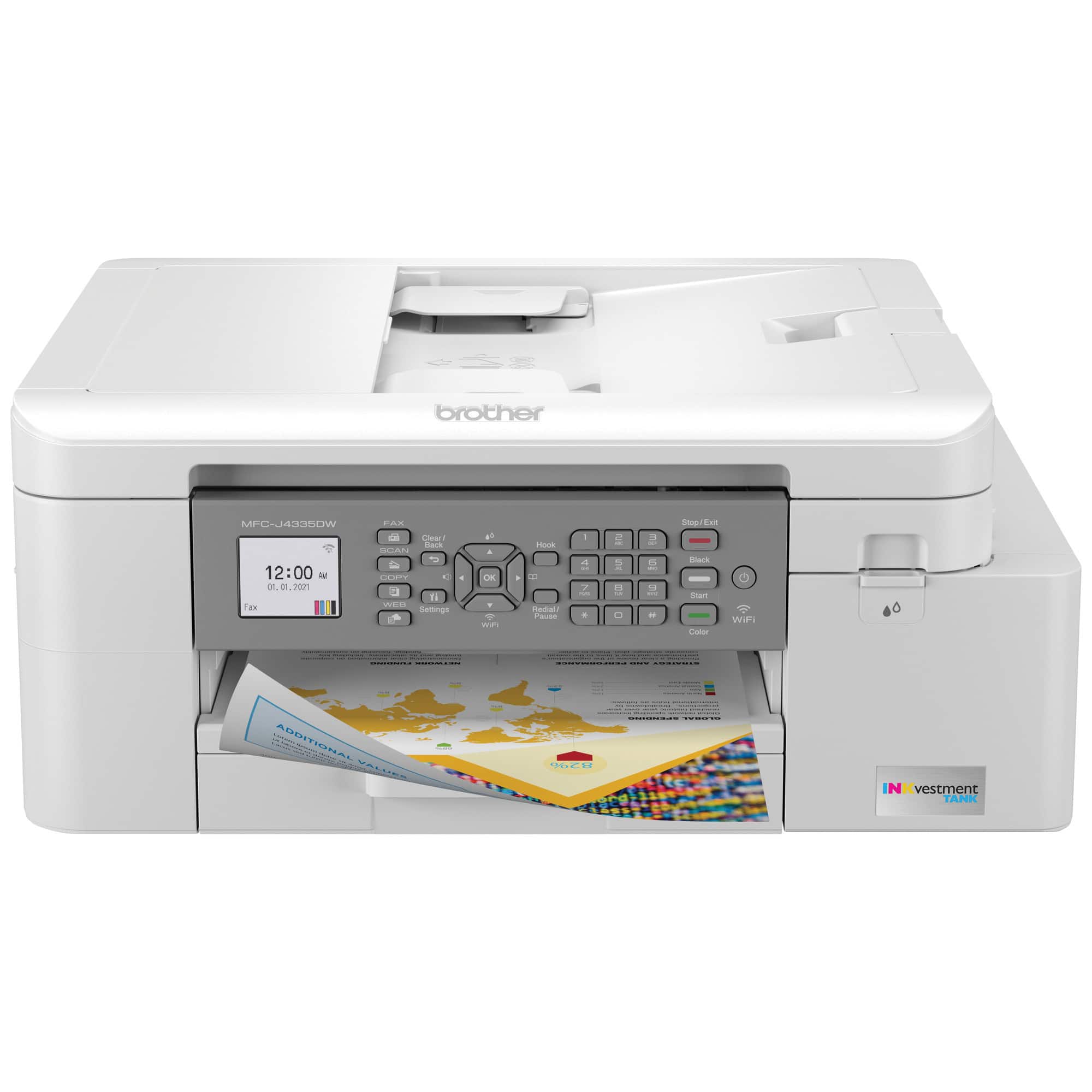
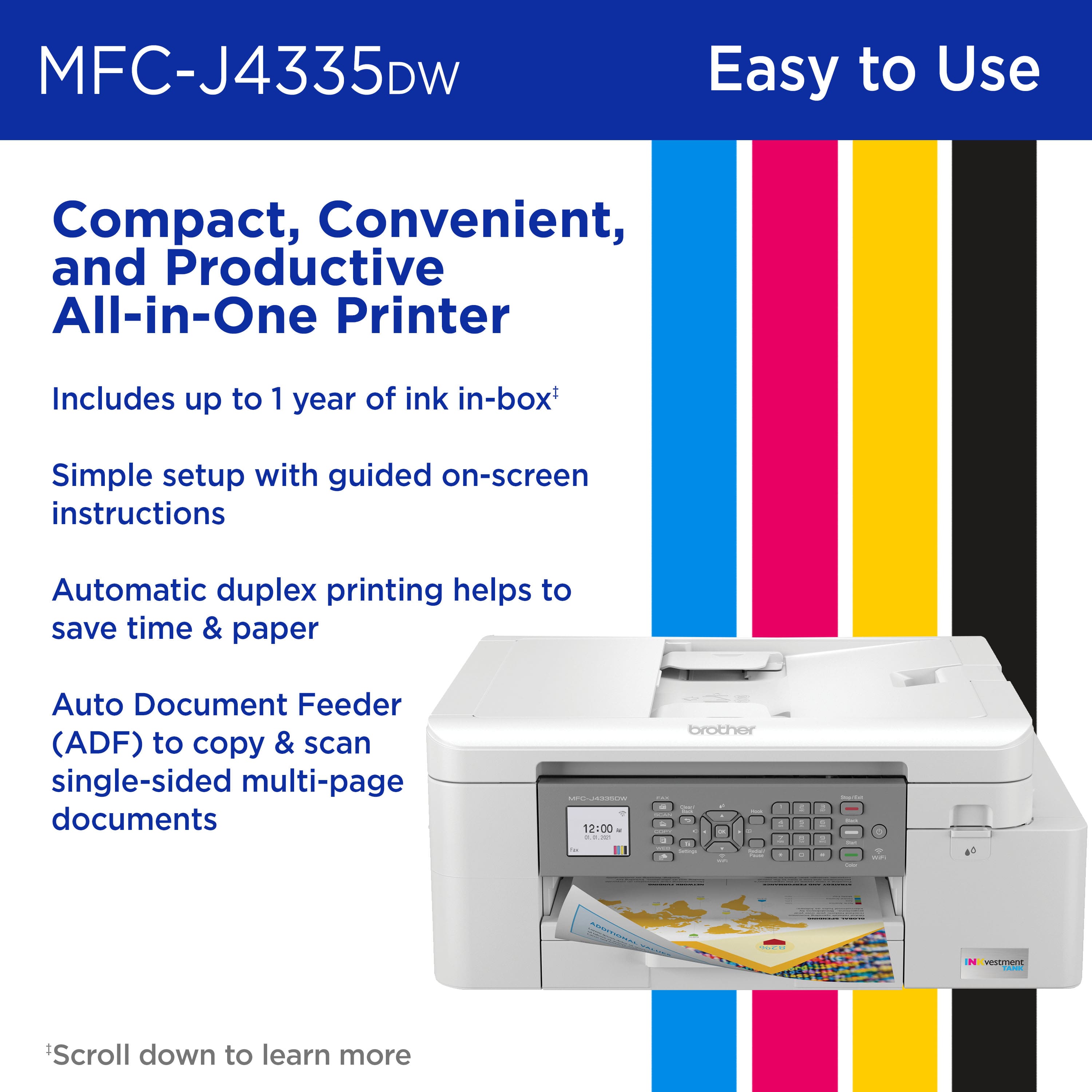
A:AnswerYes. Buttons on the face of the printer are easily readable.
For set up & other functions like password and maintenance or date entry you have to punch keys but not hard to do just have to get used to the process.
A:AnswerI have only done this from my computer and have not investigated whether you can do this directly from the printer. I would check the download manual or call Brother customer service. Good luck!
A:AnswerThe Brother MGCJ4335DW machine works with the OS versions listed here:
https://support.brother.com/g/b/oslist.aspx?c=us&lang=en&prod=mfcj4335dw_us_eu
A:AnswerUnfortunately transfer paper is not listed as a compatible paper to use with the Brother MFCJ4335DW machine. You can check the compatible paper for this model at:
https://help.brother-usa.com/app/answers/detail/a_id/174641
A:AnswerAccording to Brother directions you can connect the printer to mobile devices without a PC It looks as though you will need to purchase a USB cord. in order to do this. Directions do not specify what type of phone will connect to the printer. I have an Apple. I suggest contacting supportbrother.com/videos or supportbrother.com/manuals and they may be of help..
A:AnswerYes, there are two buttons to select whether you want black and white copy or whether you want color copy. There is on-screen instructions to guide you on which button to press
A:AnswerThe Brother MFCJ4335DW machine is able to scan to cloud services using the Brother Iprint&Scan app. You may need to install this app in order to use the scan to cloud services feature.
A:AnswerOrdered this printer only to discover it doesn't print Avery business cards from online questions. Got it today, and despite techs telling me it doesn't, I just printed out 30 business cards from a template on cleanedge cards. It made weird noises so I'm glad this printing of cards is rare.
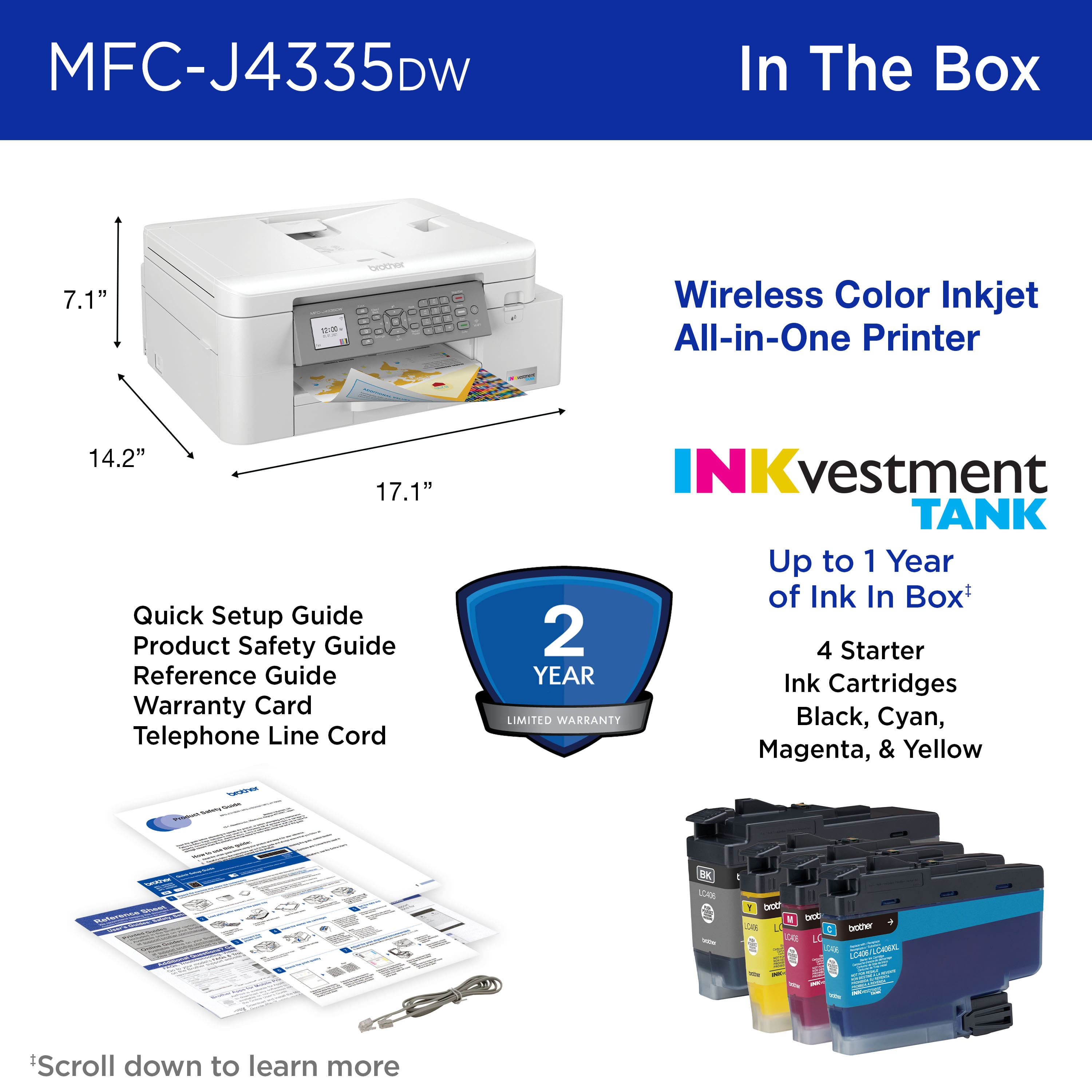
A:AnswerThere is no SD Card slot on this model, the Brother MFCJ4335DW is able to scan and print letter and legal size documents, the machine can fax up to 170 pages but the feeder only takes 20 at the time, the machine has a feature that will make automatic cleanings to maintain the print quality if the machine is kept on. Feel free to contact Brother customer support for additional information at https://www.brother-usa.com/support