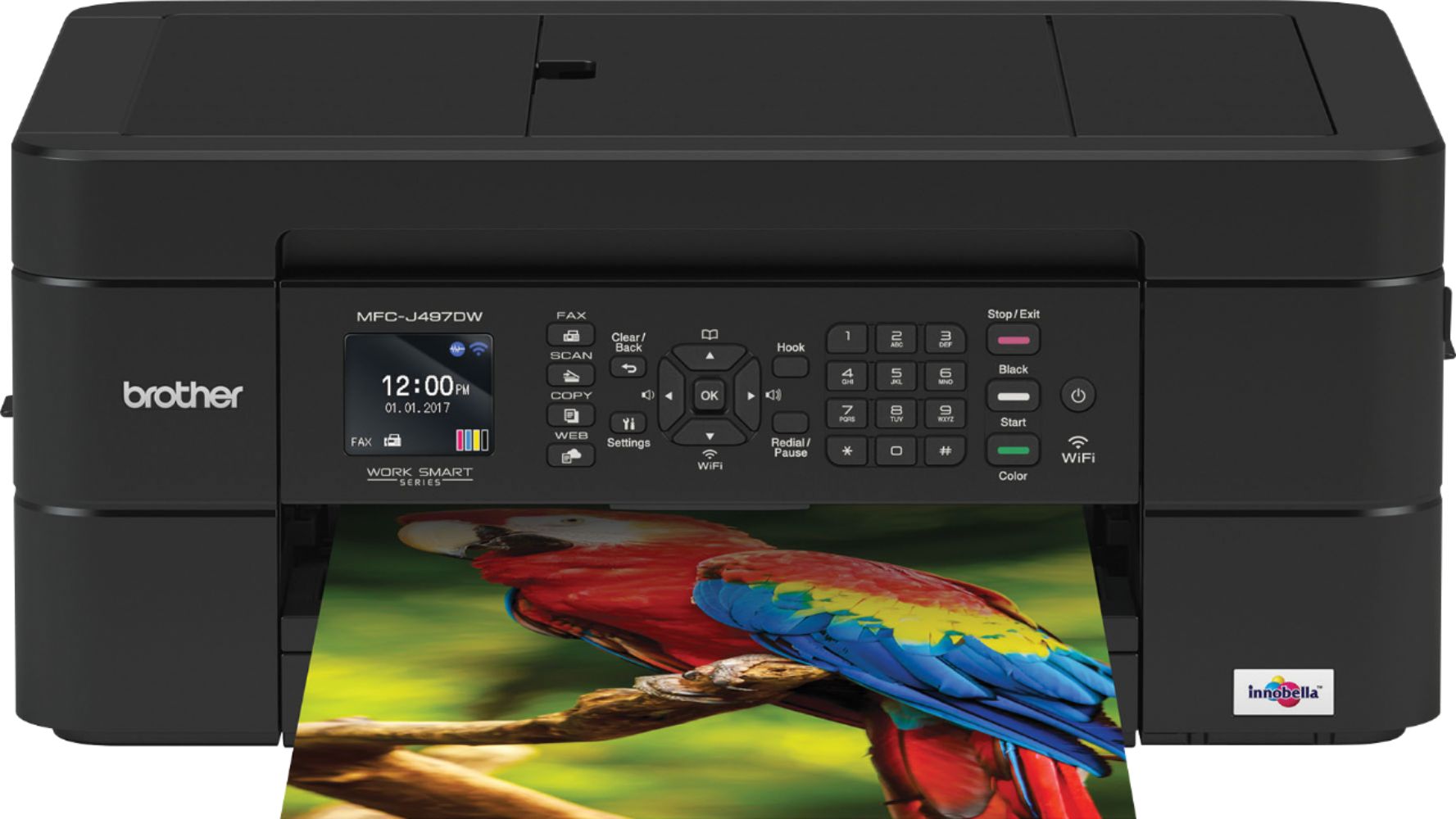
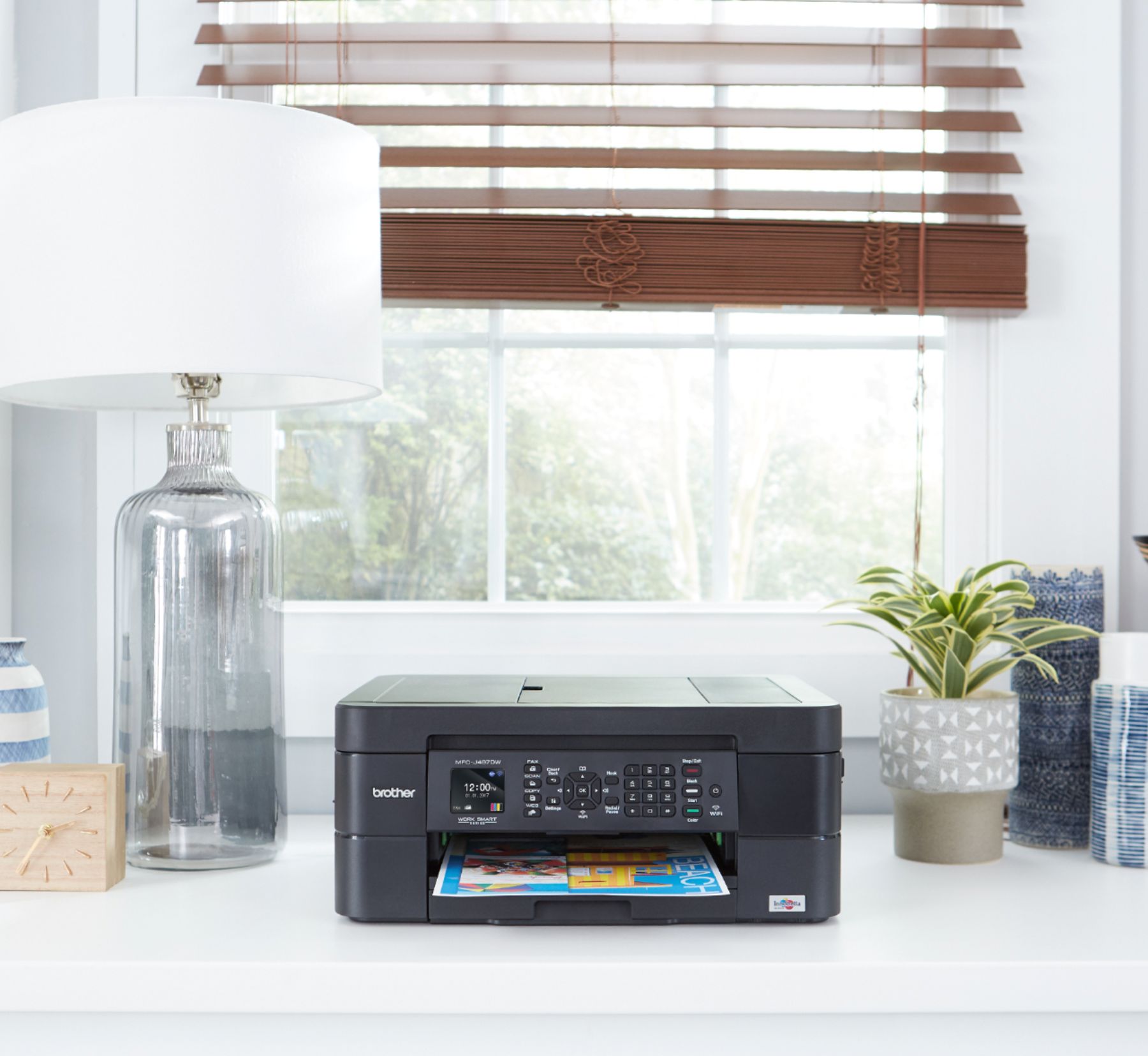
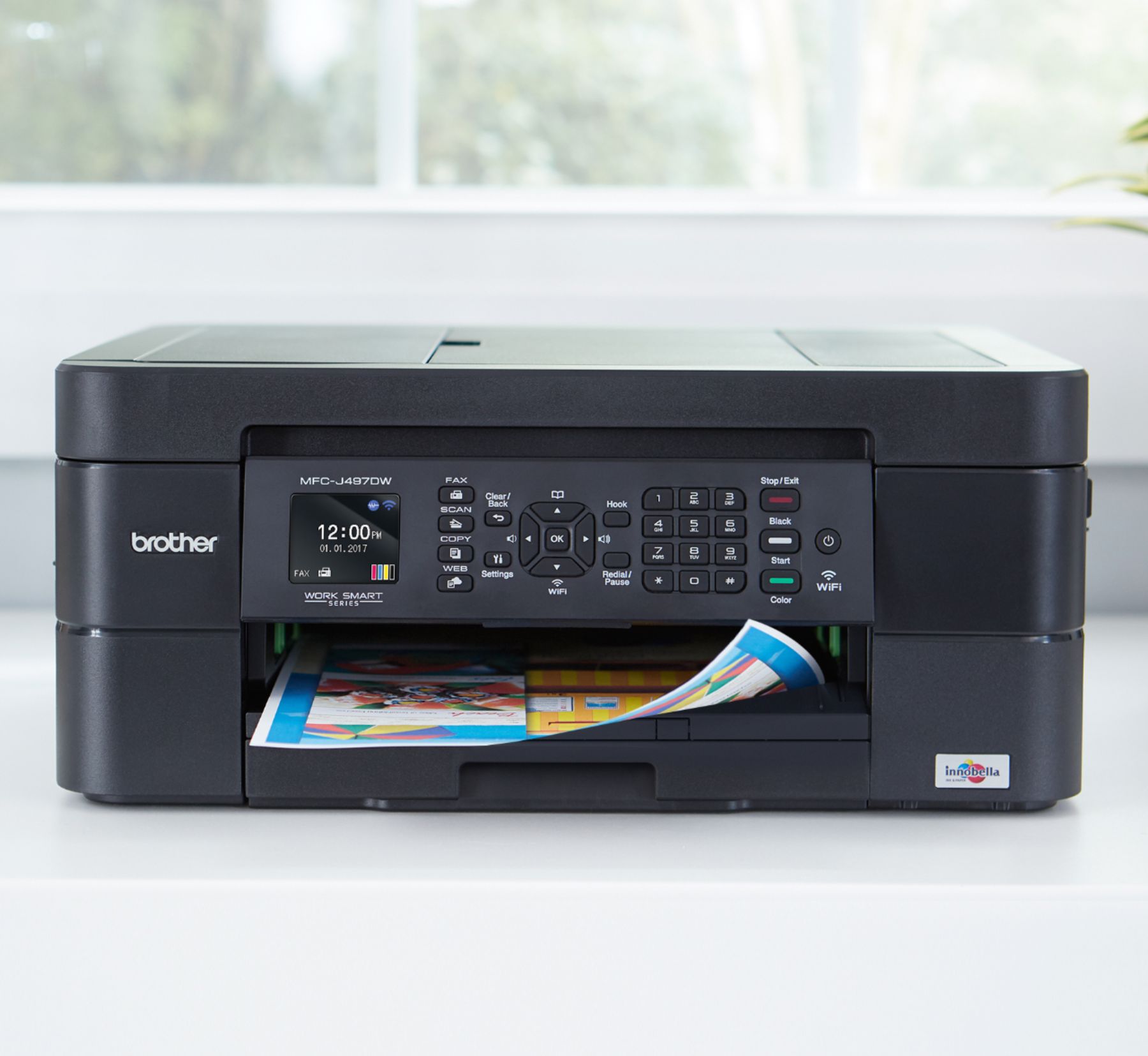
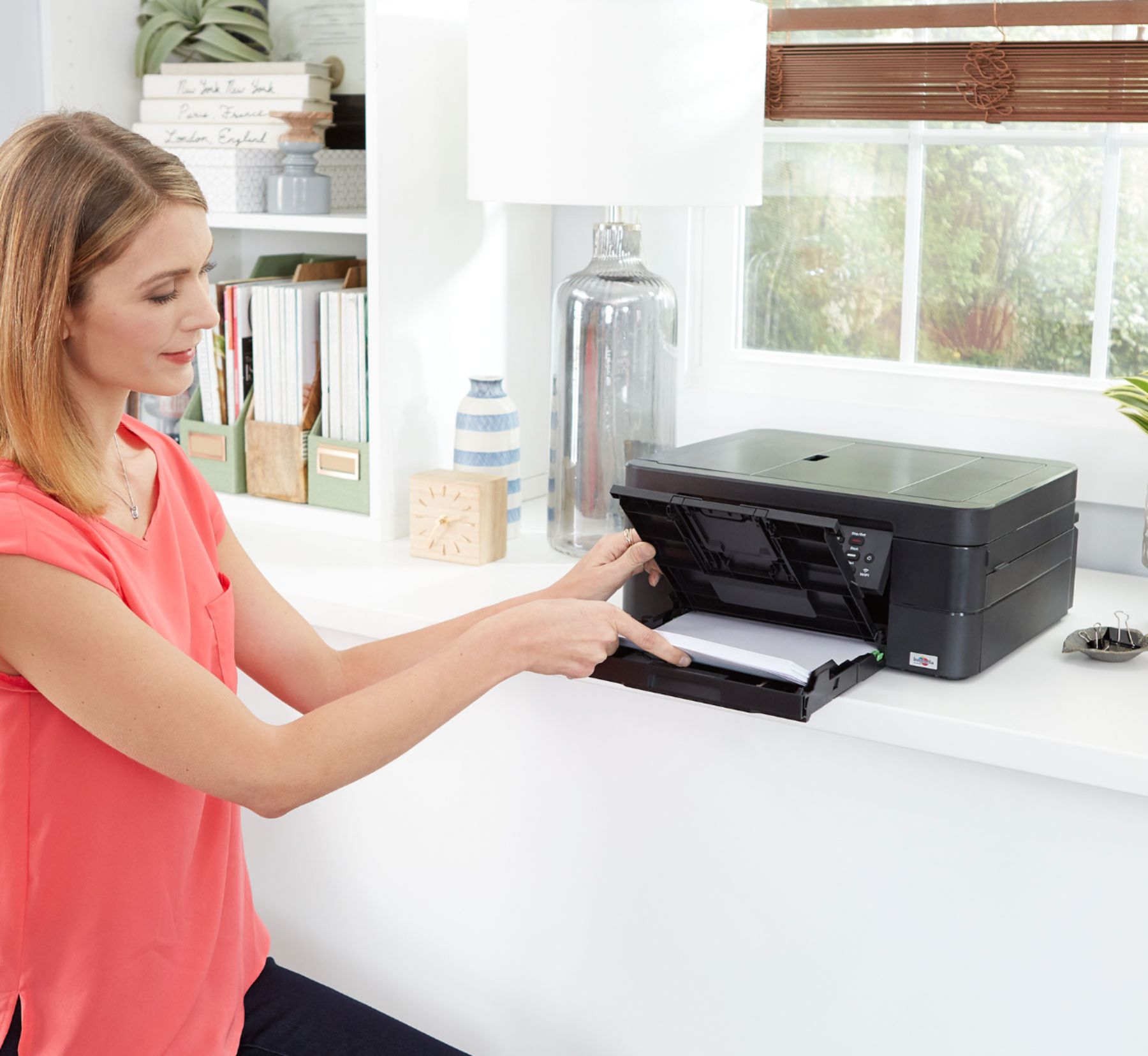
A:AnswerI would not recommend using labels in this printer. The paper path involves the printed media following a 180 turn inside the printer. I would be concerned about the edge of the labels lifting up as the sheet makes this 180 degree turn.
A printer that has the media supply on one side and the output tray on the other side is probably a safer bet since the printed media doesn't have to make that 180 degree turn inside the machine. The downside of these types of printers is that they generally take more desk real estate.
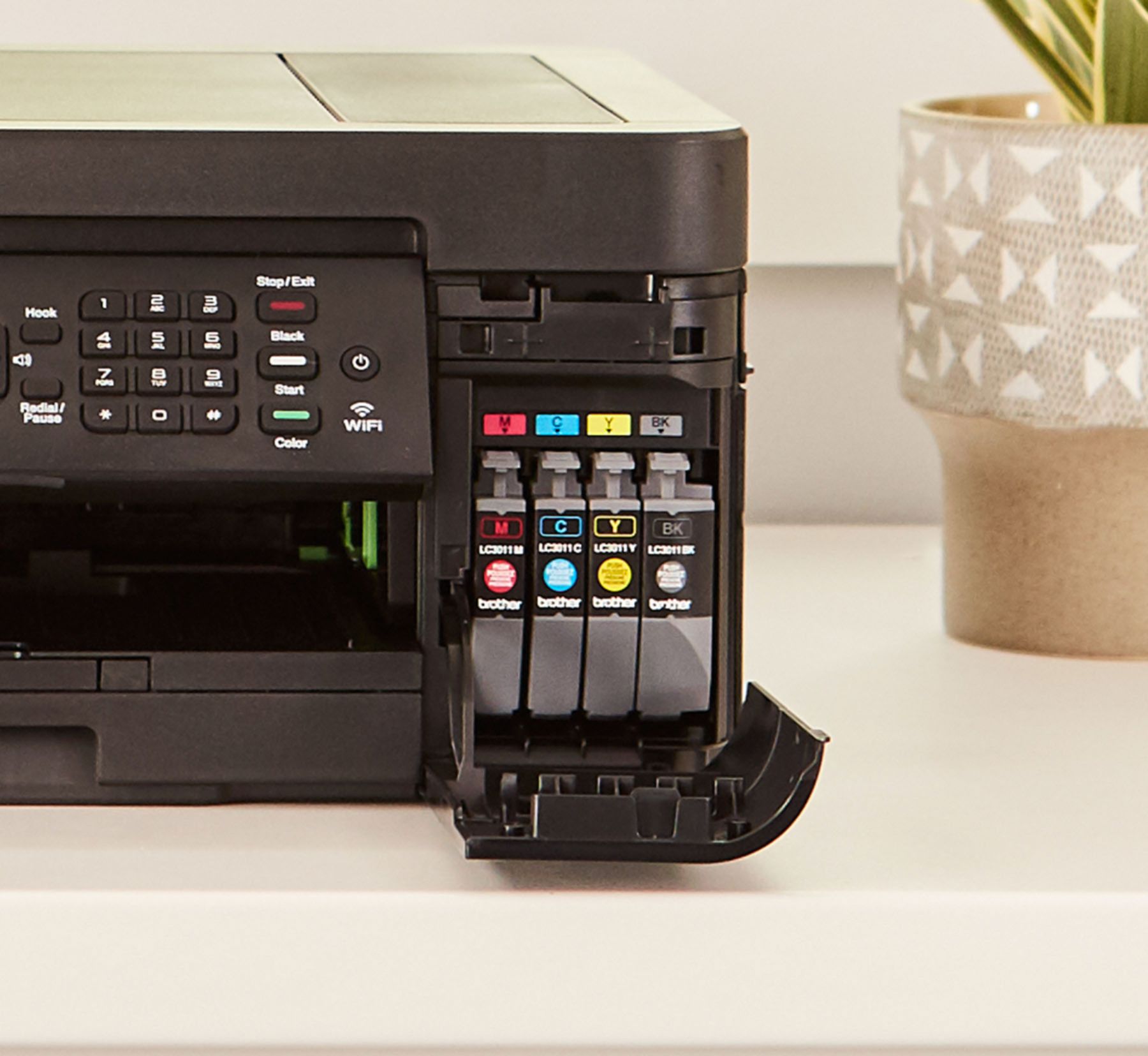
A:AnswerHere's a link to explain why the color ink cartridges run out of ink even though you never or rarely print in color.
https://support.brother.com/g/b/faqend.aspx?c=us&lang=en&prod=mfcj497dw_us_eu&faqid=faq00000038_009
A:AnswerWe don't currently offer Google Chrome OS-compatible printer or scanner drivers. However, you may print to your machine using the Google Cloud printing feature. Refer to how to "Register and Print using Google Cloud Print", for your model.
We don't offer support for scanning to your Chrome OS device or Chromebook.
A:AnswerThe Brother MFC-J497DW can print Photo sizes 4" x 6" and 5" x 7". Here is a FAQ that may help. https://help.brother-usa.com/app/answers/detail/a_id/149554?R3ModelID=MFCJ497DW
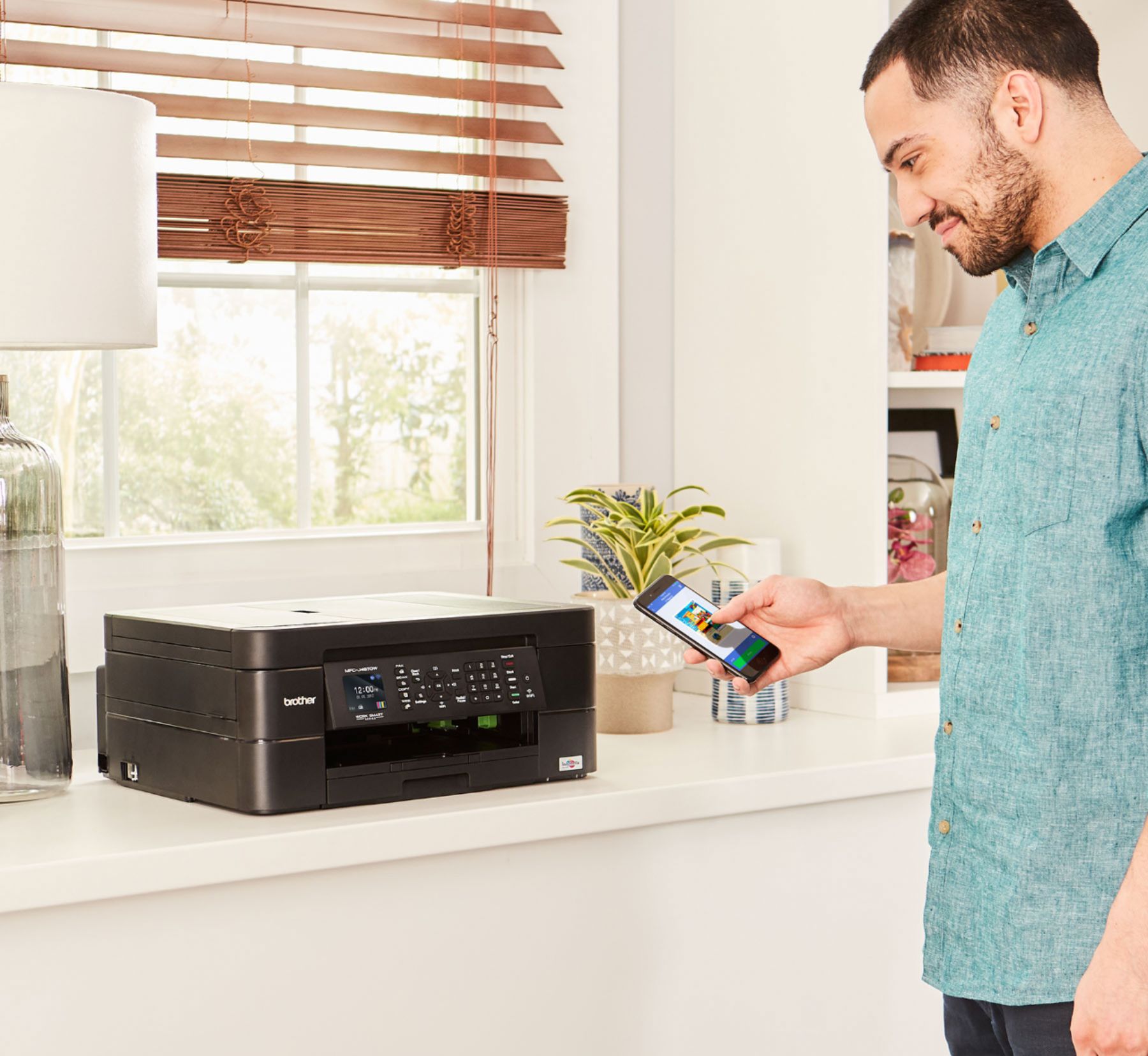
A:AnswerWhen I first tried scanning and faxing, I used the keys on the machine and nothing worked (it's kinda of trap). Then I tried using the Brother App, which I downloaded to my iPhone and iPad. Haven't tried faxing, but I have used the scanner several times. And you could scan and e-mail if that's acceptable to the receipent.
A:AnswerNo, it won't. The machine is made with very flimsy plastic parts. I've been trying to print Avery labels and it feeds the sheet in about 2 inches and tells me I have a paper jam. There is no jam but the sheet won't feed any farther. I contacted Brother and was told that labels should not be printed on this machine and that doing so would void the warranty. Sure wish this info was included in the product description or on the box so I knew that before I bought it.
A:AnswerYes it is! You just have to connect the printer to your internet (simple to do with on screen instructions on the printer) and add the printer to Google Cloud Print.