A:AnswerYes, you can switch your Dell DC15250 laptop from Windows 11 Home in S Mode to the full Windows 11 Home version, and it’s free. How to Switch Out of S Mode (Step-by-Step)
Open Settings:
Click the Start menu → Settings (gear icon).
Go to Activation:
Navigate to System → Activation.
Find the “Switch to Windows 11 Home” Section:
Look for a link that says “Switch to Windows 11 Home”.
Click “Go to the Store” (important: don’t click “Upgrade your edition of Windows”).
Open Microsoft Store:
You’ll be taken to a page titled “Switch out of S mode”.
Click “Get”:
Press the Get button to confirm.
The switch will begin and usually completes in under a minute.
Done! You now have full Windows 11 Home.
Important Notes
One-way switch: Once you leave S Mode, you cannot go back. You cannot go back to S Mode just by changing a setting.
To go back to Windows 11 in S Mode, you would need to:
Reinstall Windows 11 Home in S Mode from scratch.
A:AnswerNo, Windows 11 Home in S Mode will not allow you to install or run Google Chrome directly. To Use Chrome: You must switch out of S Mode:
Go to Settings > System > Activation.
Click “Switch out of S Mode” via the Microsoft Store.
After switching, you can install Chrome from its official website.
Please be informed the operating should be reinstalled if you wish to go back to S mode.
A:AnswerUnless stated otherwise, you can get a free 30-day trial. There are also several subscription levels, including free, limited use of Word, Outlook and PowerPoint. Or you can get one of the free, compatible office suites.
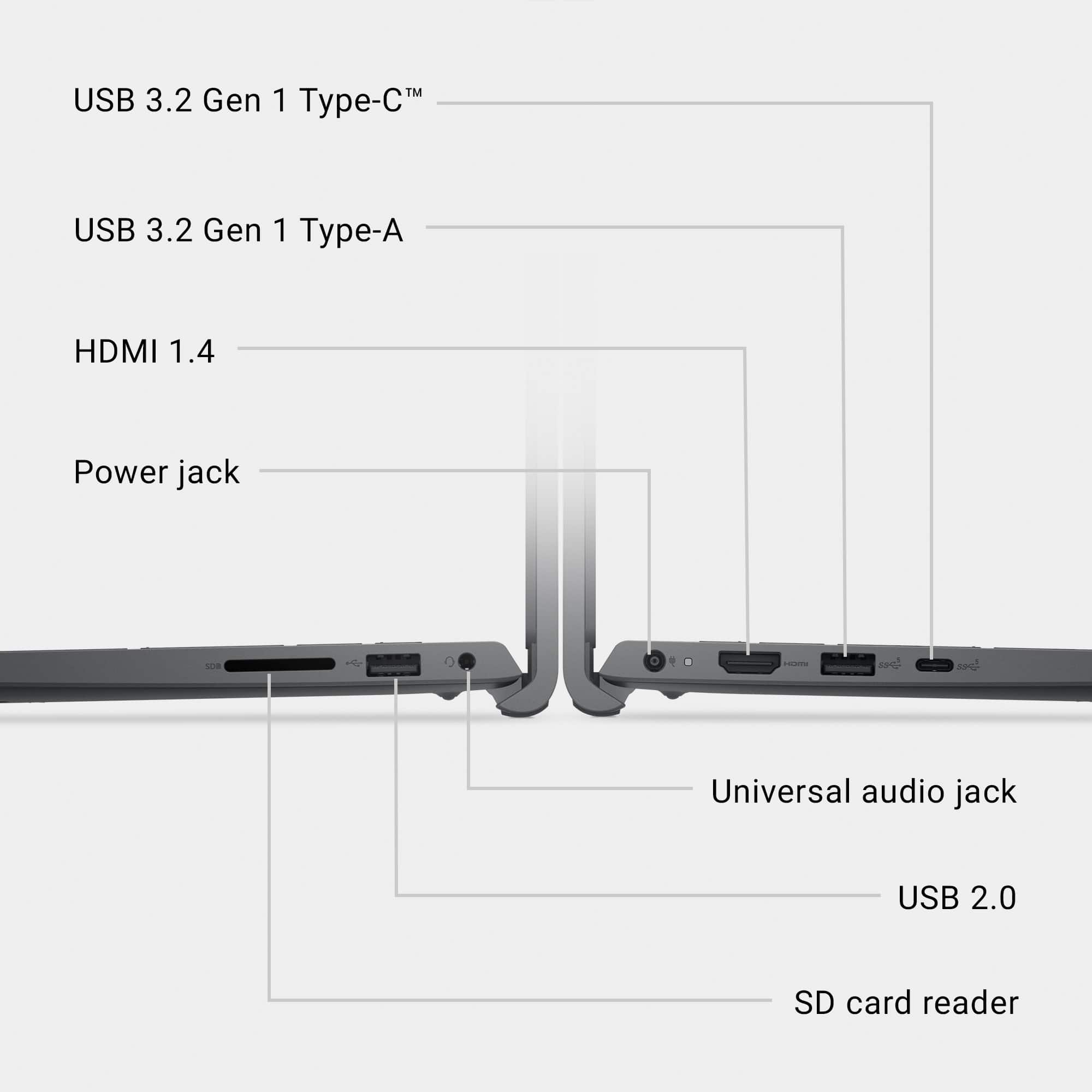
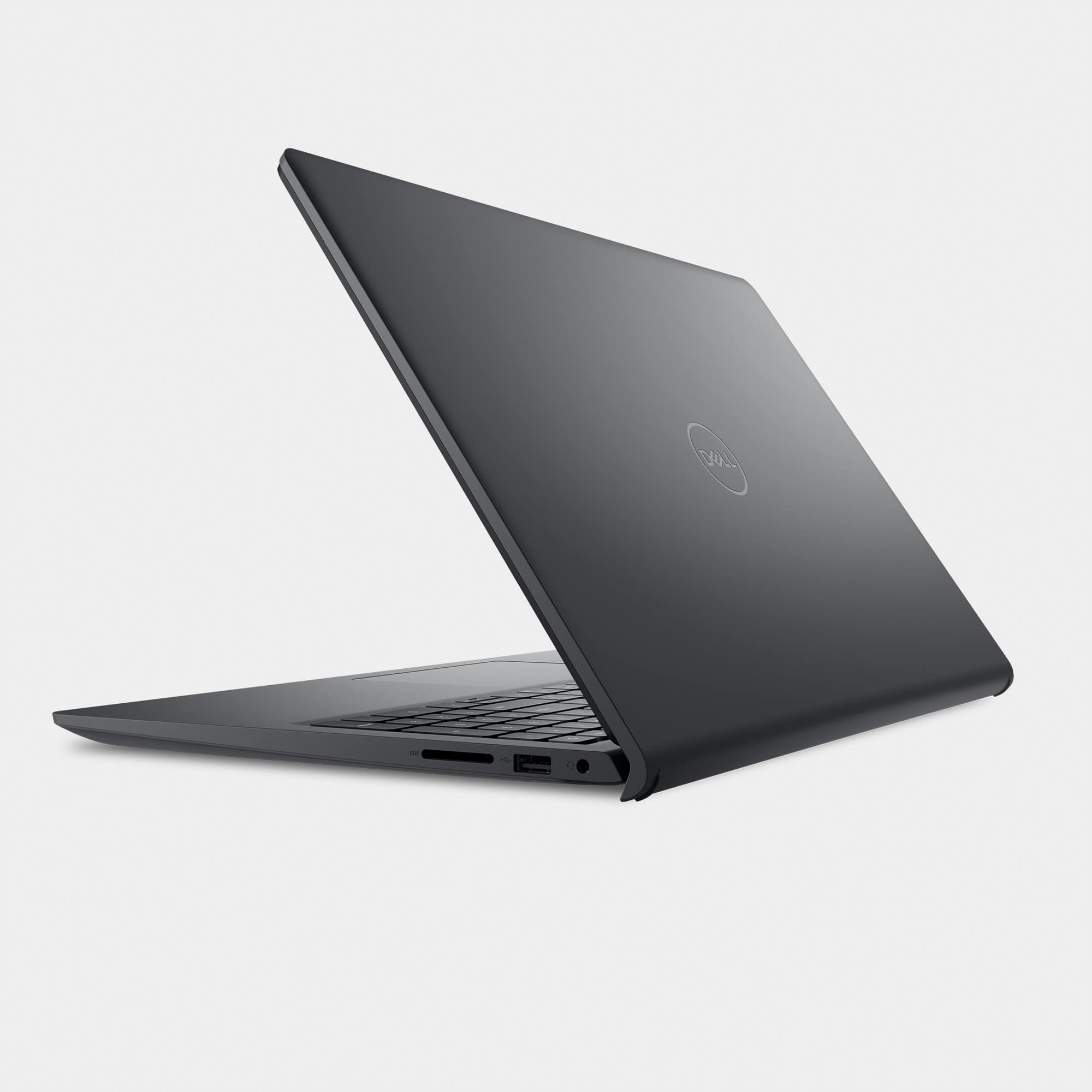
A:AnswerYou will need a USB-to-Ethernet port adapter. Laptop manufacturers are trending to omit the Ethernet port, especially on lower priced models. This allows them to save some space and weight, as well as to lower prices. The exception is usually laptops aimed at business or gaming.
A:AnswerWindows 11 S mode restricts you to installing apps from any site other than the Microsoft Store. Removing the S mode will give you the ability to install apps from any source.
A:AnswerYou can use either: USB-C to Ethernet adapter (recommended for fastest speeds, up to 1Gbps or more). USB-A to Ethernet adapter (works fine but usually limited to 1Gbps).
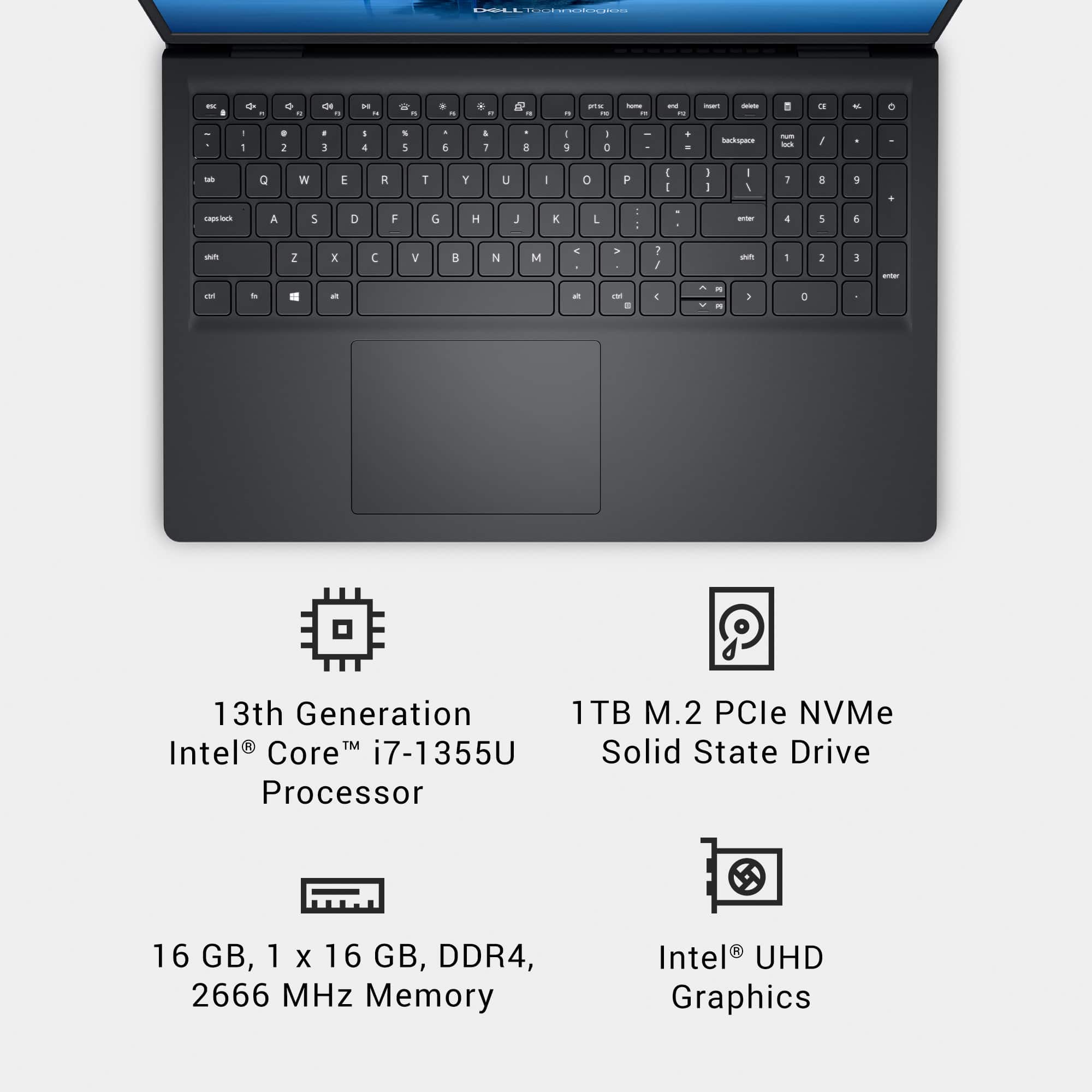
A:AnswerThe laptop is neither dual-core nor quad-core, it’s a 10-core processor with a hybrid architecture:
2 Performance cores (P-cores).
8 Efficiency cores (E-cores).
12 threads total (thanks to Hyper-Threading on P-cores).
So, it’s significantly more powerful than a traditional dual-core or quad-core CPU.
A:AnswerYes, your Dell WD19S 180W Docking Station is compatible with the Dell DC15250 laptop. The WD19S provides up to 130W of power delivery and also includes an Ethernet port and connect two external monitors via two external monitors via:
2 × DisplayPort,
1 × HDMI,
1 × USB-C with DisplayPort Alt Mode.
A:AnswerS mode is a Windows feature that runs only apps from the Microsoft Store and uses Microsoft Edge for browsing, providing better security and performance.