A:AnswerI label the pictures by putting names, dates and information on the back side of the photos and then go to settings and have the front and back scanned
A:AnswerHi cjantz, Make sure the "Prompt me to describe each batch of photos before scanning" In the FastFoto software when you scan photos with your FF-680 and you will be prompted during scanning to add a subject and date to your photos, You can also create a subfolder to separate groups of photos. Regards, Mark - The Epson Team.
A:AnswerHello JRMc. If there is an error once the photo is scanned on the FF-680W, you will have to make the changes within the Windows File Manager or macOS finder. If there are many files that need to be renamed or updated, it sometimes could be easier to start over and re-scan your images with the correct label title. Regards, Kevin - The Epson Team.
A:AnswerHi Raymond, The one-year manufacturer's warranty is covered by Epson. If you have issues or questions about the FastFoto FF-6780W, contact Epson support. Contact information is included in the box with the scanner, and is also available on our support site. Regards, Mark - The Epson Team.
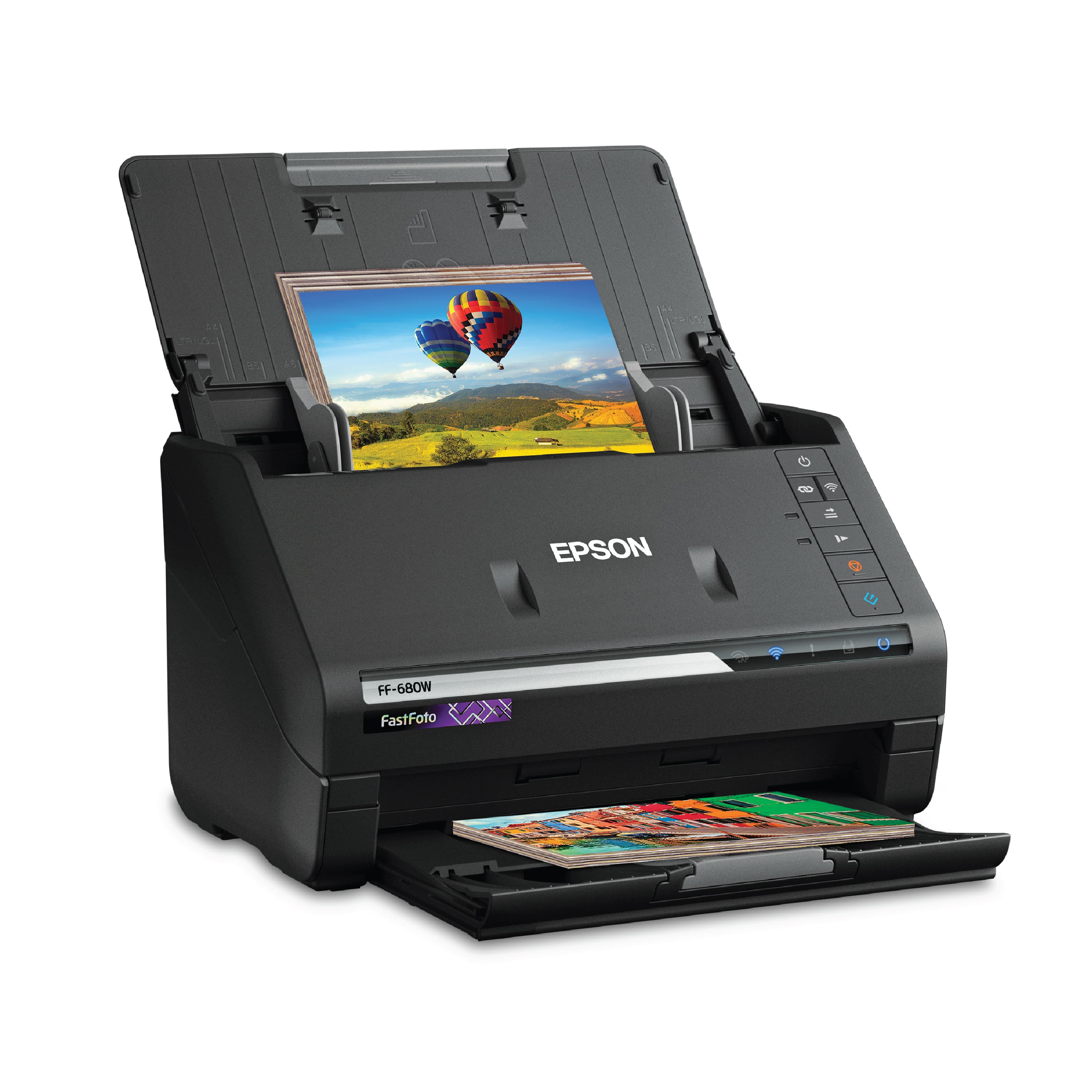
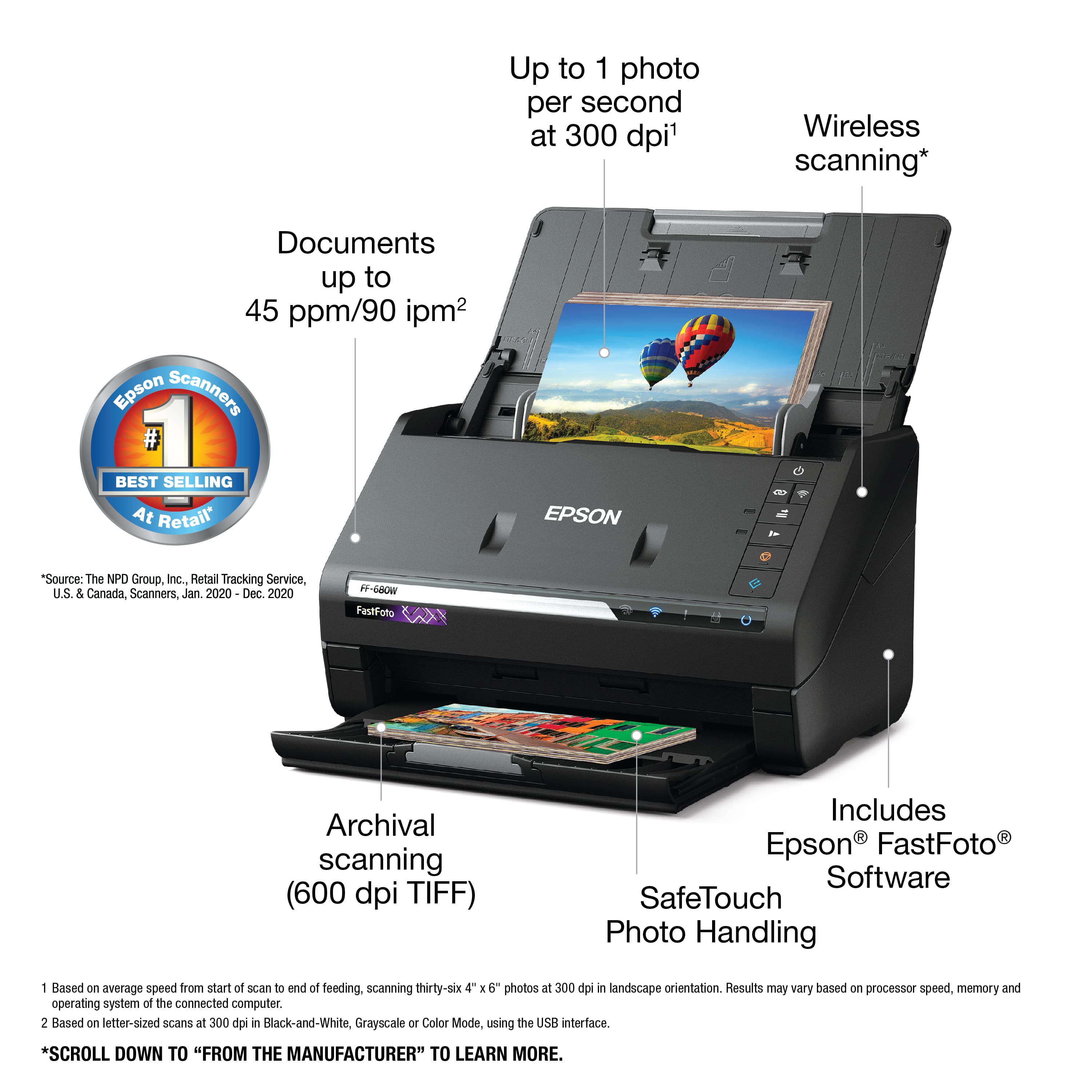
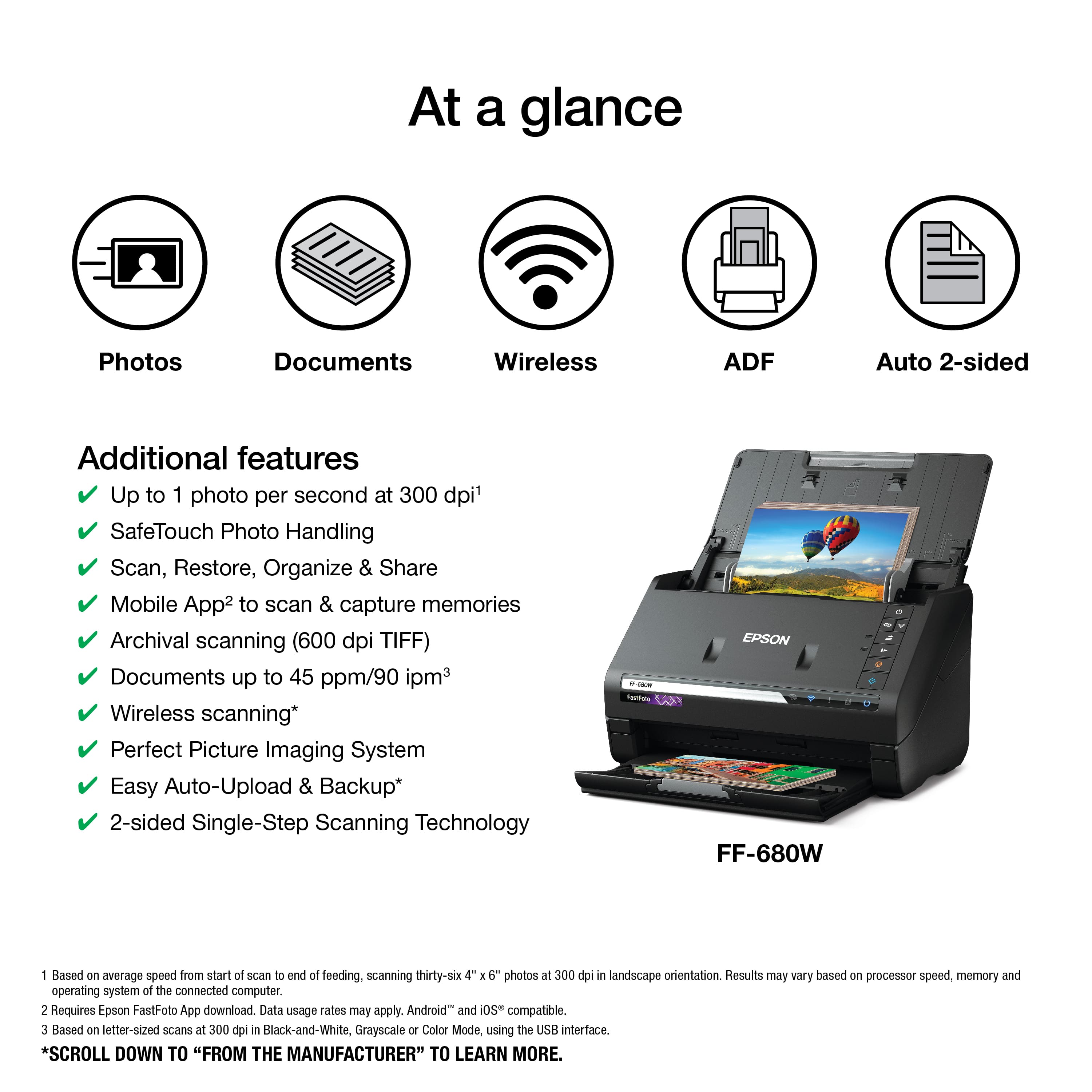
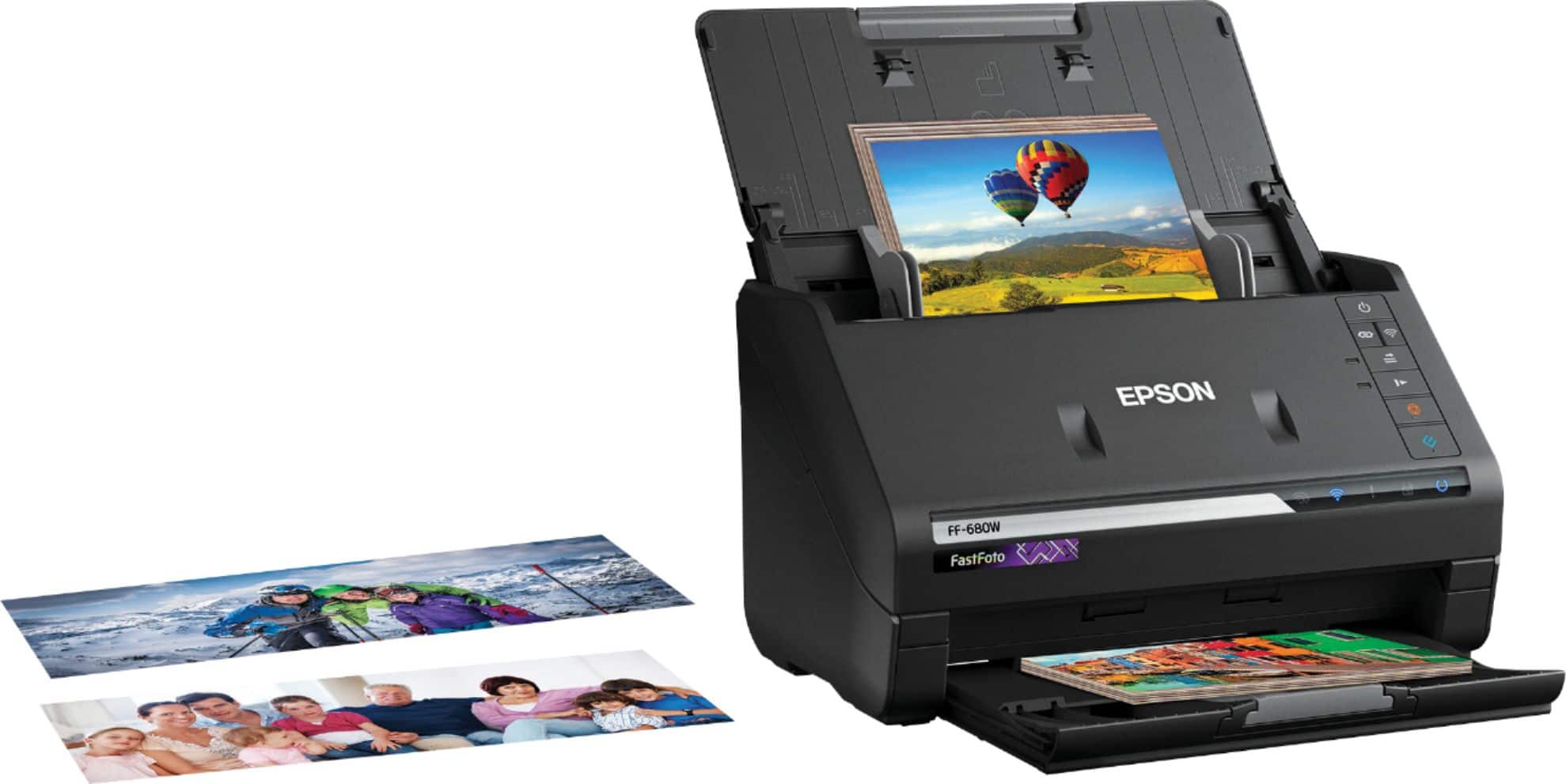
A:AnswerHello Photogeek. The FF-680W is a wireless photo scanner that can be connected via Wi-Fi. When you scan your originals, you can save them to a computer. After saving your file to your computer, if you have a flash drive or a printer that can print on a CD, then yes, those options should be available. Regards, Kevin - The Epson Team.
A:AnswerThere is the capability to scan jpg and pdf, but if the receipts are super small you will have to use the plastic protector to scan in receipts. It is really over kill for receipts. It is a phenomenal scanner for pictures. It has it's own built in software.
A:AnswerHello mikeshep. We would like to gather more info on the FastFoto software issue you are experiencing. Please visit our official Epson Support page to contact our Technical Support team for additional assistance. Regards, Kevin - The Epson Team.
A:AnswerHello Deb. The FastFoto FF-680W is designed for Photo scanning. Unfortunately, we have not tested saving scanned receipts to QuickBooks. For more information, please visit our official Epson Support page. Regards, Kevin - The Epson Team
A:AnswerHi boomer. Yes, you can customize the filename for saved scans in both the Epson FastFoto Standalone Utility and Epson Scan 2 apps. For more information, visit the official Epson Support website. Regards, Bobby - The Epson Team.
A:AnswerYes, it was out of stock for a while but it suddenly became available at Best Buy. Keep checking... it is worth it. You can also check on the Epson.com site for this model and it will show who carries it. Good luck.
A:AnswerI have an iMac - macOS Catalina version 10.15.7 and it works with mine. However, I'm not sure if it only works with newer iMac's or all iMac's.
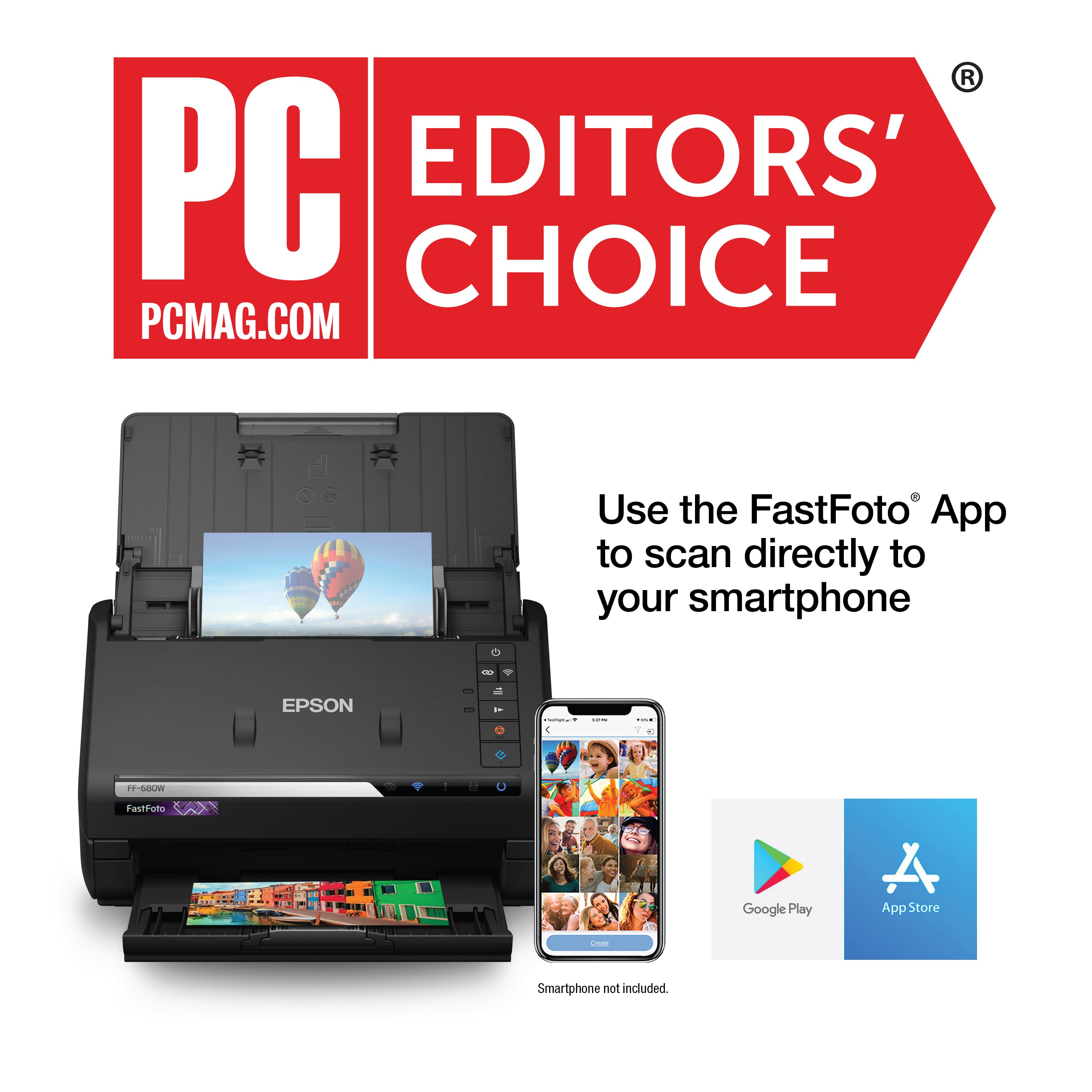
A:AnswerWhen downloading the software to set up the scanner it added two applications. Epson FastFoto and Epson ScanSmart. The ScanSmart application is what you would use to scan a document.
A:AnswerYes you can use with a Mac. WE have it running on MACOS Mojave and MACOS Sierra and it works great.
It probably works on Big Sur, but we're not yet transitioning to that release.
It is also supposed to work with PC, which, based on the ease of setup with the Macs, we believe should work as well.
Hope this helps.