A:AnswerNot "Thread Compatible" at the moment, this will remain a thing for the Future if Eufy makes the move via firmware update or by Thread Integration backsupport.
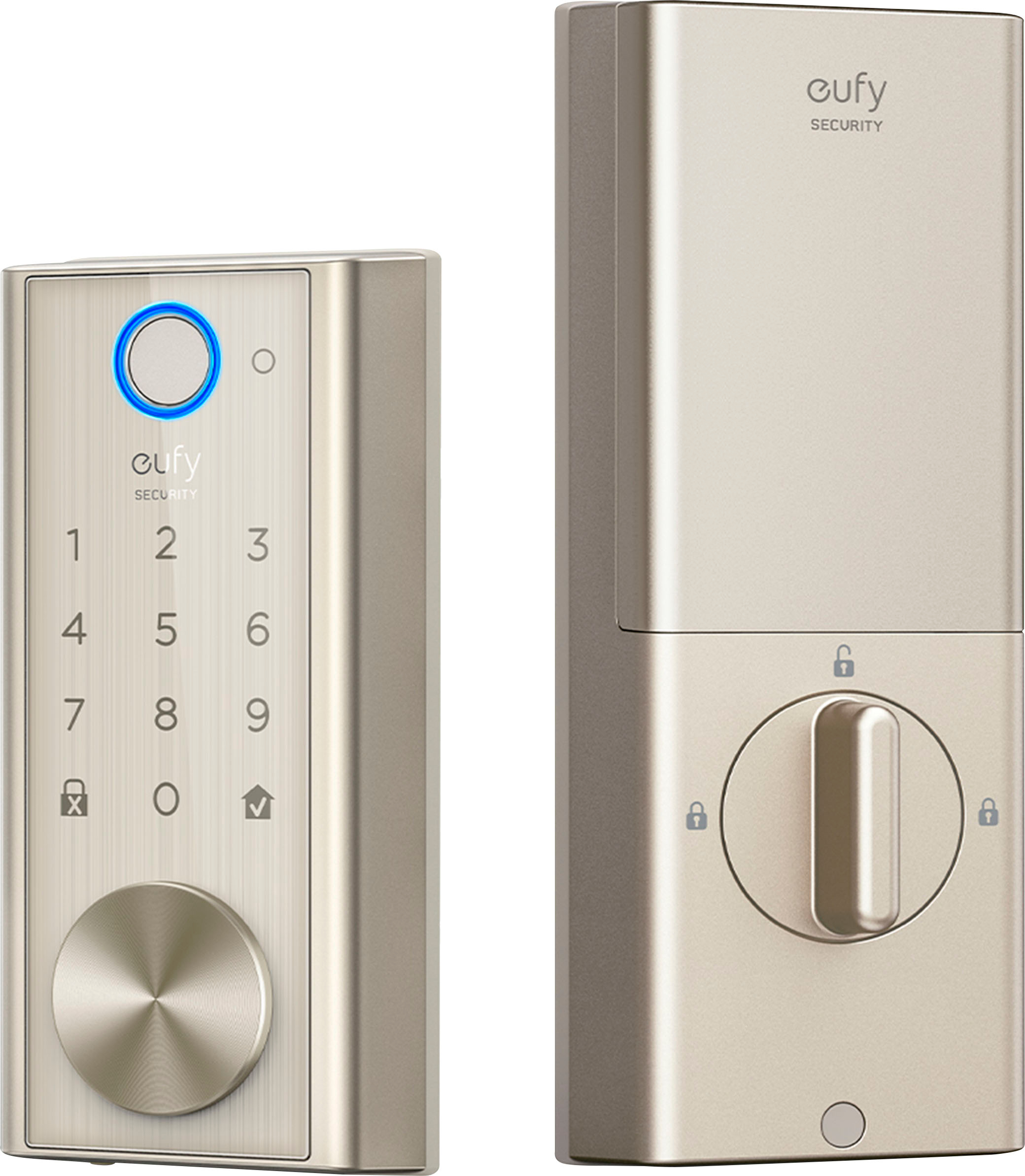
A:AnswerNo, there is no key code on the box. My understanding is that you cannot even purchase a key -- but, when you think about it, even if you have multiple locks, the chances of actually using a key vs. fingerprint or keypad are slim to none, in my opinion.
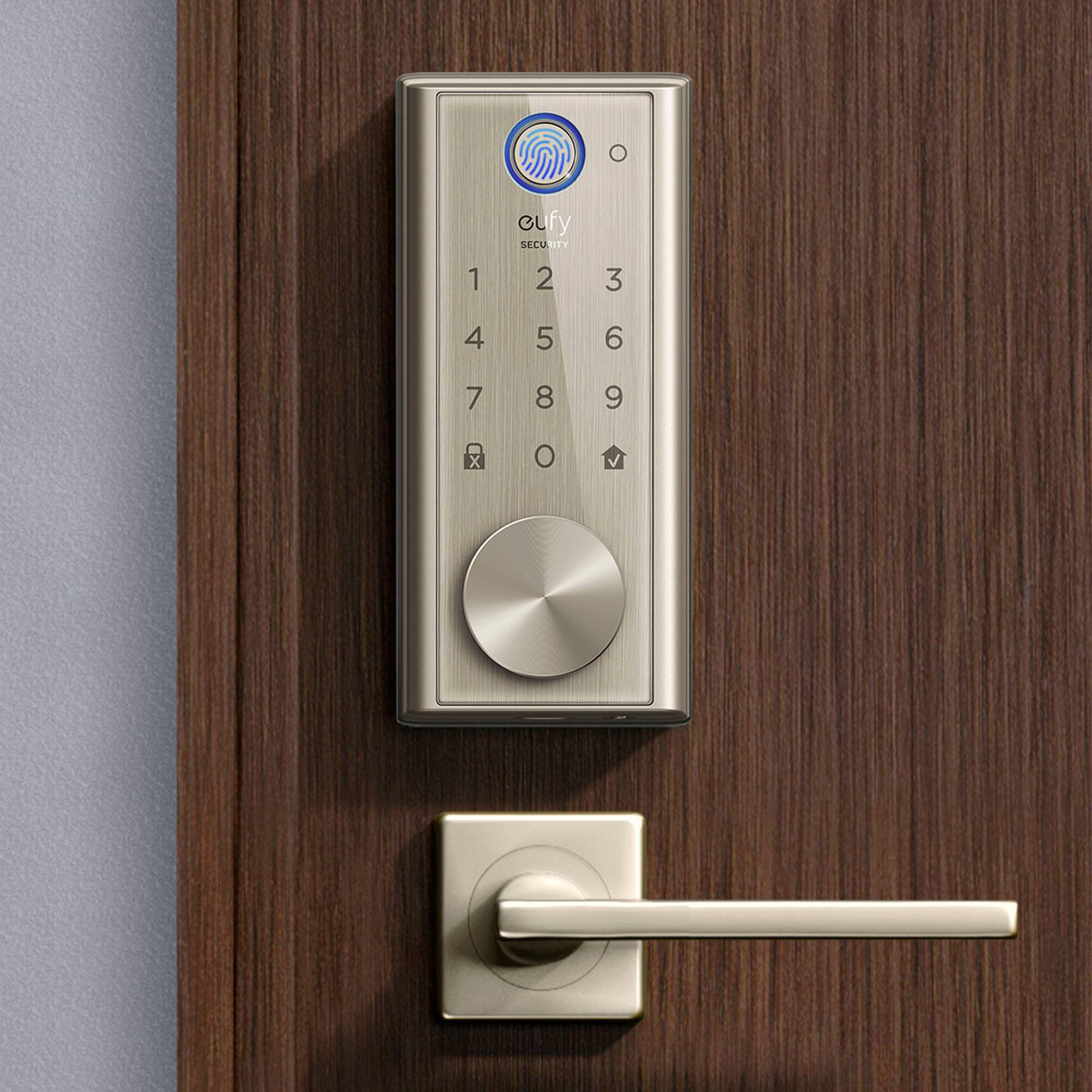
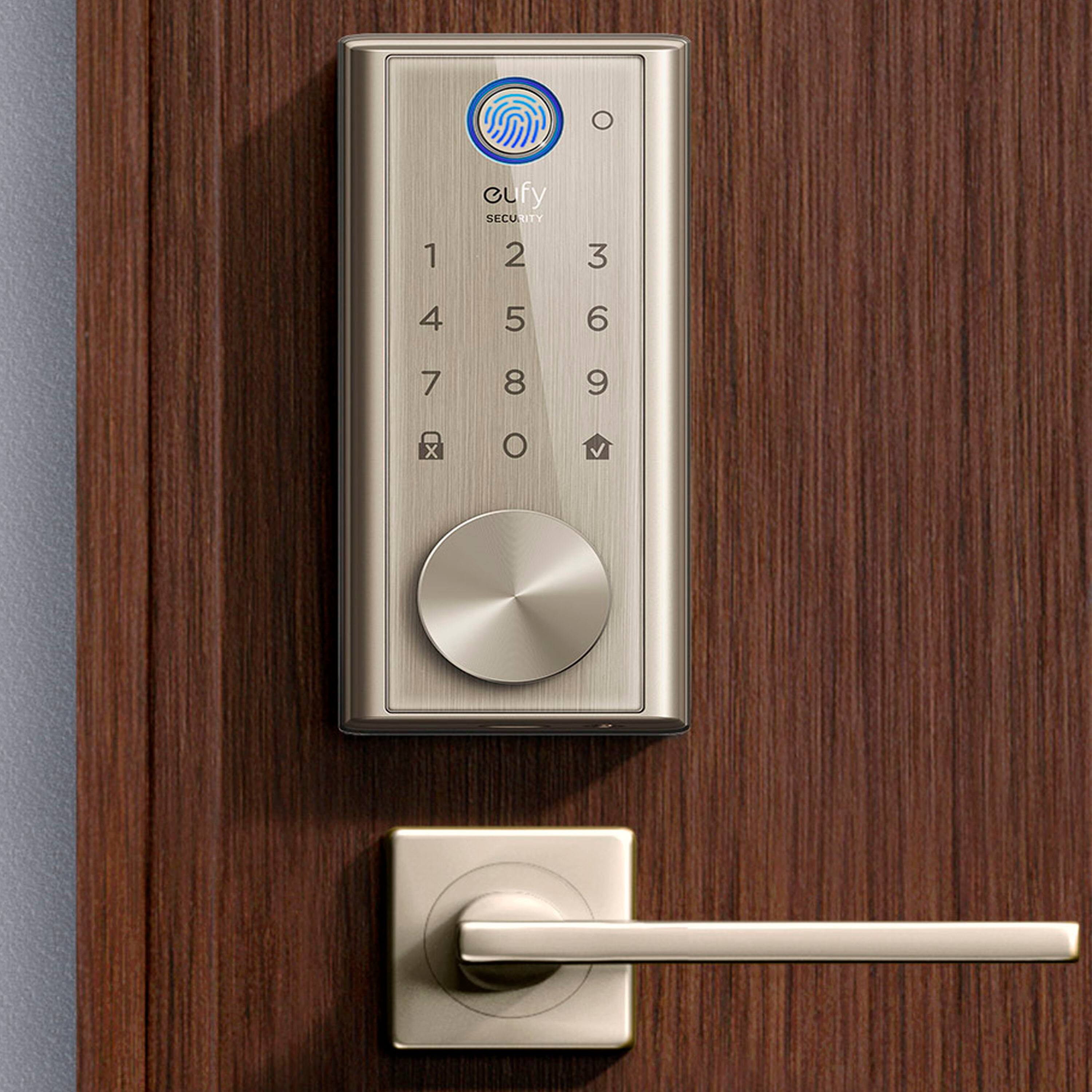
A:AnswerYes, you can use the keypad to unlock, but the interior part of the door is a turn knob to get out. You could unlock from the inside using your phone, but if you're standing right there at the door, you might as well just turn the knob to get out. The app has a "drag" button that you can lock and unlock the door from inside or outside, and a chime sounds when those instructions are completed.
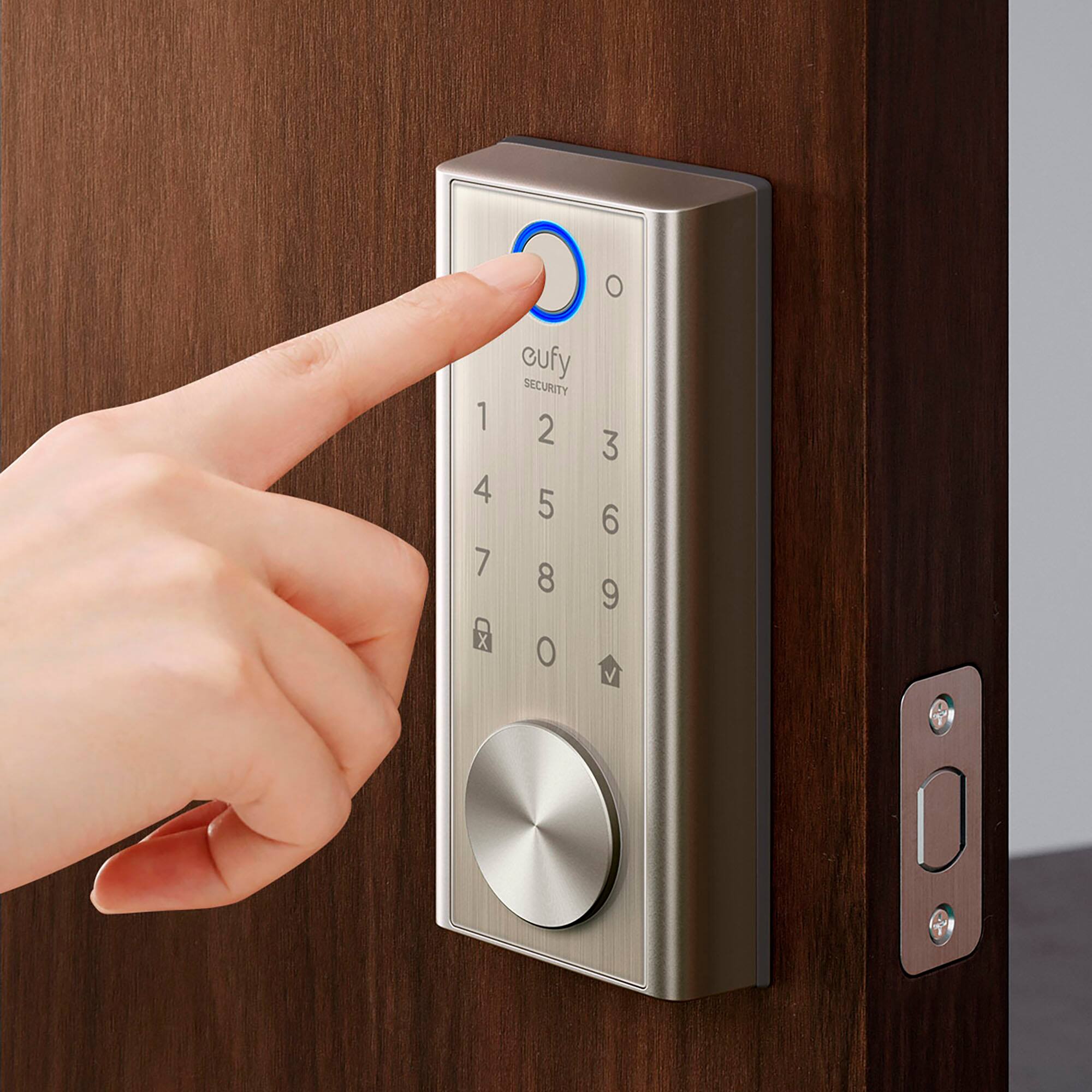
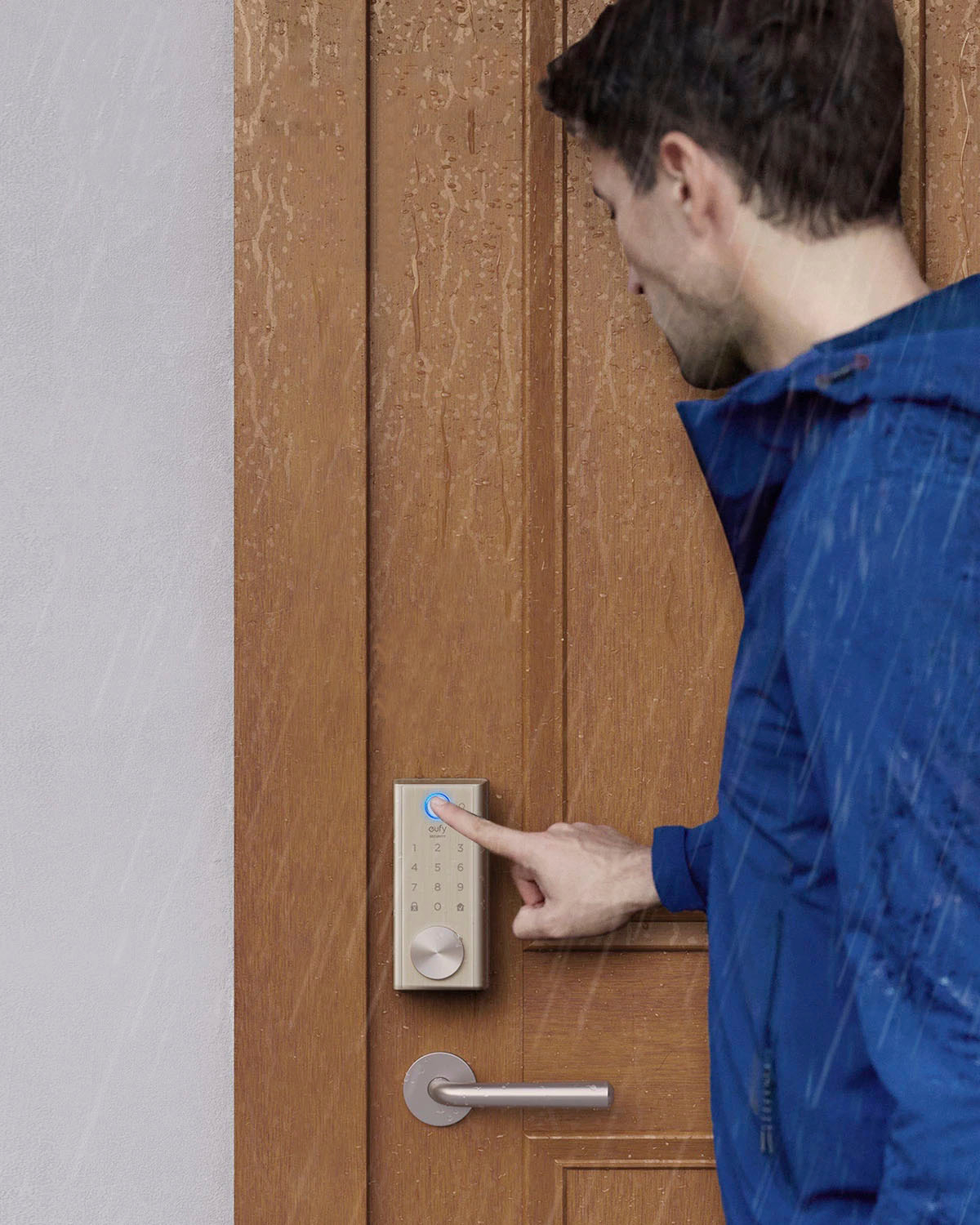
A:AnswerYou can setup multiple or sure. I forget how many exactly, but I know it was more than I'd need. I want to say like 100 I think? We have separate ones setup for all 4 people in our family. You can add multiple fingerprints per user as well. I haven't tried to add more to see how many (and it doesn't say) but it does allow you to add multiple.
A:Answer5 physical keys, and there is no way you will be able to get more made at a hardware store!!! Not sure if there is a way for Eufy to reference your S/N and get more that would work???
A:AnswerI was able to connect using the 2.4 band. The main different is that the non-Wi-fi cannot be unlock or lock remotely nor can be use with digital assistant like Google, and Alexa.
A:AnswerYes it does work with Alexa. However if you ask Alexa to unlock your door then that would require you to set a pin number with Alexa for security reasons. I decided against that because I don’t want my nearby neighbors to hear me shout the numbers aloud. I instead tell Alexa to lock my door and it works perfectly.