A:AnswerThanks for asking, jello. If you have a system with a dedicated fan wire, you can manually turn on the fan with the app or your thermostat, or set a fan schedule — here’s how:
1. Open the Google Home app.
2. Tap Home > All devices, then touch and hold your device's tile.
3. Tap Fan.
4. Choose how long you'd like your fan to run.
5. Tap Run fan to run your fan or tap outside the sheet to cancel.
6. The fan automatically turns off after the set time. To manually turn off the fan, tap Fan > End fan.
Here’s a link with more information: https://support.google.com/googlenest/answer/9296419
We’re available 24/7 here: https://support.google.com/googlenest/gethelp
A:AnswerGreat question, Steve. Yes, the Nest Thermostat is Matter enabled which allows more compatibility. Check out this article for more details: https://support.google.com/googlenest/answer/12391458?hl=en
A:AnswerHi there, Key. Sorry you’re having problems with powering your Nest Thermostat — we know it can be frustrating. A “No power” alert can be caused by the following:
1. Incorrect Wiring: The thermostat wiring may be faulty.
2. Missing Common Wire (C-wire): Your system (including some heat-only, cool-only, zone-controlled, and heat pump systems) needs a C wire or a Nest Power Connector, which is not currently connected.
3. Power Disruption: Check if the HVAC system is turned off at the circuit breaker, fuse box, or system switch, or if there is a power outage.
4. Other HVAC System Issues: There might be another problem with your HVAC system preventing it from supplying power to the thermostat wires.
Here’s a link with more information: https://support.google.com/googlenest/answer/10191637?hl=en#zippy=
If these steps still don’t resolve the problem, we’re here to help 24/7: https://support.google.com/googlenest/gethelp?
A:AnswerThanks for asking. This Nest Thermostat is the 1st generation of this iteration. Here’s a link to help identify each thermostat: https://support.google.com/googlenest/answer/9246551?hl=en
A:AnswerGreat question, jay. The Nest Thermostat is compatible with a wide range of systems. Our recommendation is to use this compatibility checker to make sure you’re getting the best fit: https://store.google.com/intl/en/widget/compatibility/thermostat/
A:AnswerHi there, Phil. This Nest Thermostat is the 1st generation of this iteration and is not one of our learning thermostats. For more insight on each device, here’s a link: https://support.google.com/googlenest/answer/9246551?hl=en
A:AnswerThanks for asking. No, this Nest Thermostat is not losing support in October 2025. Contact our support team for personalized assistance if you have any additional questions: https://support.google.com/googlenest/gethelp
A:AnswerThanks for asking, Shay. This Nest Thermostat is the 1st generation of this iteration. Here’s a link to help identify each thermostat: https://support.google.com/googlenest/answer/9246551?hl=en
A:AnswerHey there, Jack. We will continue to support the Nest Thermostat as there are currently no plans to discontinue them. If you have any questions or concerns, don’t hesitate to reach out to us here: https://support.google.com/googlenest/gethelp?
A:AnswerThanks for asking. This Nest Thermostat is the 1st generation of this iteration. Here’s a link to help identify each thermostat: https://support.google.com/googlenest/answer/9246551?hl=en
A:AnswerThanks for the inquiry, Pro. The Nest Thermostat works with a variety of systems and the best way to determine if this works for your set up is by using our compatibility checker: https://store.google.com/intl/en/widget/compatibility/thermostat/
A:AnswerHey there, Kaye. Sorry to hear you’re having problems with Nest Thermostat running your fan constantly. This could mean there is something happening with your wire in the thermostat’s G terminal as this is where fan control happens — we’d like to investigate and see what may be causing this. We’re ready to help 24/7: https://support.google.com/googlenest/gethelp?
A:AnswerHi there, JohnM. This Nest Thermostat is the 1st generation of this iteration. Here’s a link to help identify each thermostat: https://support.google.com/googlenest/answer/9246551?hl=en
Regarding continued support:
If you have questions or concerns about this, get answers in our Thermostat help center, or ask other Thermostat owners in the Google Nest Community. Contact our support team for personalized assistance if online resources don't resolve your issue: https://support.google.com/googlenest/gethelp
A:AnswerThanks for asking, AndyC. The Nest Thermostat works with a wide variety of systems. To make sure you are getting the best fit, here’s a link to our compatibility checker: https://store.google.com/intl/en/widget/compatibility/thermostat/
A:AnswerHey there. There’s a few factors to look into regarding specific wiring on the Nest Thermostat. Here’s a link to our compatibility check to ensure you’re getting the best fit: https://store.google.com/intl/en/widget/compatibility/thermostat/
Don’t hesitate to reach out if you need an extra hand: https://support.google.com/googlenest/gethelp?
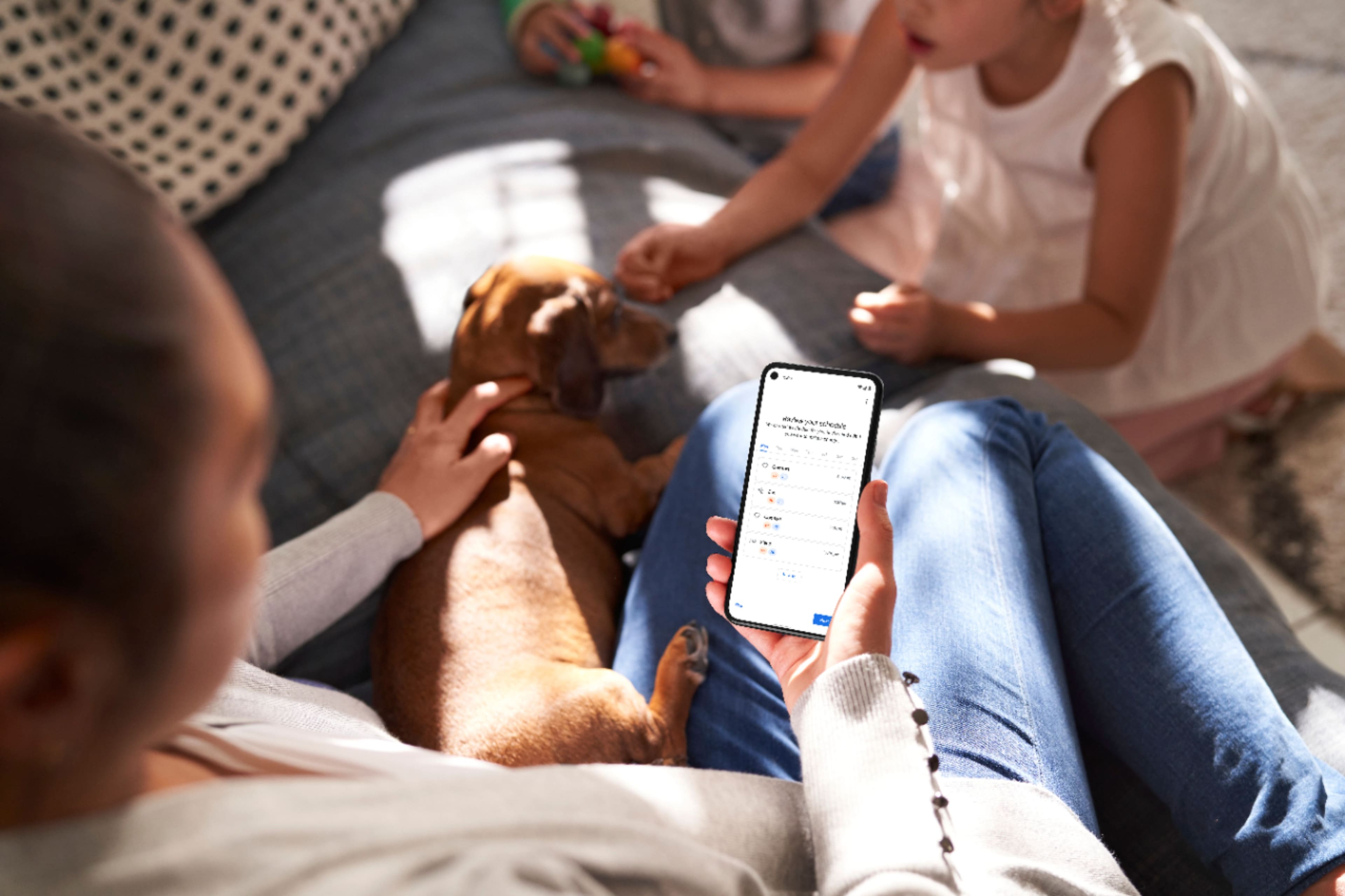
A:AnswerGreat question, FloridaBreeze. You control the Nest Thermostat using the Google Home app which houses all of your smart devices in one place. Here’s a link with more details and features of the app: https://support.google.com/googlenest/answer/7071794
A:AnswerHey there, Mike. Here’s the steps to install the Nest Programmable Thermostat:
1. Get your tools ready
2. Download the Google Home app
3. Scan the QR code to add the thermostat in your home
4. Steps to install your thermostat
5. Set up your thermostat
6. Configure your thermostat
Here’s a link with more details for each step: https://support.google.com/googlenest/answer/10125150?sjid=6353584055756625057-NC#zippy=
A:AnswerThanks for reaching out, mimi11. We’d be happy to provide some steps to get your Nest Programmable Thermostat back up and running.
To change or configure the Wi-Fi network:
1. Open the Google Home app.
2. Select your thermostat.
3. Go to 'Settings'.
4. Select 'Device information'.
5. Select 'Wifi'.
Reach out to us anytime at this link: https://support.google.com/googlenest/gethelp?hl=en
A:AnswerHi, Rick. Great question. No, the Nest Programmable Thermostat doesn't display the outside temperature. The farsight feature is indeed exclusive to the 3rd generation Google Nest Learning Thermostat.
A:AnswerHi Raballi74. Yes, the Nest Learning Thermostat 4th Generation is compatible with the Apple Home app.
However, it's important to note that the integration is achieved through the Matter protocol, a universal standard for smart home devices. This means you'll need to ensure your HomeKit hub (like an Apple TV or HomePod) and the Nest Thermostat are both updated to the latest firmware to utilize this feature.
Once set up, you can control your thermostat, set schedules, and view temperature data directly from the Apple Home app.