A:AnswerYes, the support for multistage heating and cooling varies between Nest thermostat models.
Nest Thermostat E supports one stage of heating, one stage of cooling, and a second stage of either heating or cooling. You’ll need to manually set the (*)/OB connector as your second stage in the Equipment menu. Visit our support article for more info on multistage heating and cooling: https://support.google.com/googlenest/answer/9235693
A:AnswerYou can still use the Nest Thermostat to control your heat pump system without Wi-Fi. However, you won't be able to make use of its other features such as remotely controlling the thermostat using the Nest app.
A:AnswerYes, you can lock Nest Learning Thermostat and set a specific temperature range which they can only select from. They won´t be able to access the settings unless they have your 4-digit pin code.
A:AnswerGenerally speaking, Nest thermostats are compatible with zoned system panels. But some zone relay panels don't provide a Nest thermostat with enough power to charge its internal battery. In this case, a Nest thermostat needs a common (C) wire to provide power. You can try our Compatibility Checker to to have an idea if your system is compatible with Nest Thermostat E here: https://store.google.com/us/widget/compatibility/thermostat
We also recommend reaching out to a local Nest Pro for further inspection here: https://www.ontechsmartservices.com/pages/nest/
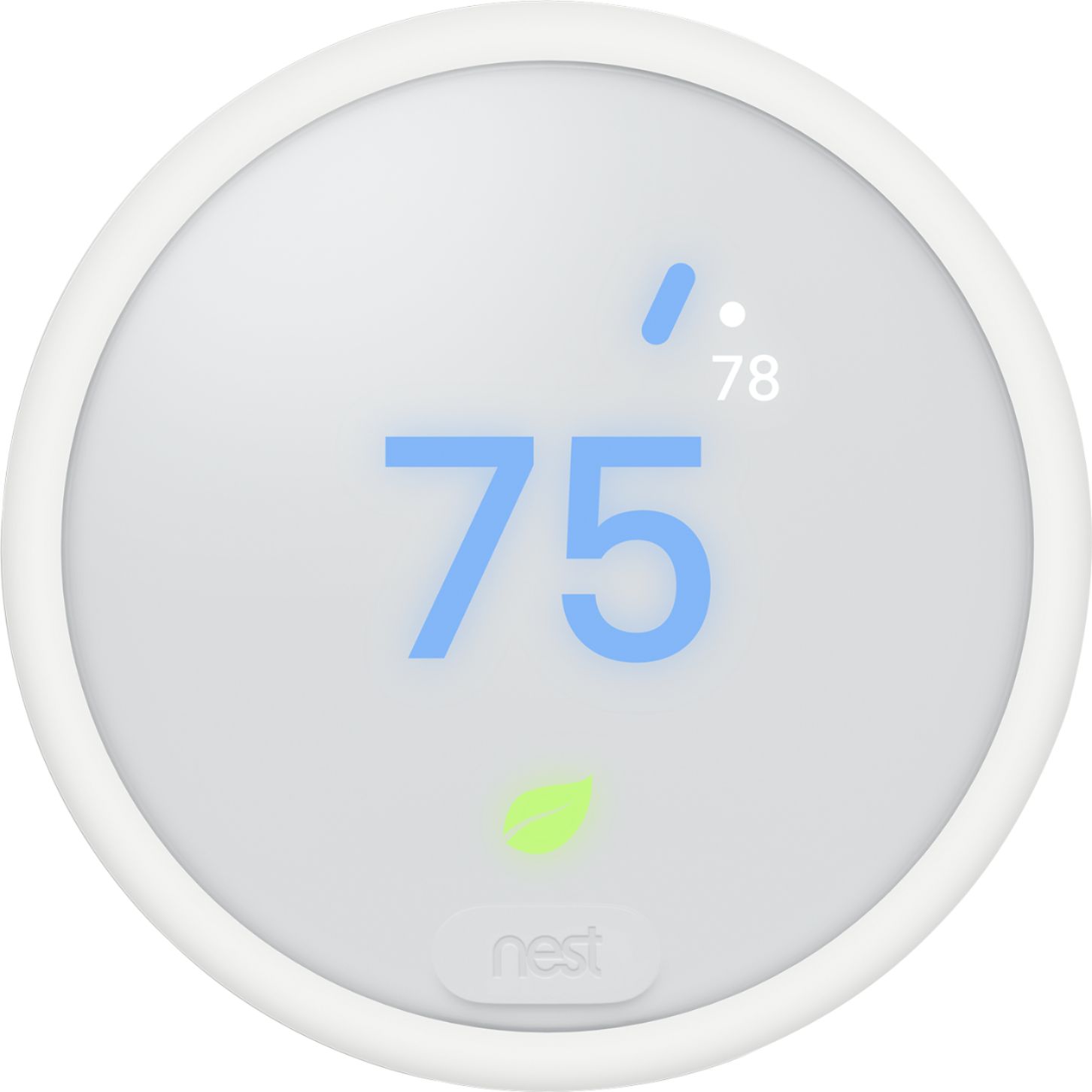
A:AnswerYes, Google Home with Google Assistant works well with Nest Thermostat E. Regarding holding the temperature, you can use the Heat-Cool mode to set a range that is as minimal as 3°F such as 75°F-78°F. Nest Thermostat E will turn on heating or cooling to hold the temperature within that range. You can speak to Google Assistant to switch the temperature mode and set a range.
A:AnswerNo, Nest Thermostat E doesn't switch between heating and cooling to keep the temperature at 74°F. However, the Heat-Cool mode of Nest Thermostat E allows you to set a range as little as 3 degrees, and it will either heat or cool to keep your home within the temperature range. Heat-Cool mode is useful for climates that consistently require both heating and cooling in the same day.
A:AnswerNo, mini split AC Systems are not compatible with Nest Thermostat E. You can find more info on compatibility here: https://support.google.com/googlenest/answer/9246656
A:AnswerNest thermostats don't alert you for temperature changes unless the temperature in your home goes outside the safety temperatures you set. But you can always monitor the temperature in your home in the Nest app from anywhere with ease. With the Heat - Cool mode, you can set a temperature range and Nest Thermostat E will heat or cool to keep the indoor temperature within the range. You can learn more about thermostat modes here: https://support.google.com/googlenest/answer/9247301
A:AnswerYou need to connect your Nest Thermostat E to your Wi-Fi if you'd like to use Nest app to control your thermostat remotely. A secure network is recommended for the safety of your Thermostat.
A:AnswerInstalling Nest Thermostat E is an easy DIY project in most homes. You can take a look at the following link for further installation details : https://support.google.com/googlenest/answer/9274936
A:AnswerThe compatibility depends on the functionality and the labeling of the wires. Nest Thermostat E is compatible with 85% of 24V systems. You can take a look at the following article to determine if your system is compatible with Nest thermostats : https://support.google.com/googlenest/answer/9246656
You can also reach out to a local Nest Pro to assist you here : https://nest.com/#pro
A:AnswerNest Thermostat E works with the majority of 24V systems. If it is compatible, the Nest app will walk you through wiring during installation. You can take a look at the following article to determine if your system is compatible with Nest : https://support.google.com/googlenest/answer/9246656
A:AnswerYes, you can have multiple Nest thermostats with one account in the Nest app. With each thermostat, you will be able to control the room the thermostat is installed in and you can view and control them all in the Nest app. You can find more details here : https://support.google.com/googlenest/answer/9254411
A:AnswerNest thermostats have a feature called Safety Temperature. It can help ensure that your pipes won’t freeze or your home won’t overheat even if your thermostat is set to Off, or Eco Temperatures, or your home is set to Away. You can set the safety temperature to 50°F and you’ll get a message when your home has reached that temperature and a second message when things have returned to normal. As long as Safety Temperature is set, its notifications are always set to 'On'.
To learn more about the Nest thermostat’s Safety Temperature and how to set them, you can visit this link: https://support.google.com/googlenest/answer/9249790?hl=en.
A:AnswerNest Thermostat E has a built-in rechargeable battery that is designed to recharge itself from your heating and cooling systems. In some cases, Nest thermostats may require a common (C) wire when your heating or cooling system can't deliver enough power to keep the battery charged up. You can take a look at our support article for more details here : https://support.google.com/googlenest/answer/9251212
A:AnswerNo, battery replacement is not needed. Nest Thermostats are directly connected to your HVAC system's heating and cooling wires that keep the battery charged through a power-sharing feature.