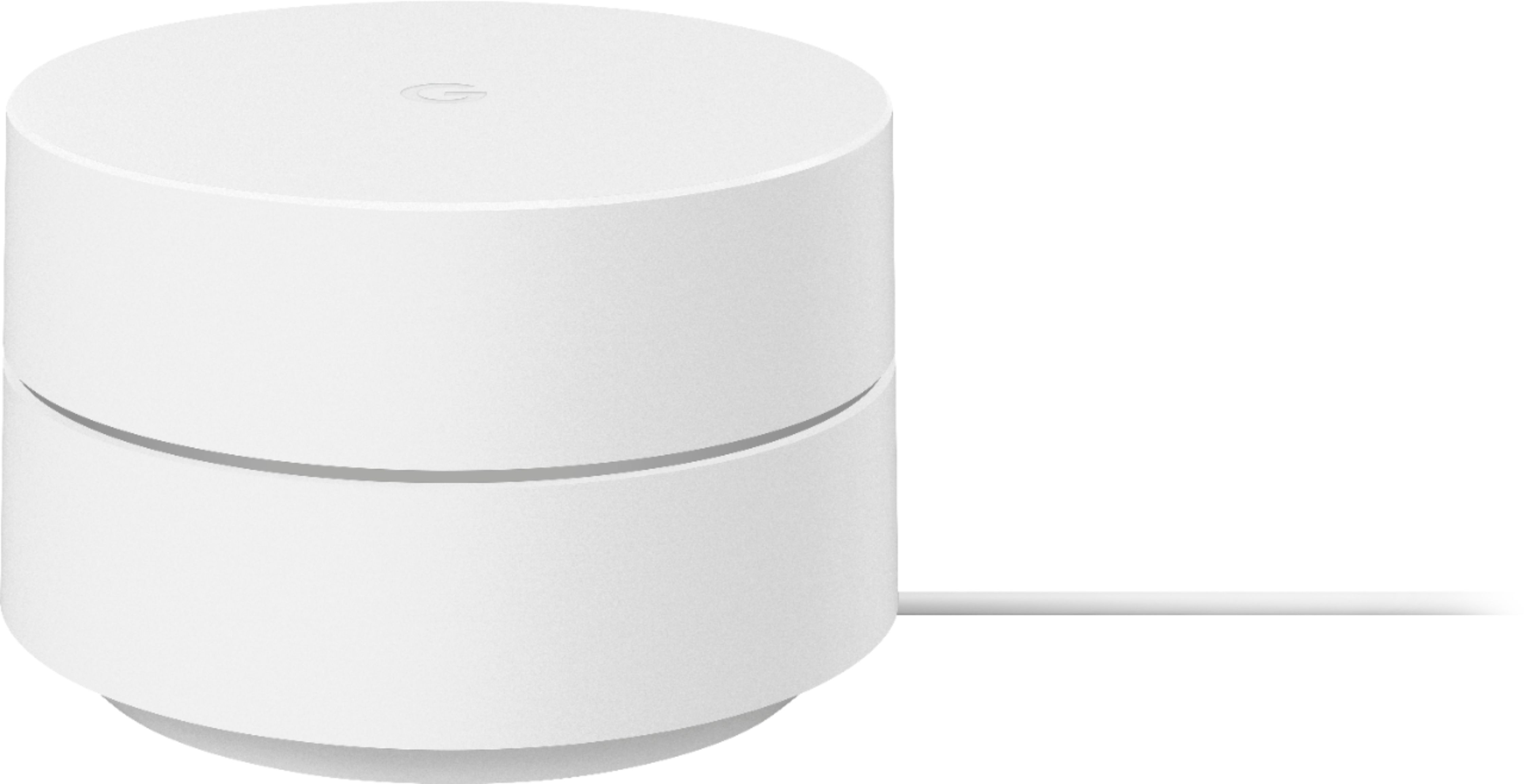
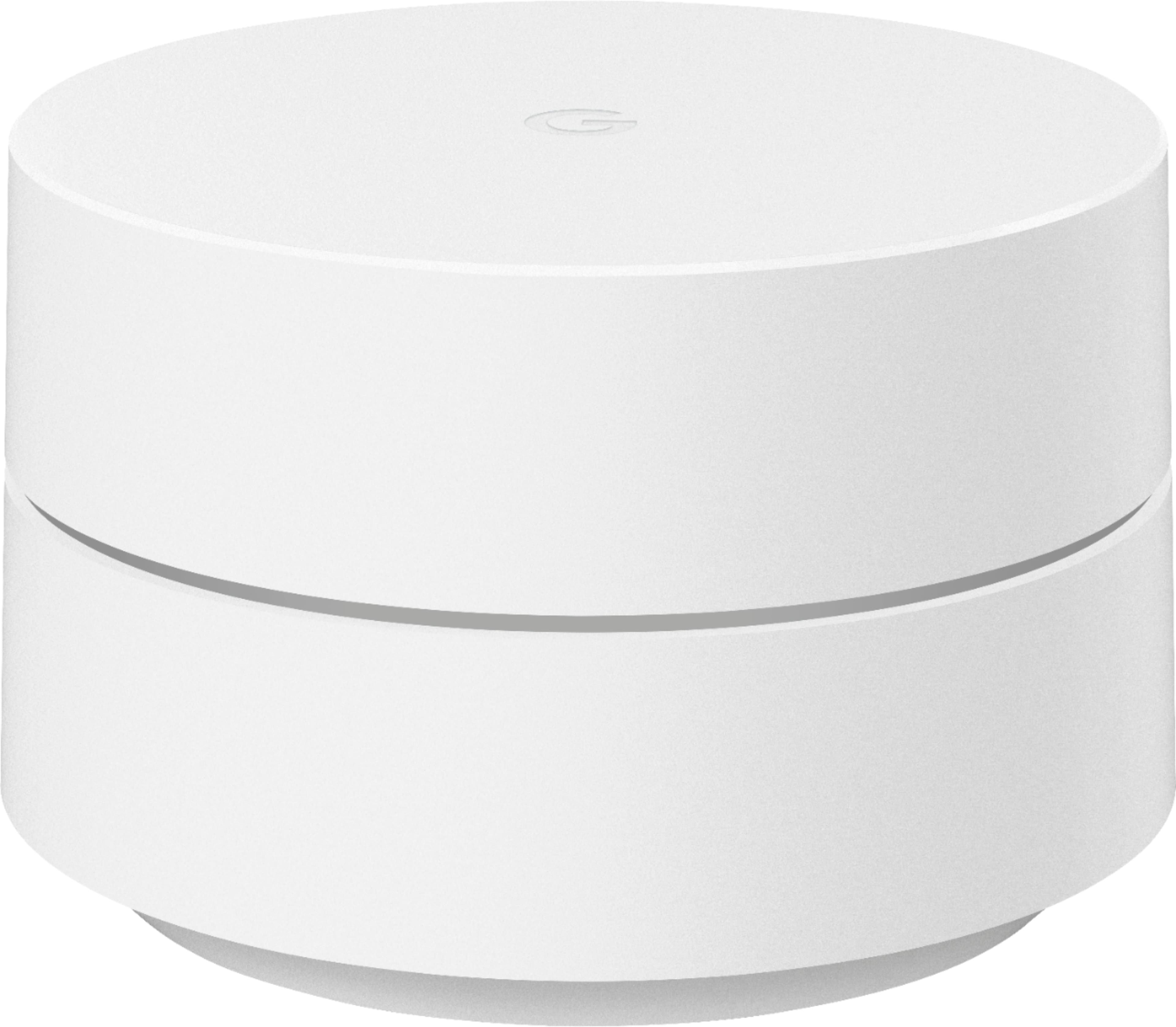
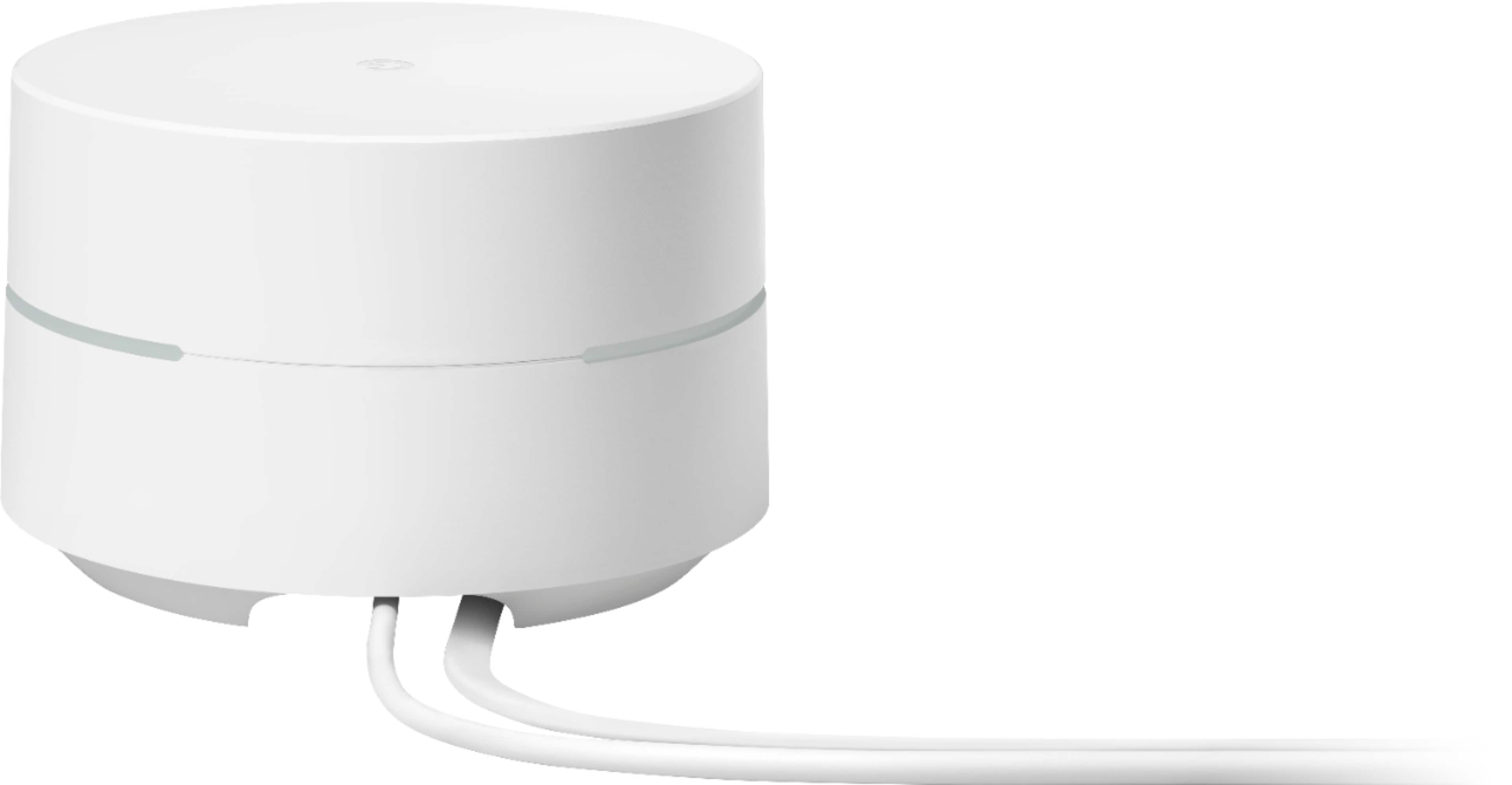
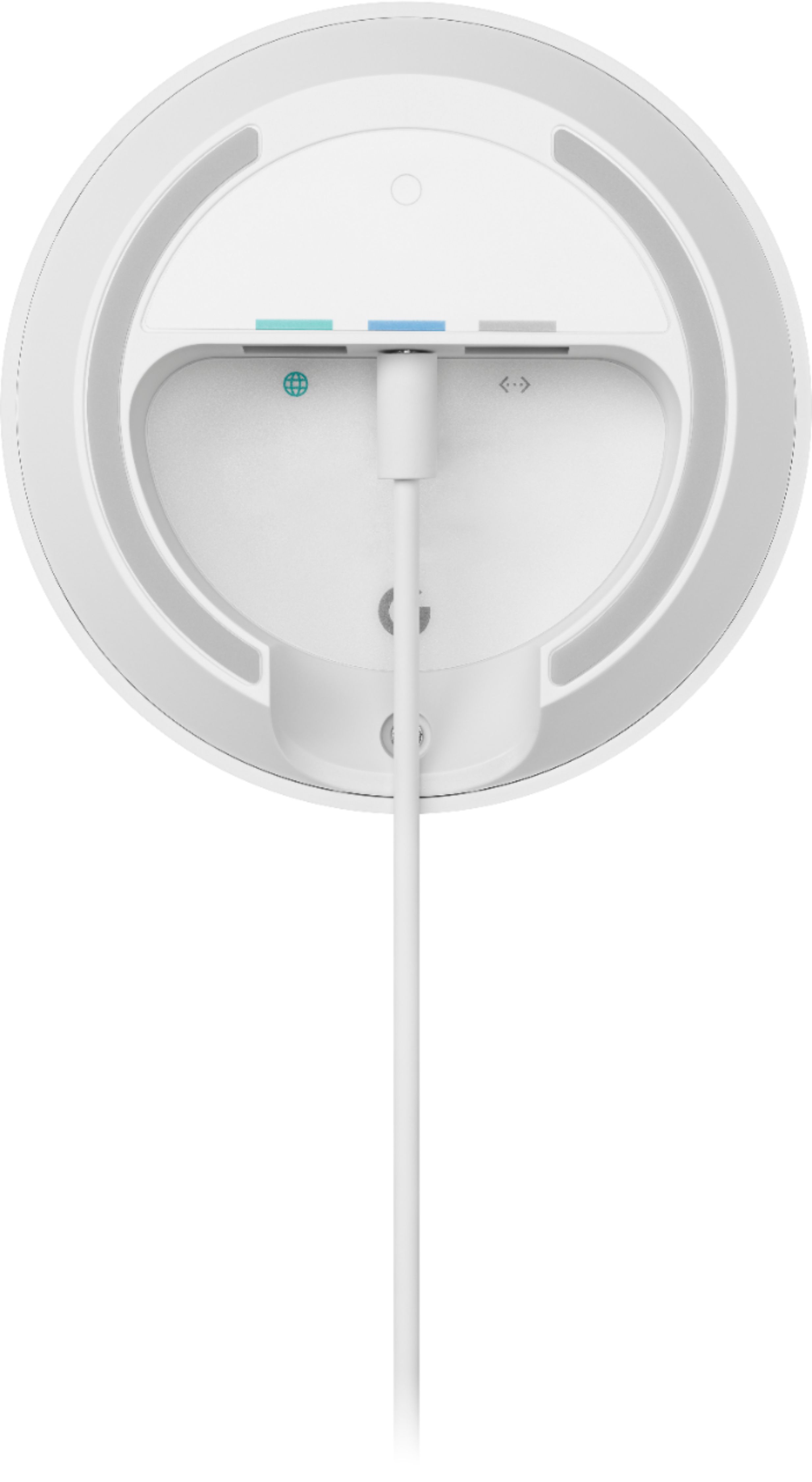
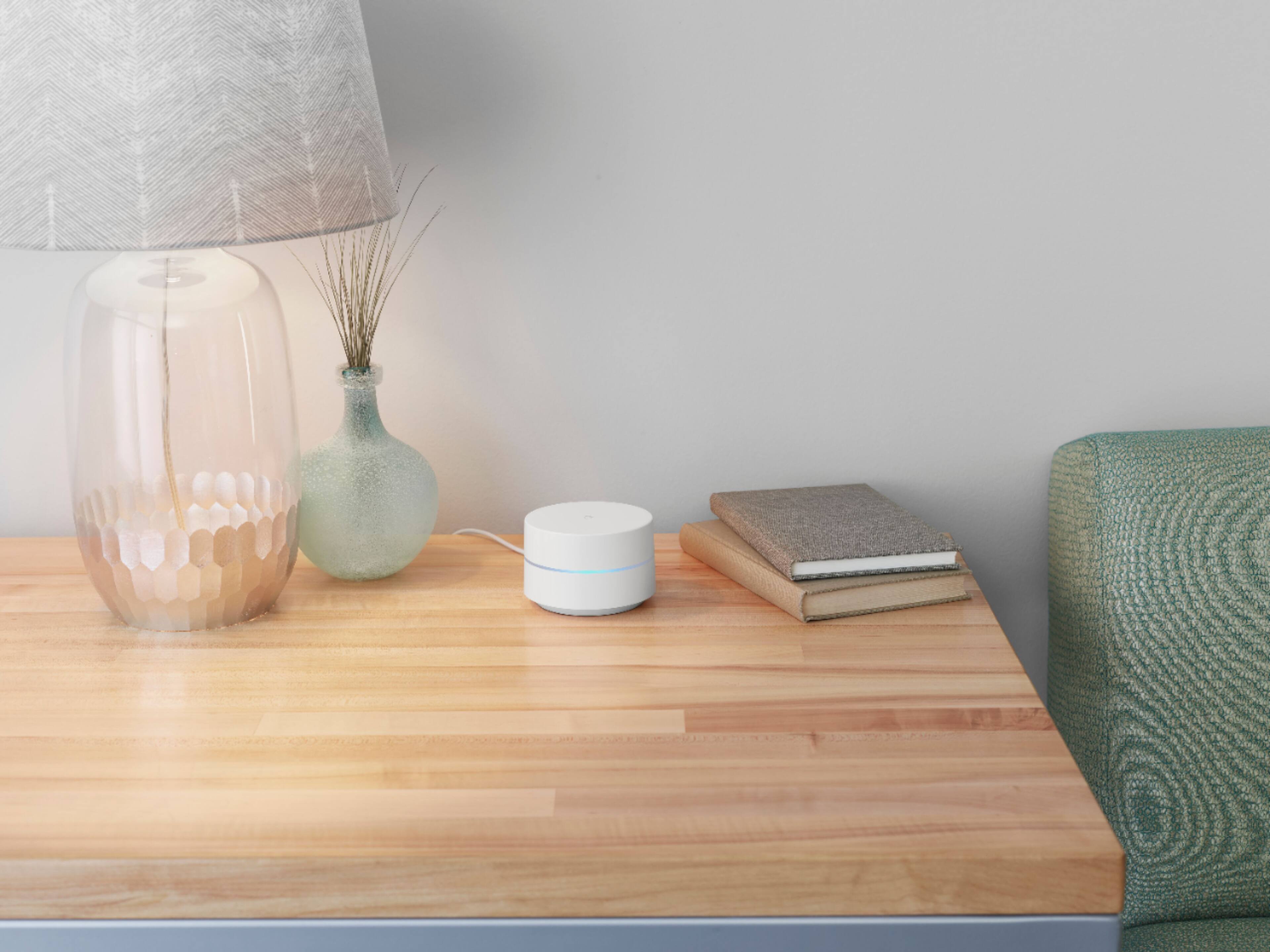
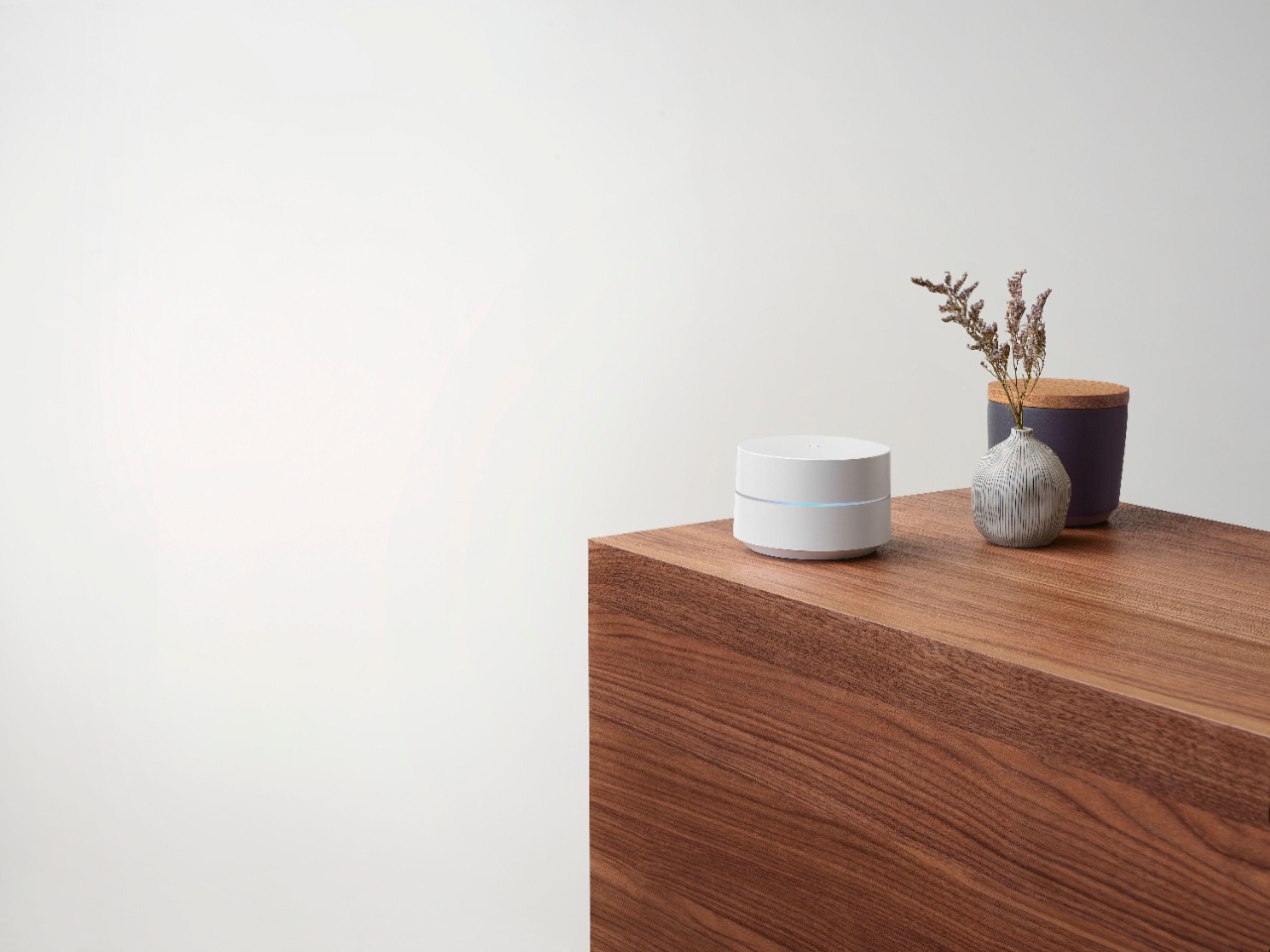
A:AnswerGoogle Wifi is a router that broadcasts Wi-Fi to any Wi-Fi capable device. It replaces traditional router and is compatible with most Internet Service Providers (ISP). You will need to have an internet plan from your preferred ISP. Google Wifi connects directly to your modem using an Ethernet cable to set it up and get an internet connection. Take a look at this link for the setup requirements and guide on how to setup Google Wifi: https://support.google.com/wifi/answer/7183148
A:AnswerNo. Google Wifi should not affect security cameras from jamming. Google Wifi is compatible with most Wi-Fi enabled device. For any other questions or concerns, you may reach out to our support team here anytime: https://support.google.com/wifi/gethelp
A:AnswerGoogle Wifi replaces your traditional router. You can connect it directly to your modem using an Ethernet cable to set it up and get an internet connection from your Internet Service Provider (ISP). Since you're using a modem/router combo, we suggest disabling the Wi-Fi functionality of the combo or putting it in Bridge mode to avoid Double NAT as it may cause connectivity issues. Take a look at this link for the setup requirements and guide on how to set up Nest Wifi: https://support.google.com/wifi/answer/9548301
A:AnswerIdeally, one Google Wifi can cover up to 1,500 sqft. But where they are placed, the layout of your house, and physical obstructions like furniture can impact the total coverage. For an estimate of how much Wi-Fi coverage you’ll get with Google Wifi and a guide to how many Wifi points you need check here: https://support.google.com/googlenest/answer/7182840
A:AnswerYes! Get the google app. Go to your router page and cut off your wifi signal from verizon and connect the google router to your verizon router via the ethernet cord in the back of the fios router. Open the app and follow the prompts. You’ll be up and running in no time.
A:AnswerGoogle Wifi works with most internet service provider, including Verizon Fios. You can connect it directly to your modem with the Ethernet cable to set it up and broadcast your Wi-Fi network. Take a look at this link for the setup requirements and guide on how to setup: https://support.google.com/wifi/answer/7183148
A:AnswerIf you have a router provided by spectrum you will want to have them set the router to pass through mode. These act as a router and you will be double NAT if you do not. If the modem and router are separate from each other from spectrum just remove the router. I installed these and it is very easy as long as you follow nthe instructions and have either an iPhone or Android phone.
A:AnswerYes. The mesh system will create a separate wifi network from the AT&T router. Just make sure you create a secure password for the AT&T network, and don't hook up any of your devices to that one. Then add all of your devices to the new network you create with the mesh system. You can also keep that one private just for you and create a guest network for your guests on the Mesh system.
A:AnswerNo. Google Wifi network uses the same name for both the 2.4 and 5 GHz bands. Both radio bands are active simultaneously. Your devices (e.g phone, laptop, etc) that support both 2.4 GHz and 5 GHz will automatically use the band that will deliver the best performance based on different factors like signal strength, and guidance from the mesh Wi-Fi system. Take a look at this link for more info: https://support.google.com/googlenest/answer/6293481