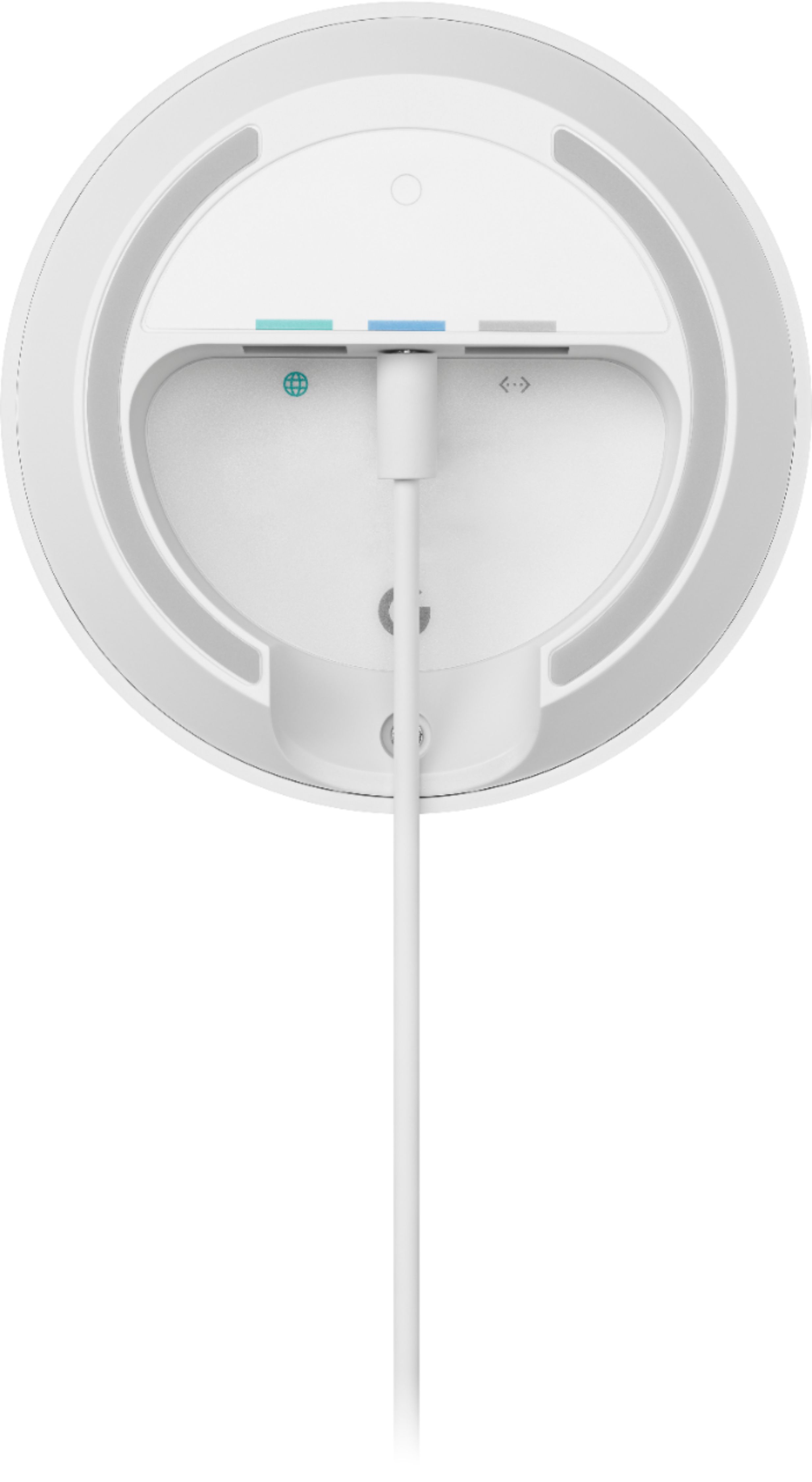
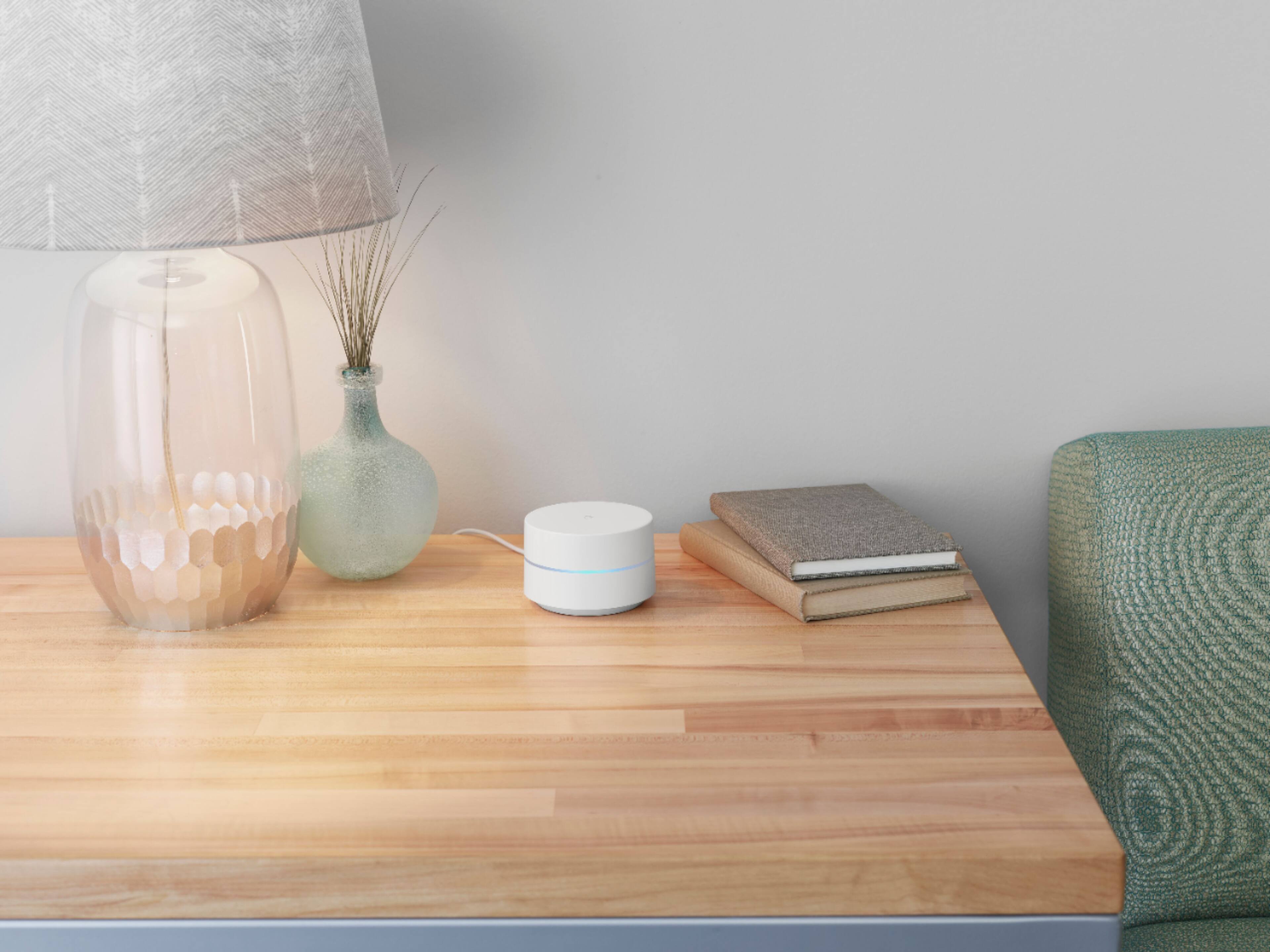
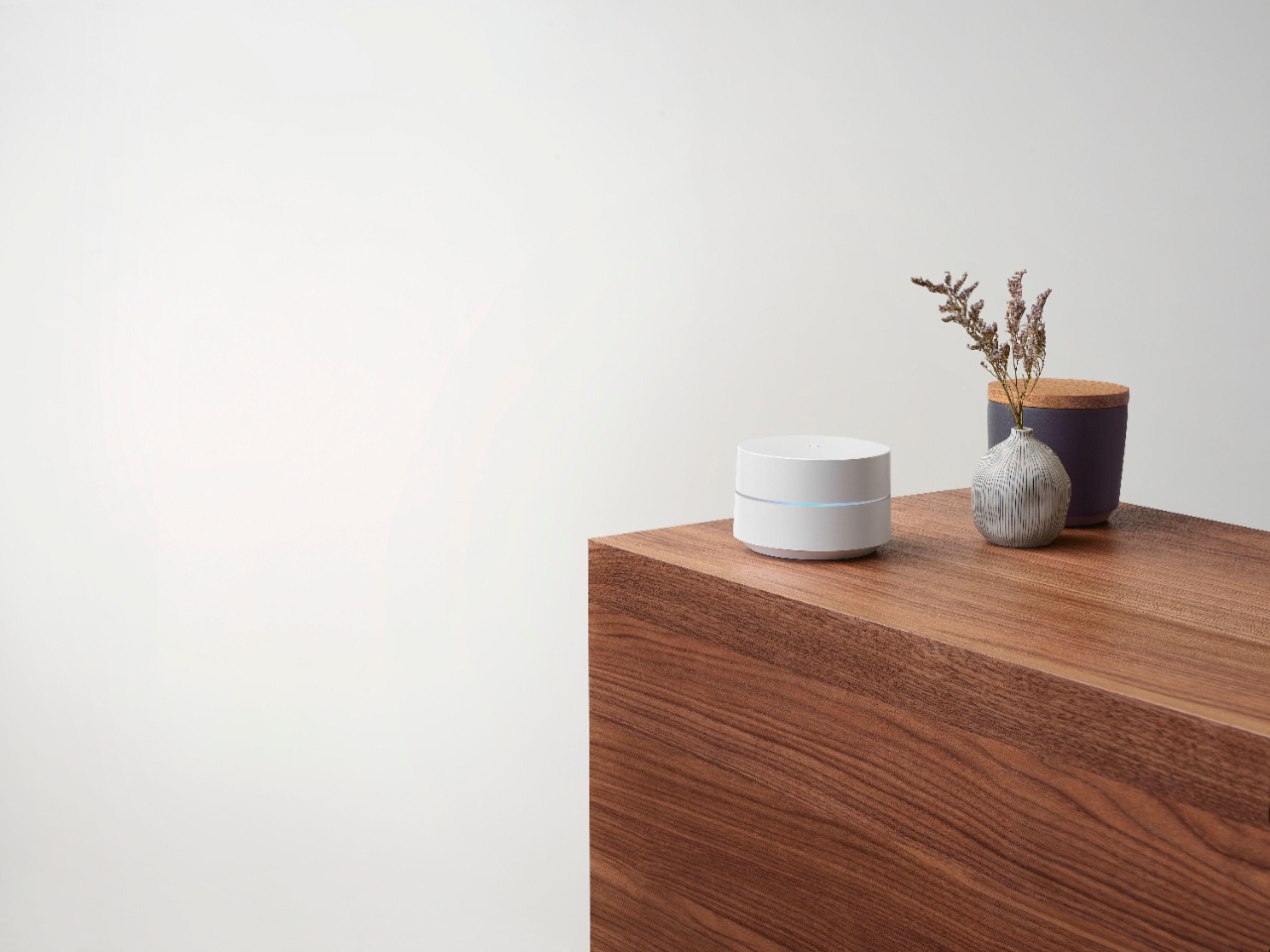
A:AnswerWhile Google Wifi works with most internet service providers, including Xfinity, Google Wifi isn't compatible with 3rd party routers or access points. It is only compatible with Nest Wifi routers and points and Google Wifi points to create a whole Wi-Fi mesh system. Google Wifi replaces your current router and it requires to be connected to a modem to get an internet connection from your Internet Service Provider (ISP). You can connect it directly to your modem with the Ethernet cable to set it up and broadcast your Wi-Fi network. Take a look at this link for the setup requirements and guide on how to set up: https://support.google.com/googlenest/answer/7183148
If you intend to keep your Xfinity router in the Wi-Fi network, you may run into a double NAT issue where both your Xfinity router and Google Wifi router will be broadcasting their own private networks and might cause connectivity issues. We recommend putting it in Bridge mode or disable the Wi-Fi functionality of your Xfinity router to avoid double NAT and use it as a downstream switch instead. If you have any other questions or need help with the Nest Wifi, you can contact us here: https://support.google.com/wifi/gethelp
A:AnswerNo. Google Wifi is a router that broadcasts Wi-Fi to any Wi-Fi capable device. It replaces your traditional router and is compatible with most Internet Service Providers. Google Wifi connects directly to your modem using an Ethernet cable to set it up and get an internet connection. Take a look at this link for the setup requirements and guide on how to setup Google Wifi: https://support.google.com/wifi/answer/7183148
A:AnswerYes. Google Wifi replaces your traditional router. It goes directly to your modem using an Ethernet cable to set it up and get an internet connection from your Internet Service Provider (ISP). Then, you can add additional Google Wifi or Nest Wifi points to create a Wi-Fi mesh system. We recommend a maximum of 6 Wifi points in a single mesh setup including the primary router.
A:AnswerYes. Google Wifi is compatible with most modems and internet service providers. Connect Google Wifi directly to your modem with the Ethernet cable to set it up and broadcast your Wi-Fi network. If your modem is a modem/router combo, we recommend disabling the Wi-Fi functionality of the combo or putting it in Bridge mode to avoid Double NAT as it may cause connectivity issues. You can contact our support team here if you have any other questions: https://support.google.com/wifi/gethelp
A:AnswerAll Google Wifi (2016 and 2020 models) and Nest Wifi devices are compatible to create a mesh system. You can simply add additional Wifi points to your existing Google Wifi mesh system. We recommend a maximum of 6 Wifi points in a single mesh setup including the primary router. If you need help with your device, you can contact our support team here: https://support.google.com/wifi/gethelp
A:AnswerNot weather resistant, but the signal is decent enough that you might be able to get a signal if you place one in a window nearest to the pool. Otherwise, you'll want to look into a weatherproof box.
Unless you're running an ethernet cable outside, keep in mind that for these to work properly, they're going to need to have a fairly strong wifi signal where you place them. If you don't have wifi at the pool now, you're not going to get it by sticking one of these outside on its own.
A:Answer(✓) Modem → Third-party router → Google Nest Wifi router or primary Wifi point → Google Wifi point
With this configuration, you may run into Double NAT, which isn't necessarily a problem. But if it is causing problems, it's recommended to put your third-party router in bridge mode. Once in bridge mode, you may choose whether or not to turn Wi-Fi off on your third-party router.
https://support.google.com/googlenest/answer/7215624#zippy=%2Cinclude-a-third-party-router-upstream-of-the-primary-wifi-point-not-recommended
A:AnswerI have Verizon FIOS, internet only. The fiber to wire convertor is in my basement and cat 5 cable ran to the Verizon router. I removed the Verizon router and plugged one of these units into it's spot and it got connection so I could set it up. I have since returned my Verizon router and everything has been fine for a couple of weeks.
If you have Verizon for cable TV, this may not work since that router is a bit different.