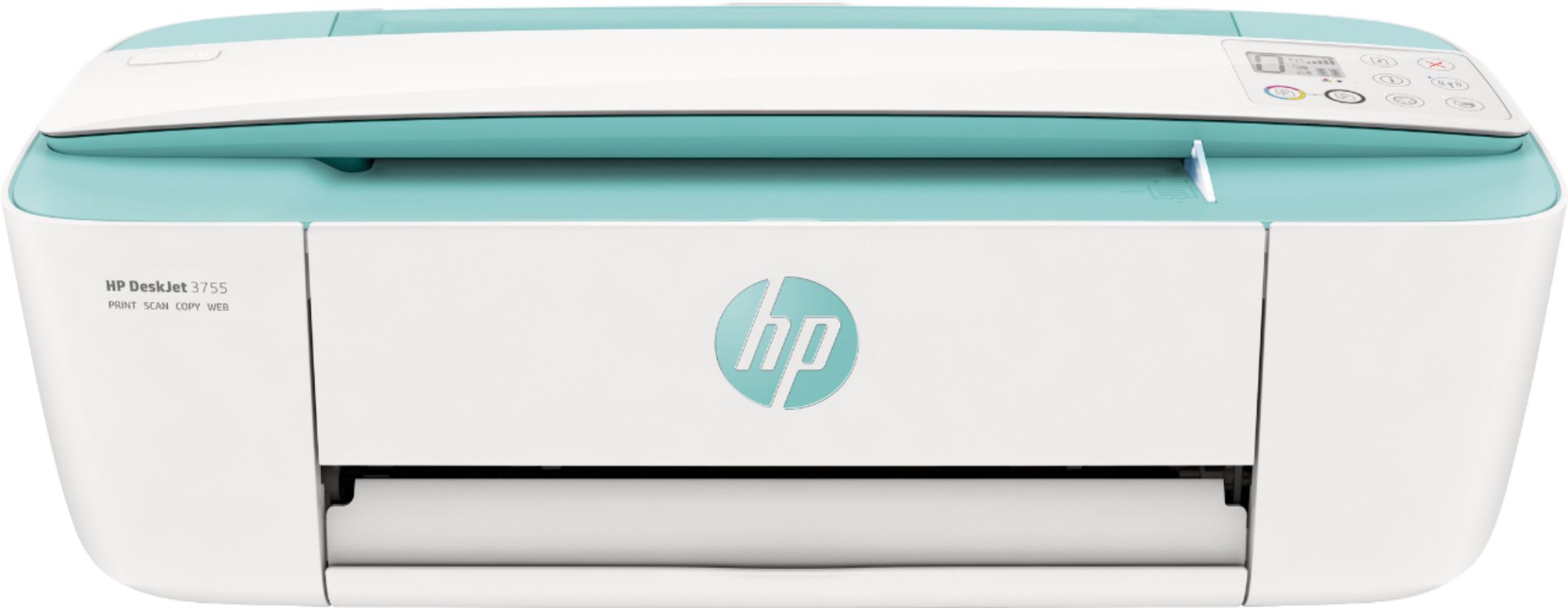
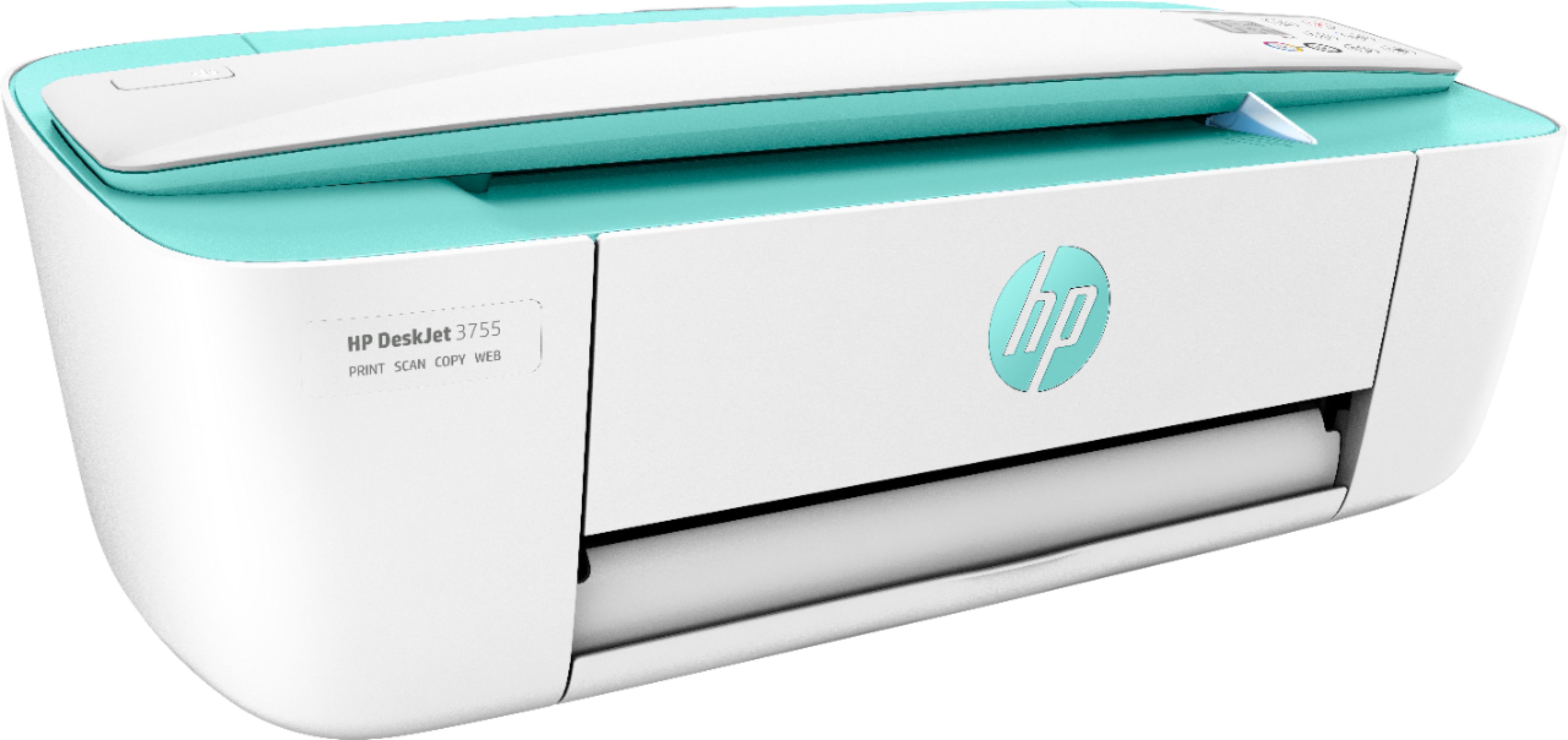
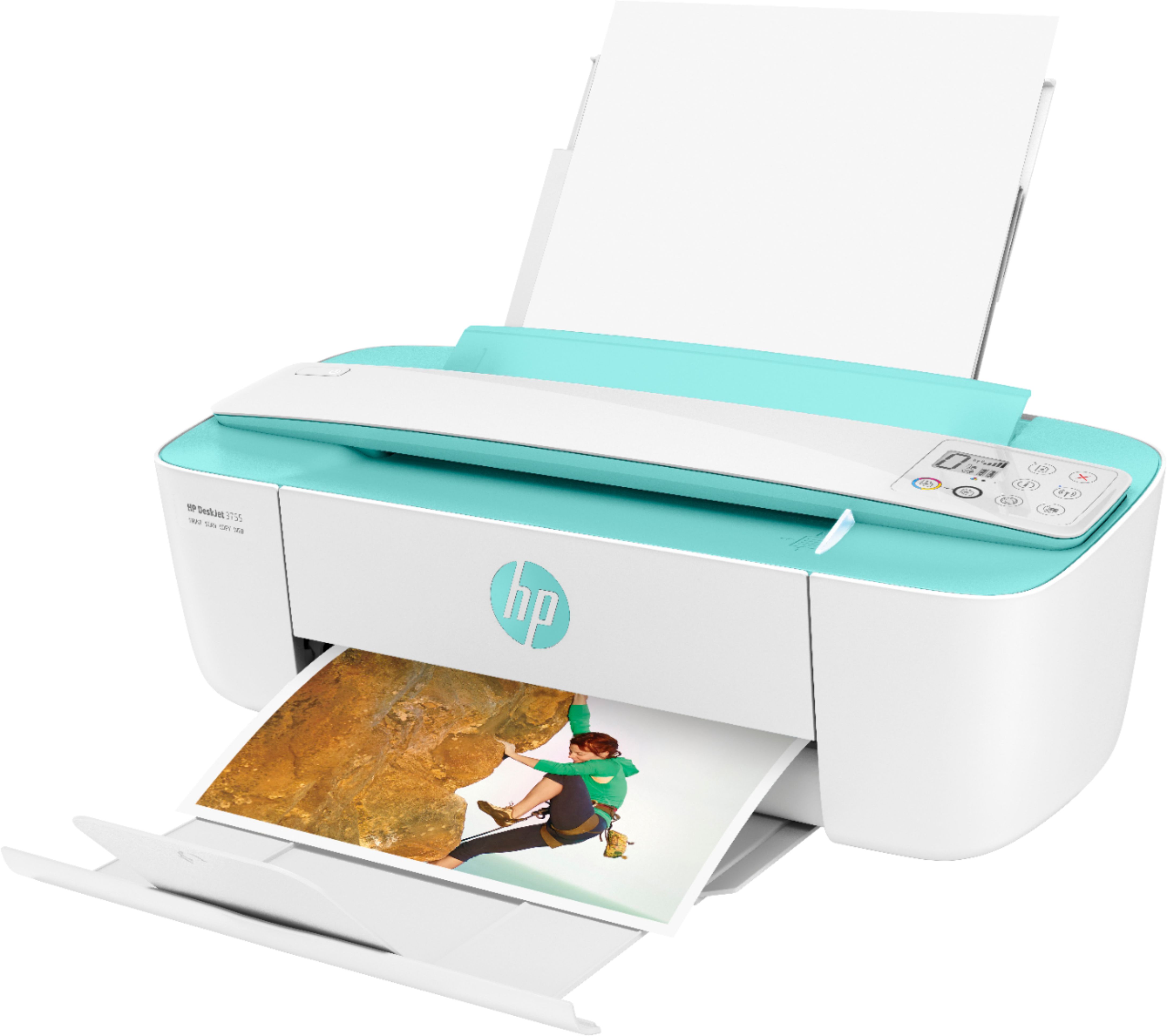
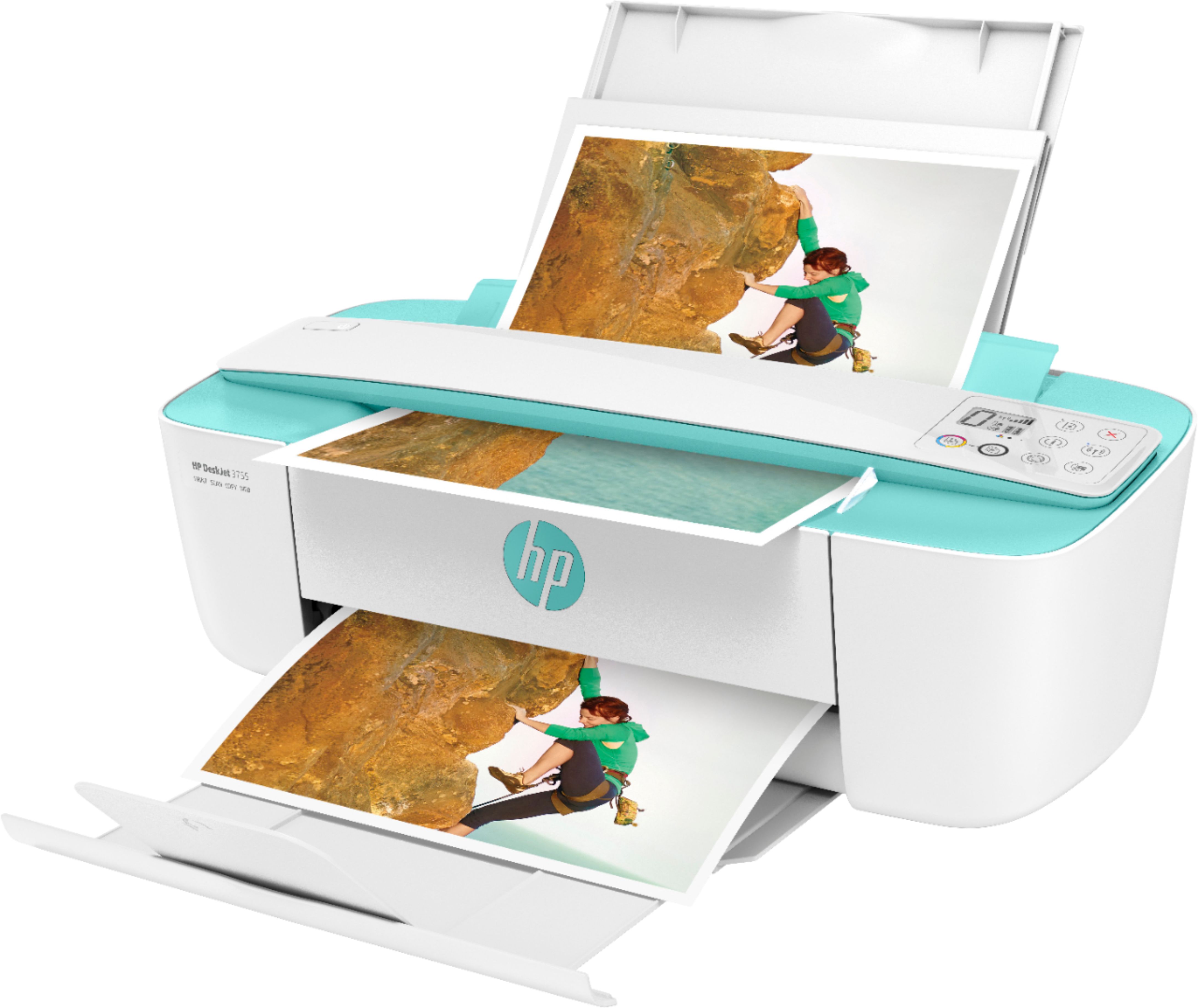
A:AnswerHi Jeannie, thank you for the question. You can use the HP Smart App and your Smartphone to set up the DeskJet 3755. You can then print from your phone, and even scan documents with your phone and sent them to the printer.
A:AnswerHello JM, yes, the HP DeskJet 3755 will work with Windows 7 operating system but please be aware that Windows 7 is no longer supported by Microsoft as of January 14th, 2020 so it is no longer receiving security updates. Thank you for being an HP customer!
A:AnswerHi Ginger, thank you for the question. Double-sided printing is not automatic with the DeskJet 3755. It can be accomplished manually by using the desktop software and the print menu. You'll print all of one side (odd pages 1, 3, 5, etc.) and then reverse the stack and feed the stack in the input tray (blank pages facing you) to print the other side (even pages 2, 4, 6, etc).
A:AnswerHi Chris and thanks for your question! The HP DeskJet 3755will scan and it will have a USB port if you want to connect directly to your PC or Mac.
A:AnswerHello, Lauren. The HP Deskjet 3755 printer can only print on one side at a time. You would need to manually turn the paper over. If you want a printer that can print on both sides, we recommend looking at the HP Envy 6055 printer.
A:AnswerHi Solly and thanks for your question! Our HP DeskJet 3755 printer can be added to your network where you live. Be aware that everyone on your network can then see your printer however. A better option might be to use our HP Direct Print of AirPrint features. For a detailed description of these features visit our HP Support site.