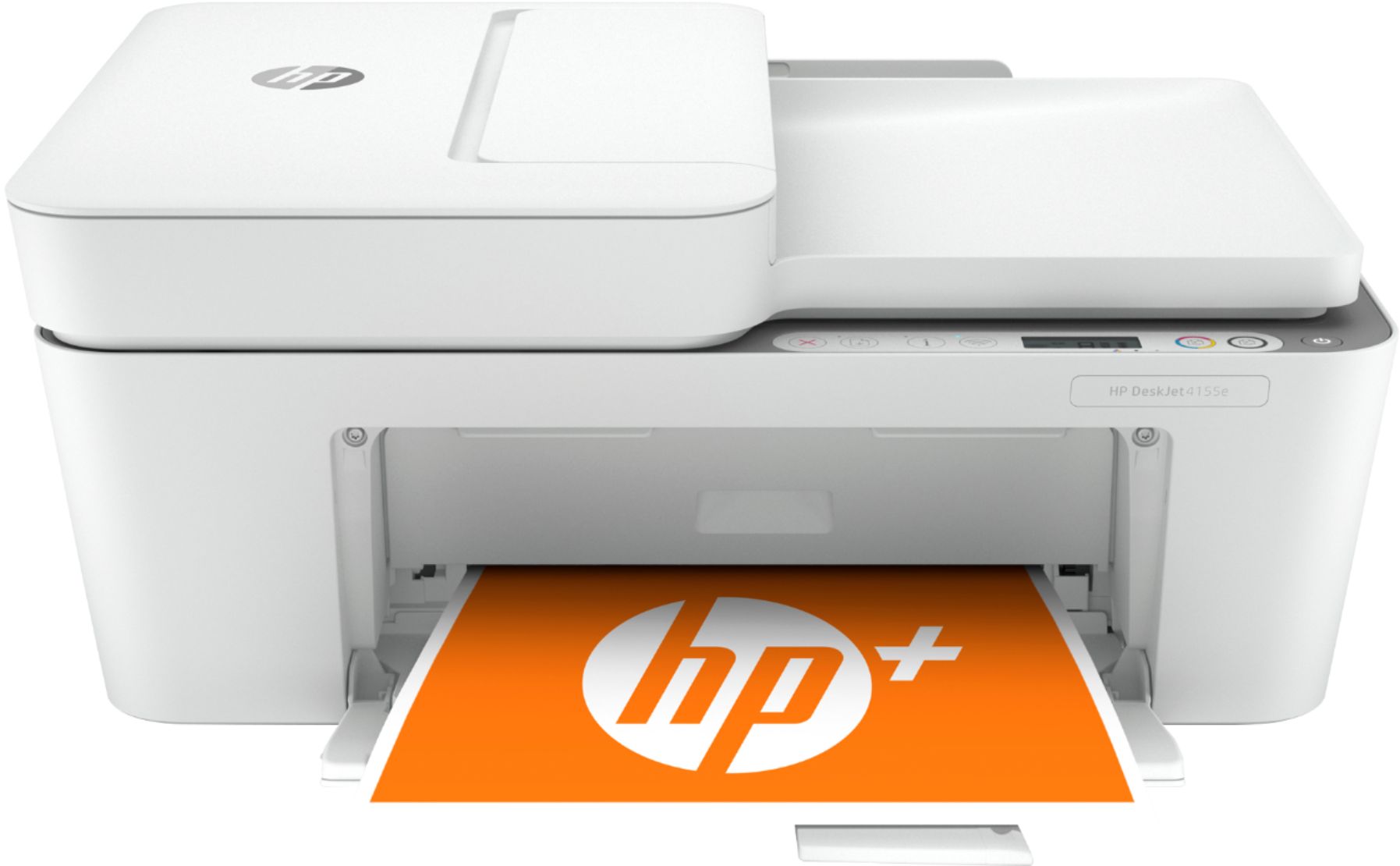
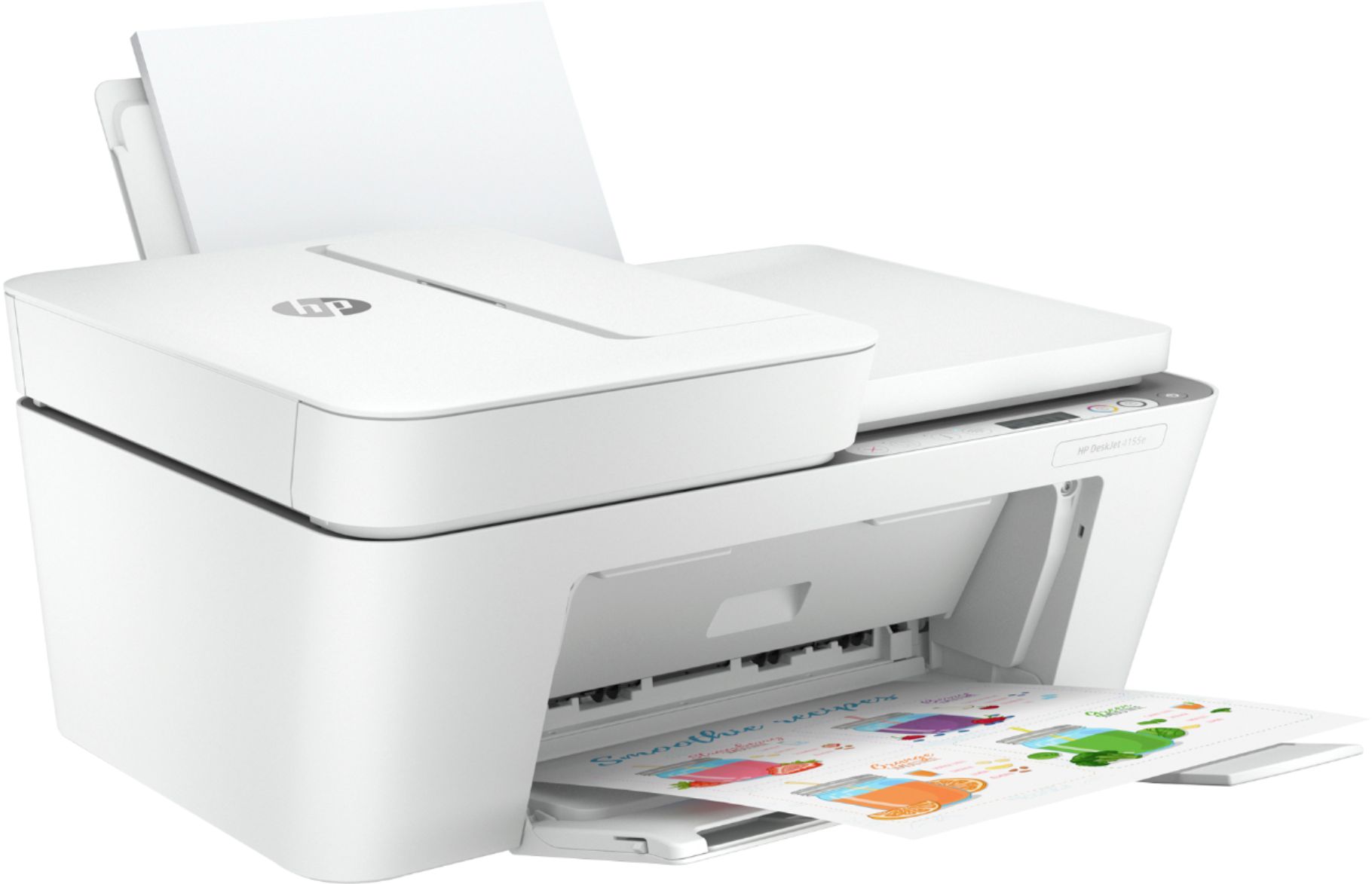
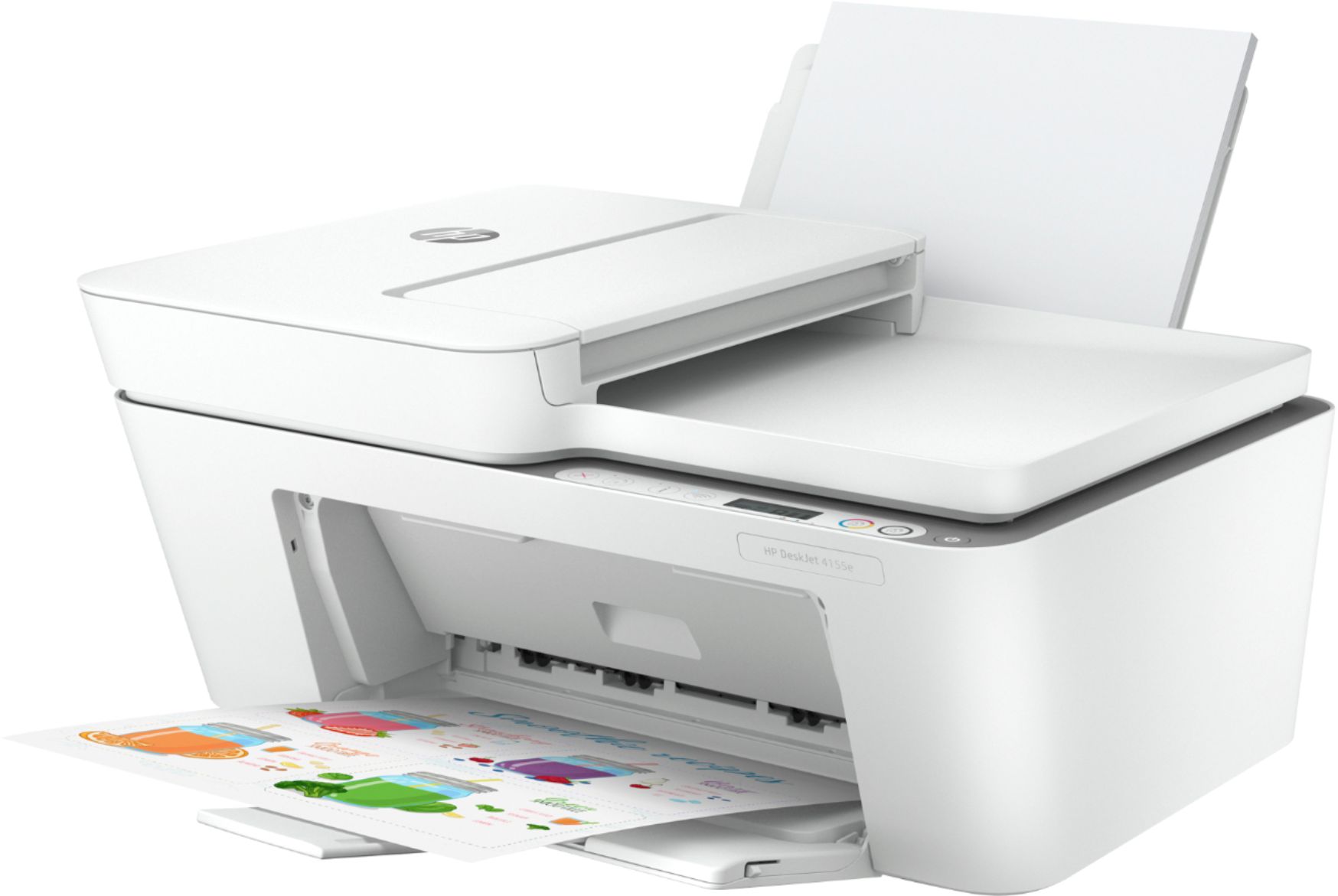
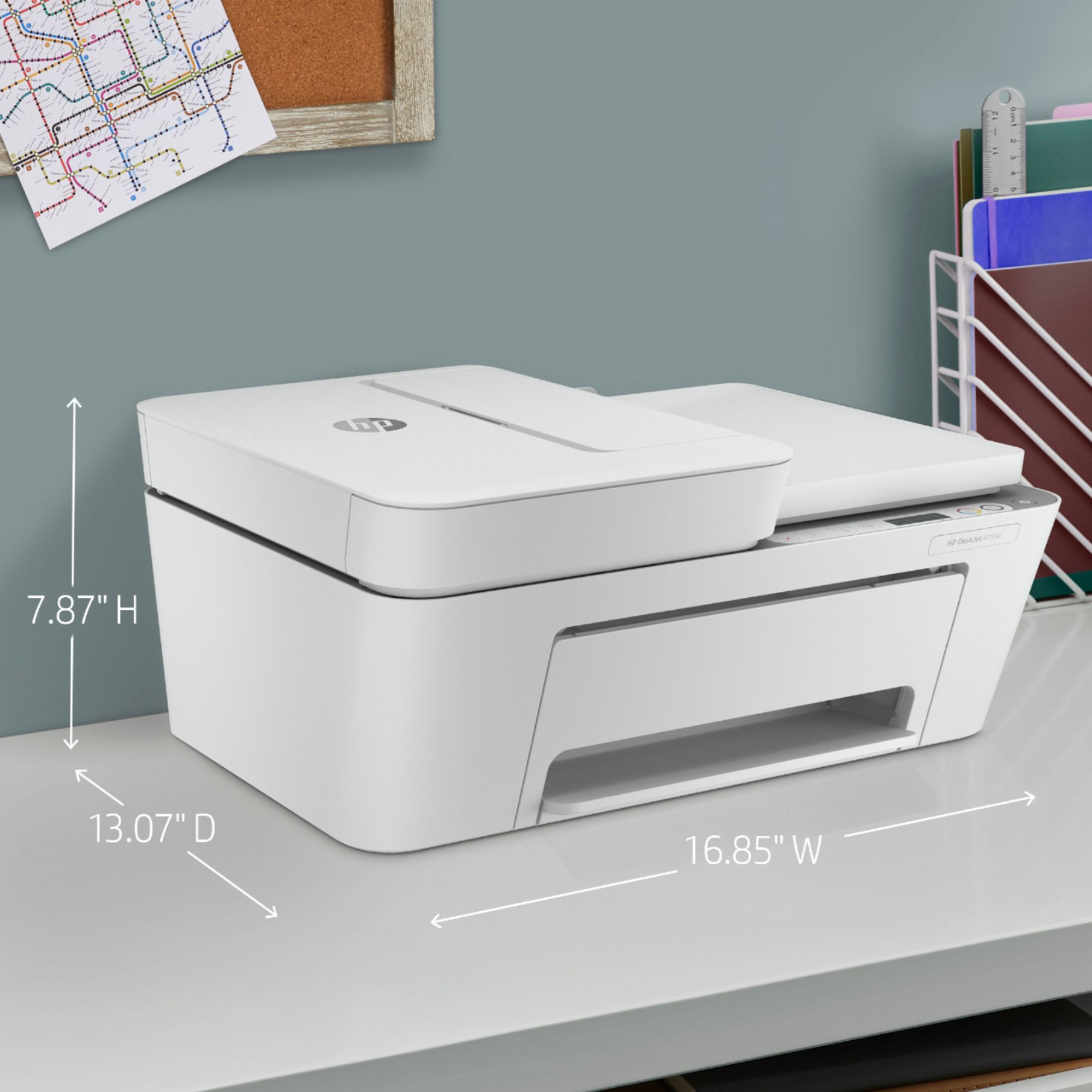
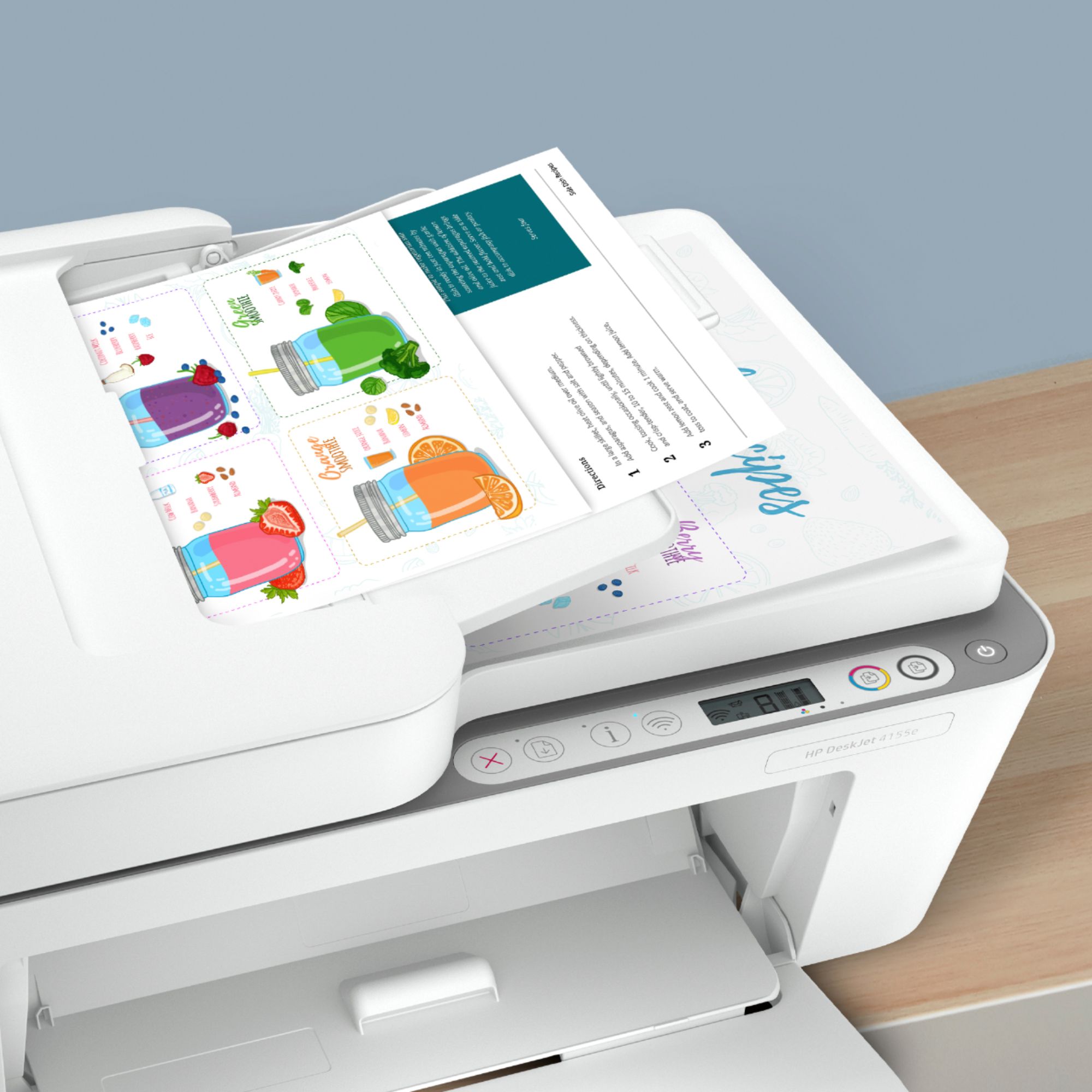
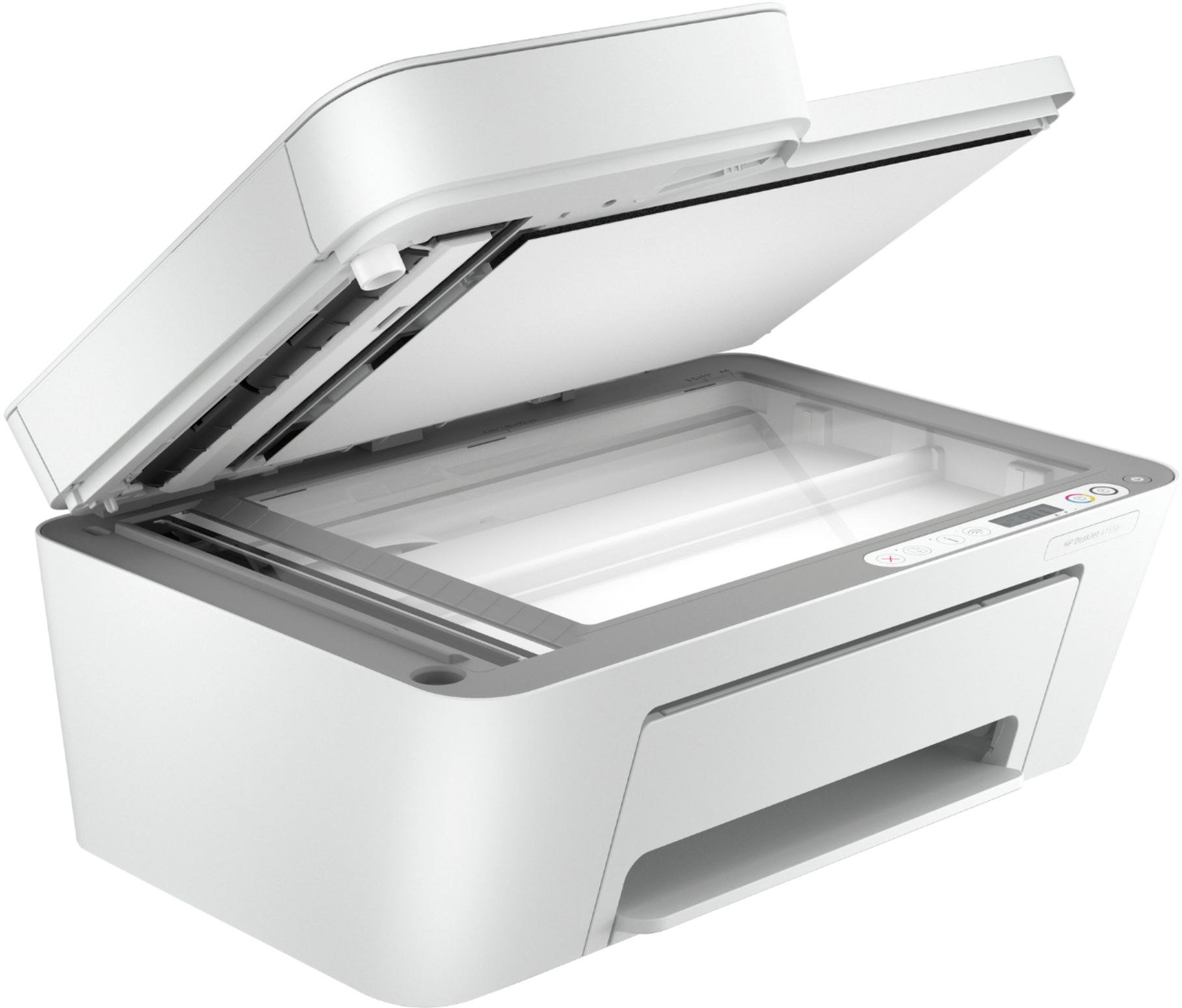
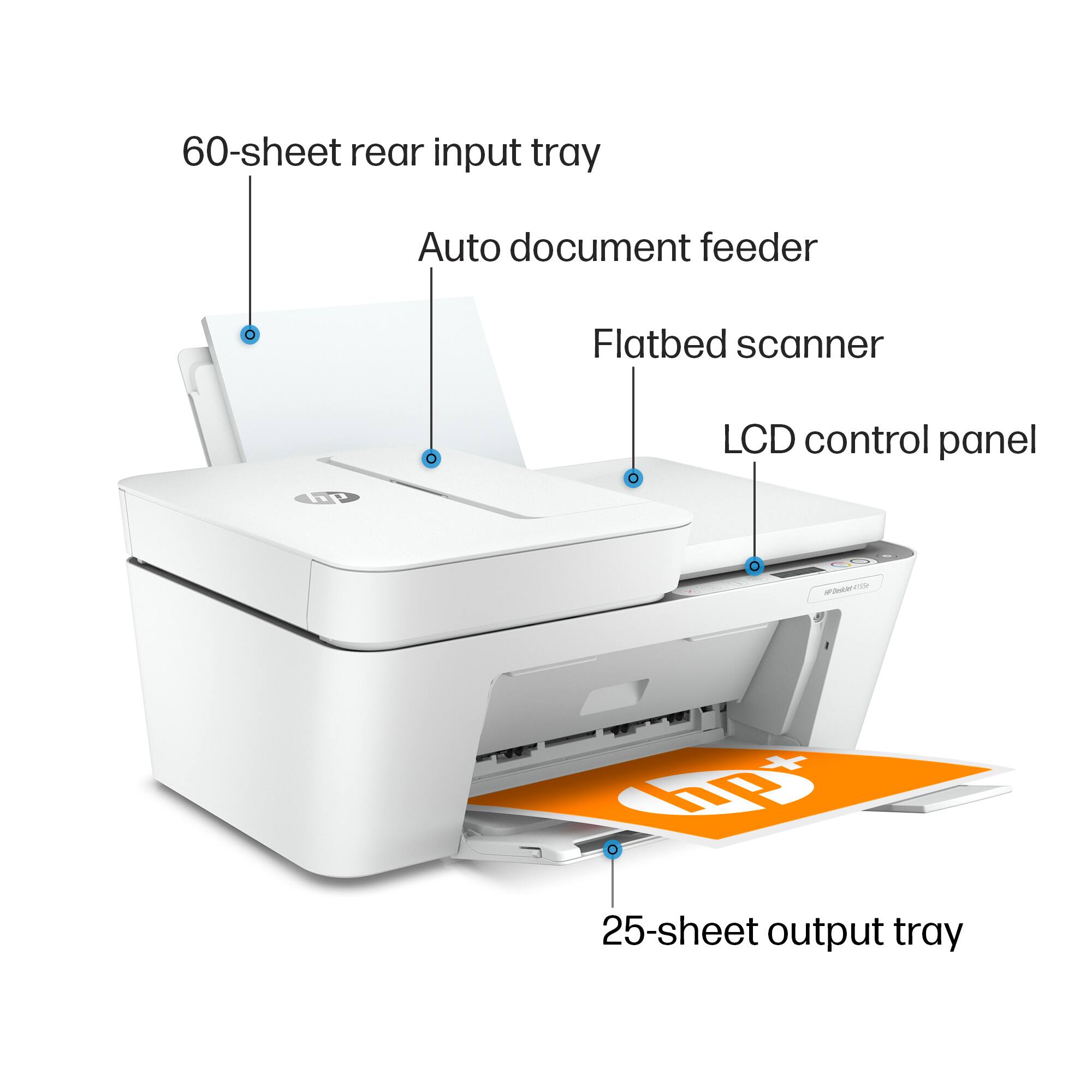
A:AnswerWhen you put the document into the feeder, the printer should recognize it and ask if you want to copy it or just scan it. If you tell it to scan, you can specify that it should go to the computer as a PDF file.
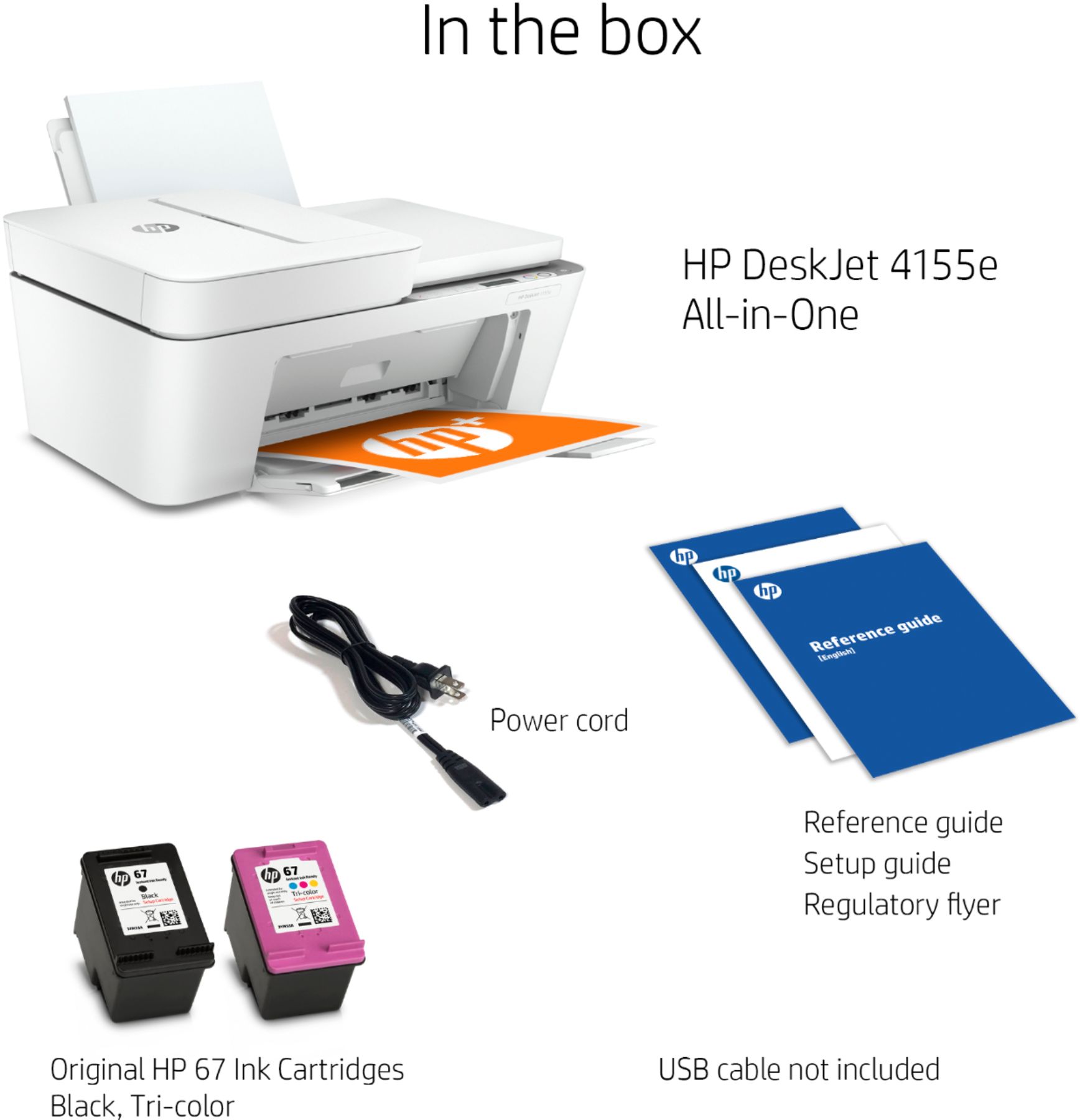
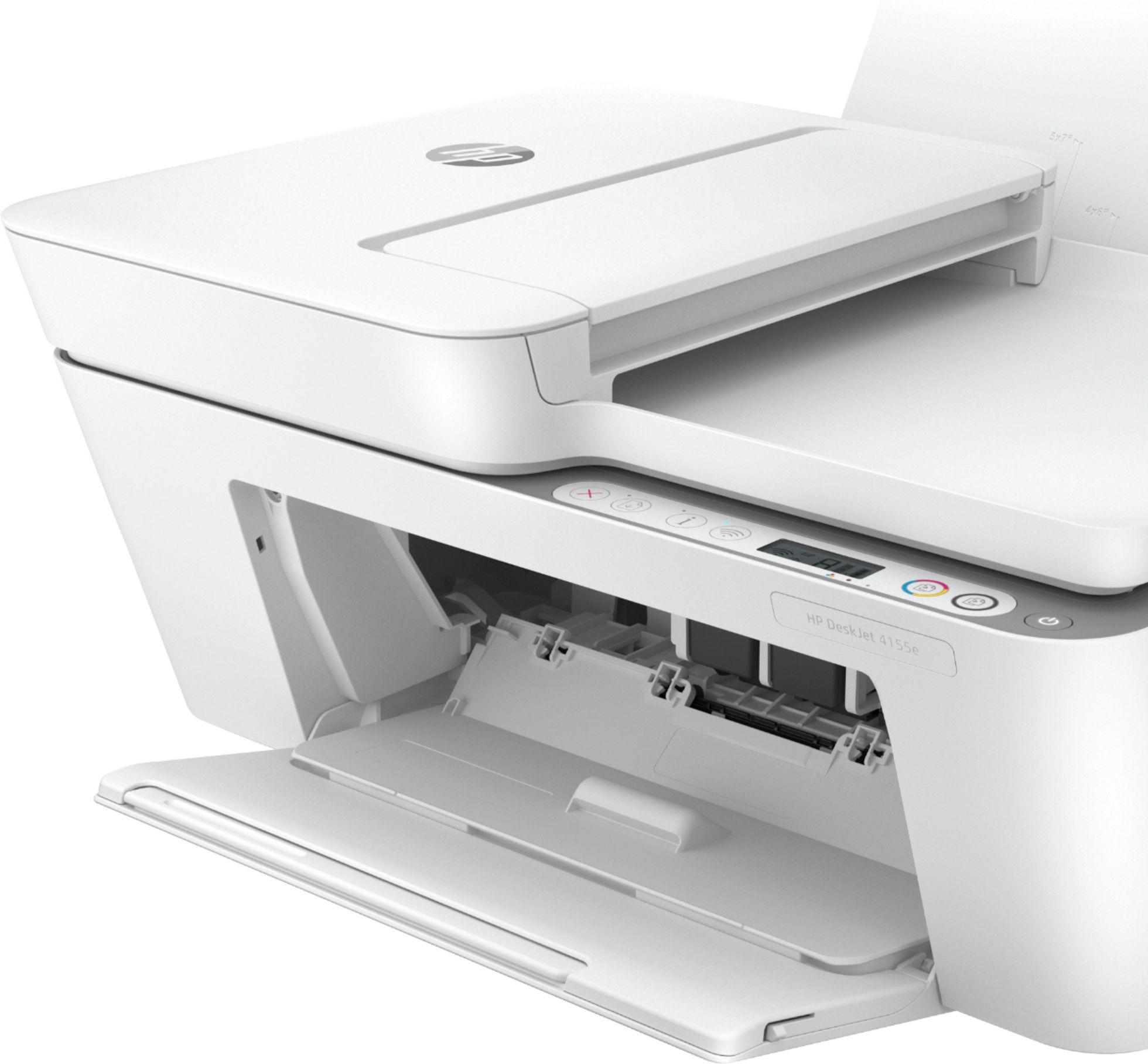
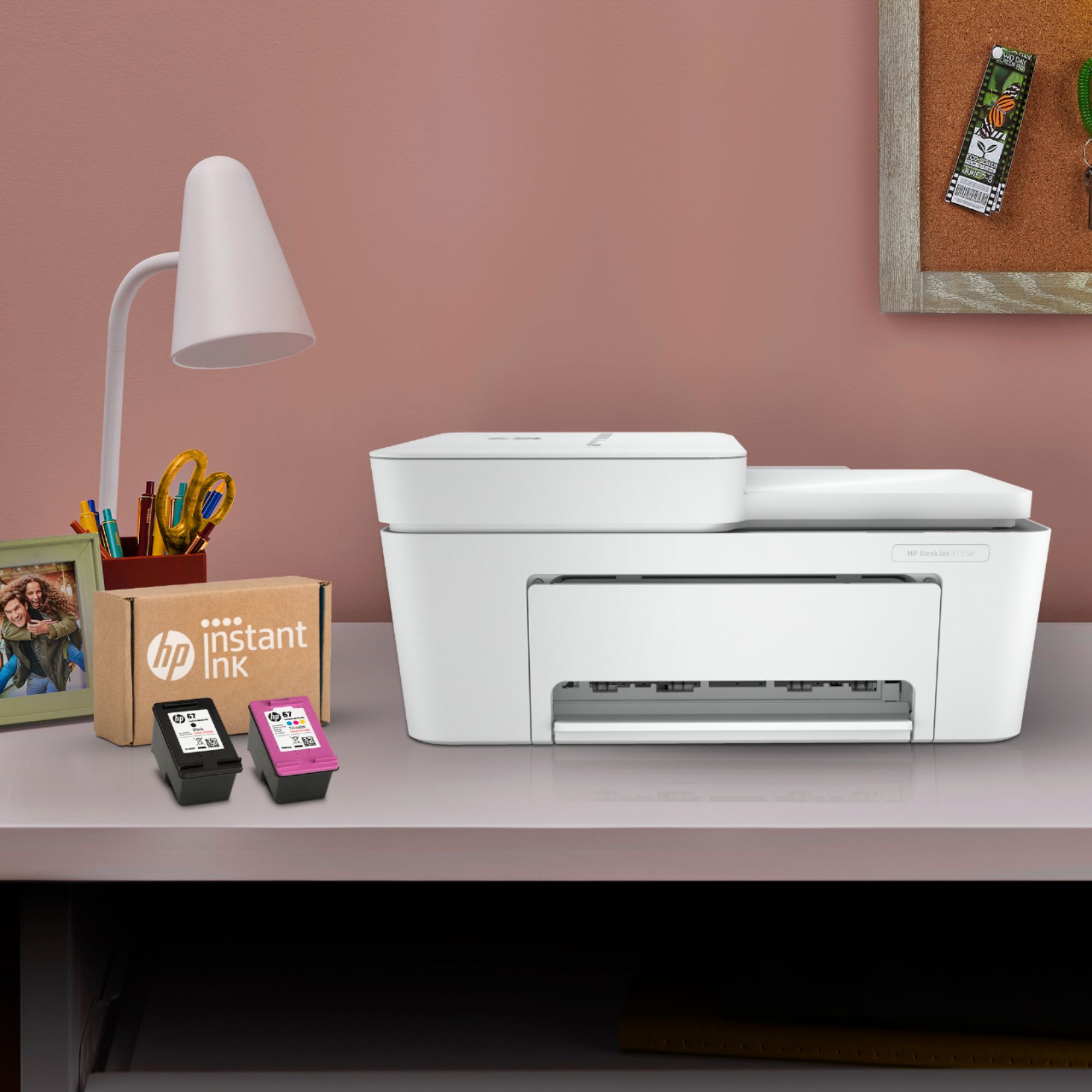
A:AnswerHello. Thanks for your question. Yes, you can print in single-cartridge mode. That means you can take out the tricolor ink cartridge. And the printer will go into single cartridge mode automatically so you can print with the black ink cartridge.
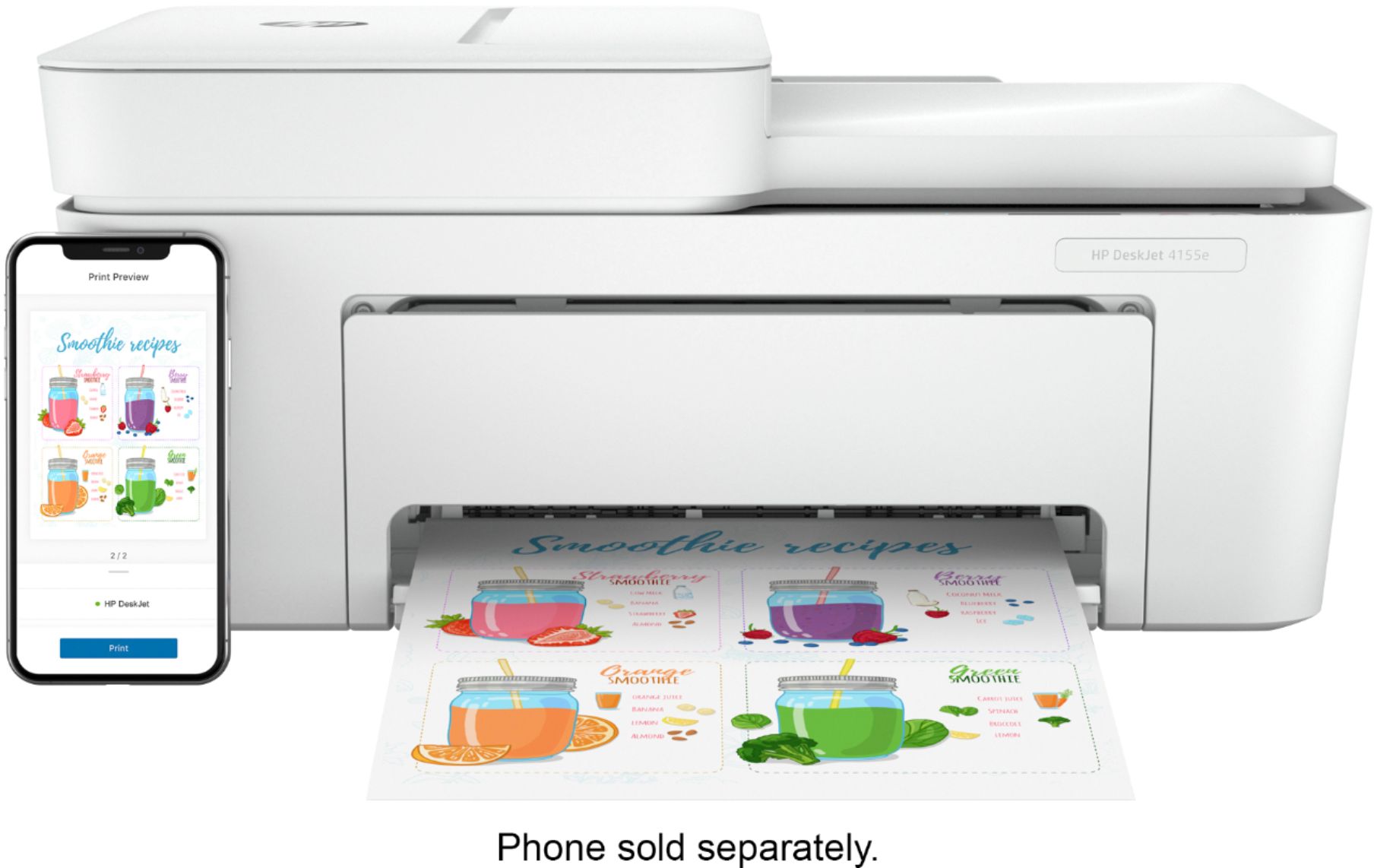
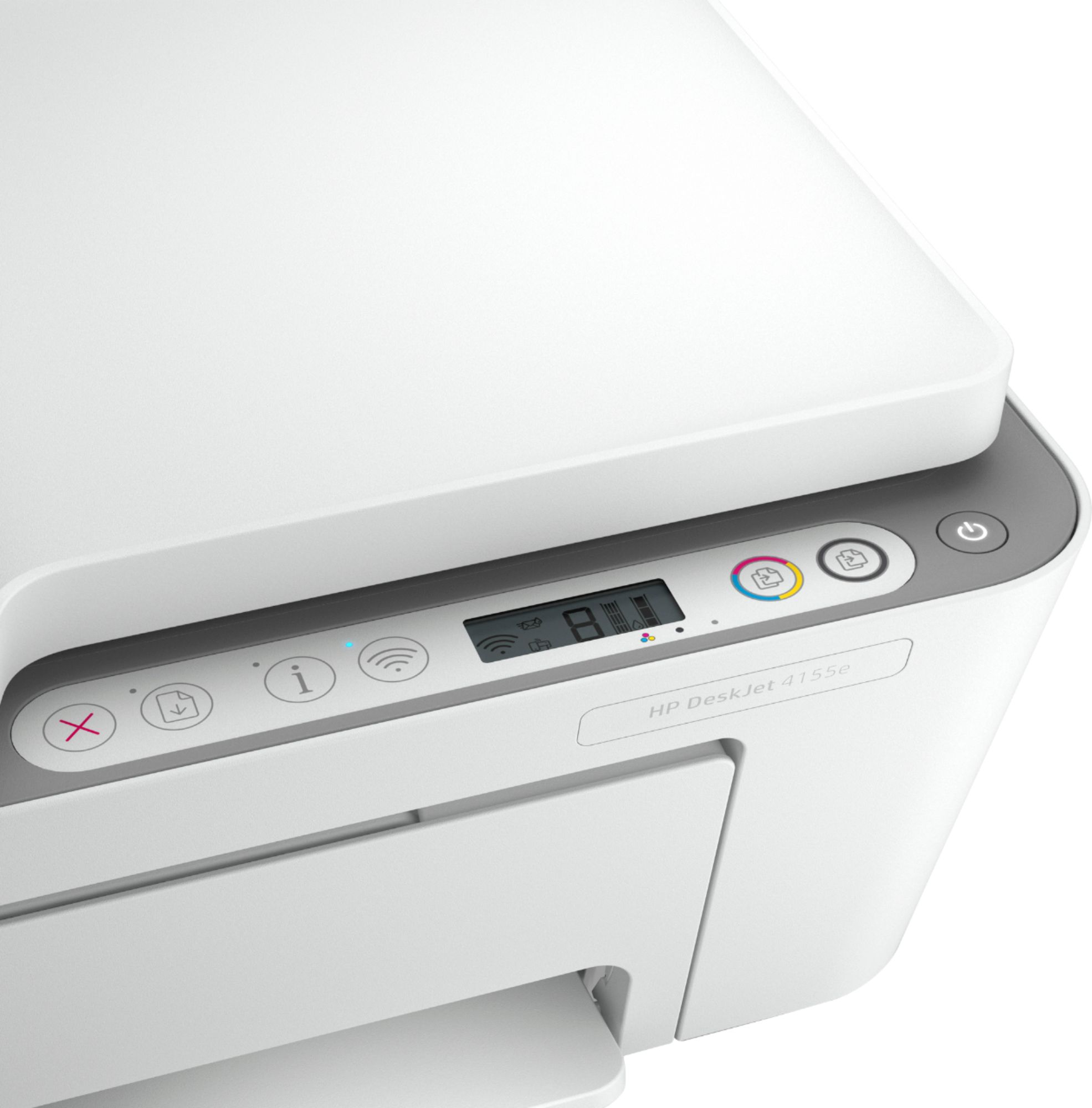
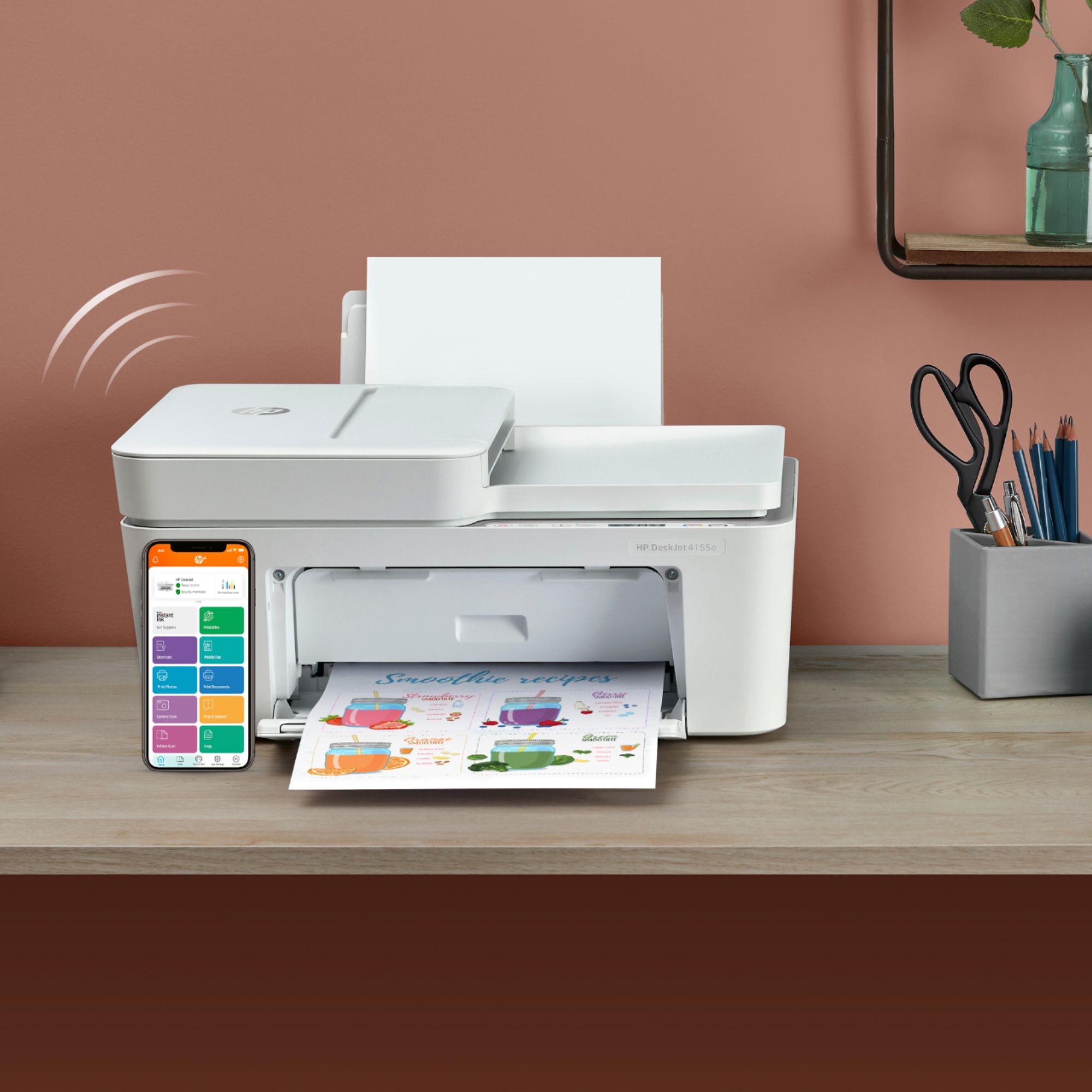
A:AnswerTo scan a document with the DeskJet 4155e printer you will need the HP Smart App which is free and can be accessed with a mobile device or computer. Once downloaded you will add your printer and click on the scan icon. This printer does not have a port for a USB drive, therefore you can not scan to a thumb drive.
A:AnswerThank you for the question. The DeskJet 4155e is compatible with the following operating systems: macOS v10.14 Mojave, macOS v10.15 Catalina, macOS v11 Big Sur, Windows 7, 10, and 11, and Chrome. Also compatible with Apple AirPrint and the HP Smart app for ios, Android and Windows. No, this model does not have automatic 2-sided scanning. For automatic 2-sided scanning, please see the OfficeJet Pro models 6978, 9015e, and 9025e.