A:AnswerThe USB port is located on the backside of the printer. When you are looking at the back of the printer, it will be on the right side. Page 3 of the User Guide shows you where the USB port is located: http://h10032.www1.hp.com/ctg/Manual/c06611086
A:AnswerYes, it is easy to install. And you can connect this printer to a Chromebook. Here are some instructions on how to set up the printer on the Chromebook: https://support.hp.com/us-en/document/c04122530
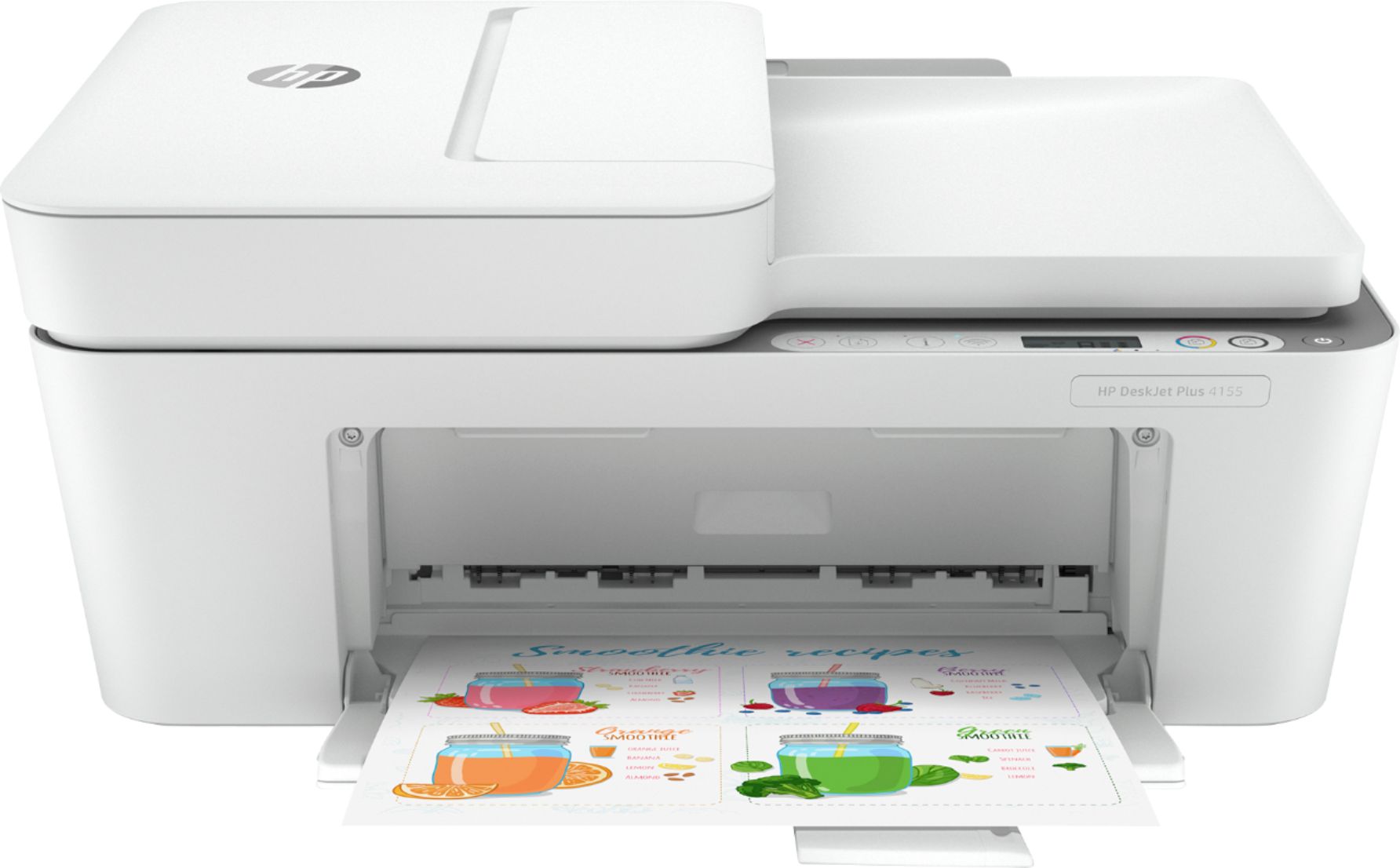
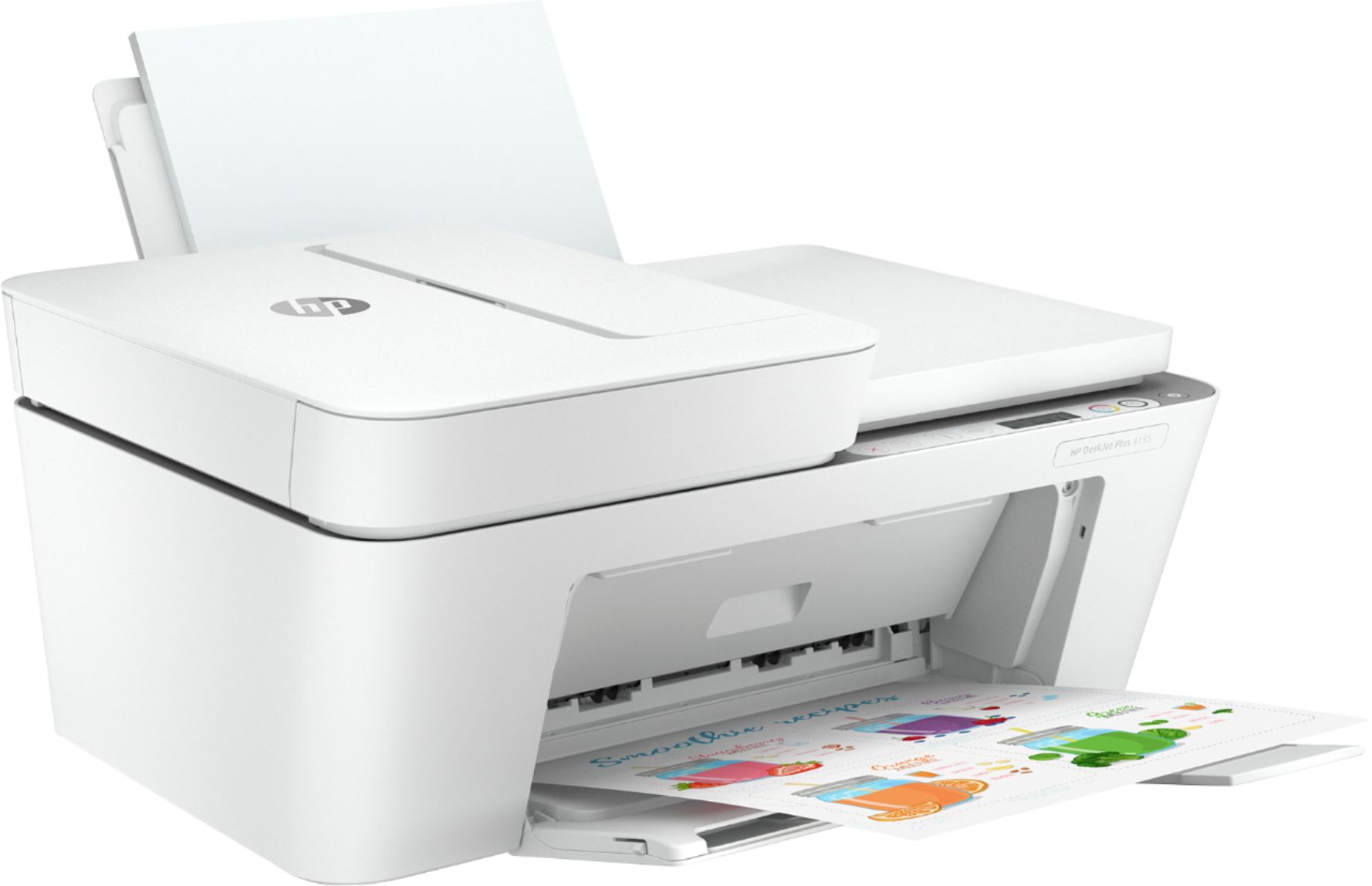
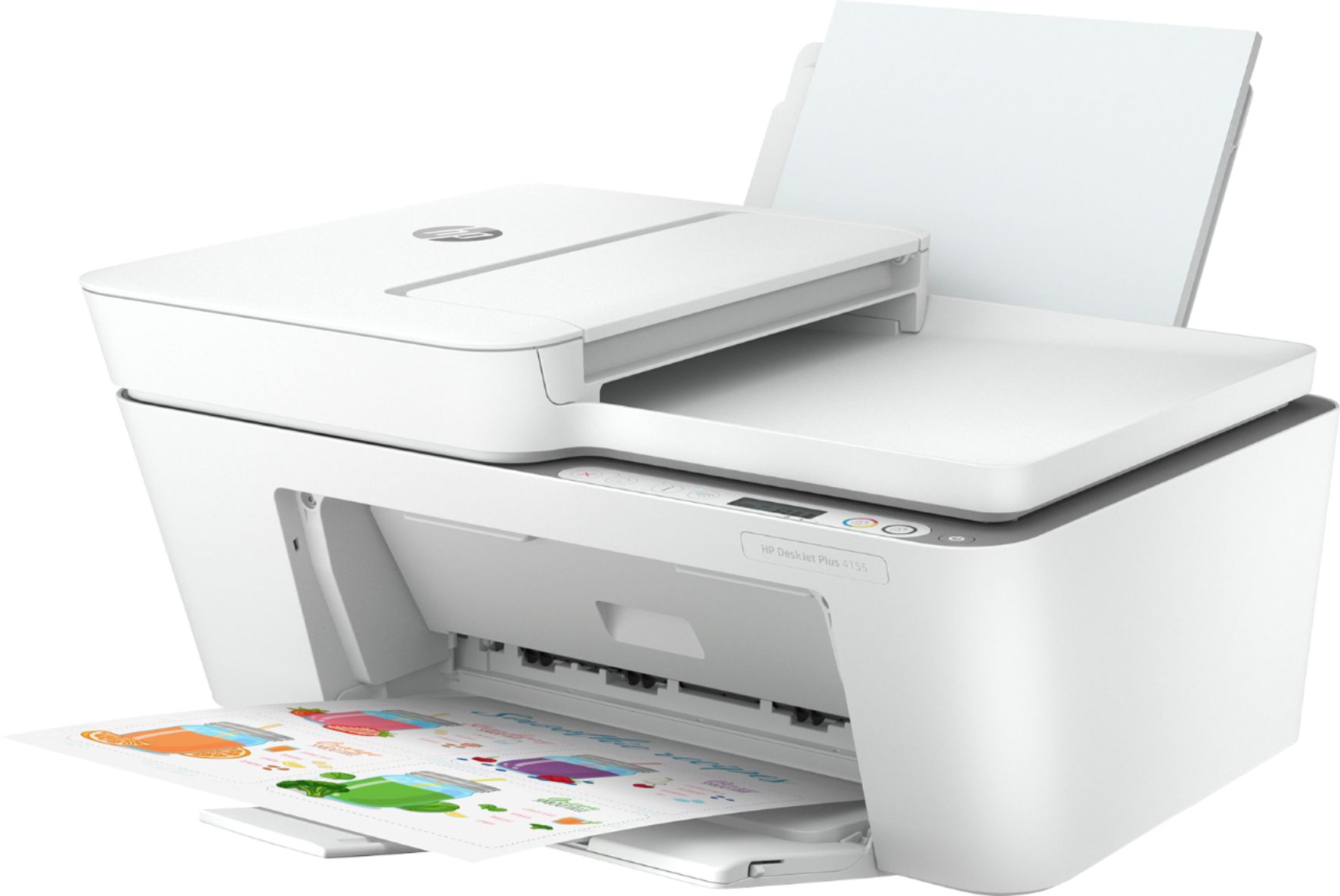
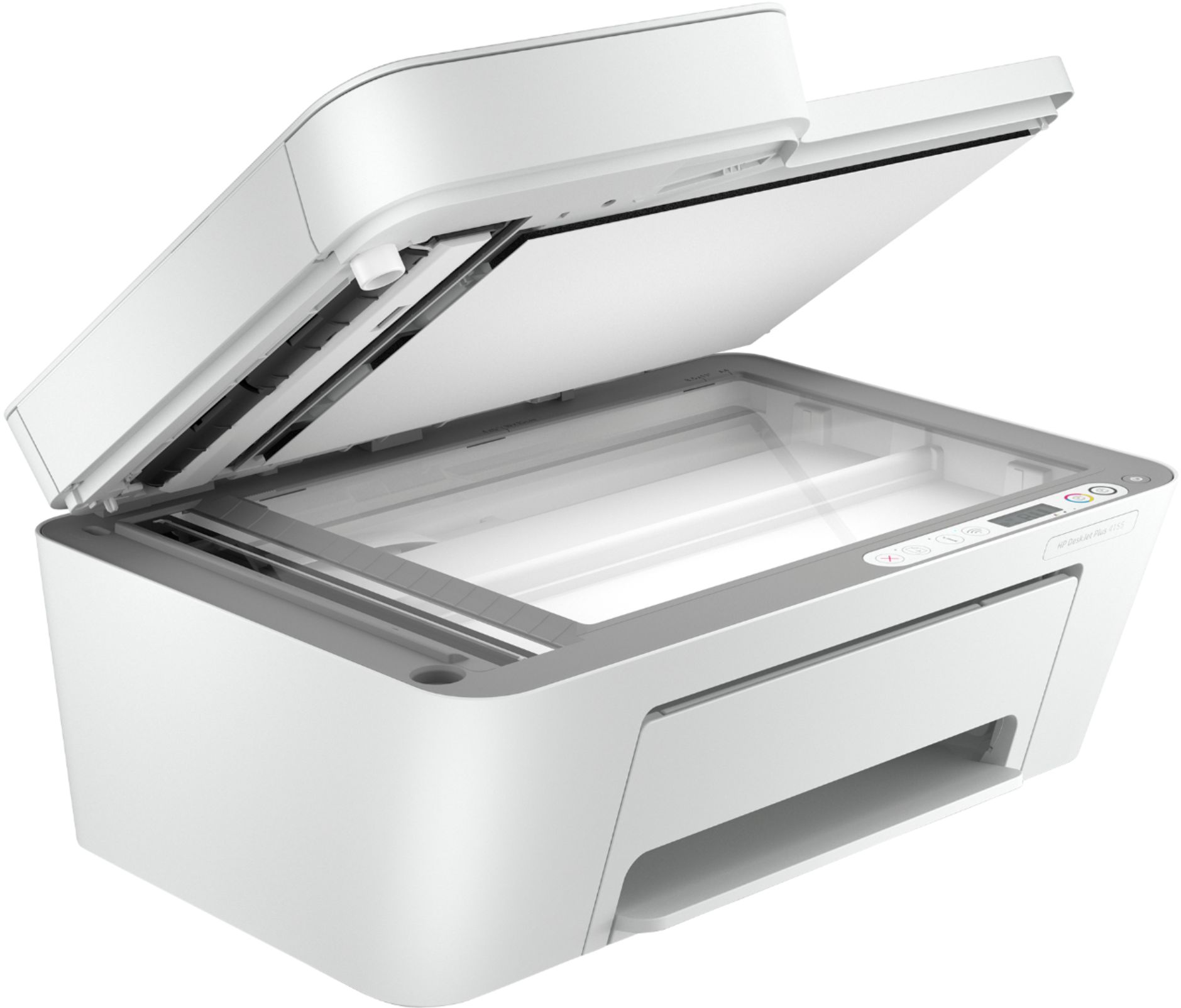
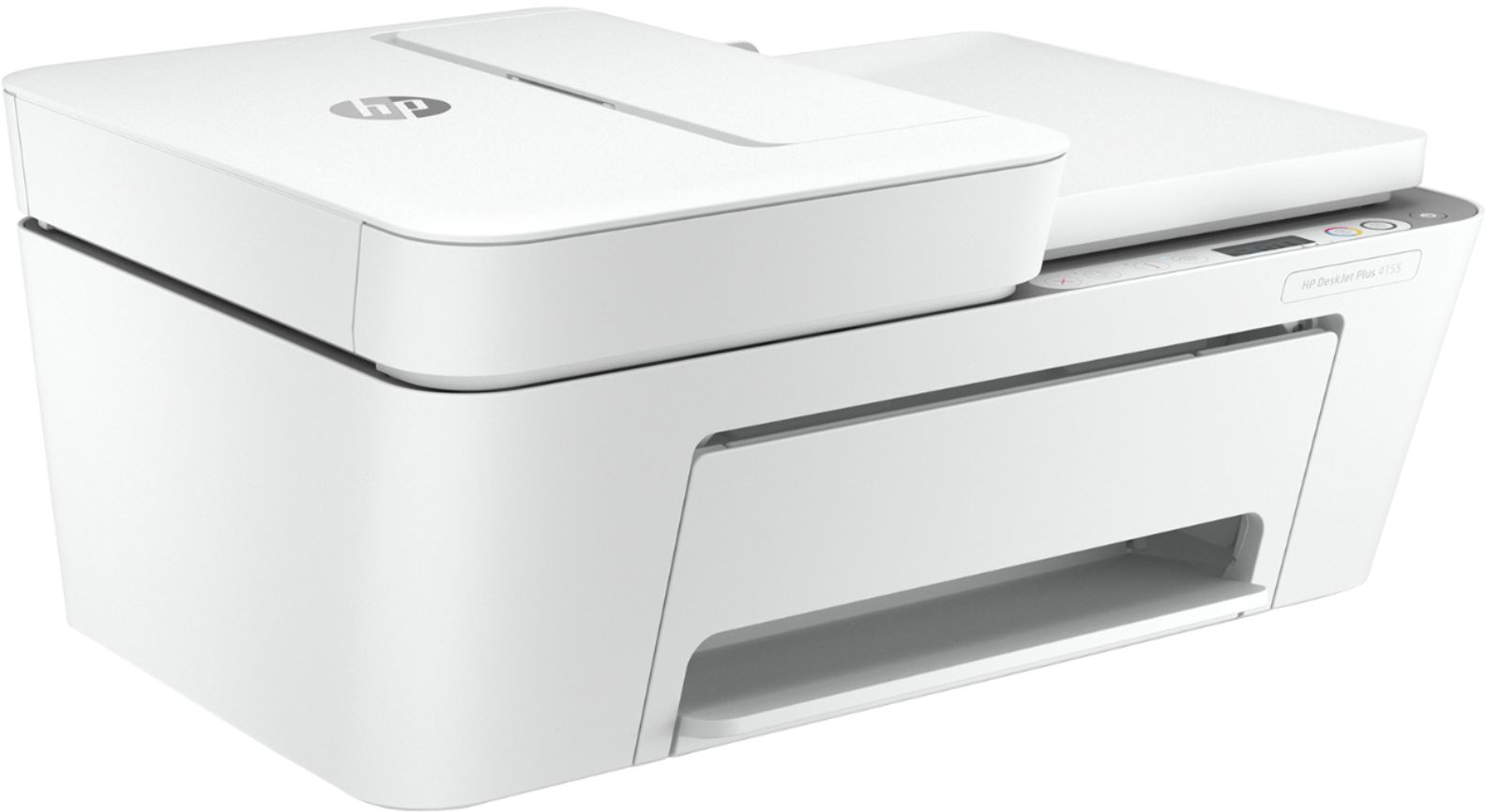
A:AnswerHere are the dimensions for this printer: (W x D x H) 16.8 x 22.8 x 10.3 inches (Output Extension Fully Out). Without the output extension fully out, the dimensions are 16.85 x 13.07 x 7.87 inches.
A:AnswerNo adapter needed for 4155 which I assume would be same as yours. This applies to windows machine. Can't answer for apple. Requires phone app HP Smart which is awful.
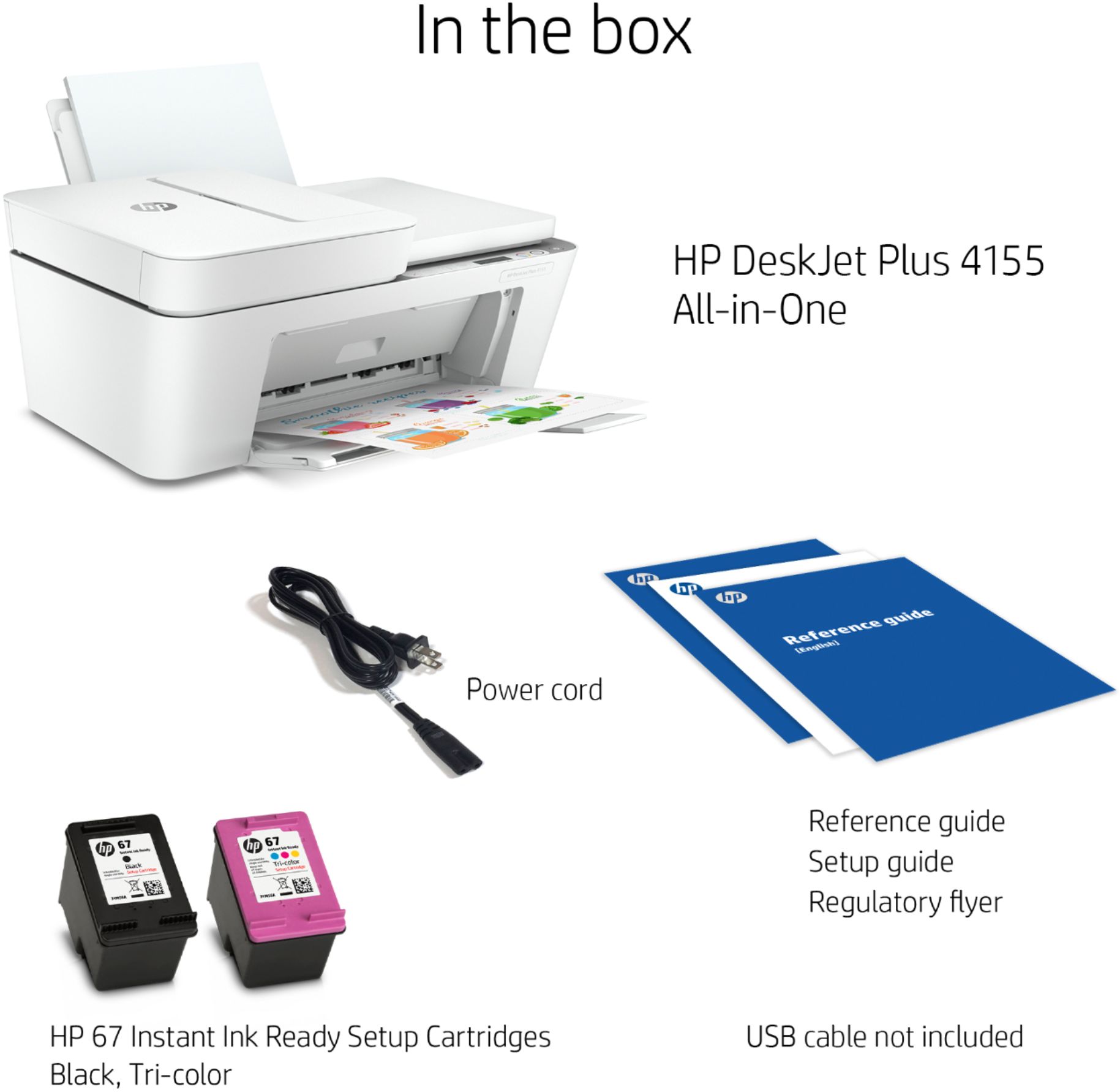
A:AnswerIt only came with a power cord, you will have to buy a usb
Connecting cord, so you can down load information from the printer to the lap top, for the initial set up. I was able to use my old usb cord from my previous printer.
A:AnswerI don't know about direct wired but using my brand new HP DeskJet Plus 4155 printer wirelessly is causing numerous Malware messages; so many rapid fire pop up warnings that I had to have Apple support help fix it. They deleted all the HP files and told me not to use the printer and to contact HP. I was not able to resolve the issue with HP support because, after multiple attempts to call in, I only got through once and the tech disconnected our call. I am going to get a different brand printer. Sorry if this doesn't help with your exact question.
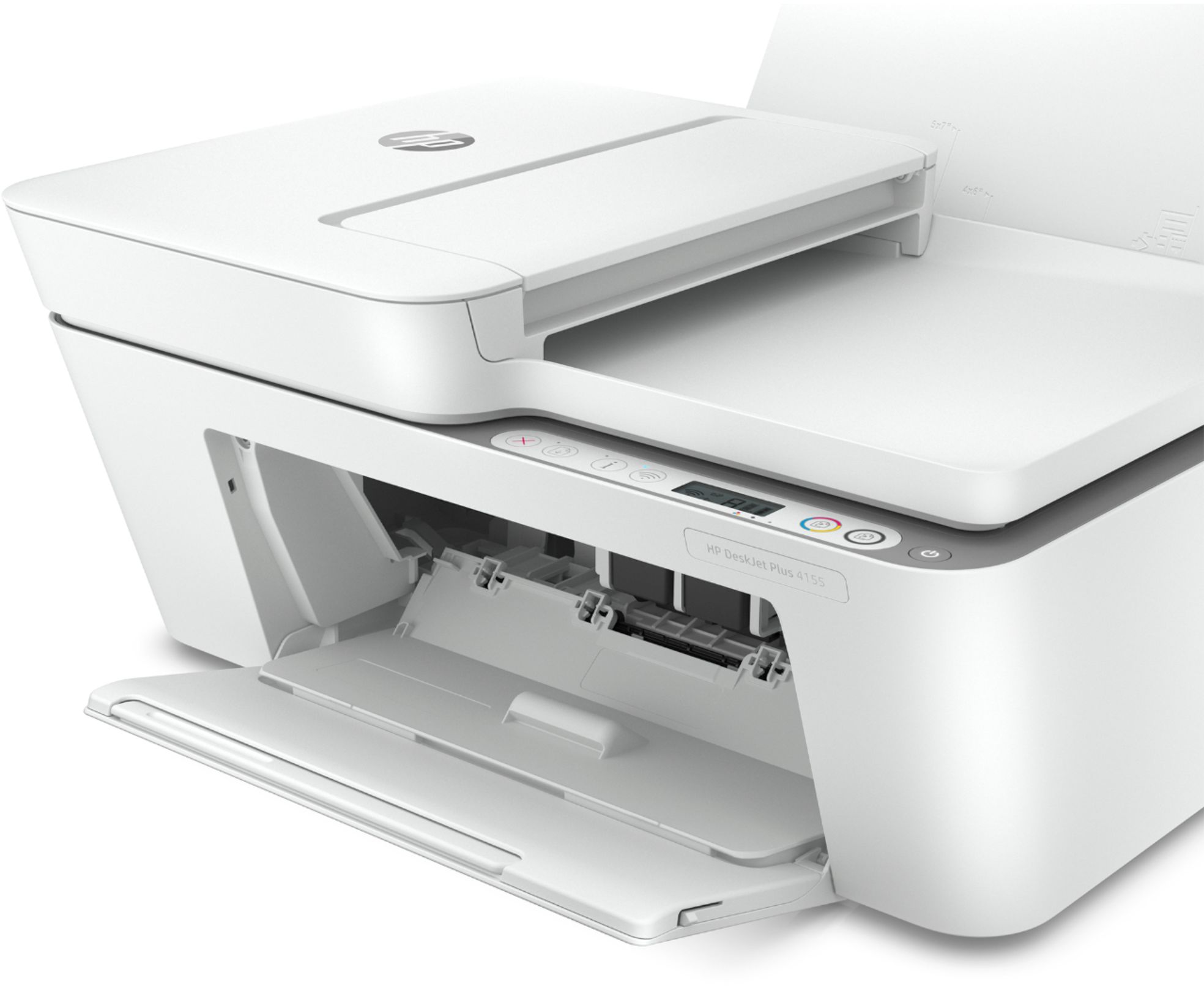
A:AnswerNo it does not come with paper. I suggest using a Multipurpose paper with ColorLok. Here is an example of some:
https://www.bestbuy.com/site/hp-everyday-copy-multipurpose-paper/3412676.p?skuId=3412676
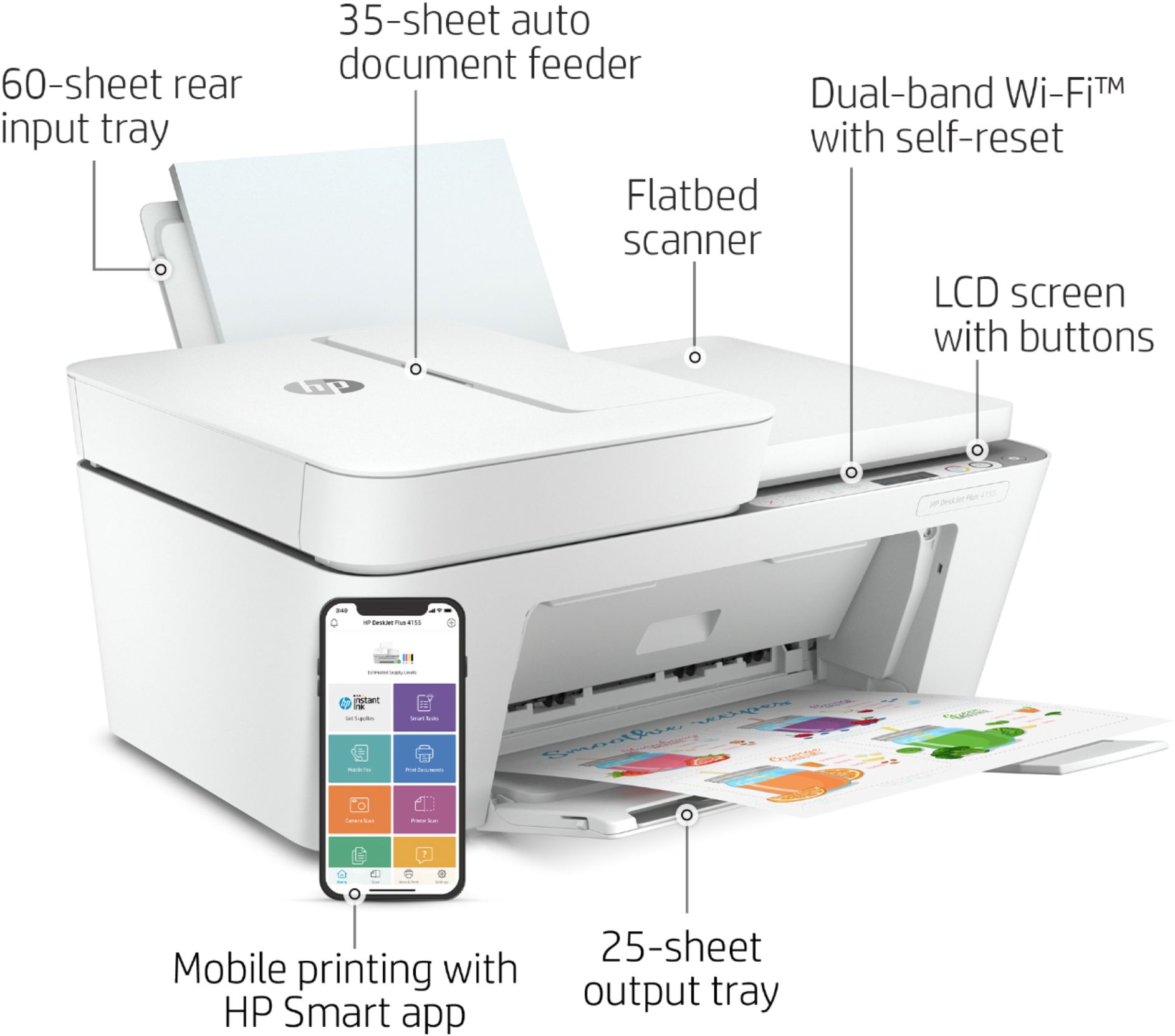
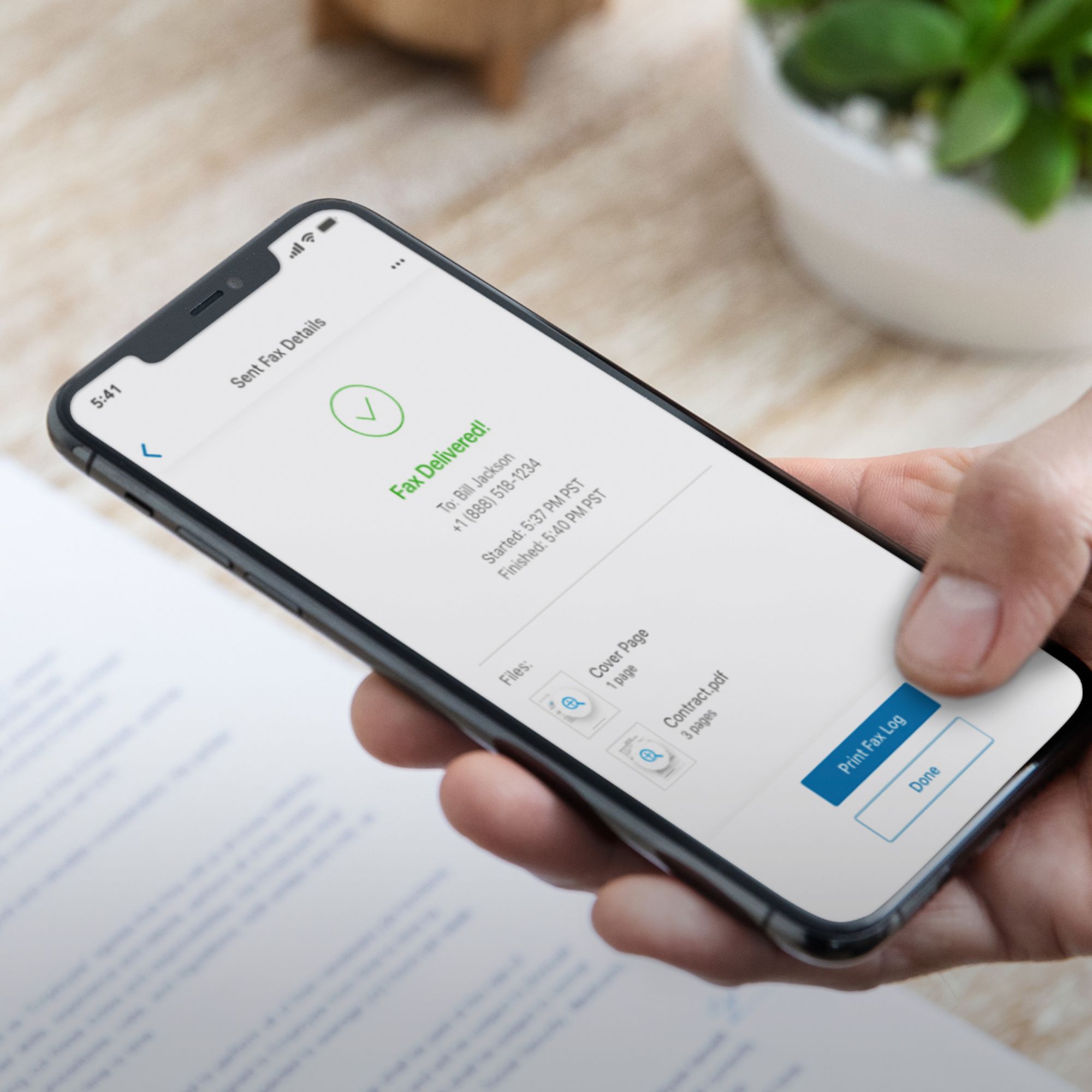
A:AnswerThe only way you can send faxes with this HP Deskjet Plus 4155 printer is through the HP Smart app. The auto document feeder can hold up to 35 pages at a time. Here is more information on the mobile fax on the HP Smart app: https://support.hp.com/us-en/document/c06432978