A:AnswerYou can can resize your copies through the HP Smart app with this printer. Here is more information: https://support.hp.com/us-en/document/c03561640
A:AnswerHere are some instructions on how to setup the printer using the HP Smart app: https://support.hp.com/us-en/document/c03561640 If you need further assistance, visit https://support.hp.com or you can reach out to the Geek Squad at Best Buy.
A:AnswerYou start the scan through the HP Smart app from a device that is connected to the printer. So, for example, if you want to scan a document. You will initiate the scan from the HP Smart app from a laptop or mobile device, i.e. smartphone or tablet. You will choose the printer you want to scan with. After you scan, you will be able to save the scanned item or share it. Here is more information on the HP Smart app: https://support.hp.com/us-en/product/hp-deskjet-2600-all-in-one-printer-series/12319824/model/21481524/document/c04675142
A:AnswerUnfortunately, "least expensive" and "best" are mutually exclusive-better printers are going to be more expensive. Any inkjet printer should work. The best one for you is going to depend on your budget and how much you're going to use it.
A:AnswerYes, the Chromebook will work with this printer. Once you are set up the printer to the wireless network, follow these instructions to set up the printer on the Chromebook: https://support.hp.com/us-en/document/c04122530
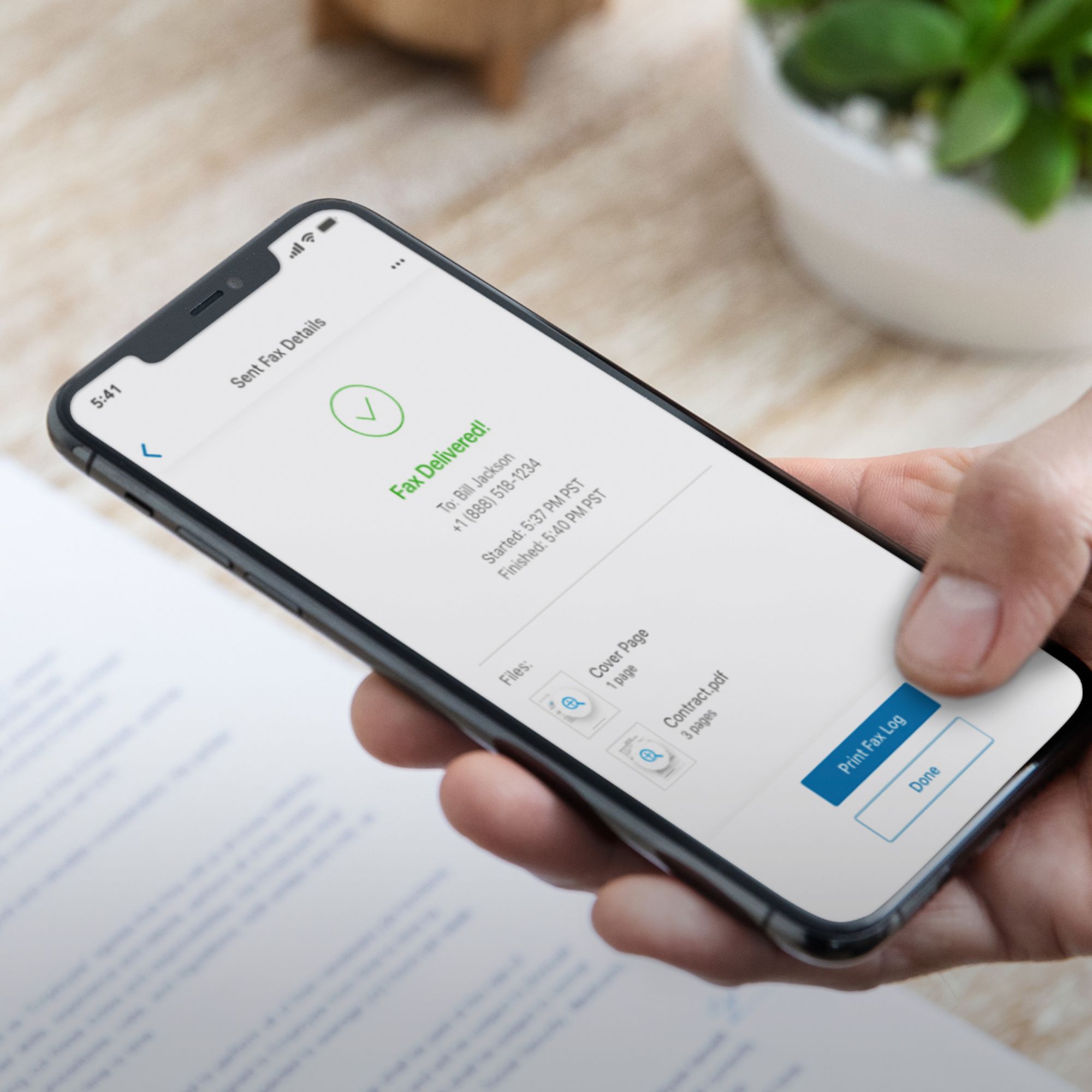
A:AnswerNo. This printer does not have the capability to send faxes over a landline. You can send faxes using the HP Smart app: https://support.hp.com/us-en/document/c06432978