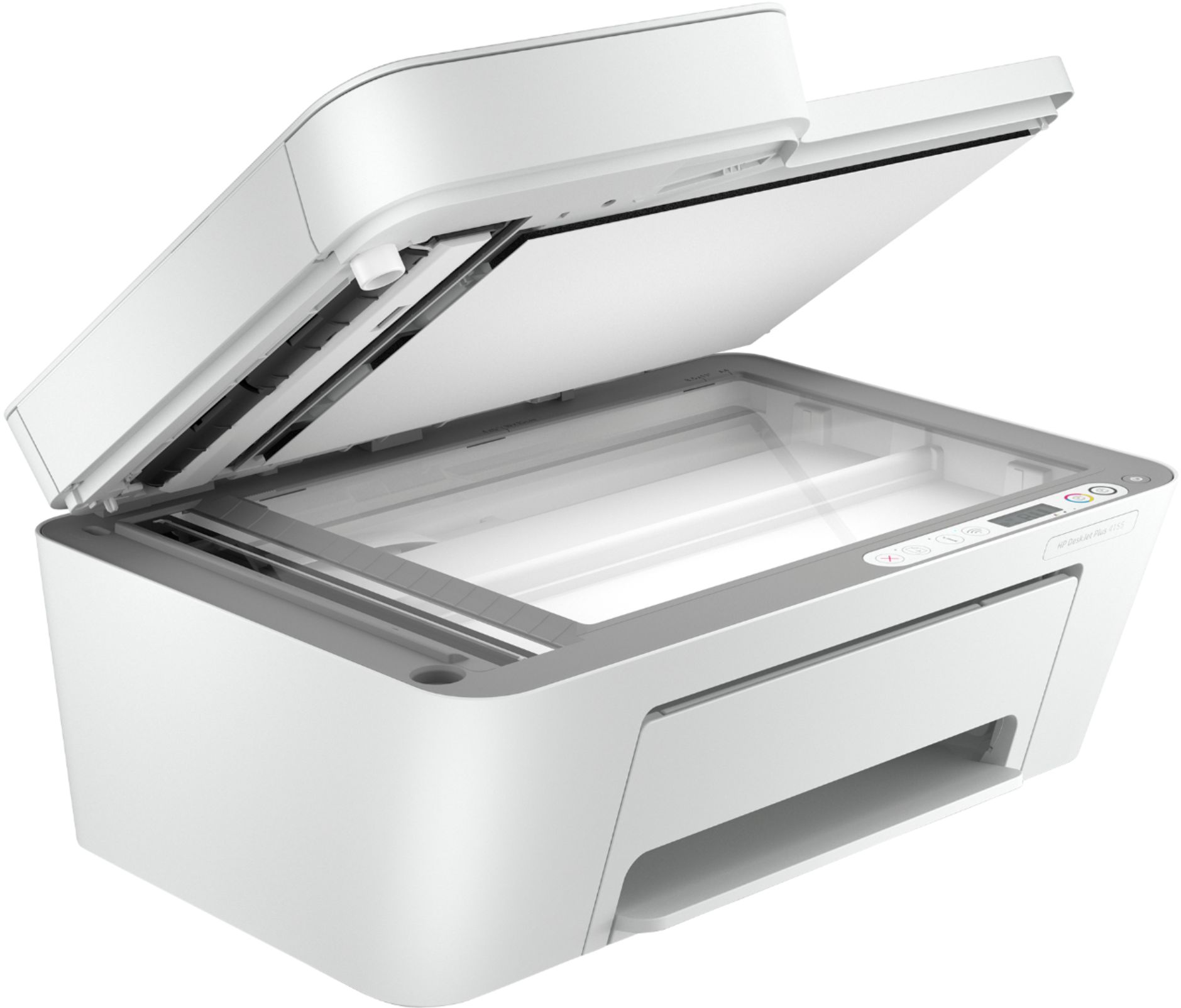
A:AnswerUnfortunately, it does not scan double sided documents. You'd need to look at printers in the OfficeJet and OfficeJet Pro line to have that function
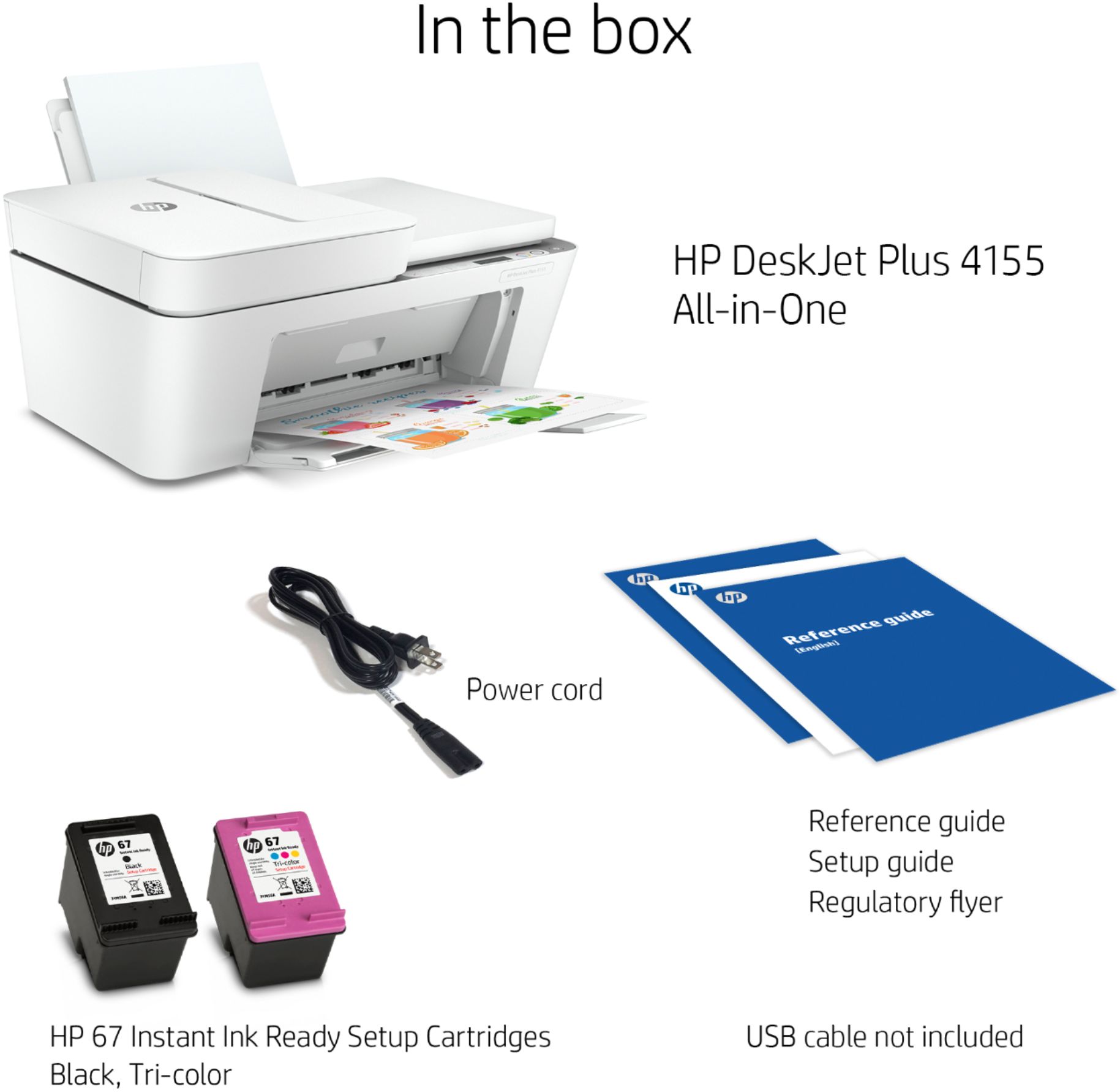
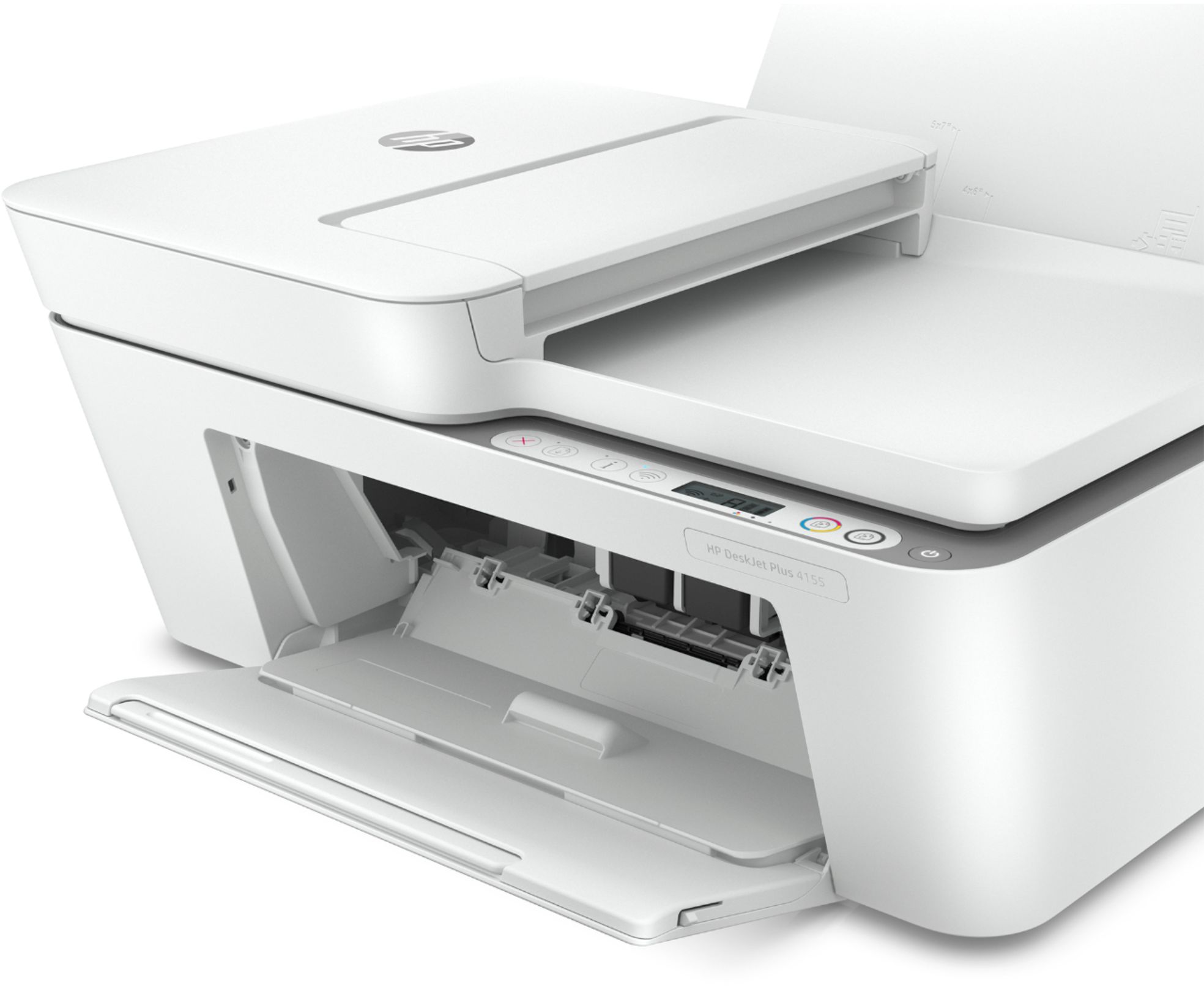
A:AnswerThe 67 standard cartridges are rated at 120 pages for the black and 100 for the color. If you get the 67XL cartridges, they're rated at 200 pages for both the black and color.
A:AnswerYes, the HP Deskjet Plus 4155 printer is compatible with the Chromebook. Once you are set up the printer to the wireless network, follow these instructions to set up the printer on the Chromebook: https://support.hp.com/us-en/document/c04122530
A:AnswerI would install the HP Smart App. It will check and make sure the drivers for scanning are installed. You can get the app at this link. https://support.hp.com/us-en/document/c04675142
A:AnswerIf you have a pc - go to the menu - select “printer and devices” - select your printer model - the next window that appears should have a menu which includes “scan” - click “scan”. after that it’s self-explanatory.
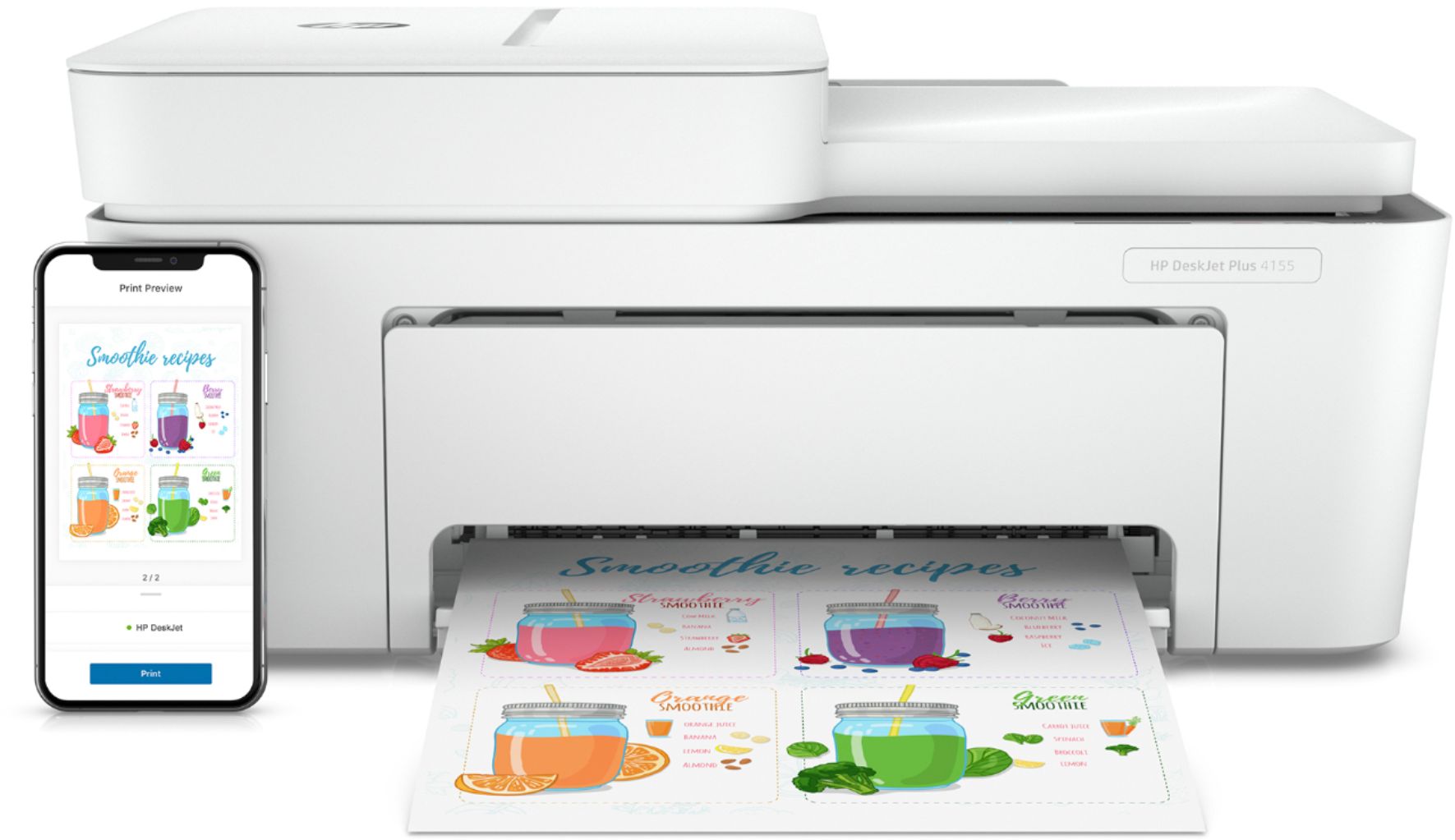
A:AnswerThe Deskjet Plus 4155 can work with a Smartphone or Tablet without downloading an app with wifi direct. Smartphones and Tablets can use the HP Smart App as well to print. To use with a computer, you would need to download drivers for Windows or Mac.
A:AnswerNo it does not. You have to download an app on r any device computer, phone or tablet. You use that software to do anything. It was very easy to set up with our wireless network. One trick is if you have a router that has a push button to sync any device you have to use it for it to recognize your printer.
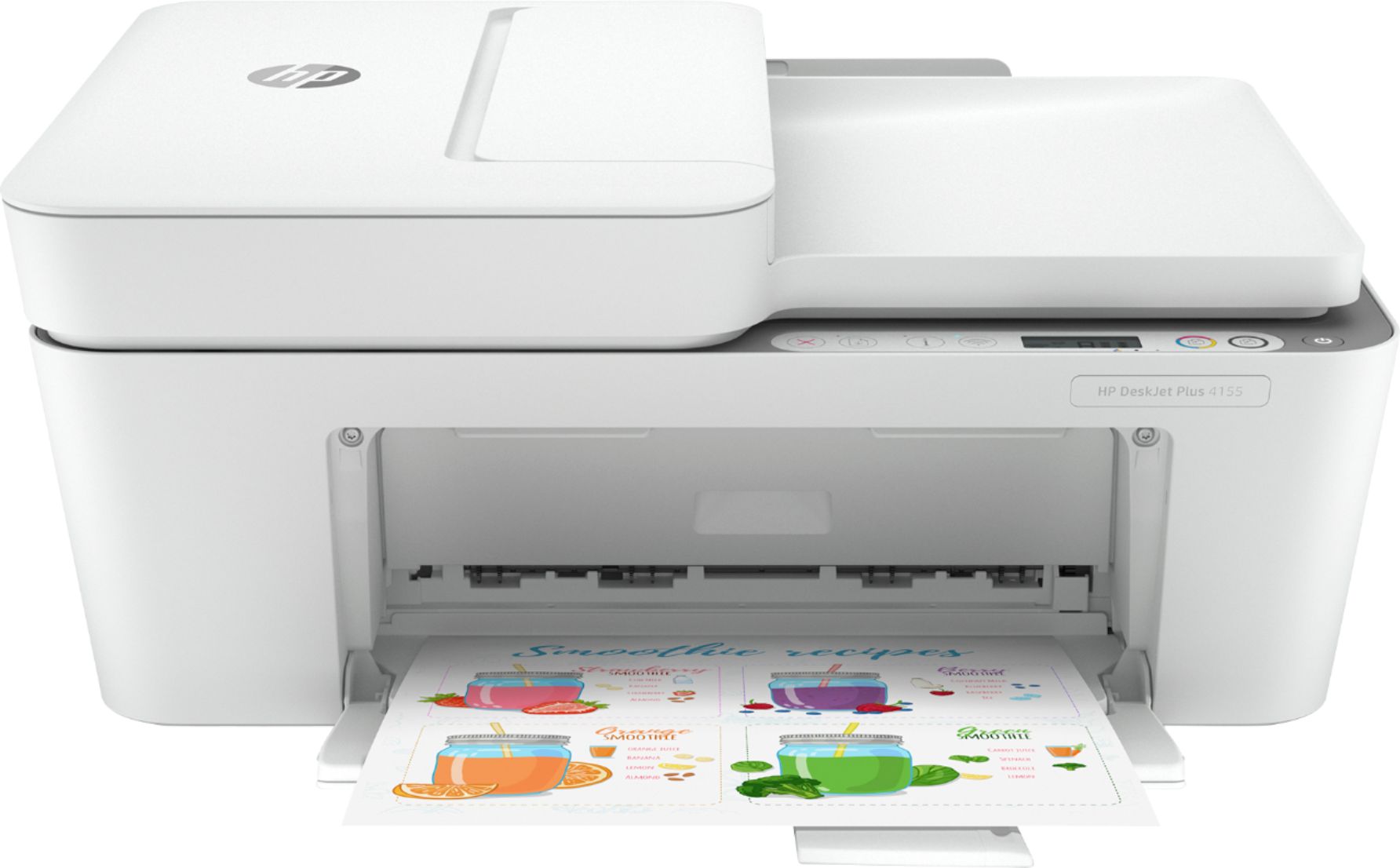
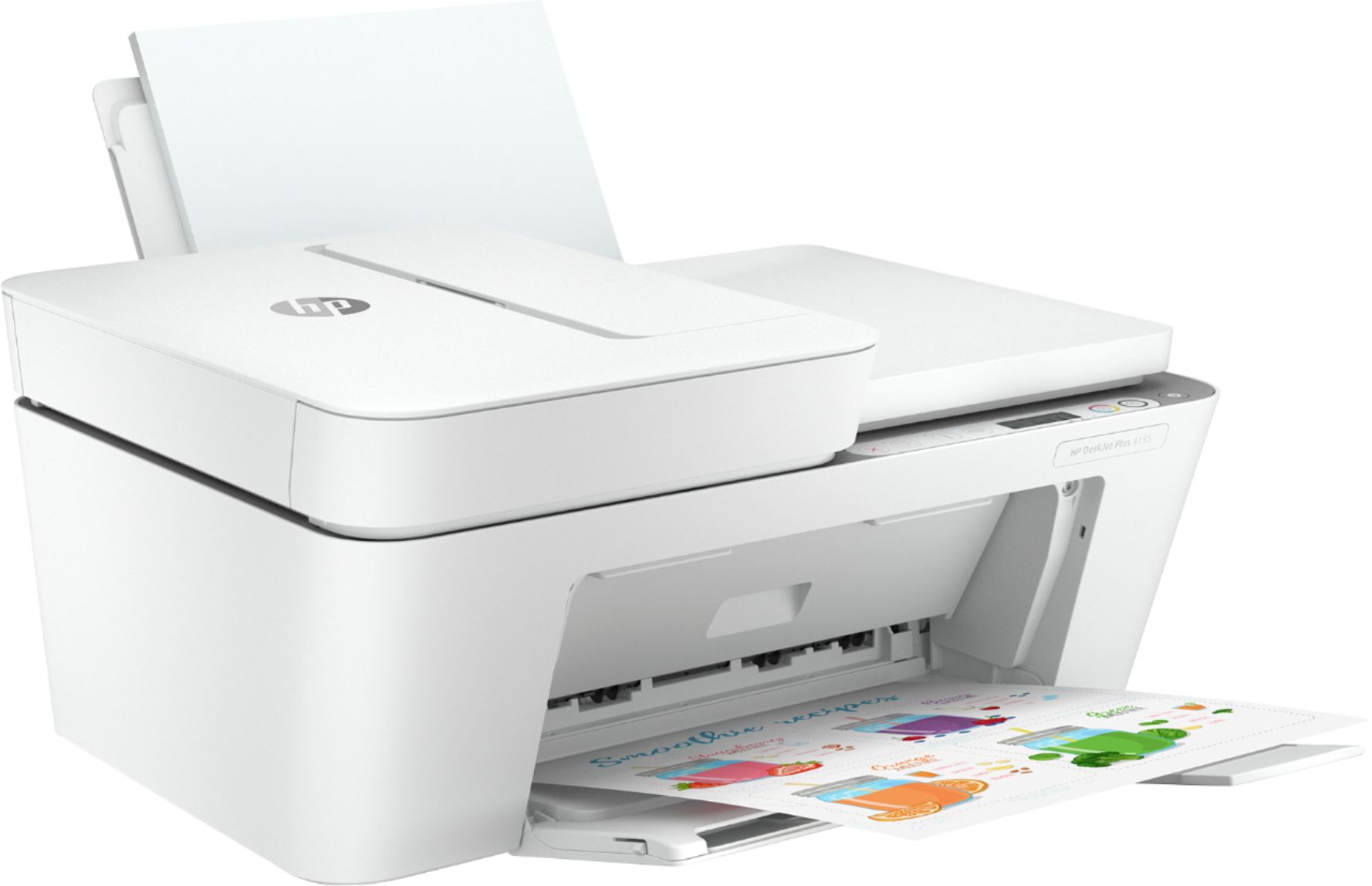
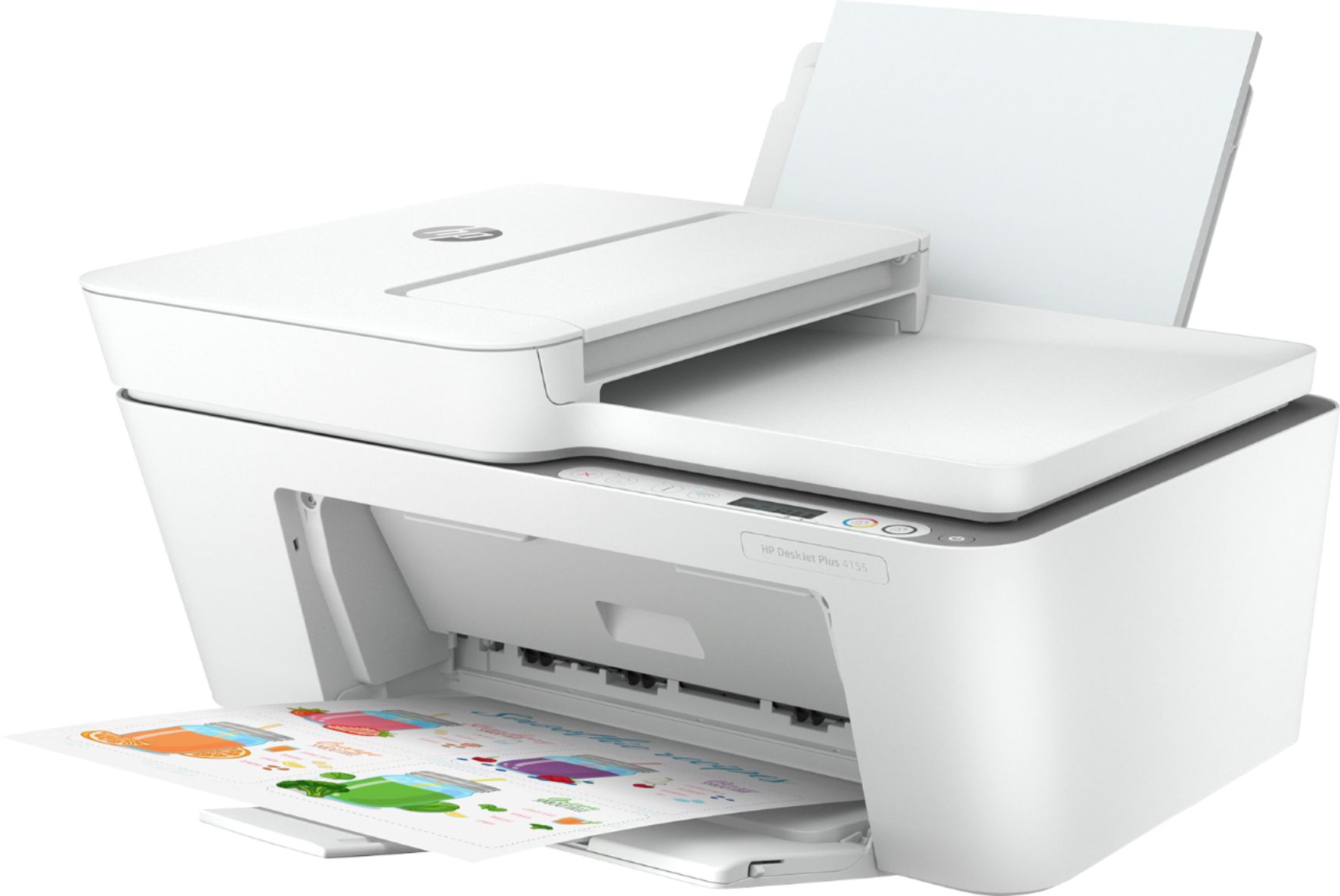
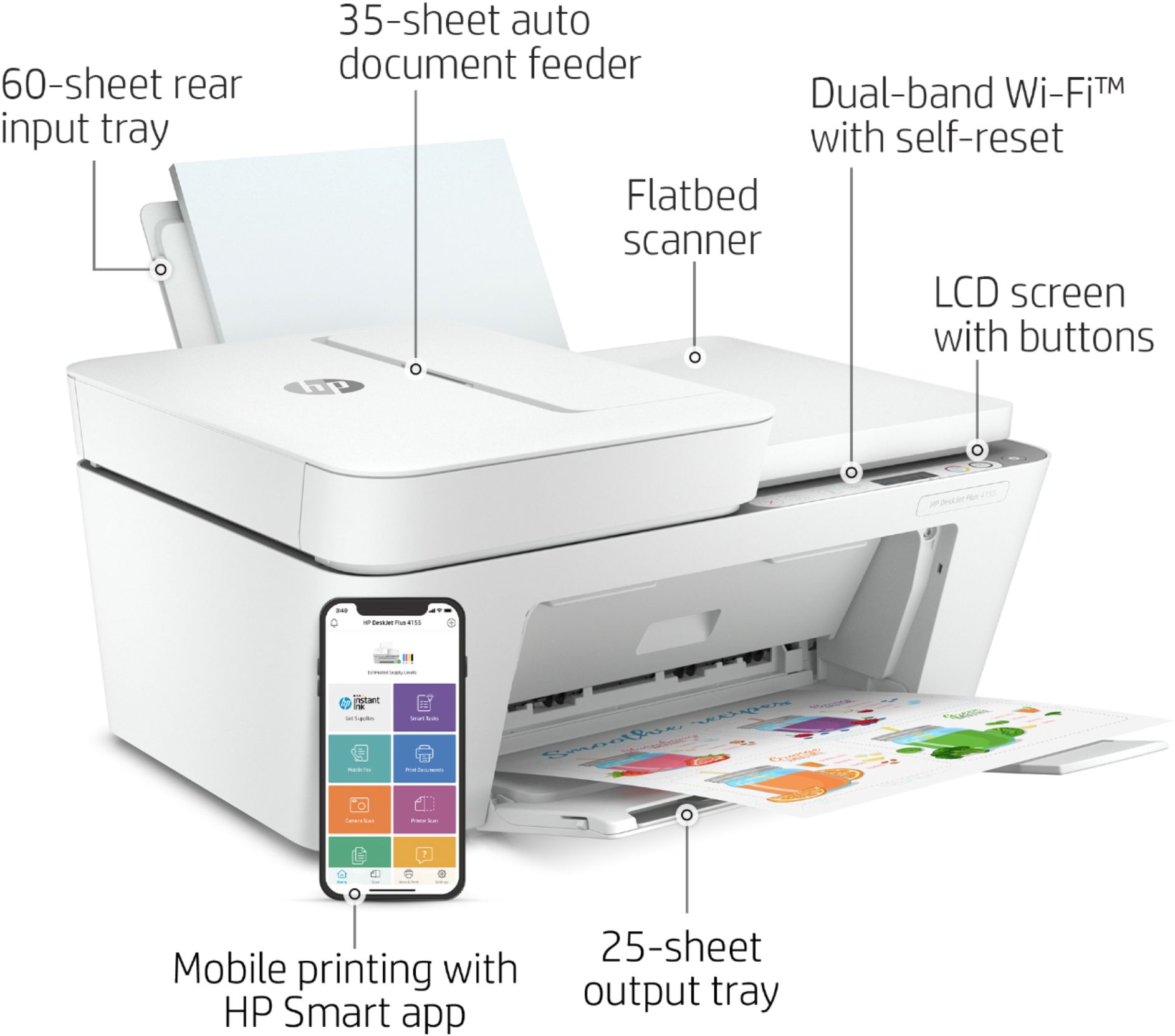
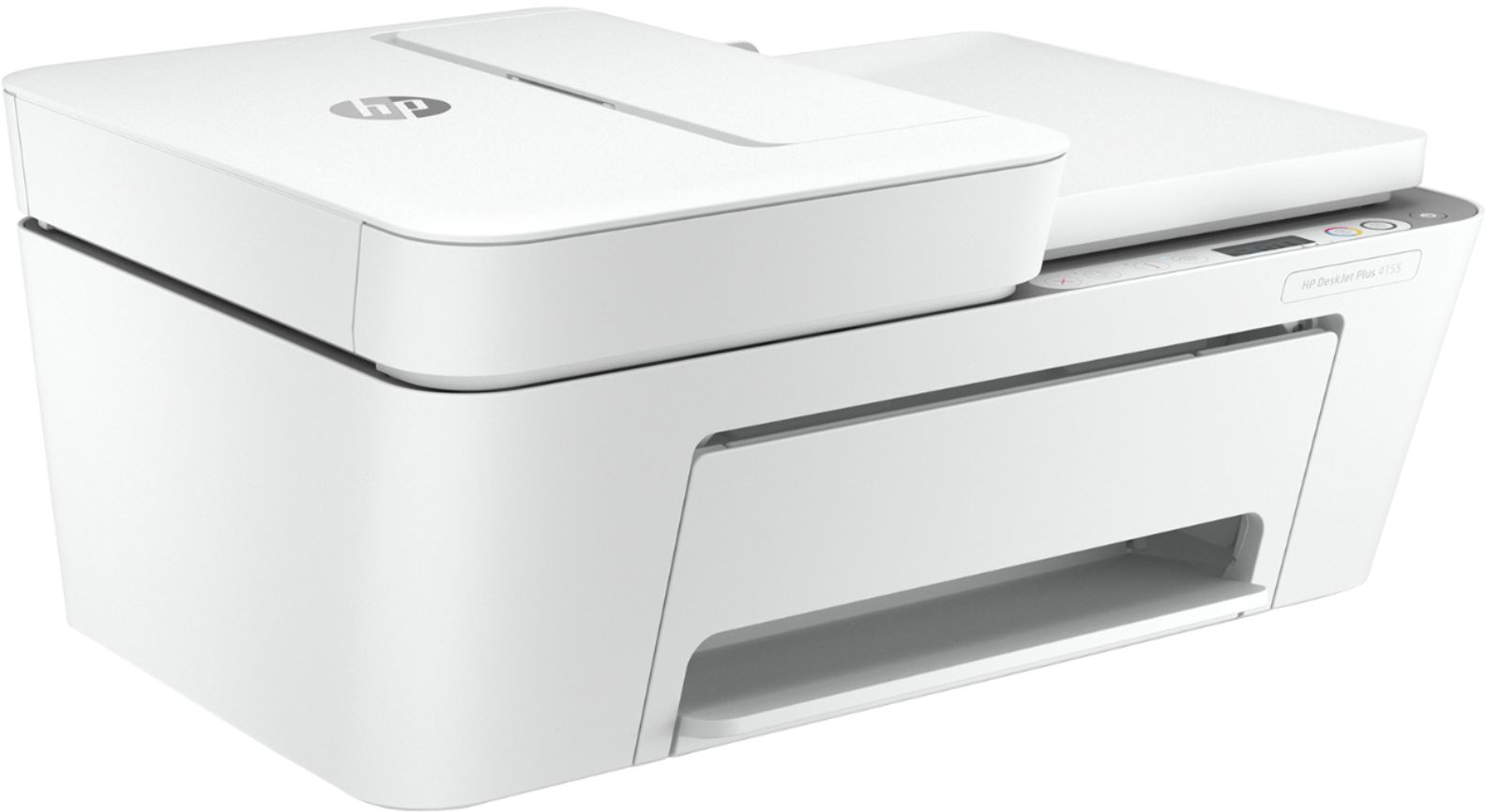
A:AnswerHere are the dimensions for the HP Deskjet Plus 4155 printer: (W x D x H)16.85 x 13.07 x 7.87 inches. And these the dimensions with the output tray extended: (W x D x H) 16.8 x 22.8 x 10.3 inches.
A:AnswerYes, you can use this HP Deskjet Plus 4155 printer with a Chromebook. Once you are set up the printer to the wireless network, follow these instructions to set up the printer on the Chromebook: https://support.hp.com/us-en/document/c04122530