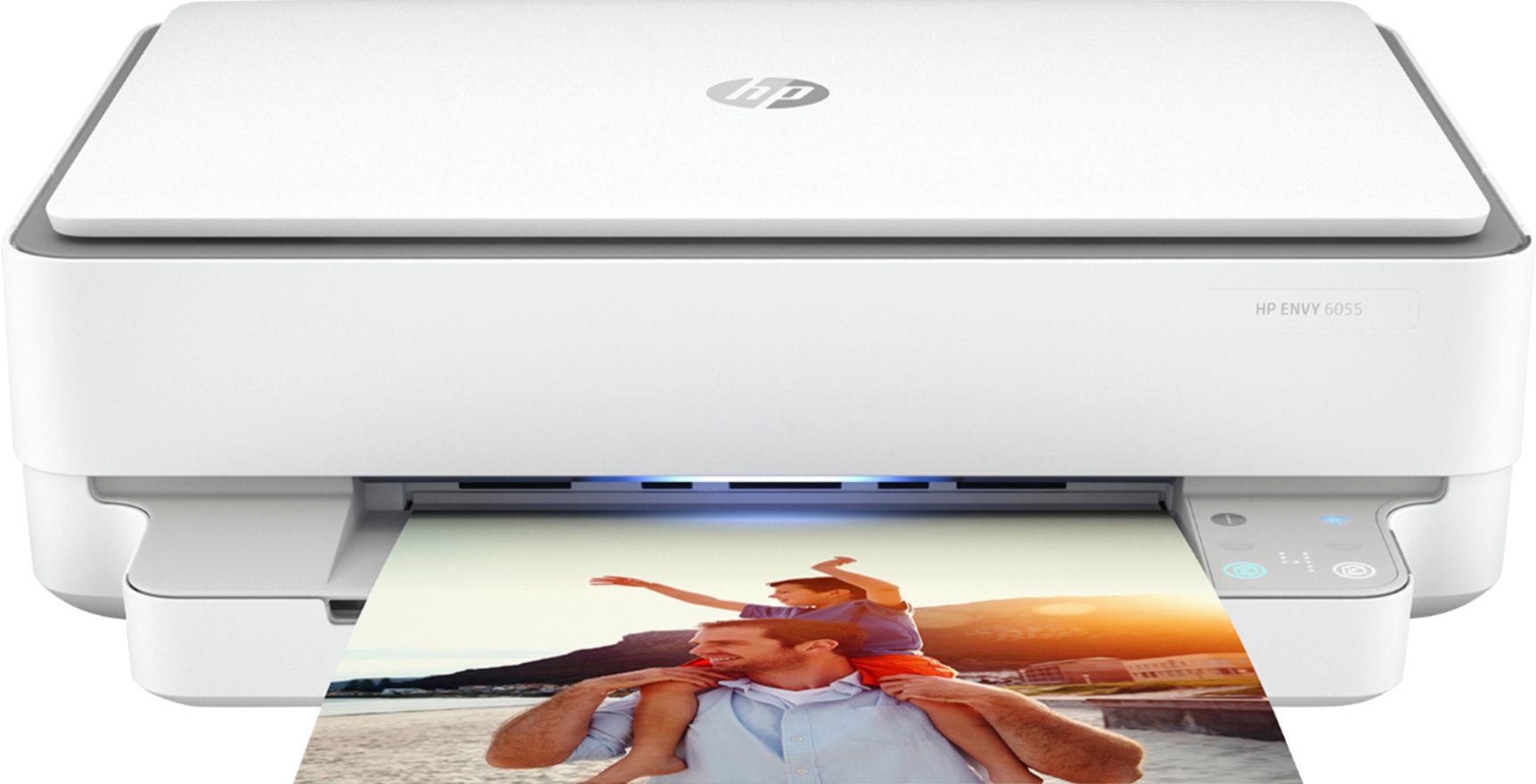
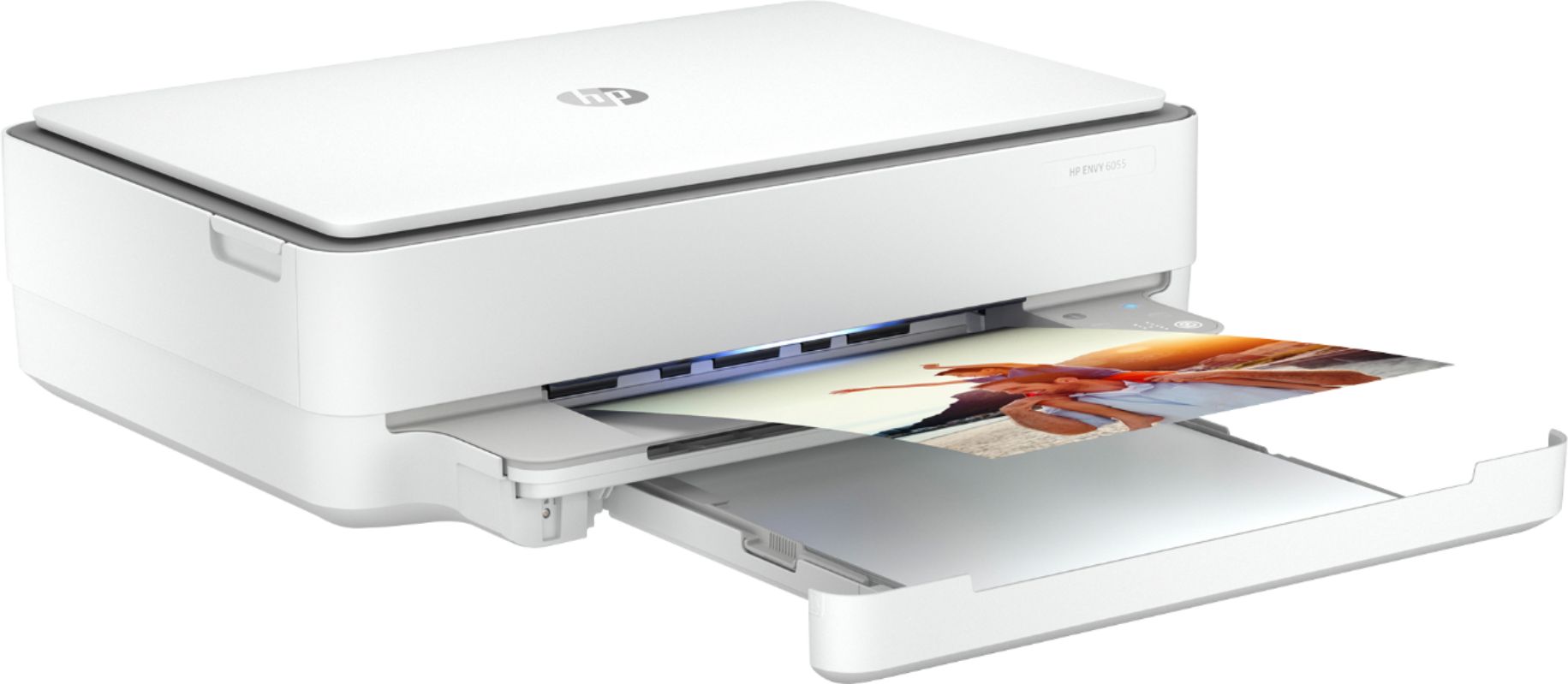
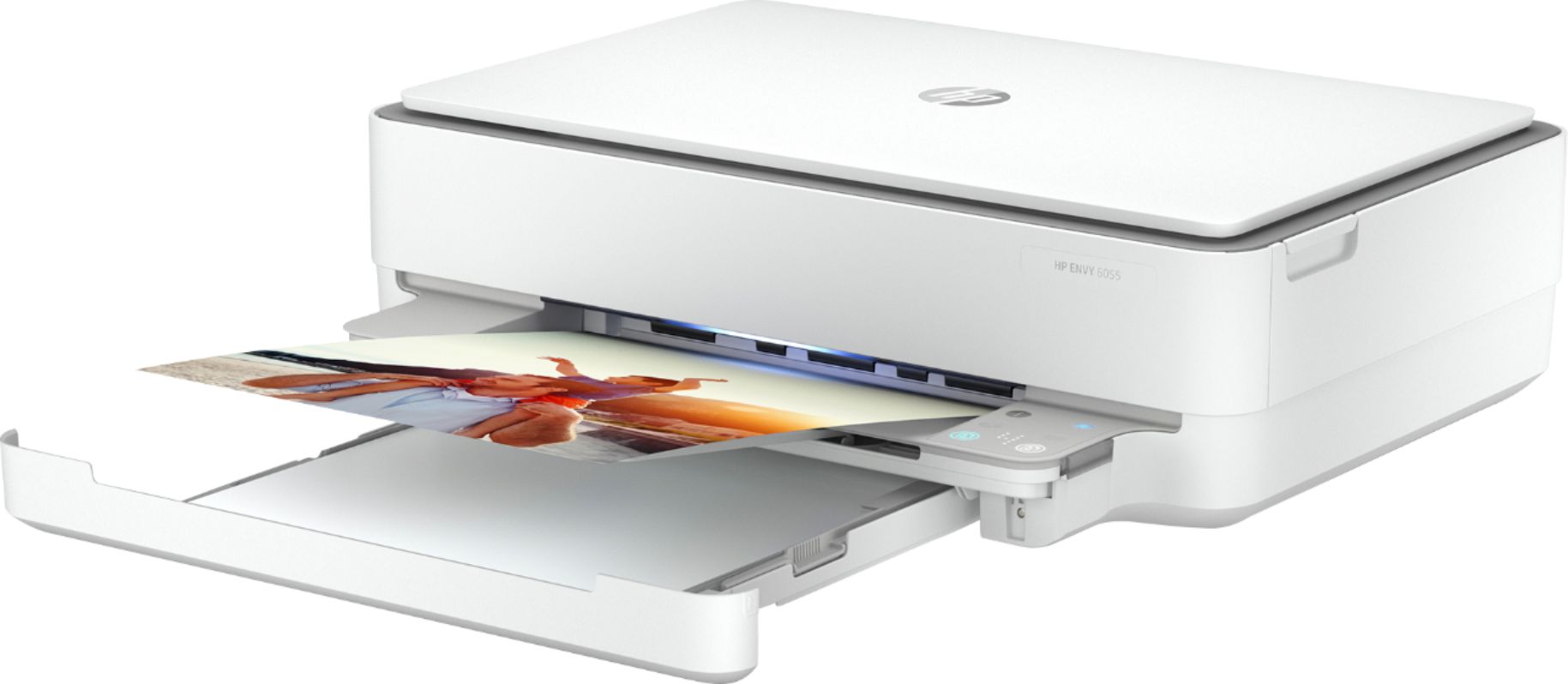
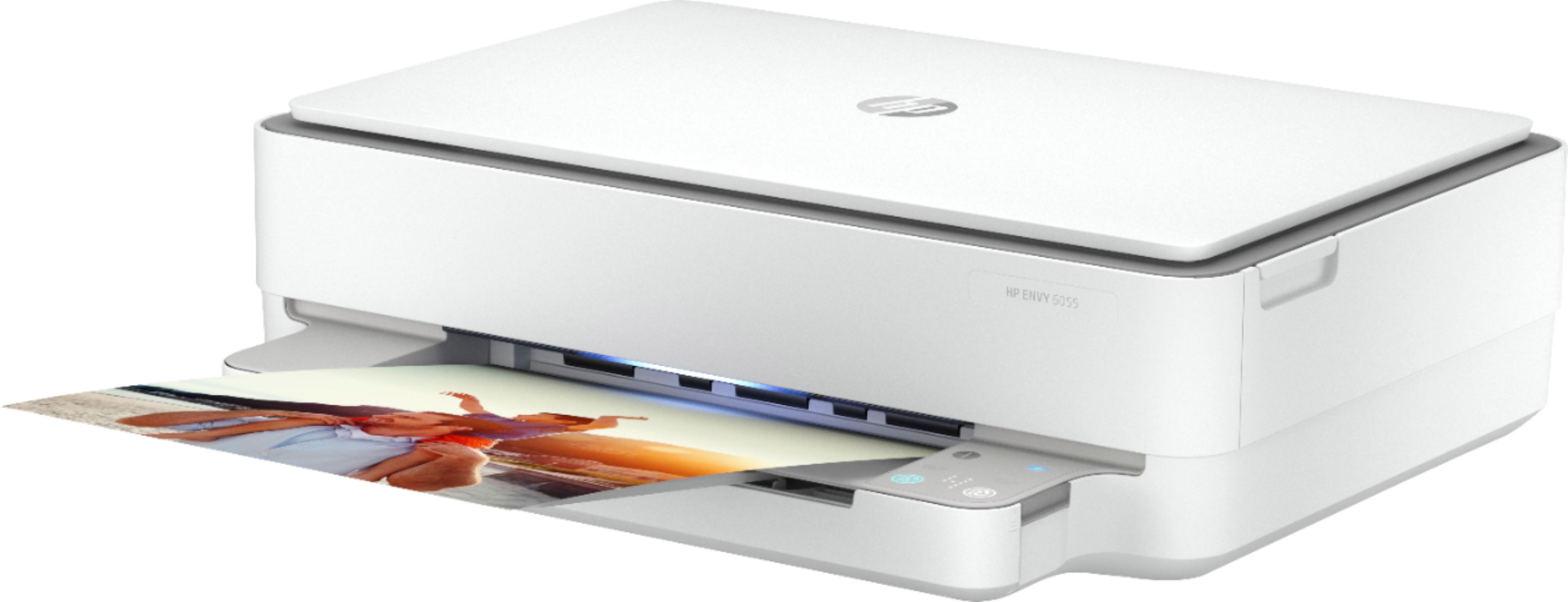
A:Answer Hello taffy1, to Copy directly from the printer please follow these instructions:
The Copy button on the printer display allows you to easily select number of copies and color or black and white
for copying on plain paper.
From the scanner glass
1. Load paper in the paper tray.
For information about how to load paper, see Load media on page 18.
2. Load the original, print-side down, on the scanner glass, aligned with the top-left corner.
For more information, see Load original on page 21.
3. Press either the Start Copy Black button ( ) or the Start Copy Color button ( ) to make a copy.
Copying will start two seconds after the last button press.
TIP: You can increase the number of copies by pressing the button multiple times.
If this is not successful please go to HP Smart App and the HP Print and Scan Doctor download as the HP Diagnostics can detect your printer and find recommended solutions. Thank you for being an HP customer!