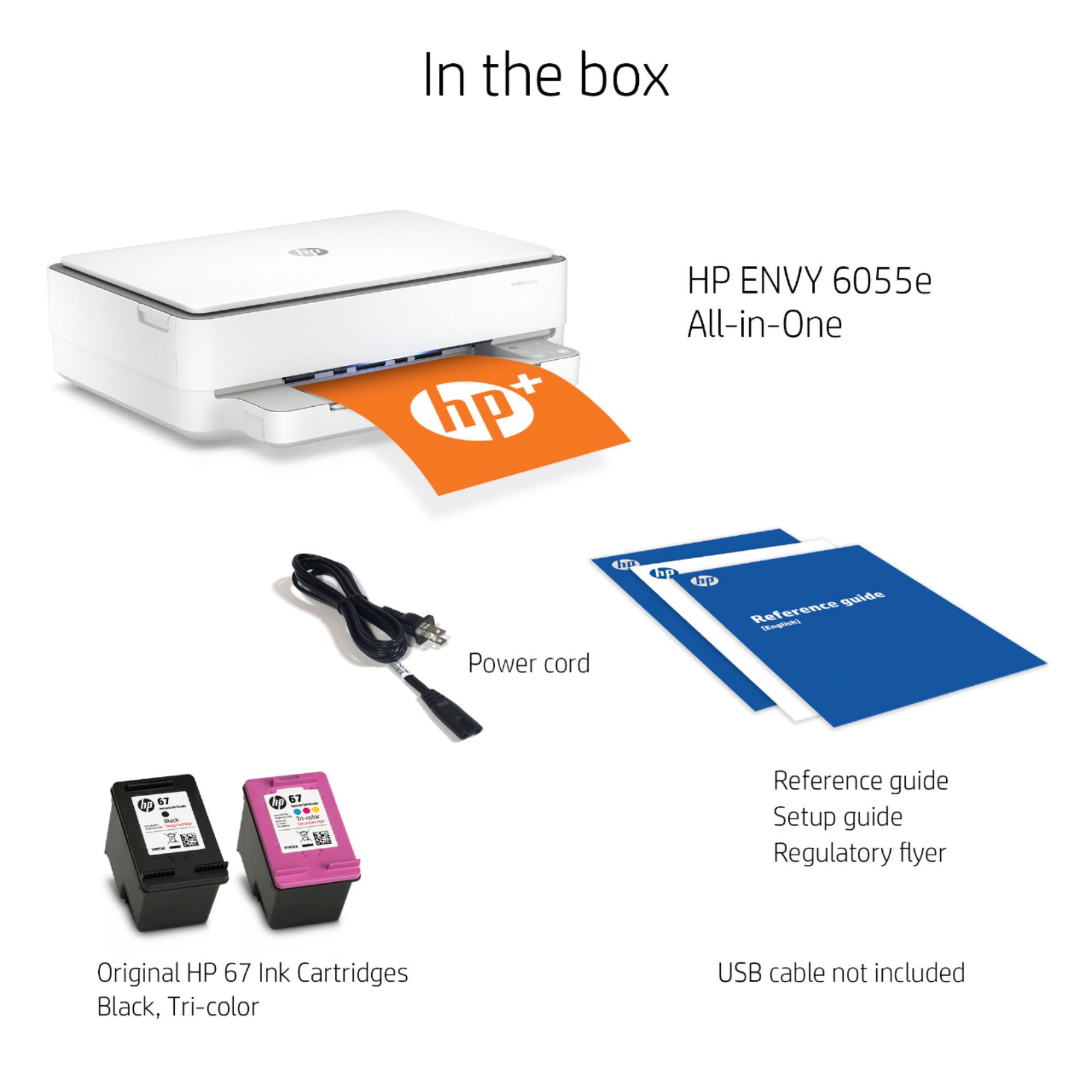
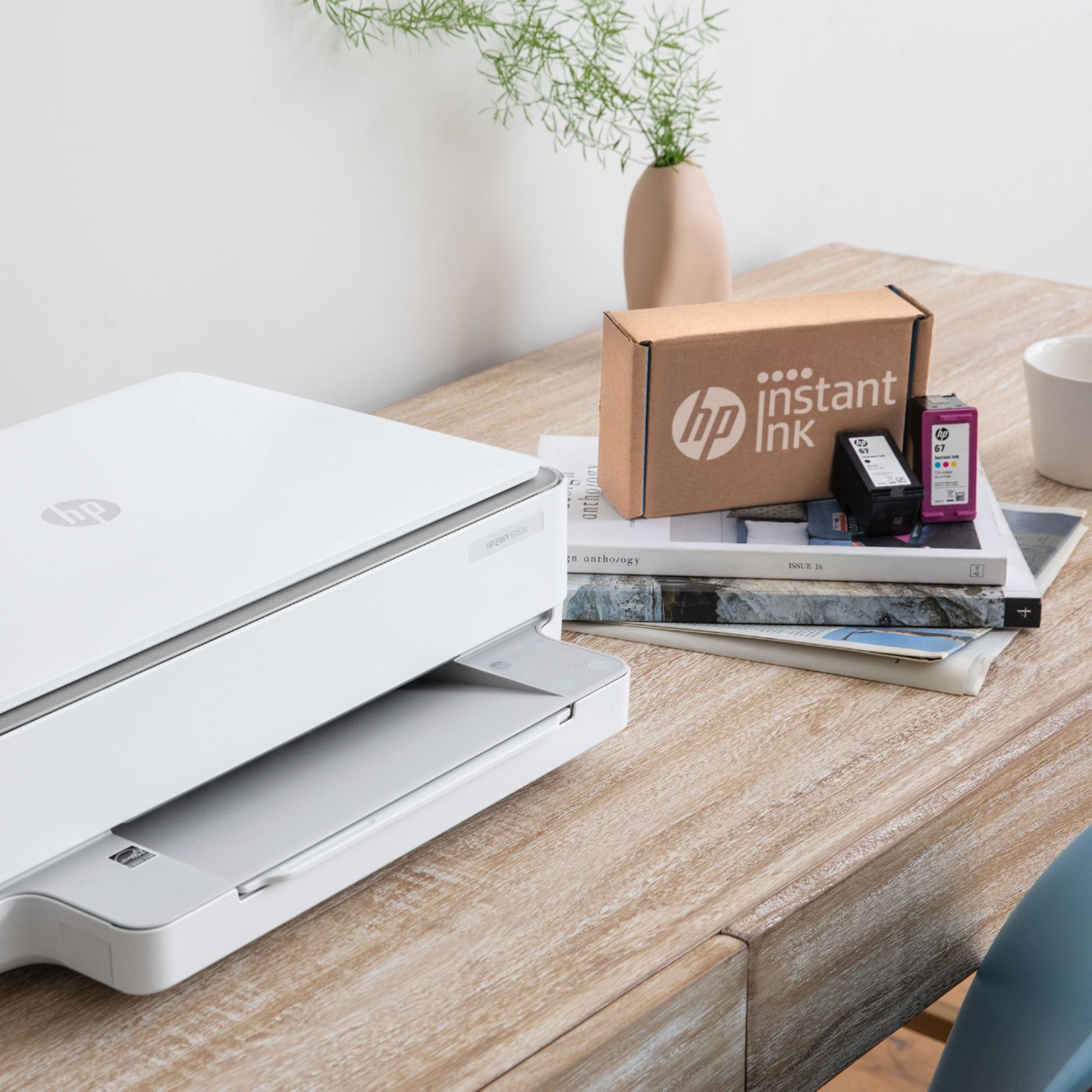
A:AnswerThe cartridges are rated at 120 pages for the black 67 and 100 pages for the color 67. The pages rating are from the ISO which is 5% coverage of the printable area of an 8.5x11" page. A 4x6 photo can use a lot of ink depending on how much color there is. If you are concerned about the cost of ink, I would recommend HP Instant Ink. HP Instant Ink is where you pay for the number of pages you print. Not the ink. The lowest plan is $2.99 for 50 pages. That includes ink and shipping. In this plan the cost is about 6 cents per page-so a 4x6" photo would cost 6cents, and it doesn't matter how much ink is used.
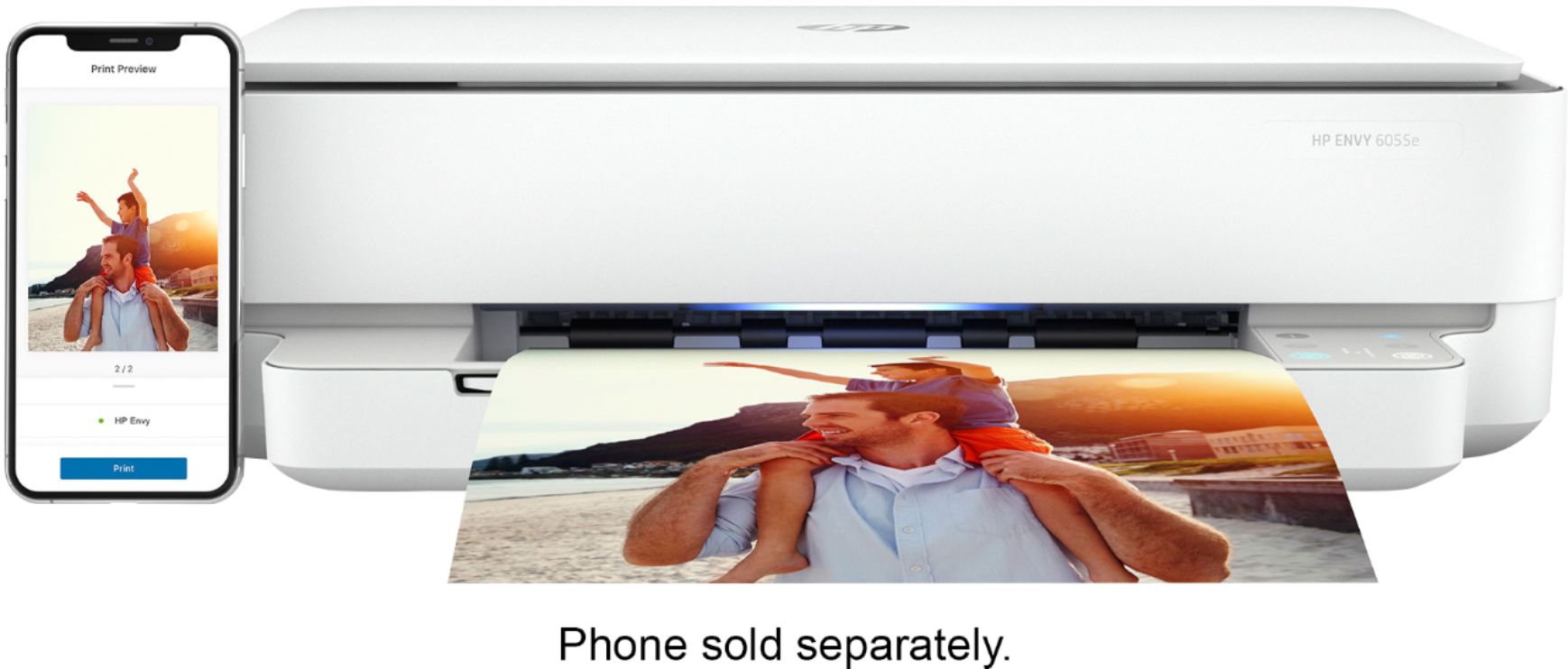
A:AnswerThe easiest way to do is is to download the free HP Smart app to your printer or mobile device. That will allow you make all of those adjustments
A:AnswerIf you do connect the printer to the WiFi, you can connect the printer to a computer using the USB A to B cable. If you do not have the USB A to B cable, then you need to purchase one.
A:AnswerOk. First you need to have the printers driver installed on your PC. You can get them from here:
https://support.hp.com/us-en/drivers/selfservice/hp-envy-6000-all-in-one-printer-series/29256672/model/30153277
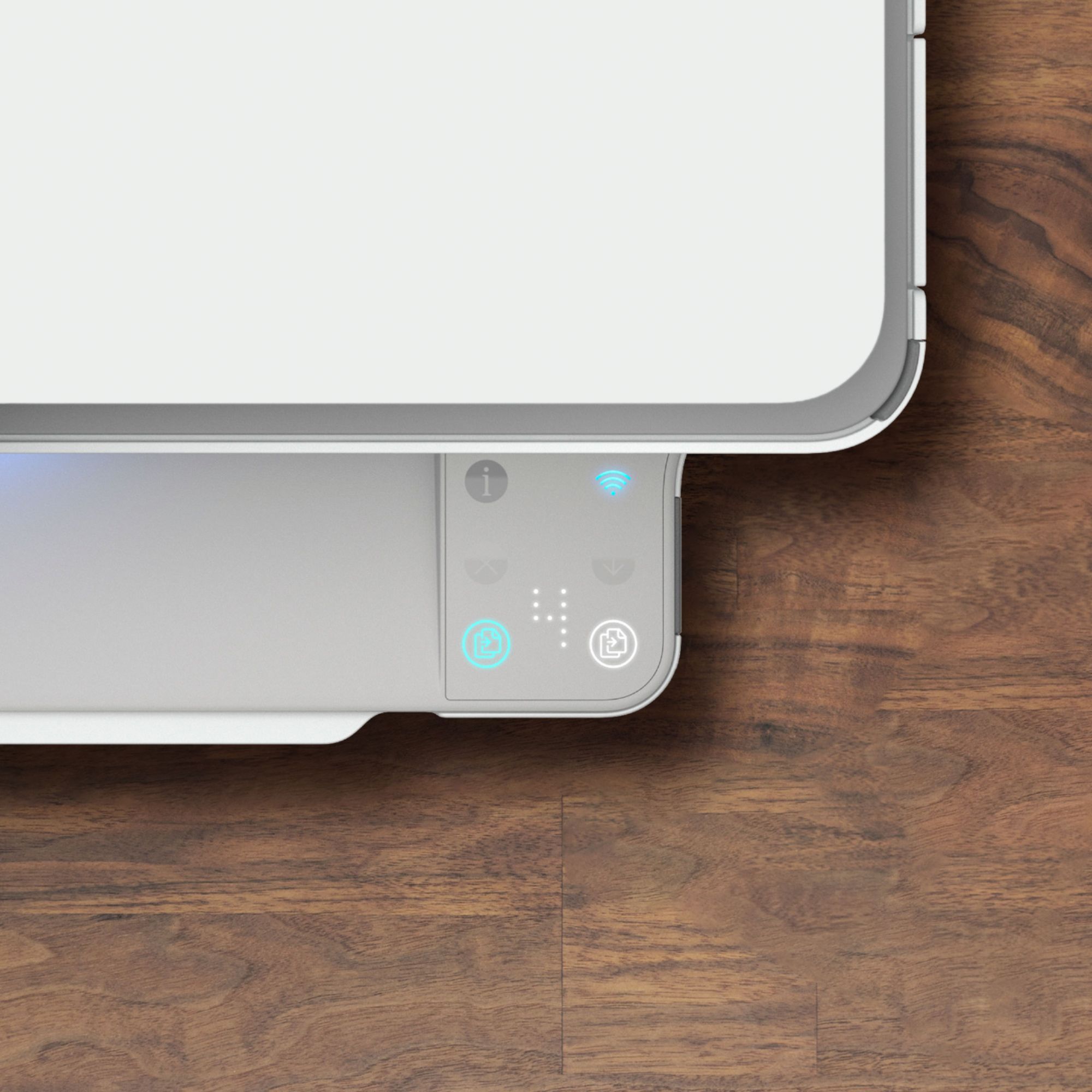
On the printer control panel, touch the HP wireless direct icon or navigate to the Network Setup or Wireless Settings menu and touch Wireless Direct, and then turn on the connection.
On the computer or laptop, click the wireless icon, and then select HP-Print-xx-[your printer model name] from the list of available networks.
If prompted, type the security passcode from the printer control panel.
Open the photo or document that you want to print, and then click File > Print.
Select your printer model from the list of available printers, and then click Print.
Here is a link to this information:
https://support.hp.com/us-en/document/c04090221
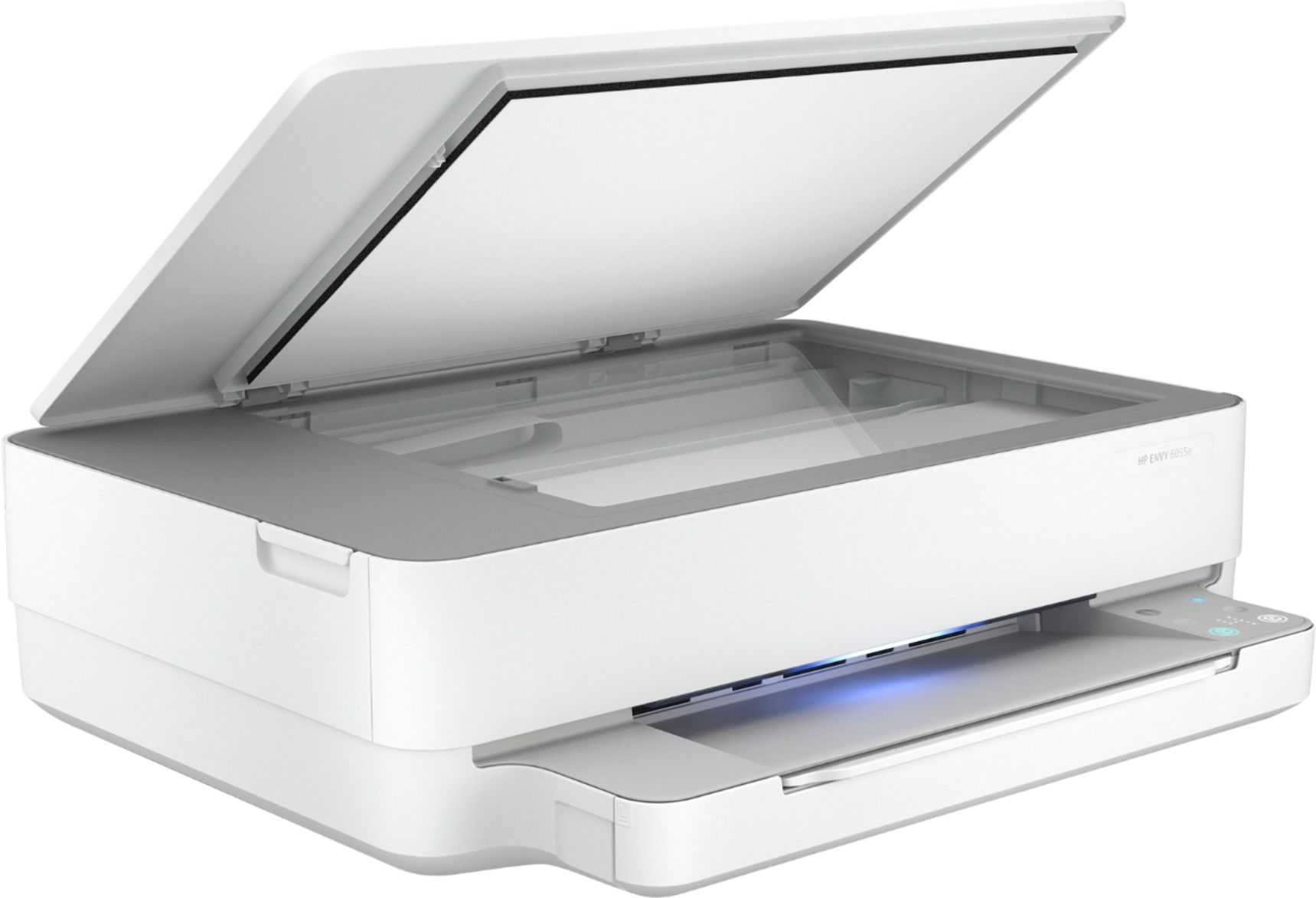
A:AnswerYou can use the HP Scan software to scan multiple pages into a single document using the flatbed scanner and scanning each individual page one at a time.
A:AnswerThe HP printer blinking orange light error code indicates that the printer is not able to communicate with the computer. This can be due to a number of reasons, including a loose or damaged cable, a problem with the printer's drivers, or a conflict with another piece of hardware or software.