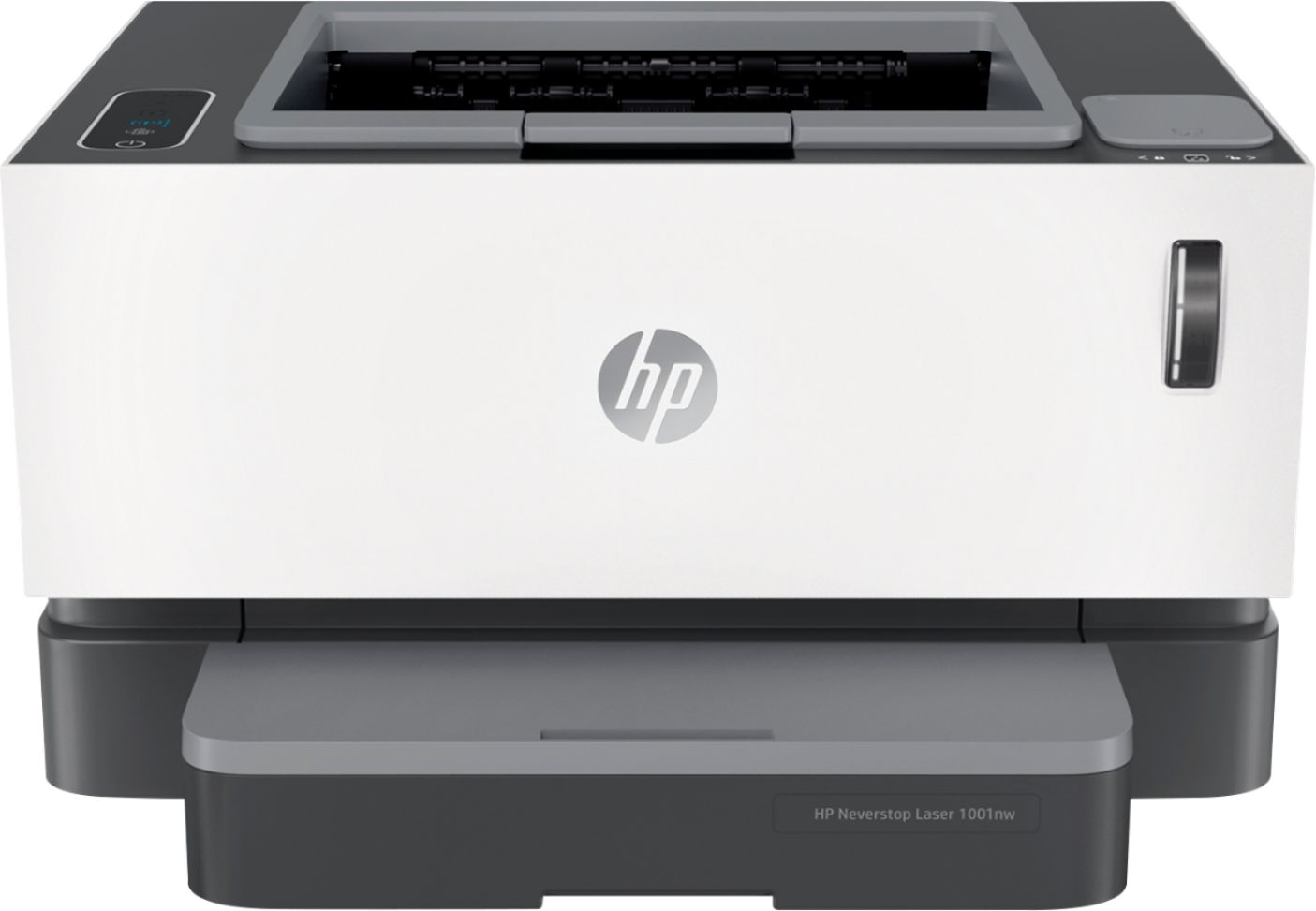
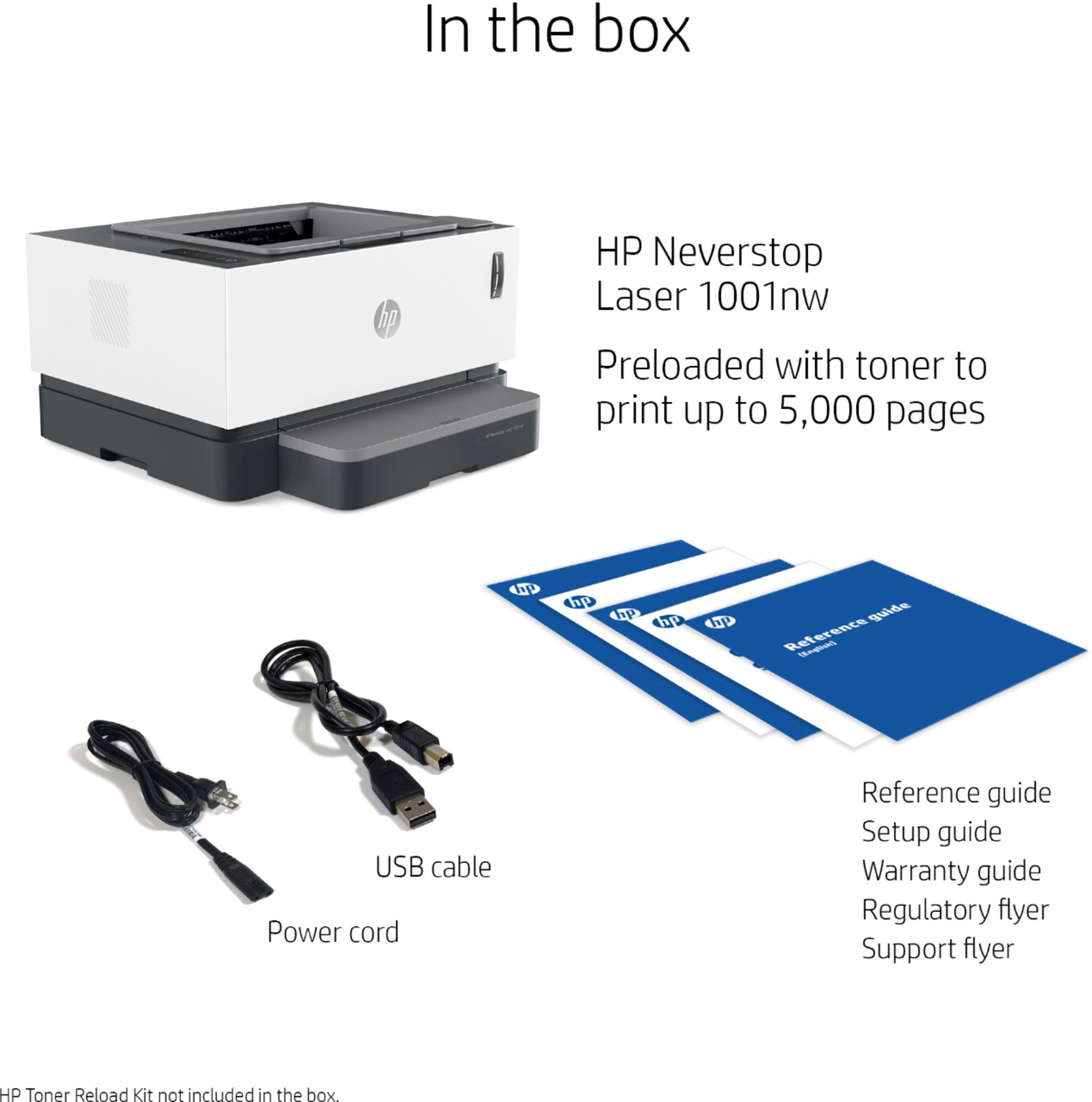
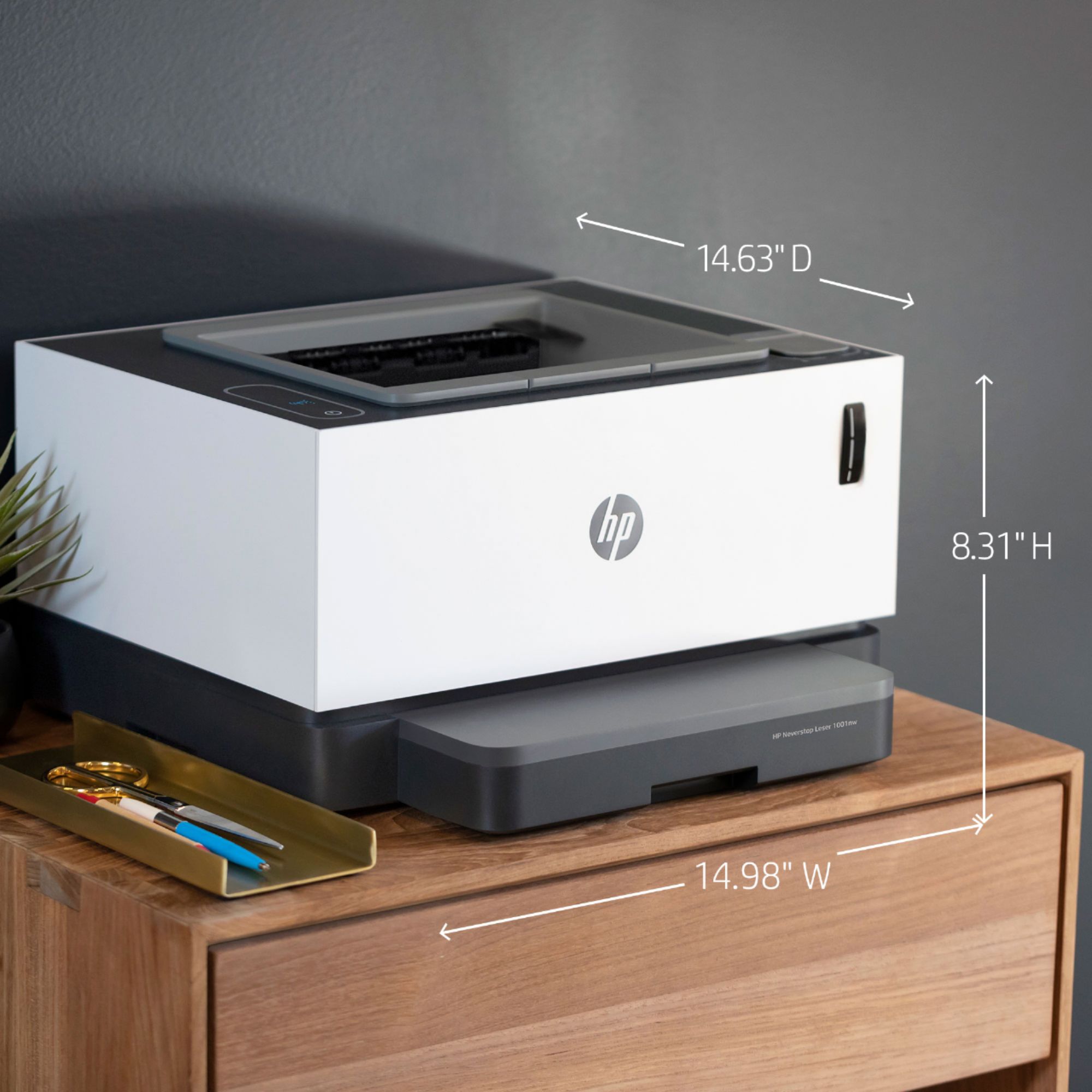
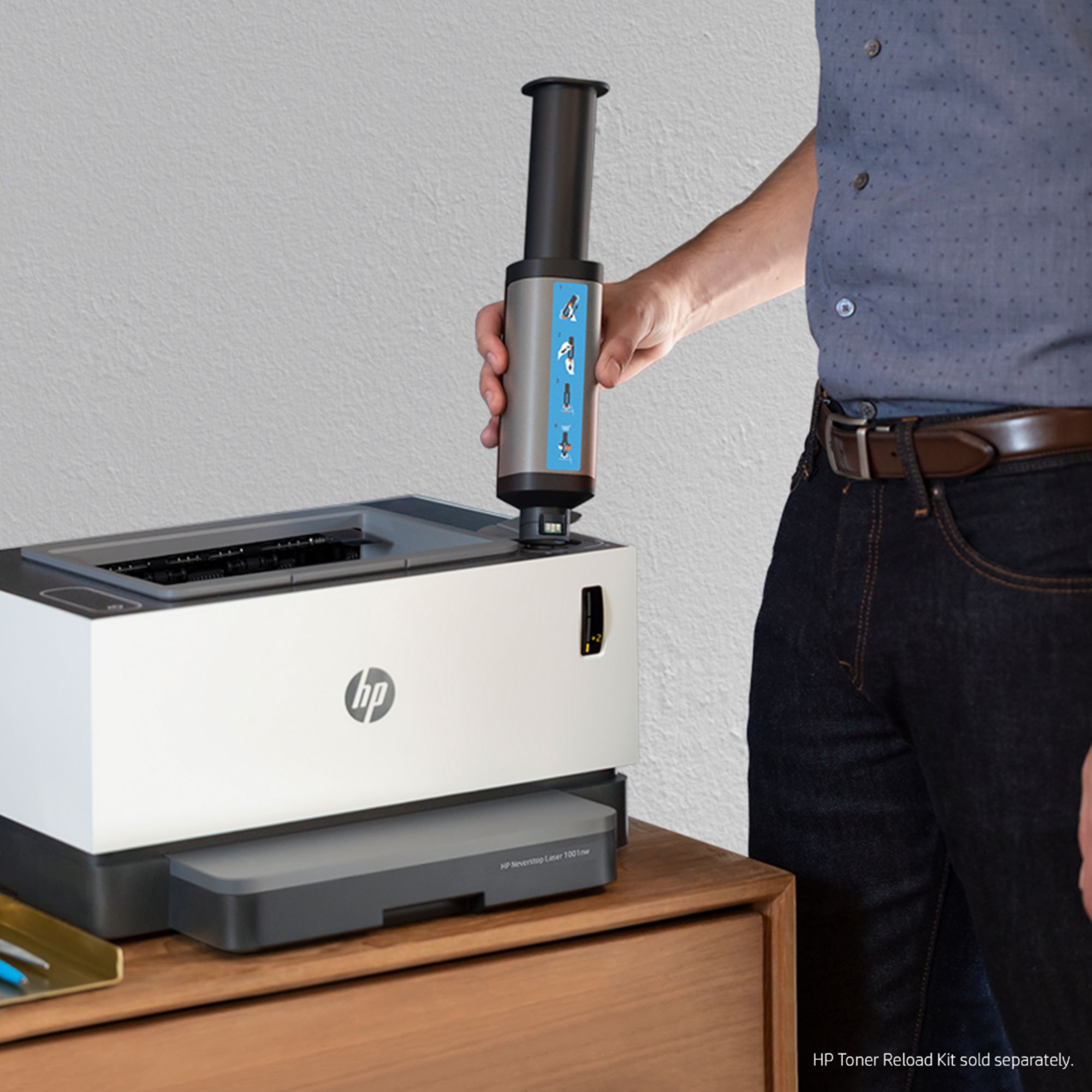
A:AnswerHello. We are sorry that you have experienced this issue. We recommend reaching out to HP Support so they can assist you. They have access to more tools to assist you. Here's the link to HP Support: https://support.hp.com/us-en . Click "Contact HP" at the bottom left of the page. Alternatively, you can reach them by phone at 1-800-474-6836.
A:AnswerThank you for the question. The Neverstop 1001nw will not skip the pages that do not match the print job. In the case of legal paper being loaded, the printer will print all pages on legal paper. If you have letter paper loaded but the page to be printed is legal length, the printer will either show a print error calling for a paper switch (and will stop until addressed) or print the legal document on two letter pages. It depends on the software from which you're printing the document and the paper tray settings. Typically, only very high-end printers with multiple paper trays are capable of switching trays for mixed-media print jobs.
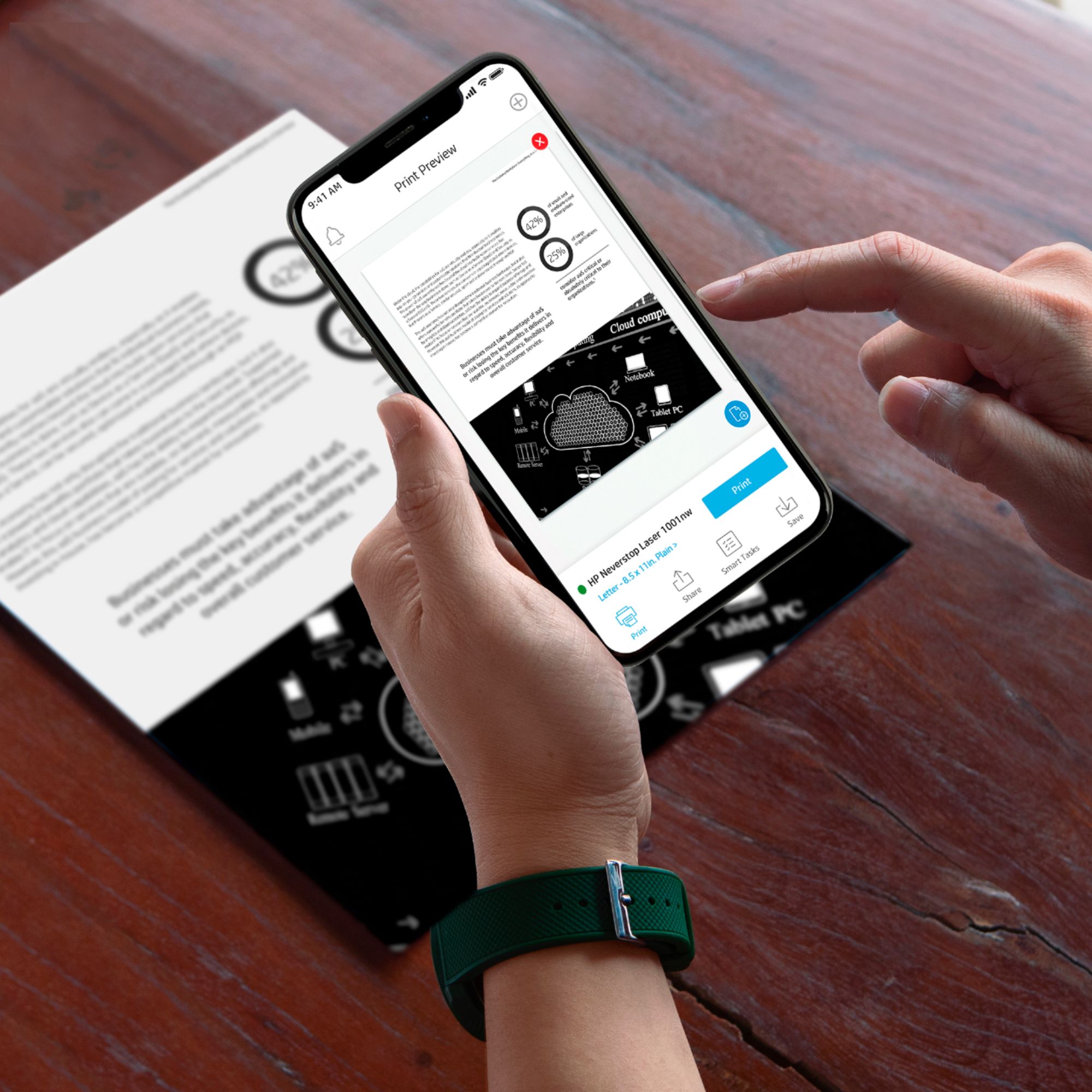
A:AnswerThank you for the question. The Neverstop 1001nw does not have an onboard scanner, however, you can scan a document with your Smartphone and send it to the printer, using the HP Smart App.
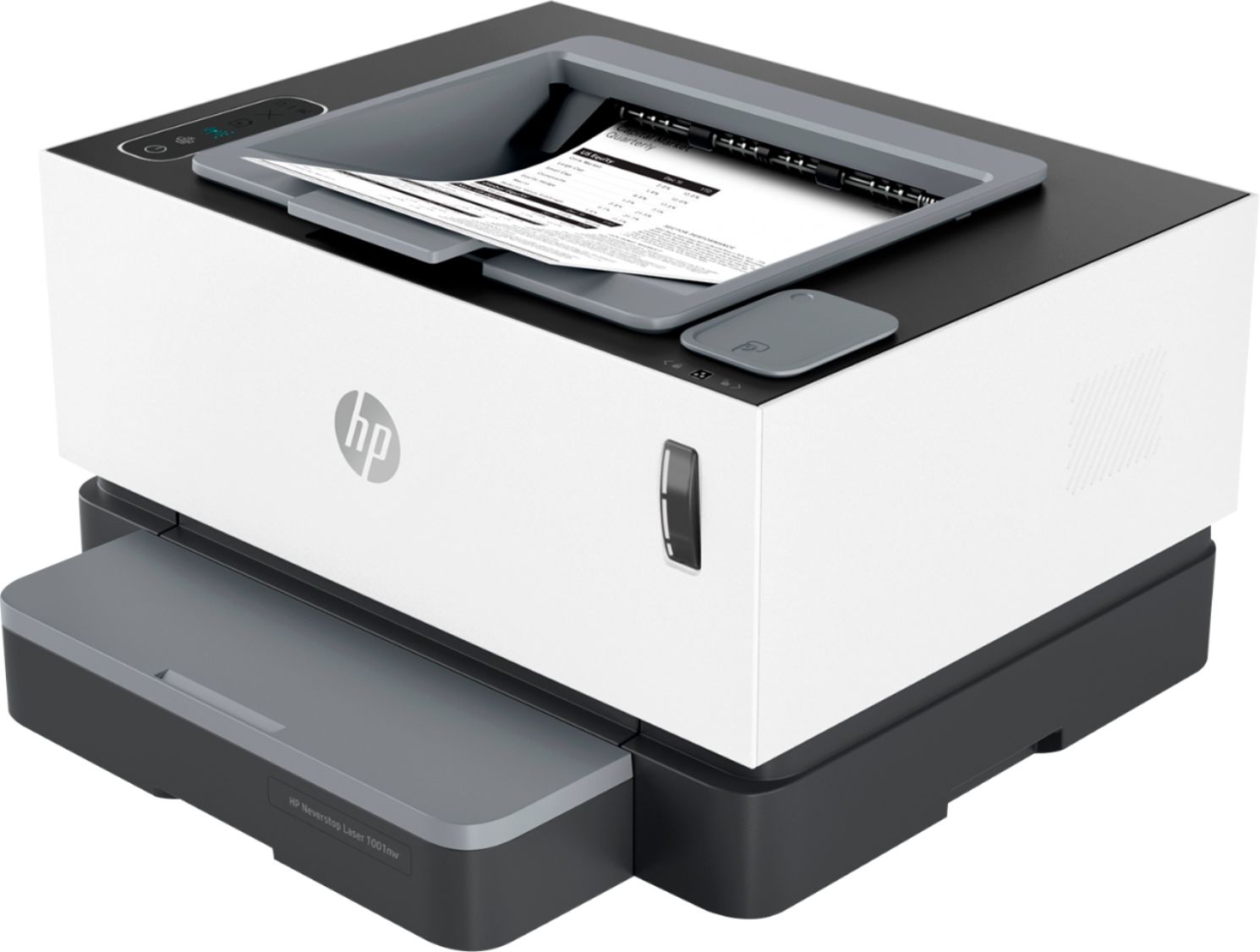
A:AnswerHello, Kim. The print side would be faced up in the paper tray of this HP Neverstop Laser 1001nw printer. Here is some instructions on how to load paper: https://support.hp.com/us-en/document/c06378672
A:AnswerHello, the media types supported with the Neverstop 1001nw is Heavy paper, bond paper, light paper, envelopes, labels, and plain paper. The weight supported is 60-120 g/m2 maximum. This printer will print 16lb Bond paper up to 32lb Bond paper. Card stock paper, also called cover stock paper, is a heavy paper and comes in a variety of weight and thickness. Thank you for being an HP customer!
A:AnswerIf your document is multiple pages, it should print them all single sided. The printer isn't designed to allow automatic double-sided printing, but it can be done manually through the driver. When you print, make sure the dialog box that comes up doesn't have manual duplexing selected. You man need to scroll or click on "additional settings" to check it.