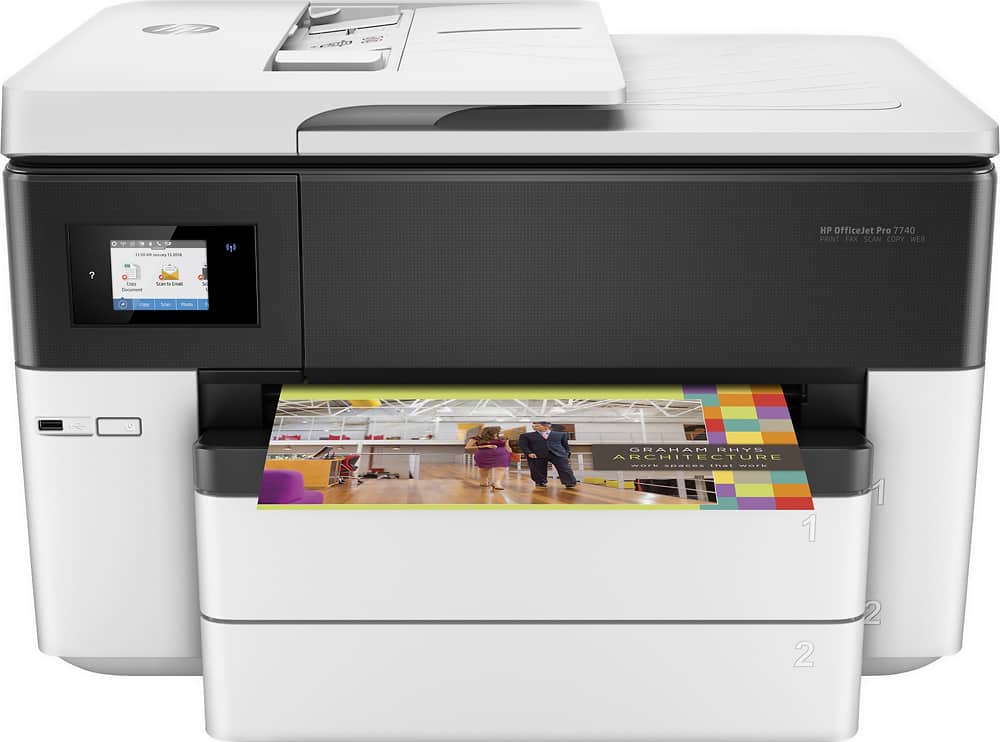
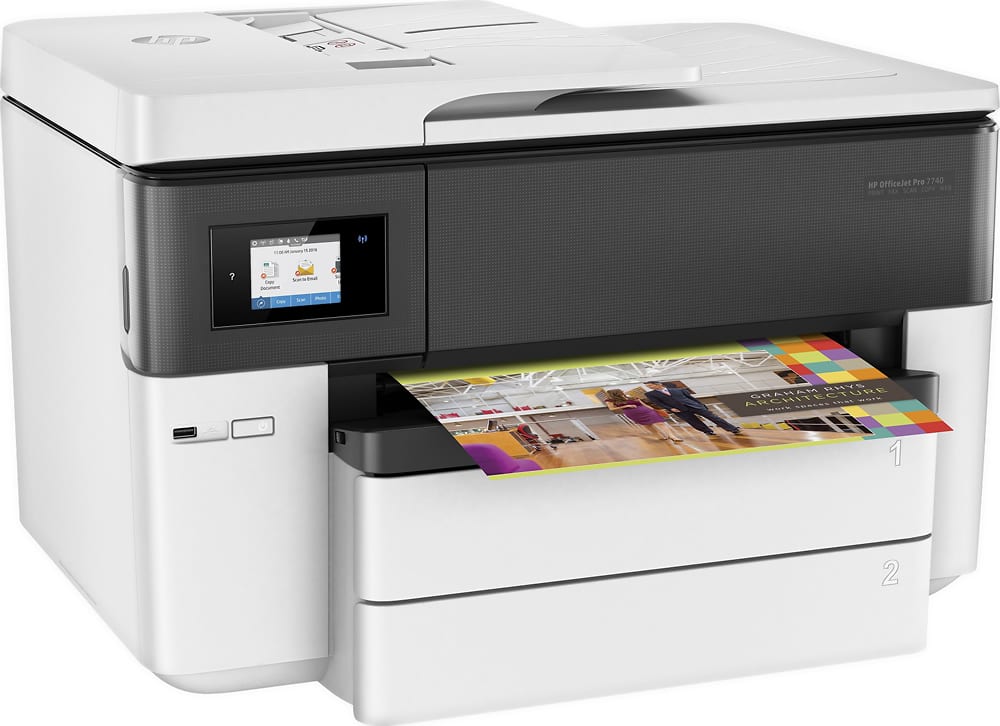
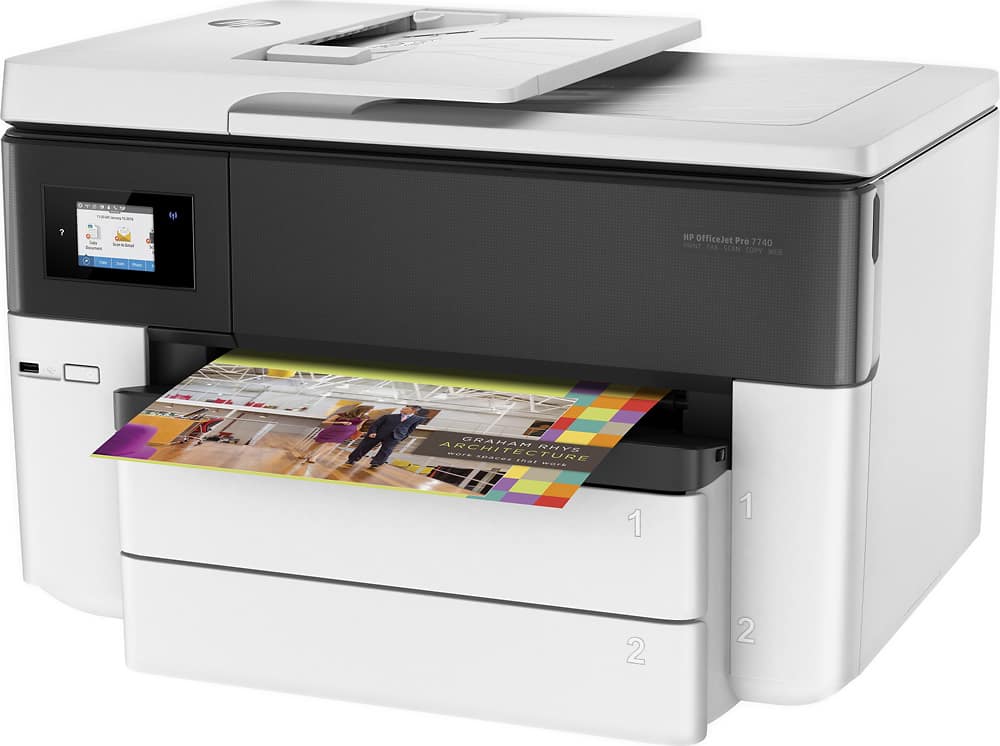
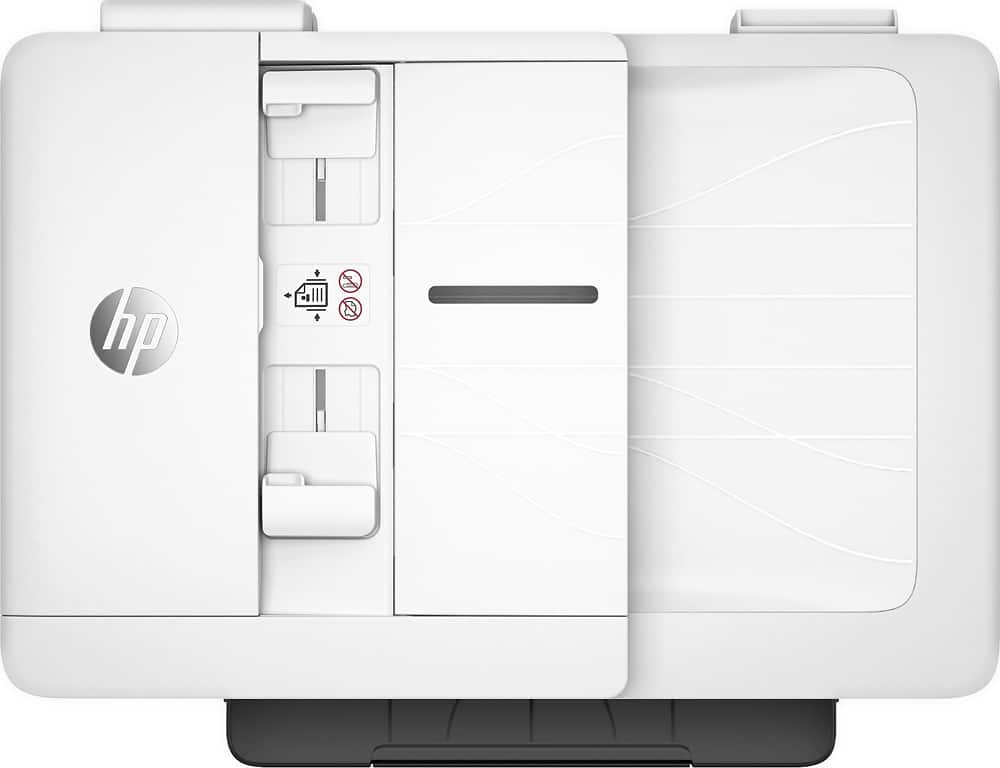
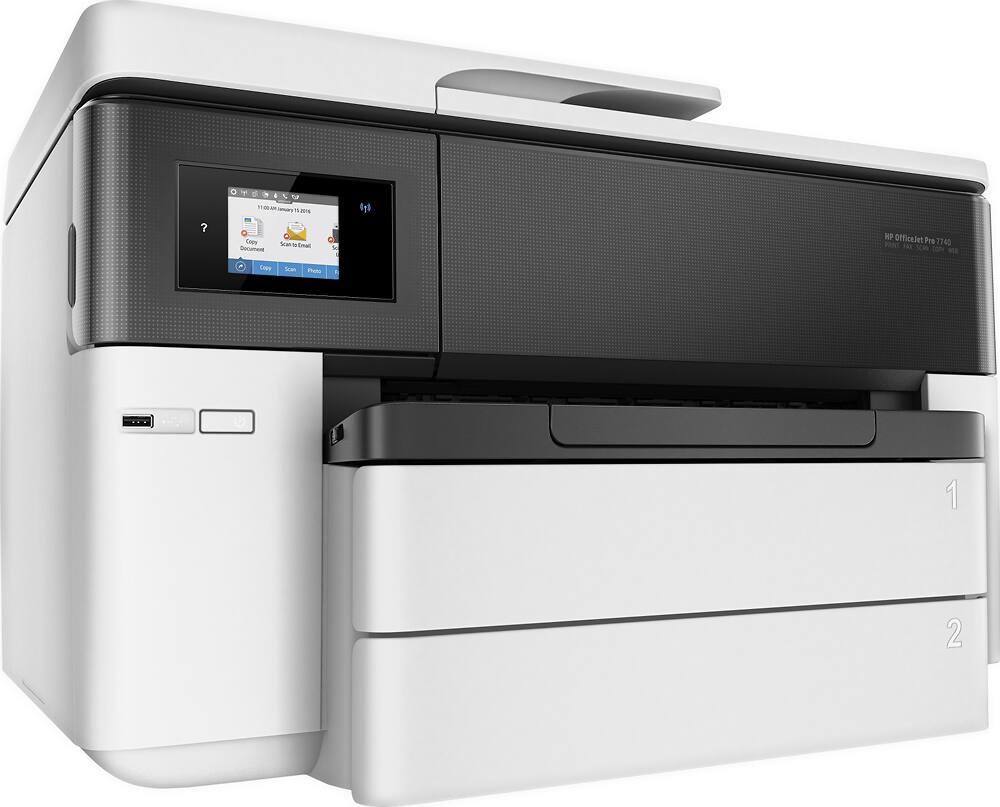
A:AnswerI bought this printer and returned it because every time I tried to print on photo paper it jammed. Every time. I was told at the store where I bought it that it wasn’t designed to handle photo paper. Huh?!?
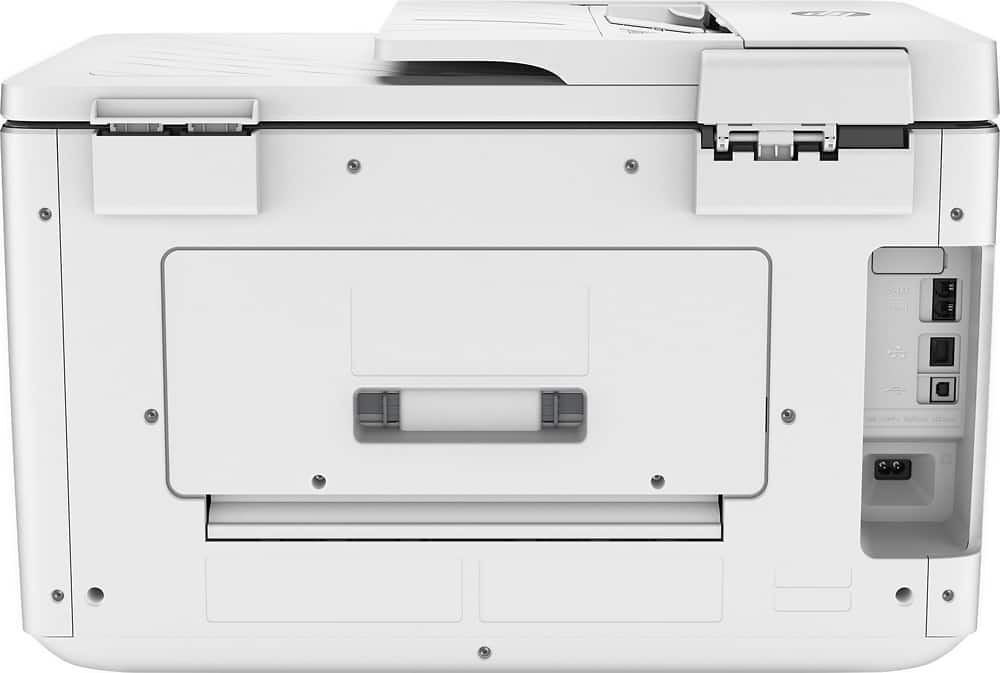
A:AnswerI don't think it would fit under most couches. It's a shade over 15" tall and very heavy. You'd probably want to store it someplace where you don't have to move it. Remember this one can handle large paper, up to 11"x17", so that adds to the footprint.
From the website:
Height: 15.1 inches
Width: 23 inches
Depth: 18.4 inches
Weight: 43 pounds
Those dimensions are accurate as it sits. If you load it with 11x17" paper the input tray sticks out and the depth increases to 21". If you extend the output paper shelf all the way out, the depth can reach 27.5".
A:AnswerI take it you are referring to when using the scanner/copier Short answer is Yes.
More detail: I just attempted this feature without referring to a user guide to see if it was intuitive. it is. The copy menu has the gear symbol for settings and the 2nd listed setting is resize. There are several predefined resizing percentages for typical paper sizes to other paper sizes...and of course...a custom setting where you can define your own percentage. I made one copy 125% larger and went back to the copy menu and it copied and resized without a hitch. You then have to reset the resizing back to "none" it did not reset itself. Pretty nice feature and I found it easy to find and use. Hope that helps.
2 pictures from the front panel menu are attached. In sequence from settings to custom resize percentage.
A:AnswerIt should -- I print to a wireless router --- we have several laptops and two desktops that print to this -- all wireless
Also have 2 other HP setups -- they all work wireless...no problems --
A:AnswerThank you for the question. The official HP product specifications will always tell you the minimum and recommended system requirements. The minimum and recommended Macintosh system requirements are the same for the OfficeJet Pro 7740: OS X v10.11 El Capitan, OS X v10.10 Yosemite, OS X v10.9 Mavericks, OS v10.15 Catalina. HP has a Universal Print Driver as well. The easiest installation for Mac is going to be by using the free HP Smart App for IOS on your smartphone or computer. It will have the drivers you need to be "Mac ready".
A:AnswerThank you for reaching out. Right-click on the HP printer and select printing preferences. Look for the "Document Size" option and select the correct size for your sheet, Look for the "Resize" option and select Actual Size.
A:AnswerThanks for your question. Paper size 11x17" is listed in the "Interactive Tour and Documents" link. I see that in that link, the photos have a couple of pages that mention 11x17 scanbed and 11x17 printing.
A:AnswerHello, thank you for taking interest in our Office Jet Pro 7740. Unfortunately, this model cannot accept any additional paper trays. This is equipped with 2 250 page paper trays.
A:AnswerThe HP OfficeJet Pro 7740 Wireless All-In-One Inkjet Printer uses the HP 952 regular or 952XL high yield ink cartridges. There is a total of four ink cartridges: black, cyan, magenta, and yellow.
A:AnswerMost printing brands are transitioning to using non-refilled ink. With HP, we specialize in our cartridges and develop the formula for our ink from the ground up, so print consistency, vibrancy, longevity, etc. are all tested and brought to peak performance and capability. Using refilled/remanufactured cartridges removes this guarantee of quality printing, and could damage your printer in the long run.