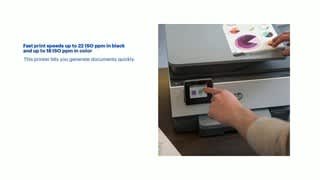
A:AnswerI think since it’s an office jet home printer, the quality on glossy paper is quite good. Make sure you select best quality on the printer or on the App and you select glossy, matte or whatever médium/paper you are printing on.
A:AnswerHello! Thank you for your question! The HP OfficeJet Pro 9015 is compatible with Apple's latest OS release, Big Sur. Please visit Support.HP.com and visit the "Software and Drivers" section to get the latest software and drivers for your printer.
A:AnswerHi, thank you for the question. Yes, in the page set up enter "flip horizontal" in print orientation. Some programs, such as Microsoft Paint will have a built-in orientation selector that allows you to make the choice and just send the document to the printer as-is.
A:AnswerHi Tamara, thank you for the question. The OfficeJet Pro 9015e is an inkjet printer using dye and pigment inks, not a laser printer, that uses toner. It might be possible to use the sheets you referenced, however, note that it is not a supported media for our inkjet and laser printers. We do not guarantee results for unsupported media types, and it could void the warranty. If you decide to try this, feeding one or two thin sheets at a time will avoid paper jams. If you are looking for true sublimation printing, please review the Hp Stitch line of printers.
A:AnswerHello! Thank you for your question. The HP OfficeJet Pro 9015 can print onto sticker paper up to a weight of 110lb per ream. When you load paper into the printer, be sure to select the correct specialty option in the settings.
A:AnswerI don't see why not, it is fast and prints beautifully. I would make sure that you do the correct print settings for the type of label paper that you use.
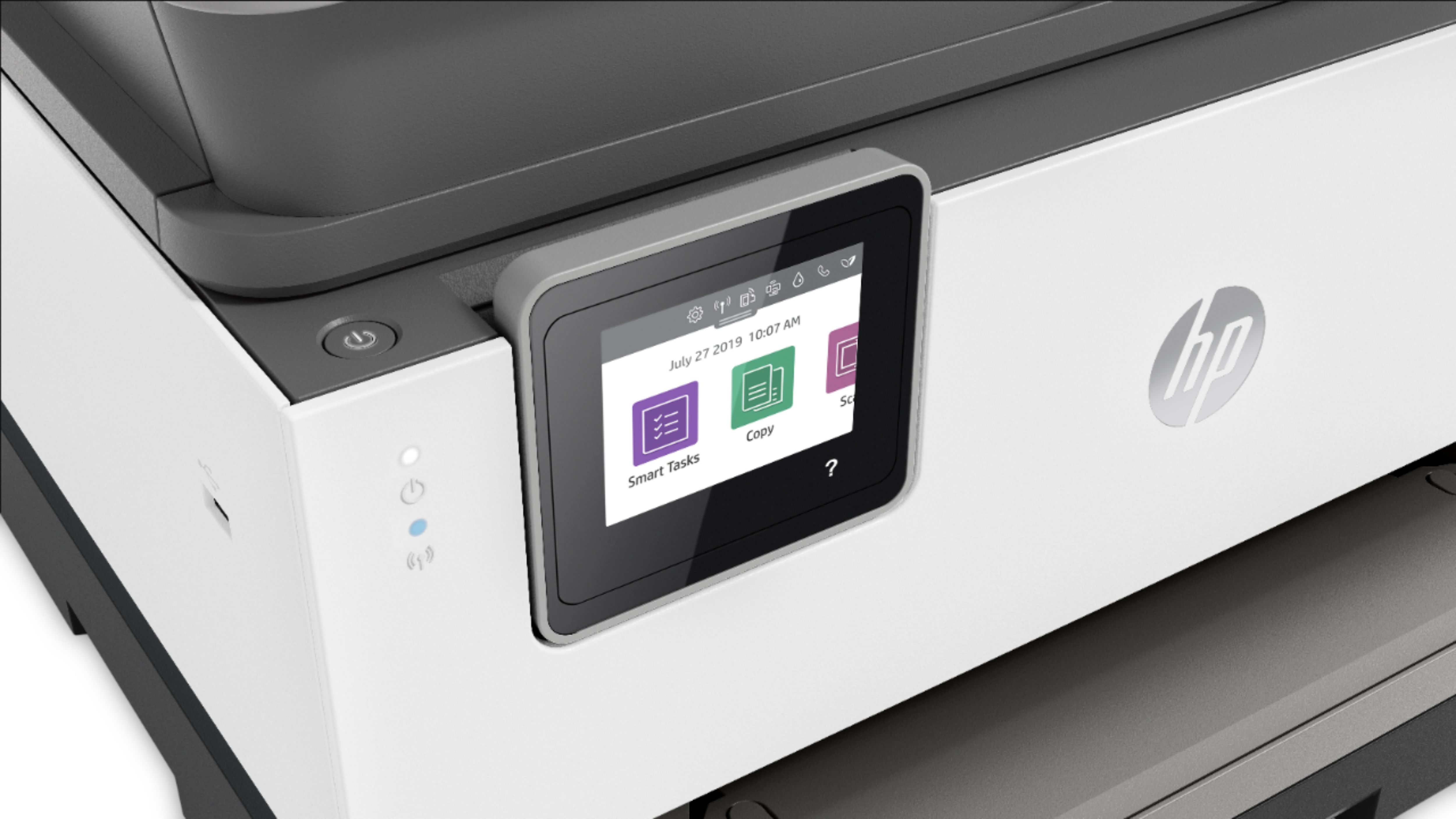
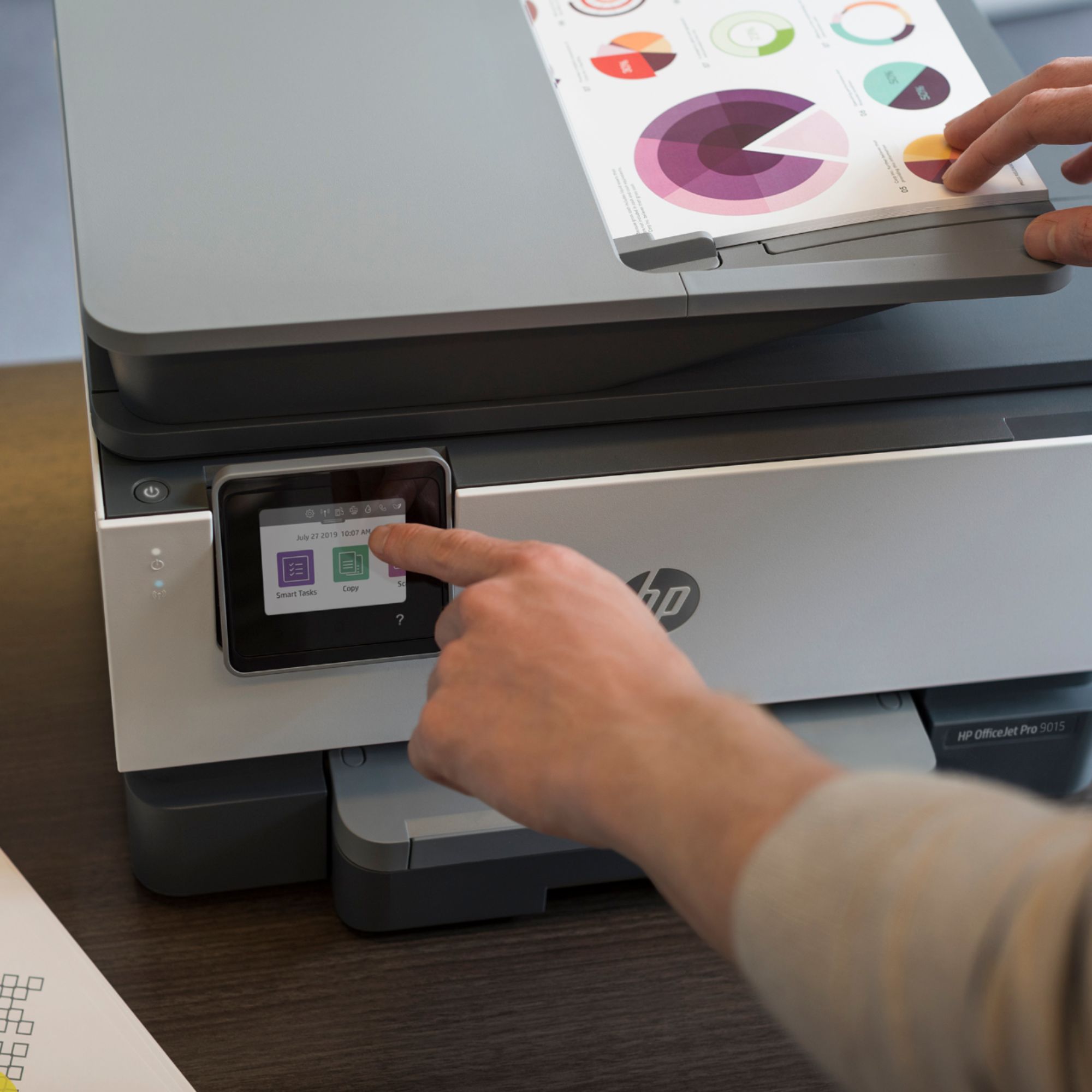
A:AnswerIf you are talking about when you are making a copy, on the printer control panel screen there will be options to reduce and enlarge the copy. If you are talking about when you are printing a document, the text size will be controled by the software you are using, like Microsoft Word.
A:AnswerAs long as the printer is in sleep mode, it should come on automatically when notified that there's a print job. If the printer is actually turned off, you'll need to physically turn it on.
A:AnswerAs far as the free ink, you need to sign up for an account, choose a monthly Plan, give a credit card and then and only then will you be afforded your free ink for 6 months. You also need to agree to never use any other ink besides HP, to keep the printer connected to the internet (so they know when you are running low on ink of course). You may cancel the subscription after the 6 months so you don’t incur charges to your credit card or you can allow it to continue and pay. You must have an account with HP+ to initiate the free ink for 6 months.
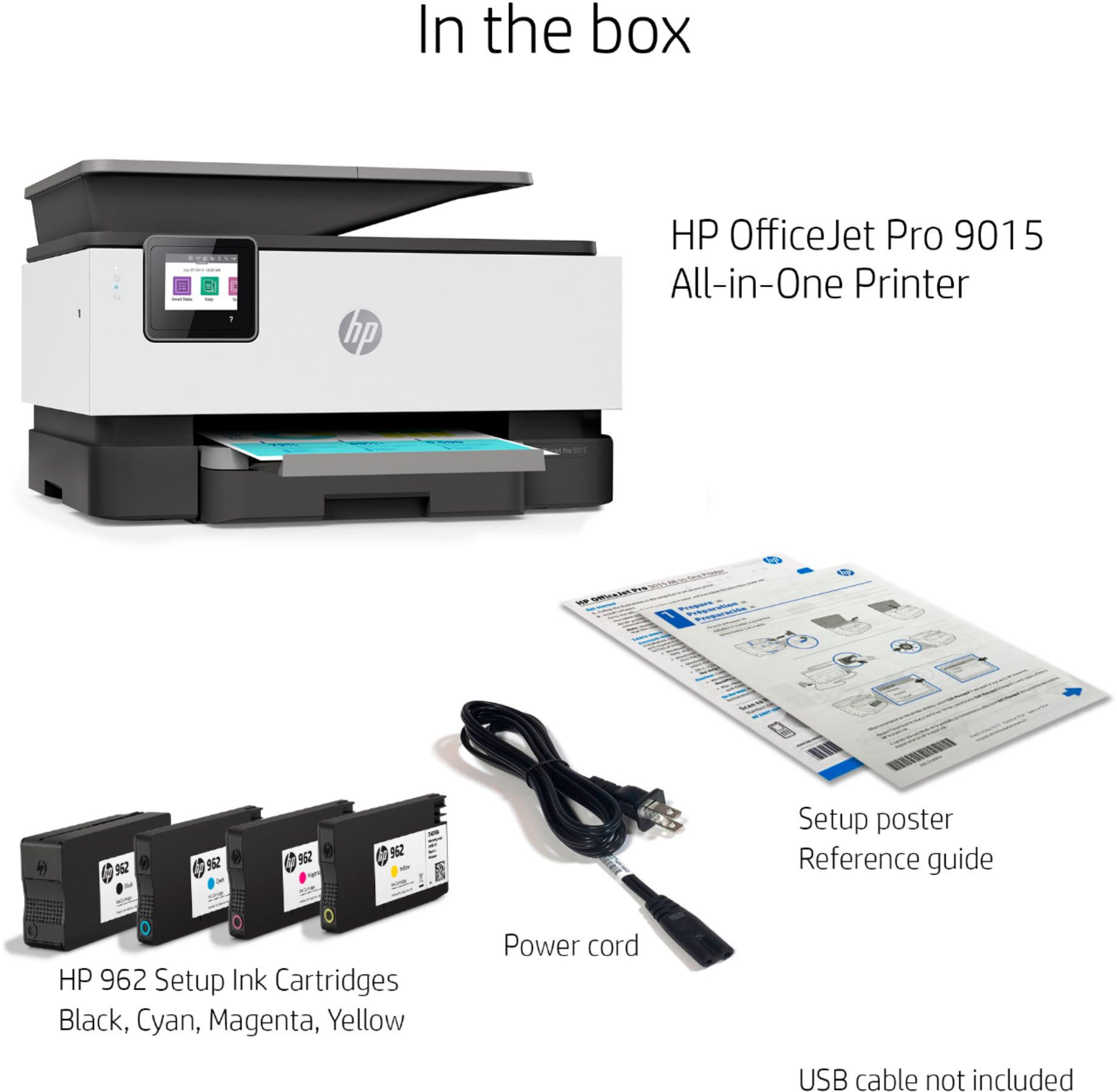
A:AnswerHello, and thank you for the question. Yes, your purchase of the OfficeJet Pro 9015 will include ink cartridges. You can start printing as soon as you've set it up!
A:AnswerYou can tell the printer to only print in black and white, but the color cartridges must be installed and must have ink in them for the printer to work.
A:AnswerThis printer comes with setup cartridges in the box. The yield of setup cartridges varies by model but tends to be enough to get the average user through setup and initial printing jobs.
A:AnswerSo, I see you have the same problem as I with my HP 9015e printer. I can print. Windows computers do not have the problem. I wonder how many other printers are not compatible with iMacs. Grrr
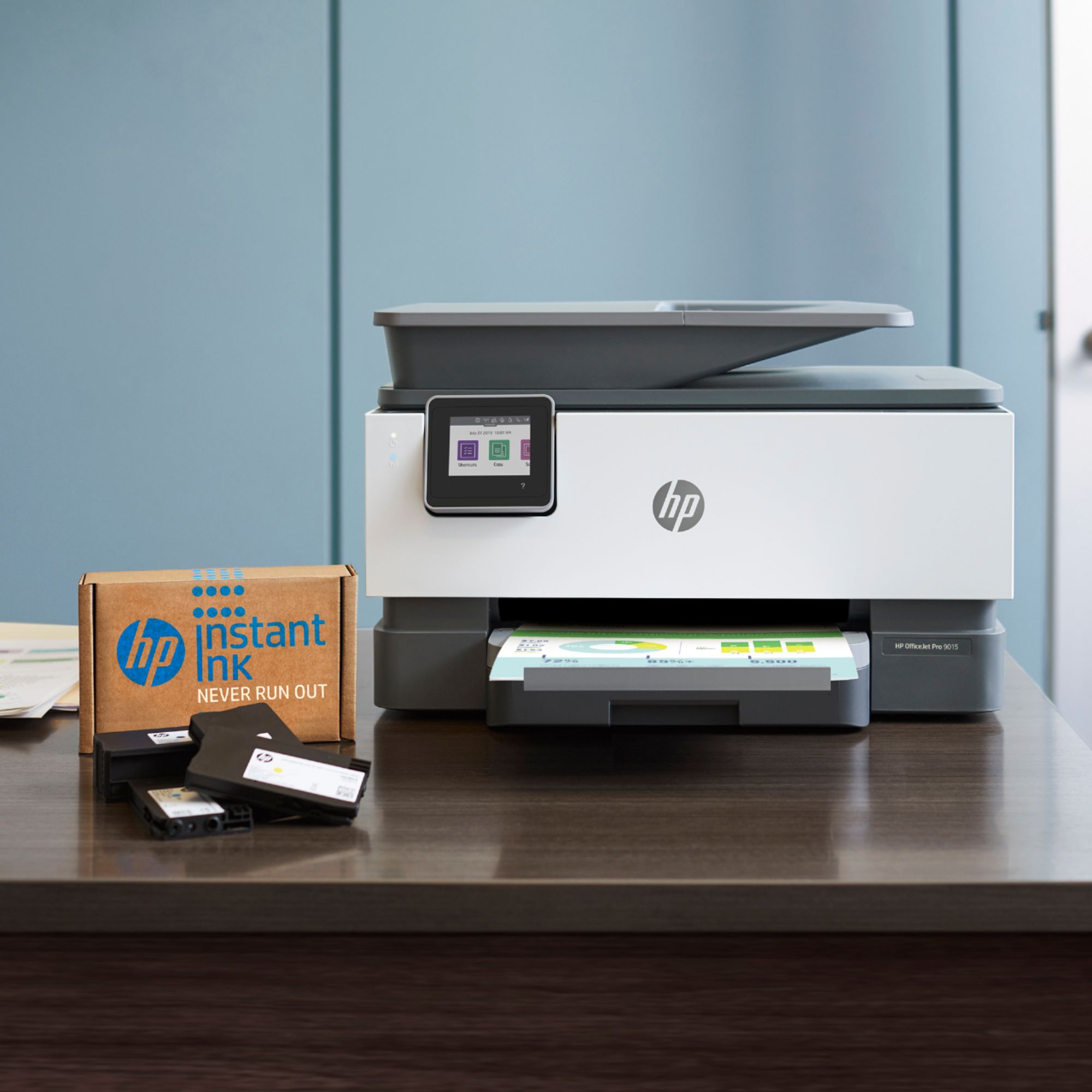
A:AnswerHello. Thanks for your question. This printer does qualify for the HP Instant Ink service where you pay for the number of pages you print. Not the ink. HP will send you ink before you need it. For more information on HP Instant Ink, visit https://bit.ly/3aY0fGh