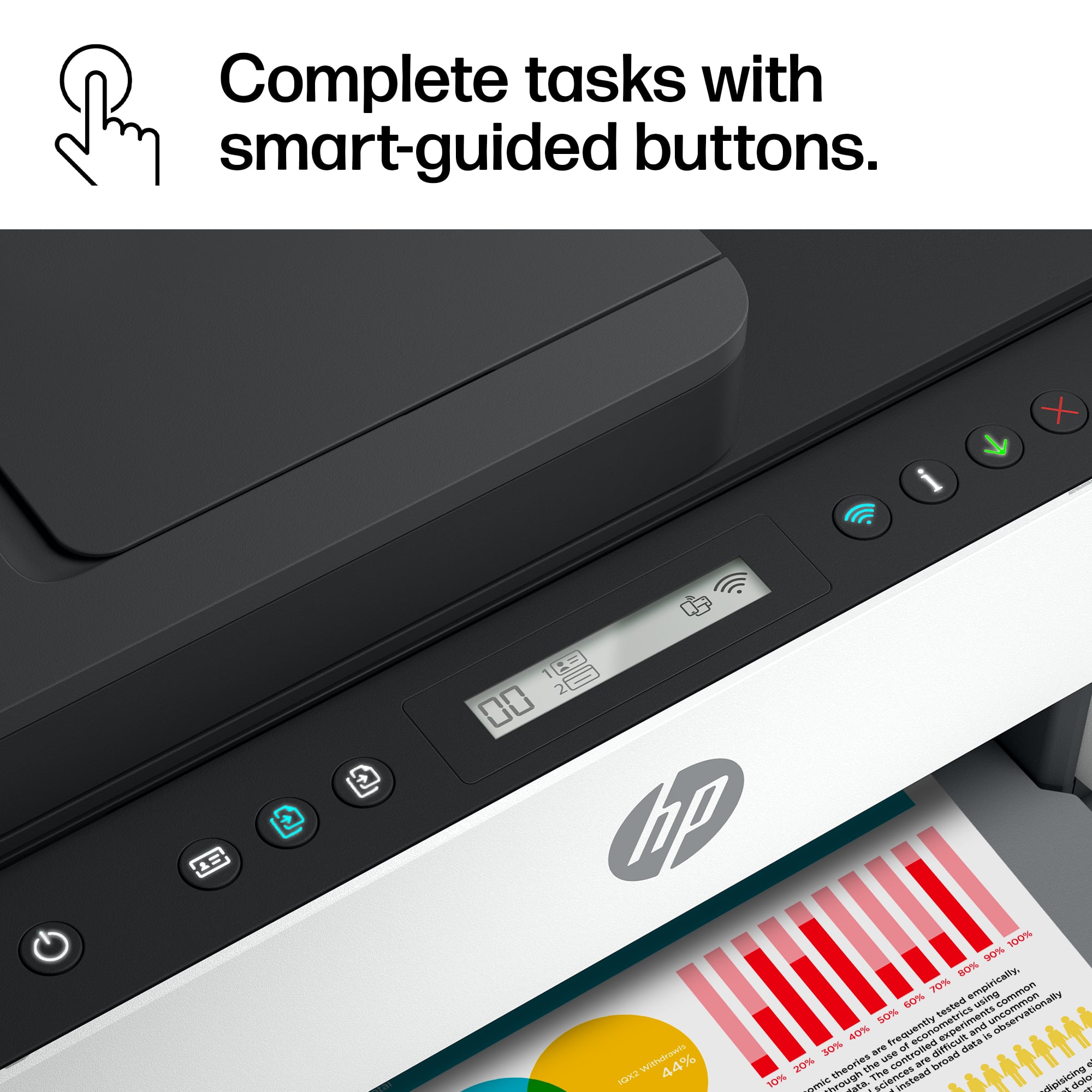
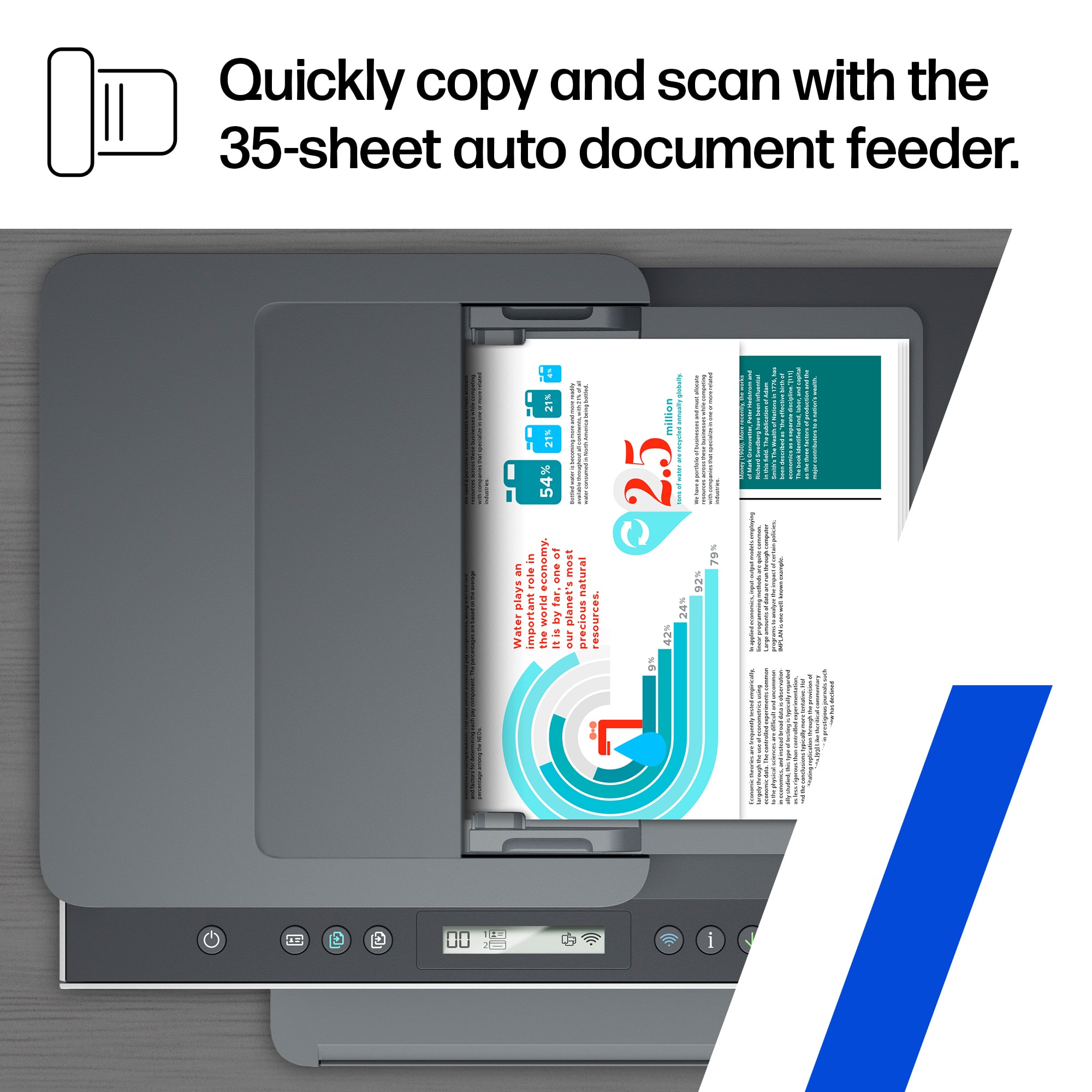
A:AnswerThank you for the question. You can use the HP Smart App, or make changes from the PC. Open the Advanced Settings (EWS) in the HP Smart app or type the printer IP address into a web browser address bar. On the EWS home page, click Settings. Under Copy Settings, select Custom from the Resize drop-down. Enter a percentage value to reduce or enlarge the copy size. To reduce the size, enter a value less than 100, such as 55. To enlarge the size, enter a value greater than 100, such as 150. After entering a value, click Apply. The value entered becomes the new default copy size setting until changed. Copy the document or photo from the printer control panel.
A:AnswerThank you for the question. Sleep mode cannot be disabled, however, you can change the time for Sleep mode and Auto Off settings. See page instructions on page 79 of the User Guide, here: http://h10032.www1.hp.com/ctg/Manual/c07762999.pdf.
A:AnswerI cannot answer that for certain that would be a manufacturers question. Personally I would not because it serves a purpose and it protects paper dust from getting down into the machine.
A:AnswerThank you for reaching ouyt. Find software/drivers for your printer here: https://support.hp.com/us-en/drivers/selfservice/hp-smart-tank-7300-series/2100178736/model/2100178910
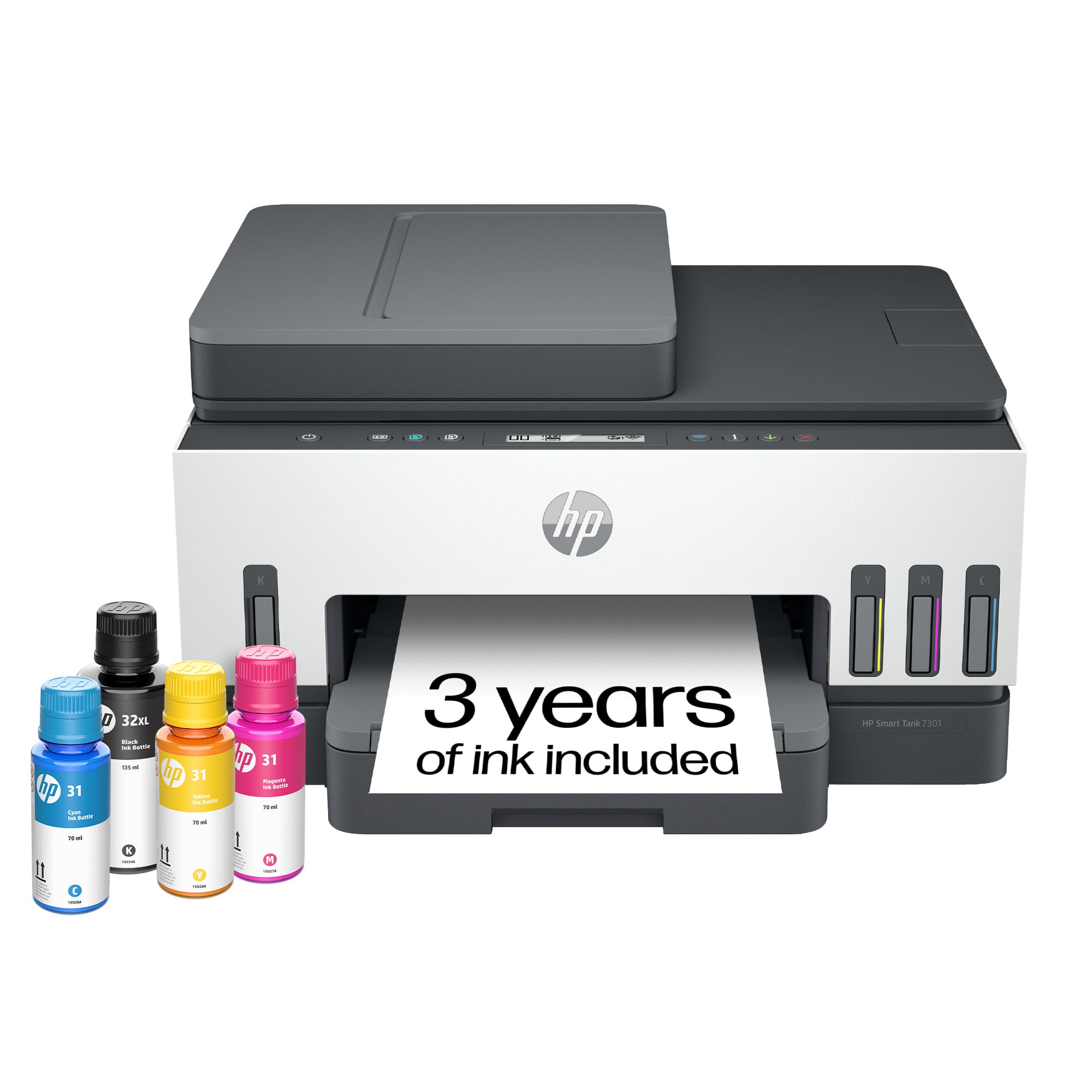
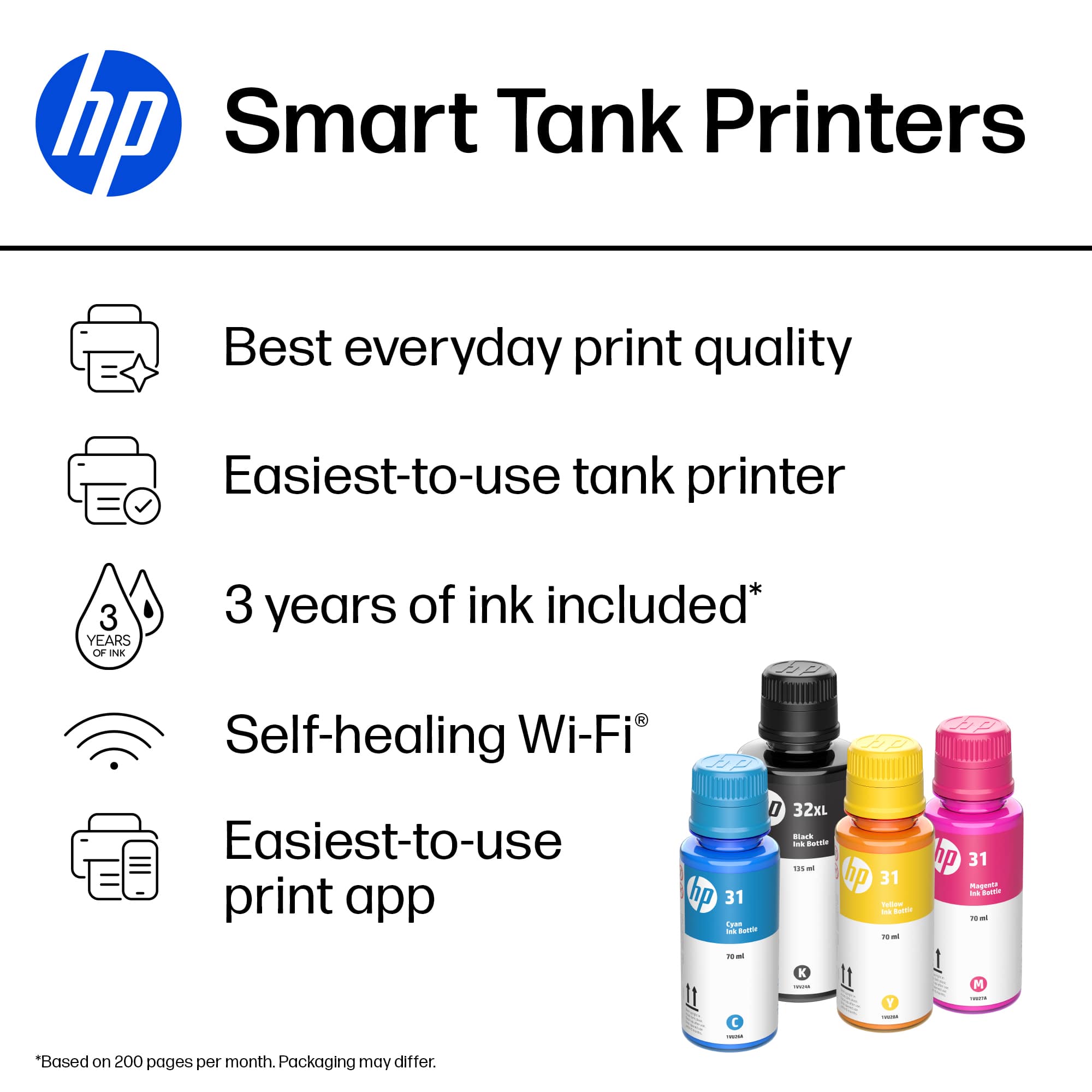
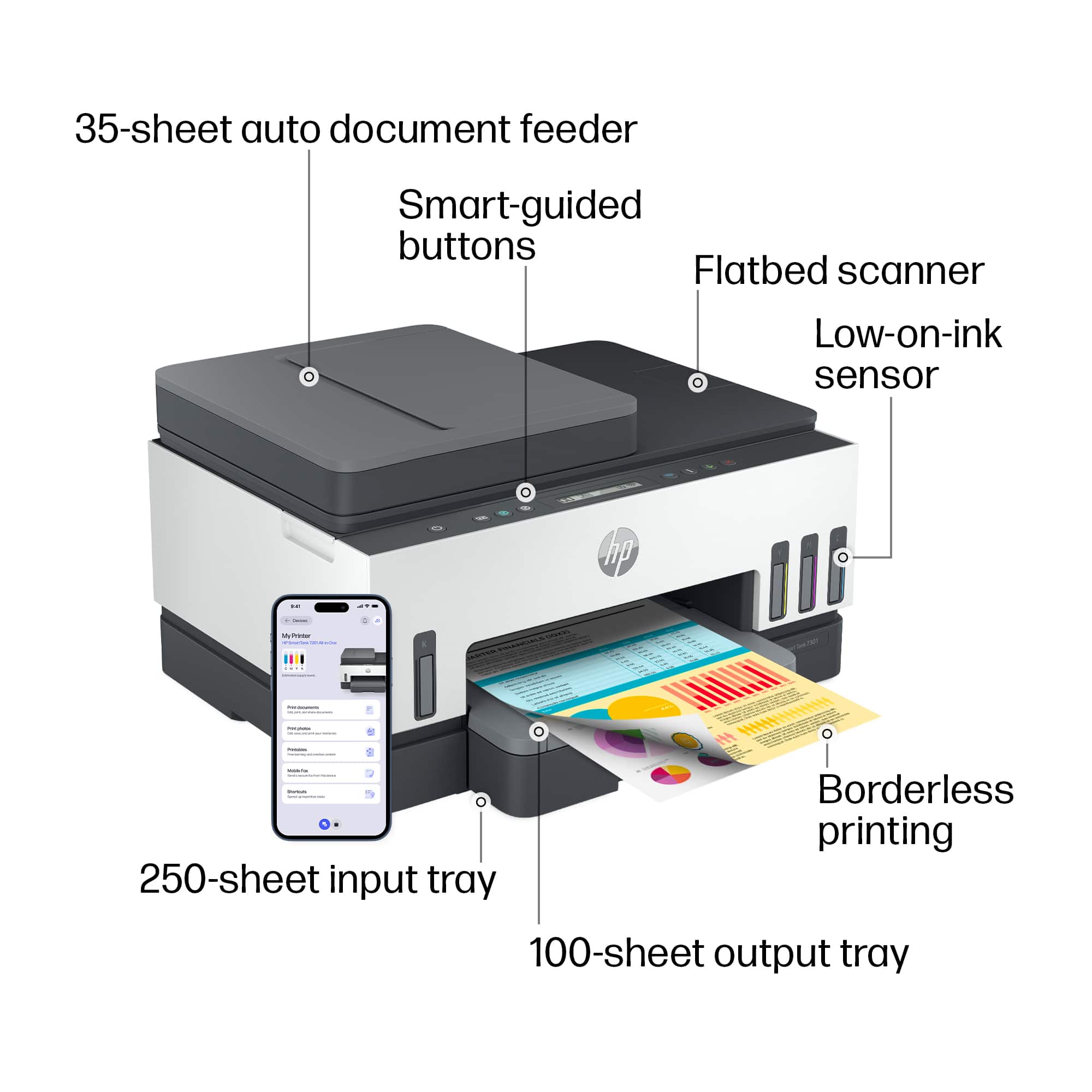
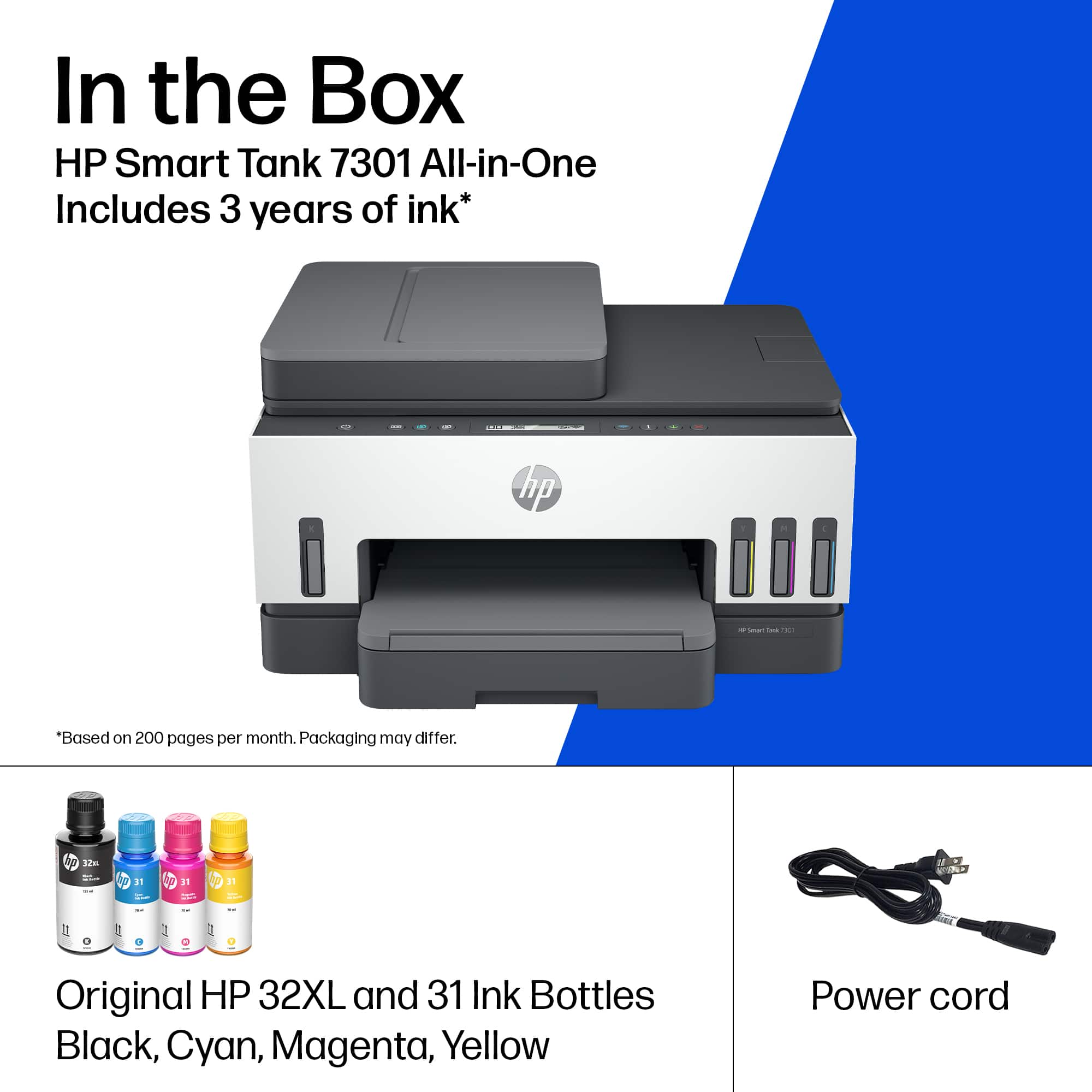
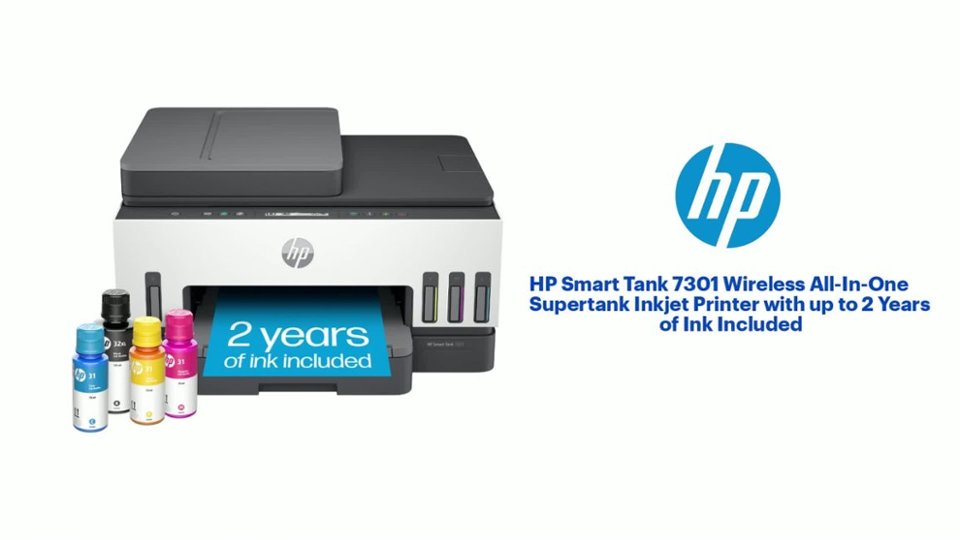
A:AnswerThis Smart Tank 7301 printer comes with a 32 Black Original Ink Bottle and a 32XL Black Original Ink Bottle 31 Cyan Original Ink Bottle; 31 Magenta Original Ink Bottle and a 31 Yellow Original Ink Bottle.