A:Answer@InsigniaCustomerSupport First I think you misunderstood my question... I am talking to the TV itself... not other Alexa device. Having that info, does it change your recommendations?
Your recommendations: why not just ask me to re-program the TV; Alexa... it's really a laundry list of everything... very unhelpful. but thanks.
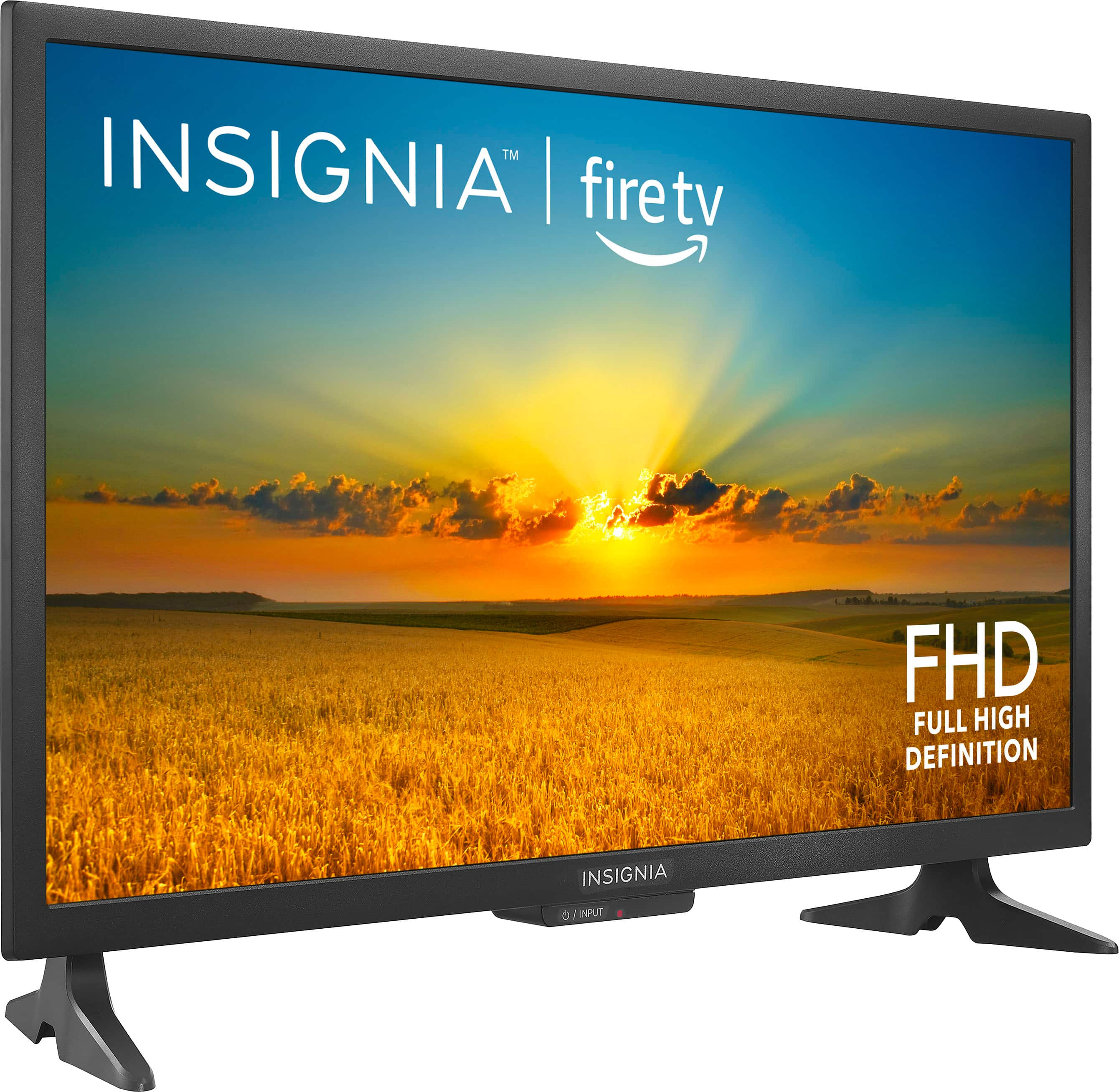
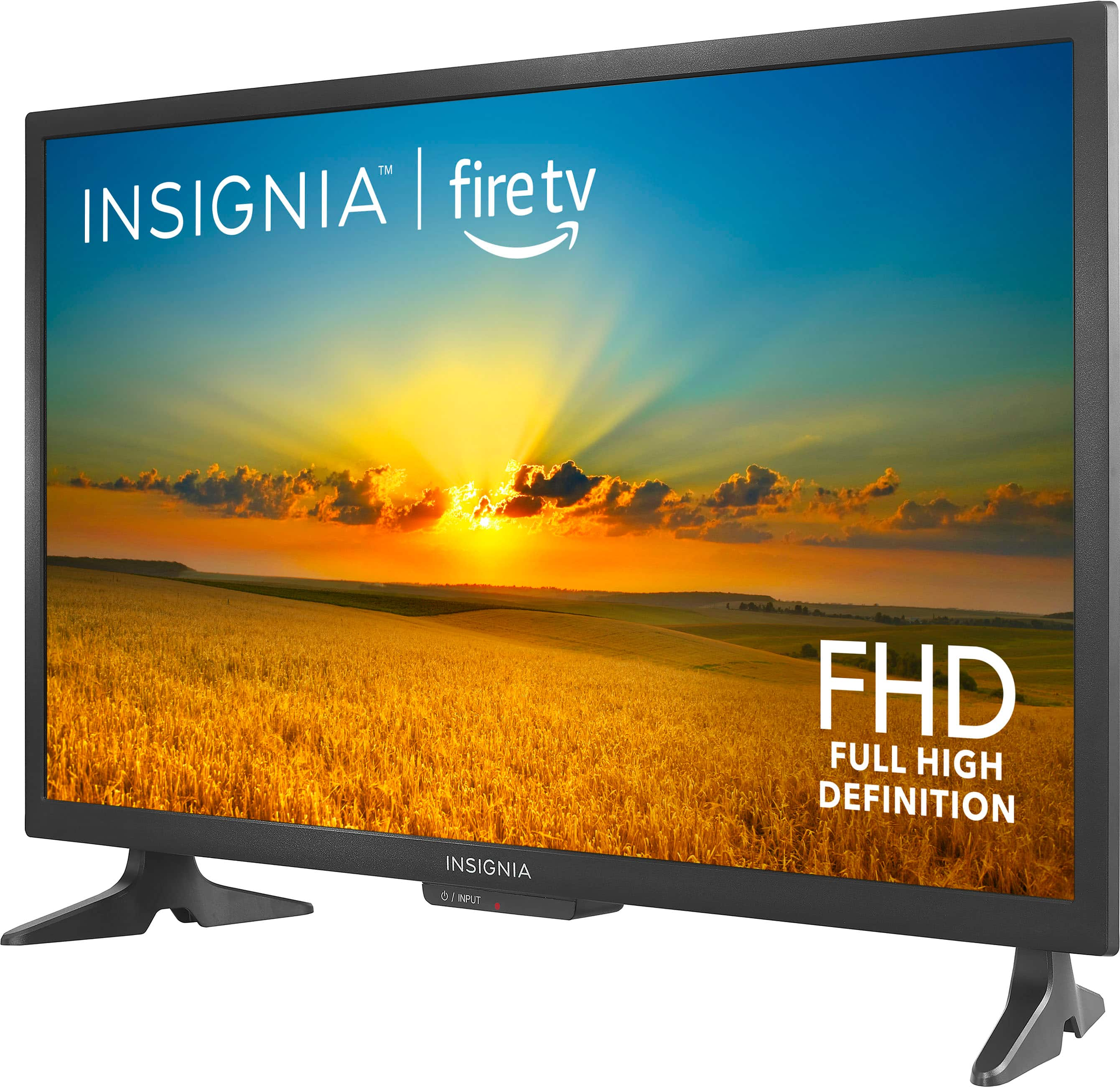
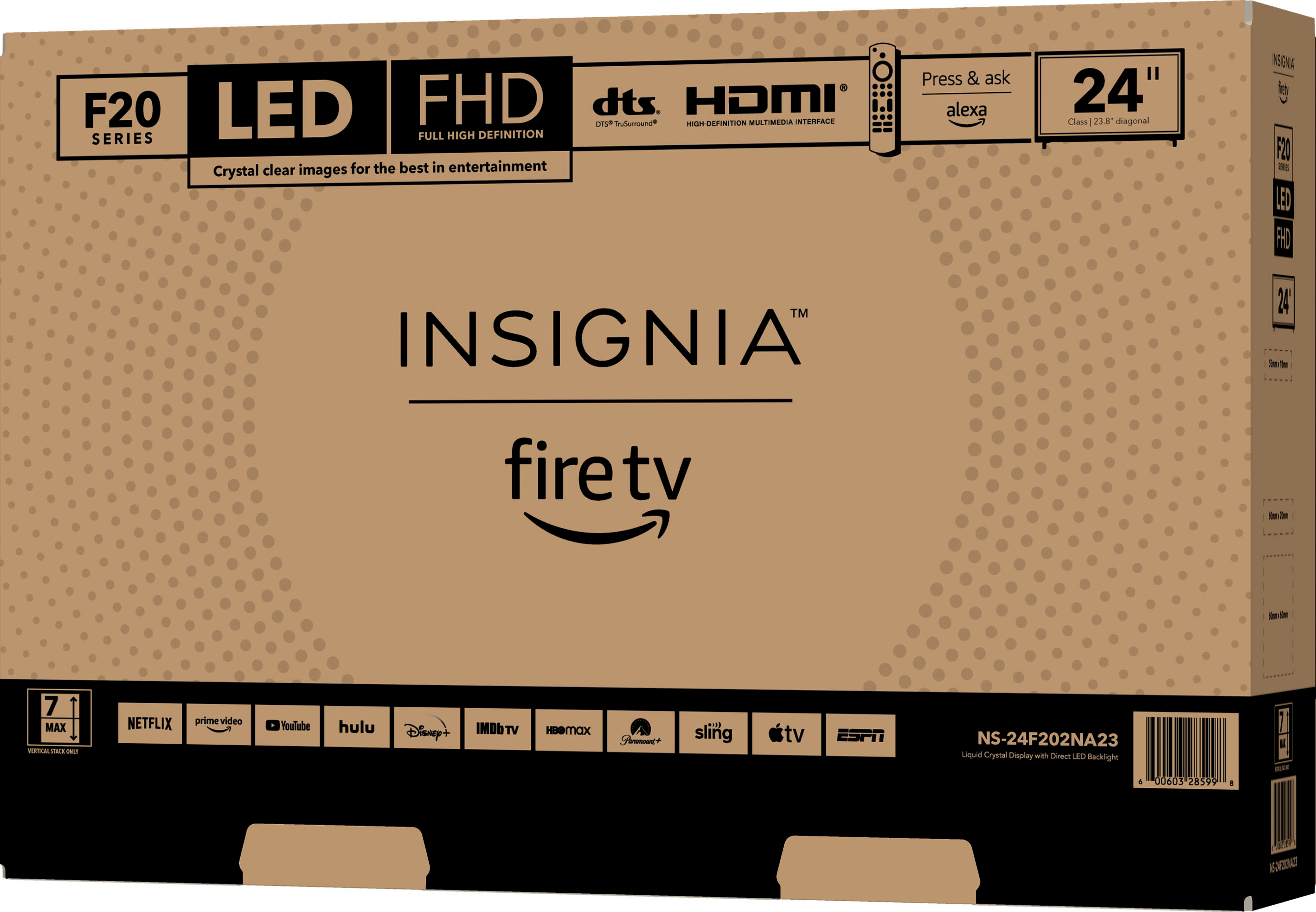
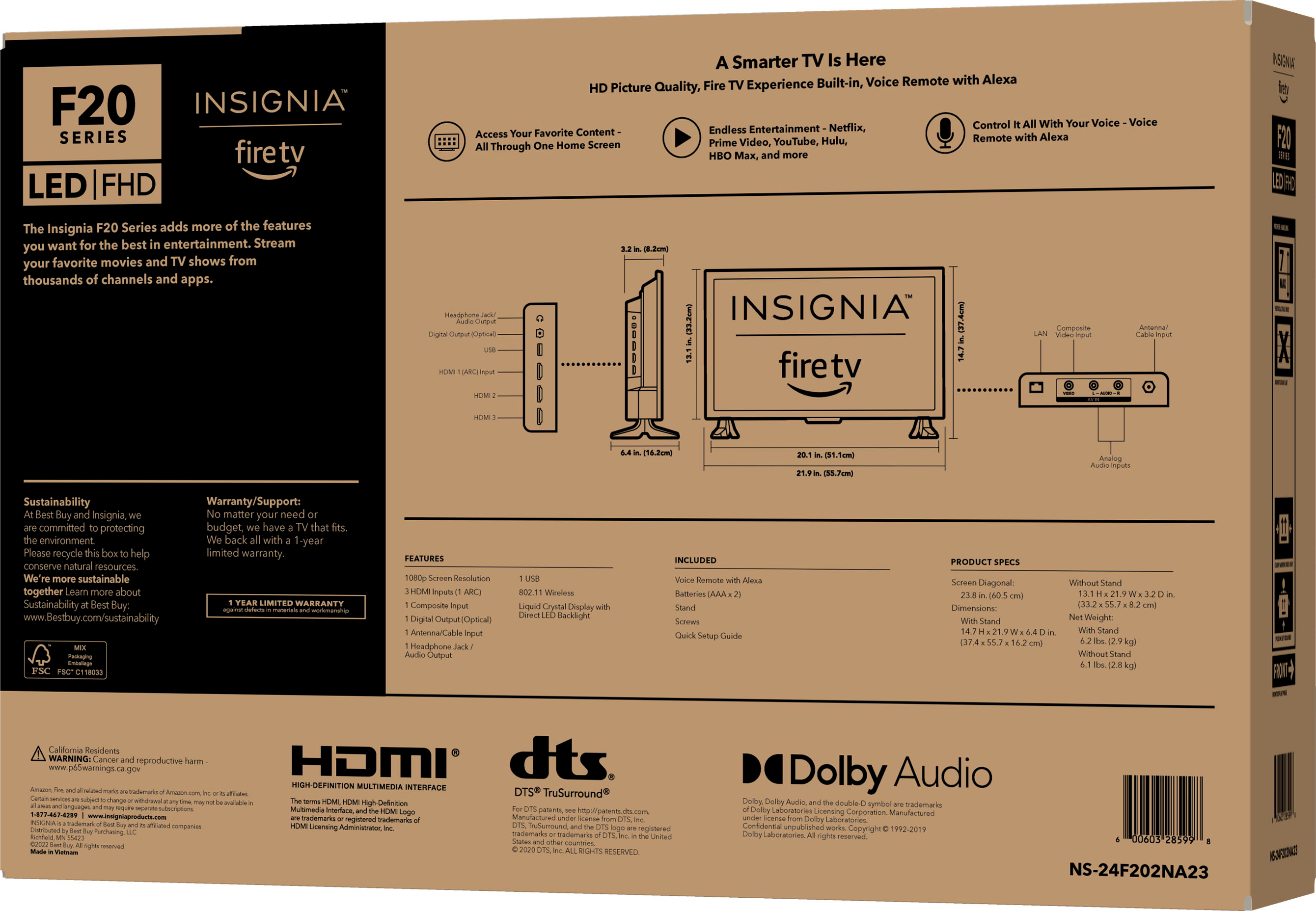
A:AnswerHi Insignia Customer! Thank you for inquiring about our Insignia™ - 24" Class F20 Series LED Full HD Smart Fire TV. This unit has a rated voltage of 110-120V~ 60Hz. Its rated power input is 150W and the rated current is 2A. I hope this helps. Let us know if you need further assistance. Have a nice day! - James | Insignia Support |
https://www.bestbuy.com/site/brands/best-buy-brands/pcmcat1596746025285.c?id=pcmcat1596746025285
A:AnswerI bought this TV and am noticing the same thing. I do not like the sound quality. It is turned up to 60 and sounds muffled. I have another TV that is this brand, and I only turn it up to between 15-20.
Did you return it? That is what I am considering.
A:AnswerI asked this question. Thank you Kieth for the quick response. However, this particular TV has separate "Display" and "Sound" categories under "Settings".
Neither of these contain a "Last Input" setting.
I looked in the user manual, but didn't see a way to set this.
A:AnswerHi There,
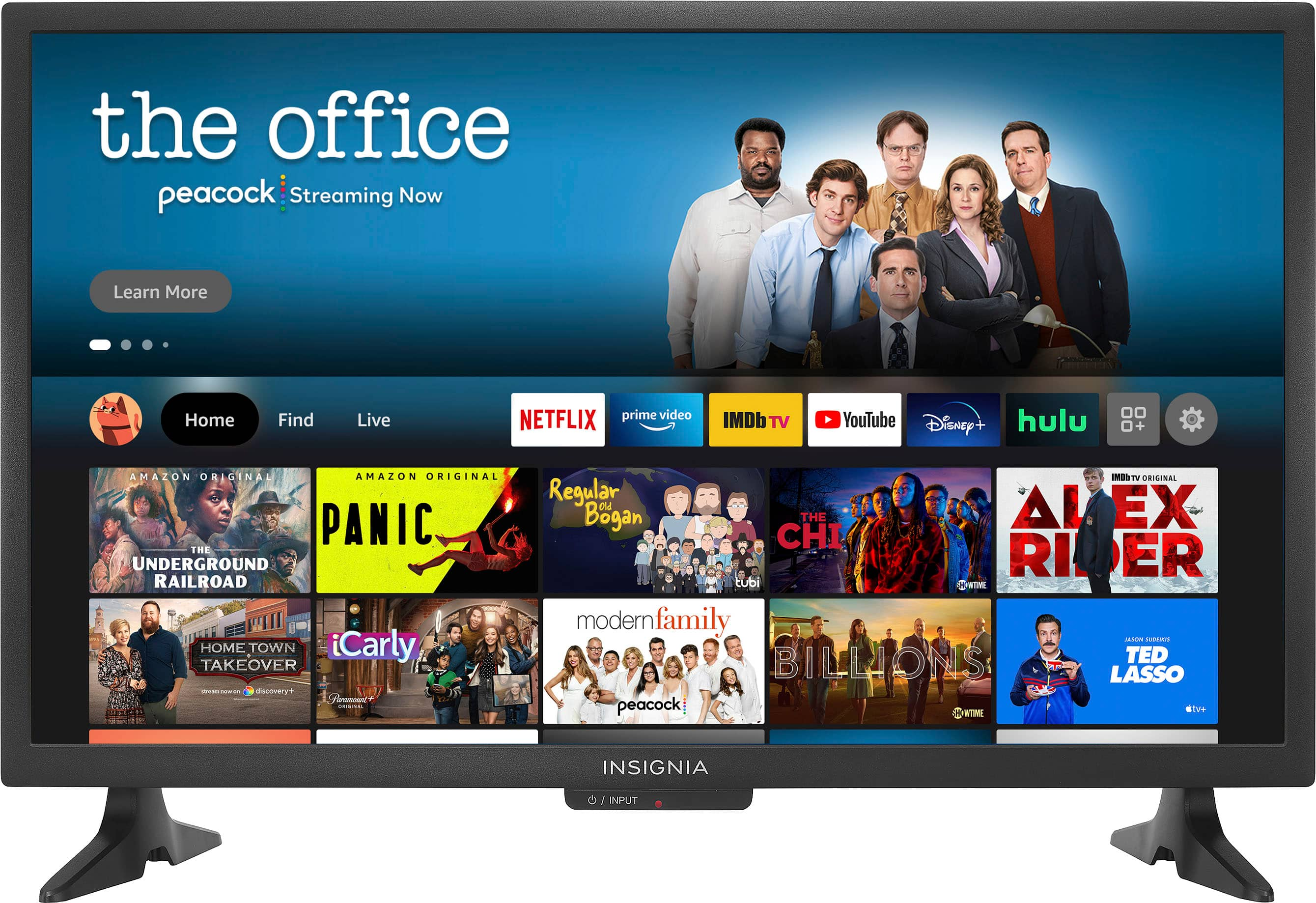
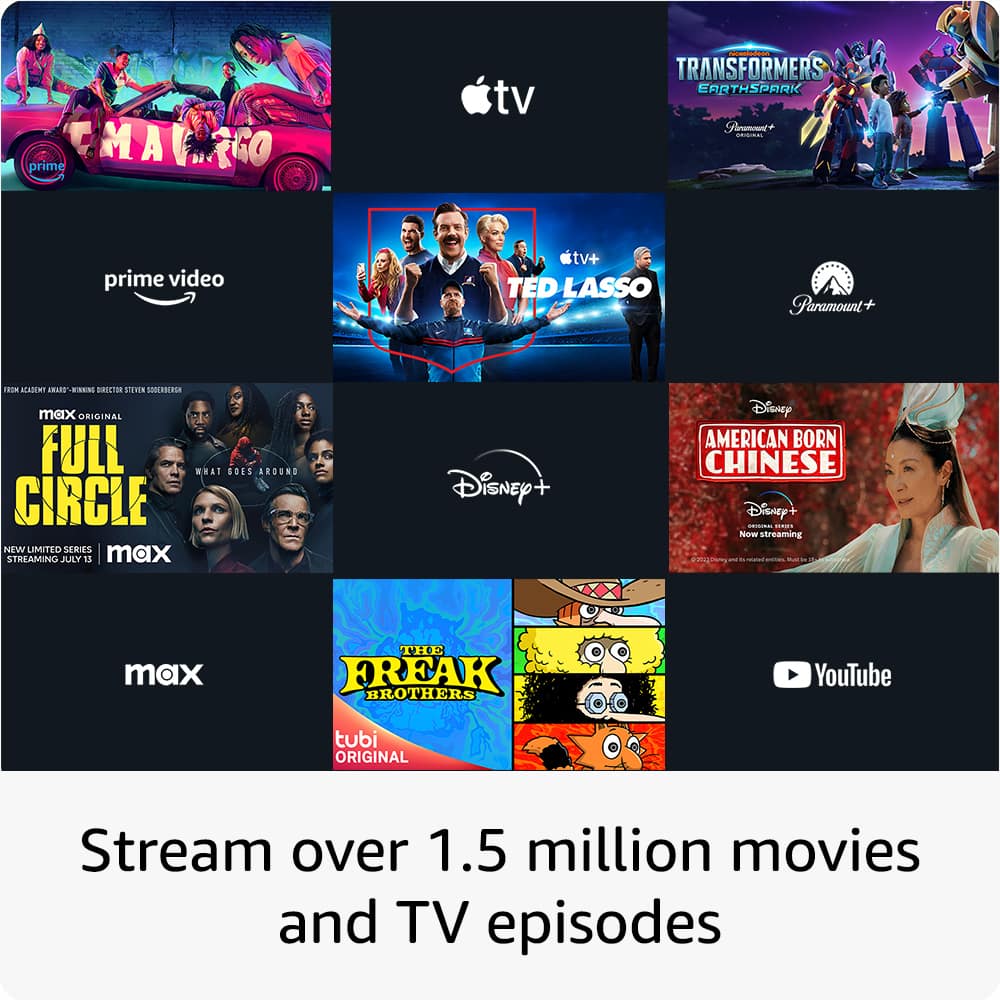
Yes you can watch over 1 million streaming movies and TV episodes with access to thousands of channels, apps and Alexa skills, including Netflix, Apple TV, Prime Video, Disney +, Hulu, Sling TV, YouTube, HBO Max, Spotify, Peacock, ESPN+ and more right from this TV.
Insignia Products
Marites
www.bestbuy.com/site/brands/best-buy-brands/pcmcat1596746025285.c?id=pcmcat1596746025285
A:AnswerHi Davy34,
You may try these steps to enable the Bluetooth:
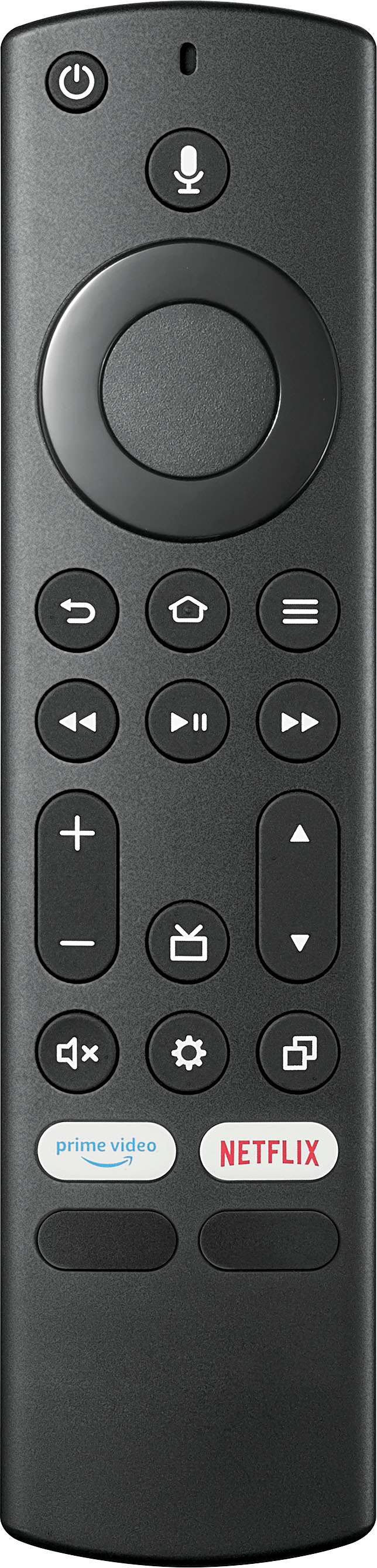
-Access the settings menu: Using your TV’s remote control, navigate to the main menu.
-Navigate to the Bluetooth settings: Within the settings menu, search for the “Connections,” “Network,” or “Bluetooth” option.
-Enable Bluetooth: In the Bluetooth settings, you should see an option to enable or turn on Bluetooth.
For more product details, please visit https://www.bestbuy.com/site/brands/best-buy-brands/pcmcat1596746025285.c?id=pcmcat1596746025285
Insignia Support
https://www.bestbuy.com/site/brands/best-buy-brands/pcmcat1596746025285.c?id=pcmcat1596746025285
A:AnswerHi there, Please go to https://files.bbystatic.com/6Ku%2BuLYzTdVzCIKa9a88FA%3D%3D/User%2BGuide for user guide. Dynamic: Applies elevated levels of contrast, brightness, and sharpness. Only use this setting for natural light or a bright room. Standard: This setting provides acceptable viewing for video and movie source content and is usually on when you first turn on the TV.
Rudson S.| Insignia Support.
Please visit https://www.bestbuy.com/site/brands/best-buy-brands/pcmcat1596746025285.c?id=pcmcat1596746025285
A:AnswerHello,
The size of the screen is measured diagonally from corner to corner. The screen size is 23.8 inches.
Insignia Support
Molina
https://www.bestbuy.com/site/brands/best-buy-brands/pcmcat1596746025285.c?id=pcmcat1596746025285
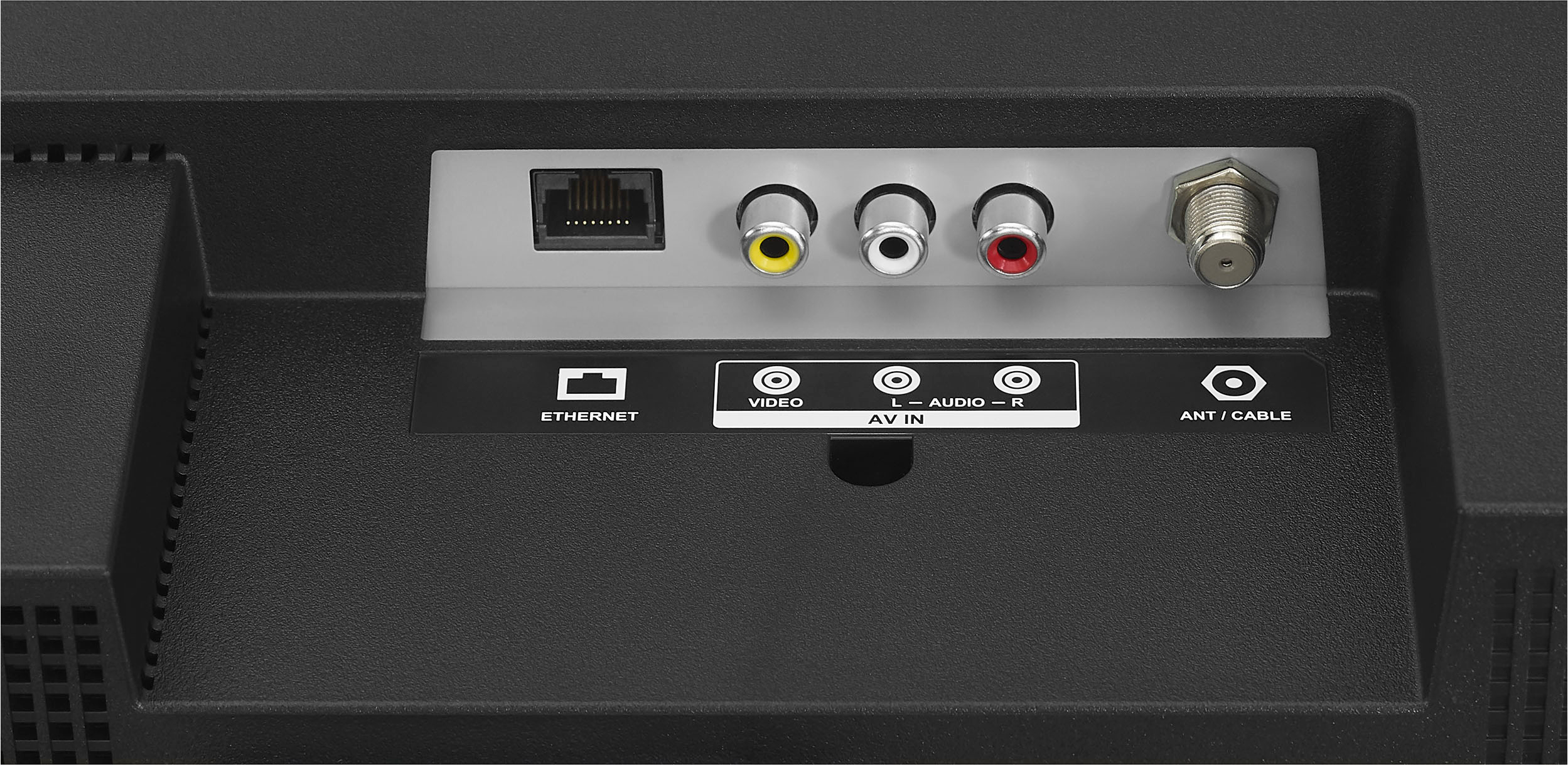
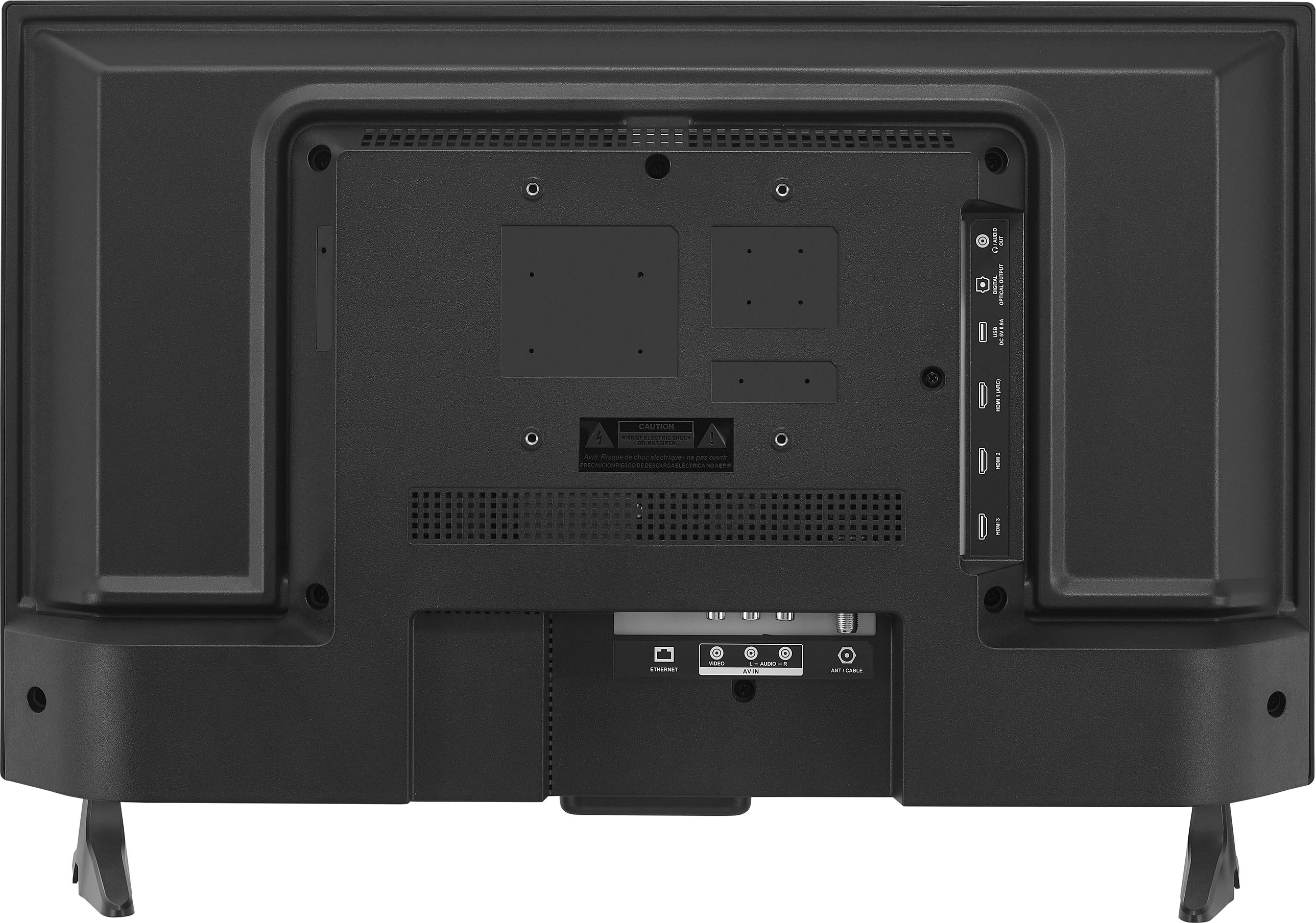
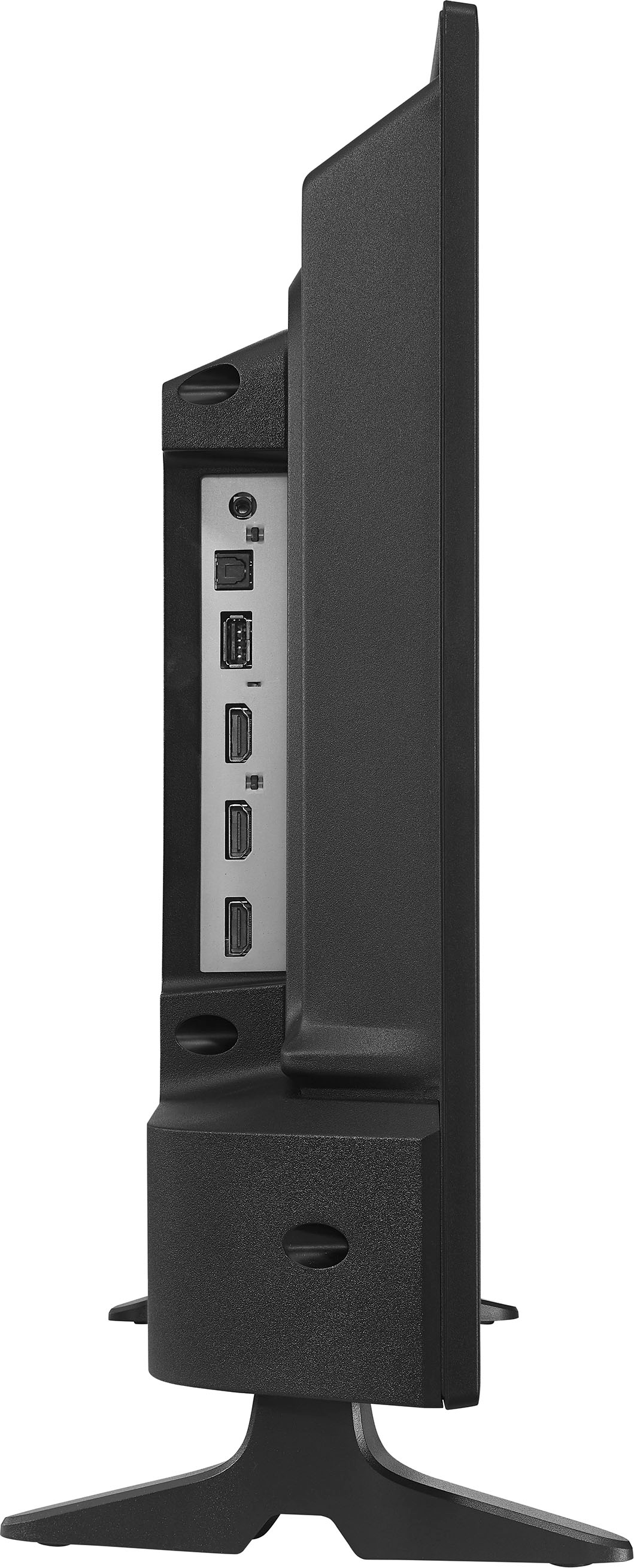
A:AnswerYou don’t have to use Wi-Fi to watch the tv if you don’t want it set up that way. You can watch tv with satellite dish tv , cable tv or even with some rabbit ears tv antenna. It’s all according to how you set it up. I have a big tv on dish and use this little one with rabbit ear antenna for my security camera and local tv . It’s all in how you set it up.
A:AnswerYes. I set it to start on my Roku. Before you turn the TV off, remember to switch to the input you want to use when you turn it on next time. Copied from Amazon:
Yes, it is possible.
1. Go to settings form the main menu.
2. Select the option Display & Sounds.
3. Select the option power control or power on.
4. Press on Power on home.
5. Select the option Last input and hit the select button.
6. Go back to Settings and select Inputs.
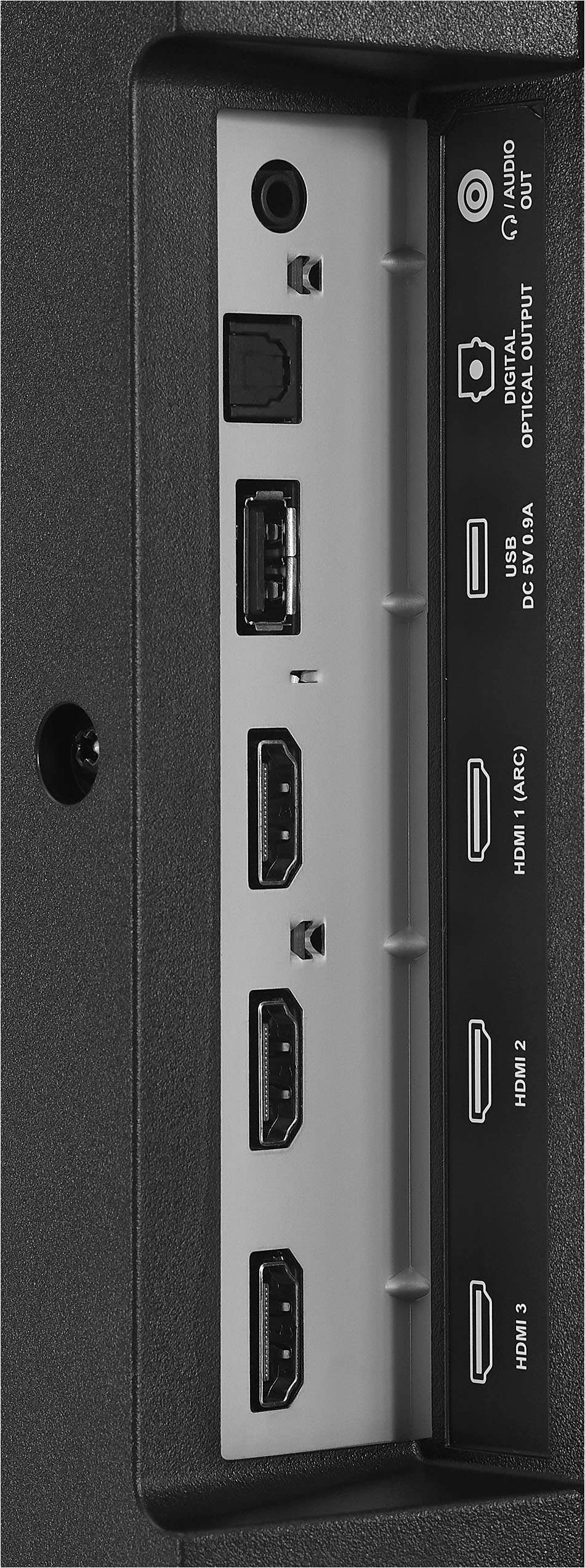
7. Choose the Input Source list (HDMI1, HDMI2 & HDMI3) using your cable remote switch the channels once.
8. Turn the TV off, turn the TV back on.
Amazon Support
Angela see less
By Amazon Customer in the United States on November 27, 2022