A:AnswerHello MovieLover. You may check this product Insignia NS-WBRDVD2 Blu Ray DVD Player, Wi-FI Built-In and see if it will work for you.
Mary II Insignia Products Customer Support II https://www.insigniaproducts.com/
A:AnswerHi,
Yes, it includes a browser in the software. If you have any questions or concerns, please use the link below to reach us and also you can contact this phone number 877-467-4289 for further assistance.
Insignia Products
Nikki
https://insigniaproducts.com
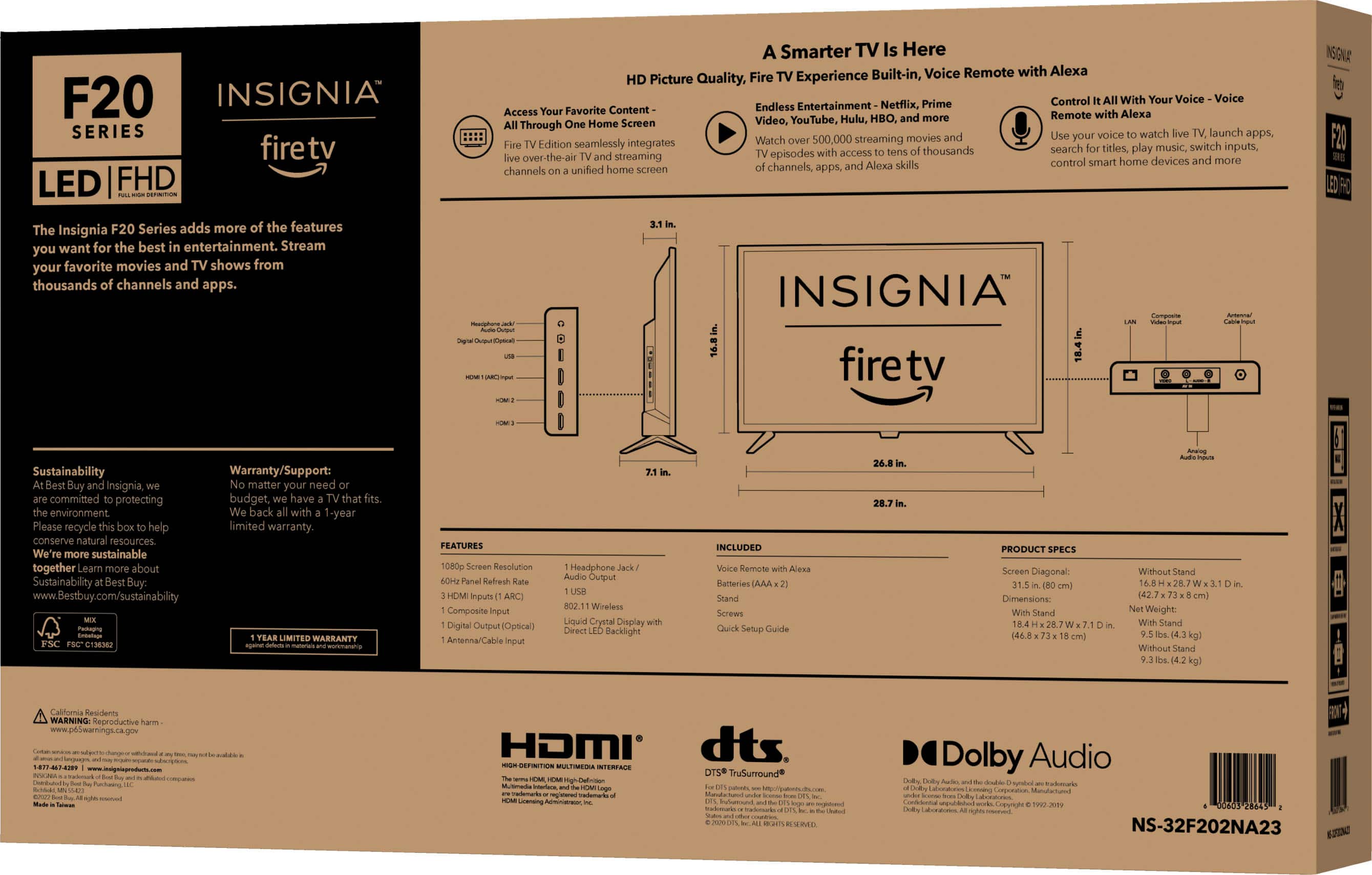
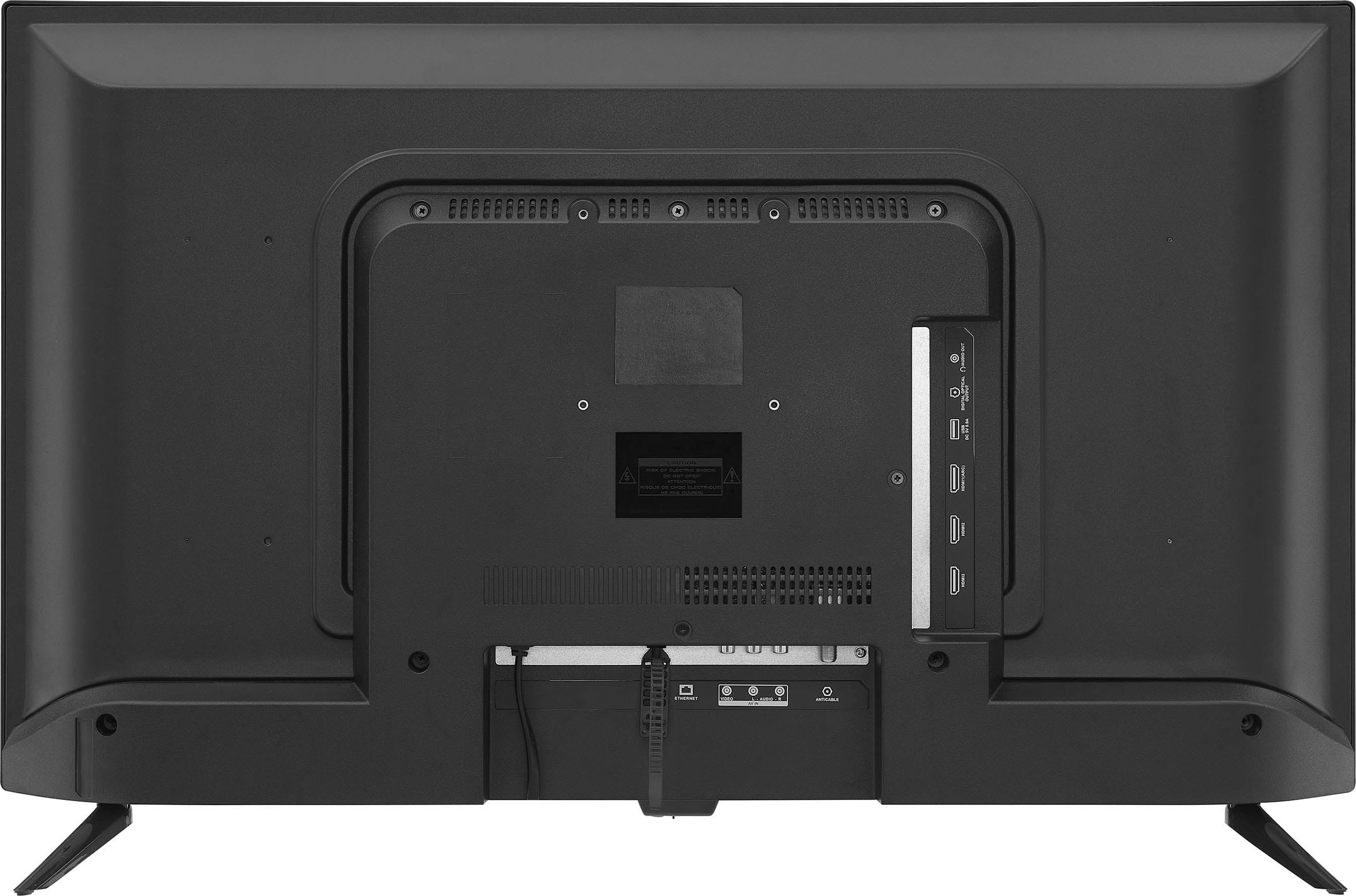
A:AnswerYes. Compatible with VESA pattern 100 × 100 for simple and safe wall mounting.
Dina | Insignia Support | https://www.insigniaproducts.com/contact-us
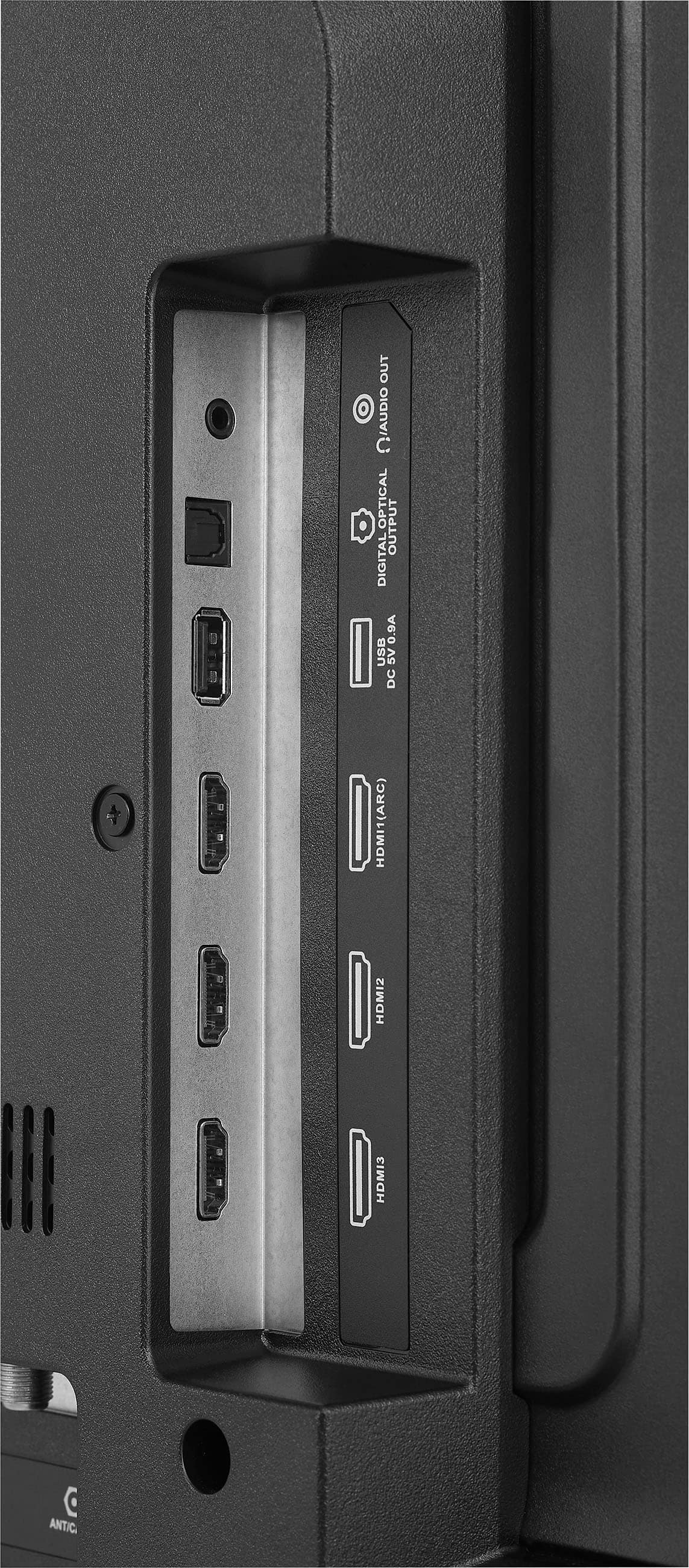
A:AnswerYes, very versatile TV. Not only is it Bluetooth-capable but there is a headphone jack so you can use wired headphones, as well. If you dislike the inevitable latency of any Bluetooth device, this option gives the viewer real-time audio and video. Either way, this TV is a great value for the price.
A:AnswerHi PetrJ, thank you for bringing this to our attention. It can be quite frustrating when your Insignia NS-32F202NA23 TV won't turn on. First, ensure the power cord is securely connected to both the TV and the wall outlet, and try using a different outlet to rule out any issues. If the problem persists, you may call our Insignia customer support for further assistance at 877-467-4289. Patricia | Insignia Support
A:AnswerThank you for reaching out. It sounds like the issue you're experiencing is related to the sleep timer settings. Here are some steps you can follow to address this:
1. Adjust Sleep Timer:
- Press and hold the Home button on your remote.
- A quick settings menu should pop up on the right side of your screen.
- Look for the Sleep Timer option.
- Set the sleep timer to 240 minutes (the maximum setting).
- After setting it to the maximum, there should be an option to turn it off completely.
2. Use Video Format for Looping Content:
- Instead of displaying static pictures or images, convert your content to a video format.
- Play the video via USB and enable the loop option. This way, the TV will continuously play the video and won't detect inactivity, preventing it from turning off.
If these steps do not resolve the issue, please feel free to contact Insignia Support for further assistance. They can provide more detailed troubleshooting or additional solutions.
You can reach Insignia Support through the following methods:
- Email: insignia@bestbuy.com
- Phone: 1-877-467-4289
We appreciate your understanding and hope this helps. Thank you for choosing Insignia!
A:AnswerThe tv relies mostly on W-Fi connection so you need to go to Settings Network. Connect to any Wi-Fi that you have Once connected, the time should automatically update within 30 seconds to 2 minutes and you can then disconnect from Wi-Fi if needed. Or you can use a OTA channel rescan by going to setting, find live tv and then search for channel scan. Hope this helps.
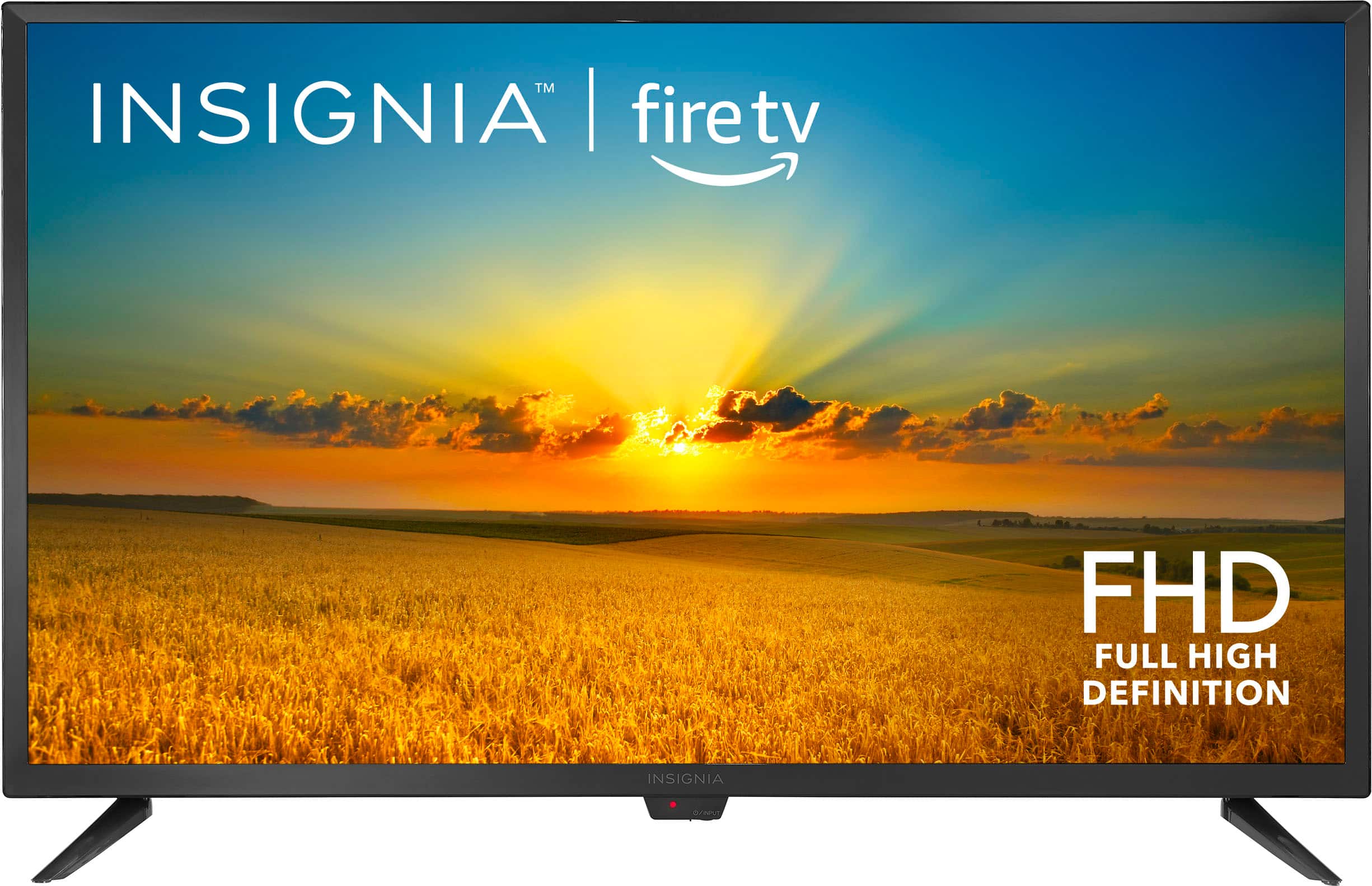
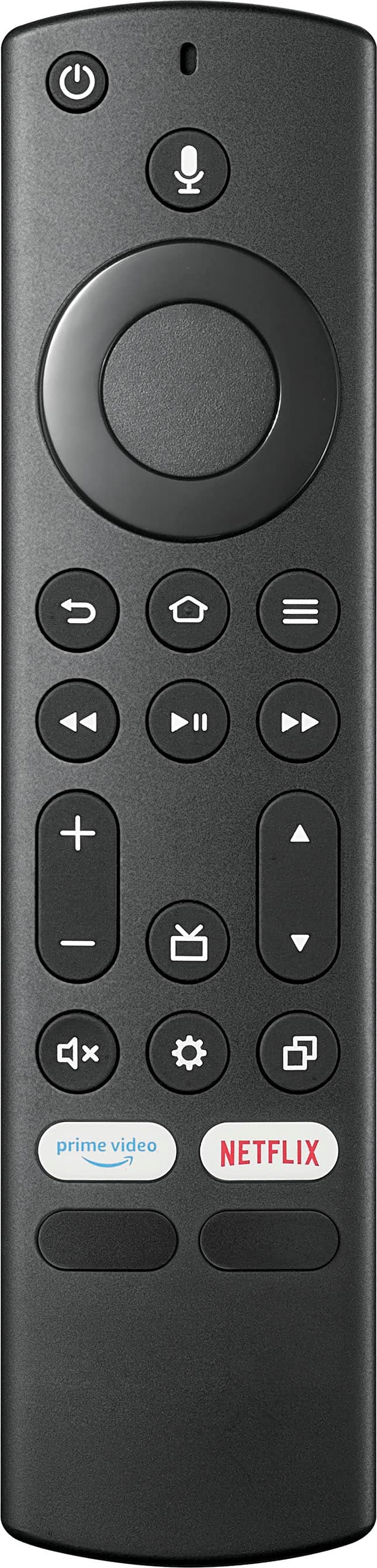
A:AnswerHi! The Insignia™ - 32" Class F20 Series LED Full HD Smart Fire TV comes with a remote control that includes numbers for channel selection and navigating menus. This remote can be used as a universal remote to control other devices such as cable boxes, DVD players, and sound systems.
JC | Insignia Support https://www.bestbuy.com/site/insignia-32-class-f20-series-led-full-hd-smart-fire-tv/6495086.p?skuId=6495086
A:AnswerHi there! thank you for letting us know your concern. This Insignia™ - 32" Class F20 Series LED Full HD Smart Fire TV is not recommended to be place in direct sunlight or near a heat source. If you have further questions, do not hesitate to reach us. Patricia | Insignia Support https://www.bestbuy.com/site/insignia-32-class-f20-series-led-full-hd-smart-fire-tv/6495086.p?skuId=6495086