Main Content

Questions & Answers

Page Showing 221-240 of 255 questions
  • QuestionCan it connect to blue tooth speakers in an RV?

    Asked by Kmidnighthauler.

    • Answer Thank you for your interest on our product Insignia™ - 43" Class F30 Series LED 4K UHD Smart Fire TV. Yes this TV has a Bluetooth capability. You just have to connect it through the settings. Jona | Insignia Support. https://www.bestbuy.com/site/insignia-43-class-f30-series-led-4k-uhd-smart-fire-tv/6448758.p?skuId=6448758

      Answered by InsigniaCustomerSupport

  • QuestionCan you view photos and media through the USB port?

    Asked by RobG.

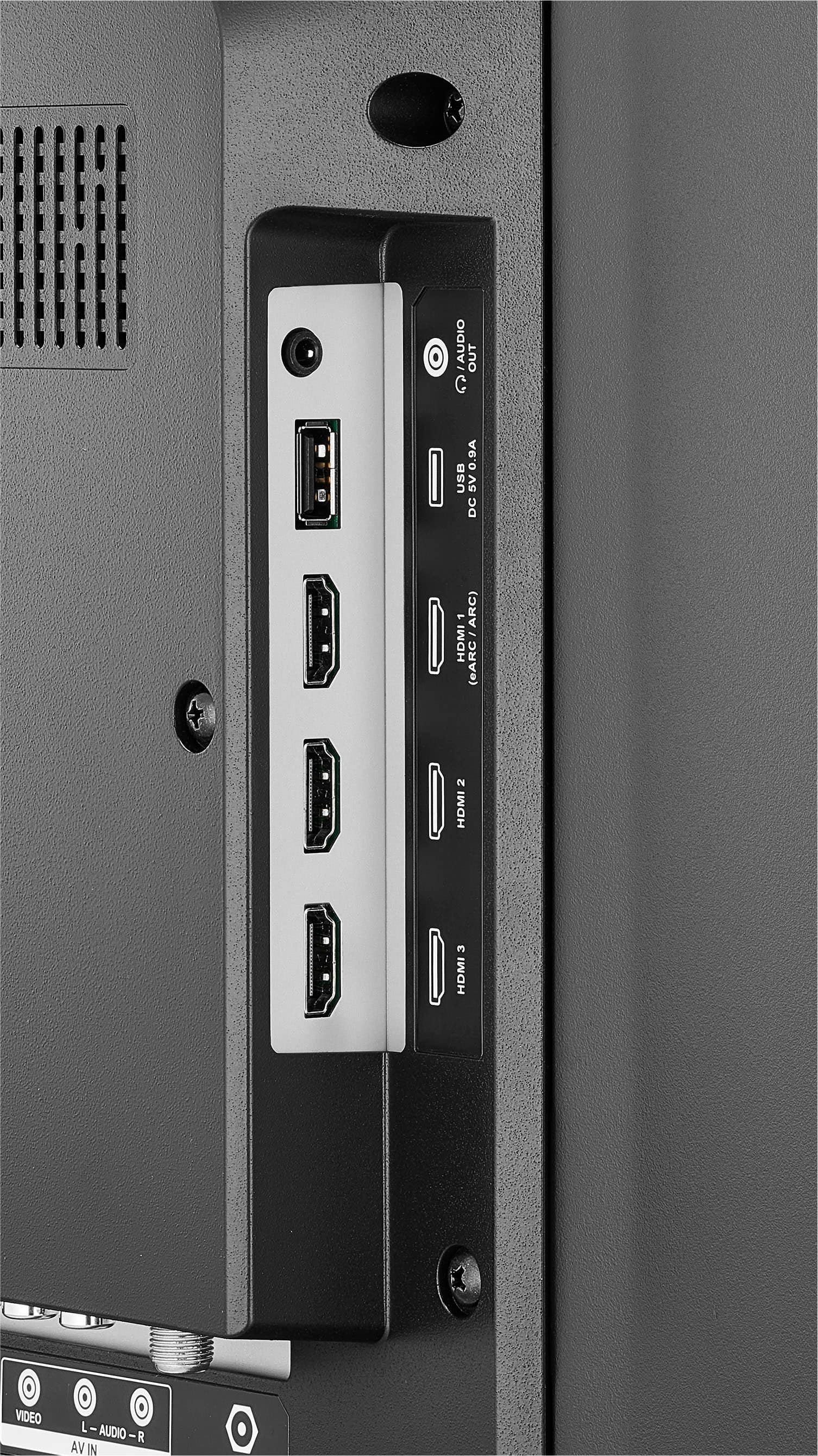
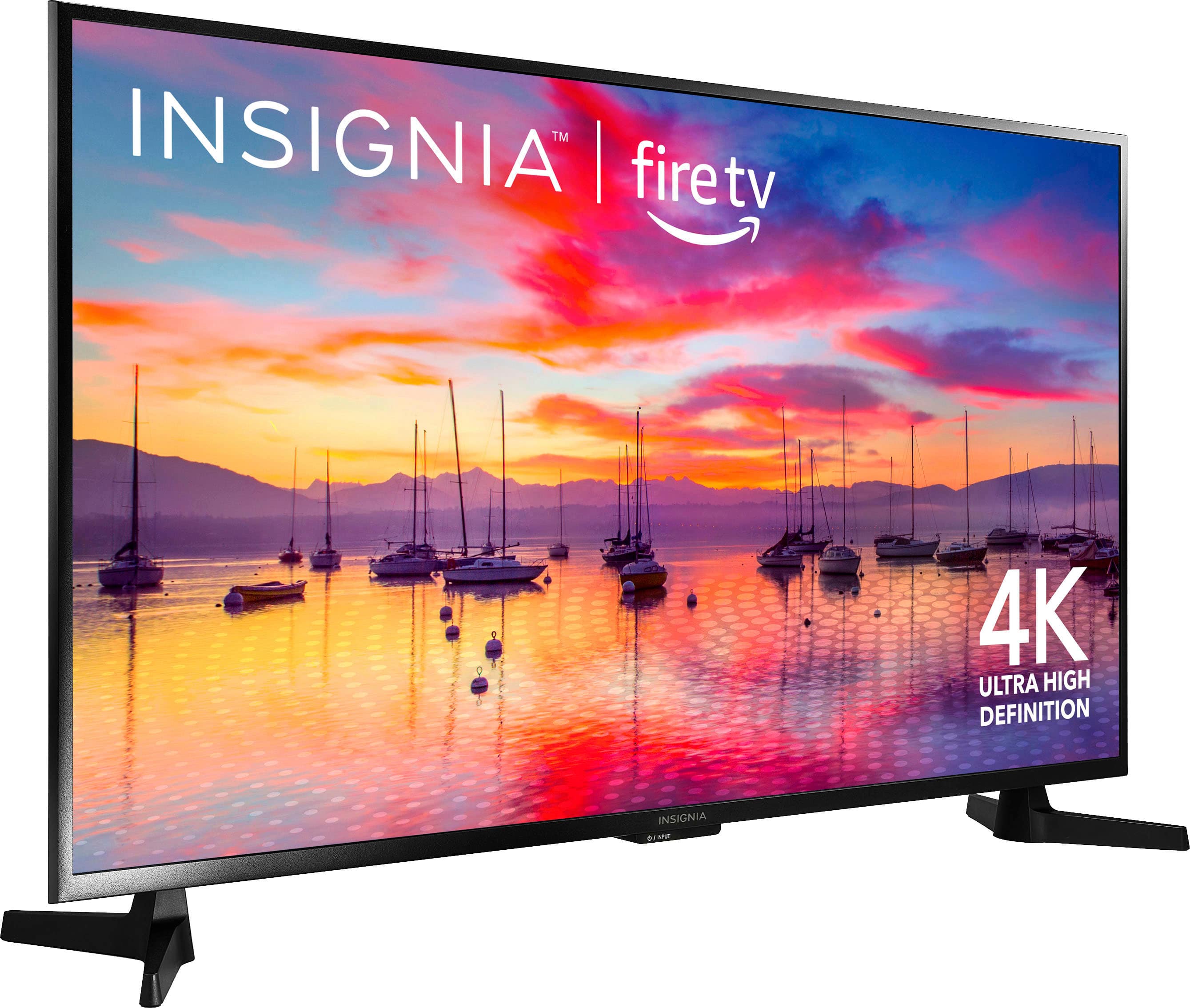
    • Answer Hello RobG, That's great news! Yes, you can indeed play media on your TV using a USB flash drive. It's a convenient way to enjoy your favorite content directly on your TV screen. If you have any questions about how to use your USB flash drive with your TV or need further assistance, feel free to ask. We're here to help! Carl | Insignia Support | https://www.bestbuy.com/site/insignia-43-class-f30-series-led-4k-uhd-smart-fire-tv/6562495.p?skuId=6562495
      Answered by InsigniaCustomerSupport

  • Questioncan i return if not sdatified

    Asked by Anonymous.

    • Answer Yes you can. And if you purchase a warrenty i believe you have 14 days also to return and get that money back also. I just got mine and i got a 5 year warranty for only 25 bucks!!

      Answered by TrevinJ

  • QuestionInsignia Model NS-43F301NA25 - How do you program this tv to power on to a certain input, say a cable box, instead of the fire tv menu? When I turn the tv on I want it to have the cable input come on the screen instead of the fire tv menu.

    Asked by Red.

    • Answer To program your Insignia™ - 43" Class F30 Series LED 4K UHD Smart Fire TV (Model NS-43F301NA25) to power on to a specific input, such as a cable box, follow these steps: Turn on your TV and cable box. Press the "Home" button on your TV remote to access the Fire TV menu. Navigate to the "Settings" menu, located at the top of the screen. Scroll to the right and select "Display & Sounds." Scroll down and select "Power on to last input." Toggle the setting to "ON." After completing these steps, your TV should now power on to the last input you were using, which in this case would be your cable box. If you want to switch back to the Fire TV menu, simply turn on your TV while the cable box is off, and it will default to the Fire TV menu.

      Answered by AsWild

  • QuestionWhat does the fire in the tv mean

    Asked by diesel.

    • Answer It means it works with Amazon and other Alexa enabled devices.

      Answered by VictoriaL

  • QuestionTV screen is completely black, however the sound is on. Now what?

    Asked by Frustrated.

    • Answer Thank you for your inquiry! If your Insignia™ 43" Class F30 Series LED 4K UHD Smart Fire TV has a black screen but still plays sound, it’s likely due to a backlight, display, or software issue. Start by power cycling the TV: unplug it, wait 60 seconds, then press and hold the power button on the TV itself for 30 seconds before plugging it back in. If the screen stays black, try shining a flashlight at an angle—if you can faintly see images, the backlight may be faulty. Also, switch input sources to rule out a signal issue, and try a soft reset by holding the Home button on the remote for 10 seconds. If the screen briefly comes back, check for firmware updates in the settings. If it remains black, you can attempt a blind factory reset by holding the Back and Right buttons on the remote for 10 seconds and following the audio prompts. If none of these steps work, the issue may be hardware-related, and you should contact Insignia or Best Buy support, especially if the TV is still under warranty.

      Answered by InsigniaCustomerSupport

  • QuestionHow many apps will this TV hold?

    Asked by Cindy.

    • Answer Hi Cindy! The Insignia™ 43" Class F30 Series LED 4K UHD Smart Fire TV doesn’t have a fixed limit on the number of apps it can hold. Instead, it depends on the available internal storage and the size of each app. Since it runs on Fire TV OS, you can download apps from the Amazon Appstore until the storage is full. — Shiela | Insignia Support

      Answered by InsigniaCustomerSupport

  • QuestionMy Insignia FireTV has suddenly started identifying itself as Roku AFTDCT31 to my network security system and has started attracting all kinds of bad actors trying to connect to it. The firewall has blocked everything so far. Could I have gotten a virus?

    Asked by LeviA63.

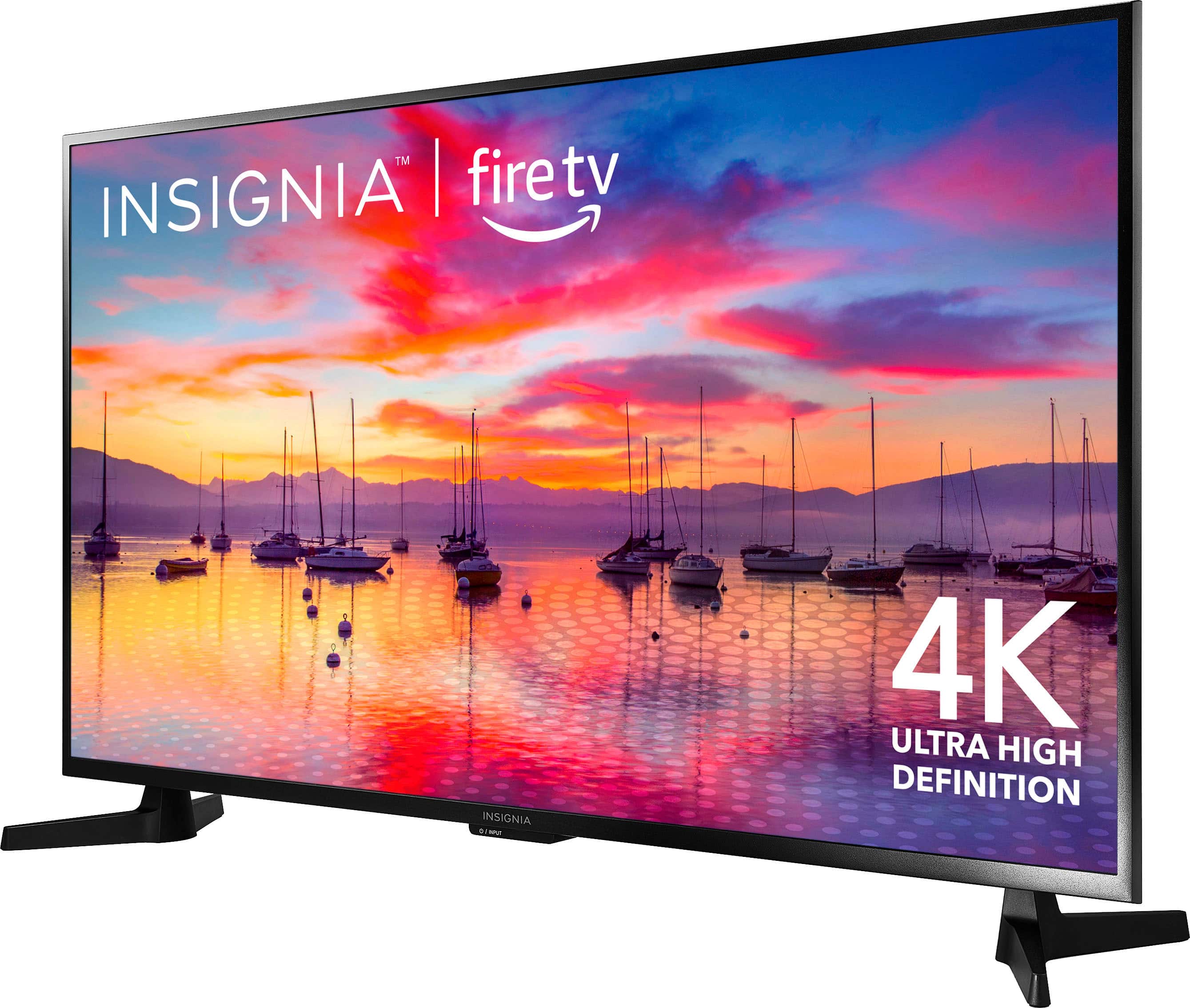
    • Answer Hi there, I'm sorry to hear about the issues you're experiencing with your Insignia Fire TV. It sounds like a frustrating situation, but I'm here to help. First, it's unusual for your Fire TV to identify itself as a Roku device. This could be due to a software glitch or a potential security vulnerability. While it's less likely that your TV has a virus, it's important to ensure your device is secure. Here are some steps you can take to address the issue: [1] Update Your Software: Make sure your Fire TV is running the latest software version. Go to Settings > My Fire TV > About > Check for Updates. [2] Factory Reset: If the issue persists, consider performing a factory reset. This will restore your TV to its original settings. Go to Settings > My Fire TV > Reset to Factory Defaults. [3] Network Security: Ensure your network security settings are robust. Use strong, unique passwords for your Wi-Fi and consider setting up a guest network for added security. [4] Contact Support: If the problem continues, reach out to our Insignia customer support for further assistance. Rest assured, your firewall blocking the suspicious connections is a good sign that your network security is working effectively. If you follow these steps and stay vigilant, you should be able to resolve the issue and enjoy your Fire TV without further interruptions. Thank you for bringing this to our attention. We're committed to ensuring you have a great experience with your Insignia products. -Rolf | Insignia Support https://www.bestbuy.com/site/insignia-43-class-f30-series-led-4k-uhd-smart-fire-tv/6562495.p?skuId=6562495
      Answered by InsigniaCustomerSupport

  • QuestionI use this as a pc monitor and this tv is constantly switching to gaming mode which causes the tv screen to flicker. How do I turn this off?

    Asked by SKOL.

    • Answer To stop your Insignia 43" Class F30 Series LED 4K UHD Smart Fire TV from automatically switching to gaming mode, follow these steps: 1. Access the TV Settings: - Press the Home button on your remote to go to the main menu. - Navigate to Settings. 2. Change the Picture Mode: - In the Settings menu, go to Display & Sounds. - Select Picture Settings. - Change the picture mode to your preference. 3. Adjust HDMI Input Settings: - Go back to the Settings menu. - Select Inputs. - Choose the HDMI input you are using for your PC. - Ensure that any gaming-related settings are disabled. 4. Check for Firmware Updates: - In the*Settings menu, go to Device & Software. - Select About. - Choose Check for System Update to ensure your TV has the latest firmware. These steps should help prevent your TV from automatically switching to gaming mode and causing the screen to flicker. If the issue persists, you might want to contact Insignia customer support for further assistance. If you have any other questions or need more help, feel free to ask!

      Answered by InsigniaCustomerSupport

  • Questionwhat is the screen size?

    Asked by rockyroad.

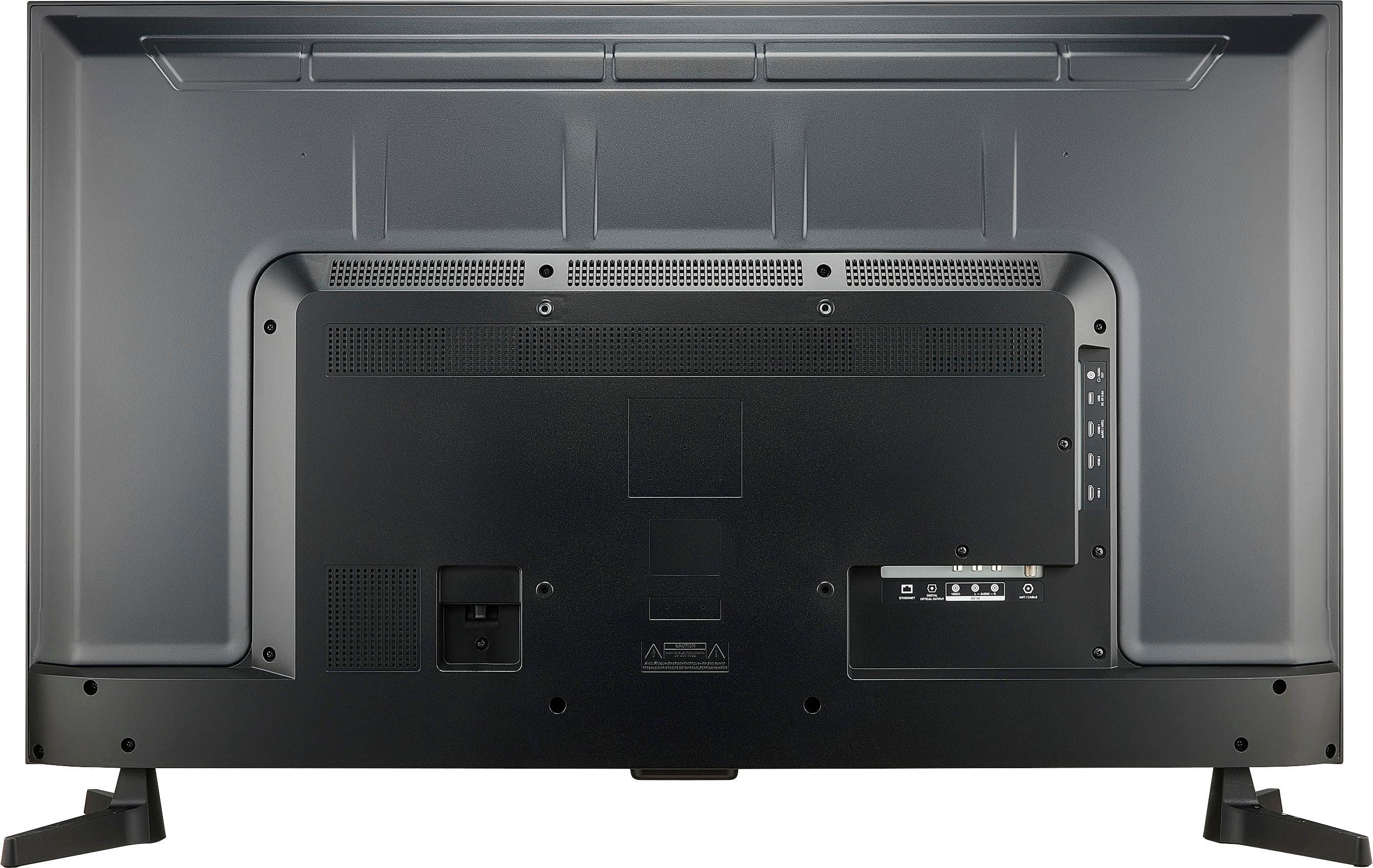
    • Answer Hi, the screen size of the Insignia™ 43” Class F30 Series LED 4K UHD Smart Fire TV is 42.5 inches. Patricia | Insignia Support https://www.bestbuy.com/site/insignia-43-class-f30-series-led-4k-uhd-smart-fire-tv/6562495.p?skuId=6562495
      Answered by InsigniaCustomerSupport

  • Questionwhat is the return policy? please

    Asked by Dadavid069.

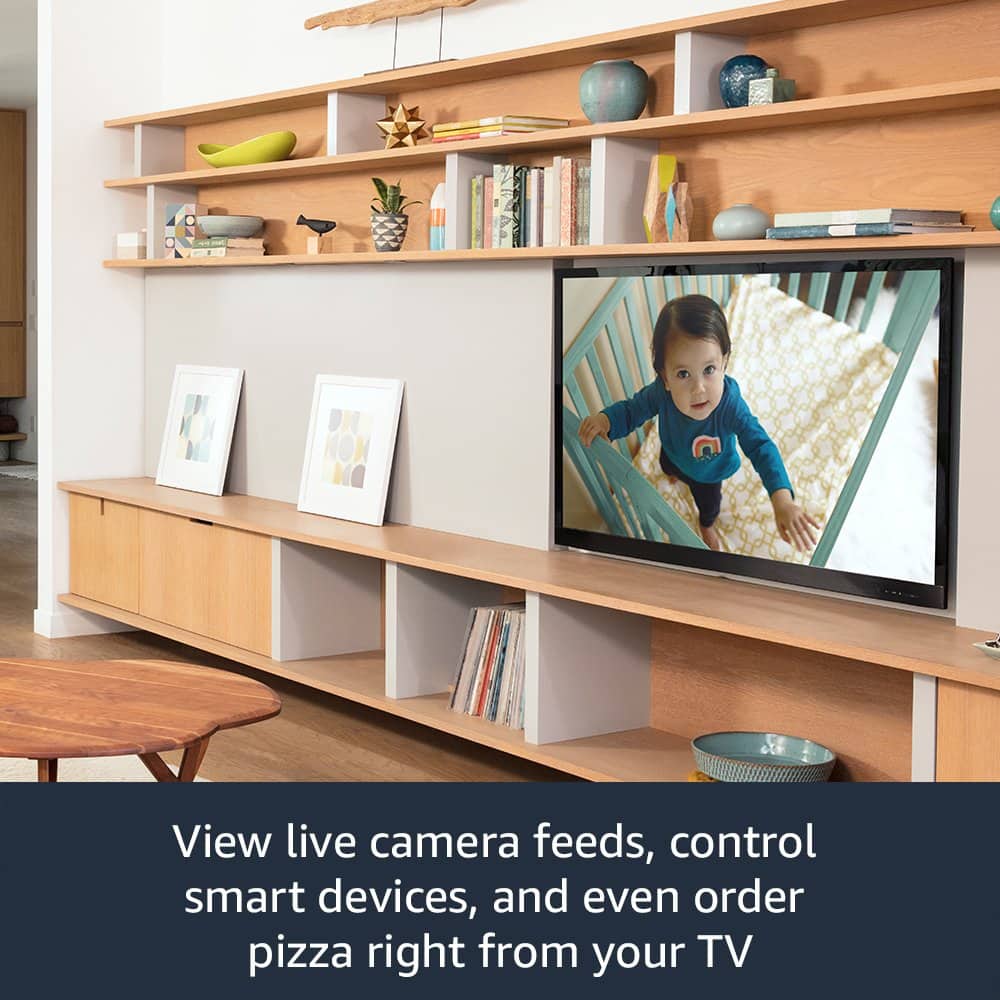
    • Answer Hello Dadavid, we recommend reaching out to the point of purchase for more information regarding their return and exchange policies. Patricia | Insignia Support https://www.bestbuy.com/site/insignia-43-class-f30-series-led-4k-uhd-smart-fire-tv/6562495.p?skuId=6562495
      Answered by InsigniaCustomerSupport

  • QuestionTWO QUESTIONS: 1. Does this TV have a built in DVR since it utilizes Fire Stick and if so, how much storage? 2. I am thinking about getting rid of cable, will this TV work with a Hulu LIVE (Live TV) subscription?

    Asked by IZZI.

    • Answer No built in DVR. Yes, it will work with a Hulu Live subscription. It is a streaming television that works with all the tv streaming apps, including Directv.

      Answered by DrCCloud

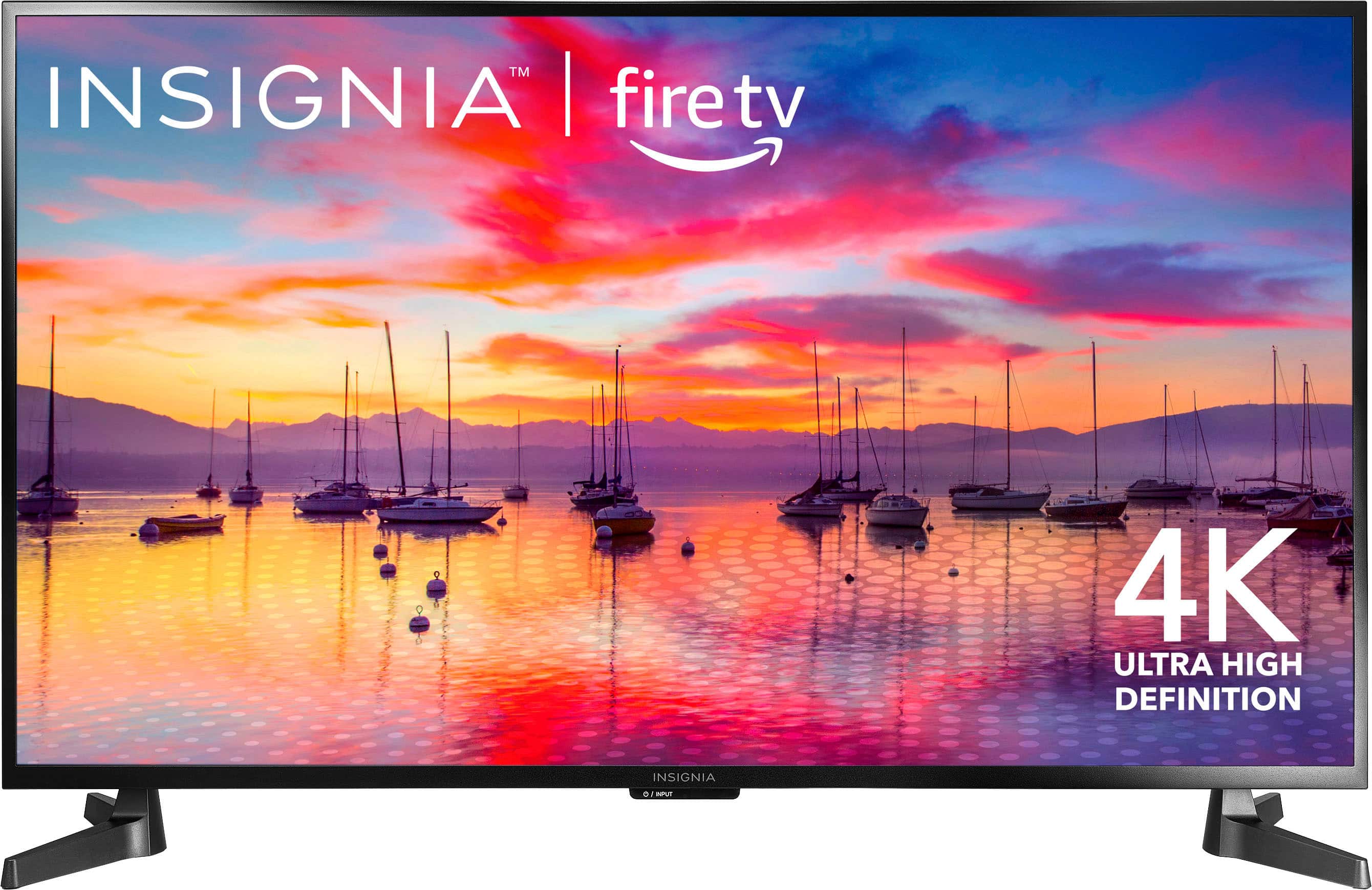
  • QuestionI have an older 43" Insignia TV (not smart TV) with a single base the joins the TV in the center. Can I use this base on this 43" Insignia Class F30 model. The feet that the new model comes with are too far apart for the table on which the TV will sit.

    Asked by Jeff.

    • Answer No, I had a similar older insignia TV and the ones with the base in the center also have the holes in the center of the TV, the ones it the feet on the sides have the holes toward the sides.

      Answered by aaarrrrrgggggggg

  • QuestionDoes it have roku

    Asked by Anonymous.

    • Answer how can I use roku

      Answered by joanb

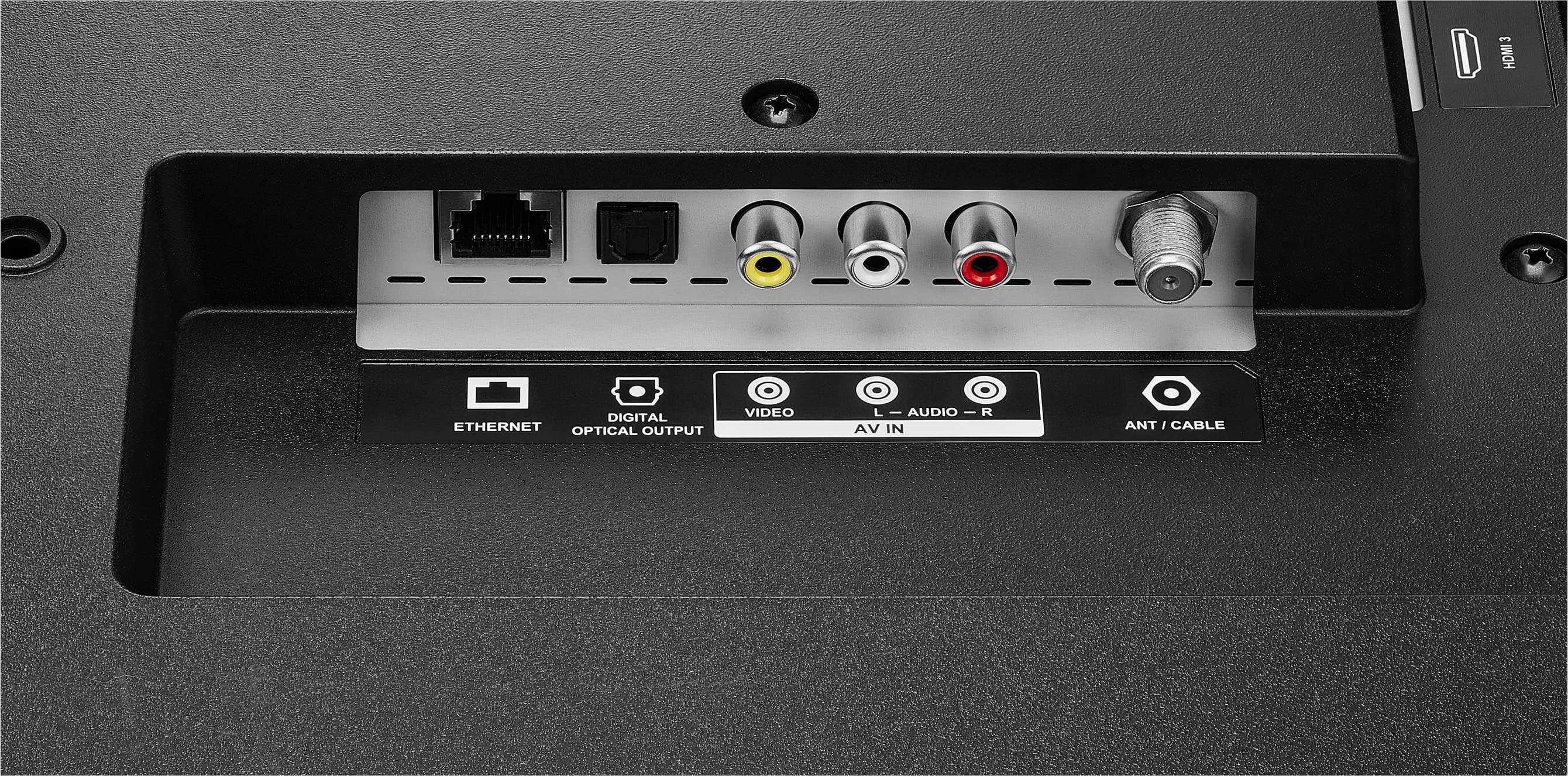
  • QuestionHave old cable box with just coaxial connection. There’s an option for that hook up. Tried to go through start up process, download channels. Said 0 twice then 2. Can this TV function as a basic tv that just uses a cable box?

    Asked by Crawfish.

    • Answer It's honestly just like any old tv in that regard. Just use a seperate input selection for cable instead of letting the Fire TV interface try and manage it.

      Answered by JPrincipali

  • Questionmy internet is hot but the tv won't let me connect. When I enter my password, the connection times out.

    Asked by ted.

    • Answer Let the TV cool down. Try again in thirty minutes

      Answered by Anonymous

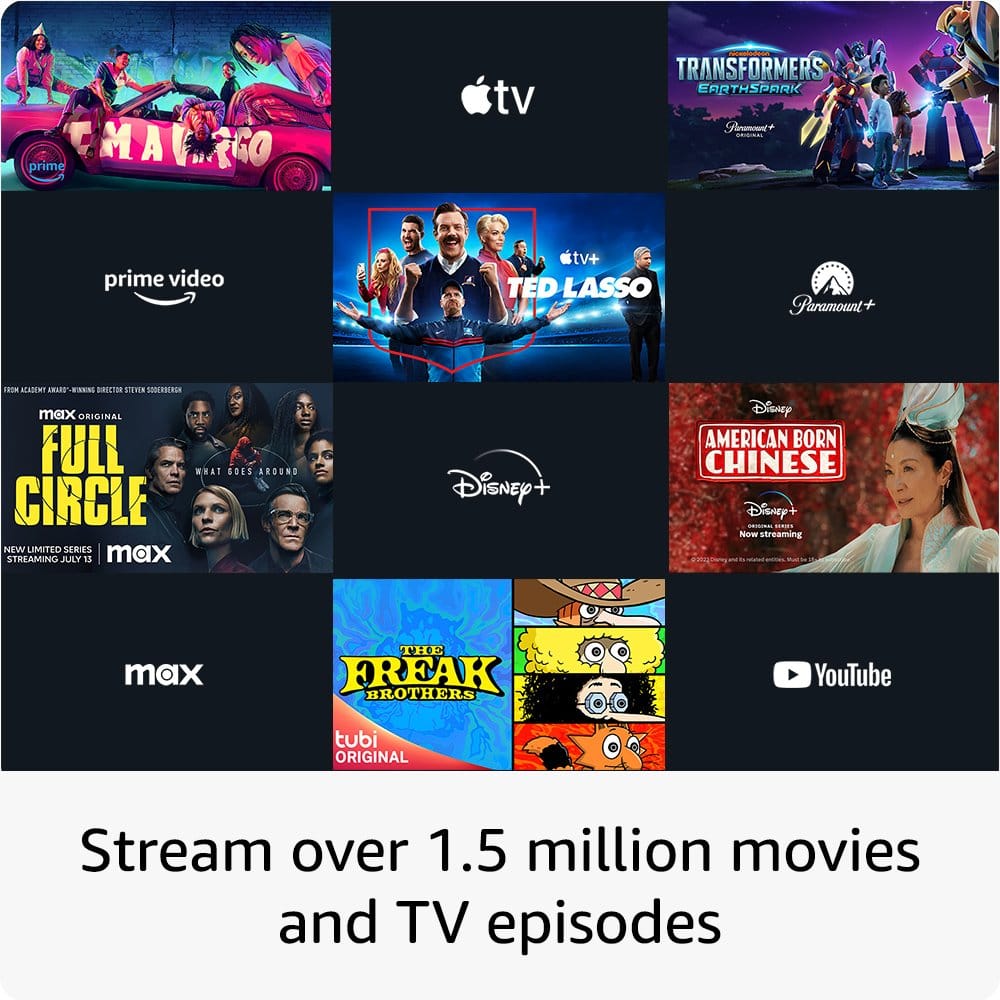
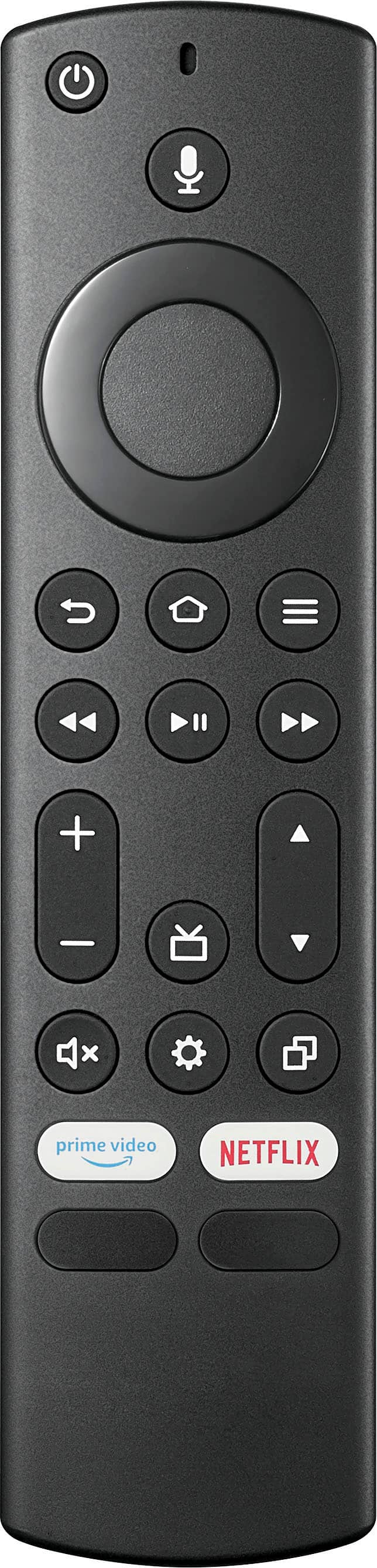
  • QuestionHow do you make HDMI1 default input when turning tv on?

    Asked by jjn4.

    • Answer Hi Jjn4, thank you for bringing this to our attention. To address your concerns, you need Go to "Settings" > "Display and Sound" > "Power Controls" > "Power On" > and select "Last Input". After that, press "Home" > "Settings" > "Inputs" > and select either "HDMI 1", "HDMI 2", or "HDMI 3". Lastly, Power the TV off and power it backs on to check if it is working. Let us know if there is anything we can do to help. Patricia | Insignia Support https://www.bestbuy.com/site/insignia-43-class-f30-series-led-4k-uhd-smart-fire-tv/6562495.p?skuId=6562495
      Answered by InsigniaCustomerSupport

  • QuestionWhat is the manufacturer's warranty on this product?

    Asked by Anonymous.

    • Answer The manufacturer's warranty will start on the day of purchase and covers parts and labor for one year. If you have any additional questions, please don't hesitate to contact us. Patricia | Insignia Support https://www.bestbuy.com/site/insignia-43-class-f30-series-led-4k-uhd-smart-fire-tv/6562495.p?skuId=6562495
      Answered by InsigniaCustomerSupport

  • QuestionJust picked this up yesterday, 43", 4k TV. Netflix says TV not 4k and my Xfinity cable box says HD (1080p) is as high of resolution the TV can go. Netflix says it needs something called DRMO to authorize the 4K? How do watch UHD?

    Asked by Jeff.

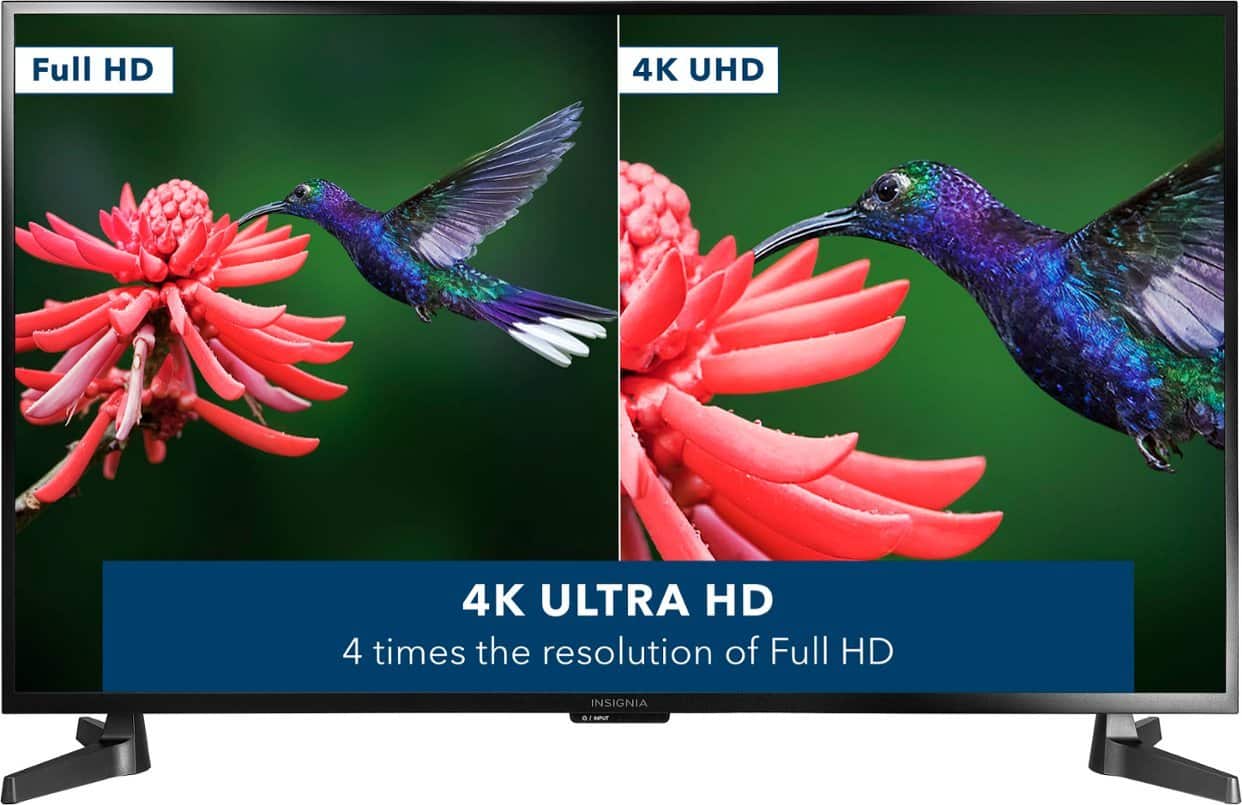
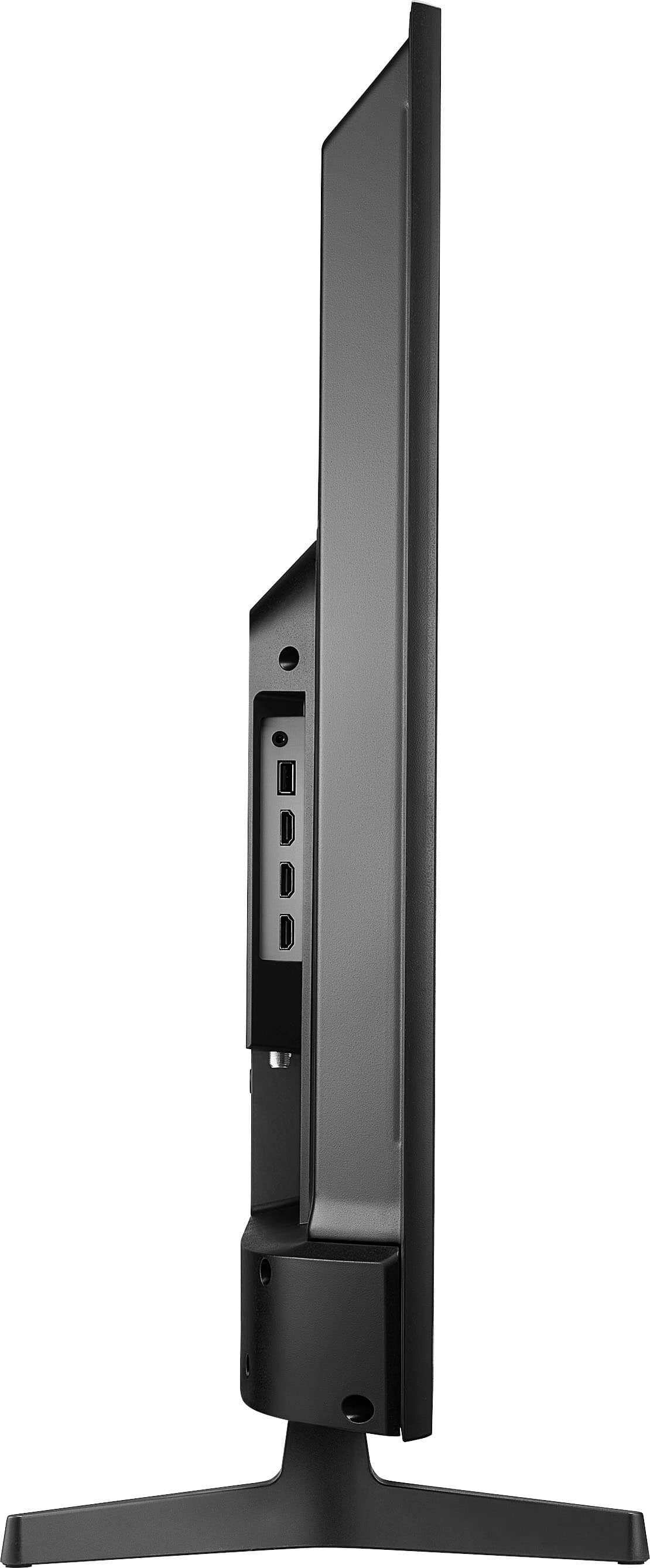
    • Answer Hi Jeffrey! To watch 4K UHD content on your TV, you may need to check a few things: 1. Make sure your TV's settings are properly configured for 4K resolution. Go to the TV's settings menu and look for options related to resolution, picture quality, or display settings. Set the resolution to 4K or UHD if available. 2. Ensure that your HDMI ports support 4K resolution. Not all HDMI cables or ports are capable of transmitting 4K content. Make sure you are using a high-speed HDMI cable and connect it to an HDMI port labeled as 4K compatible on your TV. 3. Some streaming services, like Netflix, require a specific type of DRM (Digital Rights Management) technology to authorize 4K content playback. Make sure your TV and streaming app are compatible with the required DRM technology. 4. Update your TV's firmware and streaming app to the latest version. Sometimes, software updates can improve compatibility with 4K content. If you have checked all of the above and still cannot watch 4K content, consider contacting us at 1-877-467-4289 for further assistance. JC | Insignia Support https://www.bestbuy.com/site/insignia-43-class-f30-series-led-4k-uhd-smart-fire-tv/6562495.p?skuId=6562495
      Answered by InsigniaCustomerSupport

  • QuestionIs the brightness easy to dim down, so at night before bed it isn’t too bright?

    Asked by Anonymous.

    • Answer Hey there! Thank you for reaching out to us regarding your concern on our Insignia™ - 43" Class F30 Series LED 4K UHD Smart Fire TV. Yes, adjusting the brightness on this TV is pretty simple. Just press and hold Home button until the Quick Settings menu opens. Select Picture, then adjust the Brightness settings. I hope this helps. If you need further assistance, don't hesitate to reach out. Have a wonderful day! - James | Insignia Support | https://www.bestbuy.com/site/brands/best-buy-brands/pcmcat1596746025285.c?id=pcmcat1596746025285

      Answered by InsigniaCustomerSupport