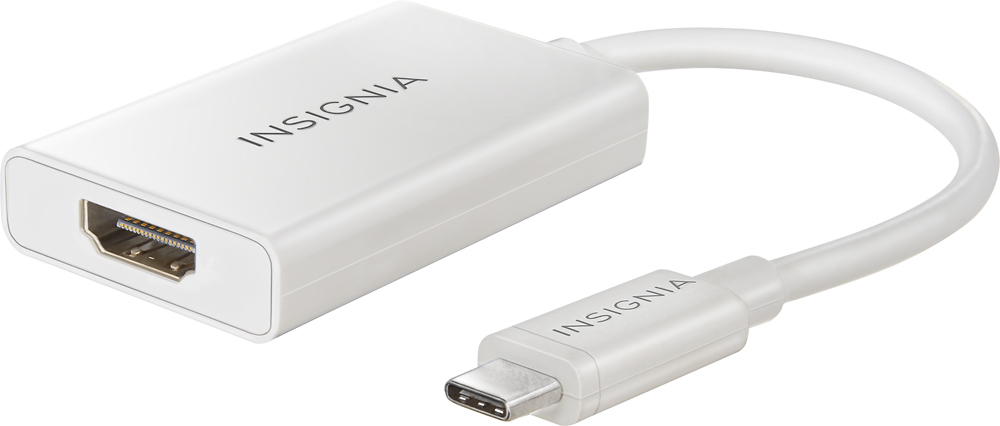
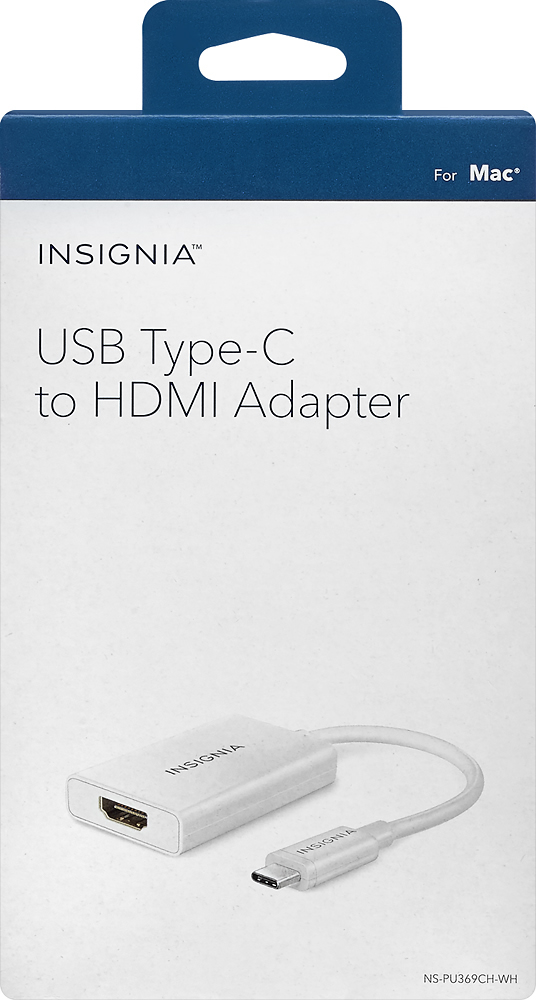
A:AnswerYou may have to move things around, if you have other things plugged into the laptop switch the ports you are using. If you are charging the notebook while working unplug the charging unit and try it.
A:AnswerHi
Sorry you are having a problem and do not take this answer the wrong way - I have done them myself.
Is your monitor plugged in and turned on ?
Have you tried another Type C port ?
Have you checked the monitor to see if it is working?
Have you checked the HDMI cable ?
If all your answers are yes —- bring the notebook and adapter to Best Buy and have them test the adapter.
Hope this helps.
JAMD
A:AnswerI would suggest you look in your settings and make sure that everything is configured to mirror the output to the TV. I’m not that familiar with the Samsung protocols, so you might need an additional app. Where’s comes to worse, there should be a Samsung help desk inside your Best Buy store.
A:AnswerThe simple answer is no. The slightly more detailed answer is that your Galaxy S6 uses a Micro USB connector on its charging/data port, while this particular Insignia adapter is for use between the newer USB-C charging/data port (like the port used on a Sony Xperia ZX2 phone) and an HDMI port. You could use a Micro USB (male) to HDMI (female) adapter. Many "Smart" TVs use an Android OS (Sony for example). If your TV uses Android, then you can use Chrome Cast to wirelessly duplicate the image on your phone's screen to your TV.
A:AnswerUnfortunately not. As I mentioned to another customer, do you want me at a HDMI to lightning adapter. These are about $50 at your local Best Buy or Apple store. This allows for both connection to the TV from the phone but also provides charging capabilities as well
A:AnswerI don't know for sure, as I use it for my Lenovo. However, it connects with the HDMI cable in my classroom, connected to my USB port. So if that's what you're asking to do, ot should work.
A:AnswerMake sure you check all HDMI inputs on your TV. You should be able to toggle with your remote between HDMI 1, HDMI 2, HDMI 3, etc. Once you know which one is hooked into your laptop via USB type c you should be set. Also make sure you are duplicating your screen if you are sending to a TV. If you are using it as a second monitor make sure to have it connected to "extended display".