A:AnswerWe would like to work with you directly to help you with your issue. Please submit a case request at https://www.jbl.com/support-contact.html and the Customer Service Team will be more than happy to assist you.
A:AnswerI believe this is built into the "software". As long as mine are receiving a sound "signal", they remain active.
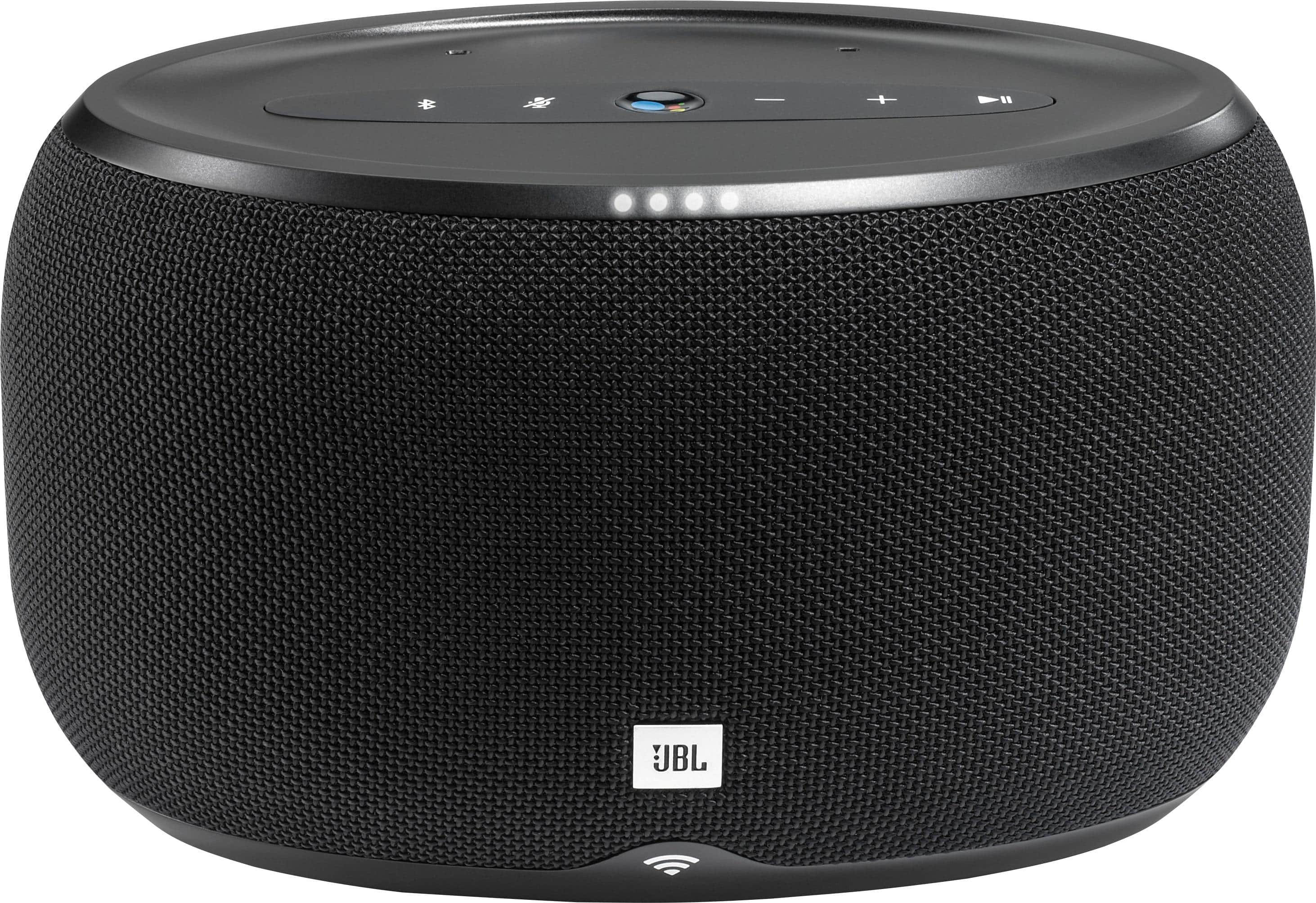
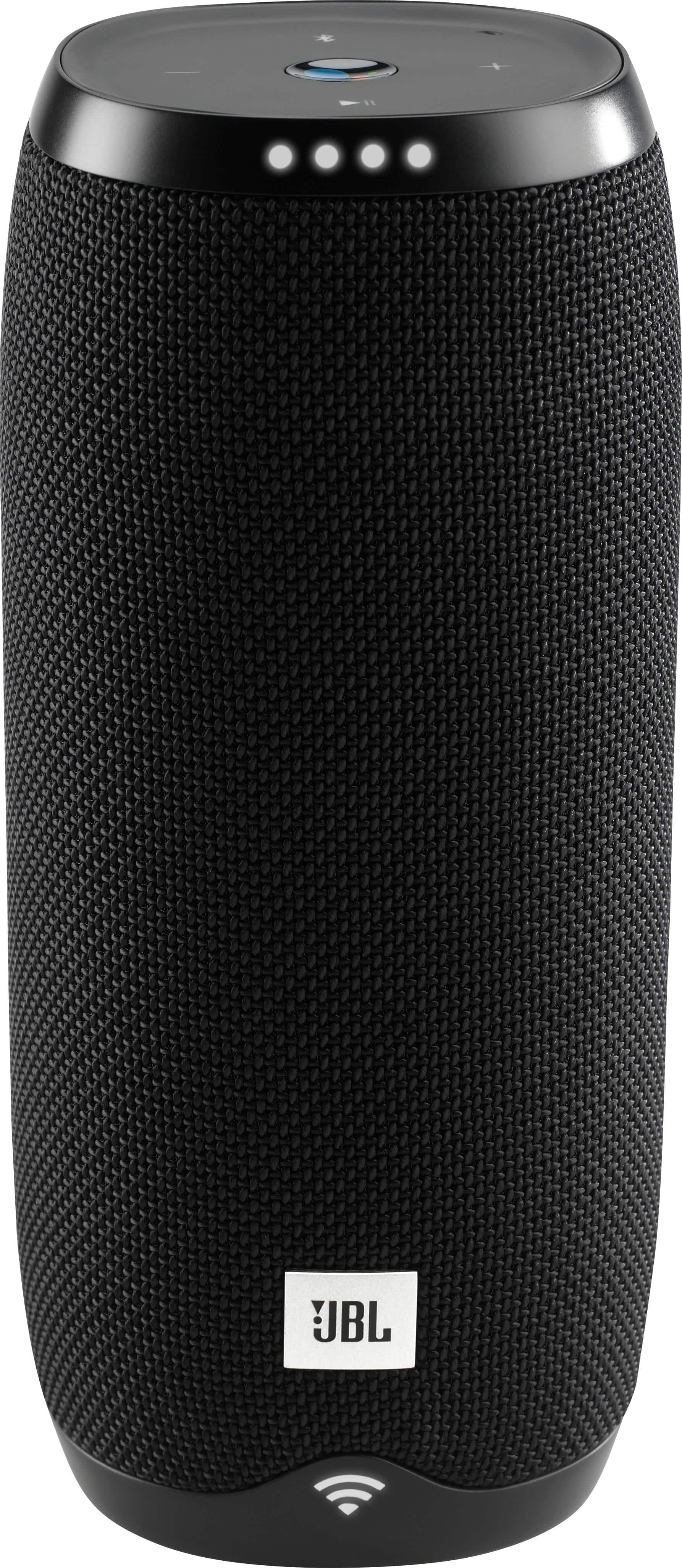
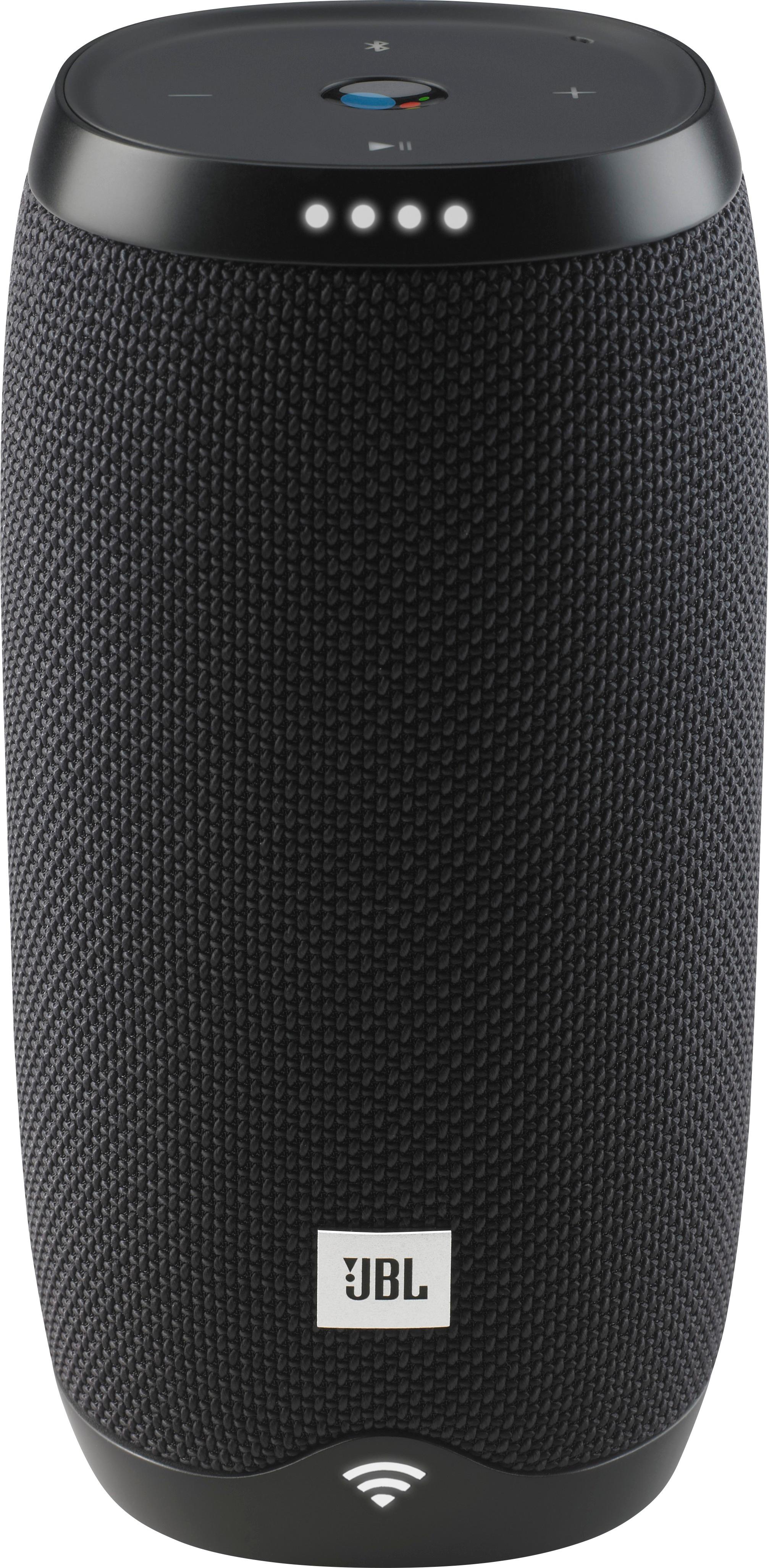
The JBL Links or some other brand may be more appropriate for your use.
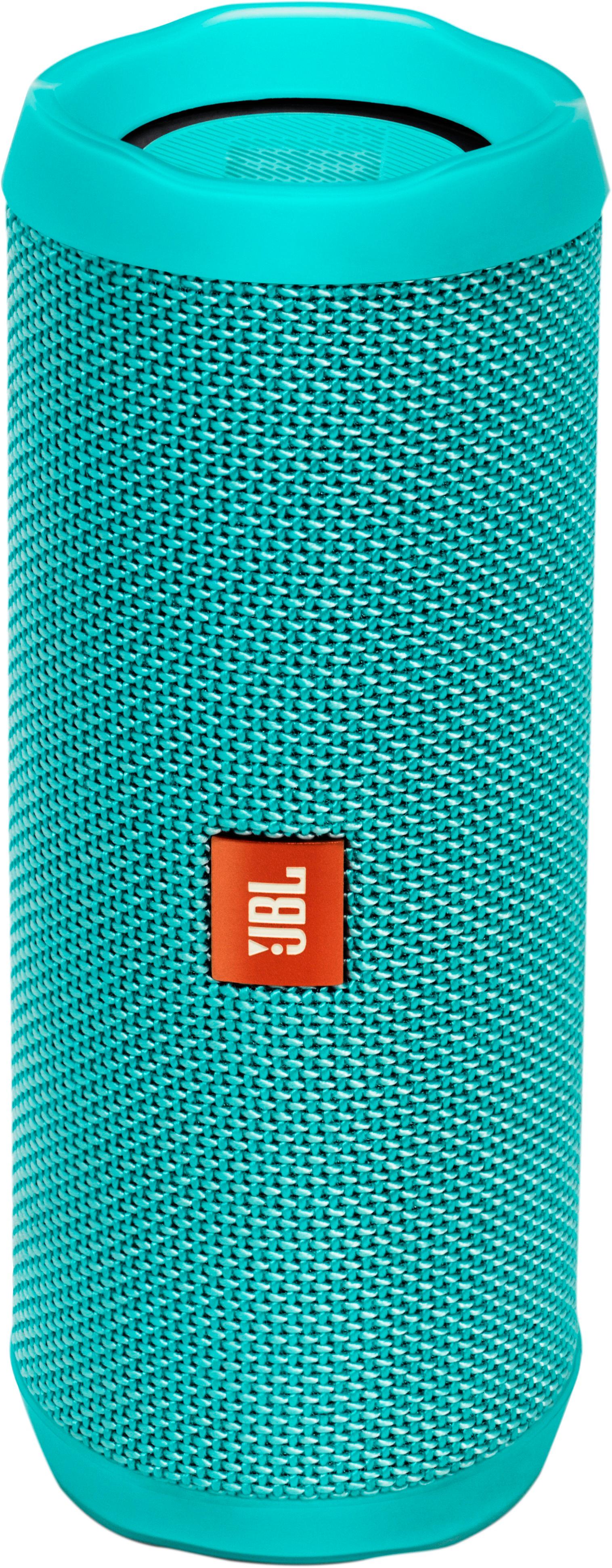
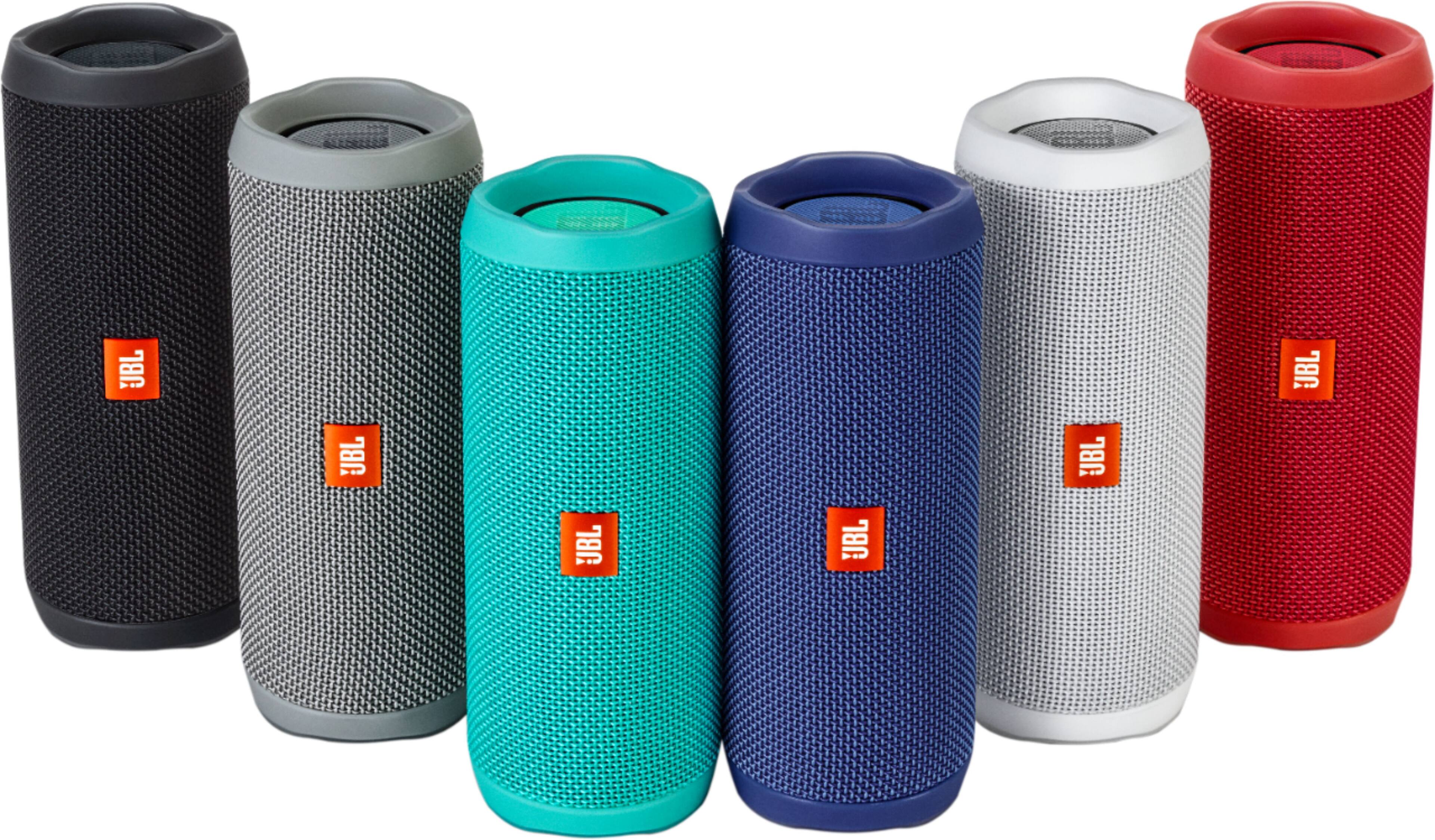
A:AnswerHello! If you are referring to the JBL Flip 4 taking in phone calls, yes, it is capable of answering calls through your phone and serve as a speakerphone.
A:AnswerHi! Yes, you can try these steps:
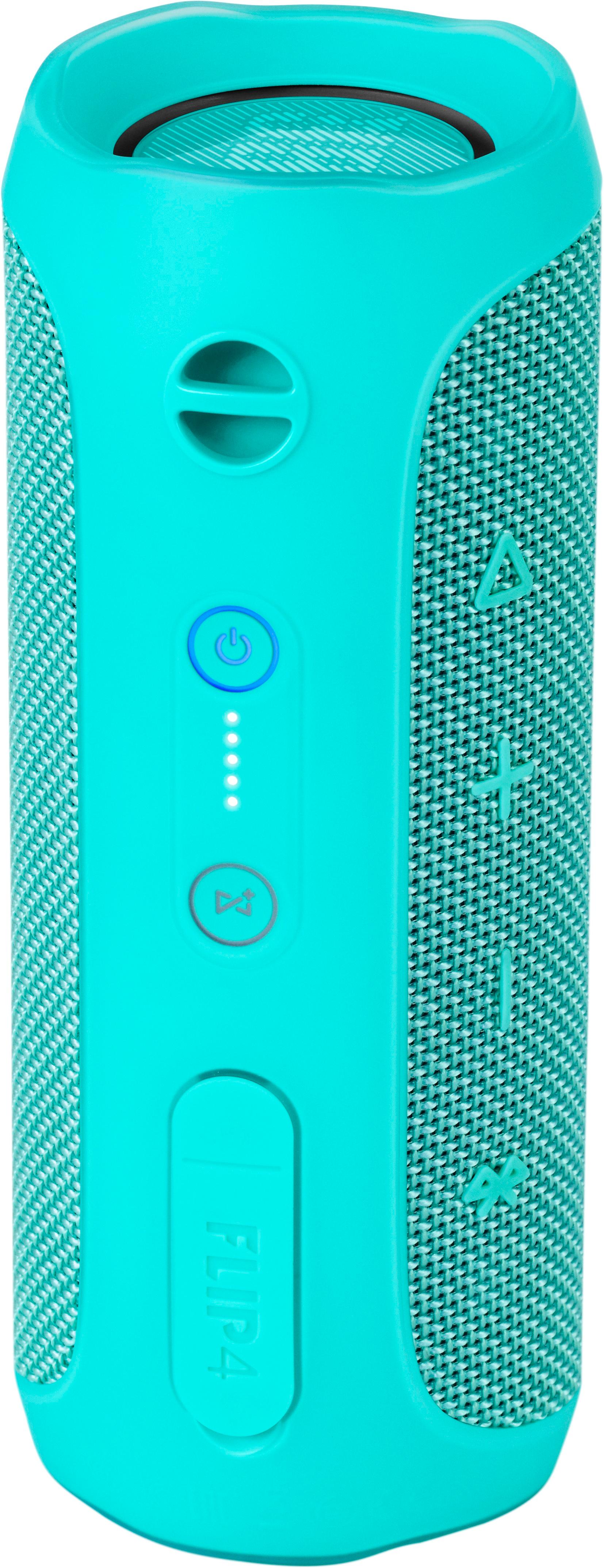
1. Using the JBL Connect app, tap the "Voice Assistant" to make the Play button as the activation key of Siri/Google Now on your phone.
2. Press the Play button on the speaker to activate Siri/Google Now on your phone.
3. Please make sure the Siri/Google Now is enabled.
A:AnswerYou cannot repeat a track or cycle back through numerous tracks by using the buttons on the Flip 4. It just isn't possible, not without a firmware update from JBL, which will never happen. You'll have to use the Bluetooth source player. Big oversight by the manufacturer.
A:AnswerJust download the JBL Connect+ app. It comes up in the play store with simply typing JBL and connect. It takes a bit of time to download and apply itself to the unit. Then look for the switch to turn off alert sounds (hint: the small gear icon). Both startup and powerdown sounds disappear -- pure bliss.