A:AnswerThank you for your question. Please try the following:Open the Home app > devices icon in the upper right > find your device and click 3 dot menu > Ambient Settings > Photo frame > select albums. You can add and subtract photos form here. If you need further assistance, please contact our customer support @ 877-453-6686.
A:AnswerNetflix is pretty choosy about what you can cast video to. And, alas, the Lenovo Smart Display isn't one of them. Netflix says it doesn't have anything to announce yet about adding support for smart displays.
A:AnswerI don't know why you'd ever want to do this but to my knowledge this is not possible on this device or any google home device that has a screen like this one.
A:AnswerFrom my experience you would need wifi and it would have to be plugged into an electrical outlet to use. Also, to get started you would need to download an app via your phone. I was able to download the app but the phone did not recognize the product so I was not able to complete the set up.
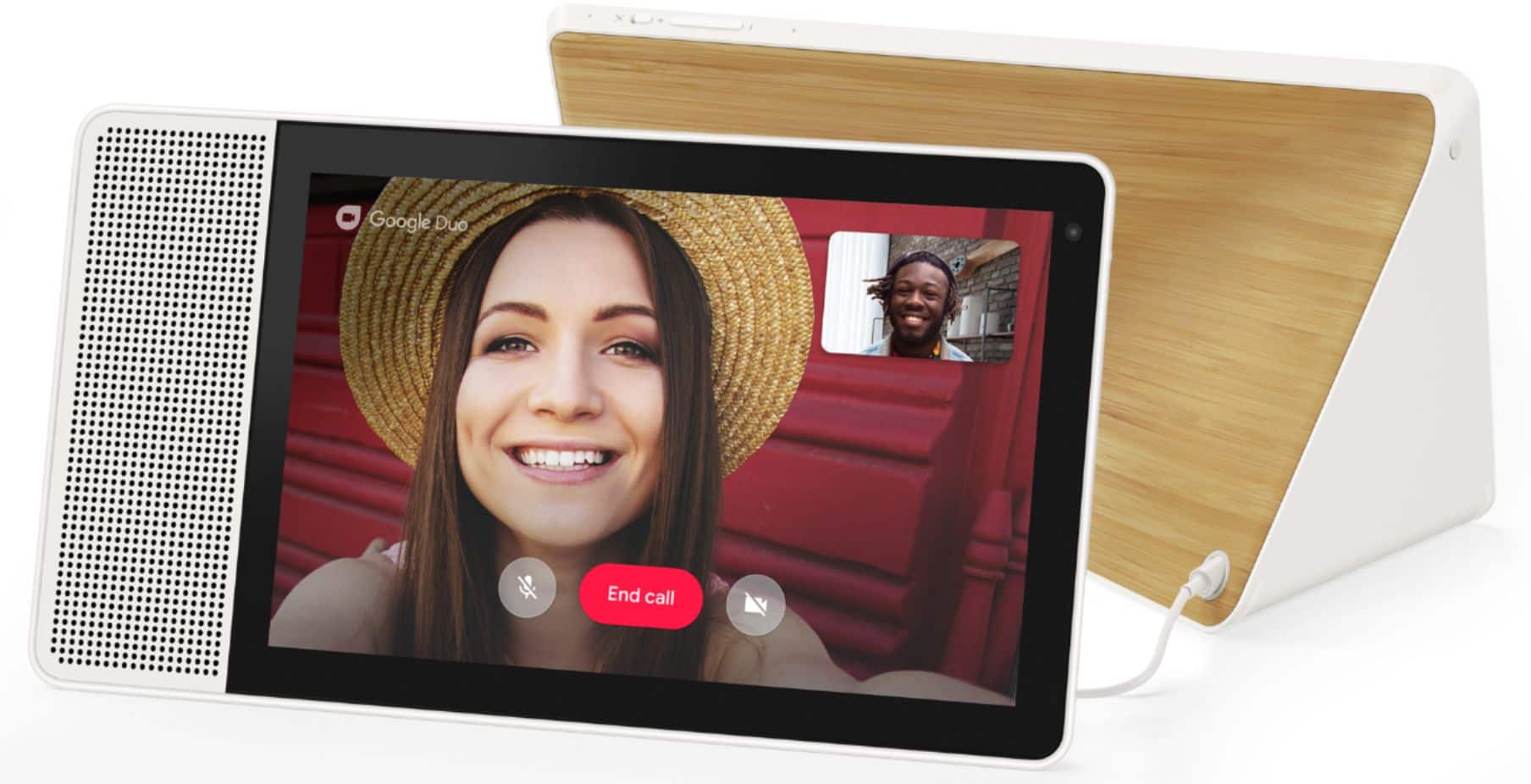
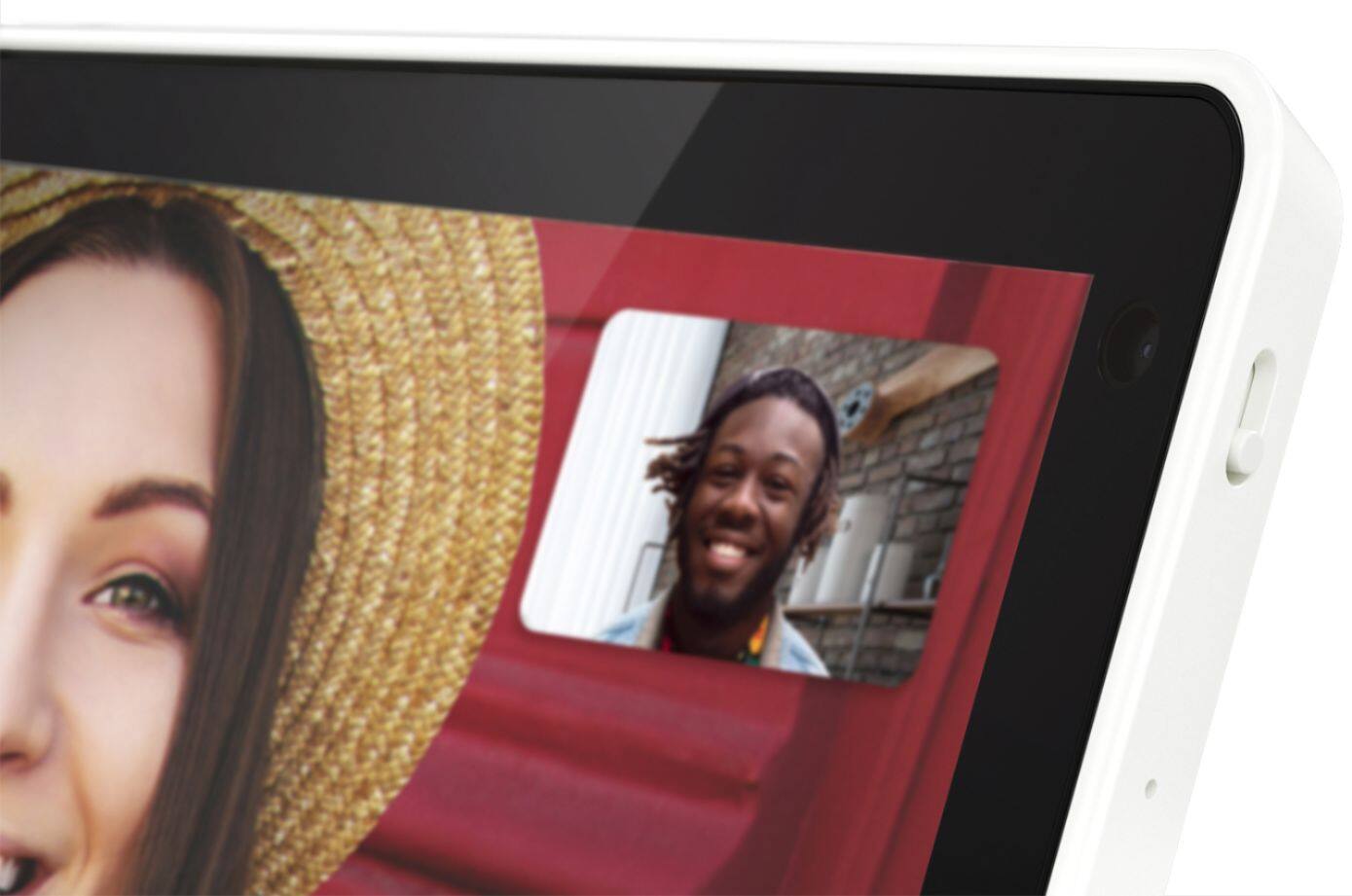
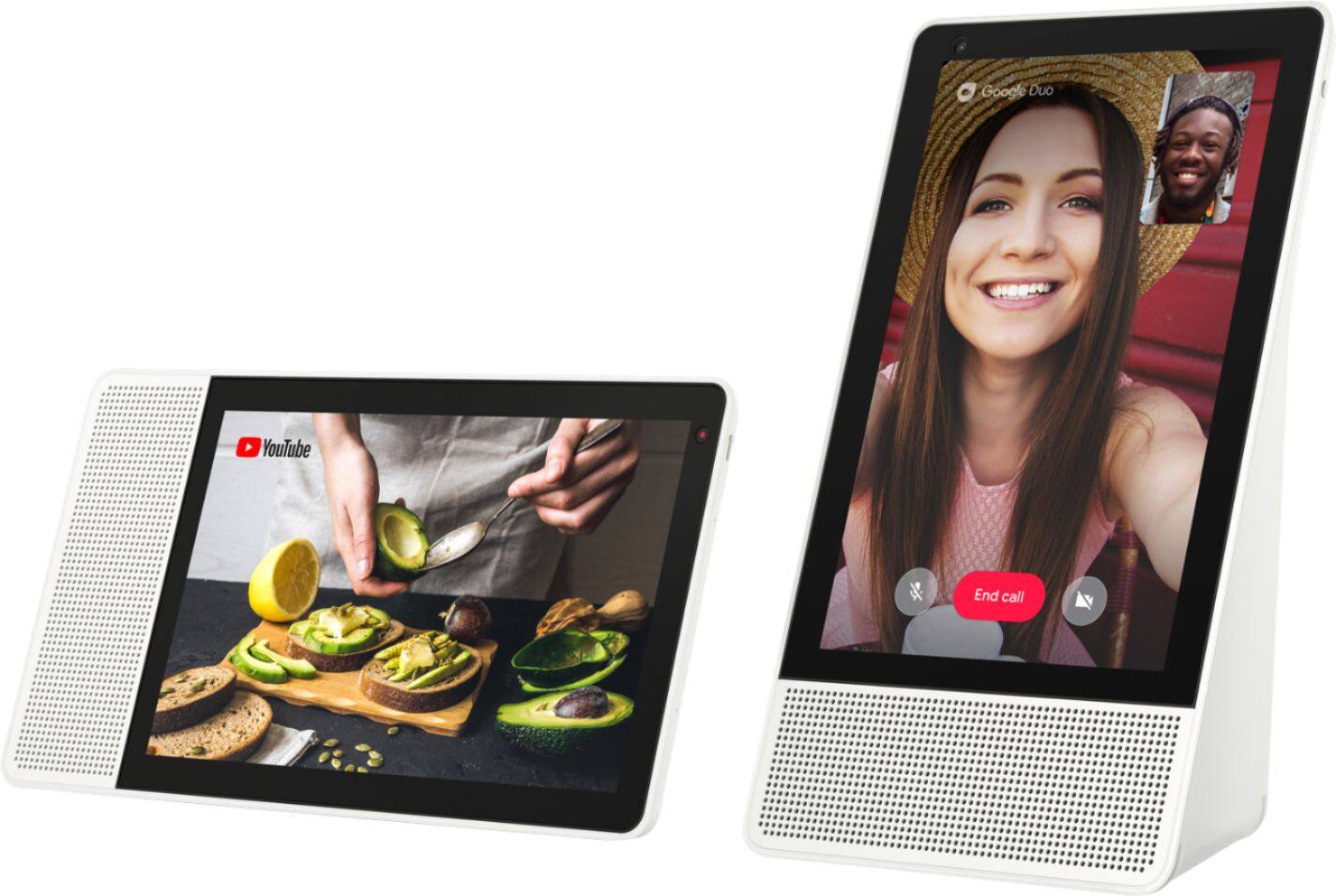
A:AnswerYou and the caller must have Google Duo app installed. Go into your home app, find your hub, go to settings, click duo video setup and follow the instructions.
A:AnswerIts a known issue that Lenovo still hasn't fixed. Only smart device in my home with this issue. Giving it a static ip doesn't solve the issue. Get the Google home hub instead. I have that too and no issues
A:AnswerThe smart display uses Google Duo to video chat. So anyone that has Google Duo can video chat with you. You can't video chat with someone using FaceTime or Facebook.
A:AnswerYes, the system allows incoming and outgoing video calls using Google's Duo video app via voice command. The app is available in the Apple store as well so Apple users can make phone calls to the Android based system