A:AnswerThe Lenovo Duet Chromebook ships with Bluetooth 4.2. Here is a link to more information about Bluetooth 4.2: https://www.semiconductorstore.com/blog/2015/BLE-4-2-vs-BLE-4-1/1548/
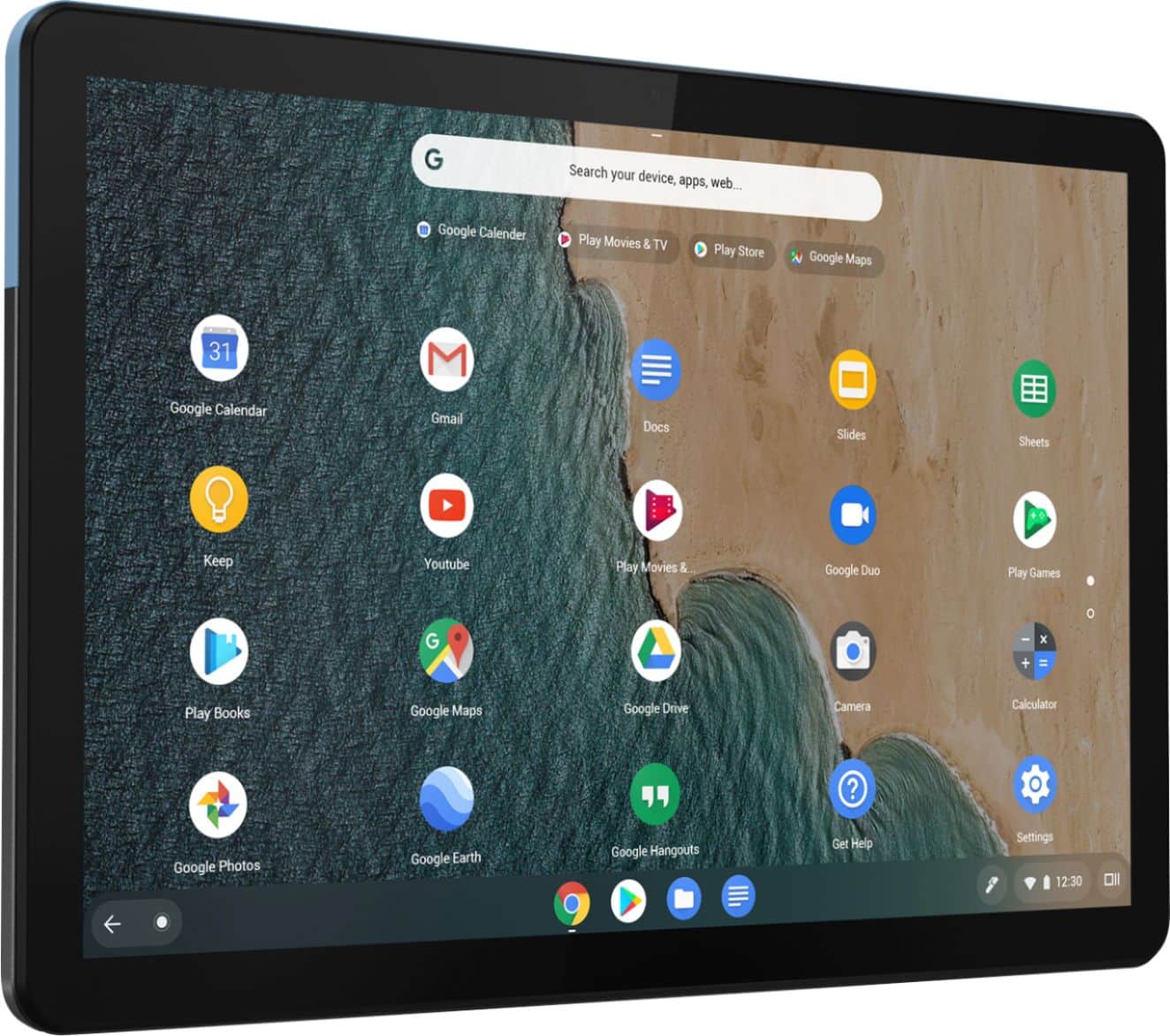
A:AnswerThat will depend on the requirements and compatibility of the specific software. The Lenovo Duet Chromebook will ship with the Chrome Operating System and is compatible with the Google Play Store and Chrome Web Store APPs. We recommend you check with the specific software publisher's web site of the software you want to use, for their compatibility with the Chrome operating system and the minimum/recommended hardware requirements (Is a Graphics card required, the processor speed and the minimum required system RAM and the minimum available hard drive space) to run their program, then compare those requirements to this system's configuration.
A:AnswerWe recommend checking with the software manufactures website for system requirements and compatibility and then comparing them with the specifications of this device. Here is a link to some information regarding installing Zoom on Chrome OS https://support.zoom.us/hc/en-us/articles/213298746-Getting-Started-On-Chrome-OS
A:AnswerAccording to Lenovo's website and every review I have seen, the actual Google Chrome support for this Tablet is 8 years. Not 6.5 years. I have no idea what the standard software support is for Chromebooks or Chrome Tablets but I know the 1st answer here said 6.5 years, but I am pretty sure it is 8 years.
A:AnswerYou can enter you device serial number and order parts here or call Lenovo Chromebook sales at - 866-426-0911. Here is the online parts resource: https://pcsupport.lenovo.com/us/en/products/laptops-and-netbooks/lenovo-chromebooks-series/lenovo-ideapad-duet-chromebook/parts/search
A:AnswerI am facing same issue, it's screen keeps dimming & brightening frequently which is very annoying. Purchased device from Tata cliq, very poor customer support from lenovo service centre and Tata Cliq.
Still issue not resolved
A:AnswerHello, I can assist you with this. The Auto Dim is a setting within Chrome. To disable this Open chrome and type the following into the address bar chrome://flags/#auto-screen-brightness.
From there you can change the setting from Default to Disabled. This should disable the auto-brightness. Here is a link to help get the most out of your battery life with Chrome OS https://www.theguardian.com/technology/2017/feb/08/google-chrome-six-tips-to-make-it-suck-less-battery-power . If your issue persists please contact Lenovo Chromebook Tech Support at 800-426-7378

![esc ! 1 @ 2 # 3 $ 4 % 5 ^ 6 & 7 * 8 ( 9 ) 0 Ce - + = q W e r t y u i o p { [ } ] | / a S d f g h j k I : : " Z x V b n m < I > . ? / ctrl alt alt ctrl < Lenovo](https://pisces.bbystatic.com/image2/BestBuy_US/images/products/6401/6401727cv16d.jpg)
![n j k m < , alt ctrl > O I ; ? / ) 0 - - p { : [ } " ] , + = I I ; L Lenovo](https://pisces.bbystatic.com/image2/BestBuy_US/images/products/6401/6401727cv18d.jpg)