A:AnswerHey ljblock,
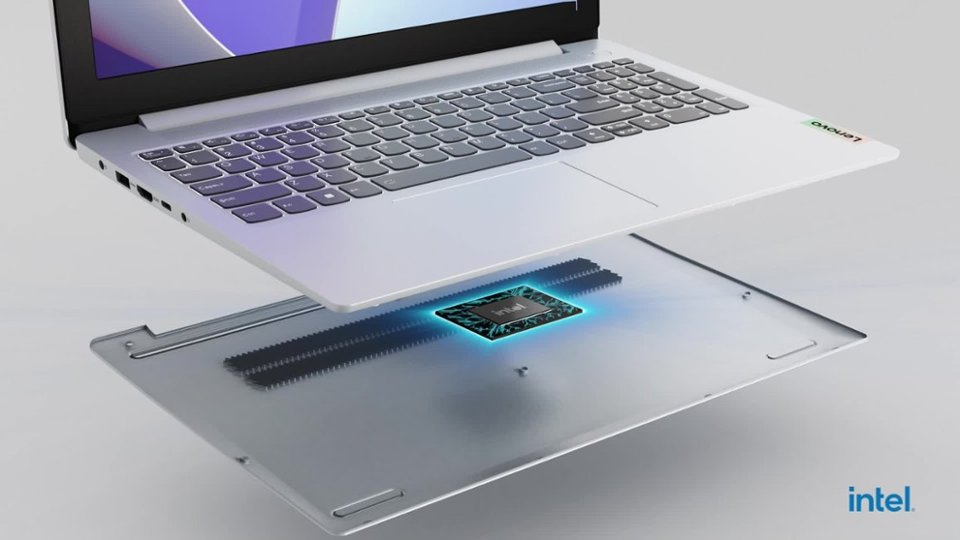
Memory is not upgradable with this IdeaPad, as it is soldered to the systemboard.
Please feel free to reach out to us with any other questions!
A:AnswerI read that somebody asked that question in an earlierpost here that was answeredby a Lenovo Rep. that stated 'no', the ram can't be upgrated because it's intergrated into yhe board.
A:AnswerHey Azul,
This IdeaPad Slim 3i does not feature an optical drive to read / write discs, but you can use an external optical drive for this function should you desire.
Please feel free to reach out to us with any other questions!
A:AnswerHey there,
Yes, this IdeaPad Slim 3i should be compatible with the Cricut devices and Cricut Design Space software.
Please feel free to reach out to us with any other questions!
A:AnswerHey Nik9,
It's likely that you could trade-in your IdeaPad Slim 3i with Best Buy's trade-in service. To find out, please visit this Best Buy webpage tied to the following web address, entering in the required information for confirmation and/or a trade-in estimate: https://www.bestbuy.com/trade-in#jl-trade-in-estimator
Please feel free to reach out to us with any other questions!
A:AnswerHi Gigi,
We are sorry to hear that your experience has been frustrating thus far. We'd like to work with you to try to improve your experience. To start, here's a web address to view the digital User Guide for your model IdeaPad: https://support.lenovo.com/us/en/documentation/SG10252/read_first?language=en
To help reduce paper consumption, in the box Lenovo systems now feature a graphic with information to access the digital User Guide for reference.
Also, generally local stores cannot be contacted directly, but we recommend working with Best Buy Customer Service to try to resolve this side of your issue.
Please feel free to reach out to us with any other questions or share what else we may be able to do to help improve your experience further, as your satisfaction is important to us.
A:AnswerHi Photomanliny,
This IdeaPad Silm 3i does not feature an additional storage slot for expansion, and the preinstalled storage drive cannot be swapped out as it is installed on the systemboard.
Please feel free to reach out to us with any other questions!
A:AnswerHi Lkp513,
Based on the system requirements for Sims 4 (link to a webpage with the system requirements in question embedded: https://www.ea.com/games/the-sims/faqs), this IdeaPad Slim 3i may not be able to run the game well, especially if expansions and modification come into effect, as the graphics performance necessary then increases.
For a smoother gaming experience and to increase your chances of being able to play future expansions just as smooth as well, please consider this Lenovo IdeaPad Slim 3 that is currently offered on Best Buy's site: https://www.bestbuy.com/site/lenovo-ideapad-1i-15-6-full-hd-touchscreen-laptop-intel-core-i5-1334u-16gb-memory-512gb-ssd-abyss-blue/6610890.p?skuId=6610890
This option offers quicker processing, better (integrated) graphics performance, and more memory to help you run more at one time.
We hope that this information helps, and please feel free to reach out to us with any other questions!
A:AnswerHey there,
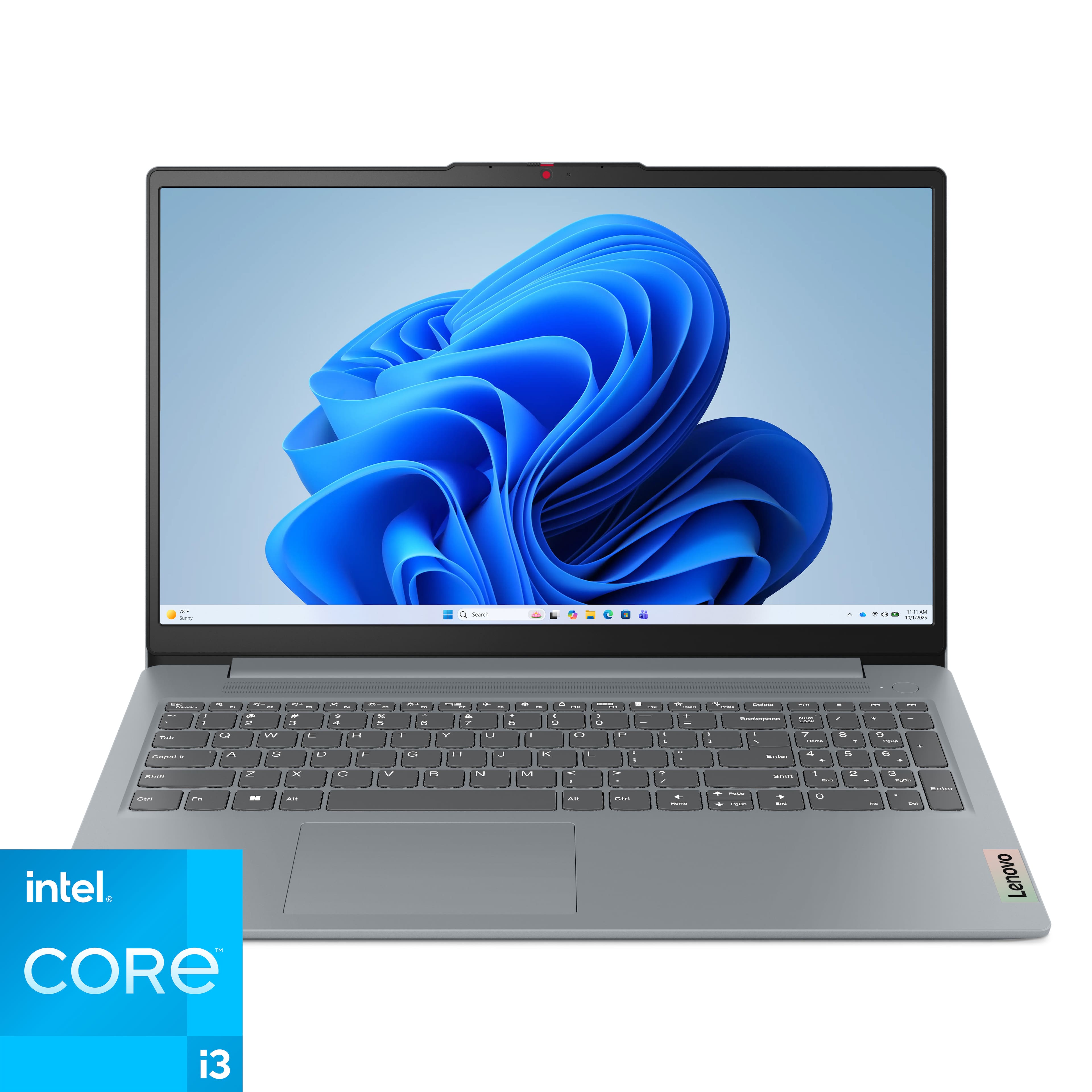
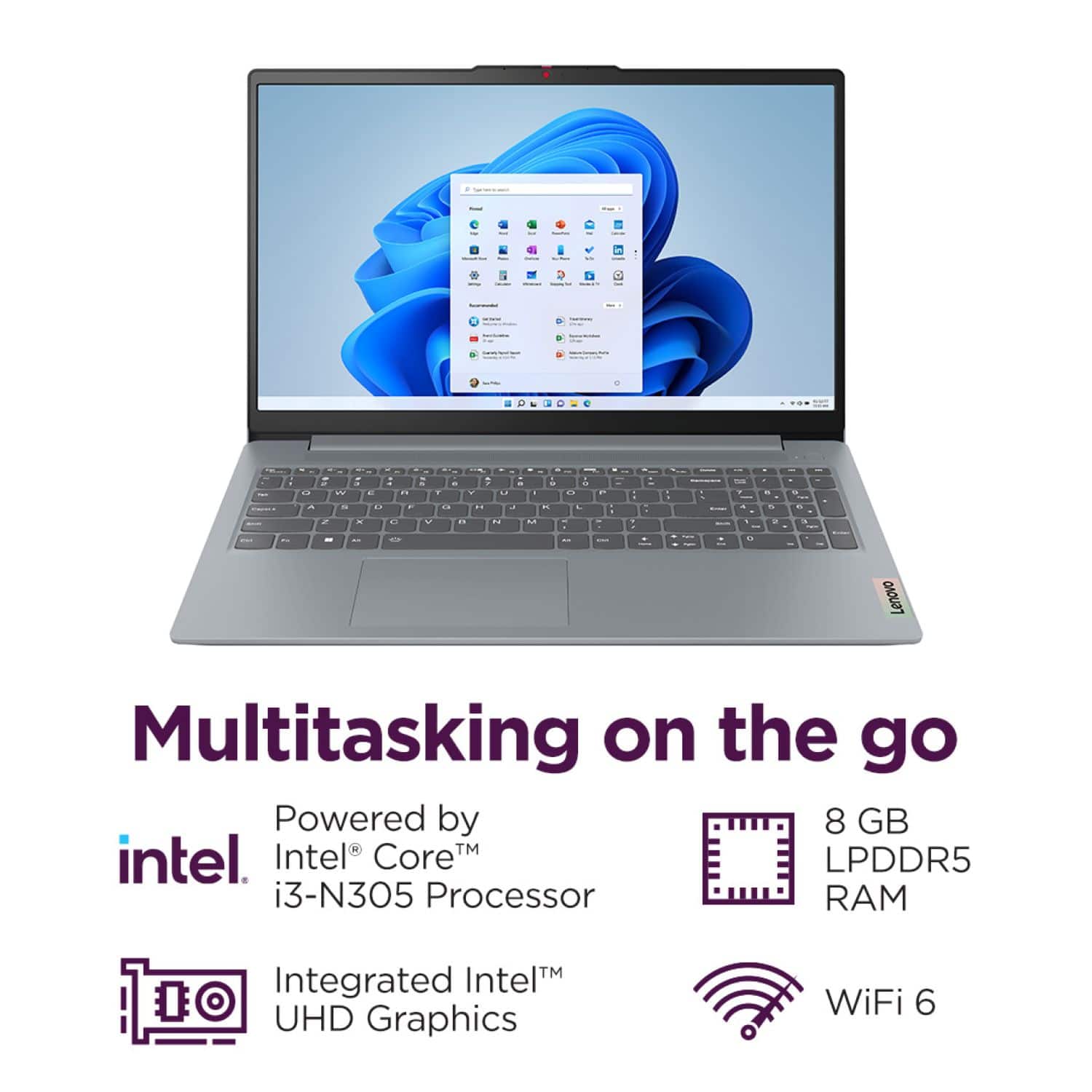
We apologize for any confusion regarding this. We appreciate your attention to detail and are working to have this updated as soon as possible. To clarify, this IdeaPad Slim 3i features an Intel Core i3-N305 processor with 8GB of memory.
Please feel free to reach out to us with any other questions!
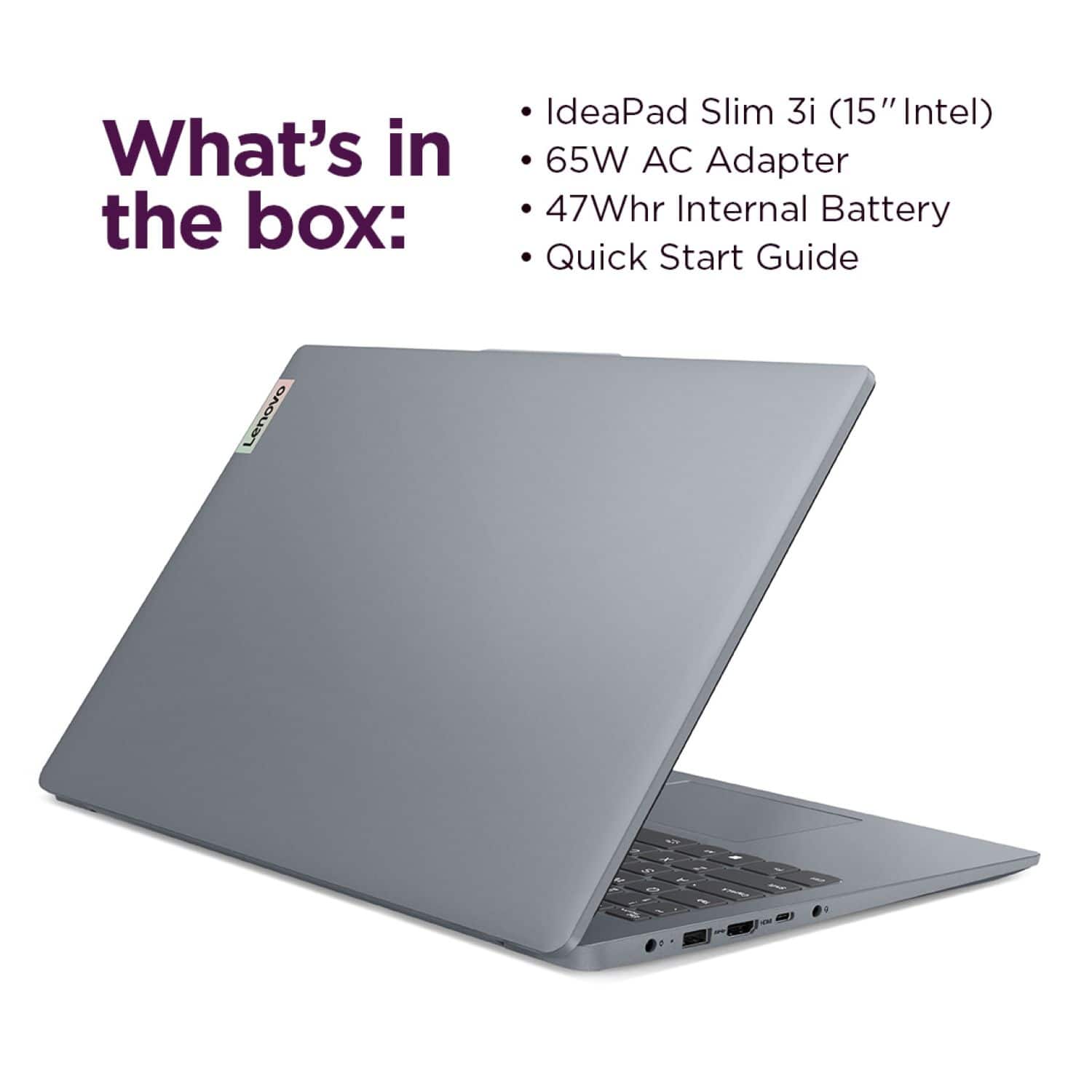
A:AnswerHi Mat, thanks for your question. Lenovo offers replacement chargers for this IdeaPad Slim 3i on the Best Buy website here: (https://www.bestbuy.com/product/lenovo-65w-round-tip-ac-adapter-black/J3ZZ8ST5C6). Please feel free to reach out to us if you have any further questions.
A:AnswerHi, thanks for your question. This Lenovo IdeaPad Slim 3i features Bluetooth 5.2, allowing for wireless connections, improved battery life, and high-quality audio at lower bitrates. Please feel free to reach out to us if you have any further questions.
A:AnswerHi Kathy,
To quickly bring your missing Windows 11 pointer back, use your keyboard to reset the graphics driver by pressing Windows + Ctrl + Shift + B. You will hear a beep, and your screen will flicker. This should resolve the issue. If this is not the case, we then recommend restarting your computer to see if this brings back the pointer and cursor.
Please feel free to reach out to us with any other questions!