A:AnswerHi Randy, yes your Lenovo Smart Clock Essential is able to make free voice calls between the two devices (or to other Google Assistant devices) by linking the device to and enabling Google Dou. You can set this up in the Google Home App on your Smart Phone or Tablet. Here is a link with instructions. https://support.google.com/googlenest/answer/9165631?hl=en-SG&co=GENIE.Platform%3DiOS
A:AnswerIt's about what you'd expect from a small alarm clock. Google Assistant's voice is crisp and clear and music is fine on low volumes. Do not expect this to provide clear music at higher volumes, however.
A:AnswerHello there! Setting up an Alarm with your favorite radio station on the Lenovo Smart Clock with Google Assistant is a breeze. The interaction will go something like this.
"Hey Google, set a music alarm"
"Okay, when's the alarm for?"
"6 am weekdays"
"Alright, on weekdays. And what would you like me to play?"
"CHYM"
"Got it, I'll play CHYM FM radio on weekdays at 6 am
A:AnswerHi Rob, yes this is possible with the Lenovo Smart Clock Essential with Google Assistant. This feature from google is Called "Gentle Sleep" and allows you slowly dim or brighten your smart lights/plugs. Here is a link with more information on how to set this up. https://support.google.com/googlenest/answer/9304145?hl=en. You can also set morning and night routines to turn off/on smart devices/lights/plugs. Routines can be triggered by saying "Okay Google goodnight" or "Okay Google Good morning" You will need to connect your TPLINK devices to the Google Home App first. Here is a link with more detailed instructions. https://www.tp-link.com/us/support/faq/1534/
A:AnswerHello and thank you for your question. Yes you may delete a selected alarm without removing other alarms you have set. To do this simply open the Google Home App on your smartphone or tablet, select your device, select the "Settings" gear shaped icon in the upper right corner, and lastly select "Alarms and Timers" from here you can view and disable any alarms you currently have set.
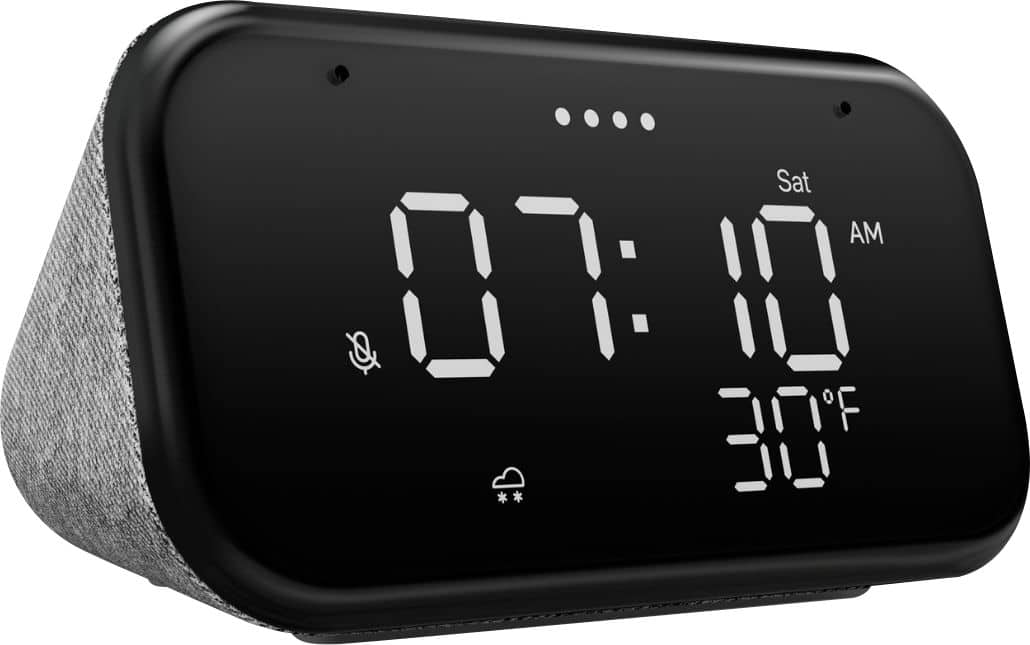
A:AnswerHi there! Thanks for your question. Yes! The Lenovo Smart Clock Essential has a 1.5" 3W speaker built in with the same assistant functionality like streaming your favorite music, weather, news, podcasts, and more that you are used to.
A:AnswerHello, thanks for your question. Try, “Hey Google, set the screen brightness to 50” and it’ll dim to 50 percent of its max brightness. The Display has 3 brightness levels total.
A:AnswerNo. The Lenovo Smart Clock Essential, model number ZA740005US, does however support streaming music from various platforms. Here is a link to a YouTube video that briefs viewers on how to play music on your Lenovo Smart Clock Essential.
A:AnswerChanging the microphone setting initiates an alert from the Google Assistant - The MIC is Muted. Which will default the screen brightness back to 100 Percent. There is no way to override this feature other than not to make any changes to settings after your nighttime routine completes.
A:AnswerWe are sorry to hear that you are having issues with your Lenovo Smart Clock Essential. Try resetting the Smart Clock Essential: Press and hold the Alarm button and the Volume Down button at the same time for 12 seconds. If this does not fix the issue, we recommend you contact Lenovo Tech Support for Smart Devices at: 866-426-0911.
A:AnswerYou can stream available music/audio from Google Assistant sources. It allows for simple, customizable voice prompts, including checking the forecast, checking on traffic conditions, queuing up podcasts or music with a simple “Good morning,” or adding white noise to a bedtime routine.
A:AnswerYou can set an alarm with your Lenovo Smart Clock Essential by Method 1: Talk to the Lenovo Smart Clock Essential. Say something like: "Hey Google, set an alarm for 8 a.m." Method 2: Manual setup. Press and hold the alarm setup button for more than 2 seconds to enter the alarm clock setting mode.
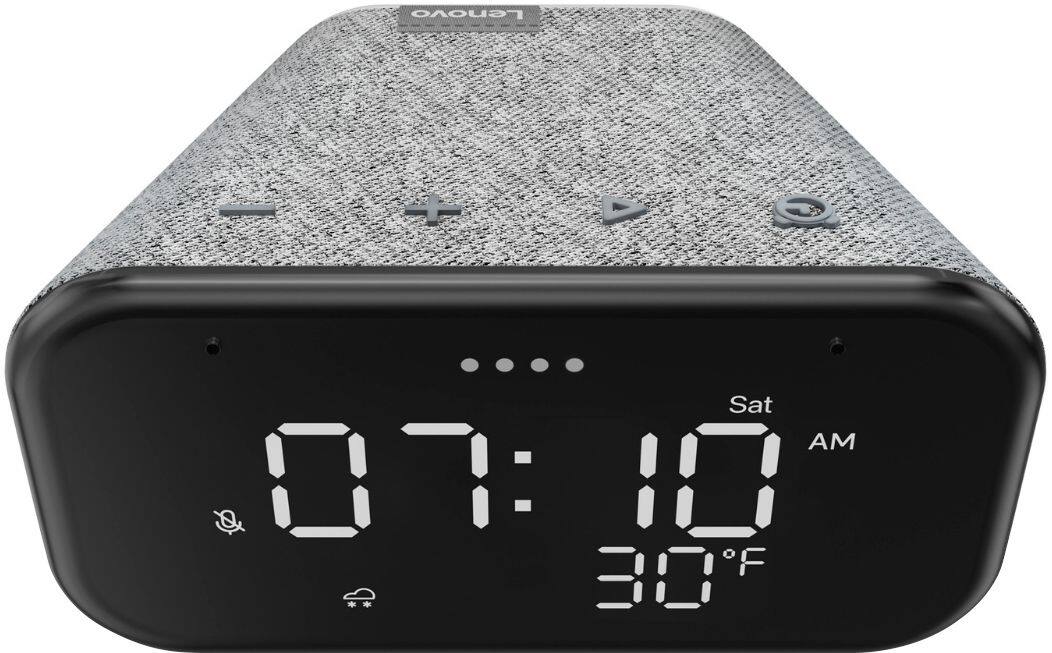
A:AnswerHello, thanks for your question. Yes the Lenovo Smart Clock Essential has a snooze feature. You can snooze the alarm by saying " Okay Google Snooze" , giving a firm tap anywhere on top of the device, or by pressing any of the buttons on top of the device except the alarm button. Pressing the alarm button will turn off the alarm.
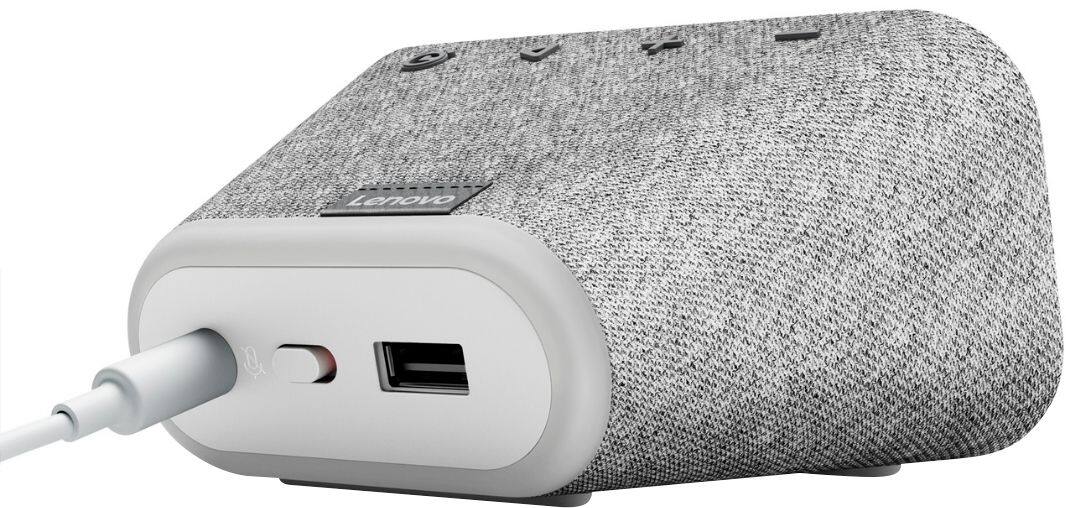
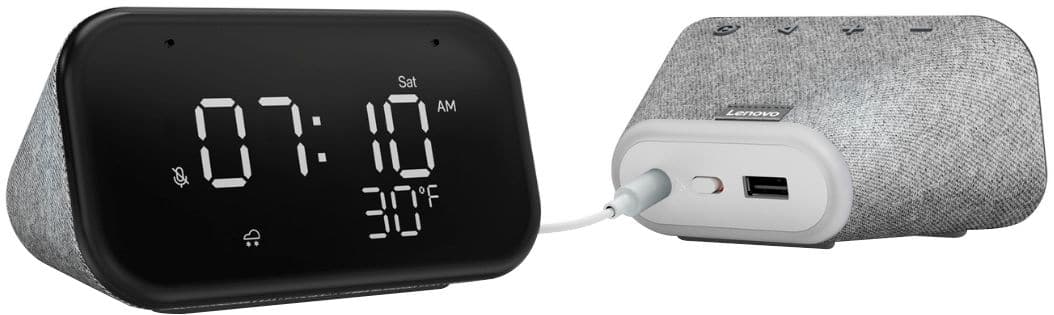
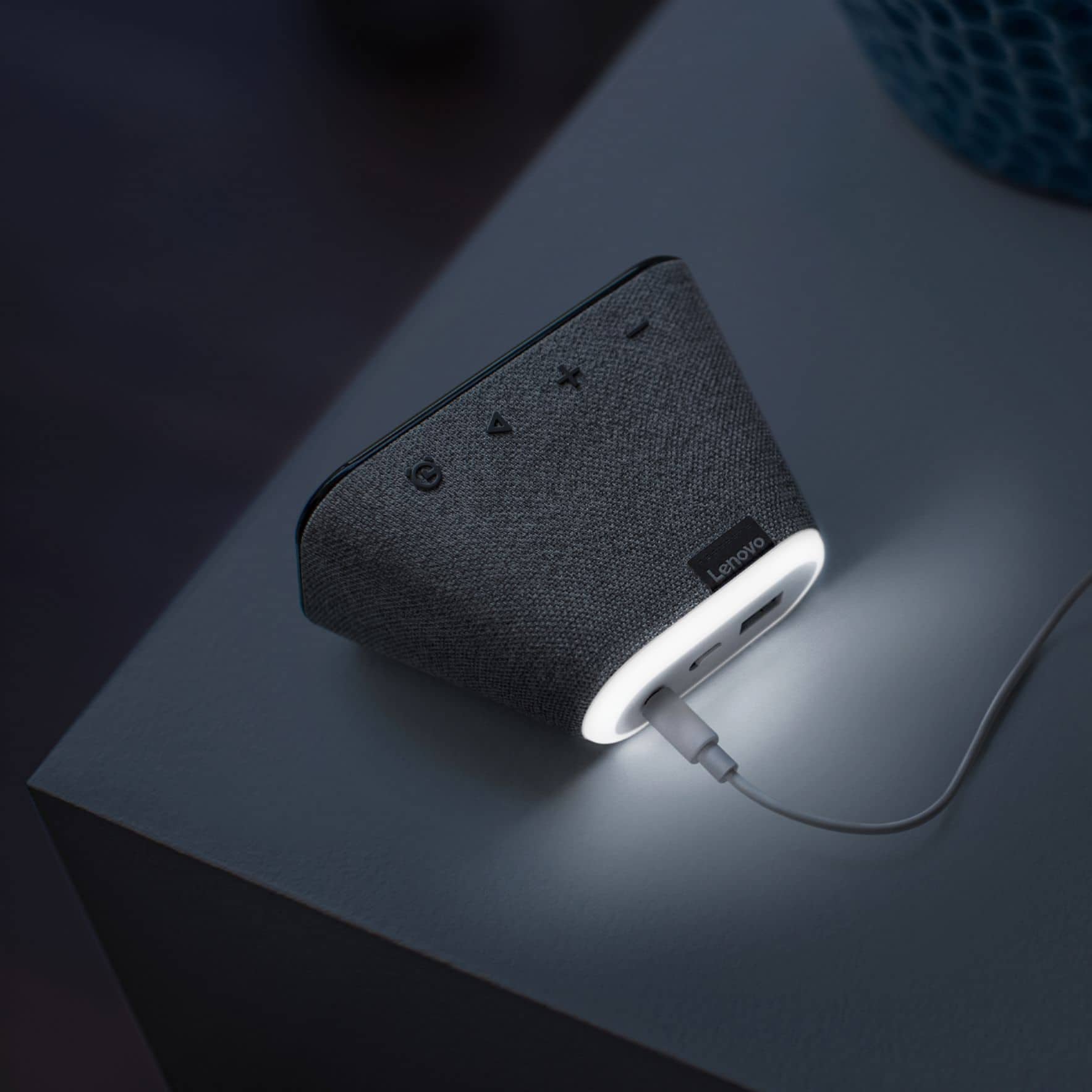
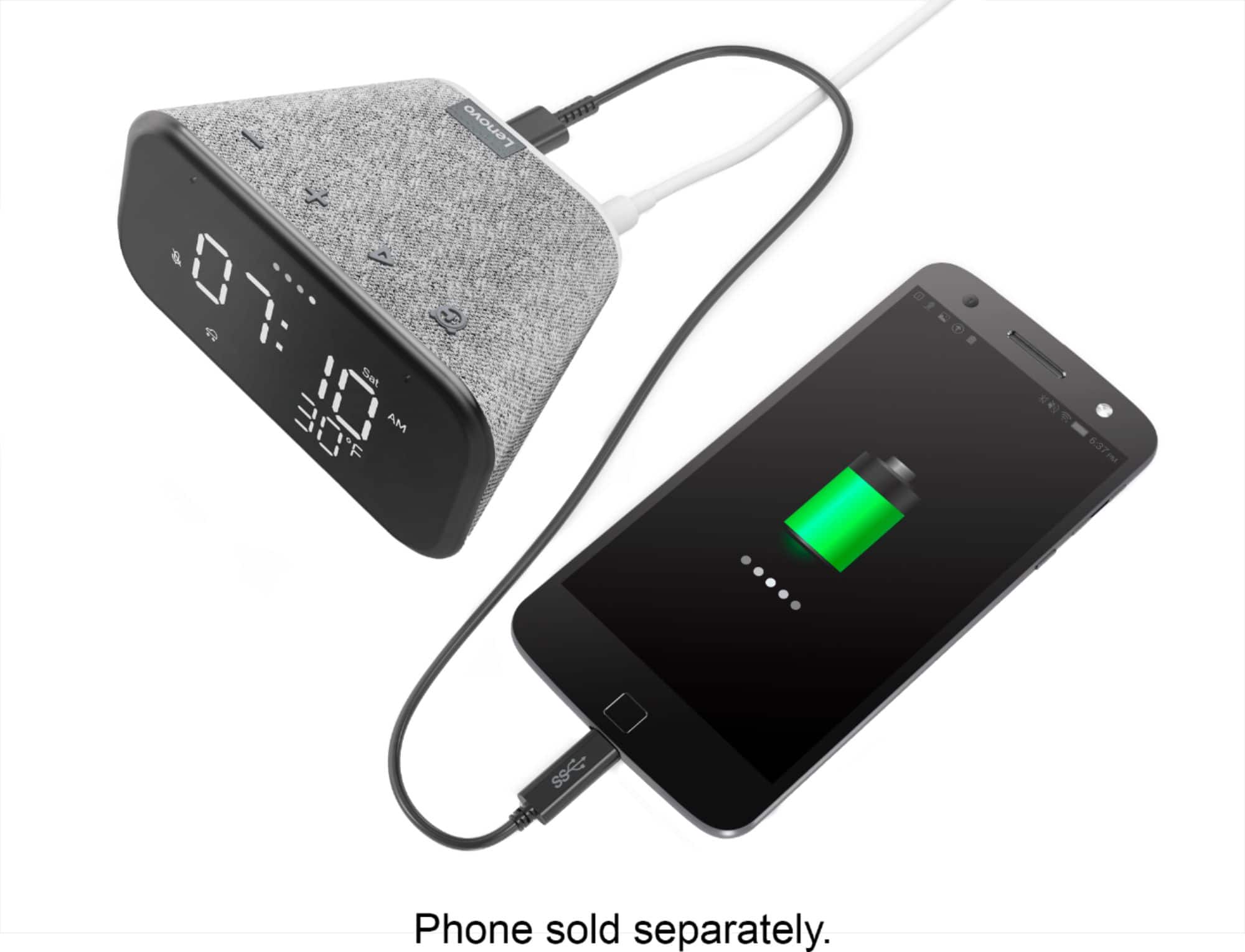
A:AnswerHello, thanks for your question. The Lenovo Smart Clock Essential is compatible with Andriod or iOS (i-Phone) as it uses the Google Home App for setup which is available on the android or apple store. To setup the Smart Clock Essential you will need to download the Google Home App in your Smartphone or tablet. The USB port on the back is compatible for charging your smart devices.