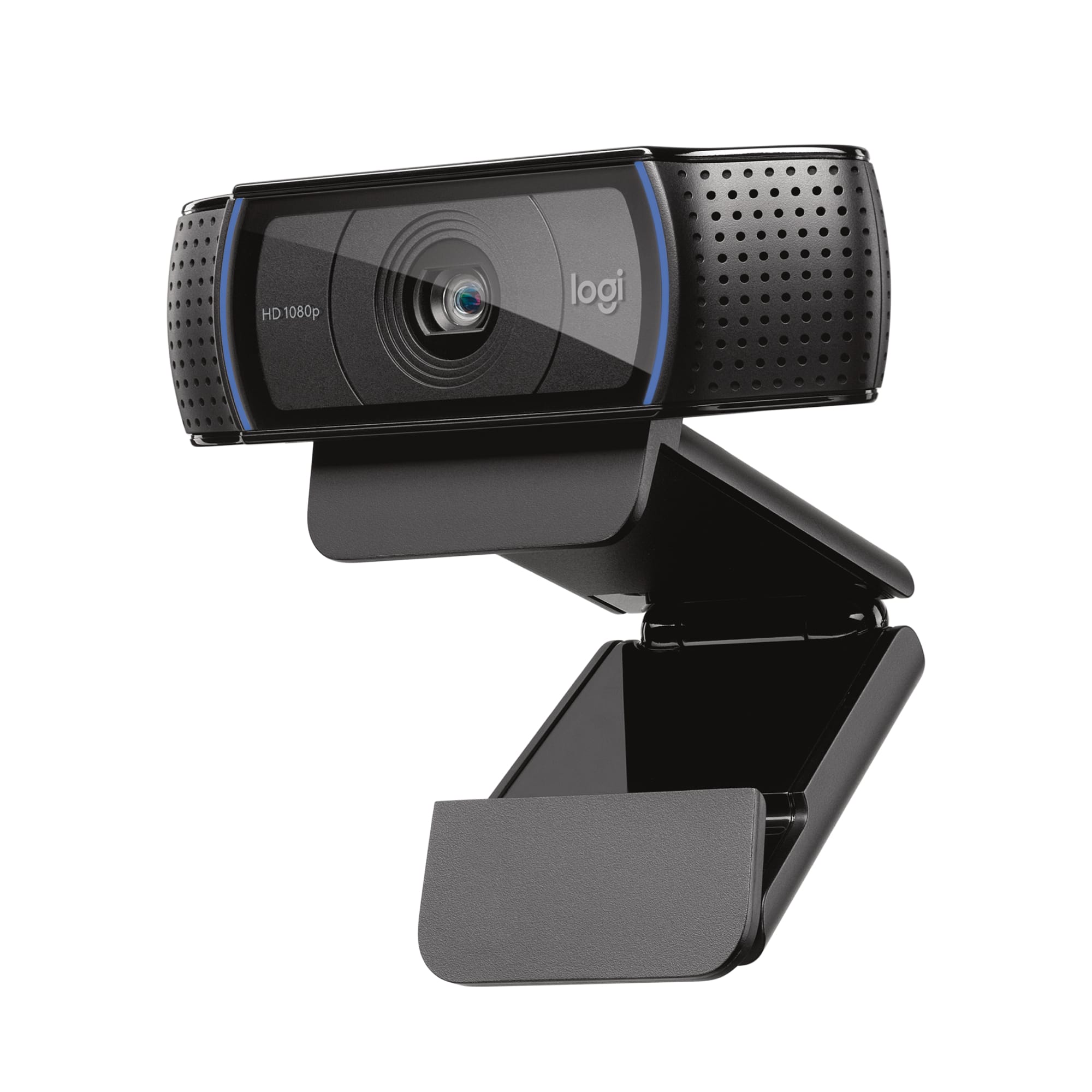
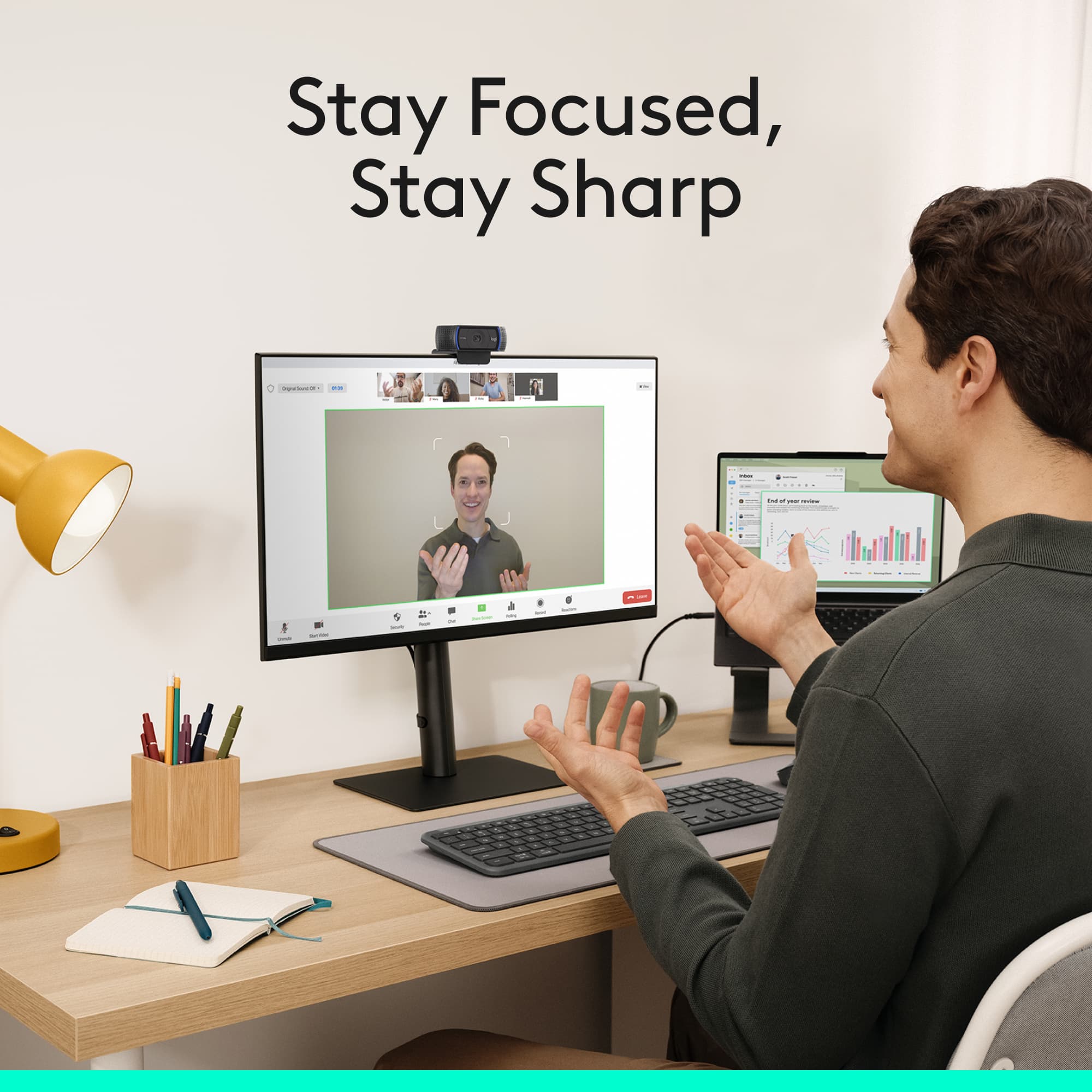
A:AnswerAs long as your computer registers that the C920s is plugged in it should automatically work. Otherwise, I would double check your video settings in Zoom. When you're in a meeting, there should be a video camera icon in the bottom left corner. If you click on the little up arrow next to that icon it should show you all of the video devices plugged in. You'll just want to make sure that Zoom can see the C920s and that the C920s is selected in that menu. It should have a green check mark next to it if it's selected. If you need further assistance or that doesn't work, I would contact our support team here https://support.logi.com/hc/en-us/requests/new?ticket_form_id=360000621393
A:AnswerYes it will! Keep it mind that the C920S webcam uses a standard USB-A plug, and newer Macs use a USB-C plug, so you'll need to make sure you have the right USB ports on your Mac or a USB-A adapter available.
A:AnswerHello, yes, the C920s will work for Facebook Live. it's a plug and play webcam, so you'll just need to plug it in to your computer via USB and you'll be set. Once you're on Facebook, you'll have to check your Video input settings and make sure that the Logitech C920s HD webcam is selected. Have a great day.
A:AnswerIt should work just fine. There are several setup videos on YouTube to help you and it is being used extensively on the Mac forums. Hope this helps!
A:AnswerHello, this is compatible with macOS 10.10 or later. It does come with a USB-A connection so you may need a USB-A to USB-C adapter to plug it in as well.
-Danielle from Logitech
A:AnswerHello JJ! The C920s won't work directly on a TV no, it needs to be connected either to a Windows PC, a Mac or a Chromebook in order to work properly. What you can do as a workaround, is hook up your PC to your TV (use your TV as a monitor), and connect the webcam to your PC, that way you'll be able to see the image of your PC on a larger screen.
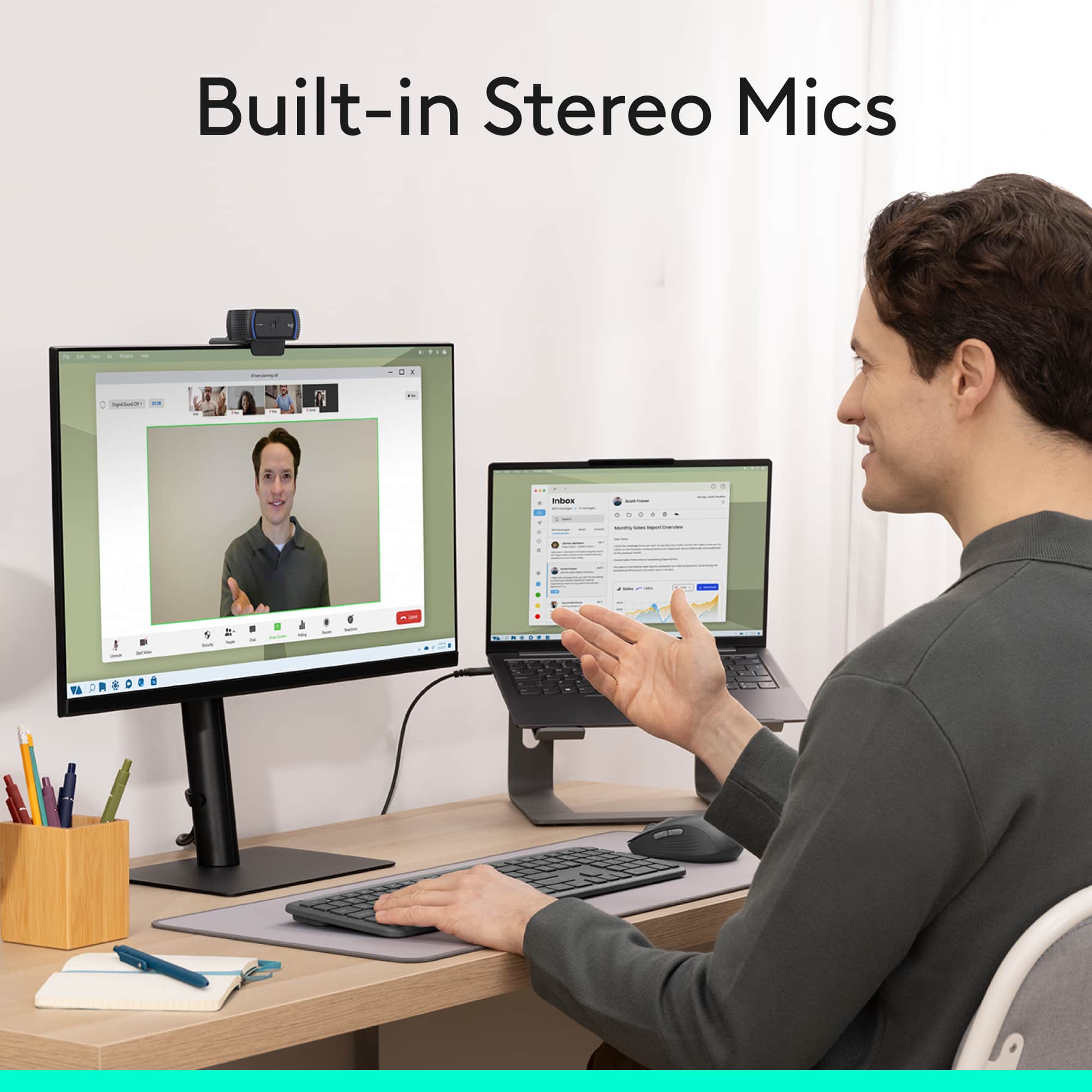
A:AnswerYou will be able to adjust your volume and mic gain as needed for a good audio balance. For best performance, use with a headset instead of PC speakers to isolate the sound you need to hear and eliminate any feedback possibilities. - Will, Logitech.
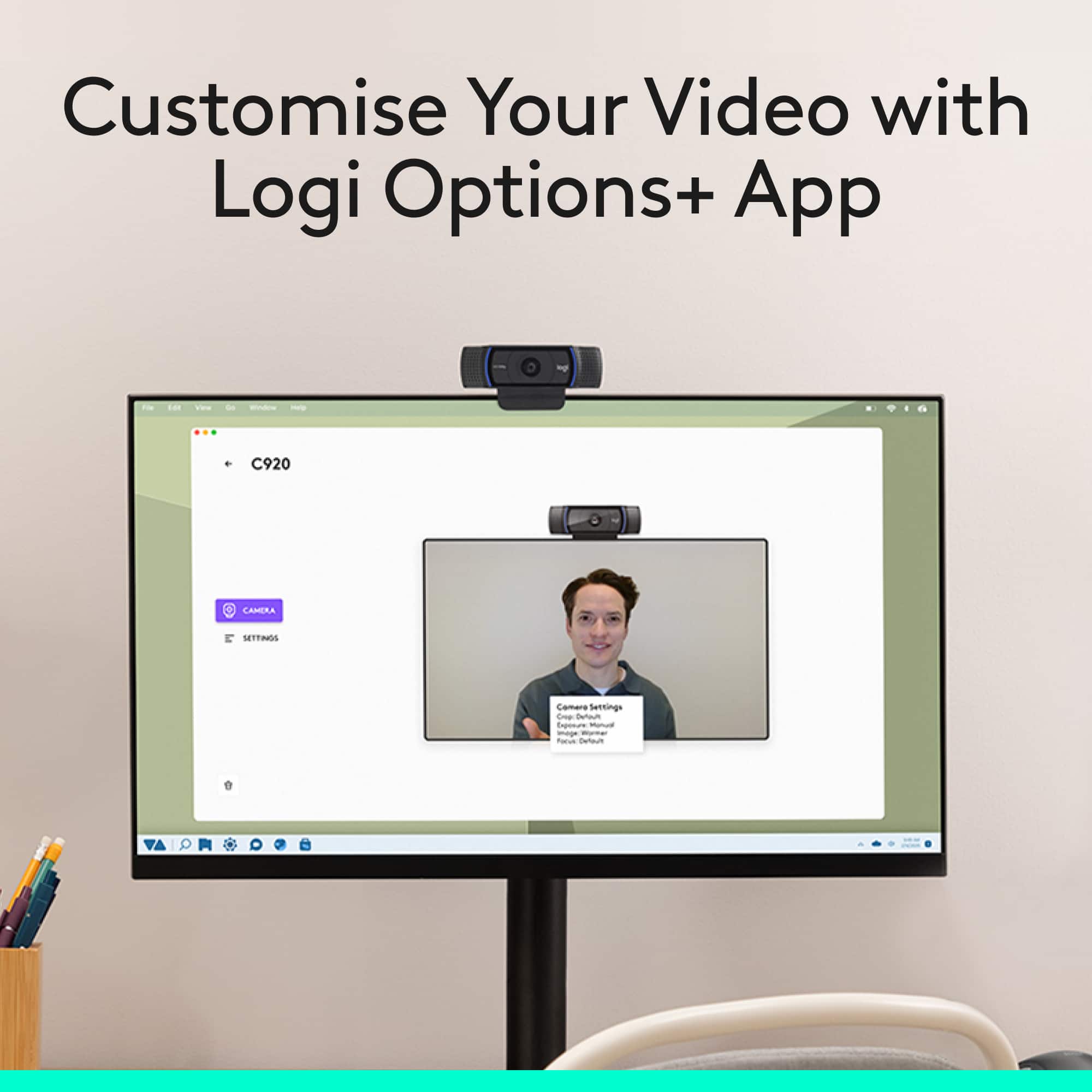
A:AnswerXsplit is not included with the C920S Webcam. The C920S Webcam is compatible with most software, just add it as your video recording device. Or Logitech Capture, if you are using the more advanced features. - Will, Logitech.
A:AnswerHello Wooddog. The C920S is widely regarded as one of the best webcams for streaming. The built-in microphone isn't the greatest, so if you are not using a headset with a microphone, I would suggest getting a USB mic like the Blue Yeti or Snowball to your followers can hear you clearly.
A:AnswerHello Powa. You will be able to choose which microphone to use in the computer and/or the program settings. There is no way to completely disable the mic on the camera.
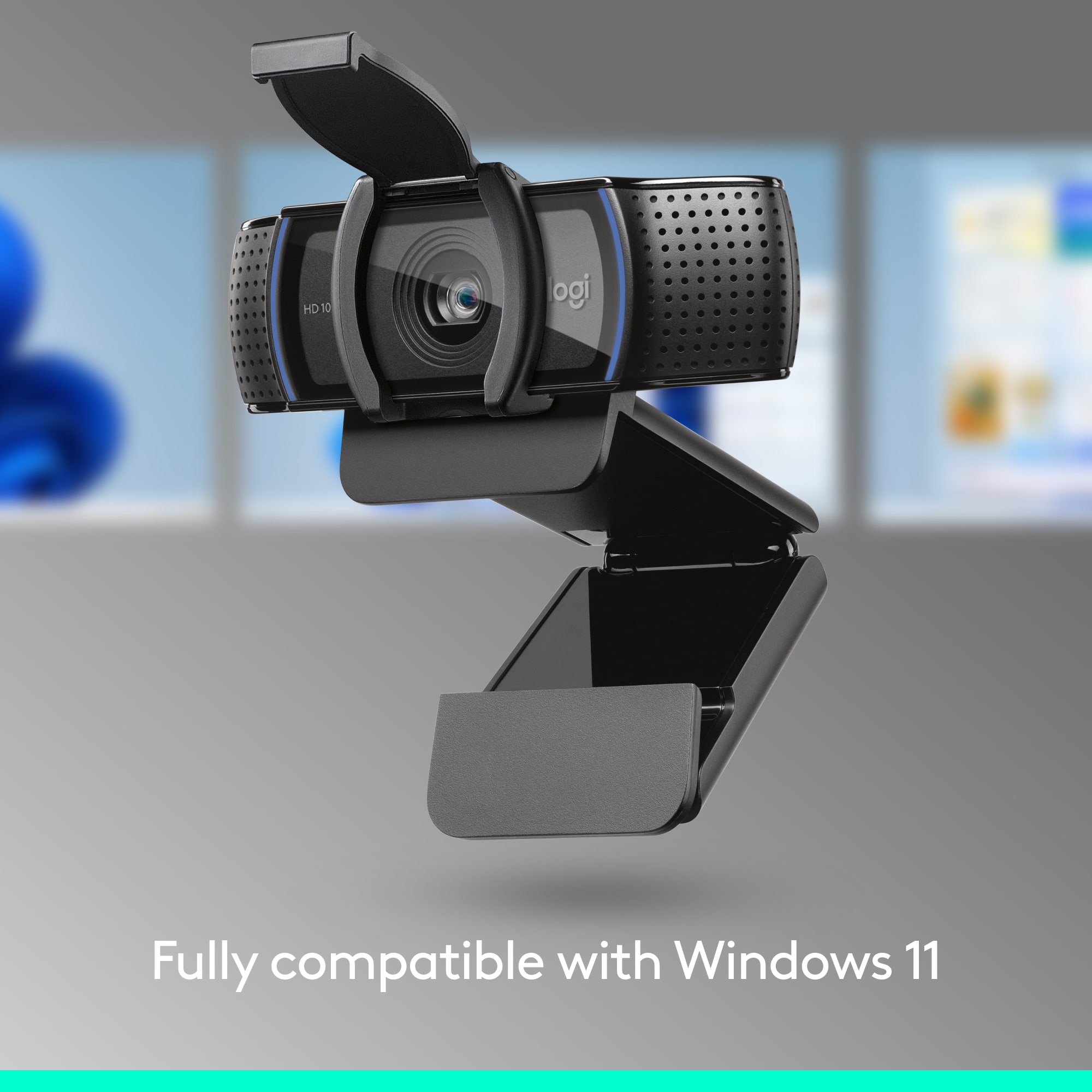
A:AnswerHello Pat! The c920s HD Webcam is only compatible with Windows® 7 or later, macOS® 10.10 or later 10.10 or later, and Chrome OS™, and requires a standard USB-A port, so it won't work with an Android phone or iPad unfortunately.
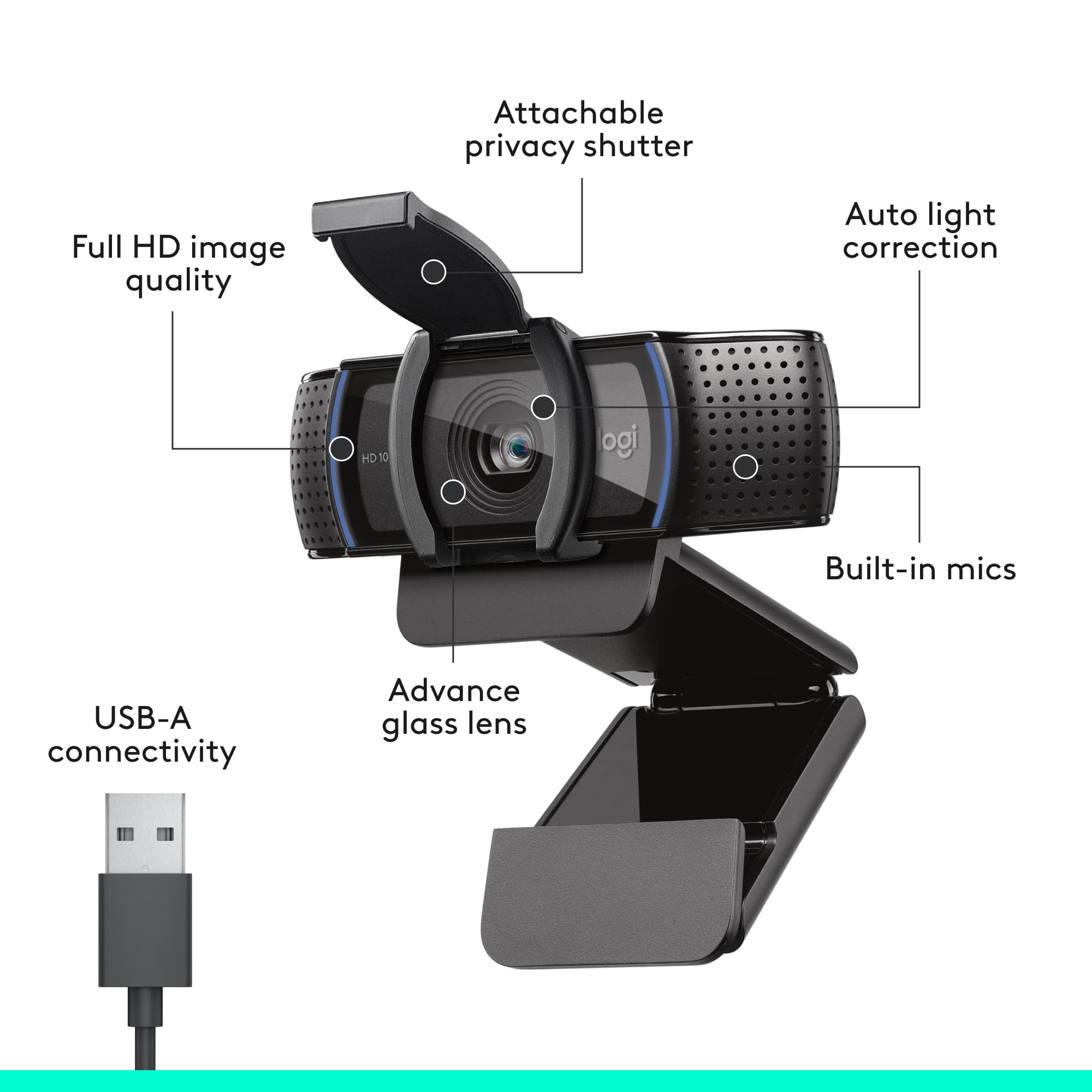
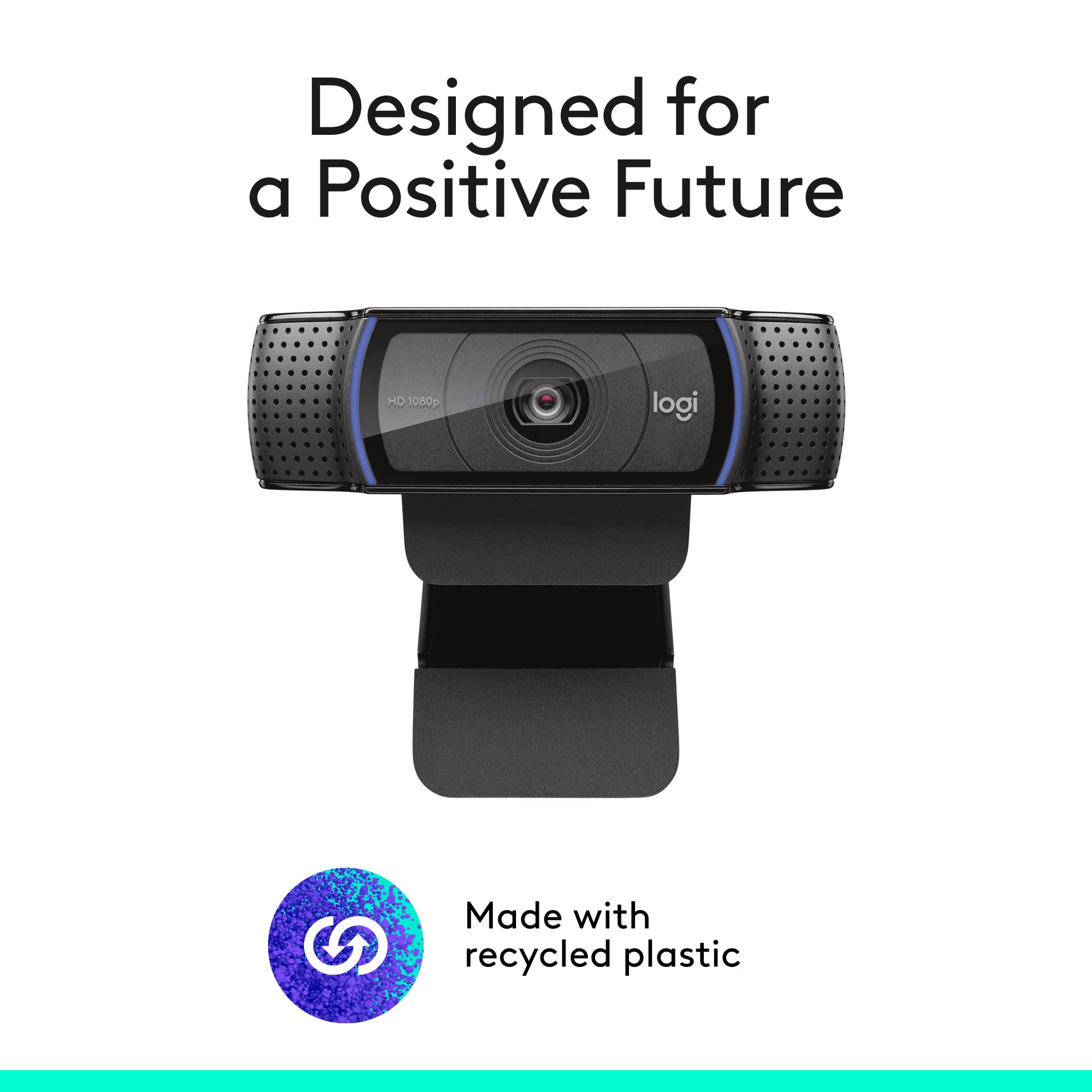
A:AnswerWell, not really. There are two thin blue LED bands that are on each side of the camera lens...but they don't add much extra light. In fact, if you wear glasses, the blue light reflects off of them and looks a bit odd. If you need more light, you may need a lamp of some sort behind the camera to provide the lighting you need.