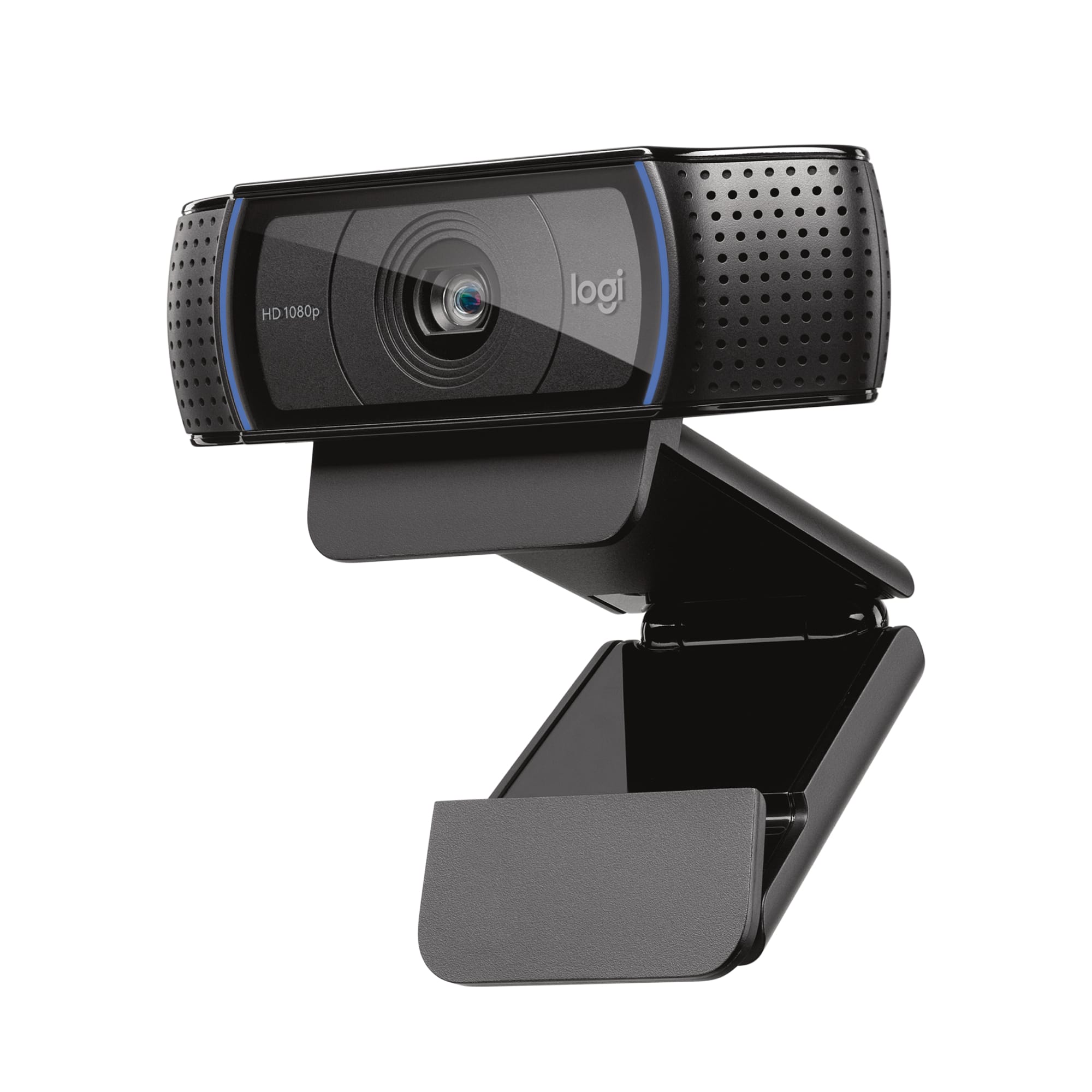
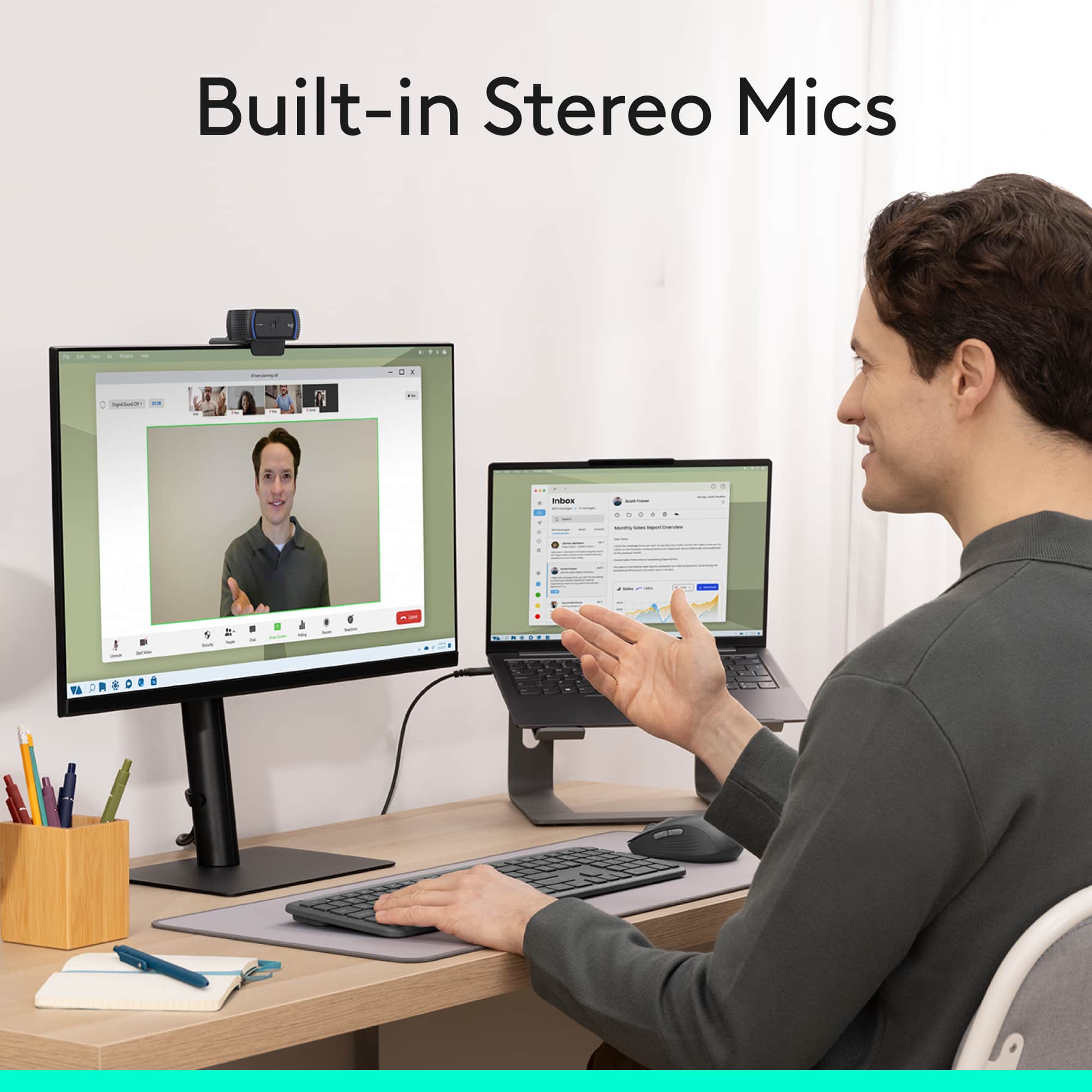
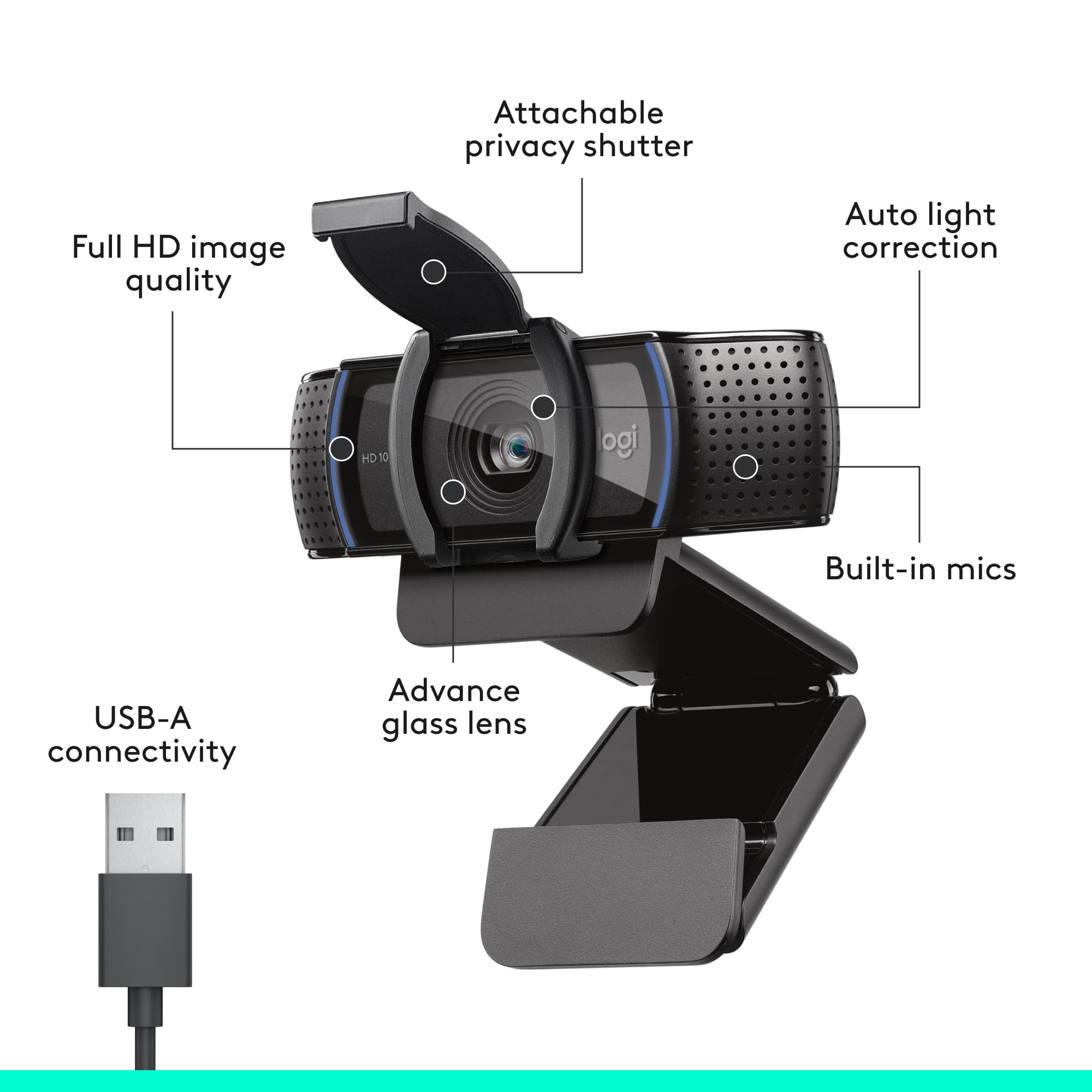
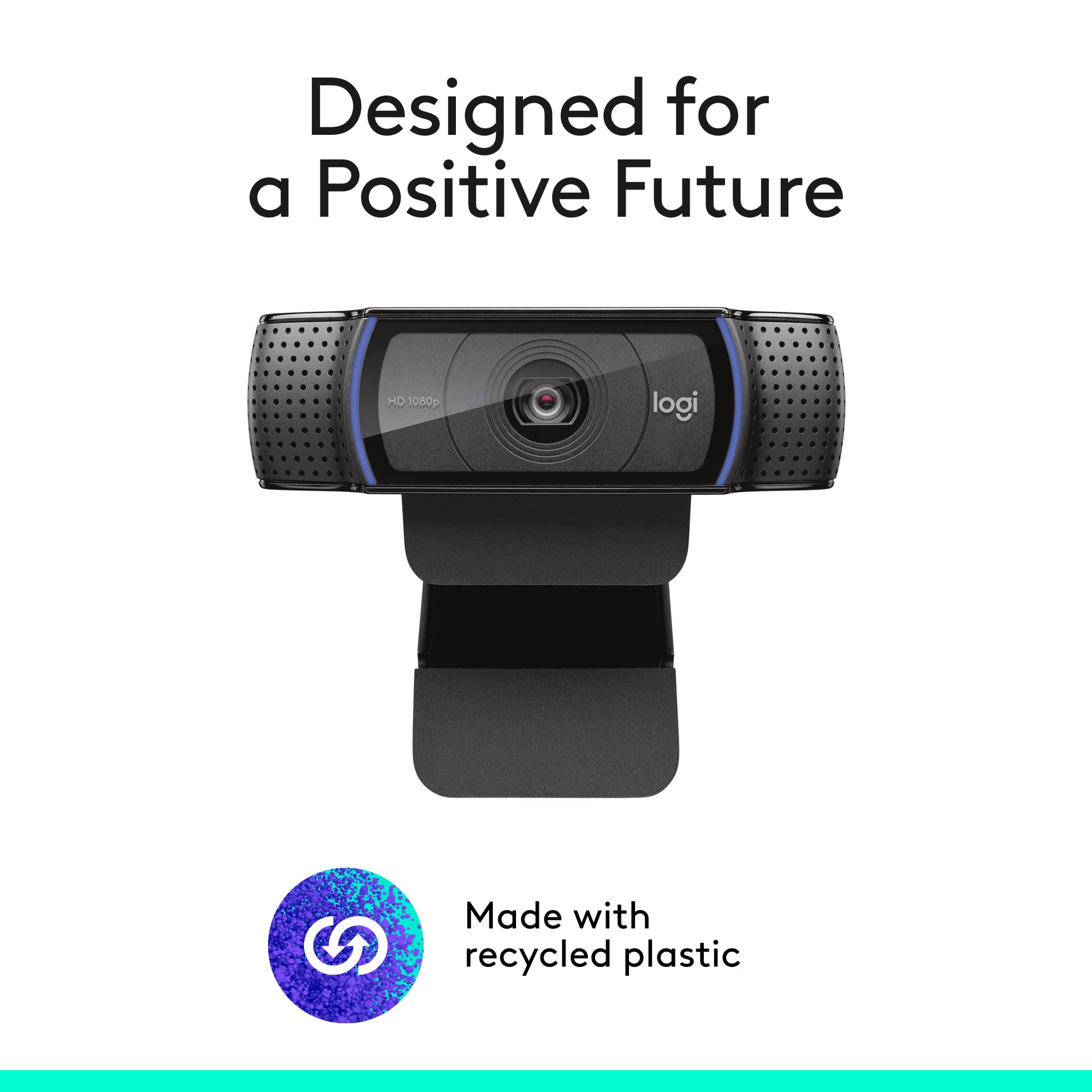
A:AnswerHey there! You're correct, this camera includes a built in microphone and camera, however it does not include a speaker. You'll have to attach a separate speaker system or a headset.
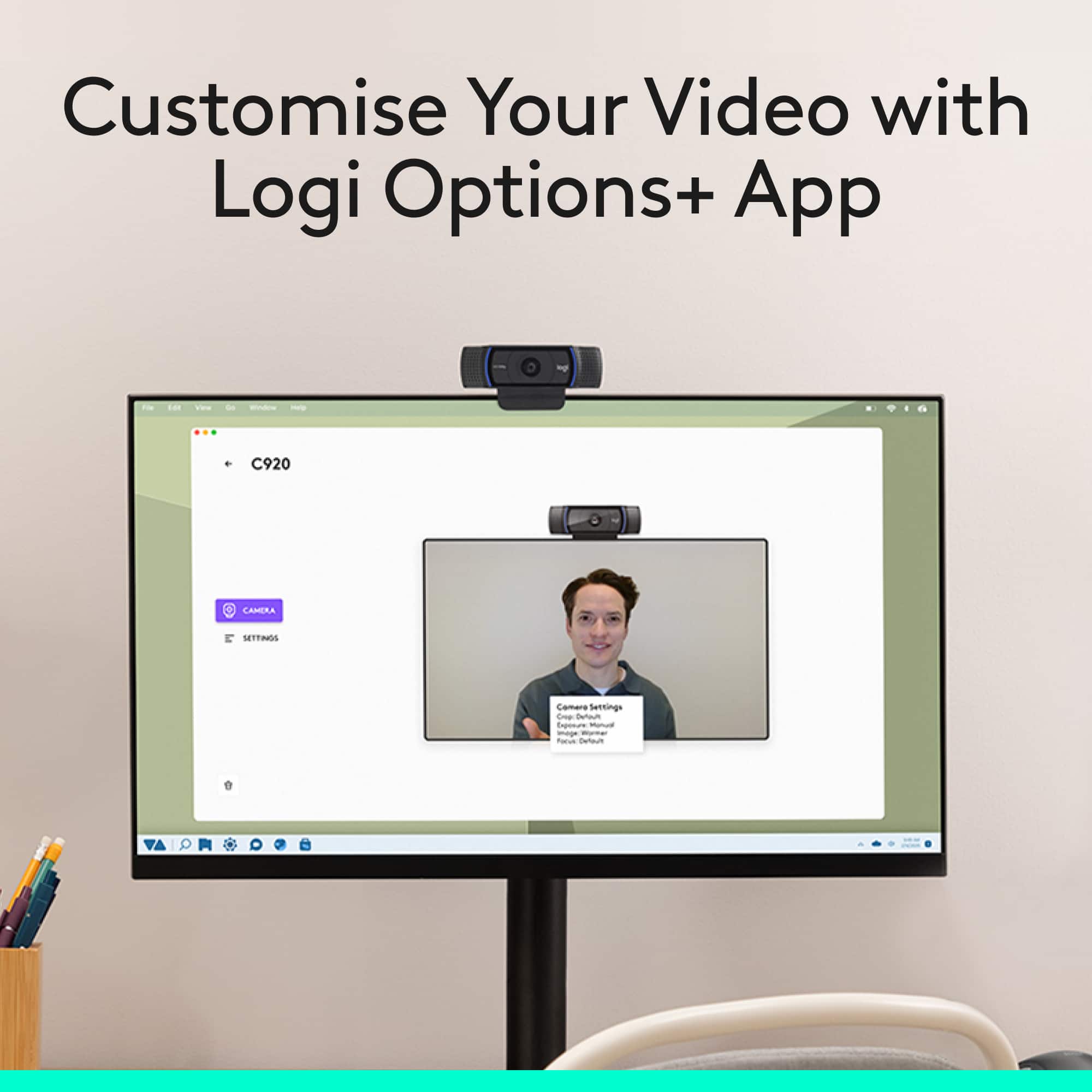
A:AnswerHello Superb! You use the camera with any video conferencing software such as Microsoft Teams, Zoom, Skype, etc., you can also use it with the built in Windows Camera app if you want, but to get the most out of your camera, I'd recommend downloading the free Logitech Capture software that can be downloaded here: https://www.logitech.com/en-us/product/capture.
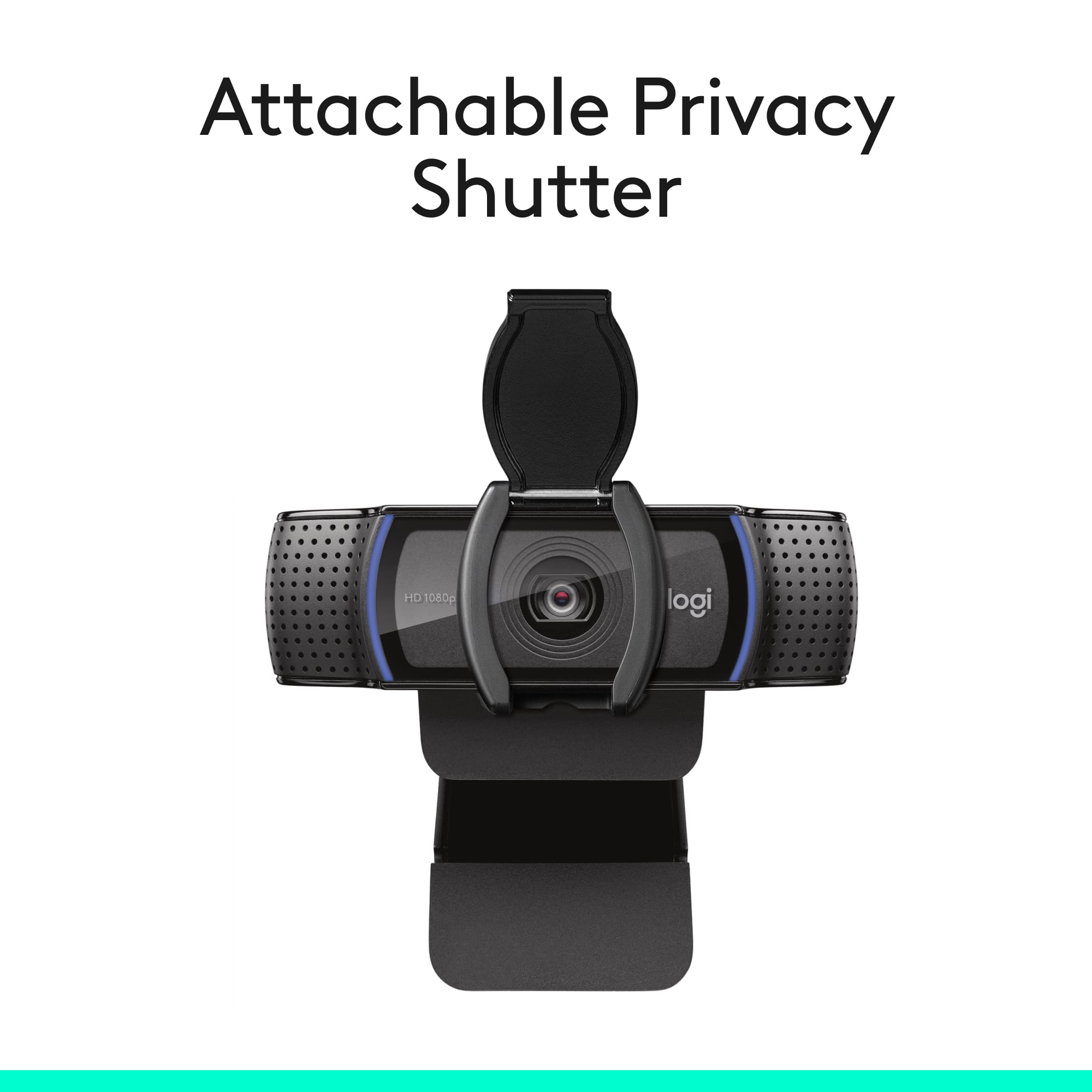
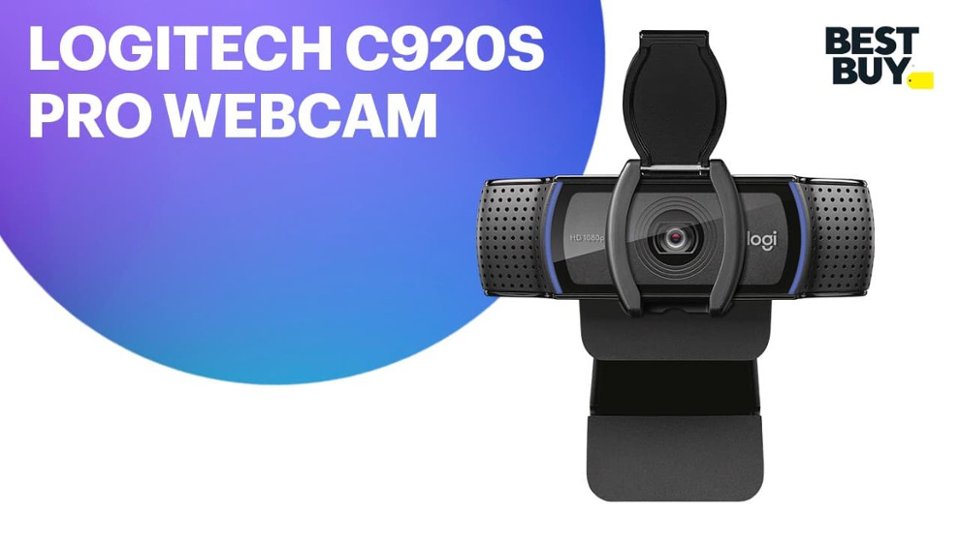
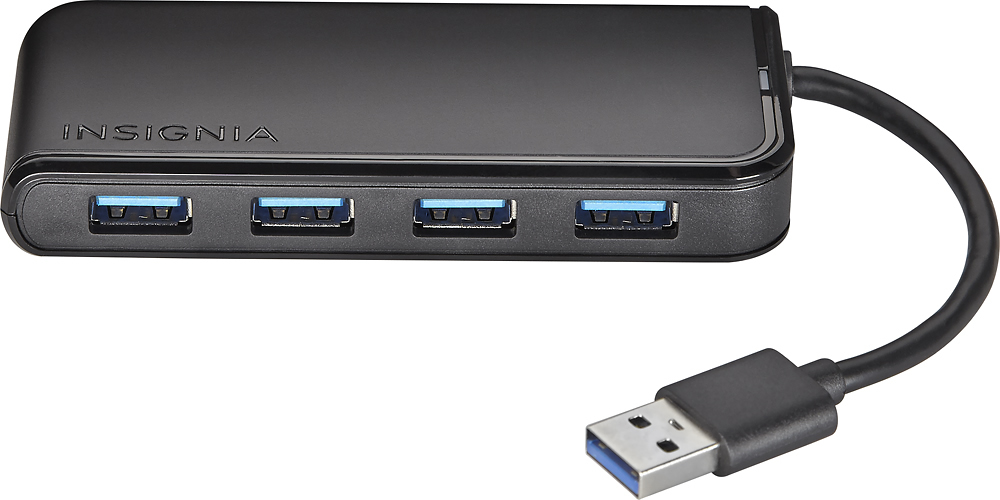
A:AnswerI've owned this camera about 2 weeks and have not needed to remove it, but don't see any reason why it couldn't be removed. You may have to make sure your computer recognises the device whenever you reconnect. If you are removing because you need the port for another device you could consider a USB hub to increase inputs. (I have this Insignia with an external drive plugged in - note that cable on the hub is very short, like 3 inches, 4-6 inches would be a lot better). But this camera did not like hub port, so another device would need to be able to use the hub port. Also, this camera has a cover. I usually have the lens covered when not using camera.
A:AnswerHello, Yes you can have more than one Logitech webcam plugging in at a time for a stream. Please make sure to download the Logitech Capture Software in order to help manage both. Here is the link: https://support.logi.com/hc/en-us/articles/360025141614.
-Danielle from Logitech
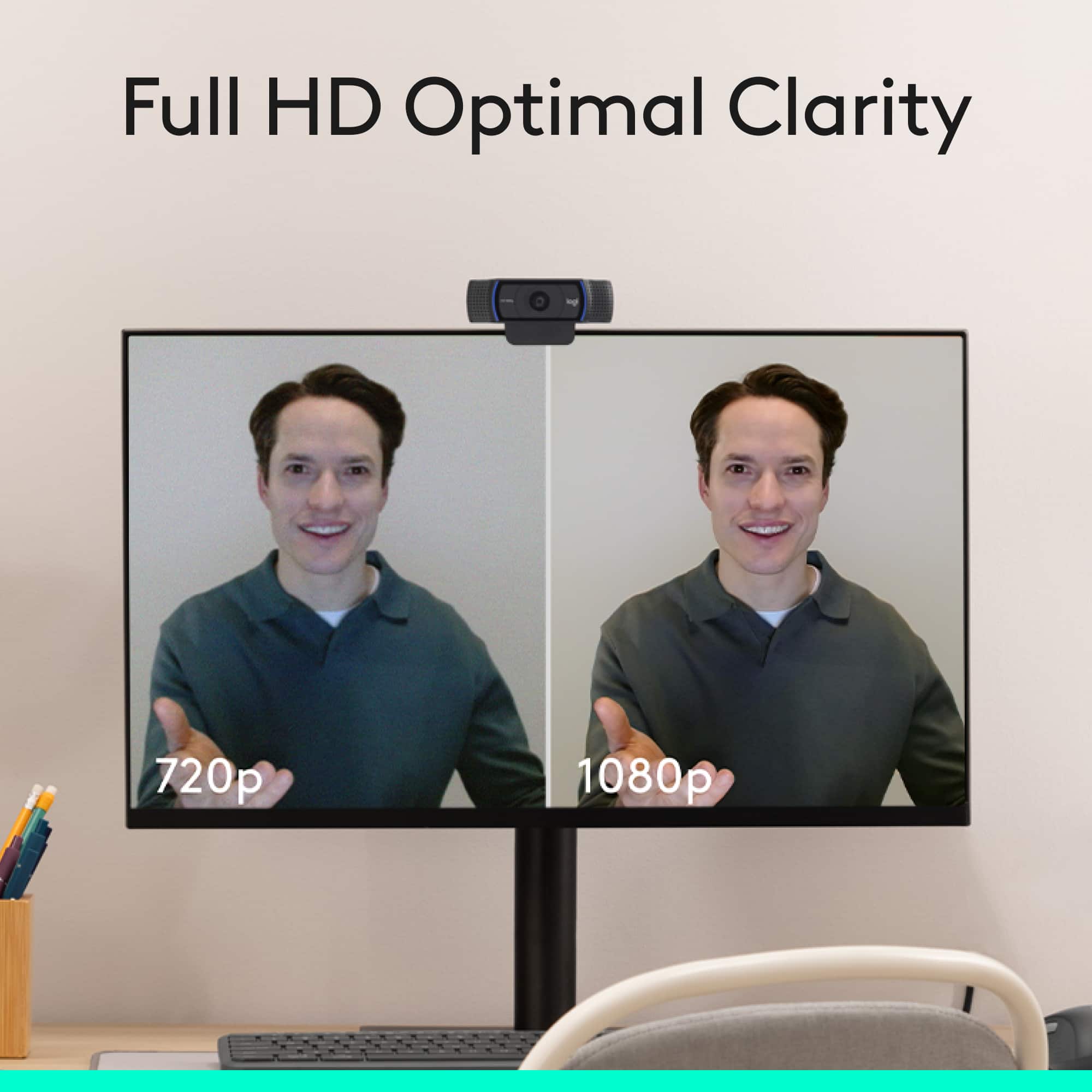
A:AnswerYes, the Logitech C920s is equipped with automatic HD light correction. The C920s uses Logitech’s RightLightTM 2 technology to adjust to your lighting conditions, producing bright, contrasted images, even if you’re in a dim setting. - Will, Logitech.
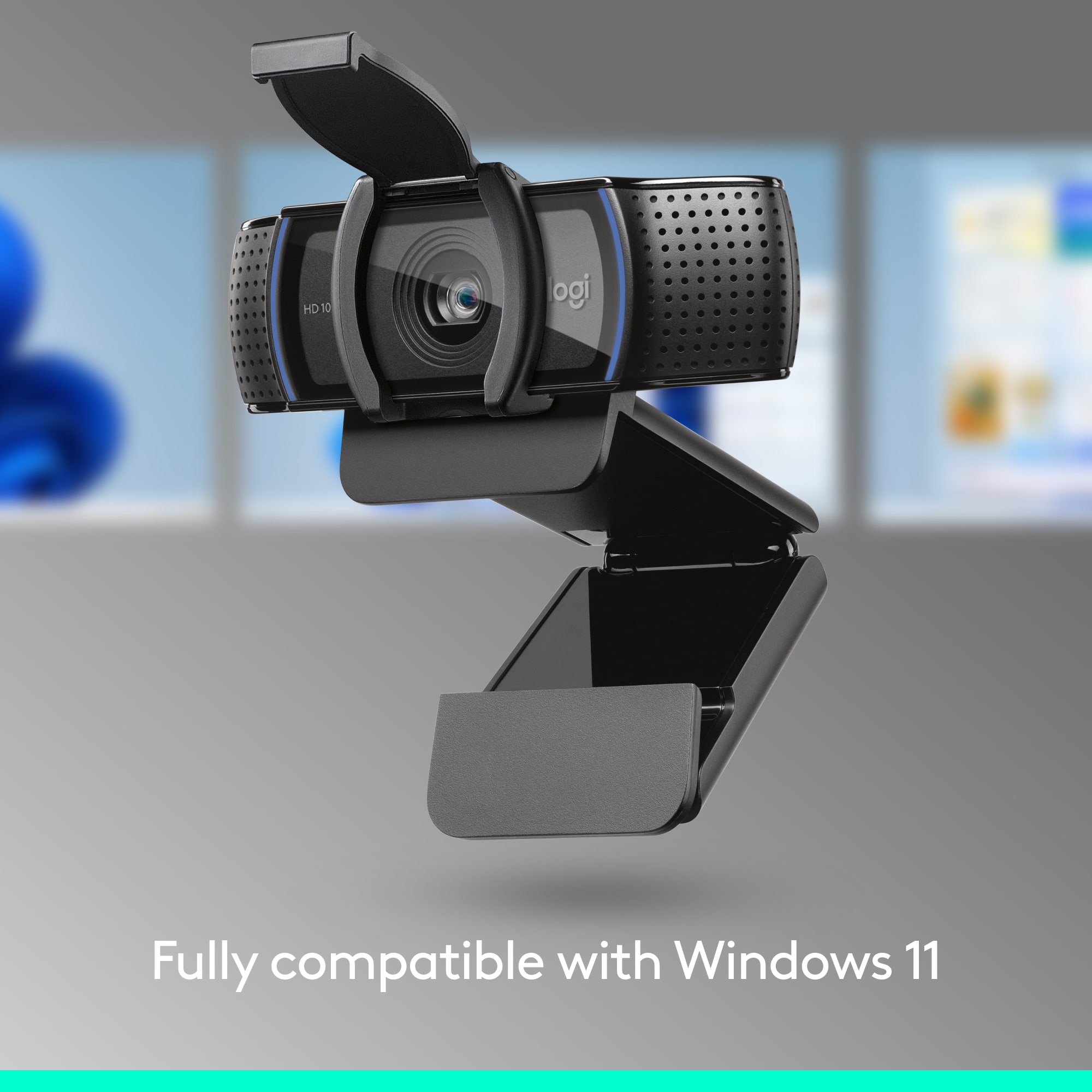
A:AnswerYes, the Logitech C920S webcam is compatible with Windows 10 and uses a standard USB-A connection. Also be sure to check out Logitech Capture software for more advanced features and options: https://www.logitech.com/en-us/product/capture - Will, Logitech.
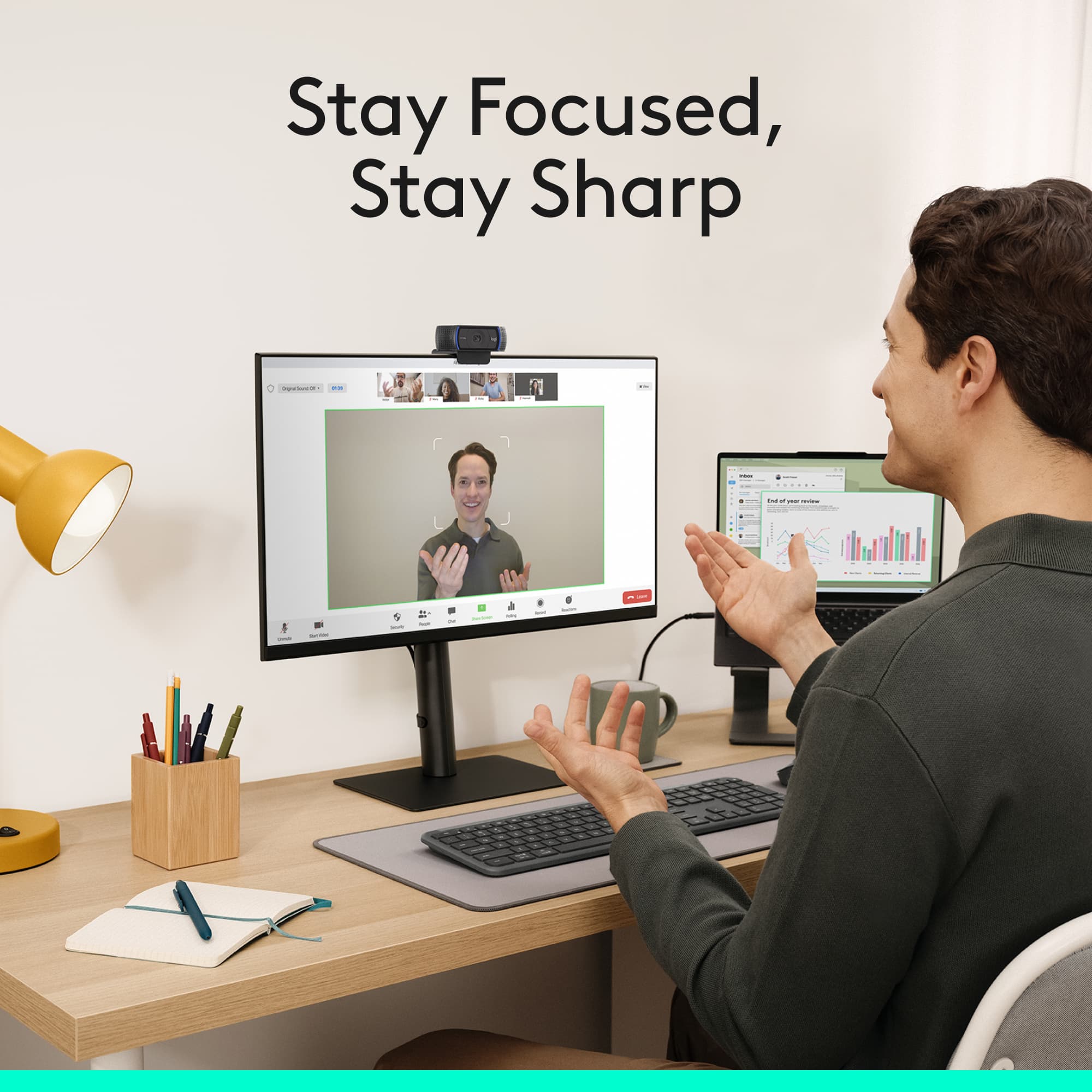
A:AnswerAs long as your computer registers that the C920s is plugged in it should automatically work. Otherwise, I would double check your video settings in Zoom. When you're in a meeting, there should be a video camera icon in the bottom left corner. If you click on the little up arrow next to that icon it should show you all of the video devices plugged in. You'll just want to make sure that Zoom can see the C920s and that the C920s is selected in that menu. It should have a green check mark next to it if it's selected. If you need further assistance or that doesn't work, I would contact our support team here https://support.logi.com/hc/en-us/requests/new?ticket_form_id=360000621393
A:AnswerYes it will! Keep it mind that the C920S webcam uses a standard USB-A plug, and newer Macs use a USB-C plug, so you'll need to make sure you have the right USB ports on your Mac or a USB-A adapter available.