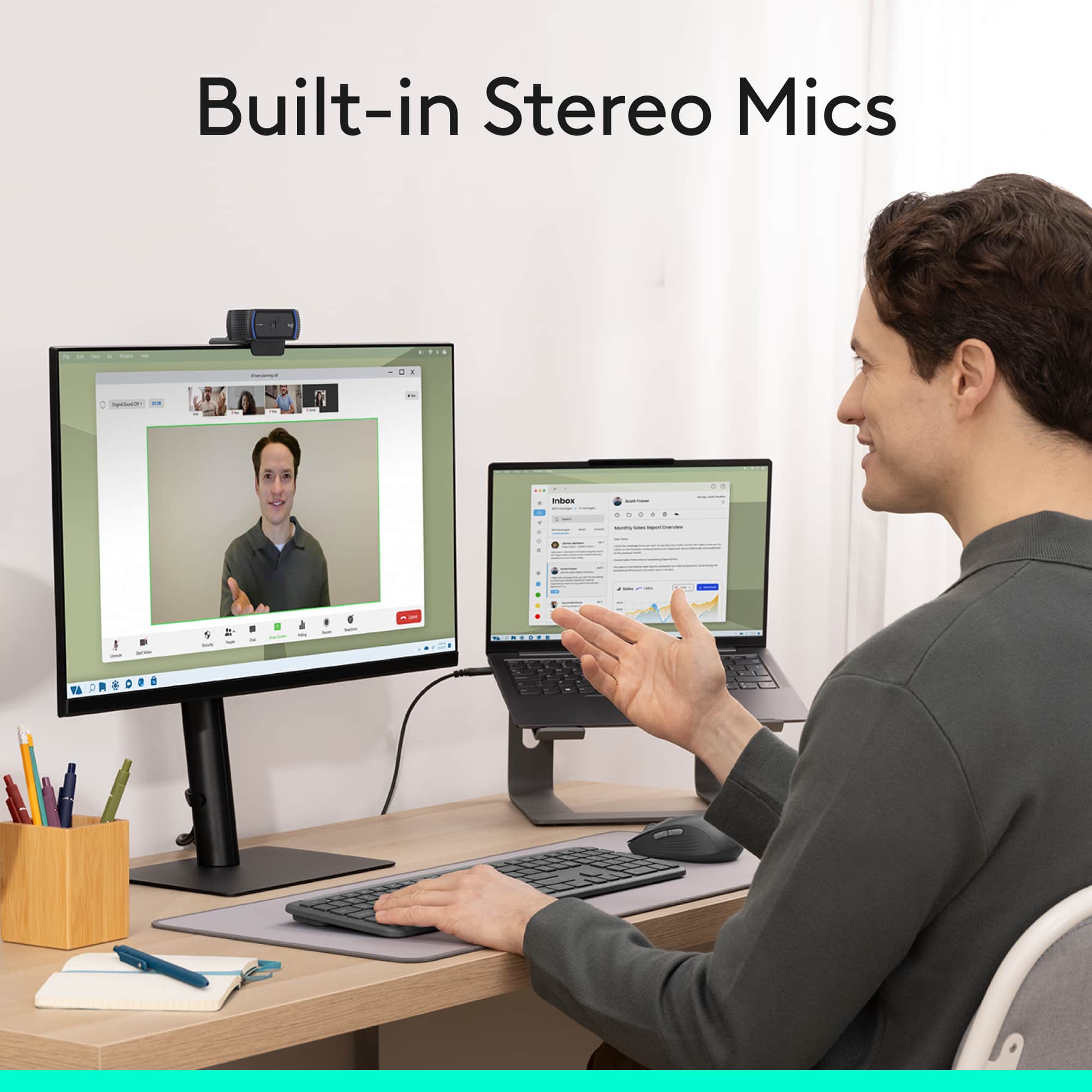
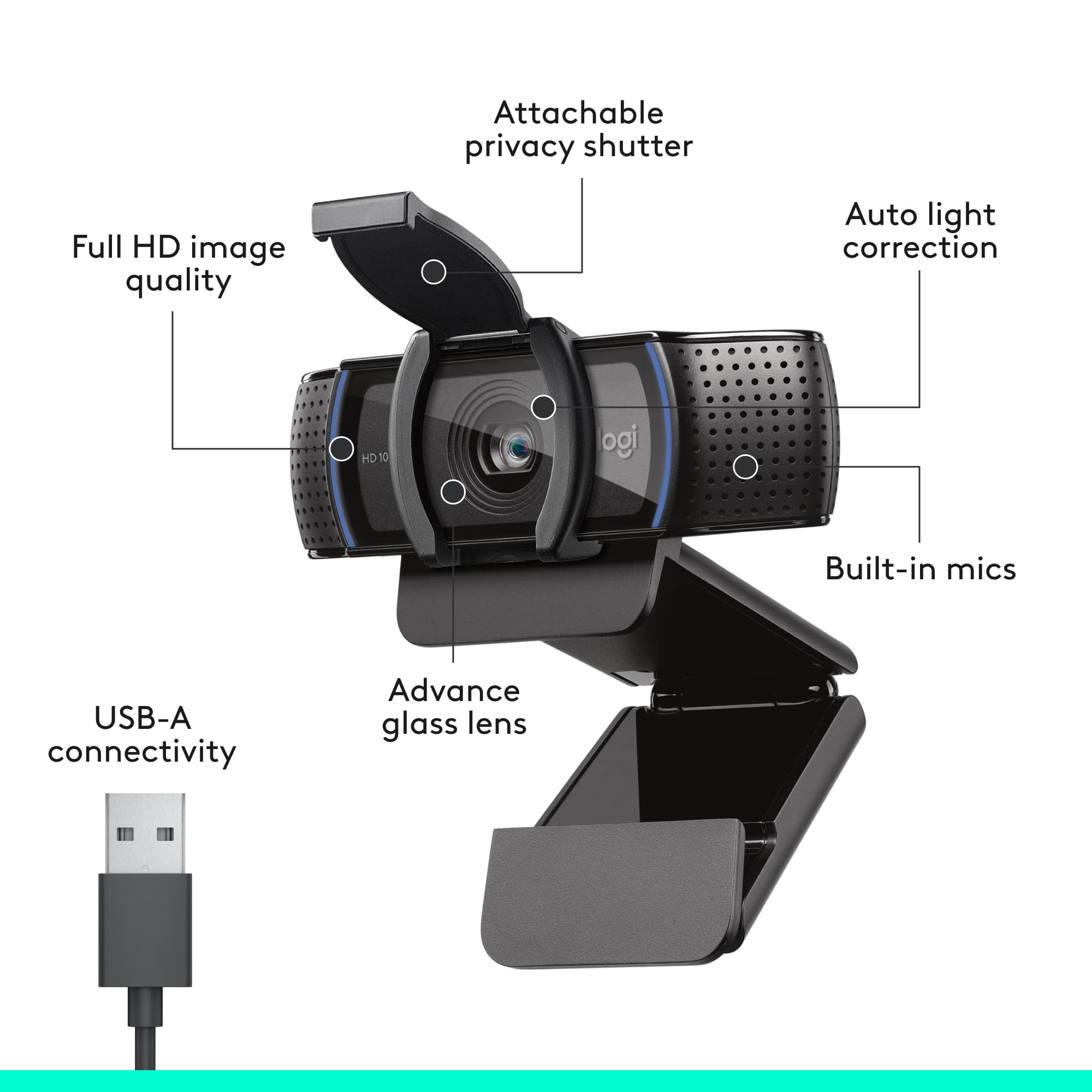
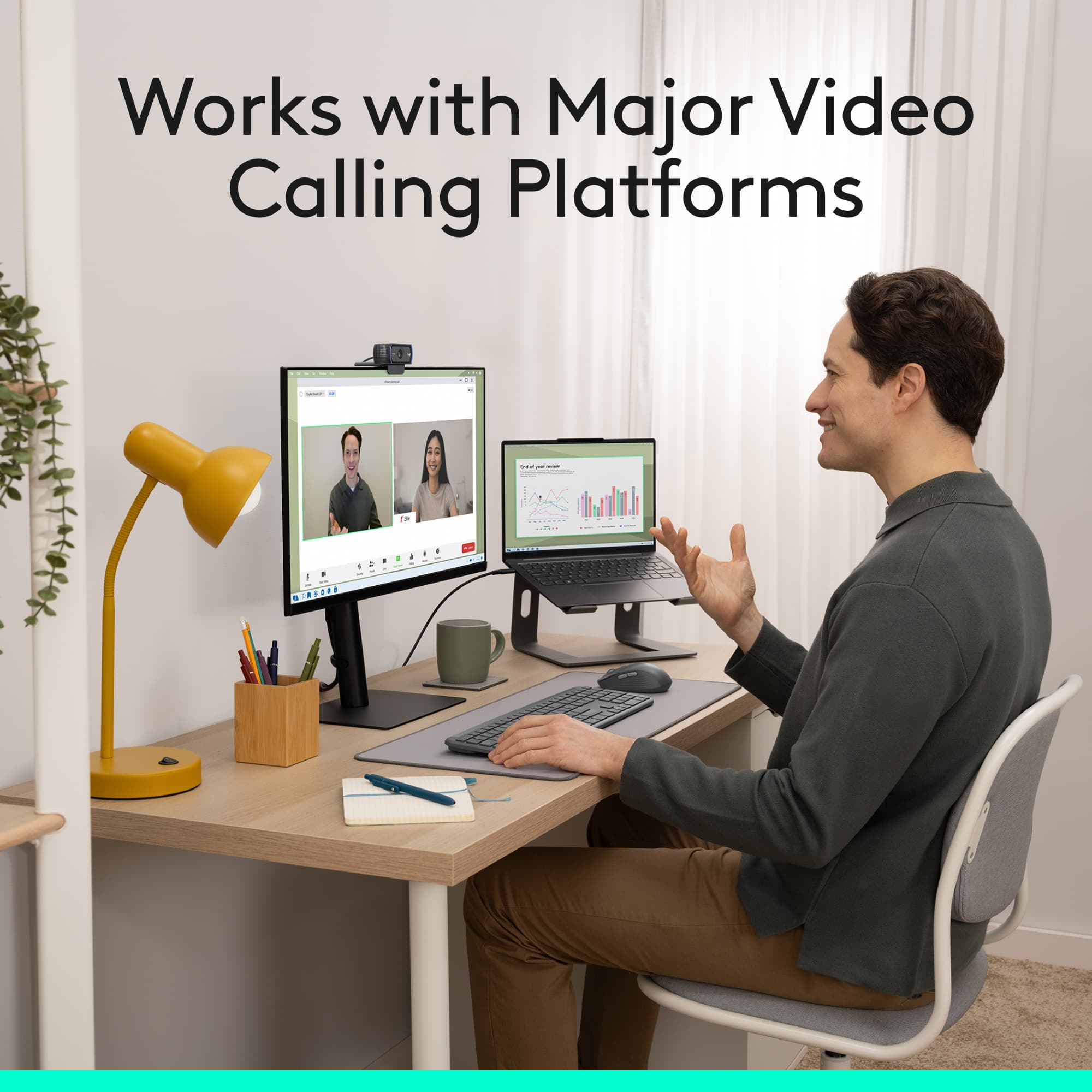
A:AnswerHello, the C920s will work on Mac Air via USB A port, if you do not have a USB A port you will need a USB A to USB C adapter. The camera is compatible with many video chat programs such as Zoom, Hangouts and Skype.
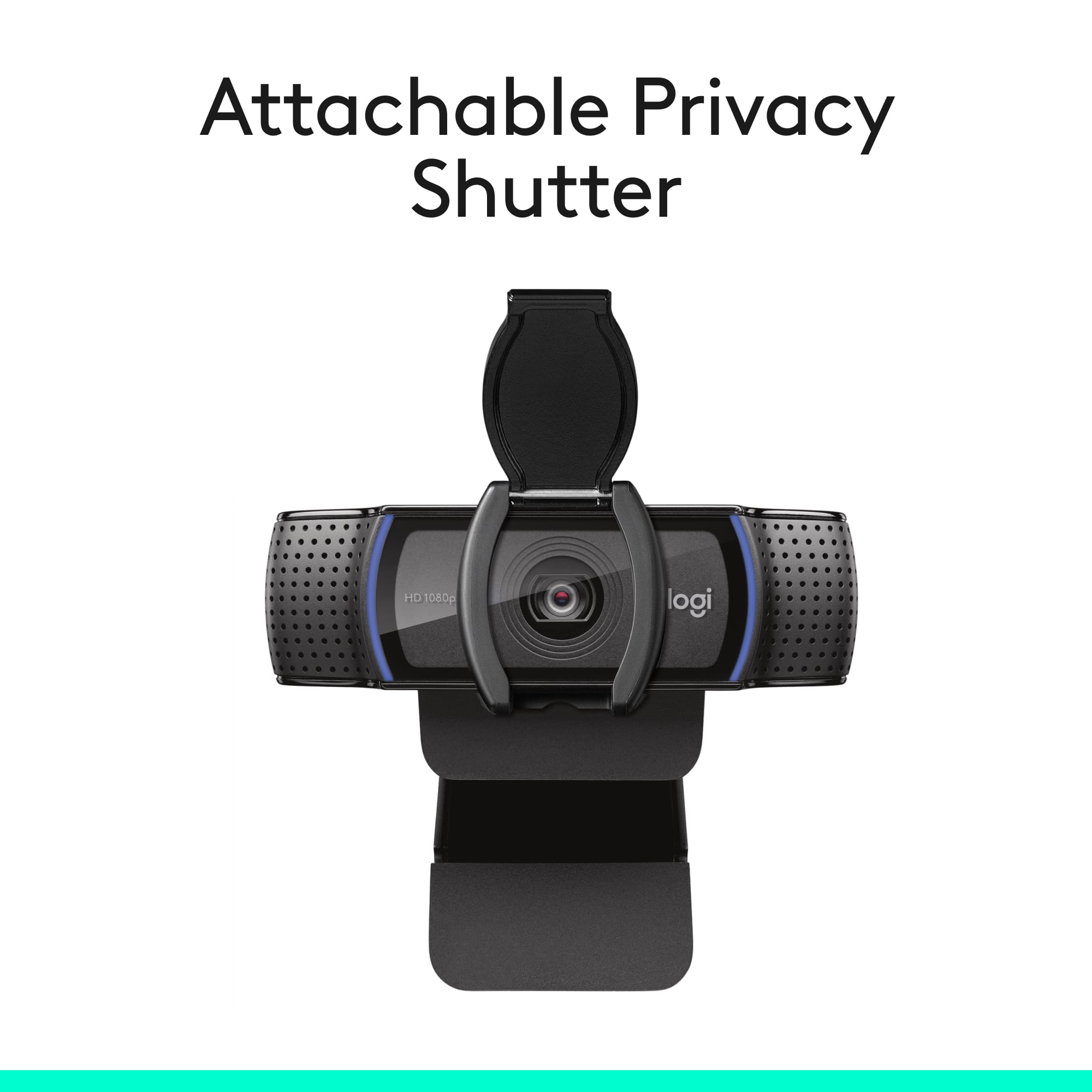
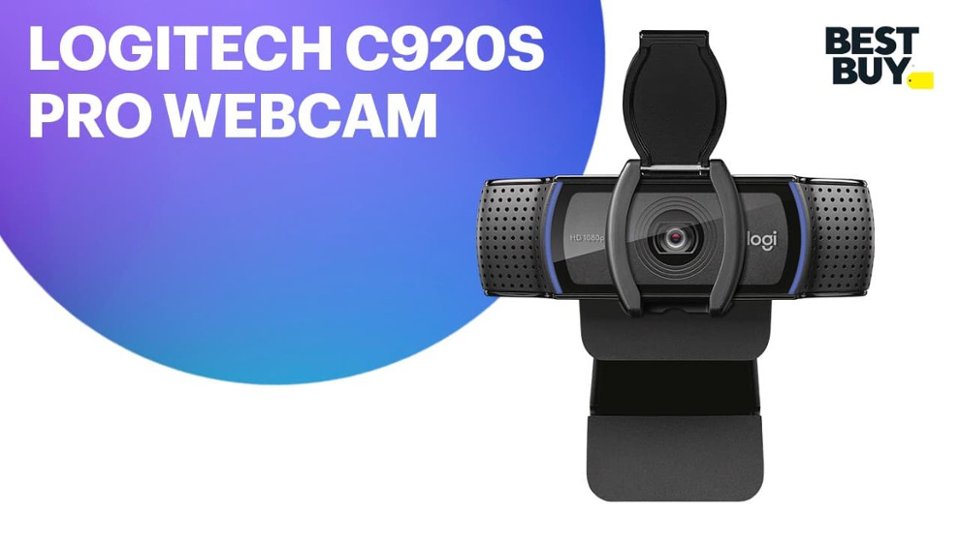
A:AnswerHello. The privacy shutter on the C920s is a plastic flap that covers the camera lens. It does not disable the built-in microphone. The best way to ensure the camera/mic is disabled is to unplug it when it is not in use.
A:AnswerBoth webcams are great options for use with a MacBook Pro! Keep in mind that both use a USB-A cable, and you need a USB-A hub to support those ports on your Mac, as MacBook Pros use USB-C. C920S is a bit smaller and more portable, and comes with the privacy cover as well.
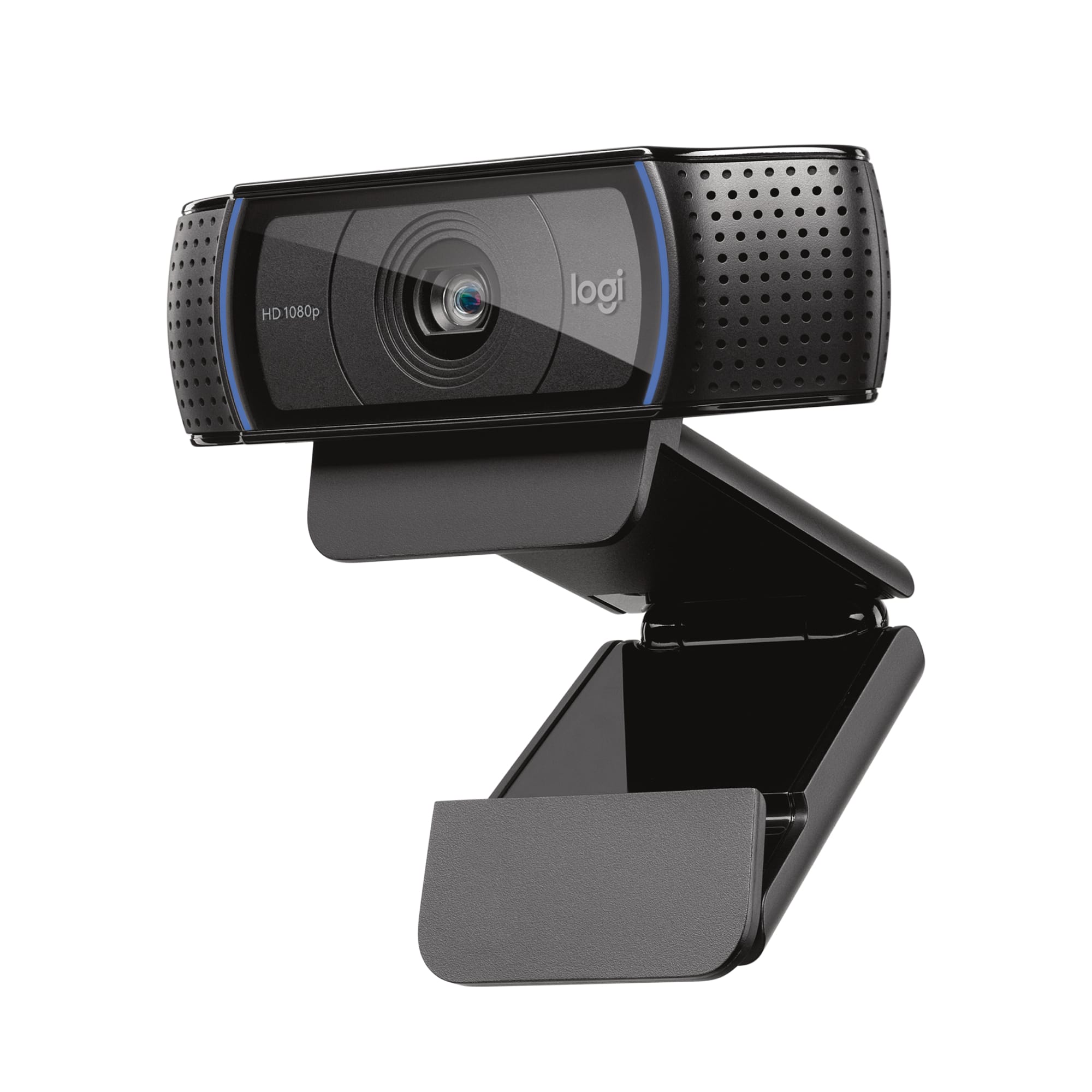
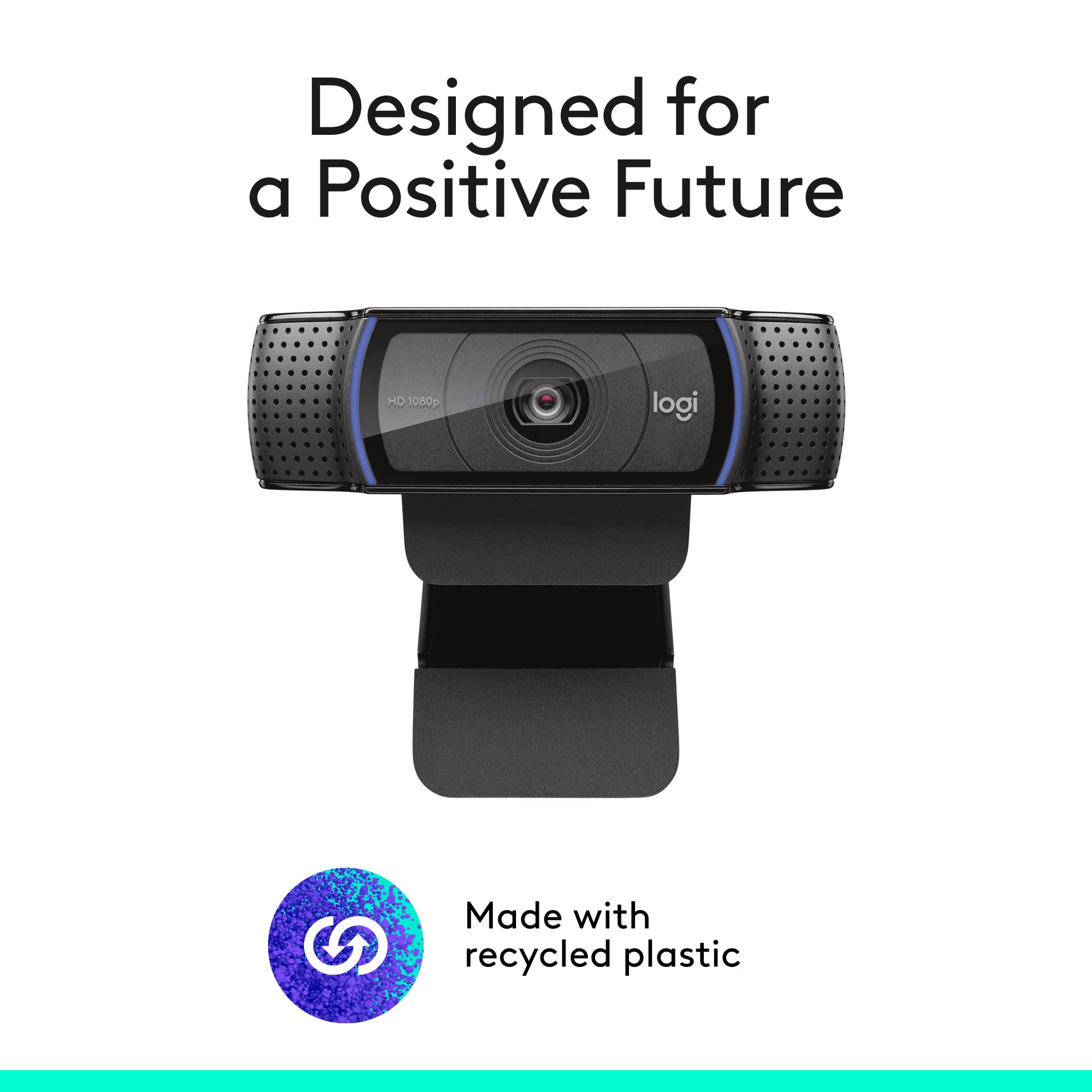
A:AnswerFor my C920s, the "clip" extends down 7/16" (11.1 mm) below the top edge of the monitor. This is an important number for thin bezel monitors, Logitech should make it available in some way...
A:AnswerThe C920S Webcam is designed to be connected to your PC with USB. If your monitor USB works as a pass-through to your laptop it should work, but it would depend on the monitor.
A:AnswerHello Hottire! The C920S HD Webcam doesn't include a tripod mount, but it is tripod ready, meaning that you can use universal tripods with it, as it has a tripod mounting clip.
A:AnswerHello, this camera will work great to capture you both while not making you look too big. Simply place on top of your computer and position yourself both in the frame.
-Danielle from Logitech
A:AnswerHello Rafael. The C920S will need outside software to remove your background. You can use the Logitech Capture software and remove a green or blue screen, and there are other programs that will remove the background without a green screen.
A:AnswerYes, you can use the audio through your headset. You just have to change the settings on your computer and sometimes in the program you are using to use the mic from your headphones, and the video from the webcam.
A:AnswerHello, Serpico. The C920S will not affect your speakers. However, you may experience some feedback as the microphone on the webcam picks up the audio from the speakers, if they are too loud.