A:AnswerThe new LTE TMobile Gateway supports 64 devices.
"What are some of the key features of the T-Mobile High-Speed Internet Gateway?
Customers can connect up to 64 devices to their home Wi-Fi."
https://www.t-mobile.com/isp/faq
A:AnswerAfter a year with a Google Mesh system I am looking to replace it. My house is a regular stick and drywall construction 48 feet long 24 feet wide. I located my router centrally and then placed one mesh unit directly behind my outdoor Nest cam because it could not connect unless the access point was less than 36 inches away. I tried to place my second access point in my garage but there was not enough signal to create the mesh, 26 feet was too far. No signal in my kitchen which was only 12 feet away, it couldn't handle inference from the fridge? In the end I had to buy another access point for the kitchen and then the garage access point was able to get enough signal to function. Then after eight months of tech support because it so rarely functioned correctly I was told it was my network name. Yoda's hut has an apostrophe and it brought down the whole network constantly, what is this 1979? The network still was having trouble and I was told it was a sync problem, I would forever have to go into the smartphone app and pause the internet connection on one device then unpause it to resync everything every time my connection dropped which was daily. How did I know it happened everyday? Nest sent me the notifications that my camera was offline. The biggest problem to me is the fact I can only access anything on a smartphone app there is no other access to any settings. Lastly, all the access points are speakers and it works fine if you use a streaming service but it can't connect and play music from my iPhone 12 Pro. So there might be a tiny speed bump but this whole thing is doing the same exact job all my old Apple equipment was doing except I needed more Google access points than Airport Express bases and the connection was flawless with the Apple gear. I guess I'm looking at the new 6.0 stuff but I'm not sure which one will work the best.
A:AnswerIf you purchase an ethernet switch, and plug devices into it, and then switch to the router, than you will achieve this, but otherwise, there is no other option unless the devices are Wi-Fi enabled.
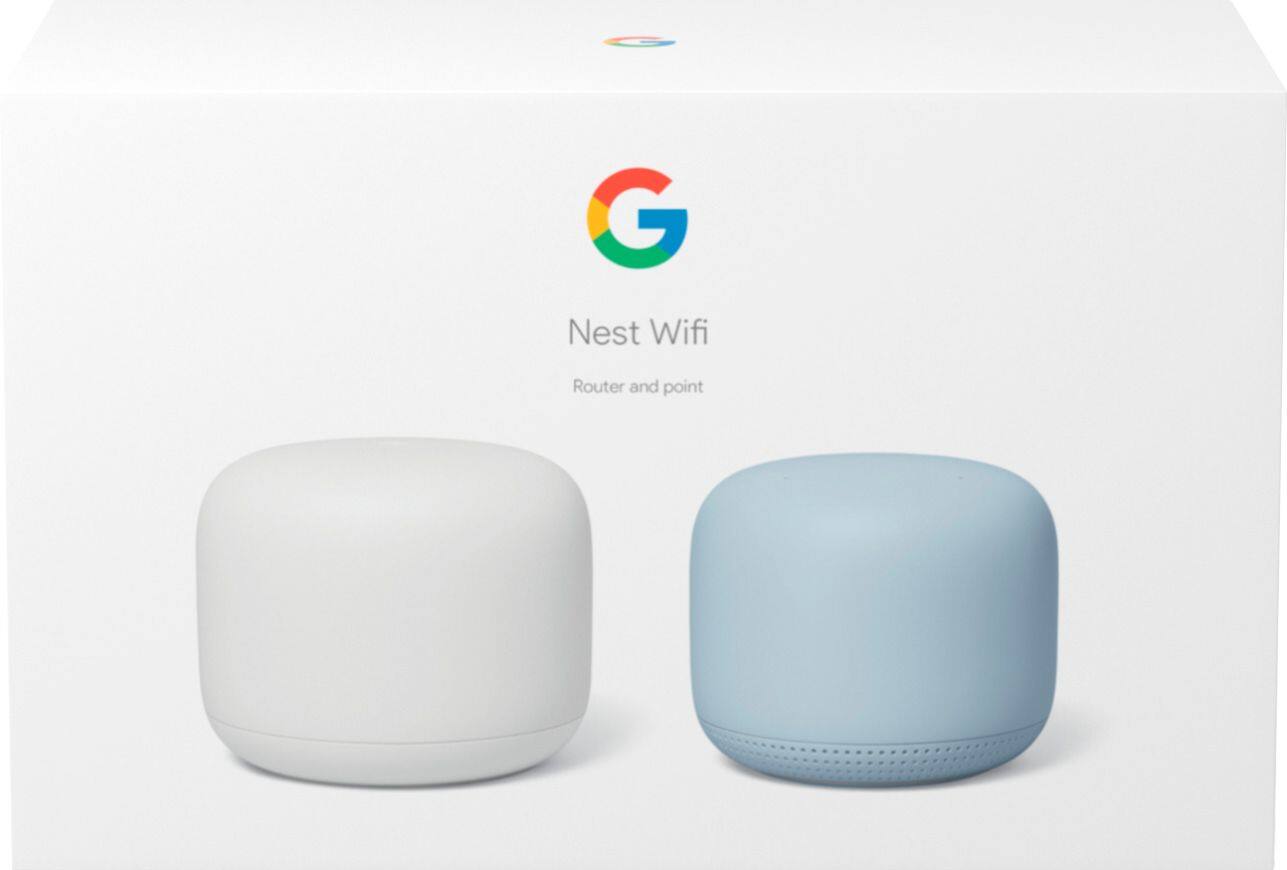
A:AnswerNest Wifi is not compatible to work with 3rd party routers to create a mesh network. You can only use Nest Wifi routers/points and Google Wifi together to create a Wi-Fi mesh network. We recommend setting up Nest Wifi as your primary router directly connected to your modem for reliable connection and creating a mesh network. Connecting Nest Wifi router to your current 3rd party router will cause a Double NAT which is the case where each router will have its own private network. Double NAT may cause issues with online gaming and port forwarding. You can keep the 3rd party router in Bridge Mode and then set up Nest Wifi or you can remove the 3rd party router, set up the Nest Wifi as a mesh network with one of them as primary router connected to your modem and connect the 3rd party router to one of Nest Wifi as a switch by disabling its Wi-Fi functionality.
A:AnswerIt's not normal for the Nest Wifi to reboot on it's own unless there's software updates that are automatically installed. If the Nest Wifi reboot multiple times a day, there might be an issue causing it and we recommend contacting our support so we can isolate the issue and provide resolution. You can contact us anytime for help here: https://support.google.com/googlenest/contactflow
A:Answer3rd party routers like your Netgear 81 are not compatible to form a Wi-Fi mesh together with Nest Wifi. You can only combine Nest Wifi and Google Wifi to create a Wi-Fi mesh. If you'd like to increase the Wi-Fi coverage and bandwidth speed, you can create a Nest Wifi mesh with the primary Nest Wifi router wired to your modem. If you have a modem/router combo, we recommend putting it in Bridge mode to avoid Double NAT as it may cause connectivity issues. You can read more on Bridge mode and Double NAT here: https://support.google.com/wifi/answer/6240987
A:AnswerYes. Nest Wifi is a true Wi-Fi mesh network. You can check more details and benefits of using Nest Wifi mesh system here: https://support.google.com/googlenest/answer/7182746
A:AnswerThis did solve my issue of crappy reception behind a closed office door. But it works best if you plug into the surfboard router, not the model directly. At least with Spectrum...
A:AnswerYes, Nest Wifi is compatible with Netgear cable system, but you may need to set your modem/router combo to Bridge Mode or disable its Wi-Fi functionality in order to set up Google Wifi as your primary router, and create a mesh Wi-Fi system throughout your home.
A:AnswerDefinitely! You can turn off the Google Assistant by simply sliding the switch located at the back of Nest Wifi. You can get more information here: https://support.google.com/googlenest/answer/9596773