A:AnswerYes, you can move Nest Wifi from one room to another room. Keep in mind, the location of Nest Wifi router and Nest Wifi points is vital to maintain reliable Wi-Fi throughout your home. You can learn more about the proper placement of devices here: https://support.google.com/googlenest/answer/7183150
A:AnswerYes, the Nest Wifi can work with the Windstream fiber Internet. You may need to get either their preferred modem or a compatible one. If in case you get a modem/router combo, we recommend putting your combo in bridge mode or disable its Wi-Fi functionality in order to set up Nest Wifi as your primary router. This will help avoid double NAT connectivity issues. You can learn more about setting your combo in bridge mode and double NAT by visiting this page: https://support.google.com/googlenest/answer/6277579?hl=en
A:AnswerMy initial reaction to this is no. I did a search "is nest wifi waterproof" and found a good answer verified by google Nest help.
"However, Google WiFi units are not designed for outdoor use, and it's not just direct exposure to the elements that is the issue."
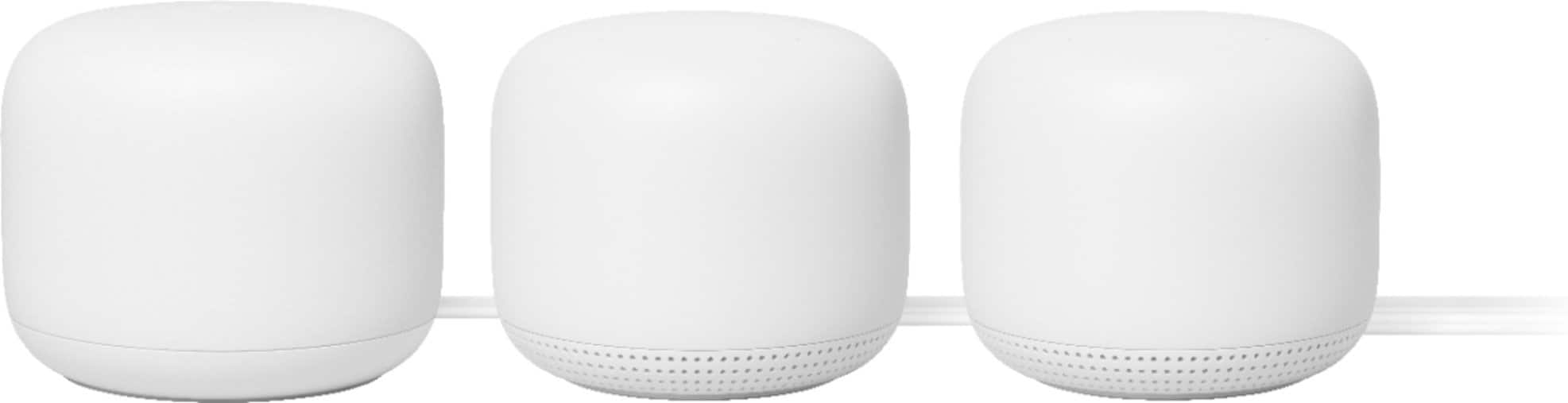
A:AnswerAC2200 is Nest Wifi router, AC1200 is Nest Wifi point. In order to create the Wi-Fi mesh, you need to connect Nest Wifi router to your modem with an Ethernet cable. You can then connect Nest Wifi point to extend your coverage and create your mesh. Nest Wifi point can connected to the router wirelessly and is also a speaker with Google Assistant.
A:AnswerYes, Google Nest WiFi mesh system is compatible with your router, but it is recommended to connect the Nest WiFi router directly to your modem's WAN port as your primary router to establish your Wi-Fi mesh network. If you connect Nest WiFi router to your Fios Quantum Gateway router, then both routers will broadcast their own private networks. This is called Double NAT and it will likely cause connectivity issues when port forwarding and gaming.
A:AnswerYes, Google Nest WiFi can work with your modem/router combo. In order to avoid a possible Double NAT, we recommend to put your modem/router combo in Bridge Mode. You can learn more about Bridge Mode here: https://support.google.com/googlenest/answer/6240987
A:AnswerNo, Nest WiFi doesn't support Wi-Fi 6. AC2200 and AC1200 are Wi-Fi standards with maximum wireless combined bandwidth speeds in Mbps.
Nest WiFi router supports AC2200 while Nest WiFi point supports AC1200.
A:AnswerBecause they has a contract with another creator software and they are no longer in business together. You will have to set up this speaker white wifi to get the overall strength to pull your music.
A:AnswerI’m not sure why it wouldn’t. We are currently using a ps3, ps4 & ps5, Xbox 360, Xbox 1x, an oculus and a Nintendo switch with no issues at all. Good luck.
A:AnswerAC1200 is a Nest Wifi point. You will still need to have a Nest Wifi router (AC2200) to add a wifi point and create a mesh network. Nest Wifi router can cover up to 2,200 sq ft and 1,600 sq ft for one Nest Wifi point. But where they are placed, the layout of your house, and physical obstructions can impact the total coverage. Keep in mind that barriers like heavy furniture and walls made of thick concrete or brick can influence Wi-Fi performance. For an estimate of how much Wi-Fi coverage you’ll get with Nest Wifi and a guide to how many Wifi points you need check here: https://support.google.com/googlenest/answer/7182840
A:AnswerYou can check the following link to know more about Nest Wifi: https://support.google.com/wifi/answer/9583920
You can also check out other Nest Wifi articles on the site that may be helpful with the setup. Please feel free to reach out to us if you need further assistance here: https://support.google.com/googlenest/contactflow
A:AnswerYes it will work independently as the Mesh is a separate network. I still have some devices running on my old network and extender. But only because I haven't taken the time to change over the network names and password.
The mesh is overall much stronger and covers everything inside my house and all over my property.
A:AnswerYou can turn off Nest Wifi by simply unplugging the power cord from your wall socket. To turn off the Google Assistant on your Nest Wifi point to prevent it from listening or responding to your queries, you can use the switch on the back of Nest Wifi point, next to the power cord.
A:AnswerYou can't change the channel as Nest Wifi's Band Steering feature will automatically attempt to guide your connected devices to the band with the best performance for each device. Try to move your sound bar farther away from your Nest Router and Nest Points until it connects to the 2.4 GHz as the waves for this frequency band can travel a greater distance than those of the 5 GHz band.