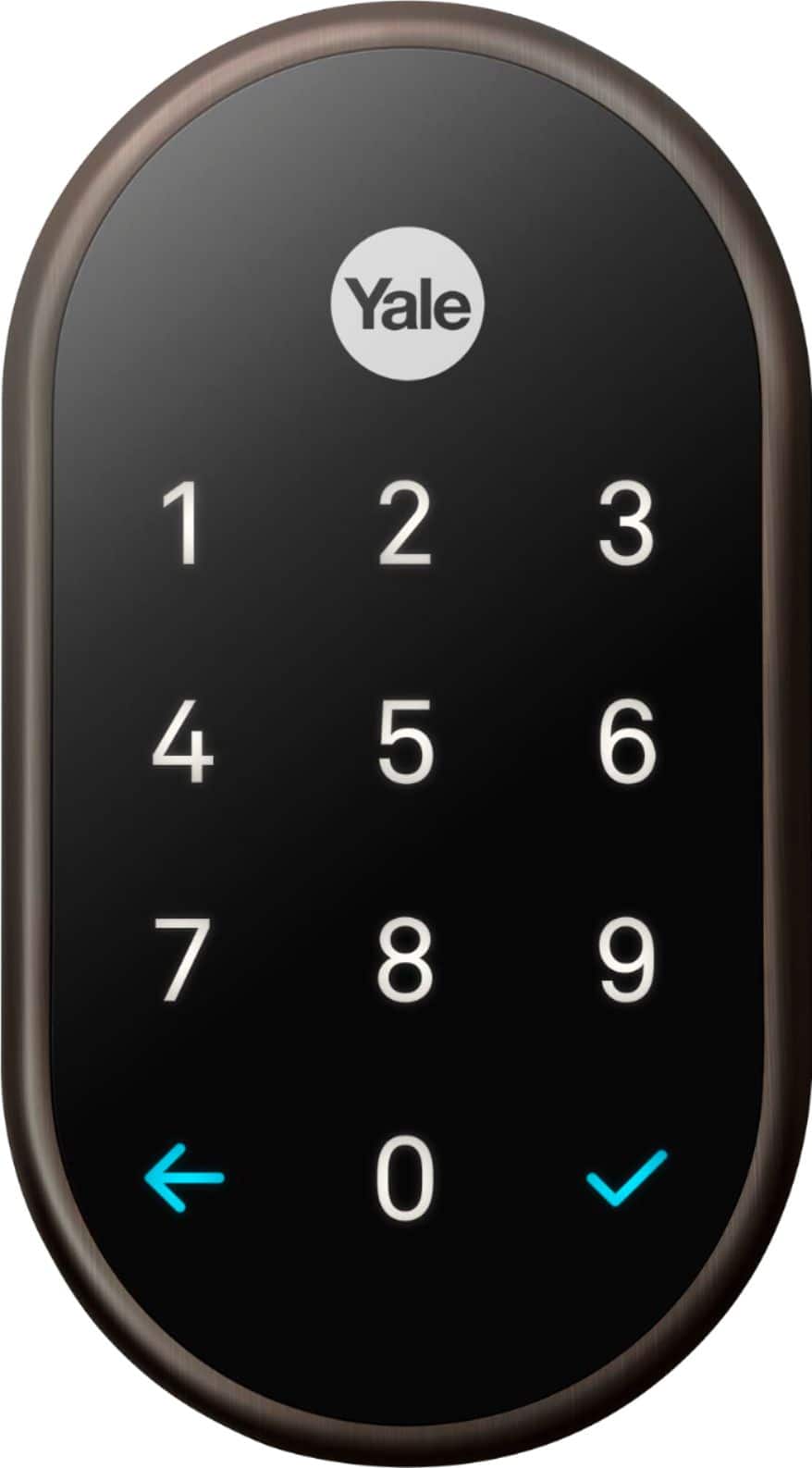
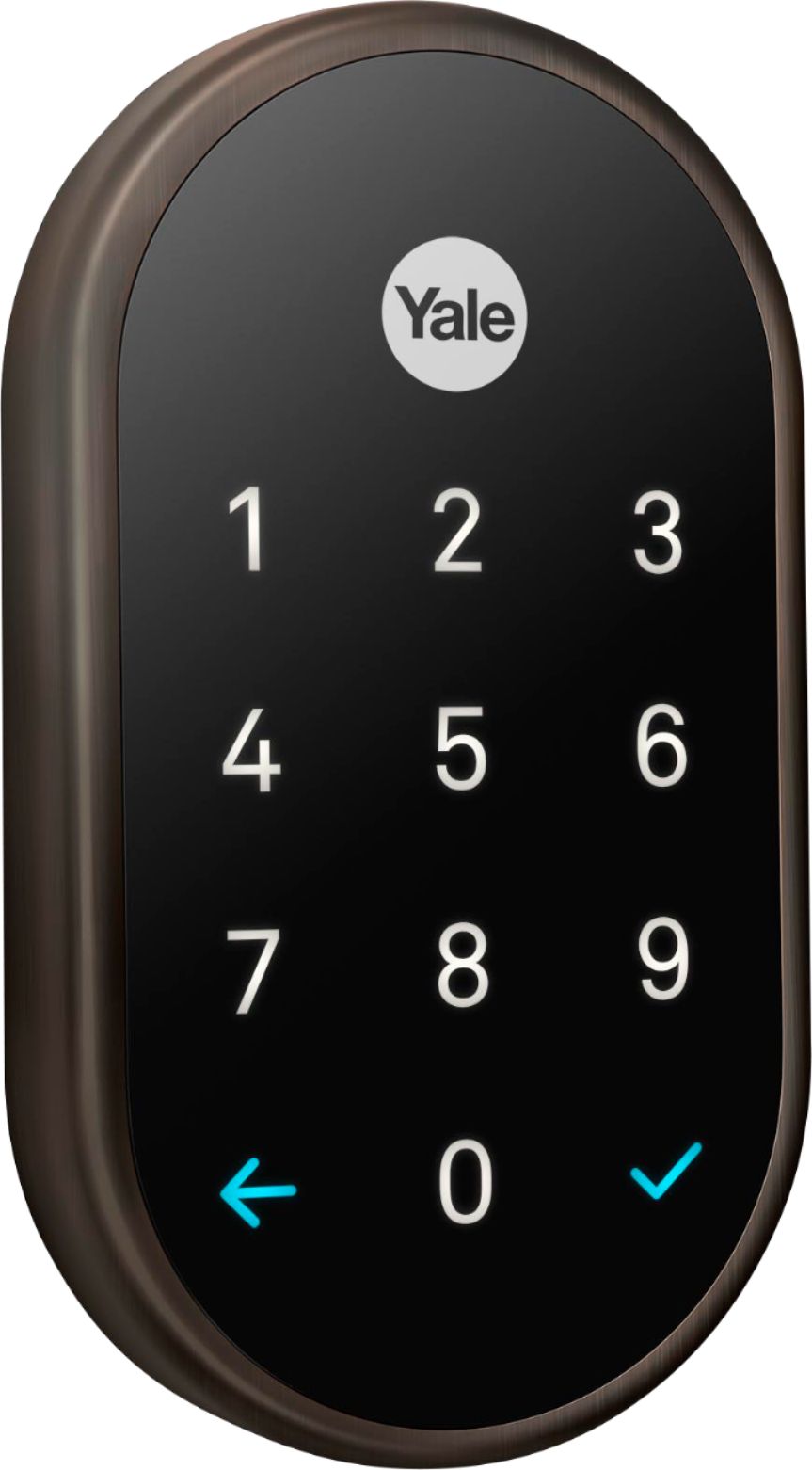
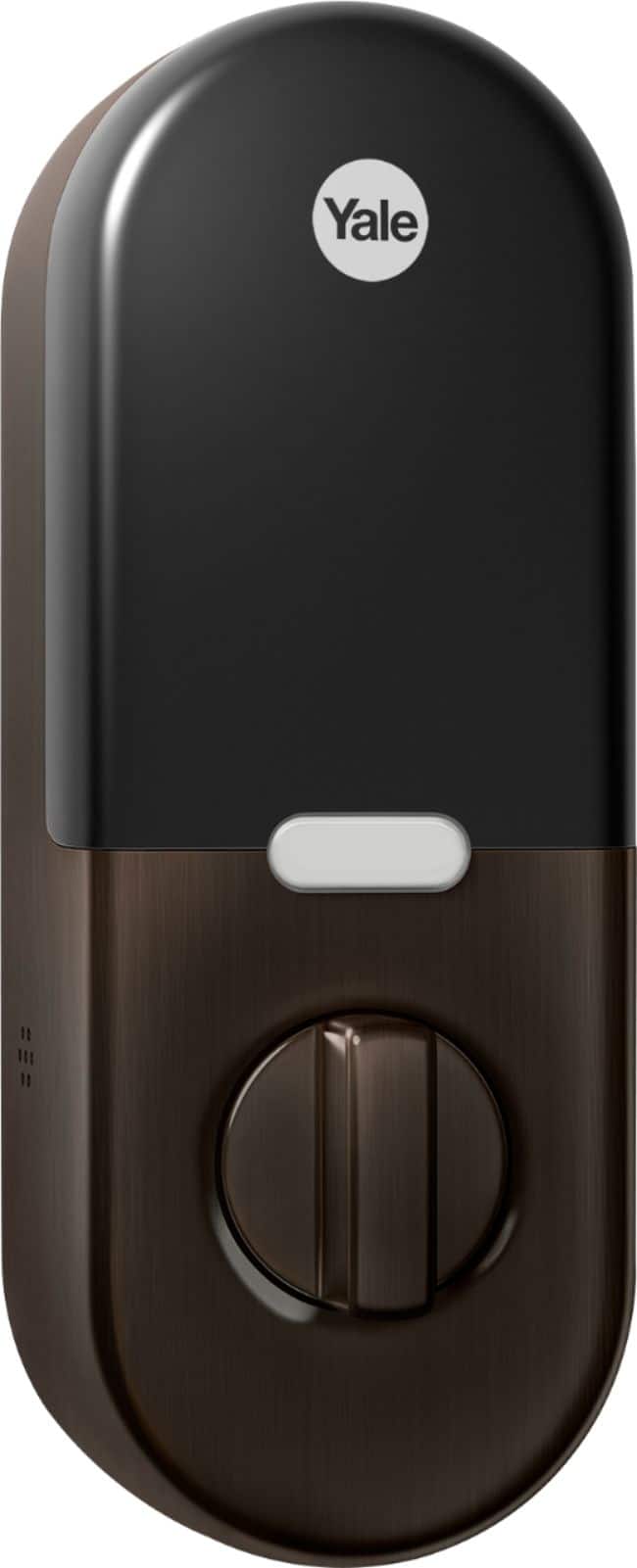
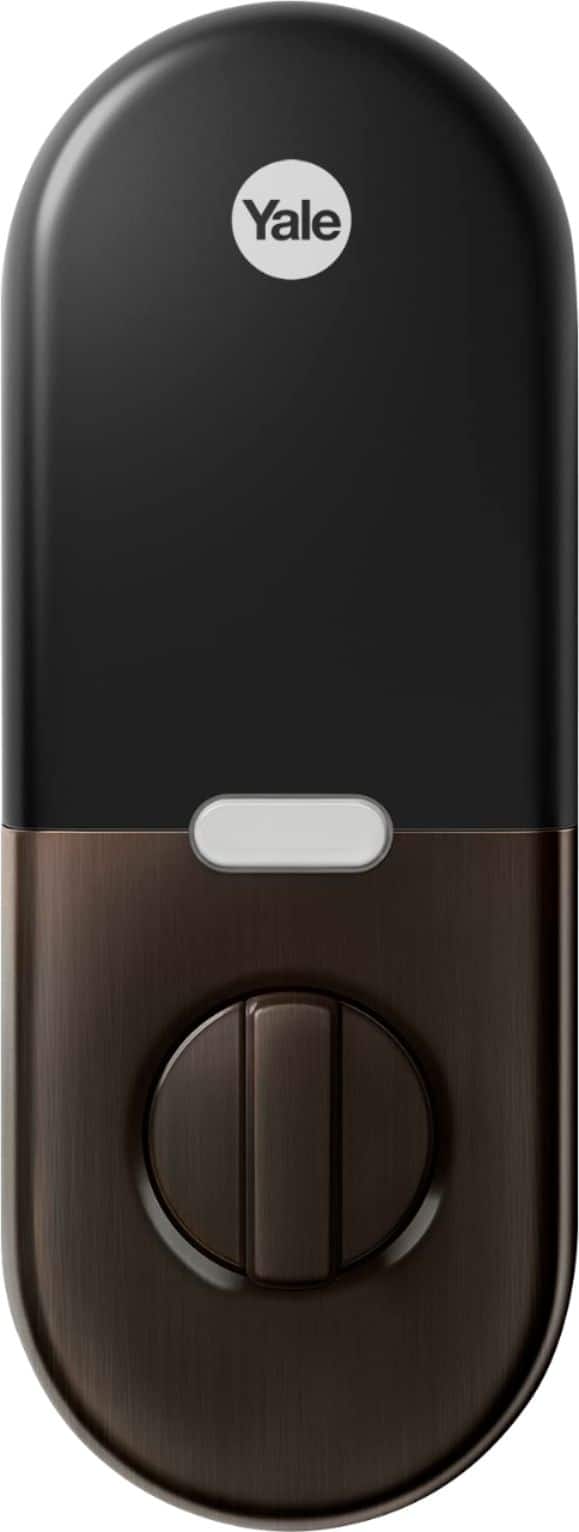
A:AnswerNest has been bought out by Google and thus has kicked out of third-party applications. It will only work with Google assist and no third-party integrations. I.e. Alexa or Siri
A:AnswerThe Nest × Yale Lock will fit several standard door thicknesses such as: 1 3/8 in (35 mm) thick, 1 3/4 in (44 mm) thick and between 2 - 2 ¼ in (51 - 57 mm) thick. It can be used with doors made of wood, metal, or fiberglass. If your deadbolt is more than 2-3/4 in (70 mm) away from the edge of your door, it’s not compatible. Learn about the Nest × Yale Lock before you buy here: https://support.google.com/googlenest/answer/9251009
A:AnswerYou can share access with your family members without buying anything else. Your family members can unlock the Nest x Yale Lock using the Nest app but you will have to provide them ¨Full Access¨ as Family members to your Nest Account. You can learn more on how to share access here: https://support.google.com/googlenest/answer/9304271
A:AnswerYes and if you have no power or have allowed the batteries to die (it gives you LOTS of warnings before that happens) you can use a 9 volt battery, touch the leads to connectors at the bottom of the keypad and you will be able to enter any valid code to open the lock.
A:AnswerGoogle has bought out nest products. Thus has eliminated all integration with any product other than Google assist. Alexa and Siri have no immigration possibilities with Yale X. Would recommend avoiding this product and going with a third-party Product that has no competition with google.
A:AnswerYes you can change the code remotely, Nest allows you to set up guest codes that you can assign on a permanent basis, or for a specific duration of time. For example, if you rented to someone for a weekend, you could have it expire at 1pm on Sunday or similar. You can also remove the guest code access at any time remotely.
A:AnswerHi there, Jody! Thanks for your inquiry.
To change your passcode for the Nest x Yale Lock:
- Go to the Nest app home screen, tap the Settings icon.
- Tap Family & Guests family and guests icon.
- Tap You to change your own passcode.
- Tap Passcode. If you sign in with a Nest Account, you’ll enter your account password, minimize your phone’s keyboard, and press Continue.
- Enter a passcode you’ll remember between 4 to 8 digits long.
Please note that if another person is using this passcode, a notification will pop-up to prompt you to “Choose a different passcode”. Passcodes must be unique so you can see who locked or unlocked your lock in History. If you have Home Entry Only access, you’ll need to ask someone with Full access to change your passcode for you.
A:AnswerWe don’t have any details to share about that right now. Rest assured, when we have new products or features, we’ll definitely tell you about it. You can follow our social media sites and keep an eye on our blog here: https://blog.google/ You might also want to keep track of our developer site on this link: https://developers.google.com/home/smart-device-management
A:AnswerThe Nest x Yale Lock does not have an automatic unlocking feature. You'll need to use a passcode or the Nest app to unlock your door.
The Nest x Yale Lock does however have an auto locking feature. You can read about it in our FAQ:
https://support.google.com/googlenest/answer/9251009