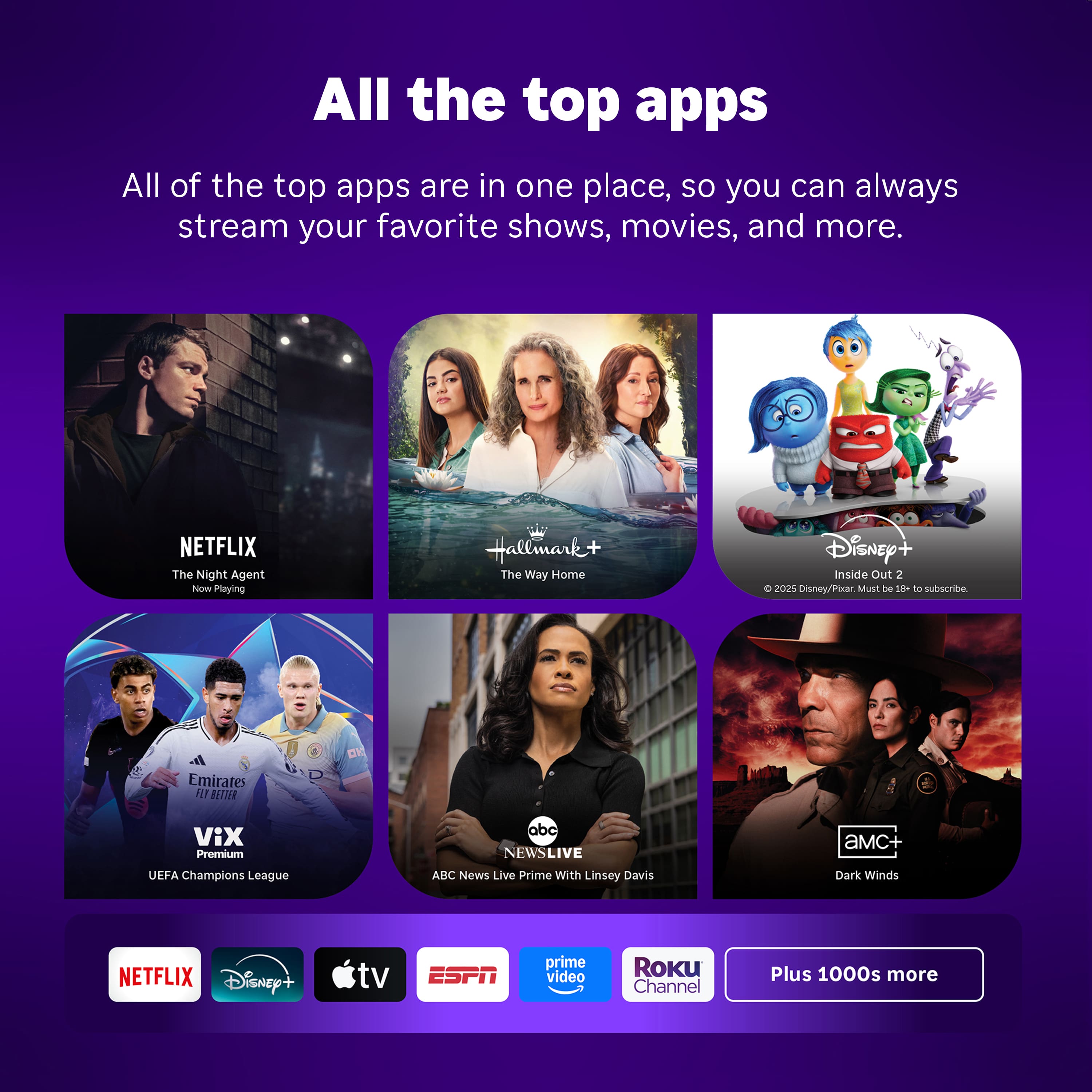
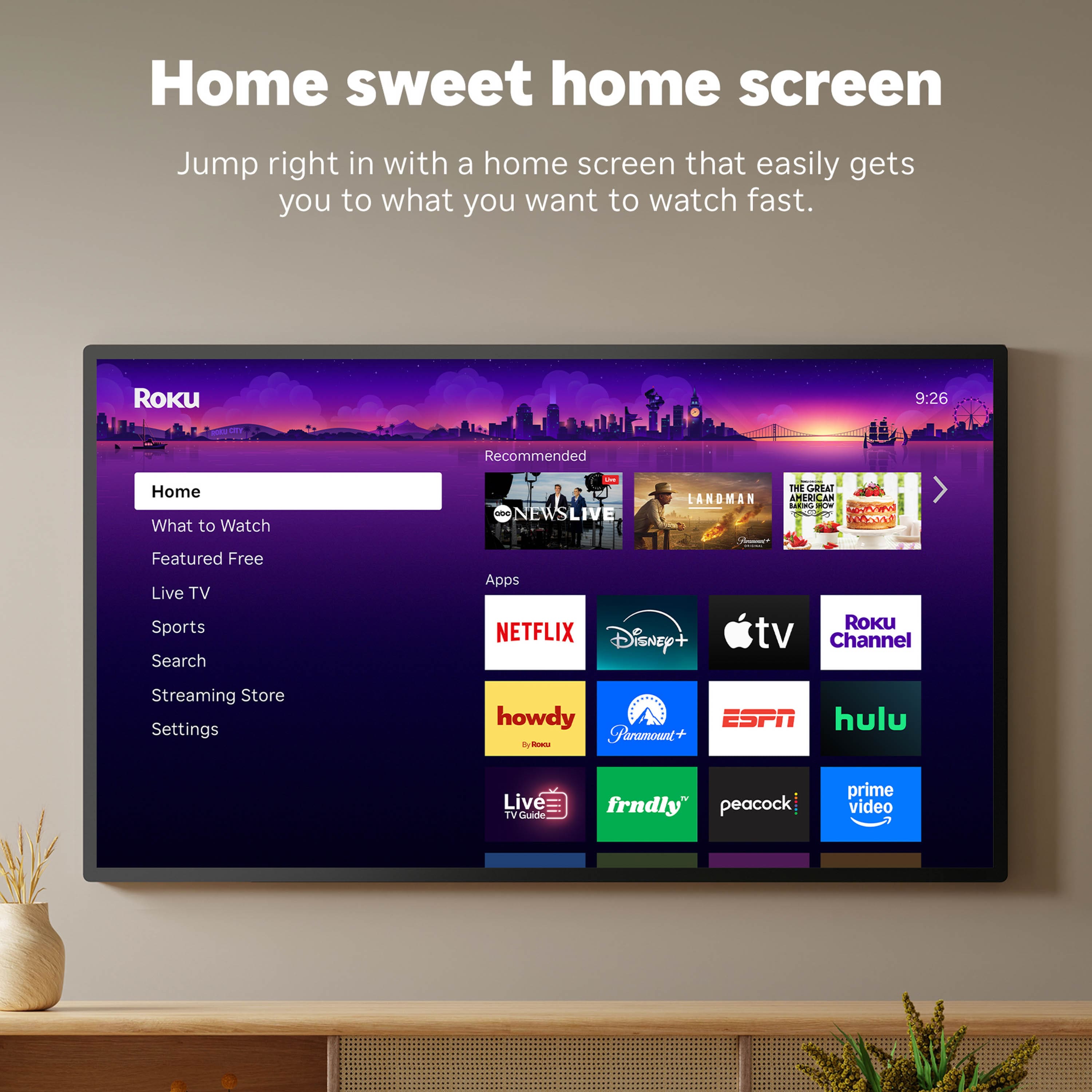
A:AnswerWhen you set it up it give you choices in what apps you may want and after that you can add any app that is a choice out there some are paid some are free. You can delete what you don’t want
A:AnswerI would not recommend this Google TV for anybody since it uses so much bandwidth for bloatware that all streaming seems to buffer severely. I have Spectrum 500mbps cable.
A:AnswerYeah it was a pain to shut it up. It kept talking to me and it was driving me nuts. It does use user voice control to control it if you have the right model.
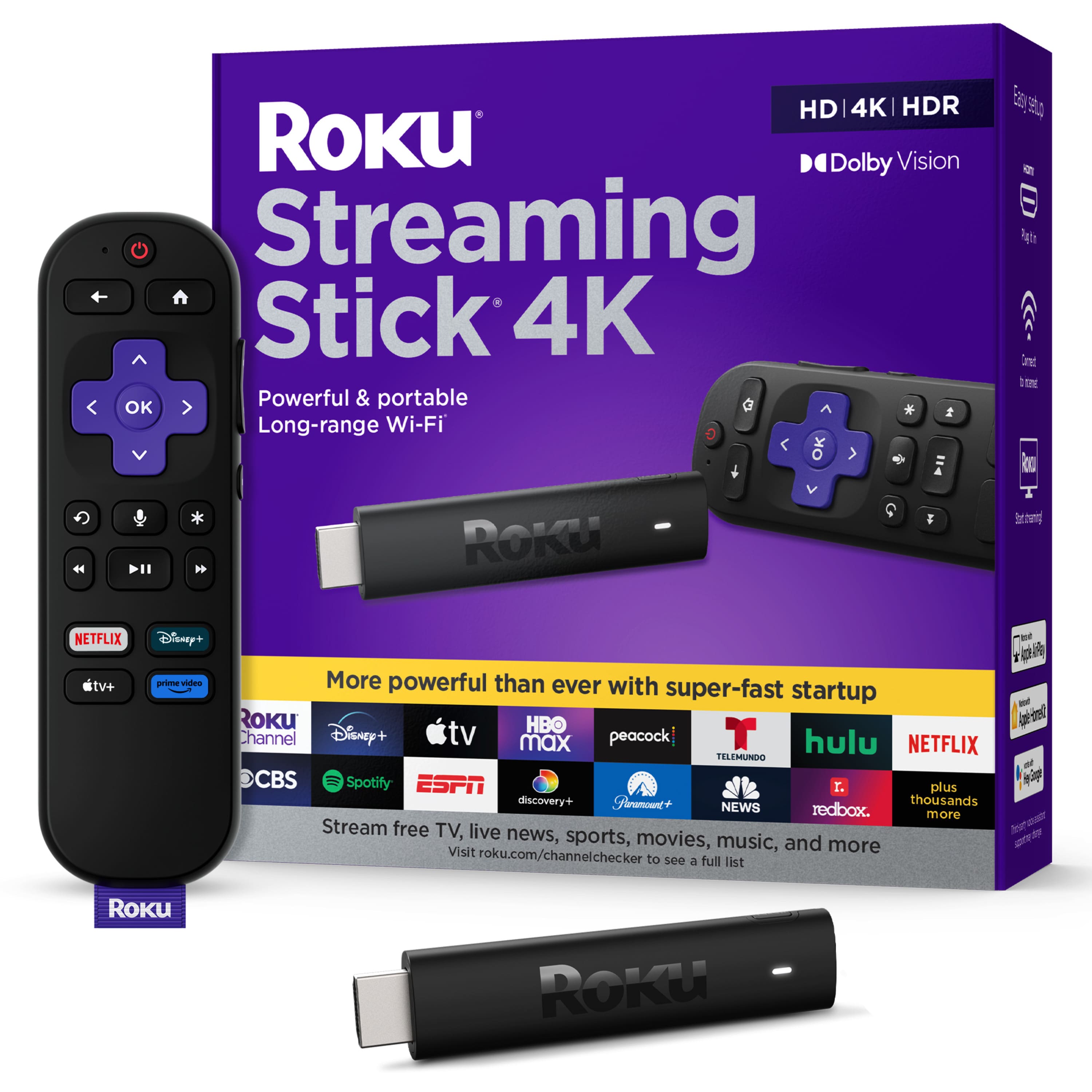
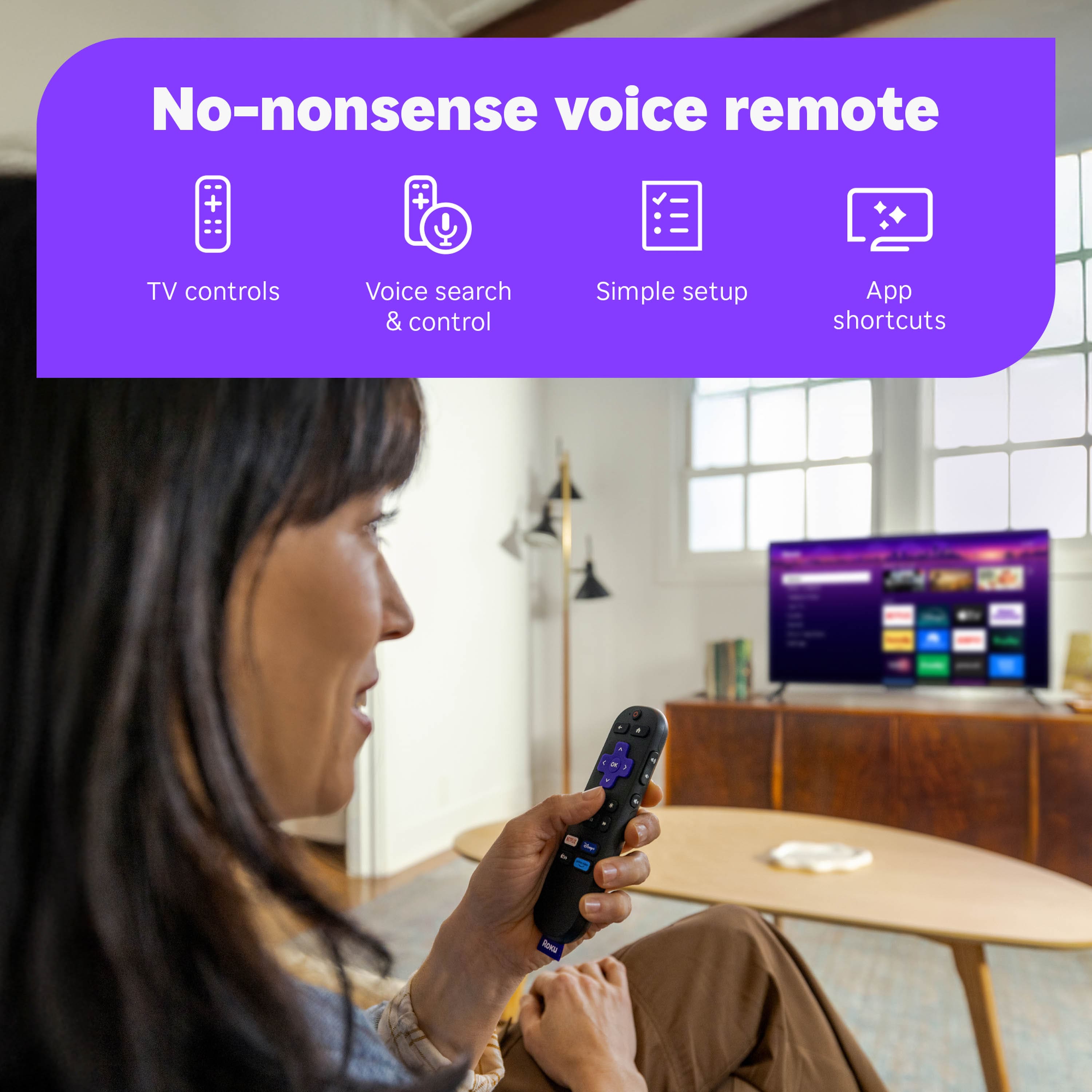
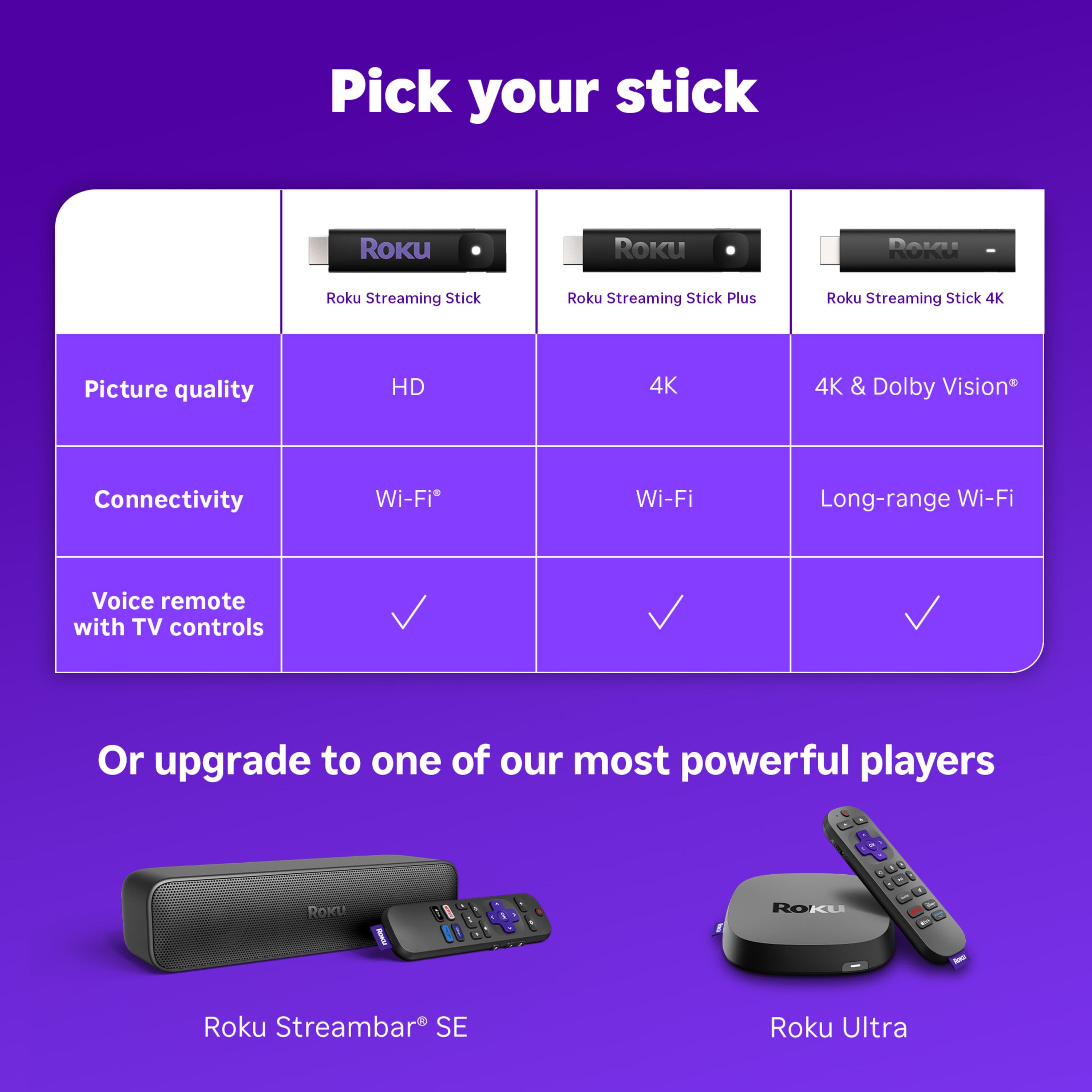
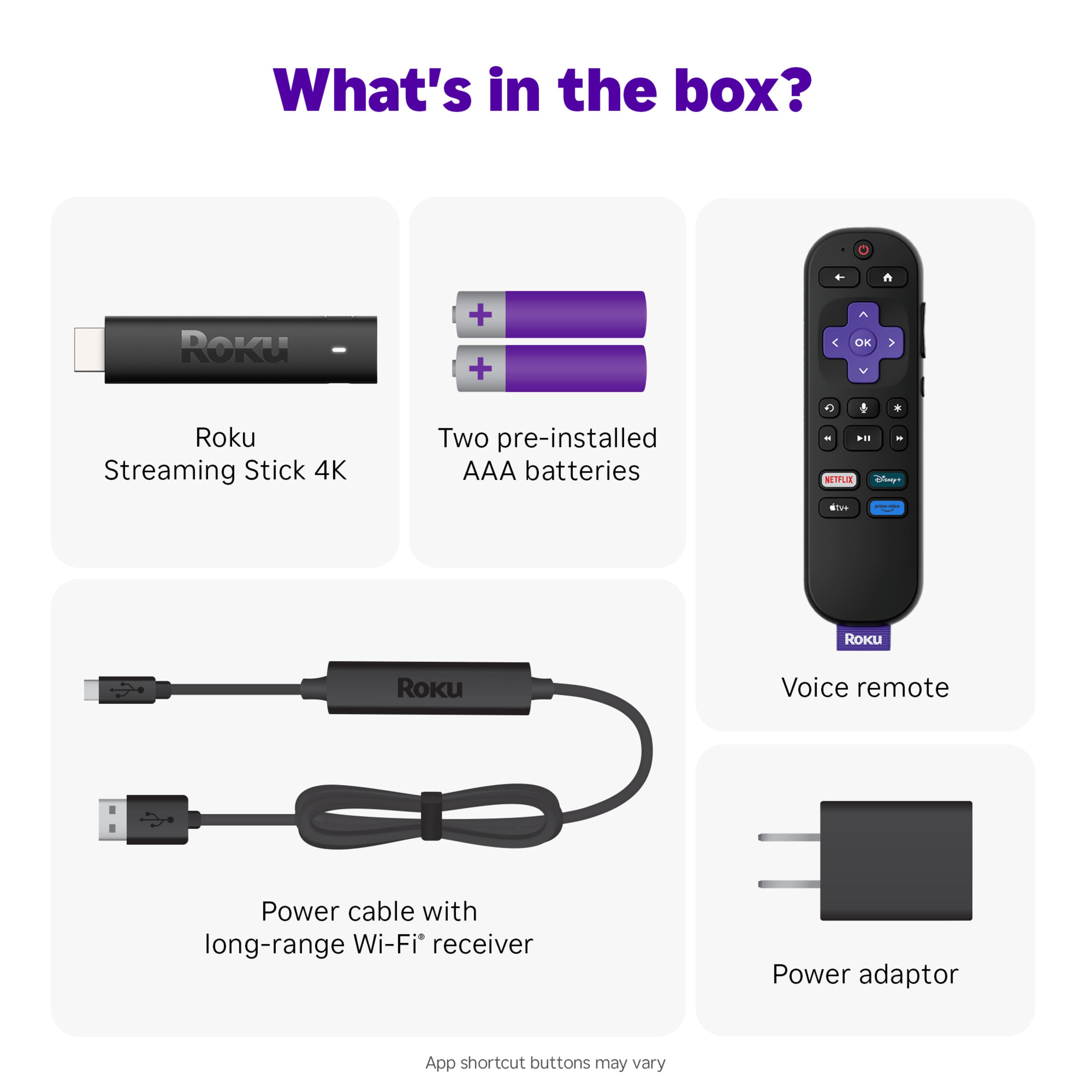
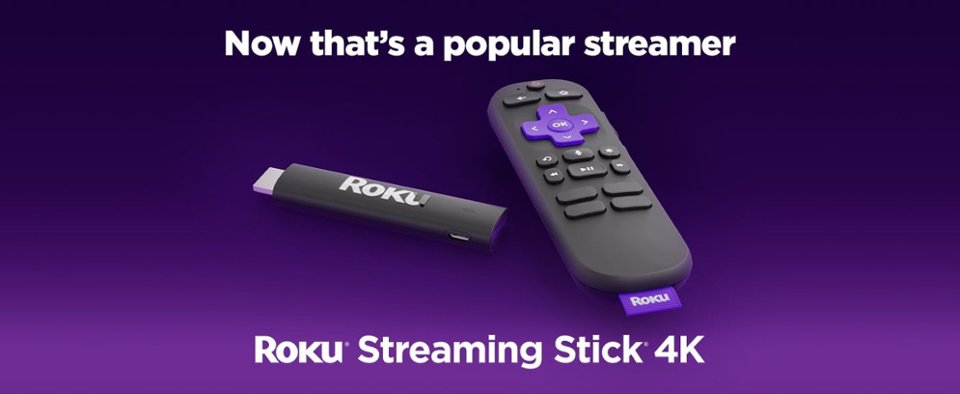
A:AnswerHello ! If you purchased a Roku soundbar that did not include a Roku voice remote with TV controls, you can purchase the Roku Voice Remote Pro or Voice remote with TV controls (sold separately). Both the Voice Remote Pro and Voice Remote are compatible with all Roku audio devices. It is possible to use the Roku Voice Remote included with the Streaming Stick 4K and pair it to your Roku soundbar. You can manually initiate the remote pairing process with a press and hold of the pairing button until the status light begins to flash. The pairing button and status light are located on the back of the Roku Voice Remote Pro and under the battery cover on the Voice remote.
A:AnswerHi, Themarklord ! The universal TV controls for power, volume and mute on the Roku Voice remote are compatible with most TV Brands including Vizio. For additional information on setting up a Roku Voice Remote for TV controls take a look at the guide linked here: https://support.roku.com/article/115013019828