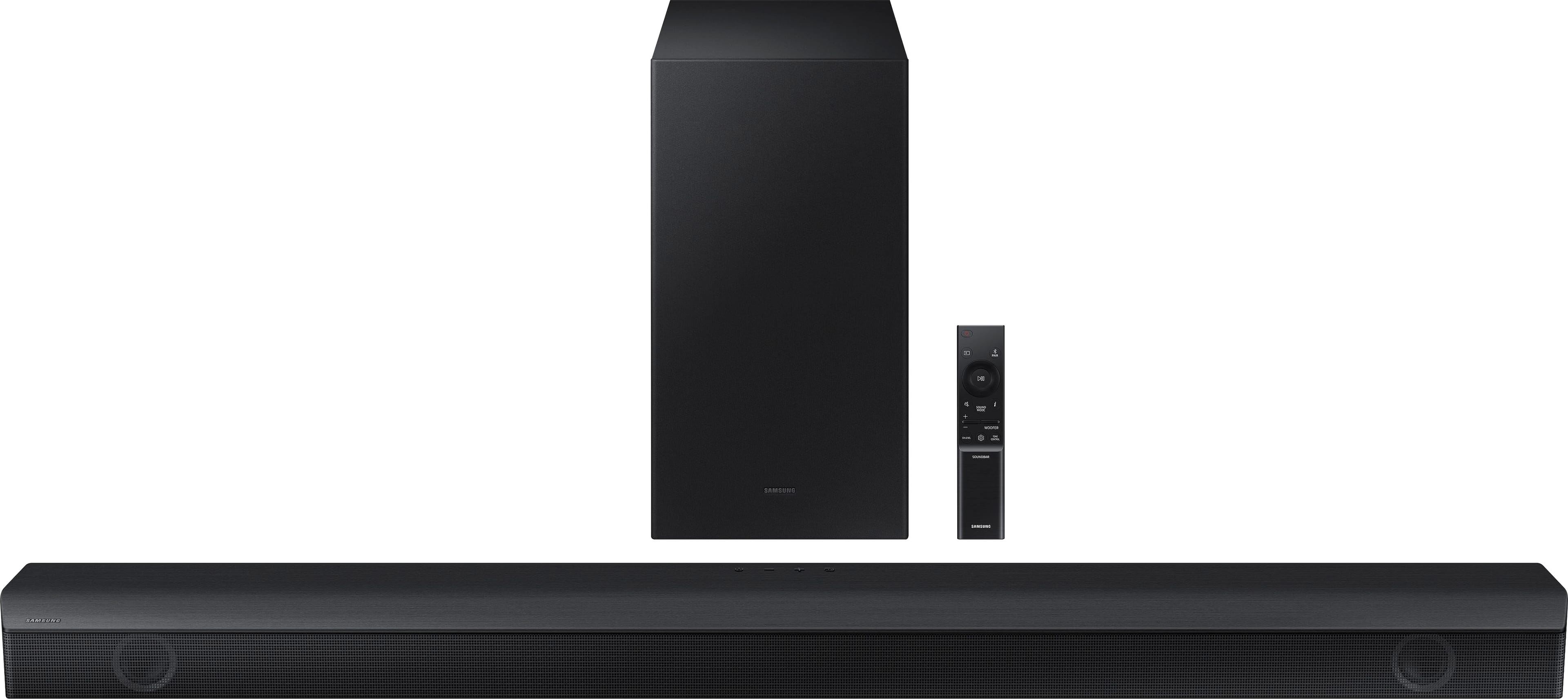
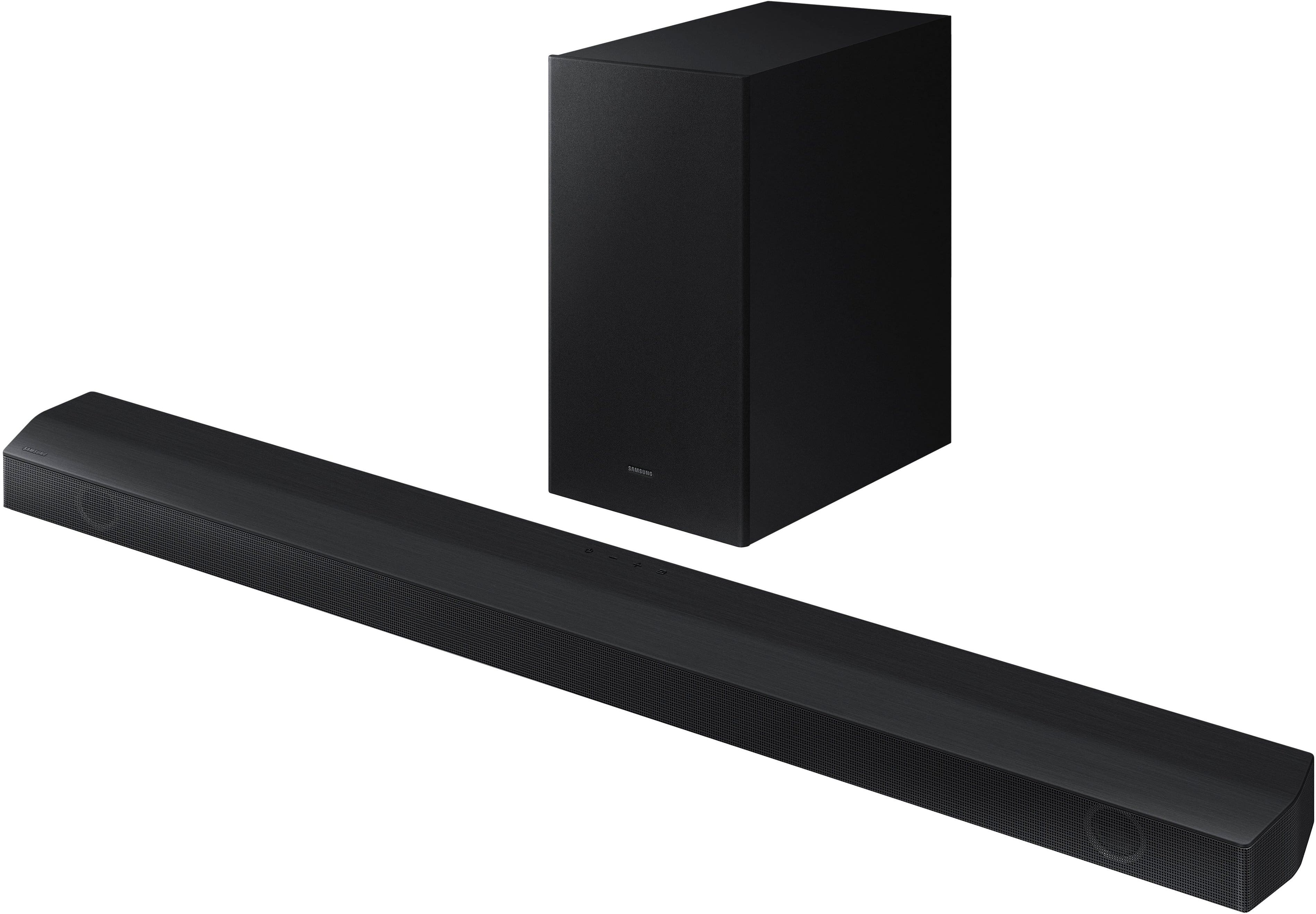
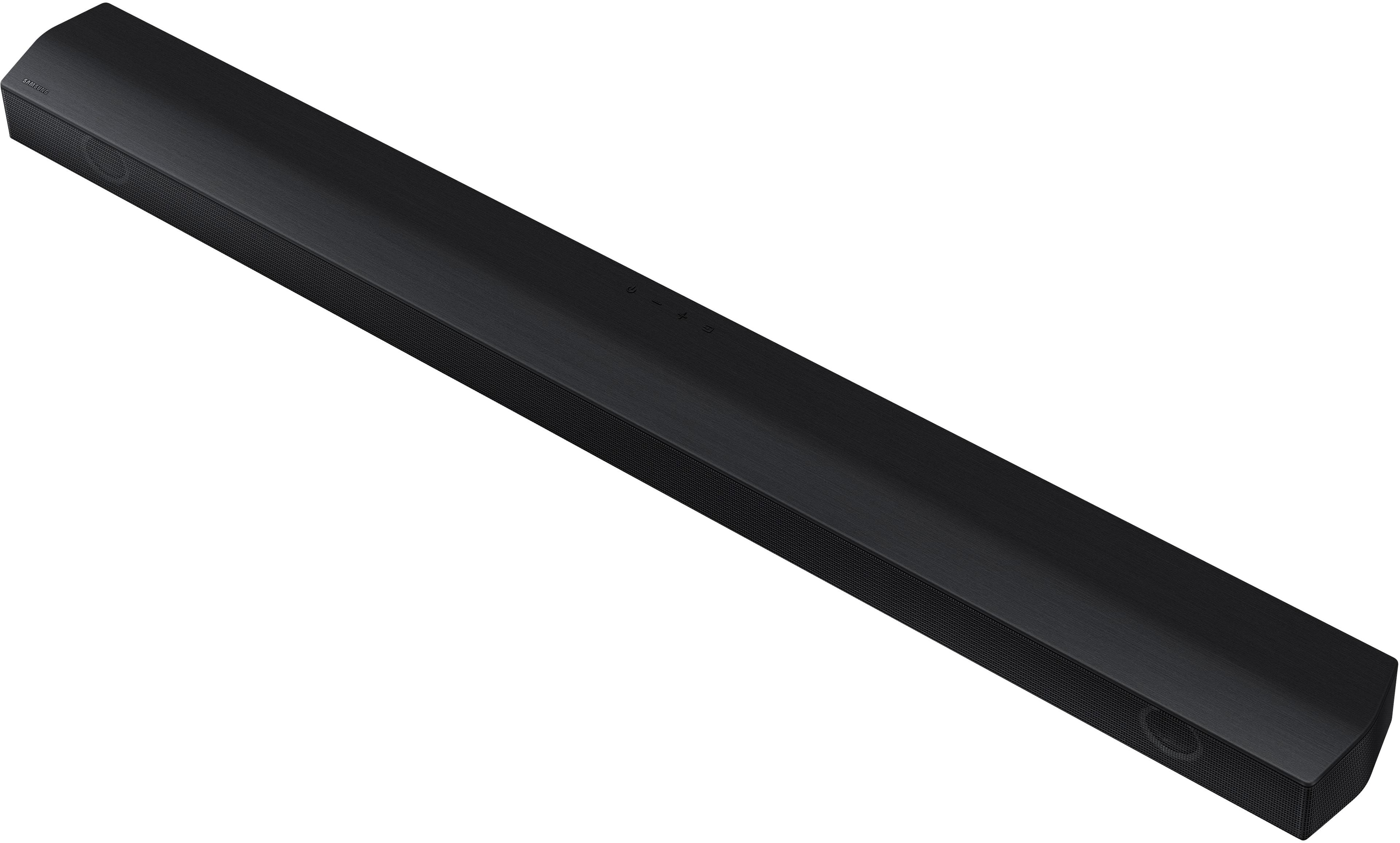
A:AnswerHello there! The HW-B650 features three ways to connect to an external device: HDMI (ARC), digital optical audio, and Bluetooth wireless audio technology. If your TV is compatible with one of these three audio connections, you should have no issue connecting the soundbar to your TV. ~Samsung Solutions
A:AnswerHello DigitalDruid, Yes the HW-B650 Soundbar features three ways to connect to your TV: HDMI (ARC), digital optical, and Bluetooth. You should have no issues connecting the soundbar to your TV. ~ Samsung Solutions
A:AnswerHello Lexi, You can try the following process 1) Press the PAIR button on the remote to enter BT PAIRING mode. You can also press the SOURCE button on the top panel and then select BT. “BT” changes to “BT PAIRING” in a few seconds automatically or changes to “BT READY” if there is a connect record. If BT READY appears, press and hold the SOURCE button on the top panel of the Soundbar for more than 5 seconds to display BT PAIRING.
If you need more help, Samsung is here for you. Please call us at 1-800-SAMSUNG, 8AM - 12AM EST (Ask for Soundbars), 7 days a week. Our Live Chat agents are also available by clicking on the ‘Support’ link on our website.
~ Samsung Solutions
A:AnswerHi Tommy, You may be able to adjust the HW-B650 Soundbar volume using the TV’s remote control used for the TV by adjusting the settings within the soundbar. This function can be used with IR remote controls only. Bluetooth remote controls (remote controls that require pairing) are not supported. Set the TV speaker to External Speaker to use this function.
1) Turn Off the Soundbar.
2) Push up and hold the WOOFER button for 5 seconds. Each time you push the WOOFER button up and hold it for 5 seconds, the mode switches in the following order: “Samsung-TV Remote” (Default mode), “Off-TV Remote”, “All-TV Remote”. The LED indicator status changes each time the mode is changed.
Should you need further assistance, please contact Samsung Support at 1-800-SAMSUNG (ask for Soundbars).
~ Samsung Solutions
A:AnswerHi Randy, The front Left and Right speakers: These deliver clear and powerful sound for dialogue and most of the action in movies and TV shows.
The Center Speaker: This speaker focuses on dialogue, ensuring that voices are clear and easy to understand.
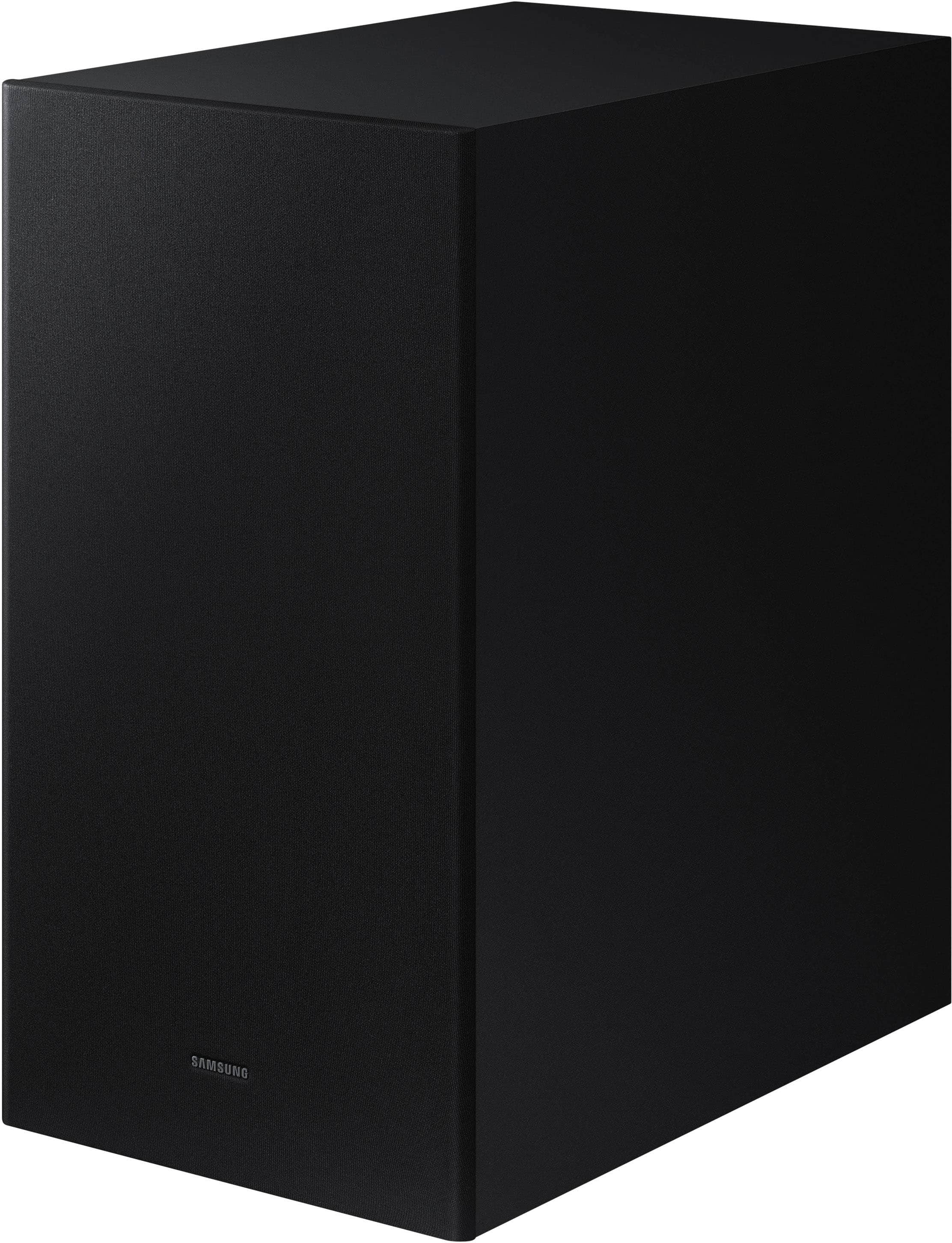
Subwoofer: The wireless subwoofer enhances the bass, adding depth and richness to the audio, especially for explosions and music.
Together, these speakers provide an immersive audio experience for your home theater setup.
~ Samsung Solutions
A:AnswerJim, The HW-B650 will work great with your new 85QN85D TV, however, I recommend either the HW-Q850D or the HW-Q930D which feature Q-Symphony. With Q-Symphony you will get multi-directional sound from both the Soundbar and the TV. The Hw-B650 does not have this feature. ~ Samsung Solutions
A:AnswerHi there!
If available, we recommend using the HDMI connection to your TV.
Connecting your soundbar to a TV through HDMI will provide the best audio and user experience, often eliminating any connection or delay issues you may be experiencing. There are 2 ways to connect your soundbar with HDMI: you can connect a device to your soundbar (like a Blu-ray player) and then connect the soundbar to the TV, or you can use HDMI ARC. The first method will give you the best possible sound from external devices you regularly use. ARC is the way to go if you want great sound from streaming apps on your TV and a soundbar.
~ Samsung Solutions
A:AnswerHi! The HW-B650 features three ways to connect to an external device: HDMI (ARC), digital optical audio, and Bluetooth wireless audio technology. If your TV is compatible with one of these three audio connections, you should have no issue connecting the soundbar to your TV. ~Samsung Solutions
A:AnswerHello Annalisa, As long as your soundbar is connected to your TV via HDMI ARC, you will be able to control the volume and power of your soundbar using your TVs remote. If the feature is not working, or you are not connected via HDMI, you can adjust the remote settings of the soundbar.
This function can be used with IR remote controls only. Bluetooth remote controls (remote controls that require pairing) are not supported. Set the TV speaker to External Speaker to use this function. 1) Turn Off the Soundbar. 2) Push up and hold the WOOFER button for 5 seconds. Each time you push the WOOFER button up and hold it for 5 seconds, the mode switches in the following order: “Samsung-TV Remote” (Default mode), “Off-TV Remote”, “All-TV Remote”. The LED indicator status changes each time the mode is changed. Should you need further assistance, please contact Samsung Support at 1-800-SAMSUNG. ~Samsung Solutions
A:AnswerHi Bubba, Yes, the HW-B650 Soundbar would be a good choice, but if you want surround sound, and power with a feature-rich experience the HW-Q930D Soundbar would make a great addition. ~ Samsung Solutions
A:AnswerHello dimi, Depending on your Samsung TV's model you can try going to all settings → General → Accessibility → Multi-output Audio. From here you can have audio to play from your soundbar and your headphones. ~ Samsung Solutions
A:AnswerHi there, The HW-B650 features three ways to connect to an external device: HDMI (ARC), digital optical audio, and Bluetooth wireless audio technology. If the device is compatible with one of these three audio connections, you should have no issue connecting the soundbar to it. ~Samsung Solutions