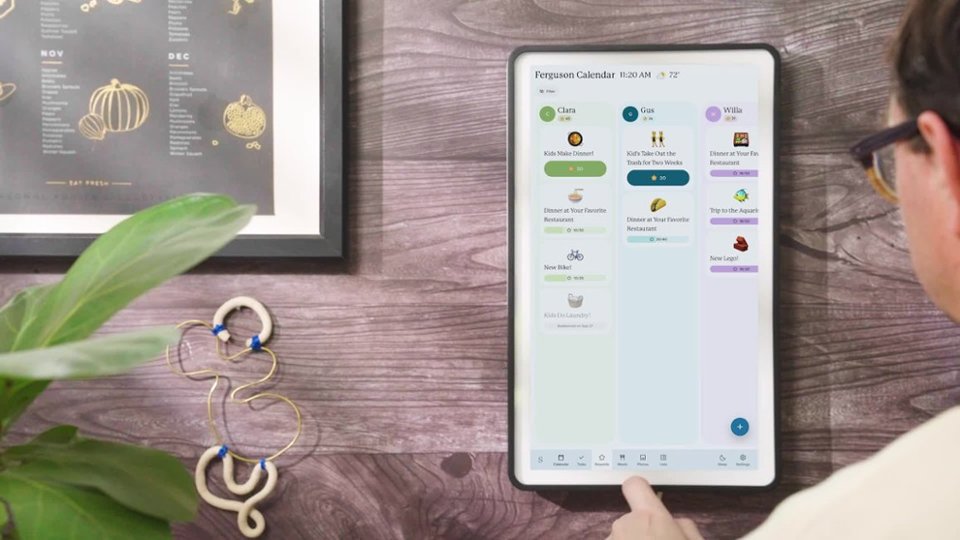
A:AnswerHi, there! The Skylight Calendar does have the functionality to be a photo screensaver when not in use. The photo screensaver feature is a part of our Calendar Plus subscription and you can find more information on that here: https://skylight.zendesk.com/hc/en-us/articles/32171114576283-What-is-Calendar-Plus
A:AnswerHi, there! No, music can not be played through the Skylight Calendar. If you have any other questions, don't hesitate to reach out to us at vip@myskylight.com and the Calendar Concierge team would be happy to help.
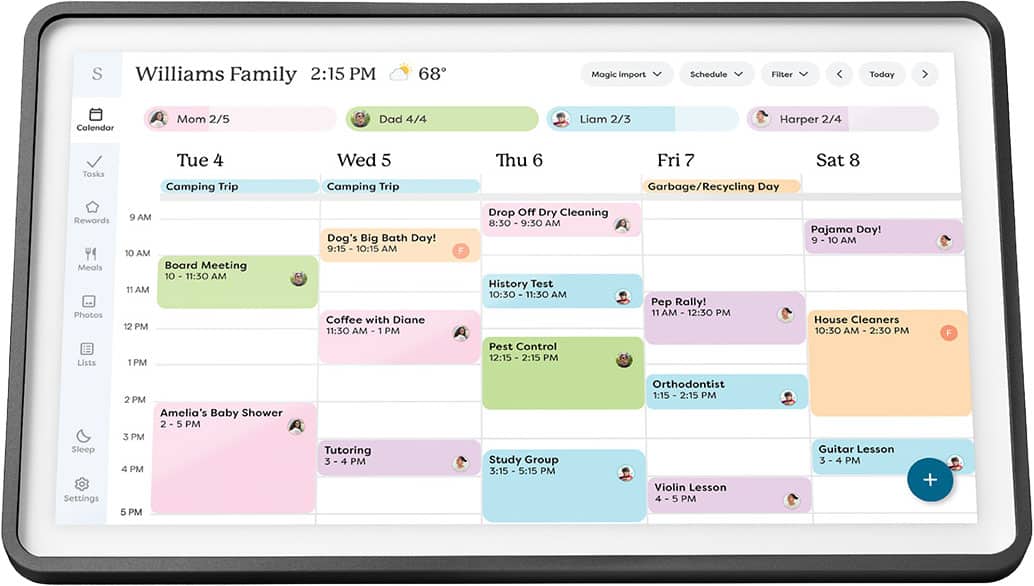
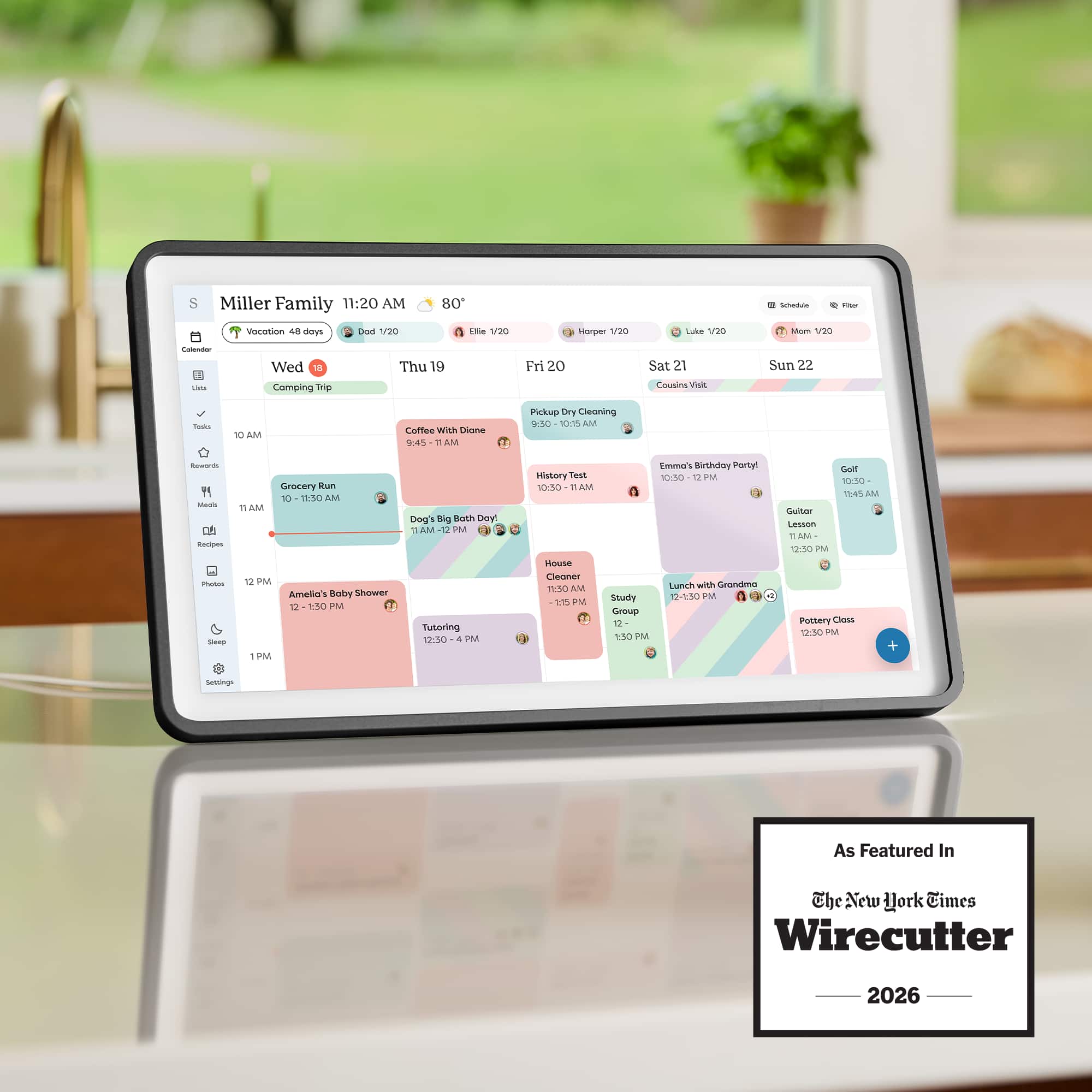
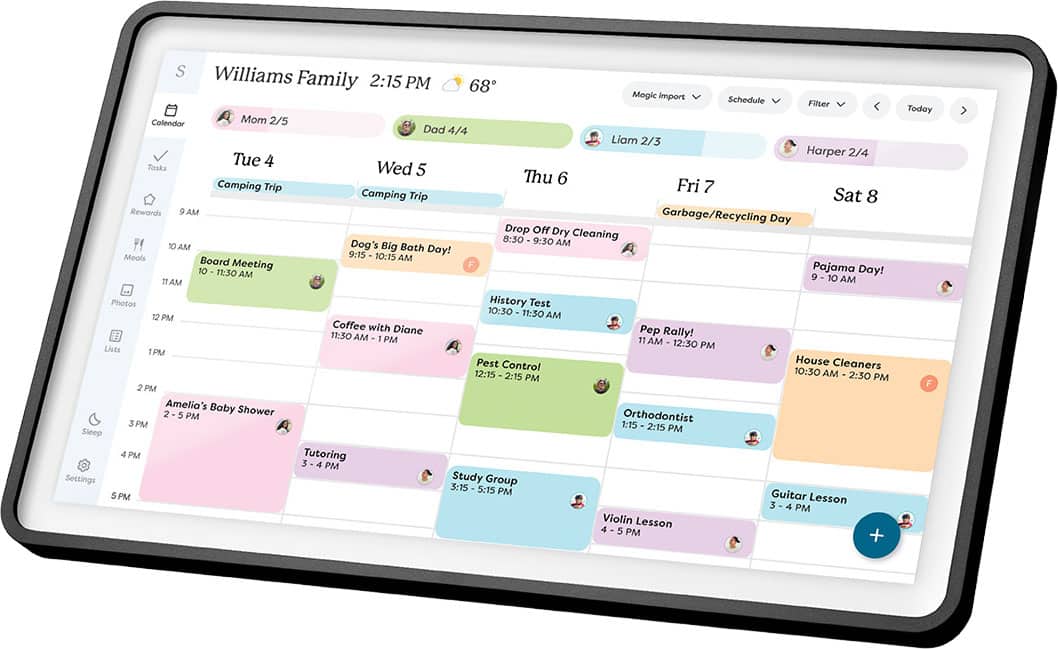
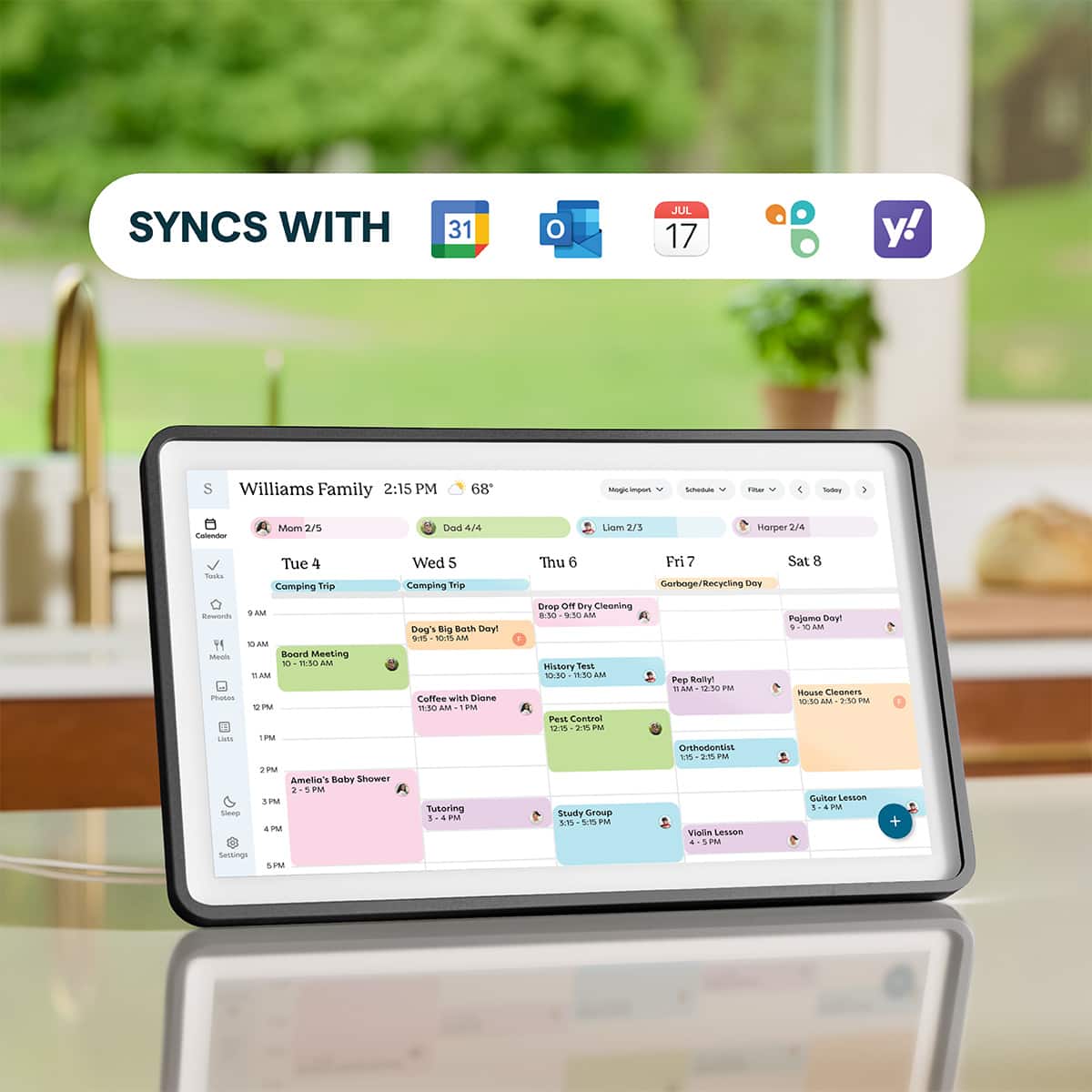
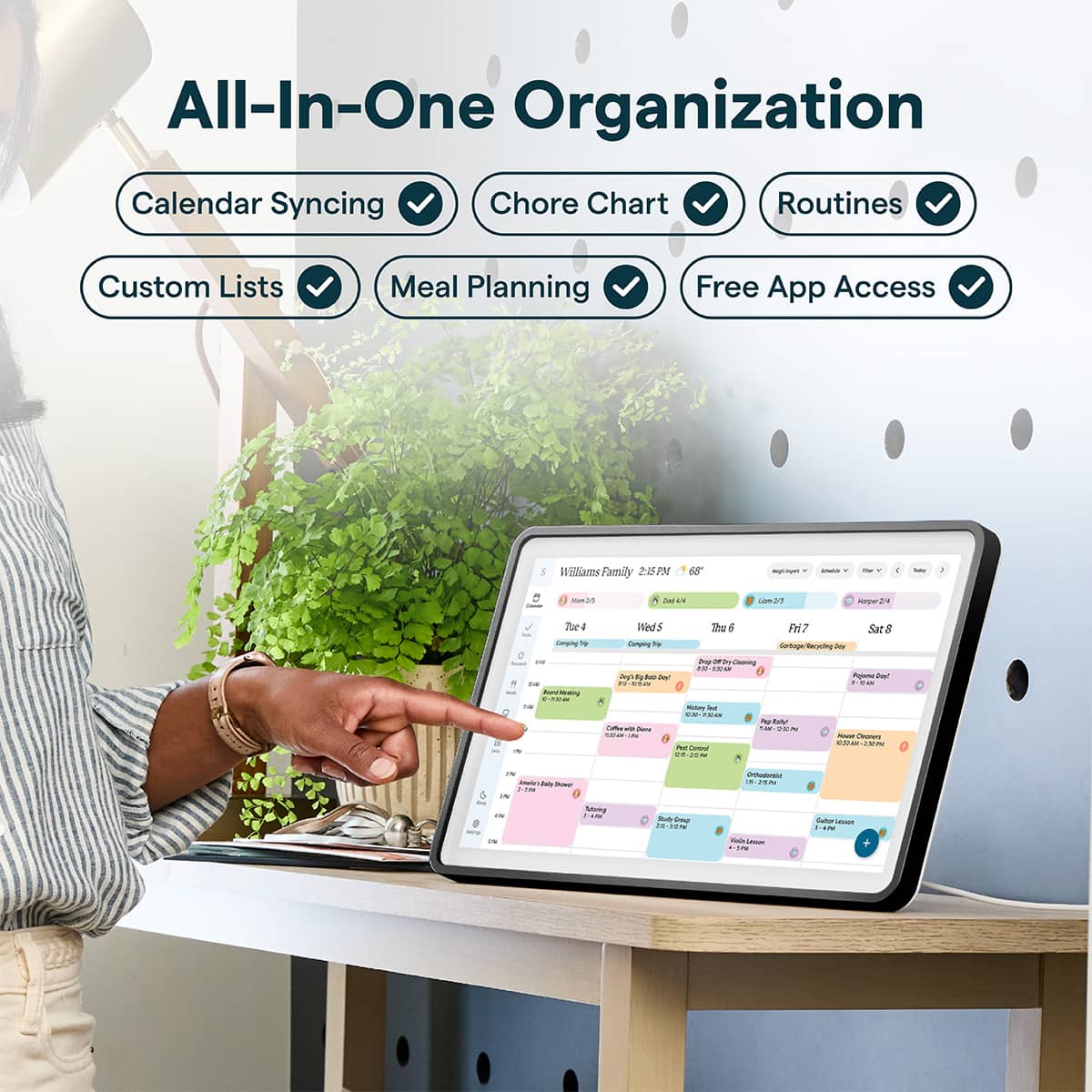
A:AnswerHi! Yes, you can have multiple external calendars (Gmail, iCal, etc) connect with the Skylight Calendar. If you have any other questions, don't hesitate to reach out to us at vip@myskylight.com.
A:AnswerHi, E! This is a perpetual calendar, so you will be able to use it for years to come! Feel free to shoot us an email at vip@myskylight.com if you have any other questions and our team would be happy to help.
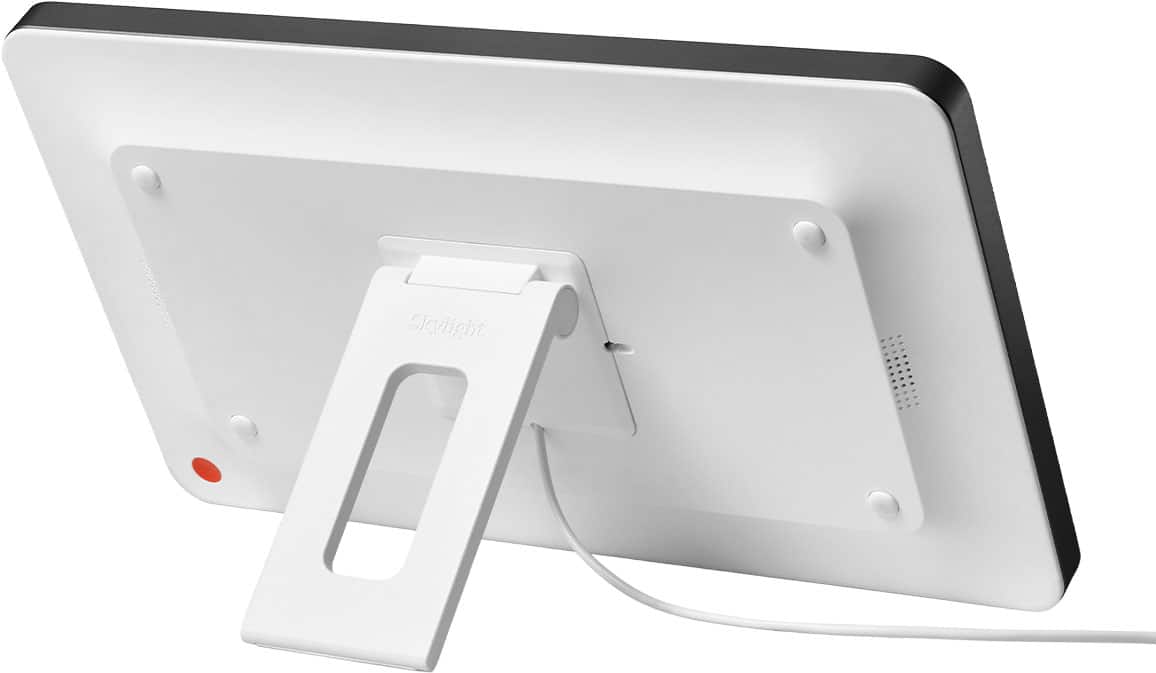
A:AnswerHi, TomCody! Yes, you can detach the power supply from the Calendar, but please keep in mind that to function, it does need to be attached and plugged in. If you have any other questions, don't hesitate to reach out to us at vip@myskylight.com and we'd be happy to help!
A:AnswerHi, Lu! Yes, the photo slideshow/screensaver is a feature included in the Calendar Plus subscription for the Skylight Calendar. If you have any other questions, feel free to email us at vip@myskylight.com and we'd be happy to help!
A:AnswerHi, Burnsiecat! We can’t feed your cat but you can use the meal planning feature to track how much and how often to feed your pet! We hope this helps!
A:AnswerHi, Jenn! Yes, as long as your Google calendar is synced to your mom's Skylight Calendar, the event will show up, even if you're in a different state. If you have any other questions, feel free to reach out to us at vip@myskylight.com and we'd be happy to help.
A:AnswerIt syncs with all calendars! That’s the best part about it!
You definitely need to buy the subscription. It makes it a lot easier to sync things. You can take a screenshot of dates and it will add it to the calendar for you!
A:AnswerHi there! The Calendar can only be mounted on the wall with the included safety-tested hardware or displayed on a counter with the included stand. It also needs to be plugged in to function. If you have any other questions, don't hesitate to email the Concierge team at VIP@myskylight.com with any questions. Thank you!
A:AnswerHi, Pavan! Thank you for your interest in Skylight. I will link an article here outlining the capabilities of Outlook with the Calendar. If you. have additional questions, please email us at vip@myskylight.com.
https://skylight.zendesk.com/hc/en-us/articles/4410168052635-How-to-sync-an-Outlook-Calendar-To-Skylight
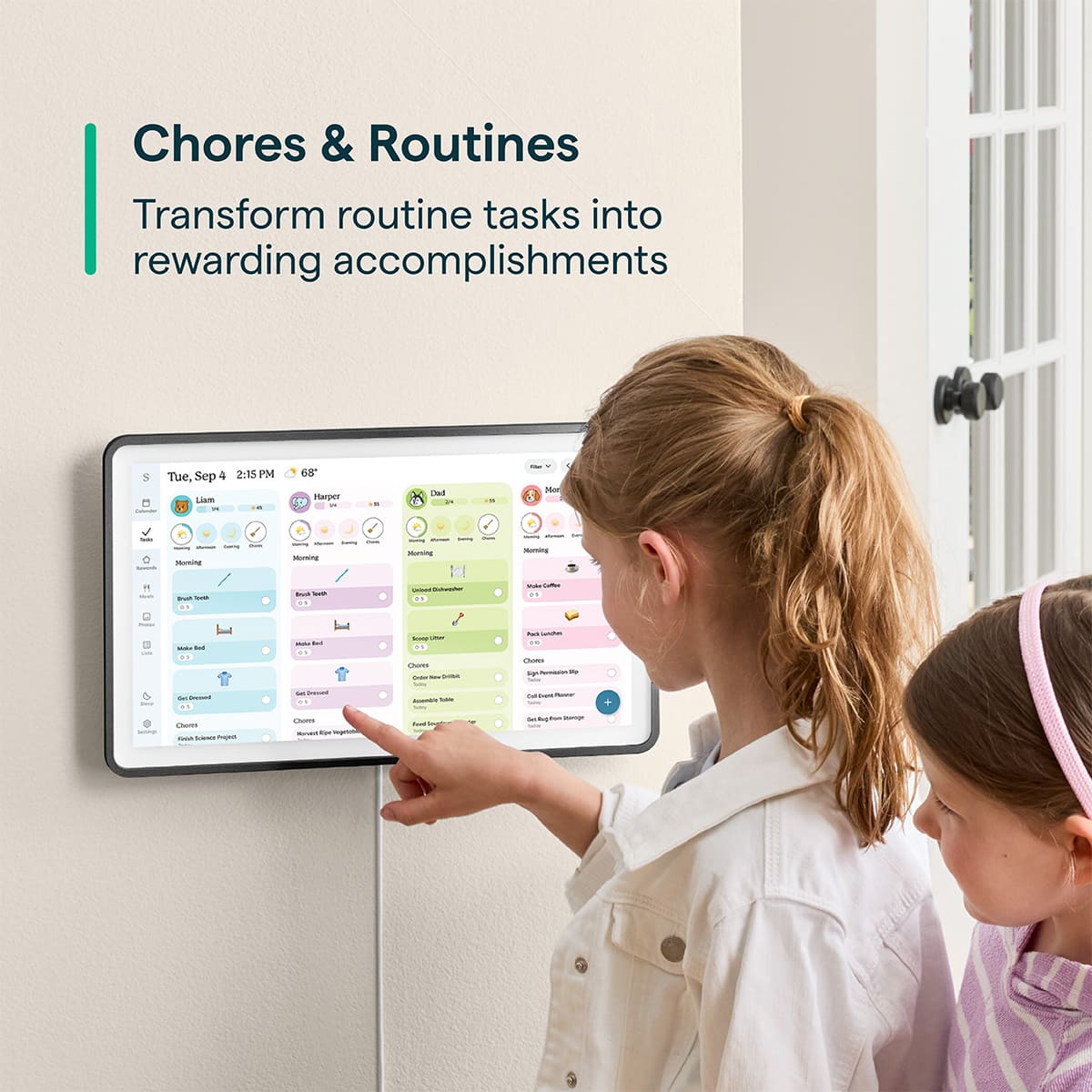
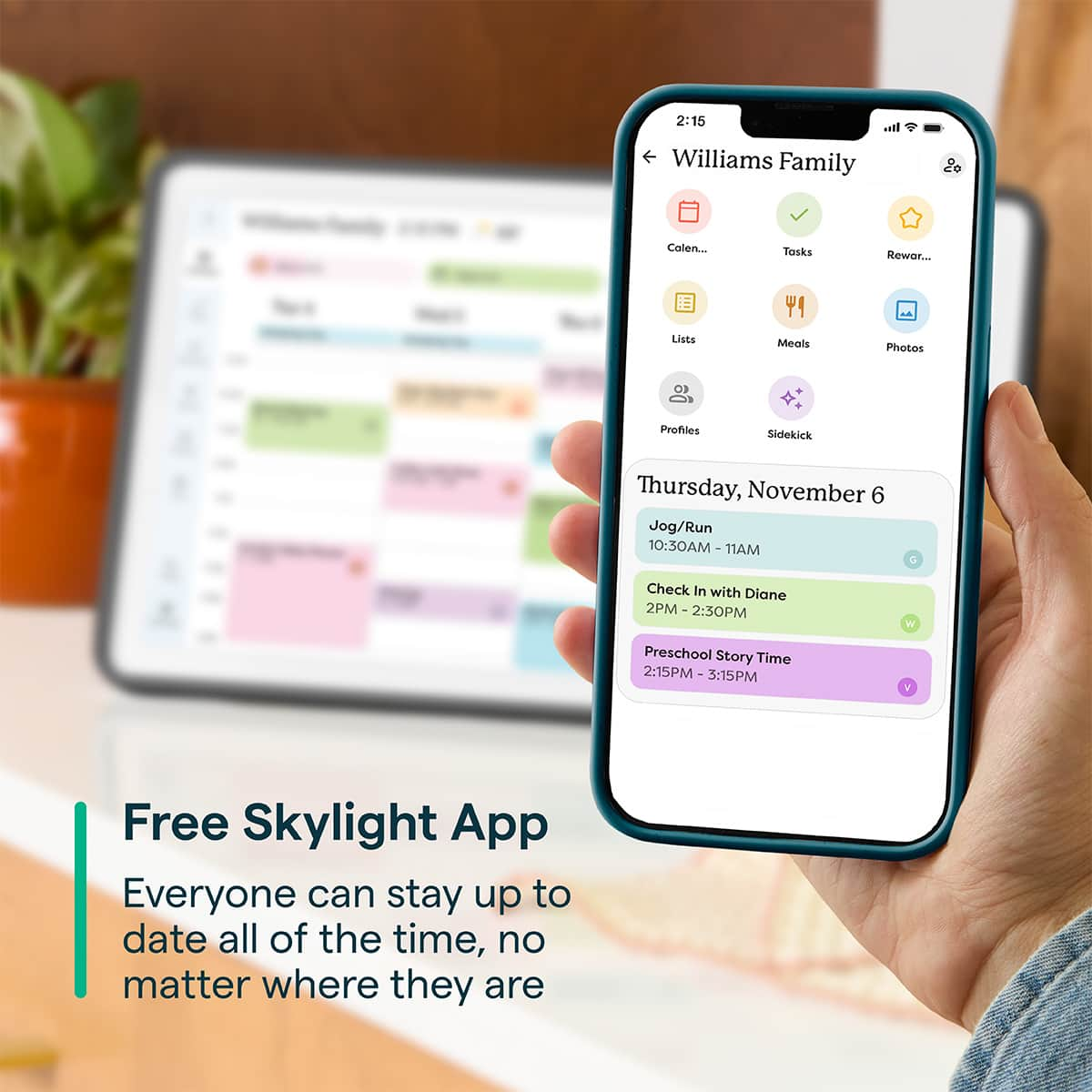
A:AnswerHi, Chrissy! A subscription is not required to access core features like events, chores and routines. Calendar Plus is our premium subscription service that provides access to exclusive features like the Photo/Video Screensaver, Sidekick, Chore Rewards, Meal Planning, and more. If you have any other questions, please email us at vip@myskylight.com and our Calendar Concierge team would be happy to help!
A:AnswerHi there! Recipes are available with the optional Calendar Plus subscription. Once you have Plus, you can add recipes through the Skylight app in a few different ways. You can enter them manually, paste a recipe URL, forward a recipe by email, upload or take a photo, or even use the microphone to add one.
A:AnswerHi there! The Skylight Calendar does not include a built in battery and needs to stay plugged in using the included power adapter to operate. This helps ensure the screen stays on and the Calendar stays updated for your family throughout the day.
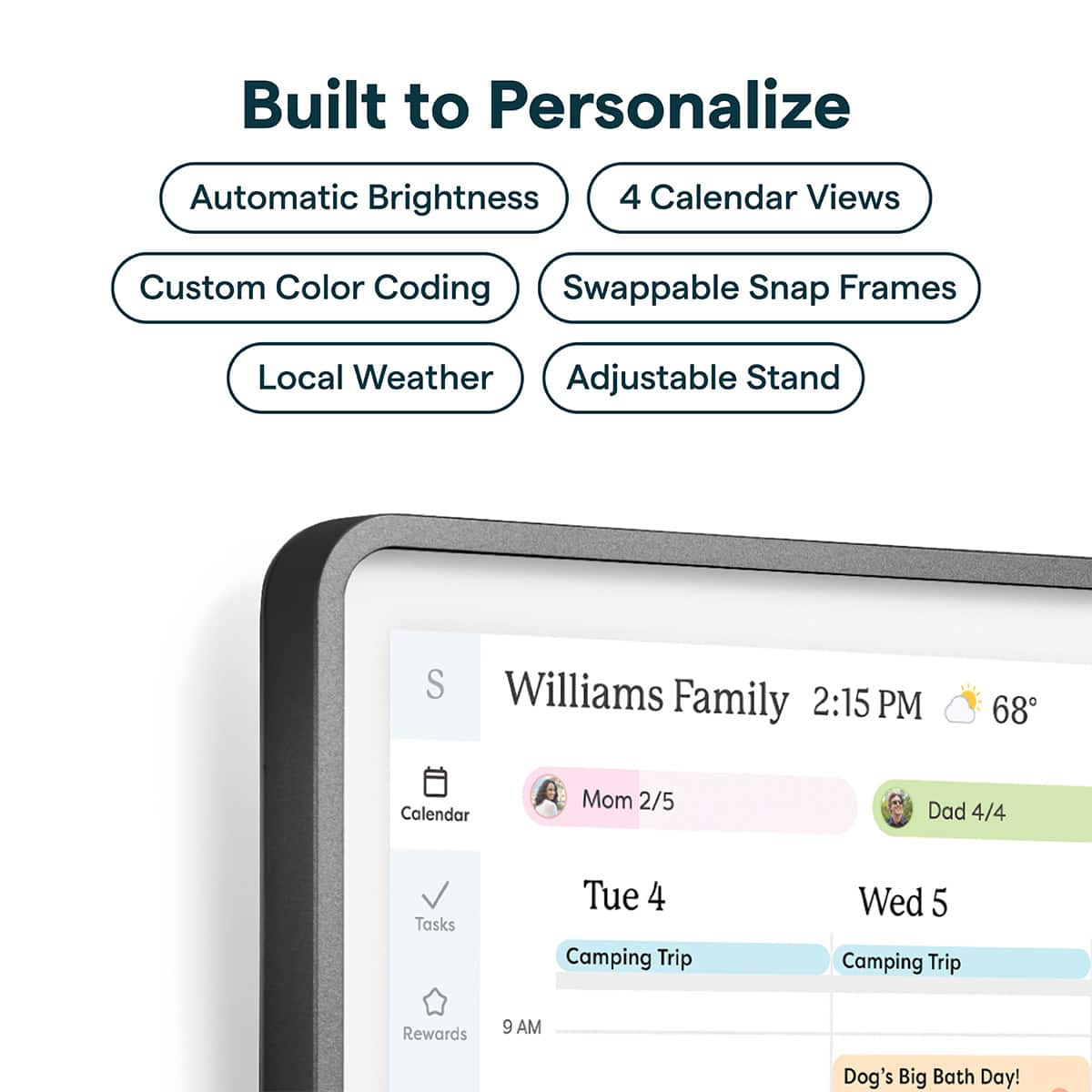
A:AnswerHi there! Calendar 2 includes a few hardware upgrades compared to the 15 inch model. It features interchangeable Snap Frames, a redesigned tabletop stand, and improved processing power. Both devices run the same Skylight software, so you’ll have access to the same free and Plus features on either one.