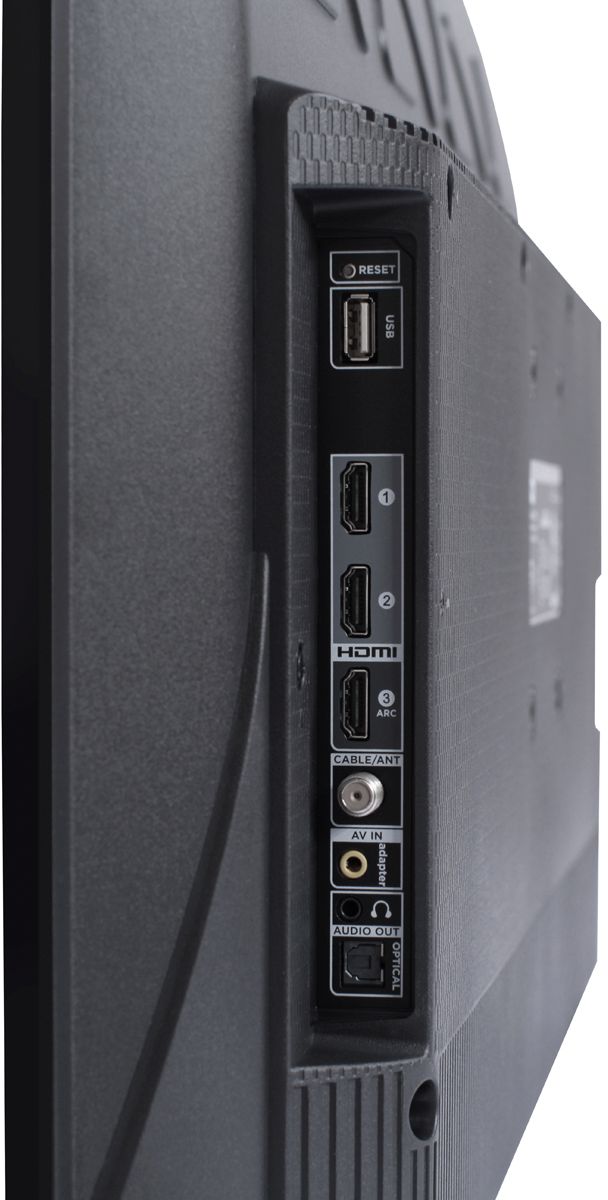
A:AnswerThe USB port supports 500 mA. However, it is not designed to be the sole power provider for external devices and accessories. Hope this helps! Thank you, TCL Customer Support
A:AnswerWe have various series for our TCL Roku TV that have different features and capabilities. Each series grows on the previous one. You can visit https://www.tclusa.com/us/products/home-theater/3-series and scroll down to "Compare All Models" to see the different series compared. Hope this helps! Thank you, TCL Customer Support
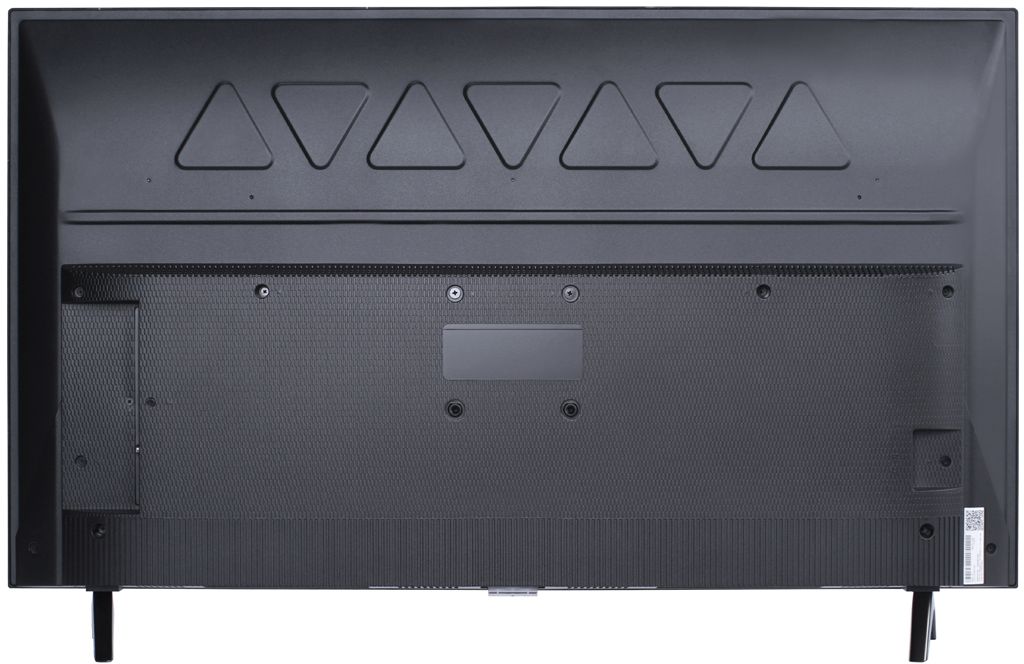
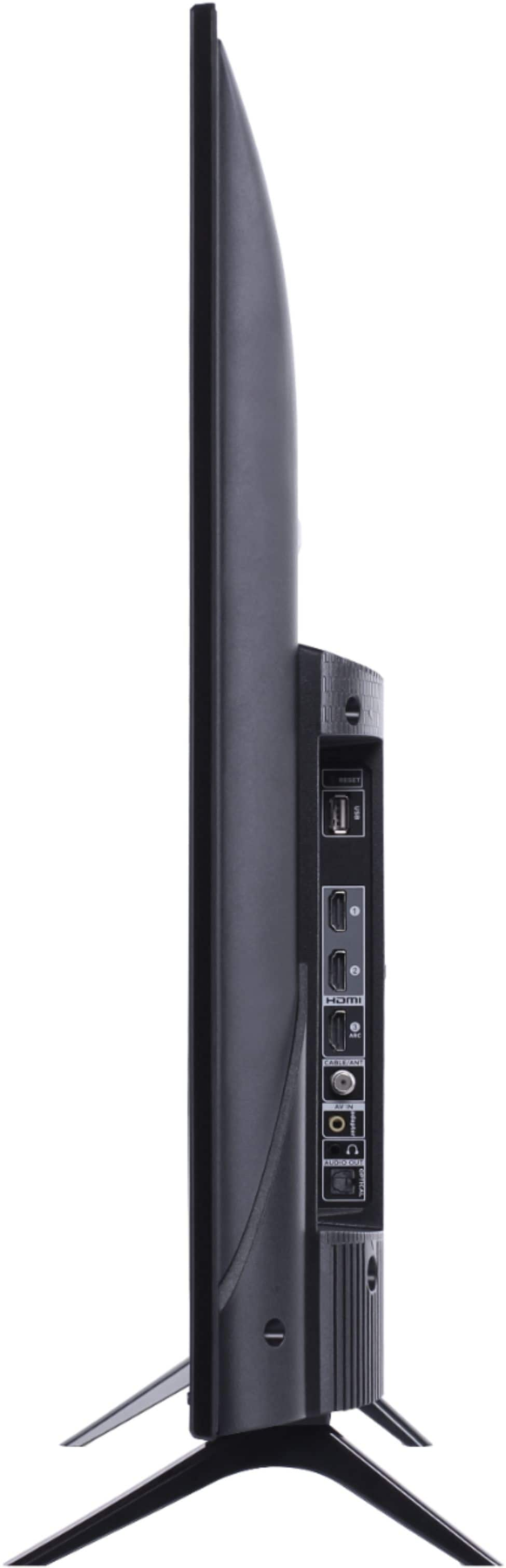
A:AnswerThis TCL Roku TV is compatible with most DVD players. You would simply want to make sure that it has the same type of connection as the TV. This TV has the following inputs: 3 HDMI (one with HDMI ARC), 1 USB (media player), Coaxial, Composite, Headphone Jack, and Optical Audio Out. Hope this helps! Thank you, TCL Customer Support
A:AnswerScreen mirroring with a Roku device is not supported with iOS or Apple devices. However, you can download the free Roku mobile app on your smartphone to use as a remote, cast personal photos and videos to the TV, experience private listening, etc. You can also cast select channels (Such as YouTube) from your Apple device. You can visit https://support.roku.com/article/208754928-how-to-use-screen-mirroring-with-your-android-or-windows-device for more information. Hope this helps! Thank you, TCL Customer Support
A:AnswerYou can go to www.Roku.com/whats-on to see what streaming channels and apps are offered through the Roku Channel Store. To search for a specific channel you would simply want to enter that information into the search section. Hope this helps! Thank you, TCL Customer Support
A:AnswerYou can find different picture settings by pressing the asterisk (*) button on your remote while watching content. Under the option of "Picture Size" you can change the way the picture adjusts to the screen size. Hope this helps! Thank you, TCL Customer Support
A:AnswerWhen headphones are connected to the TV for private listening it will automatically mute the TV speakers. However, you can download the free Roku app on your smartphone or tablet to use with your TCL Roku TV. By using the app you can use voice search, voice control, and experience private listening. You can currently connect up to 4 phones with the Roku app to the TV, and everyone can connect to their own phone with wireless headphones to experience private listening. Thank you, TCL Customer Support
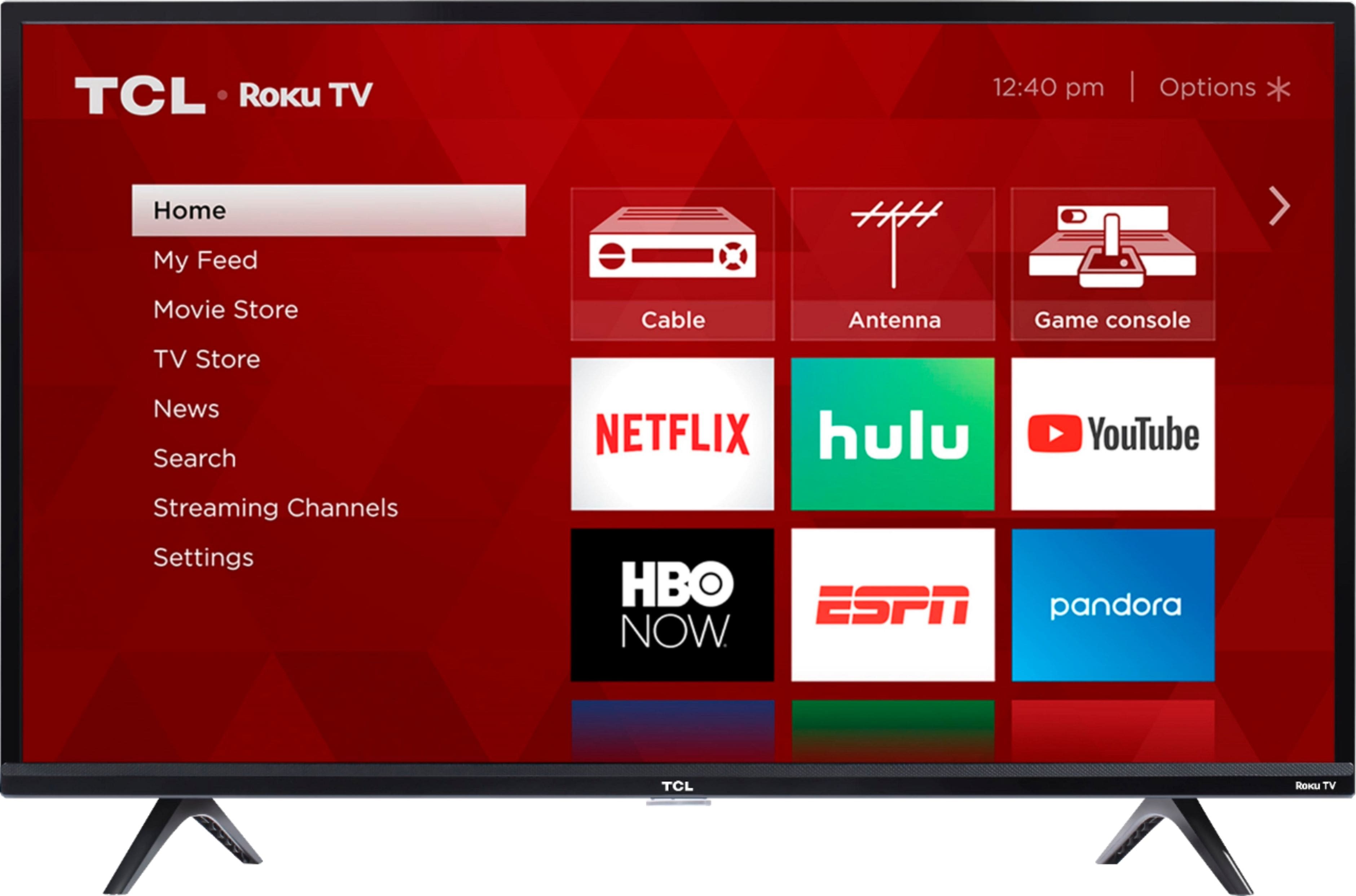
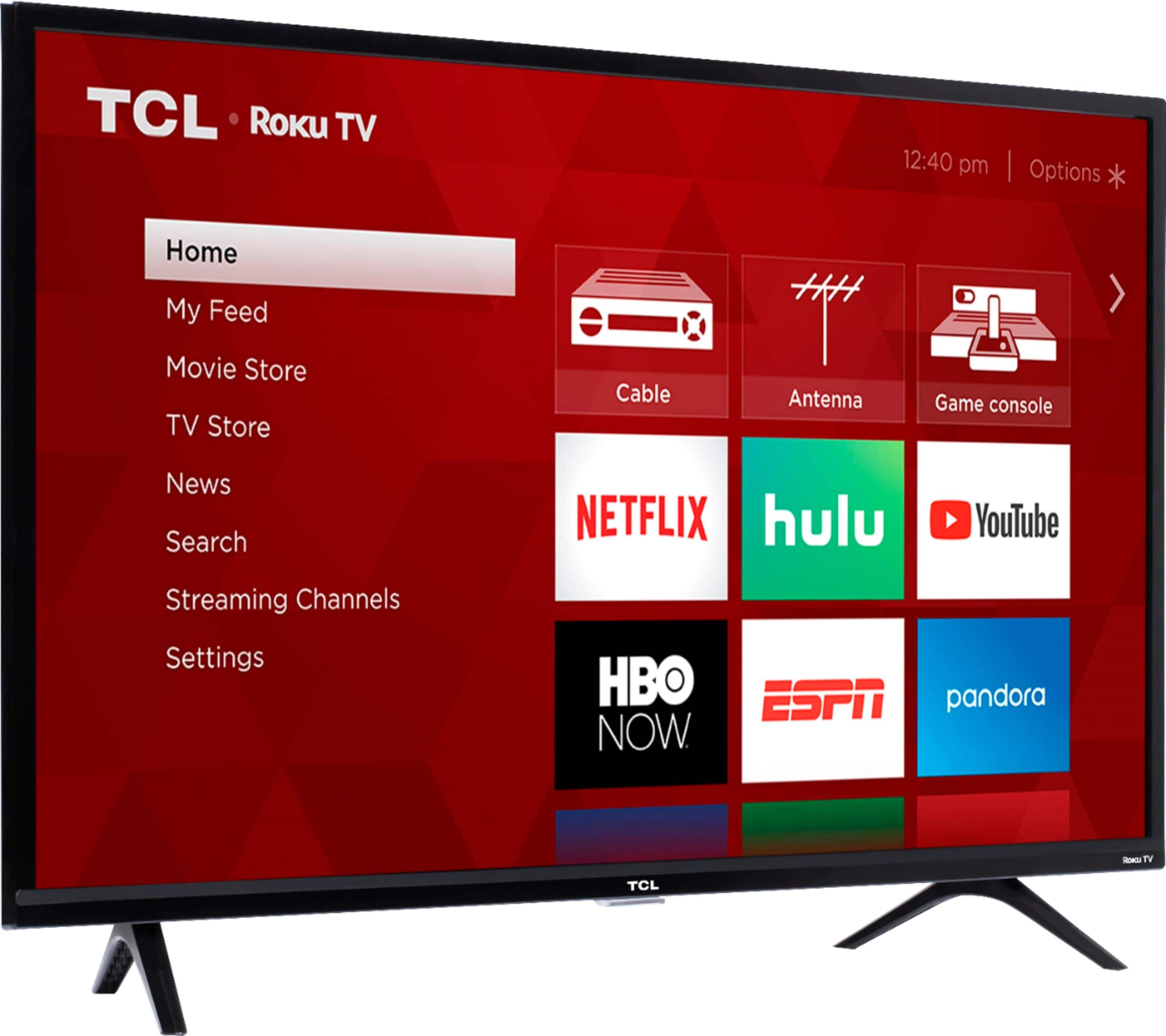
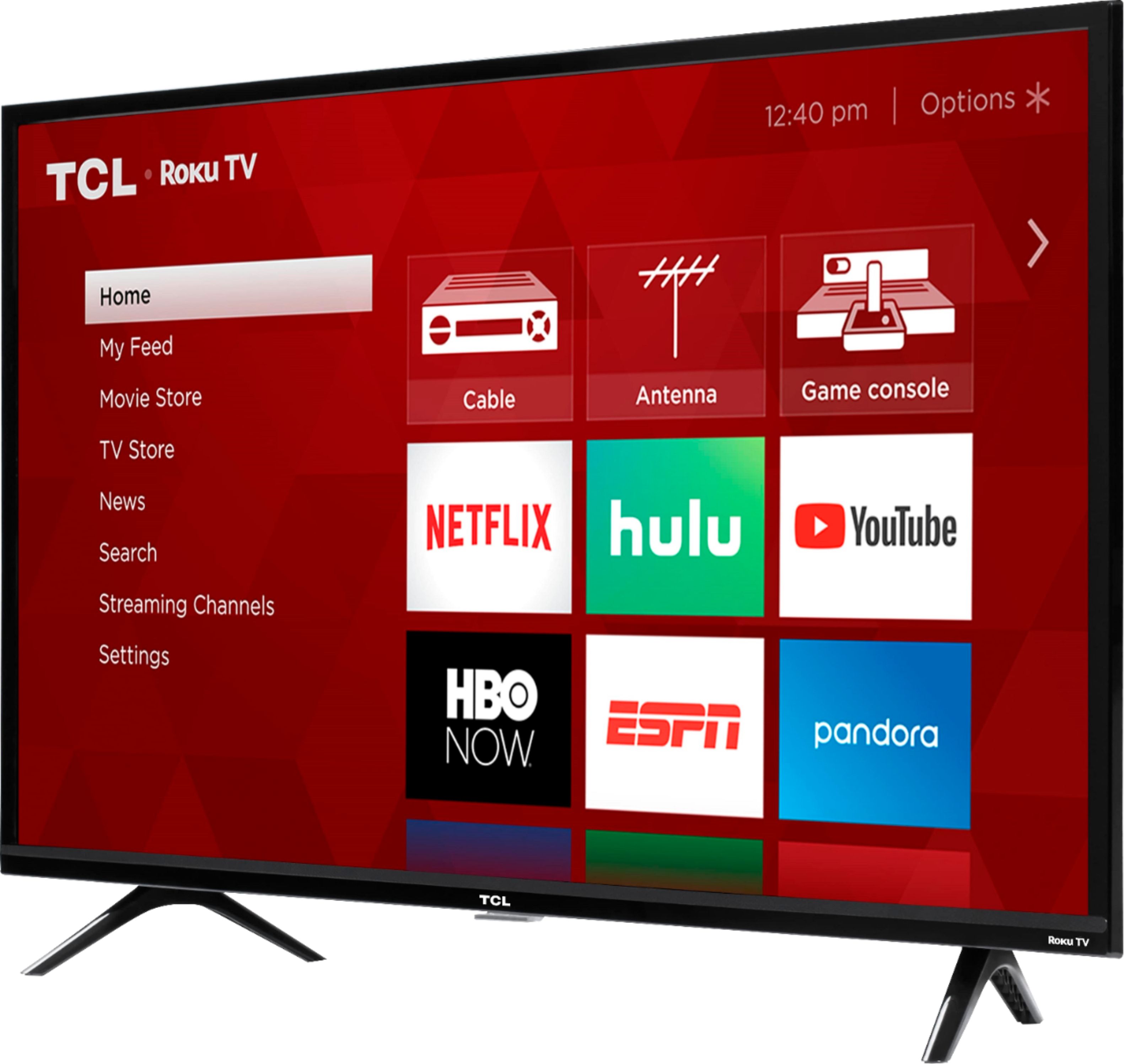
A:AnswerThis TCL Roku TV has a Roku OS, and uses the Roku Channel Store. It does not have access to the Google Play Store. Thank you, TCL Customer Support
A:AnswerScreen mirroring with a Roku device is not supported with iOS® or Apple devices. However, you can download the free Roku mobile app on your smartphone to use as a remote, cast personal photos and videos to the TV, experience private listening, etc. You can also cast select channels (Such as YouTube) from your Apple device. You can visit https://support.roku.com/article/208754928-how-to-use-screen-mirroring-with-your-android-or-windows-device for more information. Hope this helps! Thank you, TCL Customer Support
A:AnswerIn order to be able to control your soundbar with the TV remote it would need to be connected through the HDMI ARC port and CEC settings enabled. CEC settings can be found by going to Home>Settings>System>Control Other Devices(CEC). Thank you, TCL Customer Support