A:AnswerYes, the device can be conveniently set up in Access Point Mode during installation or at any time using the Tether app. Please refer to our FAQ on how to use the feature here: https://www.tp-link.com/us/support/faq/1401/
A:AnswerNo, a computer is not required. You can easily and intuitively set up the Wi-Fi extender using the WPS button method, or using the TP-Link Tether app on your smartphone.
A:AnswerIf you are referring to extenders you already own and have set up with a previous router, you have some options. One would be to configure the new router with the same Wi-Fi Name (SSID), encryption method, and password as the previous router, and the extender(s) should automatically reconnect. However, if you would prefer to use a different SSID and encryption with the new router, you would want to reset the extender(s) using the reset button by pressing and holding it for 10 seconds. Then, configure the extenders using the steps outlined in the included Quick Installation Guide, whether it be via WPS, the Tether app, or a web browser.
A:AnswerExtenders are placed, after configuration, in an area that is open, unobstructed and between the router and where service is needed. This area also need to have a strong signal.
A:AnswerHi! The extender can't log in via a captive portal (web browser authentication page) method; however, depending on the configuration of the root network, you may be able to extend its signal, but connecting devices will still be required to authenticate via captive portal web browser login.
A:AnswerHi! Brick walls are one of the most notorious enemies of Wi-Fi signals. That said, your results will ultimately depend on various factors, such as: how far your router's signal reliably reaches, since the extender will need to be installed in a location where the router's signal is stable, and obstructions such as distance and walls between the extender and your smart irrigation system's Wi-Fi receiver.
A:AnswerHi! For a Wi-Fi extender to help improve your existing Wi-Fi signal strength and coverage, it must first be installed in a location where the root network's signal is sufficiently strong and stable. That said, while it can help improve coverage in those specified circumstances, your Internet speed and bandwidth will depend on your Internet plan and the speed provided by your router to the extender.
A:AnswerHi! Theoretically, yes. However, we generally advised against using more than two extenders in direct sequence, as this may result in a significant impact on bandwidth.
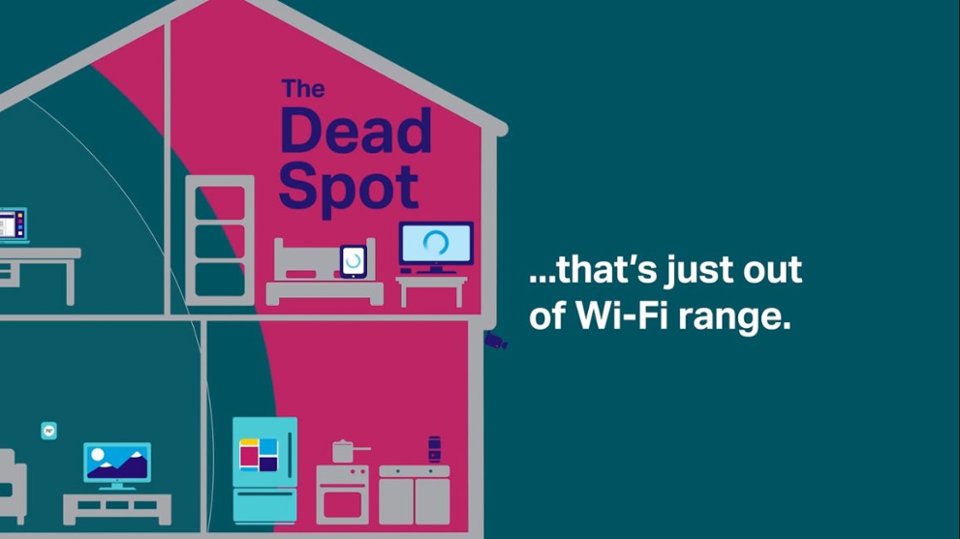
A:AnswerHi! That's a tough one to answer without knowing how much coverage your existing router provides, in which area(s) of your home, where your Wi-Fi dead zone(s) are, and the physical layout/construction of your home, as obstructions such as walls will play a role in how much additional coverage the extender can provide.
A general rule with most range extenders is to install them approximately halfway between your router and the Wi-Fi dead zone you want to extend the signal into.
A:AnswerHi! Yes, TP-Link Wi-Fi extenders are universally compatible with Wi-Fi routers. Please note that most routers or Wi-Fi gateways provided by Internet companies will have their WPS buttons disabled by default, so we generally suggest exploring the other setup methods listed in the included installation guide.
A:AnswerIts possible. You would need access to the SSID and password of the hotel WiFi. You would also want to make sure there is no long in portal as it could affect the device working.
A:AnswerHi. It is possible but it really would depend on the signal strength. Going through 2 exterior walls does really dilute a wireless signal. Make sure the re is placed in an open area with no obstructions and that has a strong signal from the router in order to maximize the signal of the re.