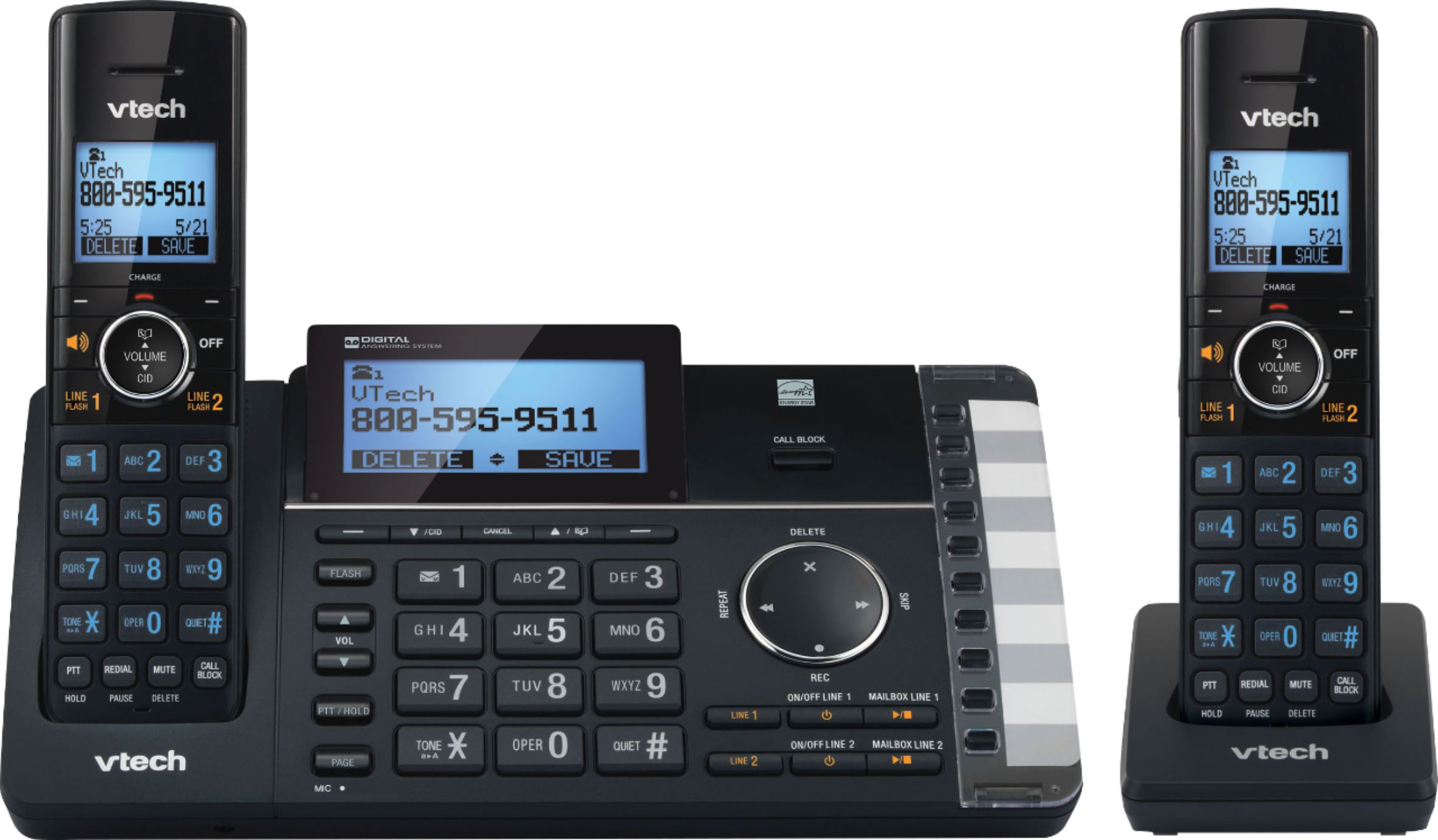
A:AnswerDiana - No, the VTech DS6251-2 does not have an auxiliary/data port to connect other devices to the same line. You may use a line splitter to connect multiple devices on the same line or connect the credit card terminal to a different jack that carries the same number. Thank you! - VTech Support
A:AnswerSparky - The compatible accessory cordless handset of the VTech DS6251-2 is the model DS6250. The telephone base supports a maximum of 12 cordless handsets. Thank you! - VTech Support
A:AnswerBob - We are sorry to hear that you are having an issue with the L2 of the VTech DS6251-2. Please make sure that you are using the telephone cord that came with the phone. The type of telephone cord to use depends on the type of jack you have. If you have one jack that carries both lines, please make sure to use the cord that has 4 pins or the RJ14. If you have two single line jacks, you need two telephone cords connected at the back of the telephone base. If this does not help, like many electronic devices, a system reboot may resolve the issue. You can try rebooting your phone system by disconnecting the power from the telephone base then unplugging the batteries on the cordless handsets for a minute. Reconnect and test. If the issue still persists, please contact VTech Customer Support for further assistance at 1-800-595-9511. We are open from 9:00 AM to 3:00 PM, Mondays through Fridays. When calling, please have your model number handy: DS6251-2. Thank you! - VTech Support
A:AnswerHi - If you are referring to the Phonebook/Directory of the VTech DS6251-2, the unit has the capability to store up to 50 phone numbers. If you have other questions, please contact VTech Customer Support for further assistance at 1-800-595-9511. We are open from 9:00 AM to 3:00 PM, Mondays through Fridays. When calling, please have your model number handy: DS6251-2. Thank you! - VTech Support
A:AnswerHi - The VTech DS6251-2 does not have a reset factory option. If you need assistance with your unit, you may contact VTech Customer Support at 1-800-595-9511. We are open from 9:00 AM to 3:00 PM, Mondays through Fridays. When calling, please have your model number handy: DS6251-2. Thank you! - VTech Support
A:AnswerHi - Yes, you can remotely access the built-in answering system of the VTech DS6251-2. Here's the procedure to remotely access the answering system.
1. Dial your phone number on any touch tone phone.
2. Once the answering system answers, enter your unique remote access code.
3. Enter a remote command.
You may see the full list of commands in the manual under "Answering System" section.
Hope this helps! Thank you! - VTech Support
A:AnswerI just got my phone 2 weeks ago. I found the little insert with instructions (a mini manual) to be of help in setting up my phone. Most of your questions can be answered in that printed material. There is also a VTech website: www.vtechphones.com Good luck!
A:AnswerRich - We are sorry to hear that you are having an issue with the VTech DS6251-2. Please make sure that you are using the RJ11 (The telephone cord that has 2 copper prongs on the plastic tip) telephone cord that came with the set. If this does not help, please contact VTech Customer Support for further assistance at 1-800-595-9511. We are open from 9:00 AM to 3:00 PM, Mondays through Fridays. When calling, please have your model number handy: DS6251-2. Thank you! - VTech Support
A:AnswerHi - Yes, but please keep in mind that the caller ID announcing feature is using an embedded software. It may struggle with hard to pronounce names. Thank you for you interest! ~VTech Support
A:AnswerI purchased the VTech phone because I needed/.wanted a land line phone. I only need one line but this phone does come with two. I am not or will I be a cell phone user so this phone is perfect for me. I am very pleased with this phone
A:AnswerHi - Yes, you can turn off the call screening feature of the VTech DS6251-2. Here's the procedure on how to turn it off.
1. Press MENU when the phone is not in use.
2. Press ▼ to choose Answering sys and then press SELECT.
3. Press ▼ to choose Line 1 or Line 2, then press SELECT.
4. Press ▼ to choose Ans sys setup and then press SELECT.
5. Press SELECT to select Call screening.
6. Press ▼ to choose Off, and then press SELECT to save. You will hear a confirmation tone.
Hope this helps. Thank you! - VTech Support
A:AnswerYes DS6251-x support remote access to the answering system. A two-digit security code is required to
access the answering system remotely
from any touch-tone telephone. The preset
code is 19. You can use this preset code, or
set your own.