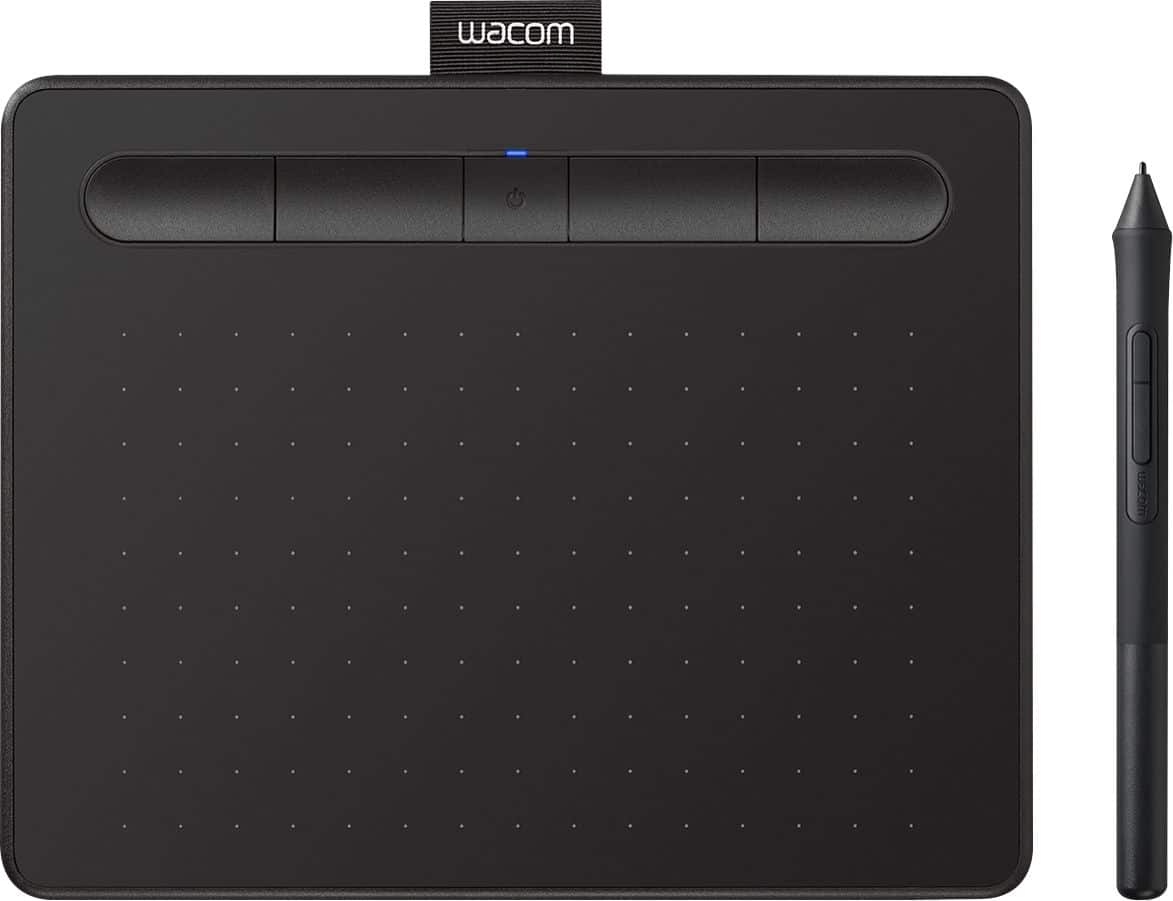
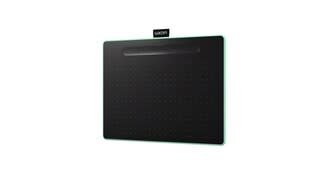
A:AnswerThank you for your question. If the app you are trying to use supports pen input and you're on a compatible Windows and Mac computer, then our Wacom Intuos should work for you. Hope that helps
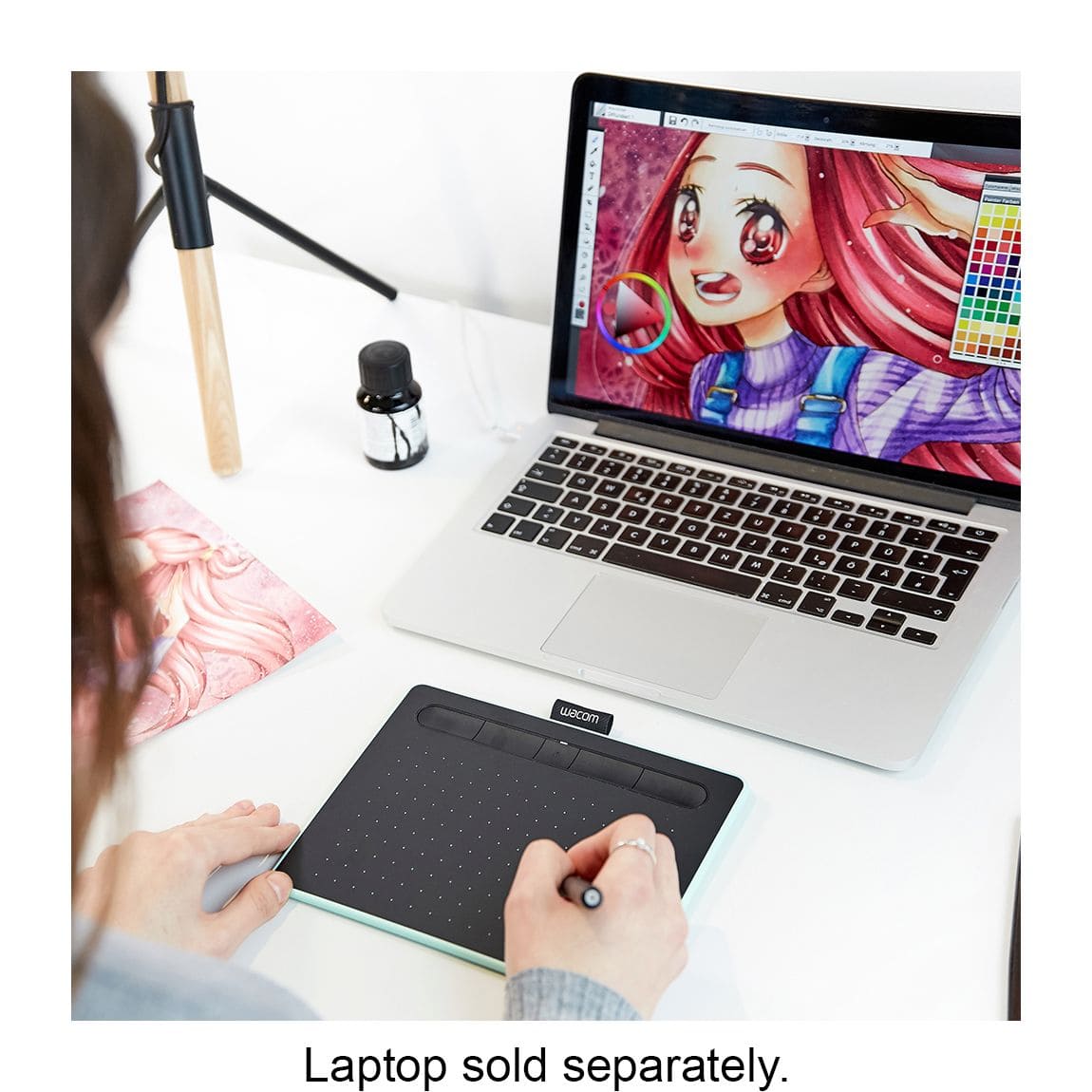
A:AnswerIt only works when connected/paired via Bluetooth or other methods to a computer. You see what you're drawing on the computer/laptop's screen. You draw on it with the stylus that comes with it. They provide a copy of Corel Painter Essentials 7 which you can use for drawing.
A:AnswerYou don't have to. Even though Bluetooth is required to have a wireless connection, you can also have a wired connection with the included Micro-USB cable. (or literally any other Micro-USB that can transfer data, but I don't recommended it if you don't have to.) Though if you're like me concerning on over-charging the battery, then you might not wanna charge this thing for longer than an hour or two.
A:AnswerIt depends on the file type and the compatibility of certain file types with other applications. For example my image from Corel Paint won't open in GIMP.
A:AnswerIf you only plan to draw yes. Blender and other rendering software is what you will have to worry about. The chromebook won't work well running these.
A:AnswerHi there! I’m really not sure whether you’re able to download the installer to an iPad. I had planned on trying better replying, but I have an older iPad which probably wouldn’t give you the best information. There is no way for iPad the ability to recognize the device without the USB port either unless that feature is available on newer iPads. Sorry I couldn’t be of more assistance in this matter.
A:AnswerI used this pad in the TEAMS platform using OneNote. It worked well when sharing my screen with the viewers. I’m not sure about working as a signature pad but it should be able to do that with the right document tools.