Customer Ratings & Reviews
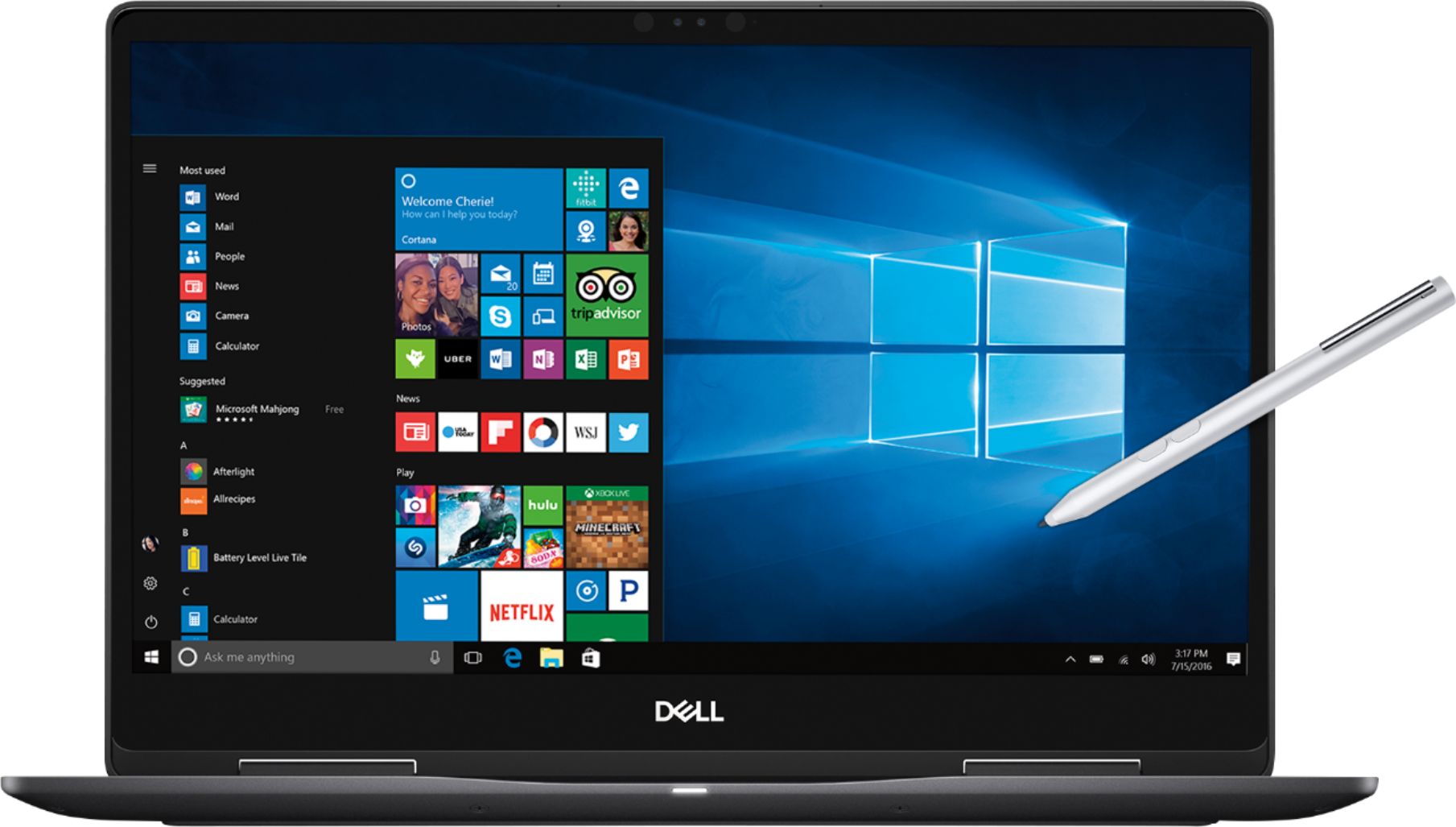
- Model:
- I7573-7019BLK-PUS
- SKU:
- 6208307
Rating by feature
- Value
Rating 4.0 out of 5 stars
- Quality
Rating 4.0 out of 5 stars
- Ease of Use
Rating 4.5 out of 5 stars
Customers are saying
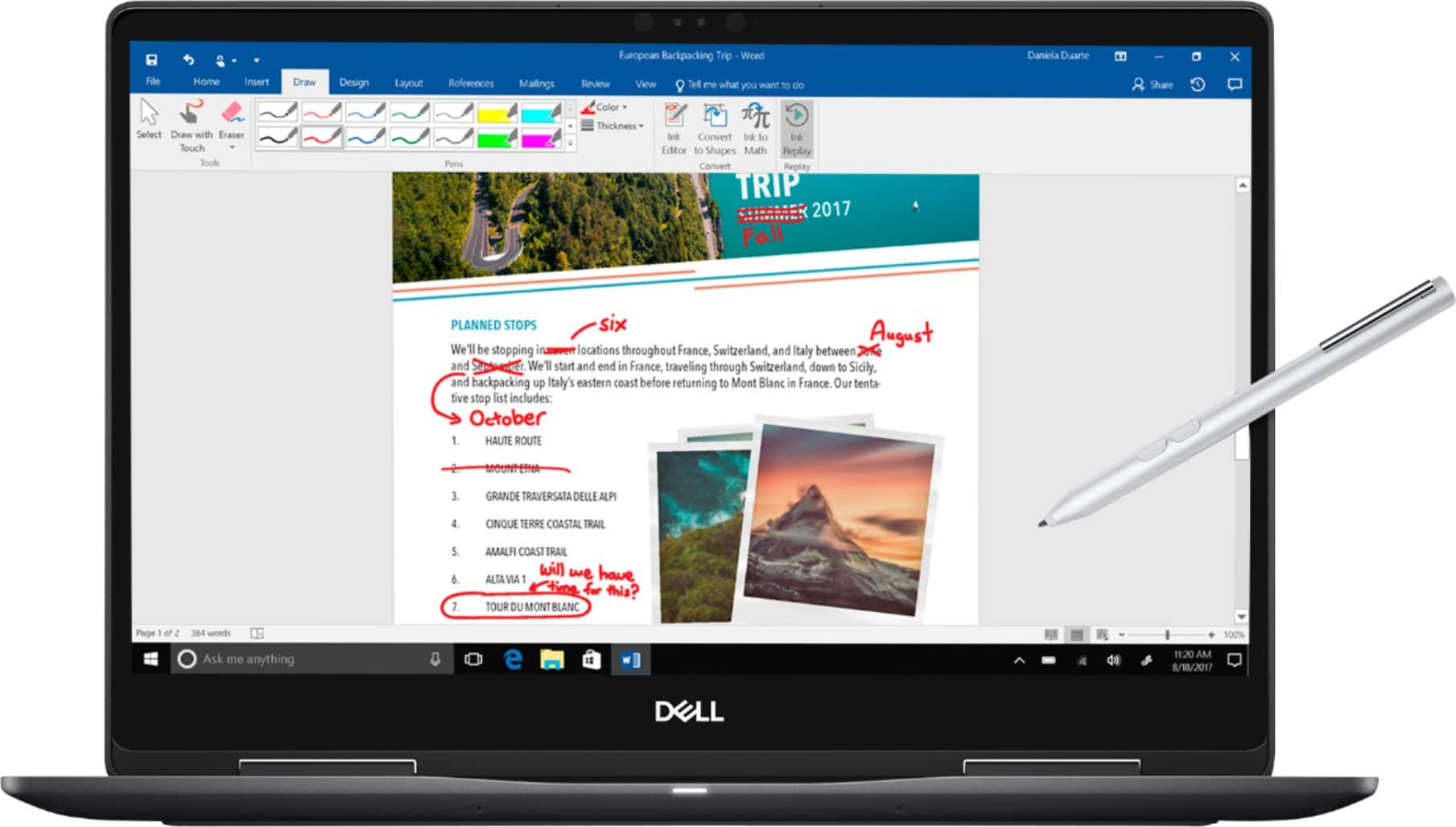
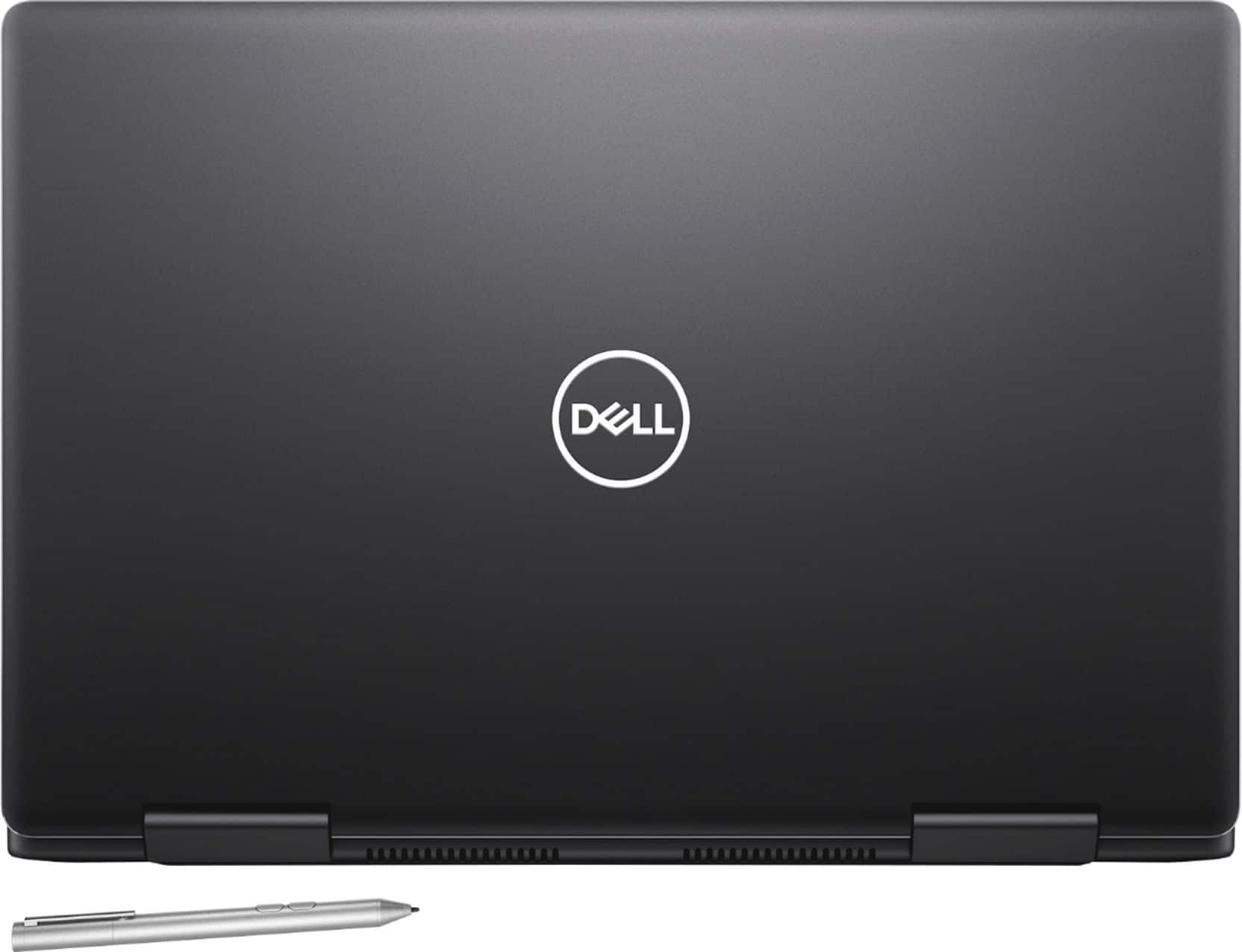
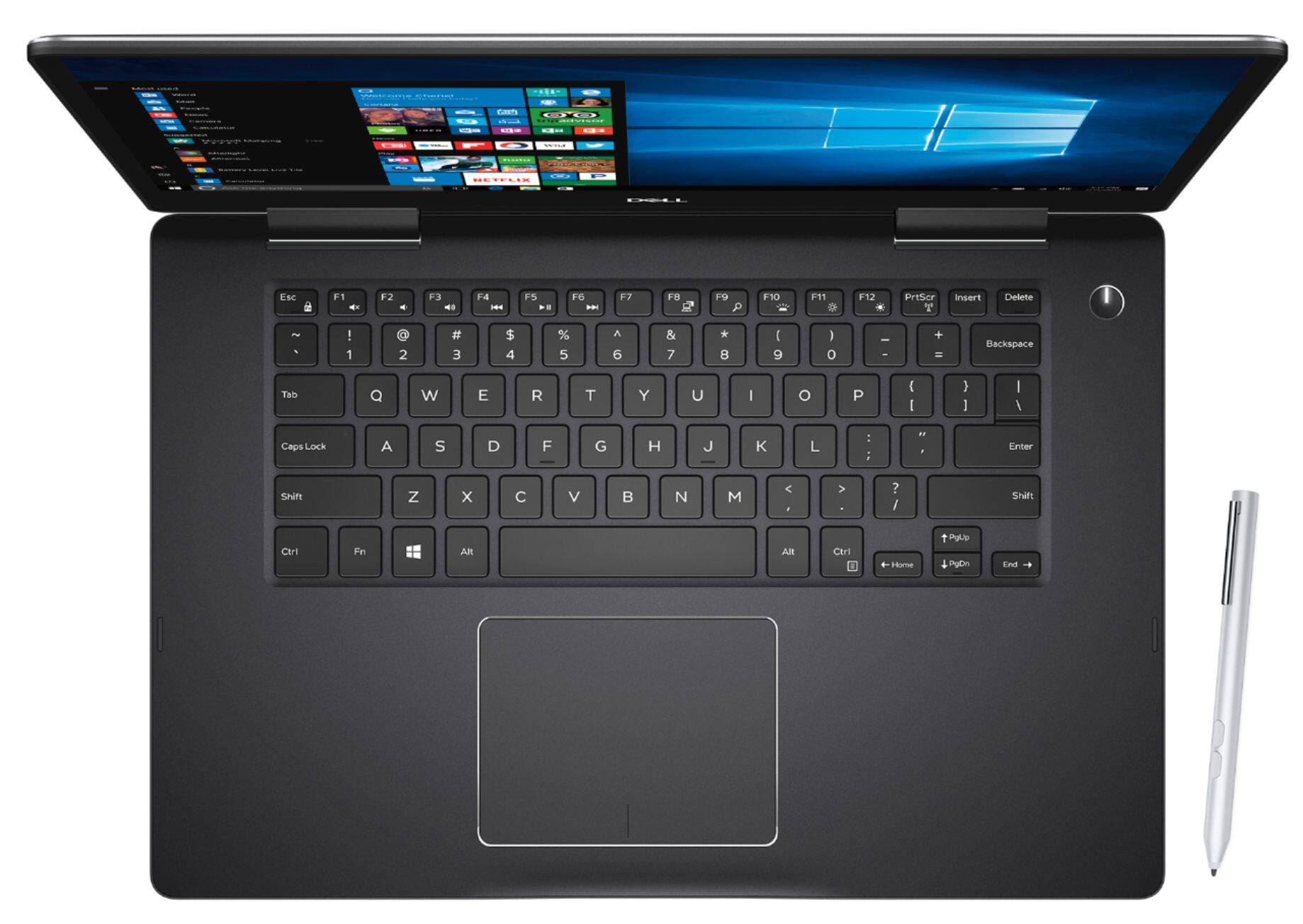
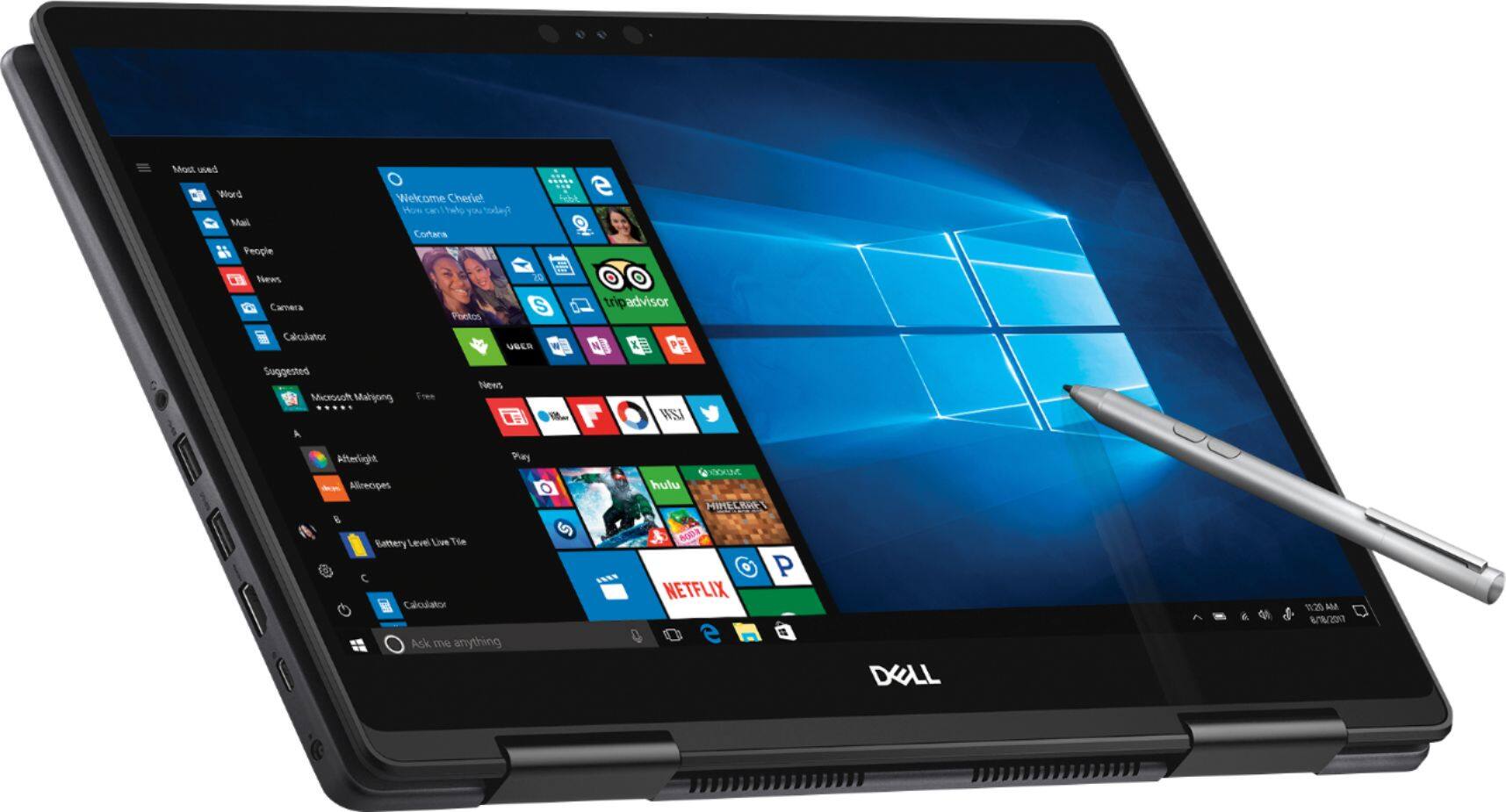
Customers are enthusiastic about the 4K touch screen, performance, price, build quality, and processor of the 2-in-1 15.6" 4K Ultra HD Touch-Screen Laptop. They appreciate the laptop's fantastic 4K display, fast and smooth performance, good price point, premium build quality, and powerful i7 processor. However, some customers have concerns about the battery life, storage capacity, heating issues, fan noise, and weight of the laptop.
This summary was generated by AI based on customer reviews.
Why I chose this over the XPS 15 2 in 1
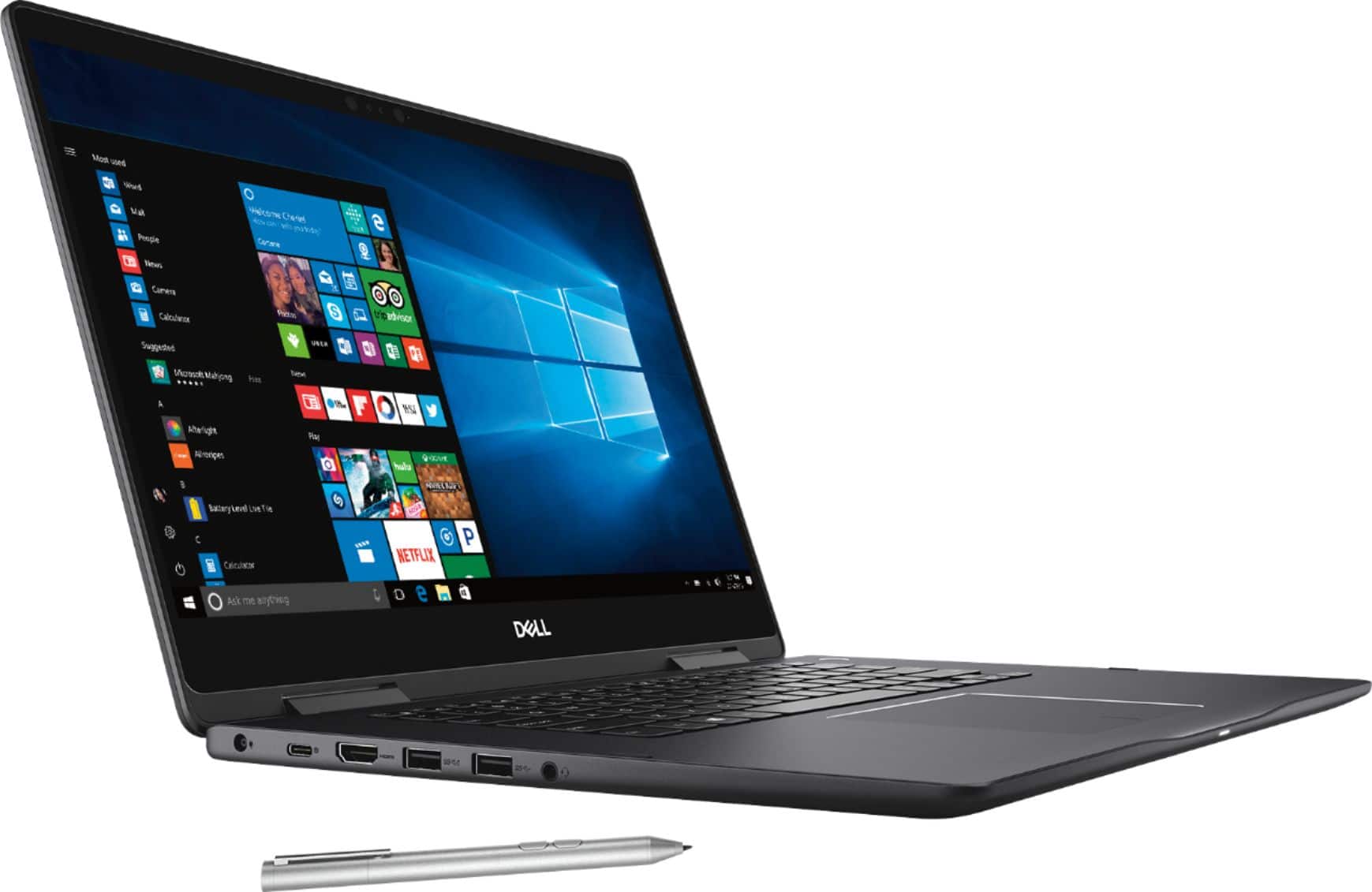
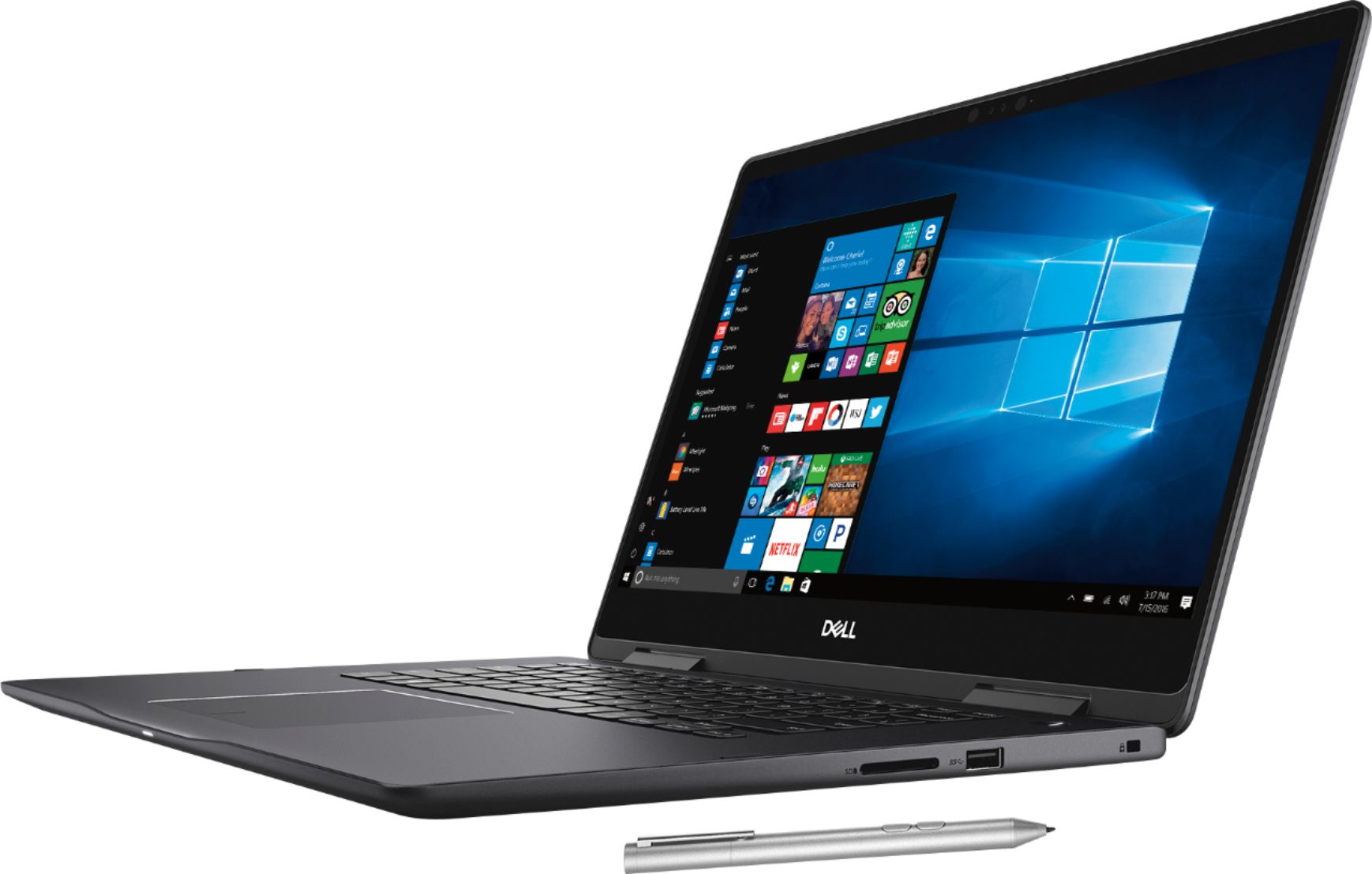
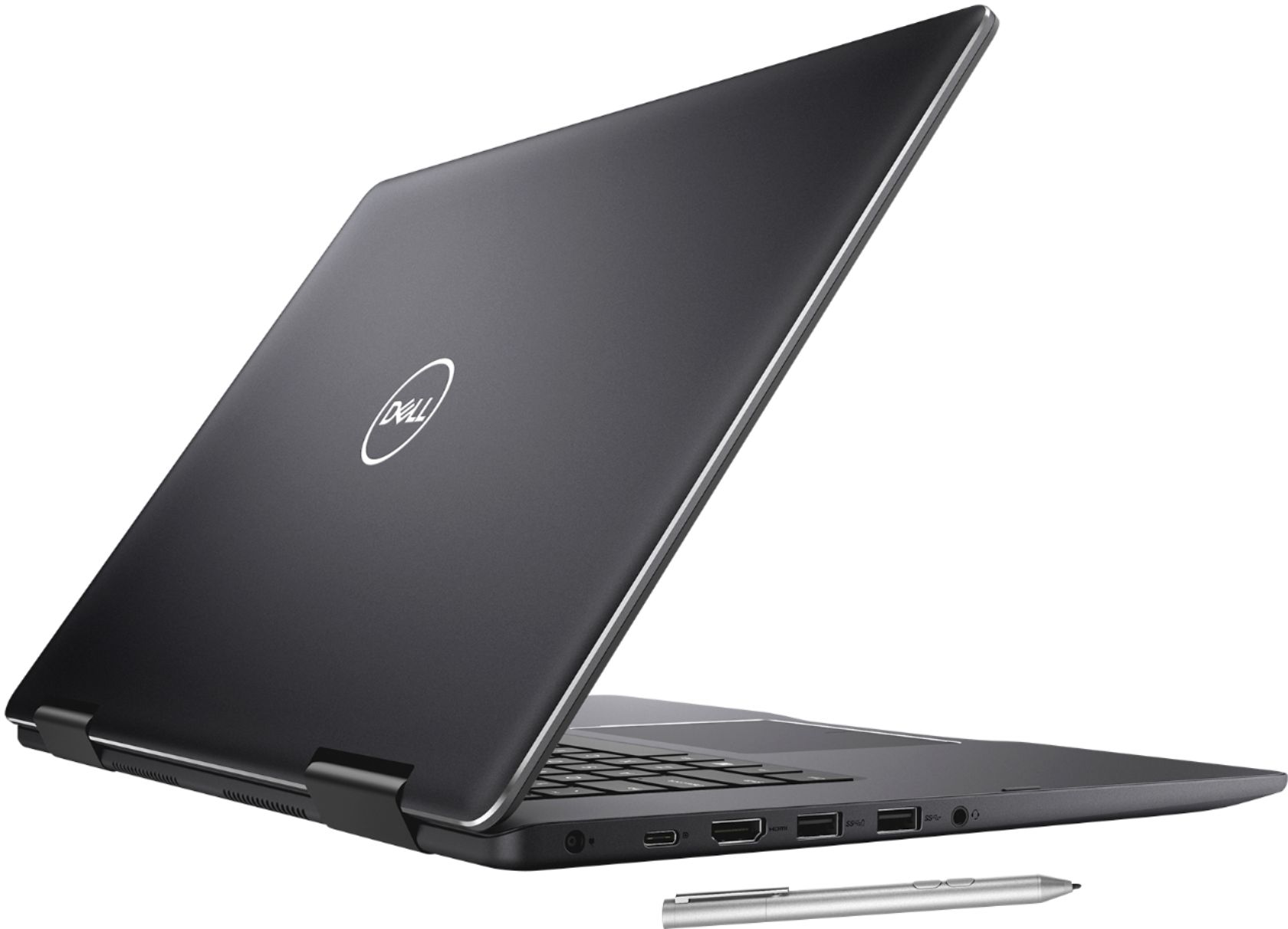
Posted .This reviewer received promo considerations or sweepstakes entry for writing a review.So my new computer search started with replacing my FX-8350 system that I built nearly 6 years ago. I knew that I wanted something more mobile so that I could display my photography to potential clients, so a 2 in 1 fit that requirement perfectly. I looked at the Surface Pro 2017, but didn't like that you'd have to spend over $2K for a Core i7, 16GB version. That and it didn't include a keyboard at that price (Fail). I looked long and hard at the new XPS 15 2 in 1 that Dell just released, but again the price tag was a massive pill to swallow. Where the XPS excels is the thunderbolt 3 option, and the SSD is NVMe, and a lightly faster CPU. While the Thunderbolt 3 would be AWESOME, I don't really need more than 10Gb of bandwidth through my Type-C port since the only thing that I have on the network that would make use of that is my storage solution. I'm happy with the performance of the SATA III based SSD and the system seems snappy enough for me. Where I'm much happier with the 7573 is that the ram is upgradable. As of now, the 16GB that comes with it is enough for me to run Adobe Lightroom or an occasional video game. It comes with 3x USB 3.1 ports and 1 Type-C which is plenty of IO for me and I use it in combination with my WD15 dock. Gaming does surprisingly well on this machine (at least better than I expected). While I'm not trying to push 4K or get 120fps out of maxxed out settings @ 1080... it does play 1080 SC2 at medium settings fairly well. When I first pulled the machine out of the box and used the Dell update agent, it showed fully patched and I was continuing to experience the GPU driver crashing and reloading (which made the overall system seem ridiculously slow and laggy). Now that I've applied the latest drivers manually from Dell (hopefully they've pushed those specific drivers to the update agent by the time of this review), the system is very responsive and acts as I would expect. The fans are very noticeable when pushing this system. Every system I've ever purchased from a big box manufacture has always applied too much thermal paste and usually some cheap stuff. I pulled the heat sinks, cleaned them and the CPU/GPU housing up really well with an alcohol pad, and applied an appropriate amount of Arctic Silver and the system runs much happier. When driving the system full blast, the fans will spin to %100 but the system doesn't thermal throttle. If you want a quality system that will last you for a few years and don't need TB3 or an NVMe SSD, This is the 15" for you.
I would recommend this to a friend- Pros mentioned:Touch screen
Feature Packed and Everything Needed
Posted .This reviewer received promo considerations or sweepstakes entry for writing a review.Searched for a long time on the right computer with all the features I wanted - I7 8th Gen, 16gb RAM expandable to 32gb, 256GB SSD, touchscreen, 4K, and Stylus. Great computer with no complaints and would recommend getting one to everyone.
I would recommend this to a friend - Pros mentioned:4k screen
Fantastic College Laptop
Posted .This reviewer received promo considerations or sweepstakes entry for writing a review.This laptop is my 2nd dell computer since I already have a desktop and this laptop does everything on the go. It has a 4k display which is my first computer to have one and the difference from 1080p to 4k is huge. Everything looks crisp and colorful and bright. This laptop is excellent for photoshop and light gaming to video rendering and all other college student needs. Also it is well built and premium feeling. Overall I highly recommend this laptop to everyone and college students.
I would recommend this to a friend - Pros mentioned:Touch screen
Could be better... could be worse.
Posted .This reviewer received promo considerations or sweepstakes entry for writing a review.So, I bought this laptop 2 years ago. While initially this computer seemed like it deserved a 5-star review, stuff pretty quickly went downhill. While it still works, I'm sick of dealing with it's issues, so today I am once again laptop shopping. Pros: - High quality touch screen and display (though I never did figure out how to pair the stylus with it after fooling with it a couple hours) - As an artist and designer, I loved the tablet convertibility. - Casing/hinges seem more durable than other laptops I've had. - Graphics card is decent. - It was nice having all the ports. Cons: - The internal speakers slowly broke within the first couple months, so I can only use bluetooth options for sound. - Dealt with quite a few software crashes when I had a couple big files in Adobe programs open at once. I'm not the most knowledgeable when it comes to computer specs, but I've heard that getting something with more RAM would have helped. If you're not using tasking design softwares, ect. you should be fine. - Charger crapped out in about a year, and you can only use actual legit Dell chargers for it - no Amazon knock-offs or BestBuy universal chargers. - Now it runs Very slow any time I don't have it plugged in. - A pixel failed in the first couple weeks of buying, that has spread into a cluster of pixels now. So yeah! It could be worse, but I was hoping for a $1,000 brand new laptop, I would at least get another year out of it...
No, I would not recommend this to a friend High quality display
Posted .This reviewer received promo considerations or sweepstakes entry for writing a review.The touchscreen does not work on the monitor. After I make Restart Windows the touchscreen works for a while After a few hours or the next day the story repeats itself Stop working the touchscreen on the monitor has to restart Windows again A new computer after the purchase was only 20 days old If there would be an opportunity I would bring it back to the store But I understand that it's been 14 days and you can not return it.
No, I would not recommend this to a friend- Pros mentioned:Touch screen
great comp
Posted .This reviewer received promo considerations or sweepstakes entry for writing a review.great computer, fast touch screen great keeps a good charge
I would recommend this to a friend Works, bad audio, can freeze
Posted .This reviewer received promo considerations or sweepstakes entry for writing a review.It works pretty well to study from and run multiple programs, but the audio is really bad. A lot of times very grainy, stops, sounds like its coming from a well, various issues. Sometimes the touch screen will randomly stop responding to touch and can be fixed by closing and re-opening the screen.
No, I would not recommend this to a friendBrand response from YourDellTeam
Posted .Hi AliA,
We're sorry to hear about the issues that you're having with your laptop so far. We'd recommend re-calibrating the trouchscreen with the following steps: Below are the steps required to calibrate your Touchscreen.
1. Restart the Computer and the Monitor
2. Recalibrate the touch-screen. Steps to calibrate touch-screen:
3. Go to Control Panel and select Tablet PC Settings.
4. Under Display tab, select Calibrate.
5. Choose Pen or Touch input.
6. Perform the point calibration that appears on the screen to correct the linearity problems.
7. Save the calibrated data.
You can read the full article here - http://dell.to/2uLztub.
If you'd like to check to see if there are any updated Audio Drivers for your computer you can check our Support Page here: http://dell.to/2yuPeJ9.
Best,
Bryan
1-800-624-9896
SLOW - DO not buy any DELL Product
Posted .This reviewer received promo considerations or sweepstakes entry for writing a review.Although the laptop has 16GB RAM and SSD memory, and a i7 8th Gen processor, the task of opening or closing any of the browser (Edge or Chrome), or even open the File Explorer was VERY SLOW. For example, when opening a browser, it just opens by stages like going up on stairs. In times, the cursor was also very slow not responding to commands. All these, I believe it was with some issue with the processor. I spend 4 days and many hours trying to find the issue. At the DELL Support website was nothing quick for help, not even a phone number to call. I finally sent an email to DELL explaining the issue, and their reply said that it was a software issue, and I had to paid a fee of $80+ per hour to solve the issue. I explained that the computer was new and I had not install any software but the ones coming from factory. Still they didn't want to offer support, NOT EVEN after I told them that I'm returning the laptop. Their final email said "Sorry" but they needed to follow their guidelines. So, I returned it today, and bought an HP laptop which is working beautifully. I won't buy any other DELL laptop or computer.
No, I would not recommend this to a friendReturned This Product
Posted .This reviewer received promo considerations or sweepstakes entry for writing a review.I bought this laptop when it was on sale. The display is very high quality which is both a blessing and a curse. I believe the display is part of why the battery life is so poor. I would only get about 3 hours use on a full charge. Because the battery life was so poor, I decided to return it because it won't even last through my evening class.
No, I would not recommend this to a friendBrand response from YourDellTeam
Posted .Nick,
We're sorry to hear that you ended up returning your Dell laptop. Here are some suggestions to help increase the battery life of your next computer:
Change the Power Plan:
1. On the notification area of the taskbar, right-click the Battery icon.
2. On the options list, click Power Options.
3. Select a power plan on the battery meter, such as Power Saver or Balanced. Windows 10 has a built in 'Battery Saver' mode that can be activated to extend your system's battery life. The Battery Saver mode will monitor and limit background activity and other features such as push notifications. You do have the option to enable or disable this mode within settings or within advanced Battery Saver settings, you can customize the mode to best suit your needs.
a) Click on the Action Center icon in the taskbar and select the tile for Battery Saver.
b) If running Cortana then type Battery Saver into the search box and select from the results.
Within the Battery Saver settings page, you will be able to turn on and off the feature and customize the feature to best meet your needs.
c) Turn Battery Saver On or Off.
d) Additional settings available via the Battery use and Battery saver settings links.
e) Battery use shows further info on apps and their power usage.
f) Battery Saver Settings screen allows you to customize further Battery Saver feature.
You can read the full article here - http://dell.to/2vfXWf4.
Best,
Bryan
1-800-624-9896
Battery won't charge above 55%
Posted .This reviewer received promo considerations or sweepstakes entry for writing a review.Great looking laptop, relatively light weight, love the screen resolution, I use it for photo editing so that's a big plus for me, I got the 16GB RAM and 256GB SSD with dedicated graphics and so far it does a great job while using photoshop and/or light room, no issues there. The big problem is that after 2 days of usage it will charge OK up to 55%, once it reaches 55% it stops charging and I see the the "plugged in, not charging" legend on the battery icon. I tried the Dell support assist directions of uninstalling the MS ACPI compliant control method battery and MS AC adapter, shutting down the laptop and turning it on and didn't work, checked the BIOS for an update, updated and nothing. I love everything about it if not for this battery issue.
No, I would not recommend this to a friendBrand response from YourDellTeam
Posted .Hello Aaron,
Thanks for your review. We're sorry to hear about the charging issues that you are facing. We'd recommend contacting Dell's Technical Support Team here: http://dell.to/2sH7Qlm, for further assistance.
We'd also recommend checking out Dell's One Year Limited Warranty policy here: http://dell.to/2tNsVOs, to see if your product qualifies.
Best,
Bryan
1-800-624-9896
- Cons mentioned:Freezing issue
Freezes constantly
Posted .This reviewer received promo considerations or sweepstakes entry for writing a review.I've had this computer for barely 1 month and can't use it anymore. It freezes completedly, with NOTHING to do but hold the power button to reset comming back to 1 minute of usage and freezing again.
No, I would not recommend this to a friendBrand response from YourDellTeam
Posted .Connie,
Thanks for your review. We're sorry to hear about the freezing that you're experiencing with your computer. We'd recommend that you try these steps to prevent freezes:
1. Run a Computer Diagnostic. To determine if your computer is experiencing a hardware problem, run the Dell Preboot System Assessment (PSA) Diagnostics. For information on how to run Diagnostics, and to determine the issue, refer to Dell Knowledge Base Article: http://dell.to/2iaiujA.
2. Check Safe Mode for Symptoms. To boot into safe mode, please follow the instructions below:
a) Start the computer.
b) Tap 'F8' on the keyboard immediately and every one second until the Dell logo screen disappears. From there you will see the Windows Advanced Options Menu on the screen. (If the Windows Advanced Options Menu does not appear, restart the system and try again.)
c) Select Safe mode with Networking and press Enter.
d) Log on as the administrator or as a user with administrative access.
e) Open applications and test the computer in safe mode. If the symptoms exist in safe mode, please continue the troubleshooting steps in this article. If the symptoms do not exist in safe mode, the issue is likely related to a driver or software and you may wish to complete step 3 to see if you are able to resolve the lockups or freezing.
3. Check for Malware. Malware (Virus, Spyware, etc.) can definitely cause a Windows system to lock up or appear to hang. To check for malware on your system and to ensure that your computer is up to date on security software, visit Dell Knowledge Base Article: http://dell.to/2wWP1zI.
You can read the full article here - http://dell.to/2tW5m33.
Best,
Bryan
1-800-624-9896
New laptop, not worth the money
Posted .This reviewer received promo considerations or sweepstakes entry for writing a review.if you pick it up near the cooling fan on it starts to make a grinding noise, also the 4K screen isn't all that great, not the clearest picture at all, and the computer also lags with applications open. I was online, with five windows open, and it struggled and skipped, it just couldn't handle that little bit of work. Very disappointed with Dell.
No, I would not recommend this to a friendBrand response from YourDellTeam
Posted .Buckos,
Thanks for your review. We're sorry to hear that your fan has been making noises that you did not anticipate. Here are some tips to help with the noise you're experiencing: Here are some tips to help with fan noise -
A: Cleaning the Vents
1. Check the vents on the computer to see if they are covered with dust and not allowing heat and air to pass through.
2. Turn off the system.
3. Remove all power sources: Unplug the AC adapter and remove the battery, or unplug the desktop power Cord.
4. Use a compressed air can to blow the dust out of the vents. Be sure to hold the can at an upright angle (near 90 degrees), and hold it 15-20 centimeters (6-8 inches) away from the vent.
B: Update the BIOS: An out-of-date BIOS can cause loud fan noises by having an outdated temperature table for the system. Refer to update BIOS and follow the instructions to update the BIOS on your computer.
You can read the full article here - http://dell.to/2ENlXfz.
If you'd like some help with the speed of your computer we'd recommend that you run the Windows Performance Troubleshooter by following these steps:
1. Close all open windows.
2. Press the Windows logo key + X key on the keyboard.
3. Click Control Panel.
4. Click System and Security.
5. Under Security and Maintenance, select Troubleshoot common problems.
6. Under System and Security, click Run maintenance tasks.
7. Follow the on-screen instructions and prompts to complete the process.
8. Restart the PC.
You can read the full article here - http://dell.to/2tSulGV.
Best,
Bryan
1-800-624-9896
Defective item.
Posted .This reviewer received promo considerations or sweepstakes entry for writing a review.The item came defective. Worked well the first 1 hour of setting it up. Shut it down for the night and it wouldn't start the next day. Battery had plenty charge. After about 40 minutes of troubleshooting, it finally came on. This is a known issue that oddly doesn't make it to these reviews. Returning. Disappointed.
No, I would not recommend this to a friendBrand response from YourDellTeam
Posted .Hi Chuck,
Thanks for your feedback. We're sorry to hear that your computer is not starting up the way you hoped it would. Here are some tips to start up your computer in the future:
1. If the computer is displaying the Dell logo and does not move past that point, it has probably failed POST.
2. If the power indicator lights up and it is amber or orange, this is usually an indicator that it has failed POST.
3. If you see text on a black screen, the computer is currently performing the POST. If the computer stays in that condition and does not move past it, it has probably failed POST.
4. If the video screen displayed anything at all during the startup process but is now black, this probably indicates that the computer failed POST.
5. If the computer is beeping or if Caps/Num/Scroll Locks are flashing, note if there is a particular pattern in which it beeps or flashes.
6. If the computer is not beeping and caps/num/scroll locks are not flashing, unplug all connections and remove all media communication devices (e.g. external monitors); reconnect one at a time and check if the computer functions.
7. For a notebook, press and hold the Fn key and then press the power button. This starts the pre-boot testing and will launch ePSA. In case you have a Desktop at the Dell logo screen tap the F12 key to enter One Time Boot Menu and use the arrow keys to highlight Diagnostics and press enter.
You can read the full article here - http://dell.to/2uj1Sby.
You can also contact Dell's Technical Support Team for further assistance: http://dell.to/2sH7Qlm.
Best,
Bryan
1-800-624-9896