Customer Ratings & Reviews
- Model:
- I7375-A439GRY-PUS
- SKU:
- 6208228
Rating by feature
- Value
Rating 4.1 out of 5 stars
- Quality
Rating 4.1 out of 5 stars
- Ease of Use
Rating 4.3 out of 5 stars
Customers are saying
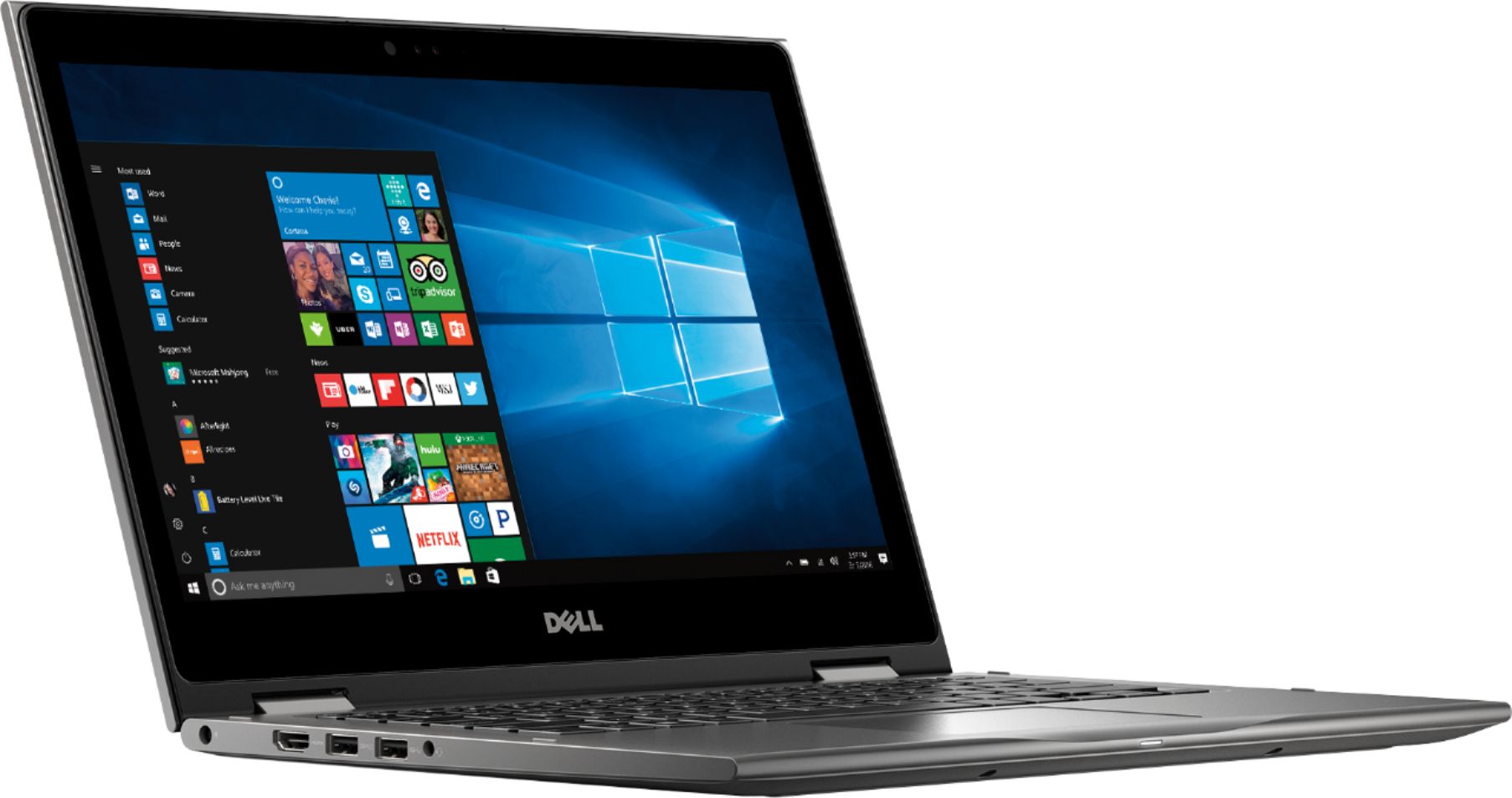
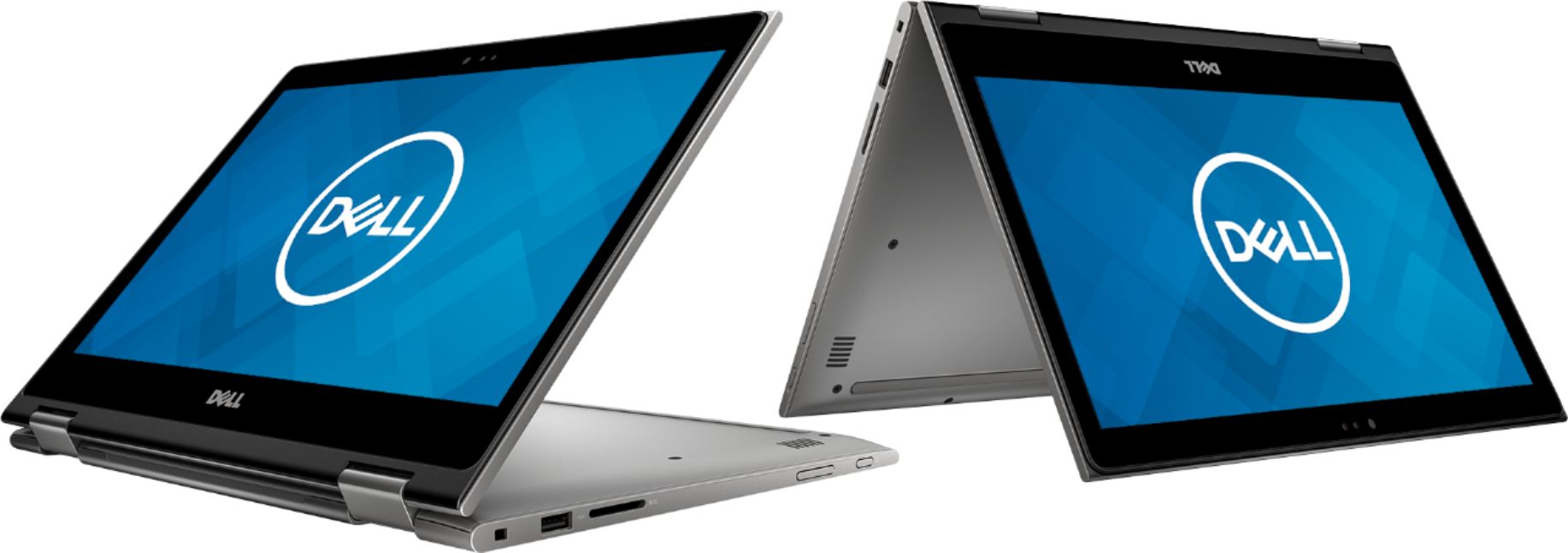
Customers are satisfied with the Inspiron 2-in-1 13.3" Touch-Screen Laptop for its touch screen responsiveness, lightweight design, user-friendly interface, and affordable price. However, some customers have concerns about its short battery life, occasional freezing, faulty units, unstable Wi-Fi connection, and slightly heavy weight.
This summary was generated by AI based on customer reviews.
OPEN BOX PURCHASE
||Posted . Owned for 11 months when reviewed.This reviewer received promo considerations or sweepstakes entry for writing a review.Made a mistake of buying open box, not a good idea, had issues of powering off while working
No, I would not recommend this to a friendWorst purchase ever!
||Posted . Owned for 7 months when reviewed.This reviewer received promo considerations or sweepstakes entry for writing a review.This is by far the worse purchase I have made at Best buy. This laptop shuts down and restarts so many times on its own in a day. When I am typing my school work, I have to keep saving my work every 1 minute. Its been horrible. I spoke with a Geek squad representative at my local Best buy store about the issue. She said it will take about 4-5 days for them to do a diagnostic on my laptop and about 2-3 weeks if It has to be sent to the manufacturer if it turns out to be a problem with the hardware. I have to deal with it until the semester is over before I can send it for the repairs. I am hoping it doesn't shut down completely before then.
No, I would not recommend this to a friendBrand response from YourDellTeam
Posted .Student,
We're sorry to hear about the trouble that you've had with your computer so far. Your computer may need to restart in order for some updates to be fully installed. You may want to check the update settings on your computer and set them to run at a time when your computer is on but that you don't plan to be using it.
We'd also recommend to run Dell's SupportAssist App to ensure that all of your software and drivers are up to date. If you have questions about your computer you can check our Product Support Page here: https://dell.to/2K9bcKB.
Best,
Bryan
1-800-624-9896
Initial use was good, but fan noise distracting.
||Posted .This reviewer received promo considerations or sweepstakes entry for writing a review.Noise of fan is off and on and fairly loud. It remains on most of the time.
No, I would not recommend this to a friendBrand response from YourDellTeam
Posted .Ronn,
We appreciate your review. We're sorry to hear that the fan noise on your computer is louder than you had hoped it would be. We'd recommend updating the BIOS on your computer to see if this helps:
An out-of-date BIOS can cause loud fan noises by having an outdated temperature table for the system. Refer to update BIOS and follow the instructions to update the BIOS on your computer. You can also follow up with our Technical Support Team here - 1-800-624-9896.
You can read the full article here - http://dell.to/2ENlXfz.
We hope that this helps your computer perform better for you.
Best,
Bryan
1-800-624-9896
Overall good quality. Open box quality not good ho
||Posted .This reviewer received promo considerations or sweepstakes entry for writing a review.Overall good quality. Open box quality not good however
No, I would not recommend this to a friendHardware/software problems
||Posted . Owned for 1 year when reviewed.This reviewer received promo considerations or sweepstakes entry for writing a review.Have had nothing but problems with the hardware/software with this lap top. Purchased the extended warranty plan from Best Buy which does absolutely nothing. They state it is not covered. I will never buy a lap top from Best Buy again. Dell is not much help either. They do not want to take ownership of the problem. Problem is that the blue screen comes on and the computer shuts off or a white screen comes on and says the hard-drive has an issue. We have reinstalled the Windows Operating system with no luck.
No, I would not recommend this to a friendBrand response from YourDellTeam
Posted .Rick,
Thanks for your review. We're sorry to hear about the errors that your computer has been having. We'd recommend diagnosing the Blue Screen Errors with these steps:
1. At the desktop, click the Search the web and Windows box and type "problem reports".
2. Select View all problem reports to view a list of errors that have occurred on your computer and possible solutions for them, such as updating drivers, flashing your system BIOS, or checking for updates to the software.
3. Under the Source column, look for Windows and under Summary, look for Shut down unexpectedly.
4. Right-click the line item and select Check for a solution.
We'd also suggest checking to make sure that your software and drivers are up to date on Dell's Product Page - https://dell.to/2KvXWfQ.
You can read the full article here - http://dell.to/2u98Cct.
Best,
Bryan
1-800-624-9896
Shocking
||Posted . Owned for 3 weeks when reviewed.This reviewer received promo considerations or sweepstakes entry for writing a review.When I purchased this item, I thought that it would come with Word and other necessary applications. It did not. This product continued to pop up ICloud and McAfee up. Today, my active Desktop changed without my initiation. I also attempted to contact DELL about their product and placed on an extensively long HOLD.
No, I would not recommend this to a friendBrand response from YourDellTeam
Posted .Your frustrations are understanding with not having access to Word with product pop ups. Our team would like to offer you assistance.
Please download the BIOS update: 1. Restart the system and press F12 when the Dell Splash logo appears to display the One Time Boot Menu. 2. Using arrow keys, select USB Storage Device and press Return 3. The system will boot to a Diag C:\> prompt 4. Run the file by typing the full filename e.g. O9010A12.exe and hit Return 5. The BIOS Update Utility will load, follow the instructions on the screen.
We thank you for taking the time to write about your experience.
Best,
Chris
Fast, Nice Size, Great Laptop, but Fan is always
||Posted .This reviewer received promo considerations or sweepstakes entry for writing a review.I wanted to like this laptop very much, and saw the specs for the price and I thought it was a great deal. Although; upon turning it on for the first time the fan hasn't went off at all. It has been running very loud and hot ever since I first turned it on. The only time the fan is off is when the laptop is actually turned off. Even starting the laptop the fan is loud. I have updated the BIOS and all Drivers/Updates and there is no solution. I really wanted to like this laptop very much, but nope.
No, I would not recommend this to a friendBrand response from YourDellTeam
Posted .Hello SOLEdier,
Thanks for your feedback and we're sorry that your fan has not stopped running since you started using your computer. We're glad to see that you updated the BIOS as that is usually the first troubleshooting tactic to try. The fan is expected to run on your computer in order to prevent your computer from overheating too much during high activity times. Here are some tips to try to keep your computer cooler and possibly prevent the fan from running as much:
Tips for Proper Usage:
1. Dell does not recommend placing portable systems directly on your lap. Due to reductions in the thickness of modern portable systems, heat transfer can be an issue.
2. Using a portable system (Laptop) on a hard, flat, non-cloth surface will increase airflow and reduce heat from underneath and inside the system.
Using the portable system on a blanket, pillow, or other types of cloth will cover up the fan cause the computer to overheat and can cause permanent damage.
3. It is recommended to use the portable system in a Room temperature of 0°C to 35°C (32°F to 95°F) with a Humidity level no greater than 90%.
4. Use compressed air to clean the vents on a regular basis.
5. Using a cooling pad can decrease heat and increase performance.
6. If you want to know the temperature limitations for your system, go to the Dell Support Website, look up your system model then open the user guide under the manuals link.
You can read the full article here - http://dell.to/2uJ8AdG.
Best,
Bryan
1-800-624-9896
Good compact computer
||Posted .This reviewer received promo considerations or sweepstakes entry for writing a review.Does everything I need from mail to web search and Office applications.
I would recommend this to a friendBrand response from YourDellTeam
Posted .Dave,
We're happy to hear that your new laptop is working well for you. We'd recommend checking out our Product Support Page if you have questions in the future: https://dell.to/2K9bcKB.
Best,
Bryan
1-800-624-9896
SoSo
||Posted .This reviewer received promo considerations or sweepstakes entry for writing a review.Its okay; nothing more than my Asus really. Not what I expected for the price.
No, I would not recommend this to a friendBrand response from YourDellTeam
Posted .Hi Valued Customer,
Thanks for your feedback. We're sorry that your computer is not working exactly how you thought it would. If you'd like to see if your computer can operate faster for you we'd recommend trying the Windows Performance Troubleshooter:
1. Close all open windows.
2. Press the Windows logo key + X key on the keyboard.
3. Click Control Panel.
4. Click System and Security.
5. Under Security and Maintenance, select Troubleshoot common problems.
6. Under System and Security, click Run maintenance tasks.
7. Follow the on-screen instructions and prompts to complete the process.
8. Restart the PC.
You can read the full article here - http://dell.to/2tSulGV.
We hope that this will help your computer run the way you'd like it to.
Best,
Bryan
1-800-624-9896
Does the job
||Posted .This reviewer received promo considerations or sweepstakes entry for writing a review.Does the job it was purchased for, which is basic paper writing for school.
I would recommend this to a friendBrand response from YourDellTeam
Posted .Hi Tree,
Thanks for your feedback. We're glad to see that your new Dell laptop is meeting your needs. If you have any questions about your computer you can check our Product Support Page here - https://dell.to/2K9bcKB.
Best,
Bryan
1-800-624-9896
Not bad
||Posted . Owned for 2 weeks when reviewed.This reviewer received promo considerations or sweepstakes entry for writing a review.It was an average computer, could be because it was an open box
I would recommend this to a friendBrand response from YourDellTeam
Posted .Britt,
We appreciate your feedback and we're happy to hear that your new computer is meeting your needs. We'd recommend checking out our Product Support Page if you have any questions: https://dell.to/2K9bcKB.
Best,
Bryan
1-800-624-9896
- Cons mentioned:Faulty
DON'T BUY
||Posted . Owned for more than 2 years when reviewed.This reviewer received promo considerations or sweepstakes entry for writing a review.If I could give this laptop zero stars I would. I has only worked for a short period of time each time that it has been picked up from Geek Squad. This is an expensive paperweight.
No, I would not recommend this to a friend Laptop
||Posted .This reviewer received promo considerations or sweepstakes entry for writing a review.Great small compact laptop highly recommend this laptop
I would recommend this to a friendBrand response from YourDellTeam
Posted .Lola,
Thanks for your review. We're happy to hear that you're satisfied with your new Dell laptop. Here's a link to the Product Support Page in case you have any questions: https://dell.to/2K9bcKB.
Best,
Bryan
1-800-624-9896
- Cons mentioned:Freezing
Worst computer I've ever purchased
||Posted .This reviewer received promo considerations or sweepstakes entry for writing a review.Had to return it within 30 days for shutting off, screen blacking out, freezing, etc. After I received the new one, it did the exact same thing. Still doing the same thing. Not a good product. Very disappointing...
No, I would not recommend this to a friendBrand response from YourDellTeam
Posted .Hello Star,
Thanks for your feedback. We'd recommend diagnosing the freezes on your computer with the following steps: 1. Run a Computer Diagnostic. To determine if your computer is experiencing a hardware problem, run the Dell Preboot System Assessment (PSA) Diagnostics. For information on how to run Diagnostics, and to determine the issue, refer to Dell Knowledge Base Article: http://dell.to/2iaiujA.
2. Check Safe Mode for Symptoms. To boot into safe mode, please follow the instructions below:
a) Start the computer.
b) Tap 'F8' on the keyboard immediately and every one second until the Dell logo screen disappears. From there you will see the Windows Advanced Options Menu on the screen. (If the Windows Advanced Options Menu does not appear, restart the system and try again.)
c) Select Safe mode with Networking and press Enter.
d) Log on as the administrator or as a user with administrative access.
e) Open applications and test the computer in safe mode. If the symptoms exist in safe mode, please continue the troubleshooting steps in this article. If the symptoms do not exist in safe mode, the issue is likely related to a driver or software and you may wish to complete step 3 to see if you are able to resolve the lockups or freezing.
3. Check for Malware. Malware (Virus, Spyware, etc.) can definitely cause a Windows system to lock up or appear to hang. To check for malware on your system and to ensure that your computer is up to date on security software, visit Dell Knowledge Base Article: http://dell.to/2wWP1zI.
You can read the full article here - http://dell.to/2tW5m33.
If you continue to experience issues please reach out to Dell's Technical Support Team here: http://dell.to/2sH7Qlm.
Best,
Bryan
1-800-624-9896
Not as expected
||Posted .This reviewer received promo considerations or sweepstakes entry for writing a review.Computer not as expected. Freezes up and locks down
No, I would not recommend this to a friendBrand response from YourDellTeam
Posted .Home,
We're very sorry to hear that your computer is not performing the best for you. If you'd like to try to diagnose your issue with the following steps, that should be helpful:
1. Run a Computer Diagnostic. To determine if your computer is experiencing a hardware problem, run the Dell Preboot System Assessment (PSA) Diagnostics. For information on how to run Diagnostics, and to determine the issue, refer to Dell Knowledge Base Article: http://dell.to/2iaiujA.
2. Check Safe Mode for Symptoms. To boot into safe mode, please follow the instructions below:
a) Start the computer.
b) Tap 'F8' on the keyboard immediately and every one second until the Dell logo screen disappears. From there you will see the Windows Advanced Options Menu on the screen. (If the Windows Advanced Options Menu does not appear, restart the system and try again.)
c) Select Safe mode with Networking and press Enter.
d) Log on as the administrator or as a user with administrative access.
e) Open applications and test the computer in safe mode. If the symptoms exist in safe mode, please continue the troubleshooting steps in this article. If the symptoms do not exist in safe mode, the issue is likely related to a driver or software and you may wish to complete step 3 to see if you are able to resolve the lockups or freezing.
3. Check for Malware. Malware (Virus, Spyware, etc.) can definitely cause a Windows system to lock up or appear to hang. To check for malware on your system and to ensure that your computer is up to date on security software, visit Dell Knowledge Base Article: http://dell.to/2wWP1zI.
You can read the full article here - http://dell.to/2tW5m33.
Best,
Bryan
1-800-624-9896
Nope!
||Posted . Owned for 11 months when reviewed.This reviewer received promo considerations or sweepstakes entry for writing a review.Purple and green artifacts when viewing video, not covered under the Dell warranty. Loud even just browsing the web the fans will kick in, the screen is too small to see anything, the screen is glossy because it's a touch screen so you can see reflections of everything behind you, the battery only lasts about 2-3 hours! Feels well made and durable, power adapter has a long cord and a Velcro tie which are nice, fair hardware for the price. Not sure what's up with the video issues, won't be buying AMD again anytime soon...
No, I would not recommend this to a friendBrand response from YourDellTeam
Posted .daniel,
Thanks for your review and we're sorry to hear about the issues that you've had with your 2-in-1 so far. If you'd like to extend the life of your battery we'd recommend the following tips:
Change the Power Plan:
1. On the notification area of the taskbar, right-click the Battery icon.
2. On the options list, click Power Options.
3. Select a power plan on the battery meter, such as Power Saver or Balanced. Windows 10 has a built in 'Battery Saver' mode that can be activated to extend your system's battery life. The Battery Saver mode will monitor and limit background activity and other features such as push notifications. You do have the option to enable or disable this mode within settings or within advanced Battery Saver settings, you can customize the mode to best suit your needs.
a) Click on the Action Center icon in the taskbar and select the tile for Battery Saver.
b) If running Cortana then type Battery Saver into the search box and select from the results.
Within the Battery Saver settings page, you will be able to turn on and off the feature and customize the feature to best meet your needs.
c) Turn Battery Saver On or Off.
d) Additional settings available via the Battery use and Battery saver settings links.
e) Battery use shows further info on apps and their power usage.
f) Battery Saver Settings screen allows you to customize further Battery Saver feature.
You can read the full article here - http://dell.to/2vfXWf4.
If you'd like to minimize the fan noise you can try to update the BIOS on your computer: Update the BIOS: An out-of-date BIOS can cause loud fan noises by having an outdated temperature table for the system. Refer to update BIOS and follow the instructions to update the BIOS on your computer. You can also follow up with our Technical Support Team here - 1-800-624-9896.
You can read the full article here - http://dell.to/2ENlXfz.
Best,
Bryan
1-800-624-9896
Fails at 1080p and crashes
||Posted .This reviewer received promo considerations or sweepstakes entry for writing a review.This hardware is a great design. I love it and was pretty excited as it should meet all my needs. Either I got a bum unit, or the software is not quite fully baked though. It have trouble when playing 1080p video intermittently and would get these blocky green boxes when it couldn't keep up. There is no reason this hardware shouldn't be able to play 1080p. This was both on streaming and downloaded video. WORSE, is that it had a tendency to crash when it had video problems. Either the BSOD which was logged, or it would just freeze up with a still video with the OS completely unresponsive. I tried to work with support and they couldn't help. I'm returning it and going to try the intel version.
No, I would not recommend this to a friend- Cons mentioned:Freezing
Horrible computer
||Posted .This reviewer received promo considerations or sweepstakes entry for writing a review.I end up exchanging this computer 3 times. I don’t recommend this model. it over heats and the CPU reaches 100% with a couple windows open.
No, I would not recommend this to a friendBrand response from YourDellTeam
Posted .buyer1,
We're sorry this computer is not working the way you hoped it would. If you'd like to try to cool down your computer here are some tips:
Tips for Proper Usage:
1. Dell does not recommend placing portable systems directly on your lap. Due to reductions in the thickness of modern portable systems, heat transfer can be an issue.
2. Using a portable system (Laptop) on a hard, flat, non-cloth surface will increase airflow and reduce heat from underneath and inside the system.
Using the portable system on a blanket, pillow, or other types of cloth will cover up the fan cause the computer to overheat and can cause permanent damage.
3. It is recommended to use the portable system in a Room temperature of 0°C to 35°C (32°F to 95°F) with a Humidity level no greater than 90%.
4. Use compressed air to clean the vents on a regular basis.
5. Using a cooling pad can decrease heat and increase performance.
6. If you want to know the temperature limitations for your system, go to the Dell Support Website, look up your system model then open the user guide under the manuals link.
You can read the full article here - http://dell.to/2uJ8AdG.
If you'd like to free up some space on your computer look through the program list to see if there are programs that you can remove: Uninstalling or removing software or applications that you do not use or do not need from your PC can help speed up your PC. Applications may include background processes, system services, context menu entries and other things that can slow down your PC.
Uninstall applications you no longer need using Programs and Features (previously called Add/Remove Programs). Unnecessary applications occupy space on your hard disk drive.
1. Press the Windows logo key + R on the keyboard.
2. In the Run dialog box, type appwiz.cpl and press the Enter key.
3. In the list, select a program and click Uninstall.
You can read the full article here - http://dell.to/2tSulGV.
Best,
Bryan
1-800-624-9896
- Cons mentioned:Freezing
Blue Screen and freezing ugh
||Posted .This reviewer received promo considerations or sweepstakes entry for writing a review.I bought this as an upgrade to treat myself after Geek Squad damaged my other laptop and it is horrible!! It goes to blue screen and shuts off as well as freezes. Not with a penny!!
No, I would not recommend this to a friendBrand response from YourDellTeam
Posted .Alwzla8,
Thanks for your review. We're sorry to hear about the problems that you're having with your computer, we'd recommend diagnosing your Blue Screen Errors with the following steps:
1. At the desktop, click the Search the web and Windows box and type "problem reports".
2. Select View all problem reports to view a list of errors that have occurred on your computer and possible solutions for them, such as updating drivers, flashing your system BIOS, or checking for updates to the software.
3. Under the Source column, look for Windows and under Summary, look for Shut down unexpectedly.
4. Right-click the line item and select Check for a solution.
We'd also suggest checking to make sure that your software and drivers are up to date on Dell's Product Page -
You can read the full article here - http://dell.to/2u98Cct.
If your computer continues to freeze, we'd suggest the following:
1. Run a Computer Diagnostic. To determine if your computer is experiencing a hardware problem, run the Dell Preboot System Assessment (PSA) Diagnostics. For information on how to run Diagnostics, and to determine the issue, refer to Dell Knowledge Base Article: http://dell.to/2iaiujA.
2. Check Safe Mode for Symptoms. To boot into safe mode, please follow the instructions below:
a) Start the computer.
b) Tap 'F8' on the keyboard immediately and every one second until the Dell logo screen disappears. From there you will see the Windows Advanced Options Menu on the screen. (If the Windows Advanced Options Menu does not appear, restart the system and try again.)
c) Select Safe mode with Networking and press Enter.
d) Log on as the administrator or as a user with administrative access.
e) Open applications and test the computer in safe mode. If the symptoms exist in safe mode, please continue the troubleshooting steps in this article. If the symptoms do not exist in safe mode, the issue is likely related to a driver or software and you may wish to complete step 3 to see if you are able to resolve the lockups or freezing.
3. Check for Malware. Malware (Virus, Spyware, etc.) can definitely cause a Windows system to lock up or appear to hang. To check for malware on your system and to ensure that your computer is up to date on security software, visit Dell Knowledge Base Article: http://dell.to/2wWP1zI.
You can read the full article here - http://dell.to/2tW5m33.
Best,
Bryan
1-800-624-9896
After a week
||Posted .This reviewer received promo considerations or sweepstakes entry for writing a review.After only aing tis computer for less tan a week te keys do not work. as you an tell from tis reiew many of te keys are not working so i ant een tyre tis reiew nor t does te bakspae wor so een if i wanted to try and fix tings i an not
No, I would not recommend this to a friendBrand response from YourDellTeam
Posted .kan421,
Thank you for your review and we're sorry to hear that the keyboard is giving you trouble on your new Dell computer. We'd recommend following up with Dell's Technical Support Team for additional assistance with your keyboard - http://dell.to/2sH7Qlm.
Best,
Bryan
1-800-624-9896