Customer Ratings & Reviews


- Model:
- I7378-5564GRY-PUS
- SKU:
- 5822970
to a friend
Customers are saying
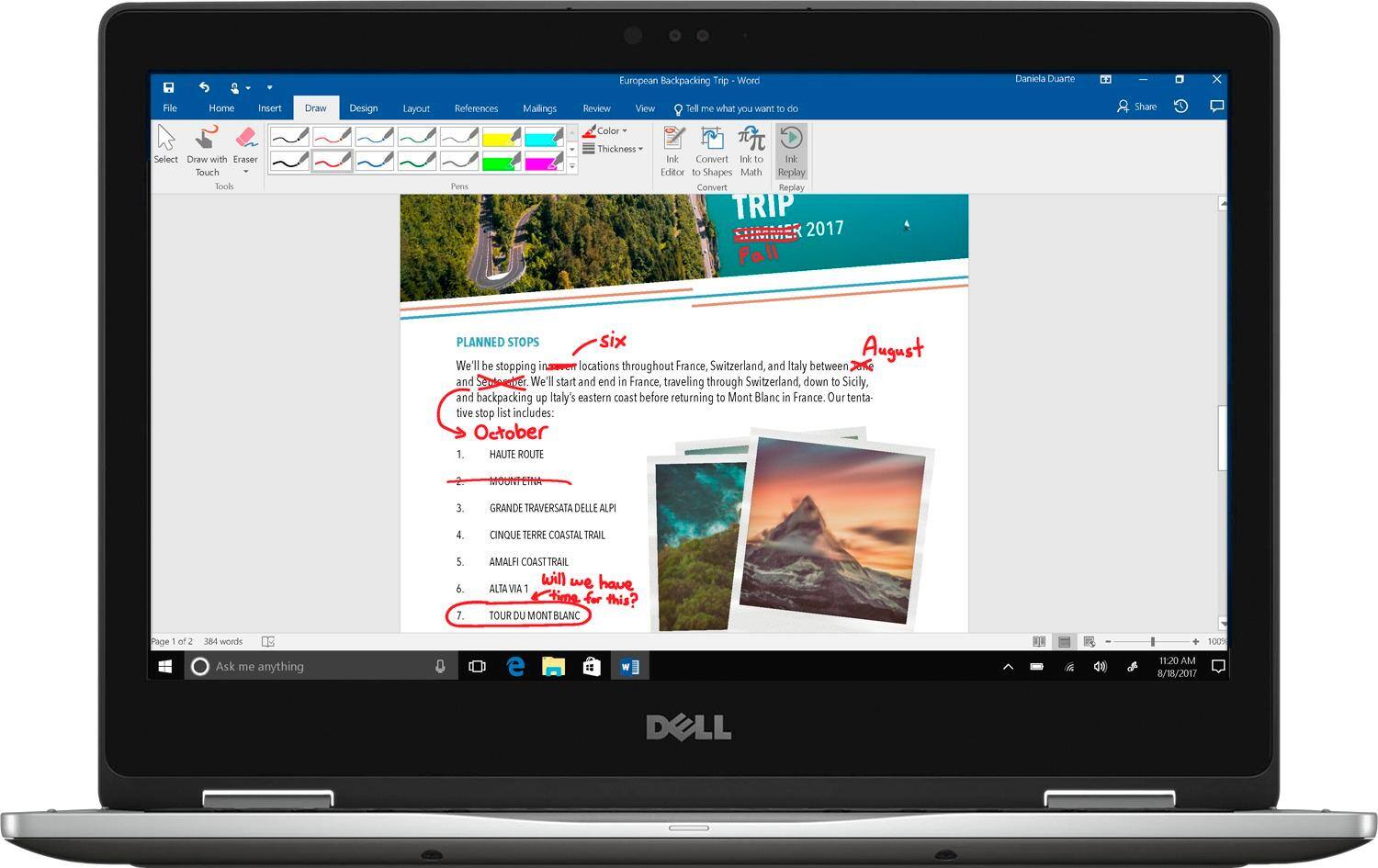
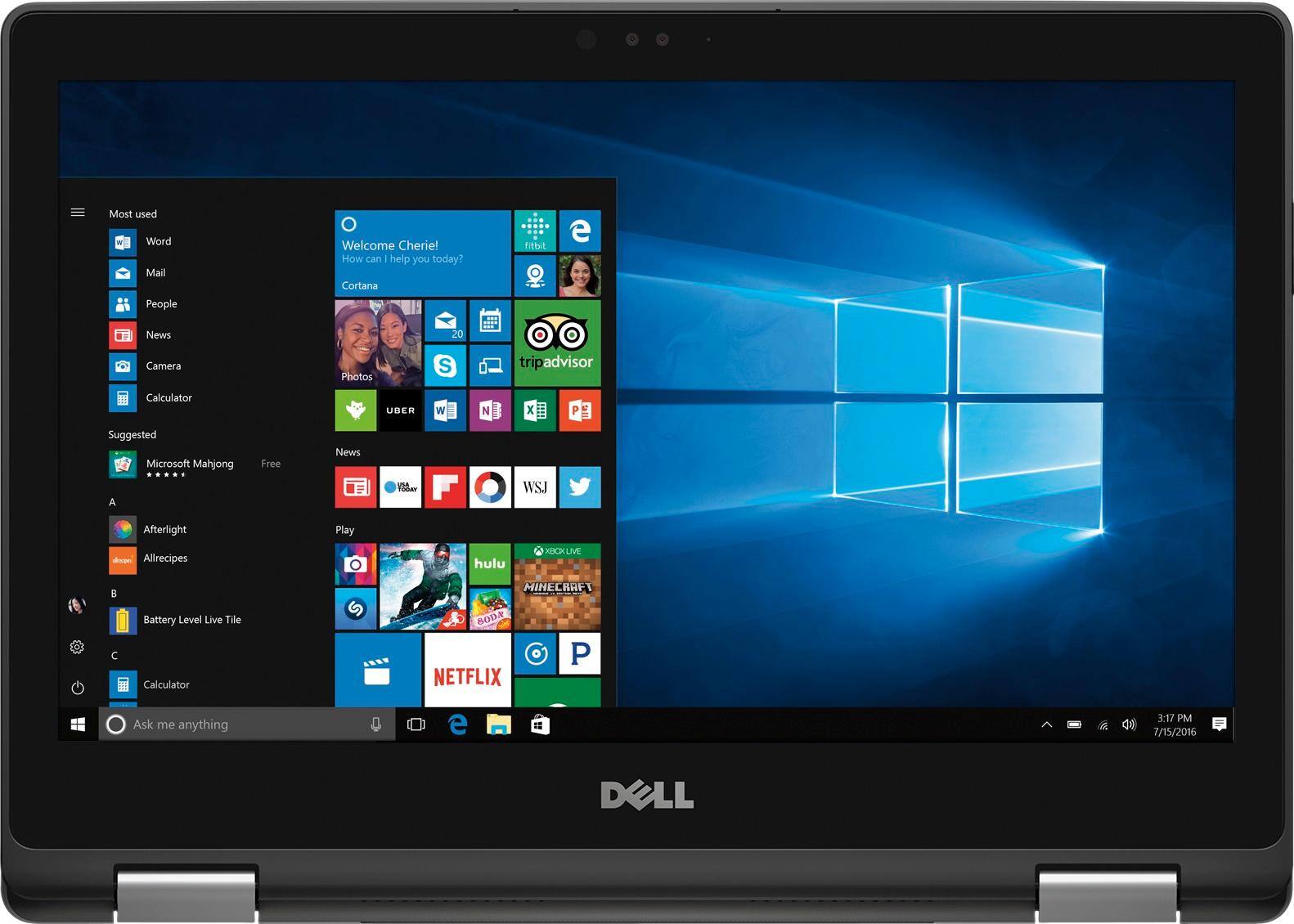
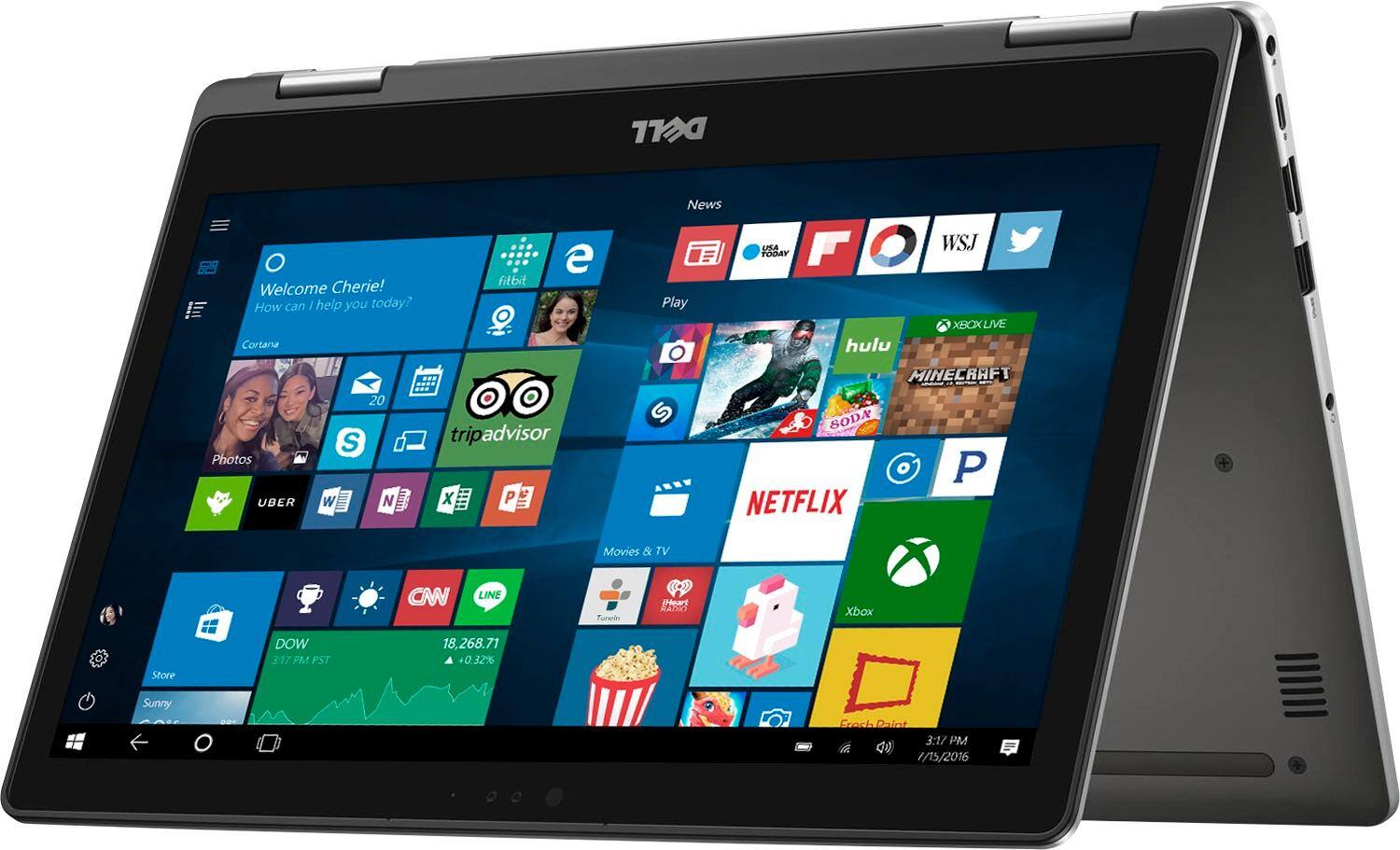
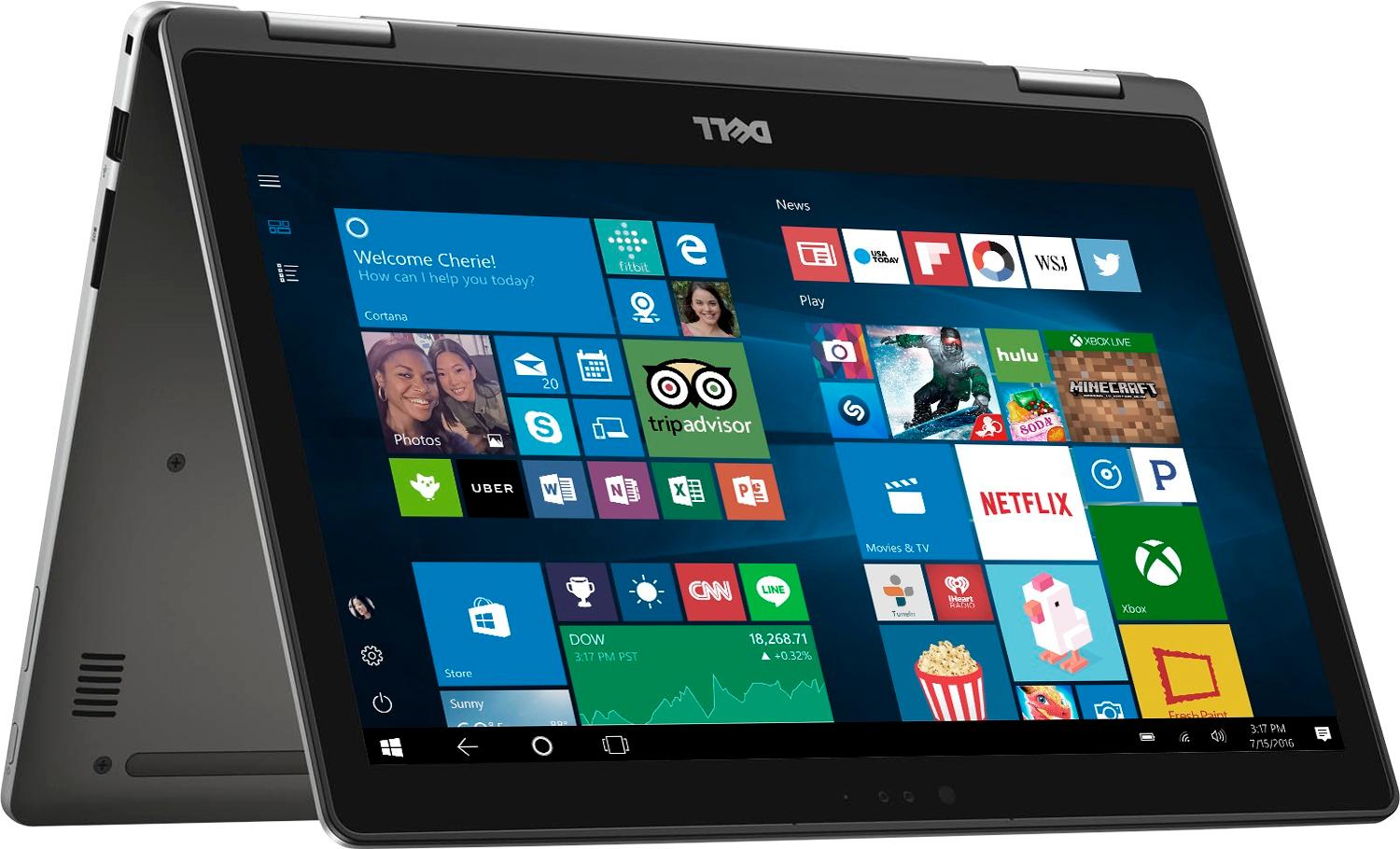
Customers often highlight the positive aspects of the Inspiron 2-in-1 13.3" Touch-Screen Laptop, such as its touch screen, fast performance, lightweight design, and affordable price. They appreciate the convenience of the touch screen, the speed of the laptop, and its portability. However, some customers have concerns about the battery life and the Windows 10 operating system.
This summary was generated by AI based on customer reviews.
- Pros mentioned:Touch screen
Good buy
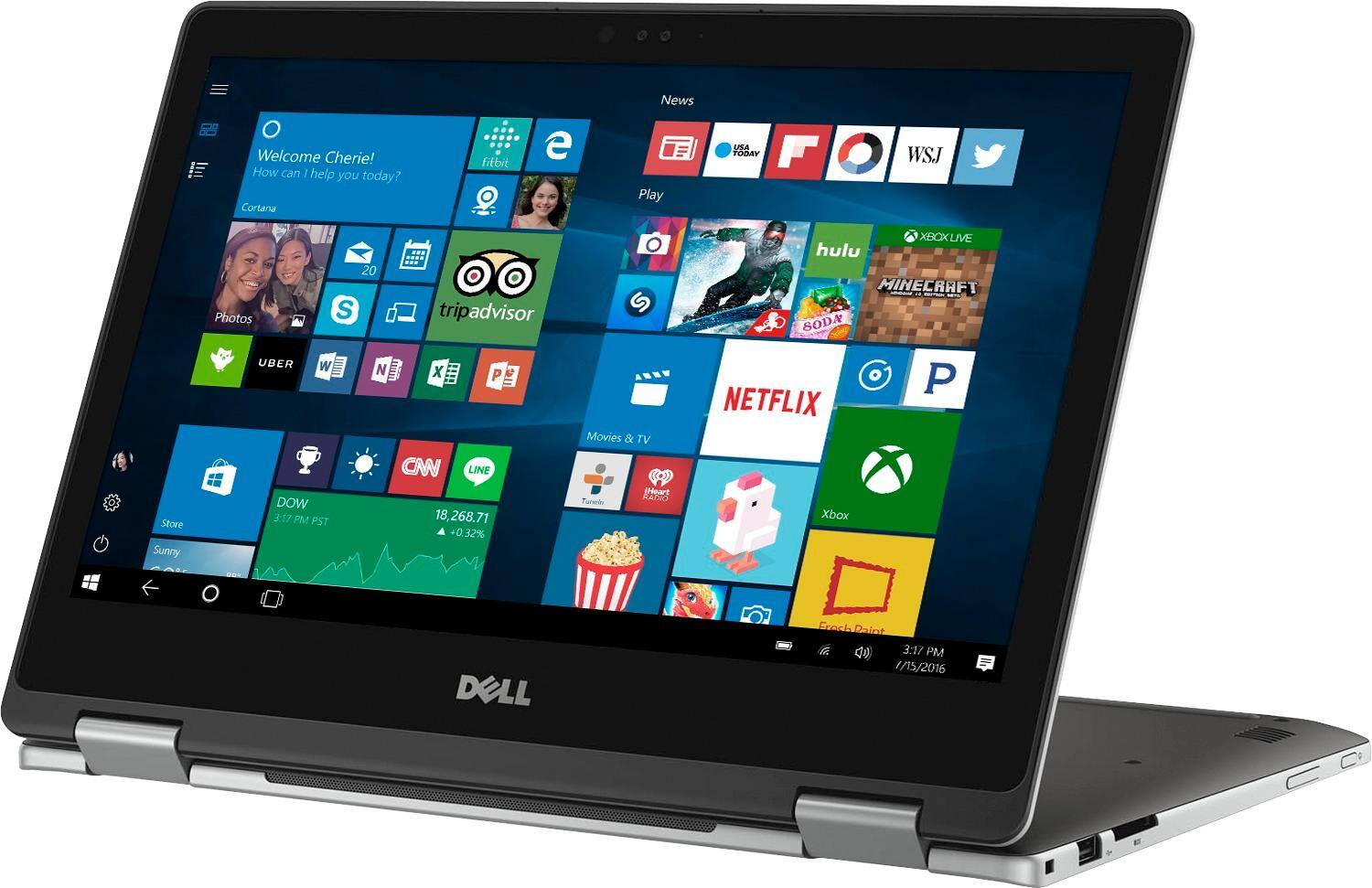
Posted .This reviewer received promo considerations or sweepstakes entry for writing a review.Great laptop with touchscreen feature. I love the tablet feature as well.
I would recommend this to a friend - Pros mentioned:Lightweight
Fit my needs perfectly!
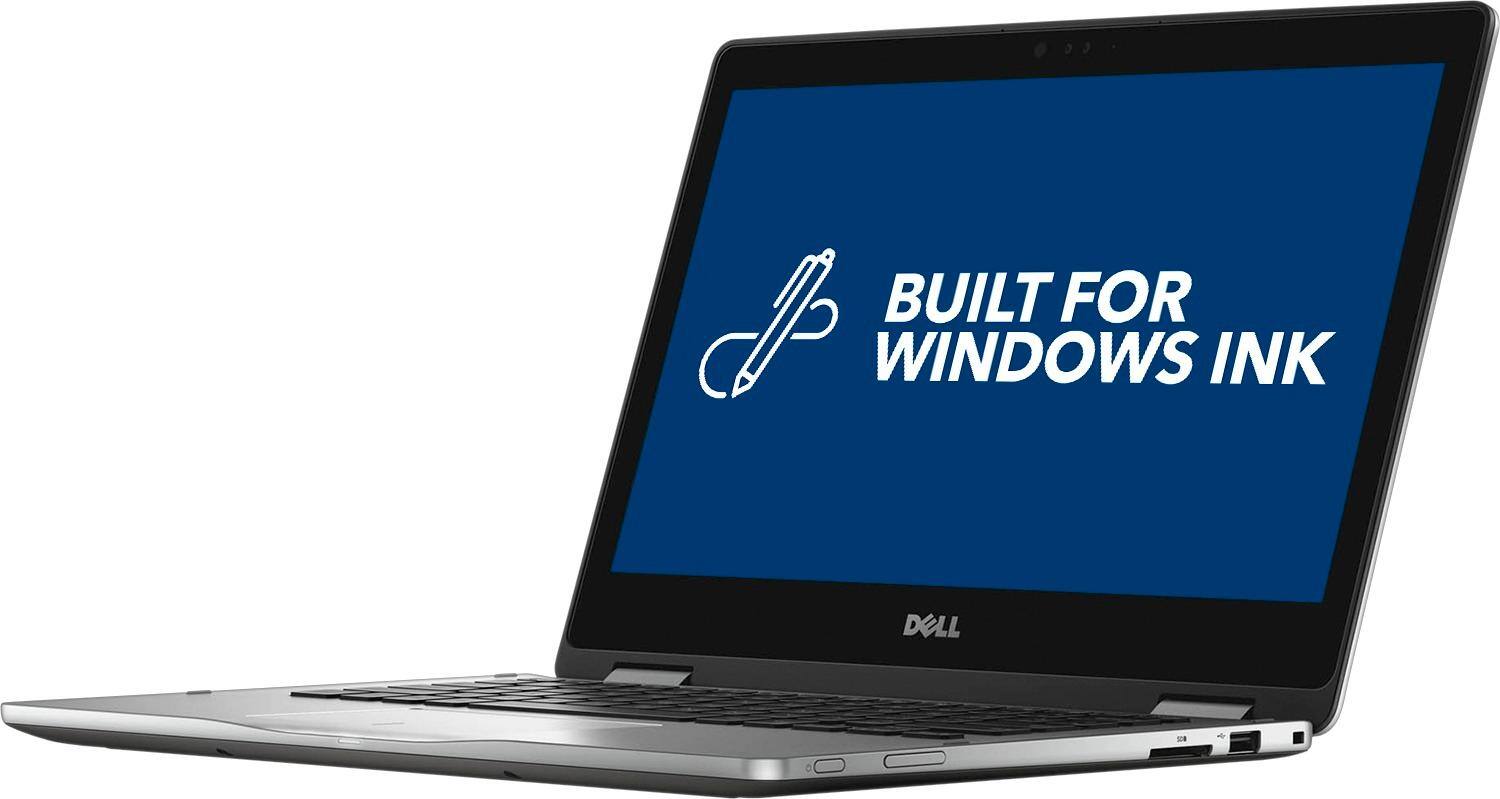
Posted .This reviewer received promo considerations or sweepstakes entry for writing a review.I travel a lot and was looking for a workhorse business laptop that was portable and easy to carry, but powerful and easy to use. I compared price and performance of Levano, HP, Asus, and Dell. You will not find a better 13.3 solid state hard drive business friendly model for the price. Setup was easy and I am not a techie. Startup is as fast as my IPad, and keyboard is backlit beautiful and responsive. Thanks Dell for a business solution that's light and easy to carry. And it is windows ink compatable. Beware, not all touchscreen laptops are windows ink compatable. Thanks to this I can now travel with my tablet and business laptop combined in one light easy to carry devise. The Inspiration fit my needs perfectly!
I would recommend this to a friend - Cons mentioned:Battery life
Very Disapointed with Battery Life
Posted .This reviewer received promo considerations or sweepstakes entry for writing a review.This is an update to my previous review. The battery life is terrible. Only 2 to 3 hours on a full charge even with the battery saver on. I simply read my email and read several online news sites;no streaming, no videos, no gaming, no sound. Yet, I'm at 10% battery in 3 hours or less. As a comparison, I also have a 5 year old iPad that I use for same activities and have 6 to 8 hours of usage before plugging in.
No, I would not recommend this to a friendBrand response from YourDellTeam
Posted .Hello DSA99 - Thanks for your recent review and we're sorry to hear that the battery life on your new laptop is not what you were hoping for. Here are some suggestions to help improve the life of your battery:
Change the Power Plan:
1. On the notification area of the taskbar, right-click the Battery icon.
2. On the options list, click Power Options.
3. Select a power plan on the battery meter, such as Power Saver or Balanced. Windows 10 has a built-in 'Battery Saver' mode that can be activated to extend your system's battery life. The Battery Saver mode will monitor and limit background activity and other features such as push notifications. You do have the option to enable or disable this mode within settings or within advanced Battery Saver settings you can customize the mode to best suit your needs. 1) Click on the Action Center icon within the taskbar and select the tile for Battery Saver. 2) If running Cortana then type Battery Saver into the search box and select from the results.
Within the Battery Saver settings page you will be able to turn on and off the feature and customize the feature to best meet your needs. 3) Turn Battery Saver On or Off. 4) Additional settings available via the Battery use and Battery saver settings links. 5) Battery use shows further info on apps and their power usage. 6) Battery Saver Settings screen allows you to customize further Battery Saver feature.
You can read the full article here - http://dell.to/2vfXWf4.
We hope these tips in addition to what you are already trying will help increase your computer's battery life. - Bryan
great power computer
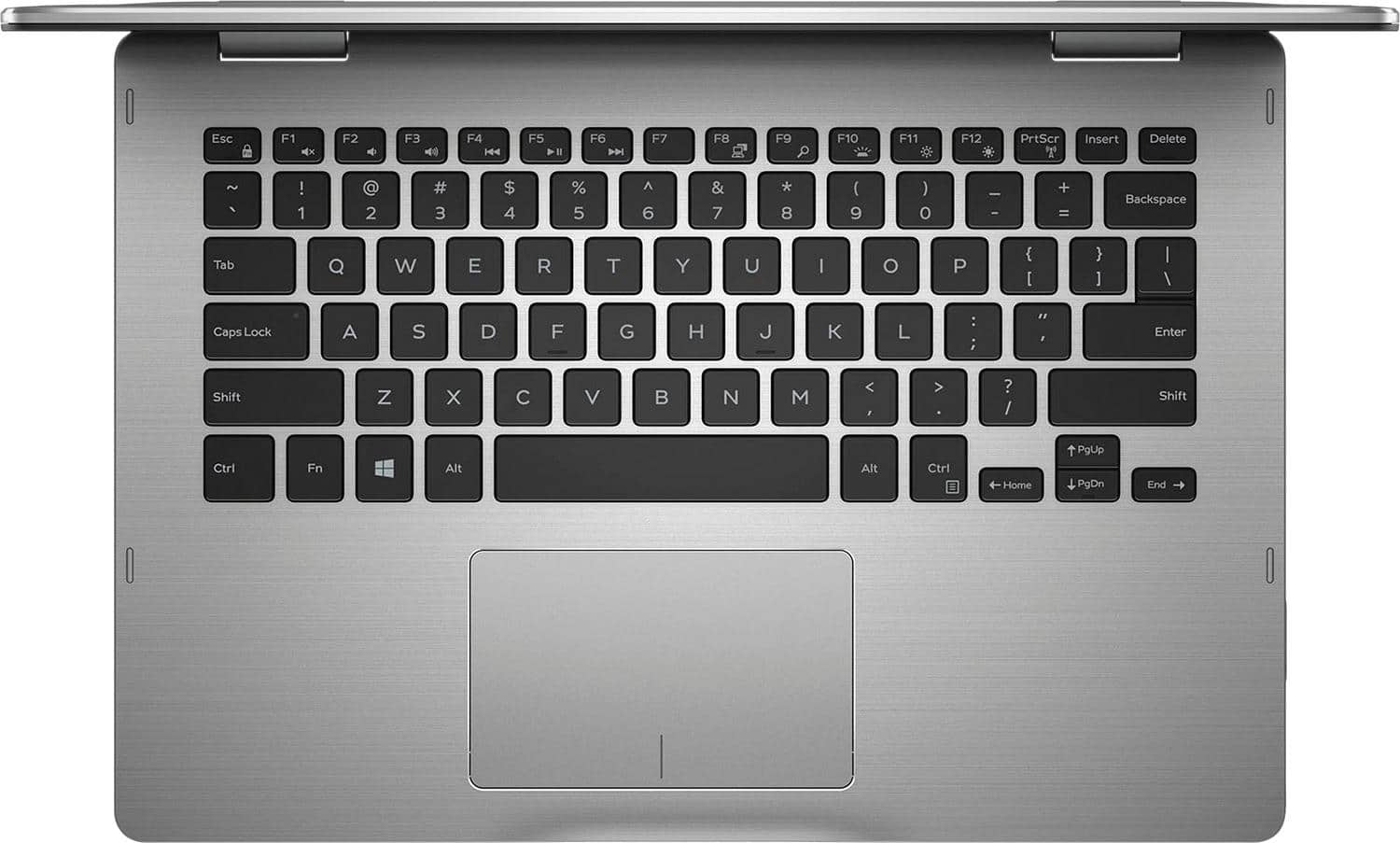
Posted .This reviewer received promo considerations or sweepstakes entry for writing a review.powerful, sleek computer with great keyboard and touchpad. I really like the satisfying feeling when I write. It works most of the time without any noise, which is a gamechanger for me because I usually study in quiet places. Perhaps not noticeable to an untrained eye but the screen is not the best device for entertainment. Also, audio could slightly be better. Still, a very good device for the price.
I would recommend this to a friendGood Laptop, but it won't replace an iPad
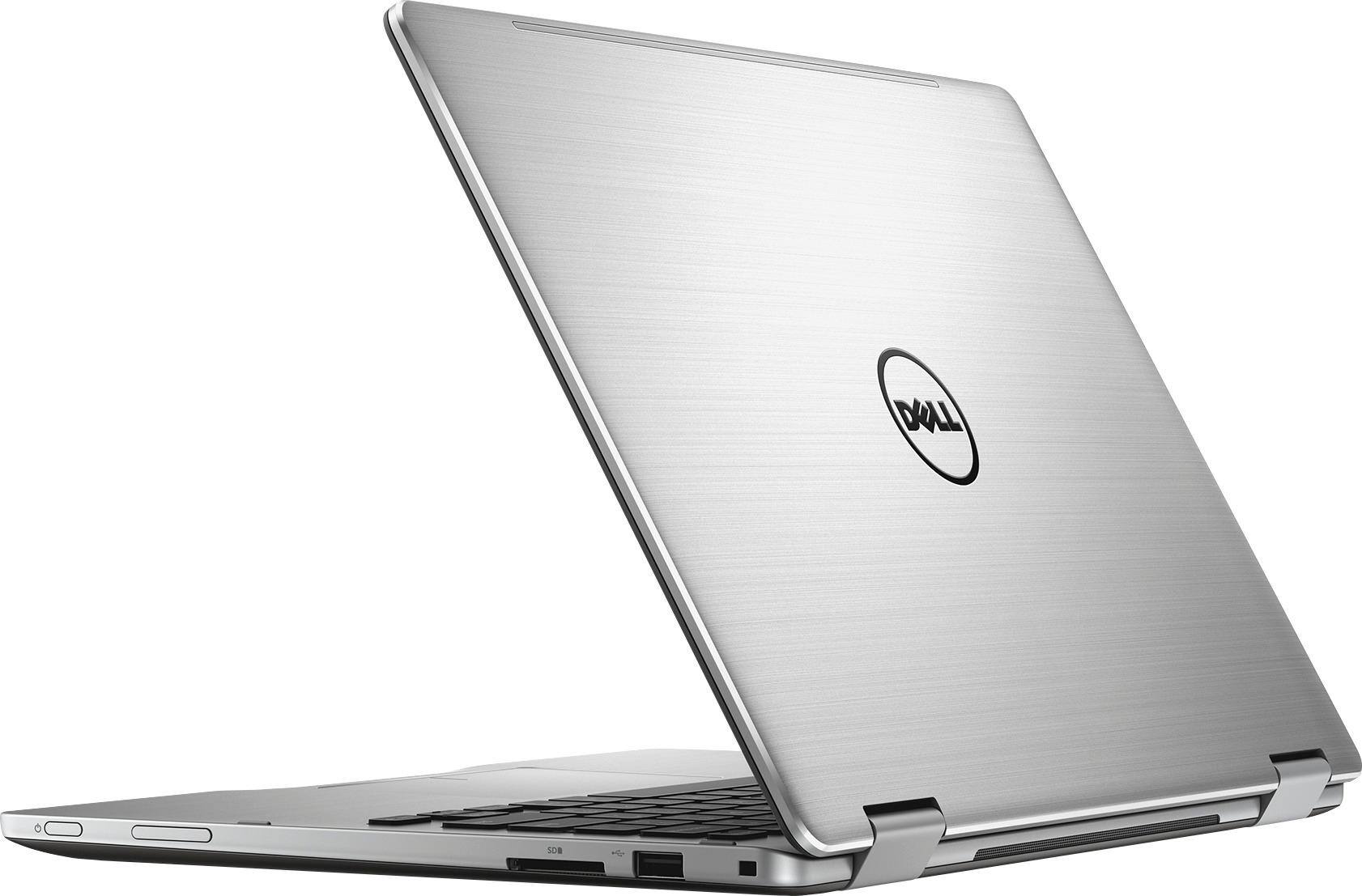
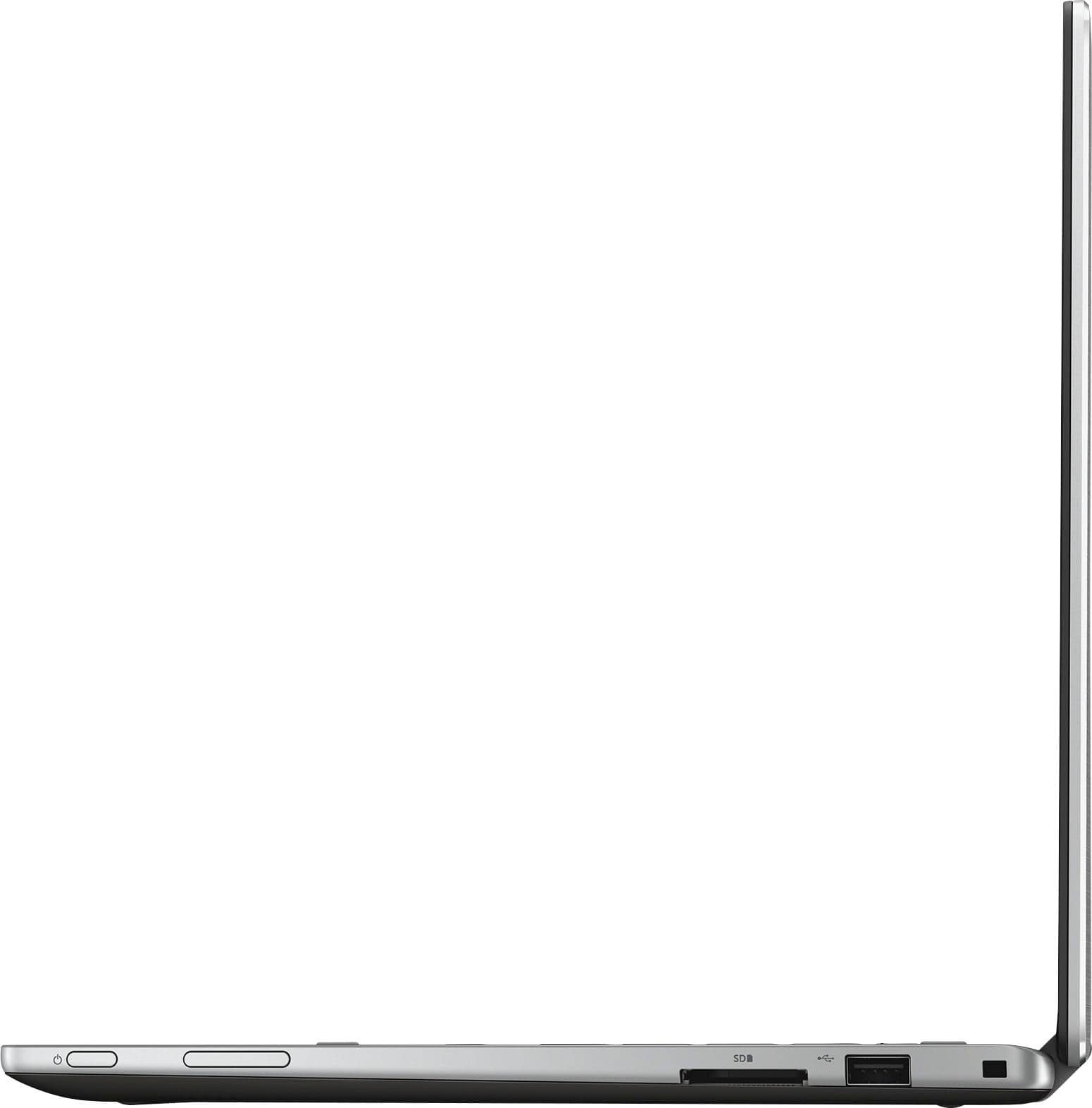
Posted .This reviewer received promo considerations or sweepstakes entry for writing a review.I've had this for a couple of days. I had an iPad and laptop at my former job, so was looking for something to replace both. I went with this for the SSD, size, and the fact it could essentially become a tablet. As a laptop, so far it's been great. The only real complaint is the shiny screen makes it difficult to use outside, but that will be an issue with most new laptops (I'm ordering a matte screen protector to see if that helps). I love the size and the touch screen is nice when you don't want to mess with the mouse for a click tap. It seems to be built very solid. My issue comes when you put it in tablet mode. It seems the fan does not stop when playing any game (tested on preloaded games and Candy Crush). This causes it to get hot very quickly. If you are looking for an iPad replacement, I won't not recommend, but for a laptop, I've been happy so far. Note: There are only 2 traditional USB ports. The USB Type C is completely different.
I would recommend this to a friendFlawed
Posted .This reviewer received promo considerations or sweepstakes entry for writing a review.The first issue I experienced was the audio through the headphone jack. It is very dull and lacks bass. The audio software does little to fix this. (Turning bass off actually increased bass). The second issue I've noticed is that the screen will ghost click. Usually spamming one area of the screen, but sometimes all over opening and closing apps and tabs. This would occur randomly and even if I didnt touch the screen at all since turning it on. I'll be looking into an exchange, but it might be too late.
No, I would not recommend this to a friendBrand response from YourDellTeam
Posted .Retrobuttercup, Thanks for your recent Dell laptop purchase. We're sorry to hear that you're experiencing some sound quality issues as well as problems with your touchpad. For the touchpad concerns, we'd recommend looking into the following: Some Notebooks and Tablets with Keyboards have added gesture features to the touchpad hardware and drivers. A few of these features are two or three finger scrolling, pinch zoom, circle zoom, rotate and swiping. These new features may be the reason for the erratic cursor movement since most are turned on by default. You can disable or modify the way the features work in the touchpad driver properties. Here are some tips to modify these settings:
1. In the Search box, type main.cpl.
2. Touch or click main.cpl in the list of programs.
3. Touch or click the Dell Touchpad tab.
4. Touch or click on the picture of the touchpad.
5. Touch or click Gestures (depending on your computer there may not be a Gestures option).
6. Change the options as preferred.
7. Touch or click Save.
8. Touch or click the X in the upper-right corner to close the Dell Touchpad Utility.
9. Touch or click OK on the Mouse Properties window.
10. If the touchpad still does not work after following the preceding steps, refer to Dell Knowledge Base article - http://dell.to/2iaiujA.
We hope these tips help with the movements and clicks you're experiencing.
- Cons mentioned:Setup
Froze during setup
Posted .This reviewer received promo considerations or sweepstakes entry for writing a review.My wife purchased this laptop last week. While setting it up for her, the setup became unresponsive. I could move the mouse but could not click on anything. I tried a soft reset, which didn't work. Contacted Dell and Best Buy, who both suggested a hard reset. Why would I do a hard reset on a brand new laptop? For me, it was just a sign of things to come, so we returned the laptop.
No, I would not recommend this to a friend