Customer Ratings & Reviews







- Model:
- i7506-7784BLK-PUS
- SKU:
- 6432554
Rating by feature
- Battery Life
Rating 4.2 out of 5 stars
- Speed
Rating 4.4 out of 5 stars
- Display
Rating 4.4 out of 5 stars
Customers are saying
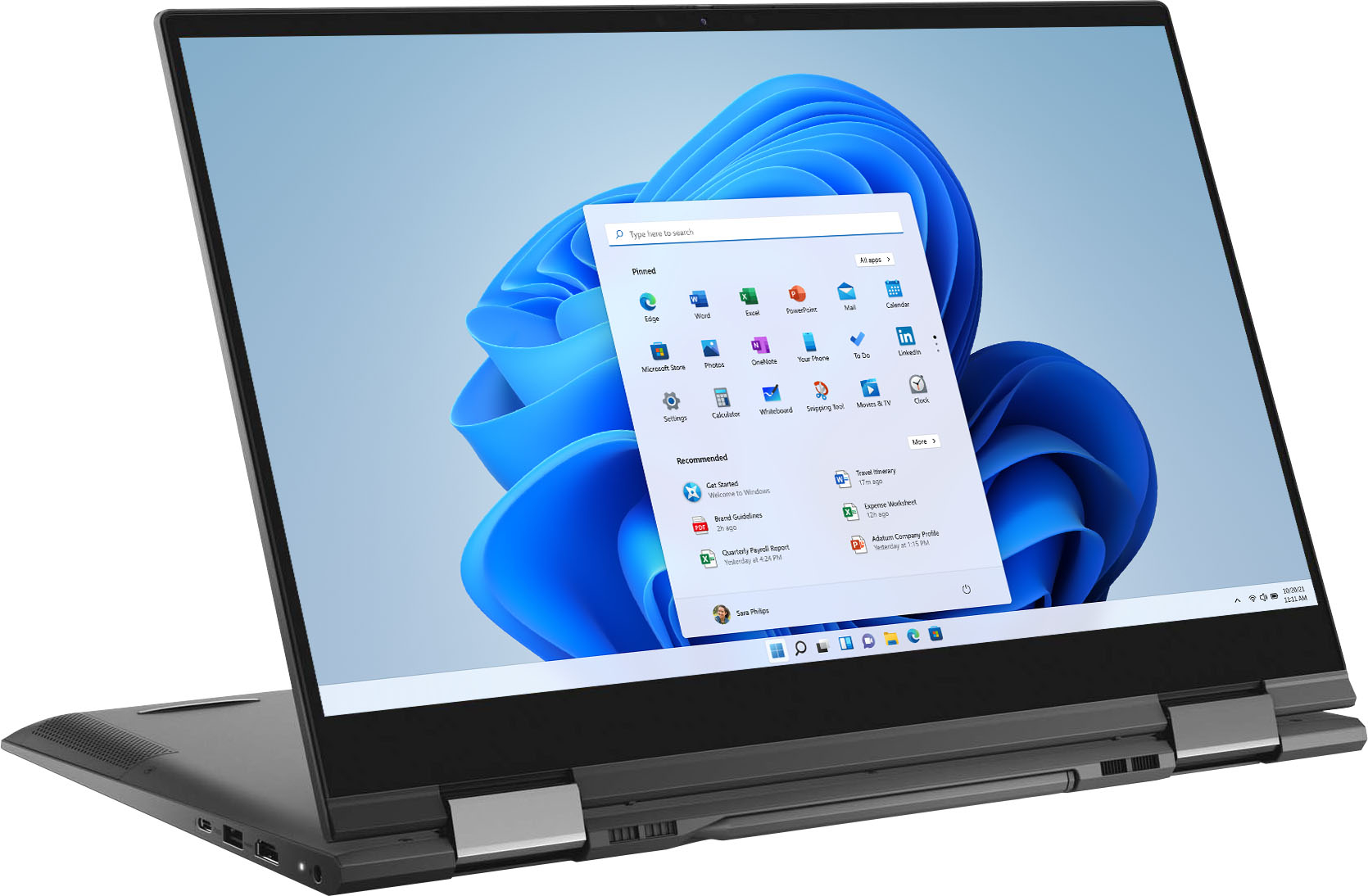
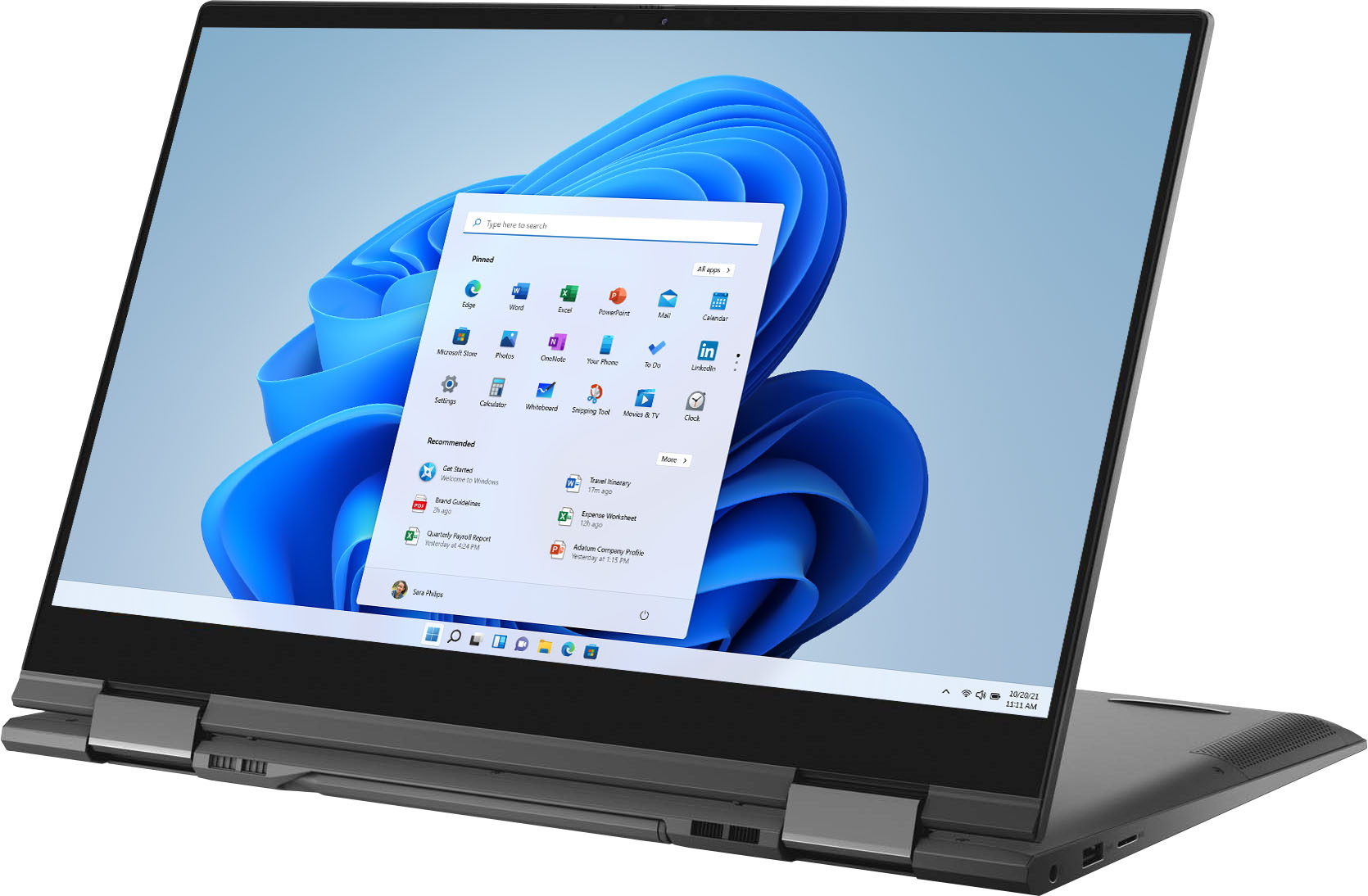
Customers admire the Inspiron 7000 2-in-1 laptop for its touch screen, performance, pen, and affordable price. However, they have concerns about its battery life, overheating, fan noise, and occasional crashing issues.
This summary was generated by AI based on customer reviews.
Not recommended
||Posted . Owned for 2 months when reviewed.This reviewer received promo considerations or sweepstakes entry for writing a review.The mousepad sometimes doesn’t work and computer gives some software error.I needed to restart and give some time to repair itself.
No, I would not recommend this to a friendBrand response from YourDellTeam
Posted .Hello User,
Thank you for your review. We apologize for the issues you have encountered with your laptop. We suggest running the suite of tools found within the 'SupportAssist' application that came pre-installed with your PC. They will not only perform diagnostics to determine what may be causing errors but also download and install the latest firmware to ensure you have the best experience.
If the issues persist, you are more than welcome to contact Dell Support for further assistance at 1-800-264-9896.
Best Regards,
Wendy C.
Do not purchase
||Posted . Owned for 5 months when reviewed.This reviewer received promo considerations or sweepstakes entry for writing a review.For a $1400 laptop I expected it to at least work. Since it came out of the box, the mousepad lags and only works when it wants to. I have to open my laptop 180 degrees for it to reset and start working. Tried to return it a month after receiving it and was told there was nothing they can do to replace it or help resolve the issue.
No, I would not recommend this to a friendBrand response from YourDellTeam
Posted .Dear Stephanie,
We appreciate you taking the time to leave us your review. We are sorry to hear about the issues you have encountered with your Dell Inspiron 7506 2-in-1 laptop because.
Some Notebooks and Tablets with Keyboards have added gesture features to the touchpad hardware and drivers. A few of these features are two or three-finger scrolling, pinch zoom, circle zoom, rotate, and swiping. These new features may be the reason for the erratic cursor movement since most are turned on by default. You can disable or modify the way the features work in the touchpad driver properties. Here are some tips to modify these settings:
1. In the Search box, type main.cpl.
2. Touch or click main.cpl in the list of programs.
3. Touch or click the Dell Touchpad tab.
4. Touch or click on the picture of the touchpad.
5. Touch or click Gestures (depending on your computer there may not be a Gestures option).
6. Change the options as preferred.
7. Touch or click Save.
8. Touch or click the X in the upper-right corner to close the Dell Touchpad Utility.
9. Touch or click OK on the Mouse Properties window.
10. If the touchpad still does not work after following the preceding steps, refer to Dell Knowledge Base article - http://dell.to/2iaiujA.
You can read the full article here - http://dell.to/2tqmS02.
We’d also recommend making sure that all BIOS drivers are updated. I have provided a link to the Drivers and Downloads page for your computer below, where you can check for any applicable updates:
Drivers and Downloads Page: https://dell.to/3LI7X8m
If the issues with your Inspiron laptop are still not resolved after utilizing the troubleshooting options above, please contact the Dell Support Team at 1-800-624-9896 for further guidance. We hope that the next representative you speak with can help you to resolve this issue to your satisfaction.
Best,
Katarina@Dell
Should you need further assistance, you can contact Dell directly with the information below.
Chat or call: https://bit.ly/DellSupportTeam
Phone number to Dell 1-800-624-9896
Problematic Dell laptop
||Posted . Owned for 1 month when reviewed.This reviewer received promo considerations or sweepstakes entry for writing a review.The computer has issues as the display flickers/flashes when working and ot shuts down inadvertently showing a blie screen with a message of fatal error. The images at times also appear partial or incomplete. I have an old and much cheaper laptop that has mone of this issues. For the price I pay I expected much better performance. This promots me to return it within the first 39 days upon receiving it.
No, I would not recommend this to a friendBrand response from YourDellTeam
Posted .Unreliable,
Thanks for your review and we're sorry to hear about the Blue Screen Errors that you're experiencing. Here are some steps to follow to help diagnose your Blue Screen Errors:
1. At the desktop, click the Search the web and Windows box and type "problem reports".
2. Select View all problem reports to view a list of errors that have occurred on your computer and possible solutions for them, such as updating drivers, flashing your system BIOS, or checking for updates to the software.
3. Under the Source column, look for Windows and under Summary, look for Shut down unexpectedly.
4. Right-click the line item and select Check for a solution.
We'd also suggest checking to make sure that your software and drivers are up to date on Dell's Product Page - https://dell.to/37OWbbz.
You can read the full article here - http://dell.to/2u98Cct.
Best,
Bryan
1-800-624-9896
- Cons mentioned:Crashing
DO NOT BUY
||Posted . Owned for 5 months when reviewed.This reviewer received promo considerations or sweepstakes entry for writing a review.Constant Crashing, it is a known issue with these and Dell will not fix it.
No, I would not recommend this to a friendBrand response from YourDellTeam
Posted .Hello,
Thank you for your review. We're sorry about the trouble you have encountered with your laptop constantly crashing. We would love to help you as soon as possible. There are steps below that can be used to improve performance overall.
1. Restart your computer regularly
2. Run the automated tools provided in the SupportAssist tool
3. Run a complete hardware diagnostic test
4. Scan your computer for malware
5. Restore your Dell computer using Windows System Restore
6. Reinstall Microsoft Windows
7. We'd also suggest checking to make sure that your software and drivers are up to date on Dell's Product Page - http://dell.to/3hmUpRy.
Here is the link to the full article to assist with your performance issue: https://dell.to/32wo0Ss. If the issue persists, we invite you to contact Dell at your earliest convenience at 1-800-264-9896.
Best,
Wendy C.
https://bit.ly/DellSupportTeam.
Phone number to Dell: 1-800-264-9896.
Freezes a lot
||Posted . Owned for 1 month when reviewed.This reviewer received promo considerations or sweepstakes entry for writing a review.It was great until you face the weird freezing behavior when connecting a bluetooth mouse. You can find better laptops.
No, I would not recommend this to a friendBrand response from YourDellTeam
Posted .Hello Naser,
Thank you for your feedback. We recommend you download and install the latest Bluetooth drivers using the SupportAssist application that came pre-installed with your PC. They may improve overall connection performance. If the issue persists, you are more than welcome to contact Dell Support for further assistance.
Best Regards,
Anthony P.
Crashes daily
||Posted . Owned for more than 2 years when reviewed.This reviewer received promo considerations or sweepstakes entry for writing a review.This laptop worked fine for a year and then started shutting down completely on a daily basis, A quick internet search on the issue revealed this a common issue being reported on this laptop. Not sure why Dell has not addressed the issue.
No, I would not recommend this to a friendBrand response from YourDellTeam
Posted .Hi JeffreyK,
Thank you for taking the time to leave us a review of your Inspiron 7506. We are sorry to hear that you are experiencing an issue with your system crashing. That is not the type of product Dell intends to deliver or the type of feedback we like to hear from our customers. Below I have provided troubleshooting steps to help resolve your issue.
Here are the steps to help resolve your crashing issue:
1. At the desktop, click the Search the web and Windows box and type "problem reports".
2. Select View all problem reports viewing a list of errors that have occurred on your computer and possible solutions for them, such as updating drivers, flashing your system BIOS, or checking for updates to the software.
3. Under the Source column, look for Windows and under Summary, look for Shut down unexpectedly.
4. Right-click the line item and select Check for a solution.
We'd also suggest checking to make sure that your software and drivers are up to date on Dell's Product Page here: https://dell.to/3khR75H
You can read the full article on solving PC crashing issues here: http://dell.to/2u98Cct
Should you need further assistance; we recommend that you contact Dell directly with the information below.
Chat or call: https://bit.ly/DellSupportTeam
Phone number to Dell: 1-800-624-9896.
Regards,
Summer@Dell
Issues after 4 months of having it
||Posted . Owned for 3 months when reviewed.This reviewer received promo considerations or sweepstakes entry for writing a review.I purchased this laptop in March 2021 and now i am having issues with it in June 2021. The mouse pad is touchy, sometimes it works, other times it acts as if it cant recognize its being used. There is a system error and shut down every other day. I just bought it, i havent even had a chance to fully utlize it, less than half of my data has been moved other. Im super frustrated.
No, I would not recommend this to a friendBrand response from YourDellTeam
Posted .Hello User1229,
We are sorry to hear that the mouse pad is behaving abnormally and the Inspiron is shutting off abruptly. We understand how frustrating it must be. We recommend you run all tools within the SupportAssist application. It will not only ensure you are running the software and BIOS but also perform system diagnostics, clean junk files, and even optimize the system.
1. Restart your computer regularly
2. Run the automated tools provided in the SupportAssist tool
3. Run a complete hardware diagnostic test
4. Scan your computer for malware
5. Restore your Dell computer using Windows System Restore
6. Reinstall Microsoft Windows
7. Here is the link to the full article to assist with your performance issue: https://dell.to/32wo0Ss.
If you still run into issues with your touchpad, this link can assist with more details and troubleshooting steps: http://dell.to/2tqmS02.
Best,
Wendy C.
For further assistance, you can contact Dell directly with the information below Chat or Call:
https://bit.ly/DellSupportTeam.
Phone number to Dell: 1-800-264-9896.
Love Dell Wanted a 2n1. Didn’t Work Out in the End
||Posted . Owned for 2 weeks when reviewed.This reviewer received promo considerations or sweepstakes entry for writing a review.I surfed the web for weeks. Finally downloaded a few files from a .gov site and the laptop slowed considerably.
No, I would not recommend this to a friendBrand response from YourDellTeam
Posted .TyBlankenship,
Thanks for your review and we're sorry to hear that your computer is slower than you hoped it would be. There are a number of ways to help improve the performance of your computer if it is running slower than you expected it to. We'd recommend the following steps to help improve your computer's overall performance and speed:
1. Restart your computer regularly.
2. Run the automated tools provided in the SupportAssist Tool.
3. Run a complete hardware diagnostic test.
4. Scan your computer for malware.
5. Restore your Dell computer using Windows System Restore.
6. Reinstall Microsoft Windows.
You can read the full steps associated with each of these recommendations here: https://dell.to/3n29QjE.
Best,
Bryan
1-800-624-9896
Regret
||Posted . Owned for 3 weeks when reviewed.This reviewer received promo considerations or sweepstakes entry for writing a review.Reviews on this laptop were not promising. I tool it back and got a laptop equivalent to it.
No, I would not recommend this to a friendafter 14 months key board stopped working and mic
||Posted . Owned for 1 year when reviewed.This reviewer received promo considerations or sweepstakes entry for writing a review.after 14 months key board stopped working and mic is not working too
No, I would not recommend this to a friendBrand response from YourDellTeam
Posted .Dear Nikk,
Thank you very much for your valuable feedback. We are sorry to hear about the troubles you have encountered with your Dell Inspiron 7506 2-in-1 laptop because its keyboard and microphone stopped working.
Please make sure you have downloaded the latest system update. I have provided a link to the drivers and downloads page where you can check for any applicable updates.
Drivers and Downloads Page: https://dell.to/3tLUgxV
The audio or sound issues may be caused due to an outdated audio driver, audio recording settings, no microphone available on the computer, faulty microphone, or microphone settings on the third-party software such as Skype, Zoom, Microsoft Teams, Google Hangouts, Google Meet, Discord, and so on, that you are using. I have provided the link to the troubleshooting article:
How to Troubleshoot Audio or Sound Recording Issues: https://dell.to/3IAyVy2
To help with the nonworking keyboard, please contact Dell Support Team at the information provided below at your earliest convenience, so we can help you resolve this issue.
Best,
Katarina@Dell
Should you need further assistance, you can contact Dell directly with the information below.
Chat or call: https://bit.ly/DellSupportTeam
Phone number to Dell 1-800-624-9896
Worse laptop I ever purchased
||Posted . Owned for 1 year when reviewed.This reviewer received promo considerations or sweepstakes entry for writing a review.The worst laptop that I've ever purchased. I have been having problems with it since I bought it. I will never buy Dell again. Every system update causes issues with my laptop, locks me out and doesn't allow me to use the very programs I bought it for. So disappointing.
No, I would not recommend this to a friendBrand response from YourDellTeam
Posted .Dear Valued Customer,
We would like to thank you for taking the time to leave us your review and valued feedback. We apologize for the issues you have come across with your Dell Inspiron 7506 2-in-1 computer because of the problems with system updates. We understand how frustrating this could be. We suggest doing the BIOS update from the Drivers and Downloads page for your PC on our website. I have provided the needed link below:
Drivers and Downloads Page: https://dell.to/3tLUgxV
If the issue with your computer is still not resolved after utilizing the troubleshooting option above, please contact the Dell Support Team at 1-800-624-9896 for further guidance.
Best,
Katarina@Dell
Should you need further assistance, you can contact Dell directly with the information below.
Chat or call: https://bit.ly/DellSupportTeam
Phone number to Dell: 1-800-624-9896
System crashes daily
||Posted . Owned for 4 months when reviewed.This reviewer received promo considerations or sweepstakes entry for writing a review.System crashes almost every day just bought it Feb 14, 2021. Maybe a defective one. Took it in and google chrome was removed. Seemed to work for a while, but had to reinstall chrome due to favorites. Get the warranty just for instances such as this.
No, I would not recommend this to a friendBrand response from YourDellTeam
Posted .Hello Jdub,
Thank you for your review. We are so sorry to hear about the issues you are having with your laptop turning off when in use. We can understand how frustrating this could be. We recommend you perform system diagnostics to verify your system is working properly. To do so, review the instructions below.
1. Restart your computer regularly
2. Run the automated tools provided in the SupportAssist tool
3. Run a complete hardware diagnostic test
4. Scan your computer for malware
5. Restore your Dell computer using Windows System Restore
6. Reinstall Microsoft Windows
7. Please ensure that you're running the latest software. There was a BIOS update released last week for this series. You can download it here: https://dell.to/3h2D5Tv.
If the issue persists after the BIOS update, please also feel free to reach out to Dell Support directly using the information below via Chat or Call.
Best regards,
Wendy C.
https://bit.ly/DellSupportTeam.
Phone number to Dell: 1-800-264-9896.
Don't buy it..
||Posted . Owned for 1 month when reviewed.This reviewer received promo considerations or sweepstakes entry for writing a review.Worst laptop.. bad finger print reader. After closing the laptop it won't turn on most of the time. After 15 days it permanently shut.. could not turn it on. Otherwise laptop had good configuration.. Retuned and bought Lenovo Yoga 7i. Dell should fix this hardware issues on this model
No, I would not recommend this to a friendBrand response from YourDellTeam
Posted .Dear Abinay,
Thank you very much for your valued feedback. We are sorry to hear that you came across some troubles with your Inspiron 7506 laptop and ultimately decided to return the system. This is certainly not what we like to hear from our loyal customers. We will share your comments with our quality team so improvements can be made now and in the future. In the future, we would love the opportunity to help troubleshoot any problems you may be facing.
If you come across any questions, please don’t hesitate to contact Dell Support Team at the information provided below.
Best,
Katarina@Dell
Should you need further assistance, you can contact Dell directly with the information below.
Chat or call: https://bit.ly/DellSupportTeam
Phone number to Dell 1-800-624-9896
Worst dell laptop with no dell support
||Posted . Owned for 2 weeks when reviewed.This reviewer received promo considerations or sweepstakes entry for writing a review.I have had two of these in 3 weeks. The intel iris xe Graphics card was defective in both. Dell will not support as I purchased from a “retailer”. IF YOU VALUE YOUR SANITY DO NOT PURCHASE THIS LAPTOP!
No, I would not recommend this to a friendBrand response from YourDellTeam
Posted .Hello Spange,
We're sorry to hear that your experience did not go as expected. You can ensure your Inspiron is running as smooth as possible by regularly running the suite of tools found within the Dell 'SupportAssist' application that came pre-installed with your device. It will not only download the latest updates but also diagnose your system for any errors as they occur.
If the issues persist, you are more than welcome to contact Dell Support via this link - http://dell.to/2sH7Qlm
Best Regards,
Anthony P.
Terrible Experience !
||Posted . Owned for 2 months when reviewed.This reviewer received promo considerations or sweepstakes entry for writing a review.Terrible experience. I bought this laptop almost 3 months ago. I am not able to turn it on now. There is no sign, whether it is charging or not. And I am not able to find a service to get that fixed. It ruined all my boot camp programme and I can not reach my data all saved in the laptop.
No, I would not recommend this to a friendBrand response from YourDellTeam
Posted .Dear IbrahimSen,
We appreciate you taking the time to leave us your valued feedback. We sincerely apologize for the problems you are having with your Inspiron 7506 2 in 1. Below I have provided a link to help resolve this issue. On that page, you can choose between, no power, no post not boot, or no video. Once you choose you can find the options to help troubleshoot and resolve that issue.
Resolve boot up issues: https://dell.to/3sdfce6
If you still experience this issue after you have finished troubleshooting your system, please feel free to contact our support team here: 1-800-624-9896.
If you require further assistance, you can contact Dell directly with the information below.
Chat or call: https://bit.ly/DellSupportTeam
Phone number to Dell 1-800-624-9896
Best,
Ashley@Dell
Poor model
||Posted . Owned for 1 week when reviewed.This reviewer received promo considerations or sweepstakes entry for writing a review.This laptop has problems with a Bluetooth mouse. The mouse cursor skips and freezes. Dell should have resolved this issue before releasing this model. There is plenty of chatter online about this flaw. Laptop also locks up requiring a forced power shutdown-reboot. Very unsatisfied as this is a very expensive Dell model.
No, I would not recommend this to a friendBrand response from YourDellTeam
Posted .Unreliable,
Thanks for your review and we're sorry that your computer's touchpad is not working the way that it should. We'd recommend trying to re-calibrate your touchpad to see if this helps:
Some Notebooks and Tablets with Keyboards have added gesture features to the touchpad hardware and drivers. A few of these features are two or three finger scrolling, pinch zoom, circle zoom, rotate and swiping. These new features may be the reason for the erratic cursor movement since most are turned on by default. You can disable or modify the way the features work in the touchpad driver properties. Here are some tips to modify these settings:
1. In the Search box, type main.cpl.
2. Touch or click main.cpl in the list of programs.
3. Touch or click the Dell Touchpad tab.
4. Touch or click on the picture of the touchpad.
5. Touch or click Gestures (depending on your computer there may not be a Gestures option).
6. Change the options as preferred.
7. Touch or click Save.
8. Touch or click the X in the upper-right corner to close the Dell Touchpad Utility.
9. Touch or click OK on the Mouse Properties window.
10. If the touchpad still does not work after following the preceding steps, refer to Dell Knowledge Base article - http://dell.to/2iaiujA.
You can read the full article here - http://dell.to/2tqmS02.
If your computer continues to freeze on you we'd recommend diagnosing the issue with these steps:
1. Run a Computer Diagnostic. To determine if your computer is experiencing a hardware problem, run the Dell Preboot System Assessment (PSA) Diagnostics. For information on how to run Diagnostics, and to determine the issue, refer to Dell Knowledge Base Article: http://dell.to/2iaiujA.
2. Check Safe Mode for Symptoms. To boot into safe mode, please follow the instructions below:
a) Start the computer.
b) Tap 'F8' on the keyboard immediately and every one second until the Dell logo screen disappears. From there you will see the Windows Advanced Options Menu on the screen. (If the Windows Advanced Options Menu does not appear, restart the system and try again.)
c) Select Safe mode with Networking and press Enter.
d) Log on as the administrator or as a user with administrative access.
e) Open applications and test the computer in safe mode. If the symptoms exist in safe mode, please continue the troubleshooting steps in this article. If the symptoms do not exist in safe mode, the issue is likely related to a driver or software and you may wish to complete step 3 to see if you are able to resolve the lockups or freezing.
3. Check for Malware. Malware (Virus, Spyware, etc.) can definitely cause a Windows system to lock up or appear to hang. To check for malware on your system and to ensure that your computer is up to date on security software, visit Dell Knowledge Base Article: http://dell.to/2wWP1zI.
You can read the full article here - http://dell.to/2tW5m33.
Best,
Bryan
1-800-624-9896
Unresponsive touchpad
||Posted .This reviewer received promo considerations or sweepstakes entry for writing a review.The touchpad has been unresponsive since i bought the laptop i have to restart it every time it happens for it to work again for a while. I contacted dell but it was a waste of time their response was to restart it and update the computer but that just fixes the issue temporarily.
No, I would not recommend this to a friendBrand response from YourDellTeam
Posted .Dear Valued Customer,
We appreciate your valued feedback. We apologize for the problems you have had with the touchpad of your Inspiron 7506 2 in 1. Below I have provided steps to help troubleshoot this issue, along with a link to the full article, which has more information if it is needed.
1. Ensure the touchpad and your finger do not have any dirt, grease, liquids, or food on them (the touchpad has to make good contact with your finger to work correctly).
2. Ensure that the touchpad is turned on. For more information, see Dell Knowledge Base article Disabling or Enabling the Touchpad on a Dell Notebook
3. Save any data, close any open programs and restart the computer by using a wired USB mouse (if available) or Bluetooth mouse if it is already installed, if not, press hold the power button for at least 15 seconds to turn the computer off (you lose any data that is not saved).
4. Unplug everything except the power cable, including the following:
Speakers.
Printers.
Scanners.
USB devices.
USB flash drive or other external storage devices.
External monitor.
External keyboard.
External mouse.
When your computer is attached to a docking station, undock it.
5. Turn the computer back on and retest the touchpad.
6. When the cursor does work correctly, attach one device at a time, and test the cursor movement to see which one may have caused the issue.
7. Ensure that the BIOS and Chipset drivers are updated to the latest version.
8. Also, some Notebooks and Tablets with Keyboards have added gesture features to the touchpad hardware and drivers. A few of these features are two or three-finger scrolling, pinch zoom, circle zoom, rotate, and swiping. These new features may be the reason for the erratic cursor movement since most are turned on by default. You can disable or modify the way that the features work in the touchpad driver properties.
Touchpad Usage and Troubleshooting Guide: http://dell.to/2tqmS02
If you still experience this problem after you have finished troubleshooting your system, please contact our support team here: 1-800-624-9896.
If you require further assistance, you can contact Dell directly with the information below.
Chat or call: https://bit.ly/DellSupportTeam
Phone number to Dell 1-800-624-9896
Best,
Ashley@Dell
Bad mouse/touchpad periodically freezes
||Posted . Owned for 1 week when reviewed.This reviewer received promo considerations or sweepstakes entry for writing a review.Bad mouse/touchpad. It periodically freezes. I conducted all troubleshooting and everything checks out especially the mouse troubleshooting because it only works when the mouse works. And you cant do the troubleshooting if the mouse doesnt work. Such a disappointment for a well spec top of the line laptop
No, I would not recommend this to a friendBrand response from YourDellTeam
Posted .bbnt,
Thanks for your review and we're sorry that your computer's touchpad is not working the way that it should. We'd recommend trying to re-calibrate your touchpad with the following steps:
Some Notebooks and Tablets with Keyboards have added gesture features to the touchpad hardware and drivers. A few of these features are two or three finger scrolling, pinch zoom, circle zoom, rotate and swiping. These new features may be the reason for the erratic cursor movement since most are turned on by default. You can disable or modify the way the features work in the touchpad driver properties. Here are some tips to modify these settings:
1. In the Search box, type main.cpl.
2. Touch or click main.cpl in the list of programs.
3. Touch or click the Dell Touchpad tab.
4. Touch or click on the picture of the touchpad.
5. Touch or click Gestures (depending on your computer there may not be a Gestures option).
6. Change the options as preferred.
7. Touch or click Save.
8. Touch or click the X in the upper-right corner to close the Dell Touchpad Utility.
9. Touch or click OK on the Mouse Properties window.
10. If the touchpad still does not work after following the preceding steps, refer to Dell Knowledge Base article - http://dell.to/2iaiujA.
You can read the full article here - http://dell.to/2tqmS02.
Best,
Bryan
1-800-624-9896
No! Dell
||Posted . Owned for less than 1 week when reviewed.This reviewer received promo considerations or sweepstakes entry for writing a review.Power cord died after 2 months and went back for a repair, Best Buy was amazing and exchanged my "2mo. old" laptop for the same laptop. After 1mo of the new laptop it crashed and deleted all of my work.... Not happy with Dell at ALL, too many Hardware issues!!! Would not recommend Dell.
No, I would not recommend this to a friendBrand response from YourDellTeam
Posted .Hello,
Thank you for taking the time to share your review. We are sorry to hear you experienced issues with the power code of your initial order, and your new computer screen crashing so soon. We apologize for the inconvenience this may be causing you. Below are steps to run the hardware troubleshooter through Windows.
1. Press “Windows key + X” and go to “control panel”.
2. Type “Troubleshooter” in the Search box and hit enter.
3. Select “Hardware and Sound” from the Troubleshooter Window.
4. Select “Hardware and Devices” under Devices option
5. We'd also suggest checking to make sure that your software and drivers are up to date on Dell's Product Page - http://dell.to/3hmUpRy. This will ensure you have the best experience your system offers to date.
If your issue with hardware errors continue this article can be used to further assist: https://dell.to/31cwXiV. Also, if you require further assistance after updating your Bios, please contact Dell Support at your earliest convenience at 1-800-264-9896.
Best regards,
Wendy C.
https://bit.ly/DellSupportTeam.
Phone number to Dell: 1-800-264-9896.
Shut Down and Never Came Back On
||Posted . Owned for less than 1 week when reviewed.This reviewer received promo considerations or sweepstakes entry for writing a review.Ordered laptop and it arrived next day last week. Got halfway through setting it up with my programs and it shut down. Had it less than 2 hours and would not turn back on. Had to return it. Discovered this is a known problem yet this laptop still being sold.
No, I would not recommend this to a friendBrand response from YourDellTeam
Posted .Hi Jencoffeelover,
We appreciate you taking the time to leave us your review. We apologize for the issues you had with your Dell Inspiron 7000 2-in-1 laptop and ultimately decided to return the system. This is certainly not what we like to hear from our loyal customers. We will share your comments with our quality team, so improvements can be made now and in the future. In the future, we would love the opportunity to help troubleshoot any problems you may be facing.
Should you need further assistance, please reach out to the Dell Support Team at the information provided below.
Best,
Katarina@Dell
Should you need further assistance, you can contact Dell directly with the information below.
Chat or call: https://bit.ly/DellSupportTeam
Phone number to Dell 1-800-624-9896