Customer Ratings & Reviews
- Model:
- 6HF11A#B1H
- SKU:
- 6390493
Rating by feature
- Value
Rating 3.9 out of 5 stars
- Quality
Rating 4.1 out of 5 stars
- Ease of Use
Rating 3.9 out of 5 stars
Customers are saying
Customers are enthusiastic about the Smart Tank Plus 551 Wireless All-In-One Inkjet Printer's print quality, ease of use, and straightforward setup. Many appreciate its compact size and reliable wireless connectivity, enabling convenient printing from anywhere in the home. However, some customers find the price to be relatively high and express concerns about the printer's small paper tray and occasional paper jams. Overall, the positive feedback on printing and ease of use outweighs the negative comments regarding cost and paper handling.
This summary was generated by AI based on customer reviews.
I LOVE this printer
||Posted . Owned for 1 month when reviewed.This reviewer received promo considerations or sweepstakes entry for writing a review.Great purchase for me. My only heads up is if you need to scan in legal size documents just purchase the paper and feed it through the feeder, not on the glass. Doing so will give you a nice clean 1-pager.
I would recommend this to a friendCompletely satisfied with product.
||Posted .This reviewer received promo considerations or sweepstakes entry for writing a review.Ordering and pick-up was seamless with Best Buy - help with set-up from manufacturer (HP) was virtually non-existed. Completely satisfied with product and Best Buy and probably will not buy an HP product again.
I would recommend this to a friend- Pros mentioned:Ease of use, Print quality, Size

HPs Excellent Take on Printing’s ‘Ink Tank’ Future
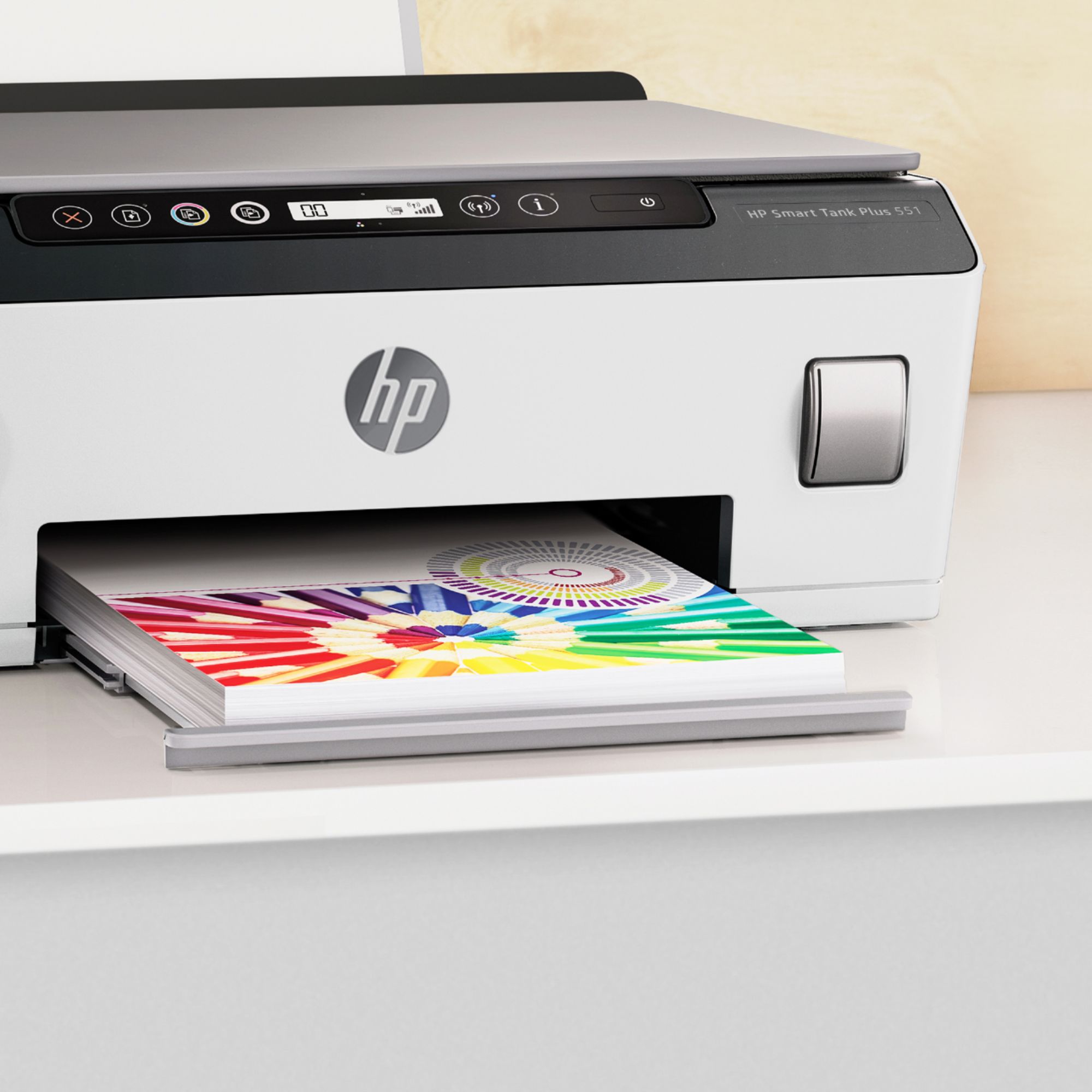
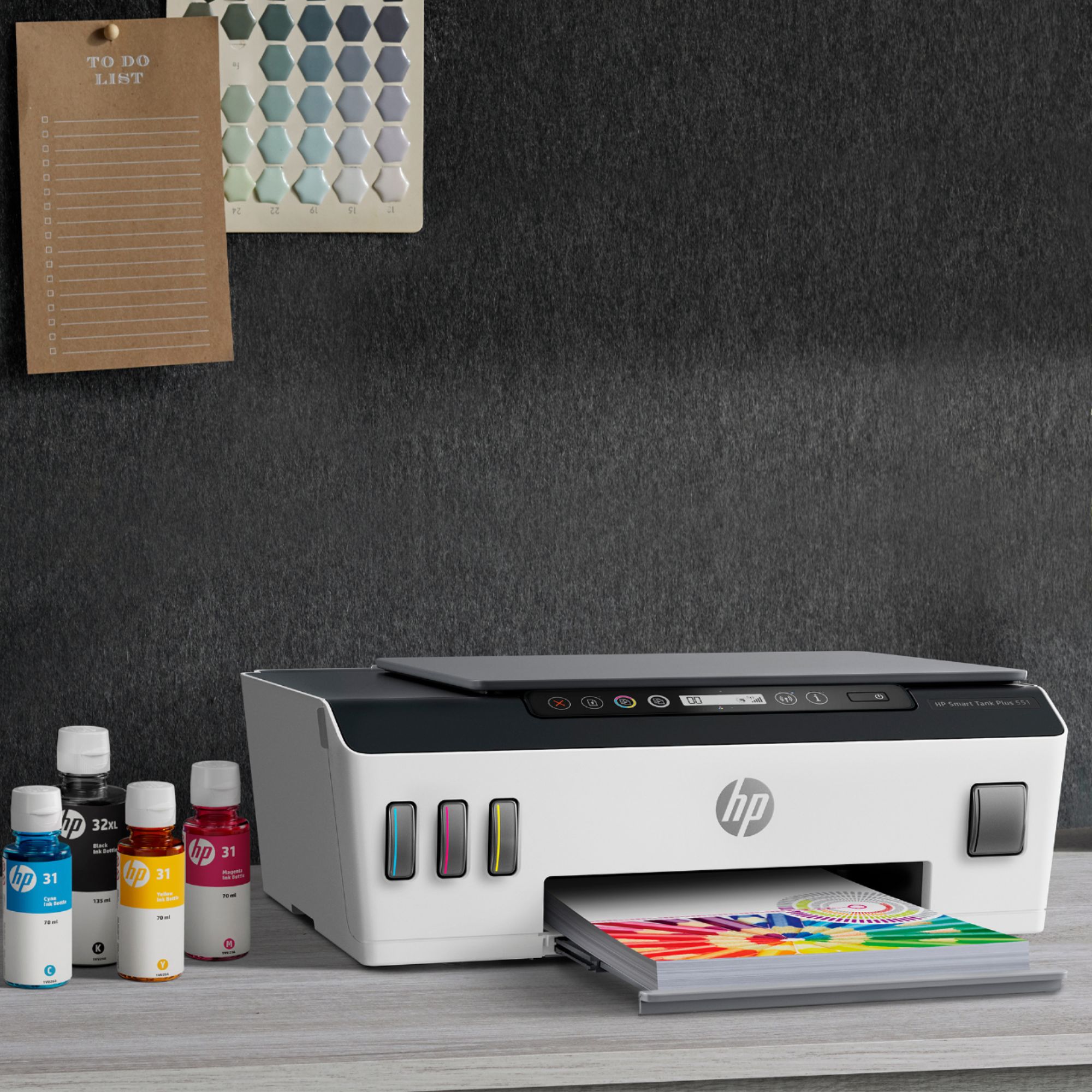
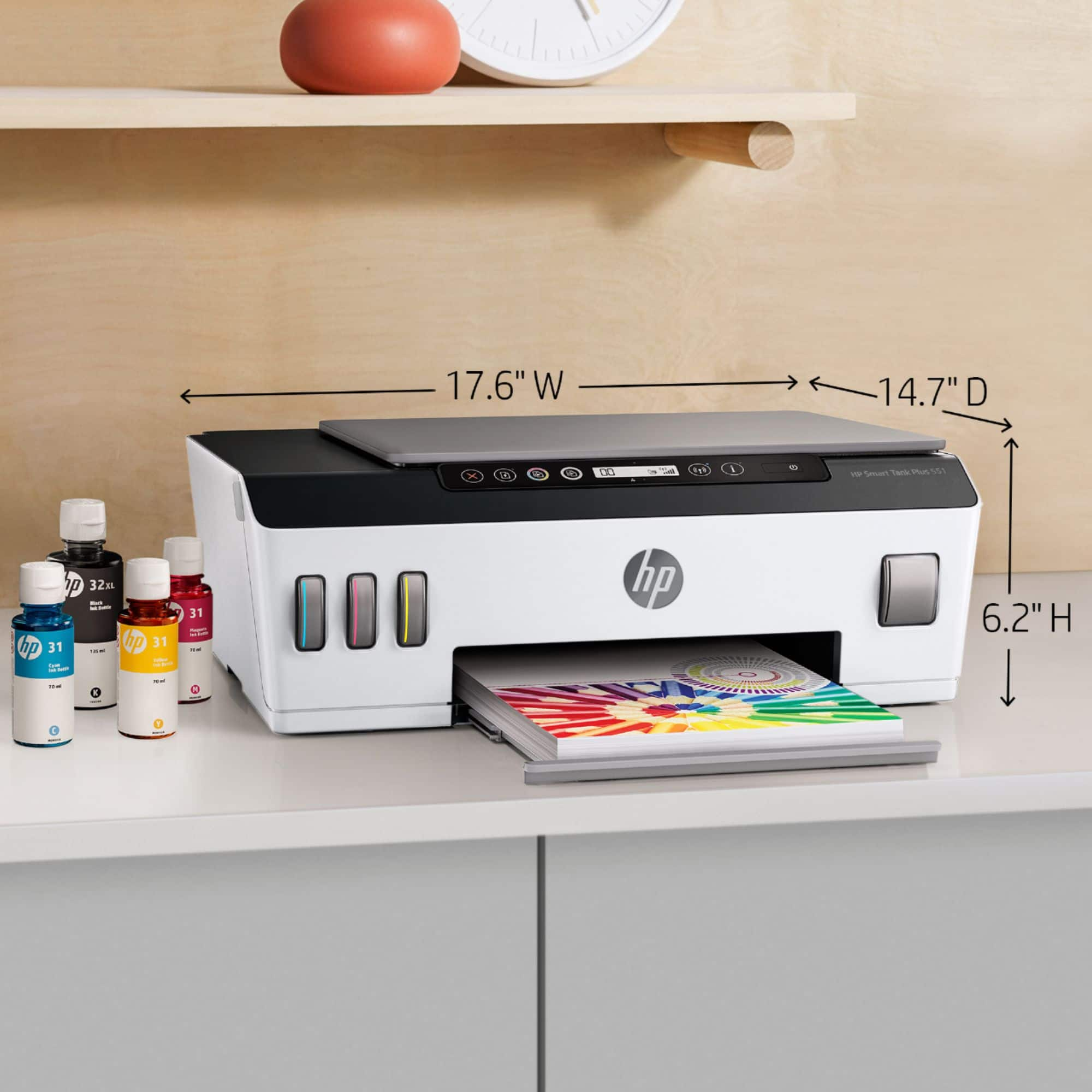
|Posted .This reviewer received promo considerations or sweepstakes entry for writing a review.When the first consumer ink tank printers came out, they were expensive…VERY expensive (at least $600, with most costing more). Thankfully, the technology has matured, prices have come down, and HP has joined the party. The Smart Tank Plus 551 is HP’s “compact” all-in-one ink tank-based printer…and, I like it. UNBOXING & INITIAL IMPRESSIONS: I have to admit, not having been able to find any information prior to the printer’s delivery, when I saw how small the box was, I thought, “They had to have shipped the wrong printer. This box is too small for a higher-end all-in-one.” Well, I was wrong, and it was the right printer. This thing is compact (for an all-in-one), to the tune of being only 17.6”W x 14.7”D x 6.2”T, and weighing a scant 11.3lbs. HP could still work to improve the environmentally-friendly packaging, but they’re getting better. SETUP: I’ve said this many times recently, and I’ll say it again (albeit, worded slightly differently), but the almost-plug-and-play nature of computer peripherals these days, including printers, is getting to the point that a child could set these things up. There was a day when you had to physically connect a printer to a computer, then install it, and finally set all the configurations. Even worse, if you were trying to set up a network-connected printer, you had all sorts of hoops to jump through…plus, you had to go through them for each computer on the network. With printers these days, you leave the printer alone, and start by installing the software. The software, itself, walks you through the entire process, and, by answering a few simple questions, it gets everything properly configured. Honestly, it doesn’t get any easier. Between my wife & myself, we’ve got two desktops, a Microsoft Surface Pro, two phones, and three tablets, and I had printing enabled for all of them in less than an hour (I should have timed it, as it was probably less than 45 minutes). I haven’t tried the apps, but, having had an HP OfficeJet Pro 8625, I’m sure they’ve been updated, and are even better. PRINT QUALITY AND SPEED: Speaking of my outgoing OJP 8625, my new Smart Tank Plus 551 is better in every way possible. It has greater connectivity options, is smaller, lighter, and doesn’t use expensive ink cartridges (remember, this is an ink tank printer). Although most people don’t take such things as built-in memory or power consumption, memory is double that of the old printer, and power consumption is less than half. While it doesn’t print as fast as the old printer, I’m ok with that, as I use my LaserJet Pro for the majority of printing jobs…this is for color printing, and scanning, and it’s great at both. THE GOOD: • Excellent print quality • Compact in size • Lightweight • Extremely easy to set up • Multiple connectivity options • Simple, easy to understand, control panel • Easy-to-fill ink tanks THE BAD: • No auto-duplex printing (requires manually flipping) THE UGLY: • Nothing FINAL VERDICT: If you’re in the market for an all-in-one inkjet printer, the HP Smart Tank Plus 551 should be on your “short list”. If you’re looking for an all-in-one ink tank-based printer, it should be on your “very short list”. Is it the best inkjet available? No. Is it the fastest? No. But, it also doesn’t cost as much as most other ink tank-based printers. Additionally, it’s more compact than most others. This is going to sound somewhat ‘strange’, but this is my final thought: If you’re looking for a compact, ink tank-based, all-in-one printer, with outstanding support from a company you know you can trust, that has multiple connectivity options, is simple to use, and is very inexpensive to replace/refill ink, then the HP Smart Tank Plus 551 should, at minimum, be one of your most prominent choices. Disclaimer: This product was provided free, or at reduced cost, for the purpose of reviewing the product. Nevertheless, the above review, be it positive, negative, or anywhere in-between, is a 100% honest review, and the price paid played absolutely no part in my review.
I would recommend this to a friend Best Printer I have ever used!!
||Posted . Owned for 3 weeks when reviewed.This reviewer received promo considerations or sweepstakes entry for writing a review.Bought this printer because I was tired of the expensive ink cartridges. SO glad I made the expense!! I have printed over 200 documents and ink level has not even moved!!!
I would recommend this to a friendSetup was easy until it decided to throw error E9
||Posted .This reviewer received promo considerations or sweepstakes entry for writing a review.We carefully set up this printer, expecting a lot for the price tag. We experienced an all lights blinking issue during setup but thought we overcame that once we finished the setup process. No duplex was a disappointment but we could deal with that as long as connectivity was good. Printing was slower than expected but again, not a problem as long as we can connect to it easily and print. Well I made the apparent mistake of connecting this printer with my HP account. As soon as I did that the printer started going crazy. It went offline. I tried a cold reset it but it just seemed to make things worse. The all lights blinking error came back again after another cold boot. Only way to move on from there was to tap the power button, but then it just went right back to error E9. For 400 bucks I expected more. Returning this and downgrading to a sub-200 dollar model that will hopefully be more reliable!
No, I would not recommend this to a friendBrand response from HP Team
Posted .Hi there.
I am sorry to hear that your printer would not set up and connect like it should. I can see how repeated, unexplained errors like the ones you describe would be a great disappointment. Because we aim to make reliable products for our customers, if you’ve not yet returned the printer I’ll point you toward some resources that I hope will help.
From your review, I can’t tell what caused the all-lights-blinking error, so I recommend that you contact us directly at +1 800-474-6836 so we can guide you through the proper troubleshooting. To expedite the process, I recommend gathering the following information before the call:
- Model number
- Serial number
- Your location
- Case number (from any previous contact with HP support)
I'll also mention that HP printers have a one-year warranty from their purchase date that covers hardware as well as ink supplies, so you might consider making use of it. You can verify the warranty using the following link: support.hp.com/us-en/checkwarranty
Keith
HP Care
hp.com/support
We will see.
||Posted . Owned for 3 weeks when reviewed.This reviewer received promo considerations or sweepstakes entry for writing a review.The HP Smart Printer app is a bit wonky, but eventually works. Used a wired connection as the WIFI connection was not reliable. It will come down to how long this lasts and the reliability of the ink system and printer in general
I would recommend this to a friendPay now or later. This machine does it better!
||Posted . Owned for 1 month when reviewed.This reviewer received promo considerations or sweepstakes entry for writing a review.Great printer! I've been really putting it though it's paces and the ink tank design is already paying off. It's so much more economical to run thank buying cartridges.
I would recommend this to a friendWonderful printer
||Posted . Owned for 4 months when reviewed.This reviewer received promo considerations or sweepstakes entry for writing a review.Very lovely upgrade. We love the large ink tanks. It seems so much more practical. It is great to be able to choose black and white rather than color with one button.
I would recommend this to a friendgreat printer
||Posted .This reviewer received promo considerations or sweepstakes entry for writing a review.The Epson ET 70 is a very good printer. The Directions are very helpful. If you need to call Epson to get help with set up. They can walk you through the set up of the printer.
I would recommend this to a friendMust buy for home use.
||Posted . Owned for 7 months when reviewed.This reviewer received promo considerations or sweepstakes entry for writing a review.Got to love tank ink. Intial cost is okay, but ink cost is so worth. Save tons going this route, print quality is great for most home use. Goes online to fast.
I would recommend this to a friendExcellent All In One
||Posted . Owned for 2 weeks when reviewed.This reviewer received promo considerations or sweepstakes entry for writing a review.I needed a new printer that had a scanner and could print via my iPhone. This printer is able to to both and do them well. You won’t be dissatisfied.
I would recommend this to a friendNoisy and hard to set up
||Posted . Owned for 1 month when reviewed.This reviewer received promo considerations or sweepstakes entry for writing a review.makes a lot of noise prepping to print. Don't like that it doesn't have auto duplexing. Very difficult and confusing doing the initial setup...and I am in IT. Do like that it auto-starts when printed to.
No, I would not recommend this to a friendHP smart tank
||Posted . Owned for 3 weeks when reviewed.This reviewer received promo considerations or sweepstakes entry for writing a review.I thought I was purchasing a top feeder for scanning but I kept the printer despite not being able to scan documents from the top and I love it!!!
I would recommend this to a friendGreat Printer
||Posted . Owned for 2 weeks when reviewed.This reviewer received promo considerations or sweepstakes entry for writing a review.Needed a new printer. Got tired of buying ink cartridges that cost so much money. This printer works great using less ink.
I would recommend this to a friend- Cons mentioned:Paper tray
Worst printer I have owned
||Posted . Owned for 1 month when reviewed.This reviewer received promo considerations or sweepstakes entry for writing a review.I would rather give this zero stars. You have to put the print heads in after filling the ink making a mess no matter how hard you try not to. Cannot print front and back. Printer jams regularly. I would not recommend. Saving up the money to buy a better printer.
No, I would not recommend this to a friendBrand response from HP Team
Posted .Hi there.
I’m sorry to hear that your printer has caused difficulty and not performed like it should. I can easily understand why the installation problems and paper jams would be quite a frustrating combination, so I’ll offer some resources that I hope will help.
I can’t tell from your review what difficulty you had with the printhead installation or what’s causing the paper jams, so I recommend you contact us directly at +1 800-474-6836 so we can help you assess the situation and guide you through any applicable troubleshooting. (Please note that because of restrictions on personal movement and workplace attendance associated with the COVID-19 pandemic, wait times for agents are longer than normal. Thanks in advance for your understanding.) To expedite the process, I recommend gathering the following information before the call:
- Model number
- Serial number
- Your location
- Case number (from any previous contact with HP support)
I'll also mention that HP printers have a one-year warranty from their purchase date that covers hardware as well as ink supplies, so if it comes to that, you might consider making use of it. You can verify the warranty using the following link: support.hp.com/us-en/checkwarranty
Keith
HP Care
hp.com/support
I highly recommend this product!
||Posted .This reviewer received promo considerations or sweepstakes entry for writing a review.great value for money. i wish it had a nicer touch screen like the other HP printers. but that is a minor compromise to it’s performance.
I would recommend this to a friendHP Smart Tank Plus 551
||Posted . Owned for 1 month when reviewed.This reviewer received promo considerations or sweepstakes entry for writing a review.I like the printer. The colors are beautiful. I really like the idea of not using cartridges as they are often difficult to install.
I would recommend this to a friendWorth it
||Posted . Owned for 1 year when reviewed.This reviewer received promo considerations or sweepstakes entry for writing a review.Best printer that I ever had. It been more than a year and still working like a charm
I would recommend this to a friendLove it
||Posted . Owned for 1 month when reviewed.This reviewer received promo considerations or sweepstakes entry for writing a review.Great Printer! The best part is how far the toner goes! I don't have to refill it as much! Quality of the printer is great too!
I would recommend this to a friend- Pros mentioned:Print quality, Setup
Very nice HP Printer with a ton of ink
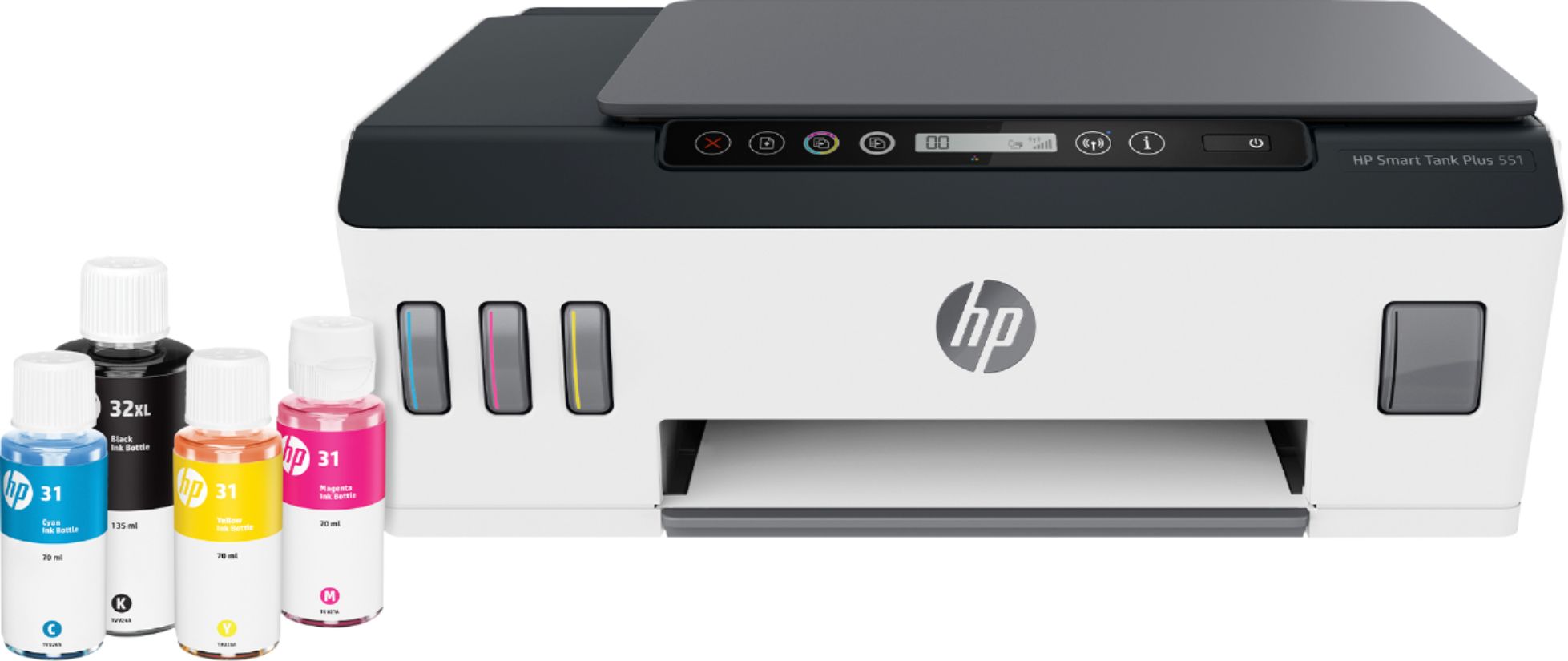
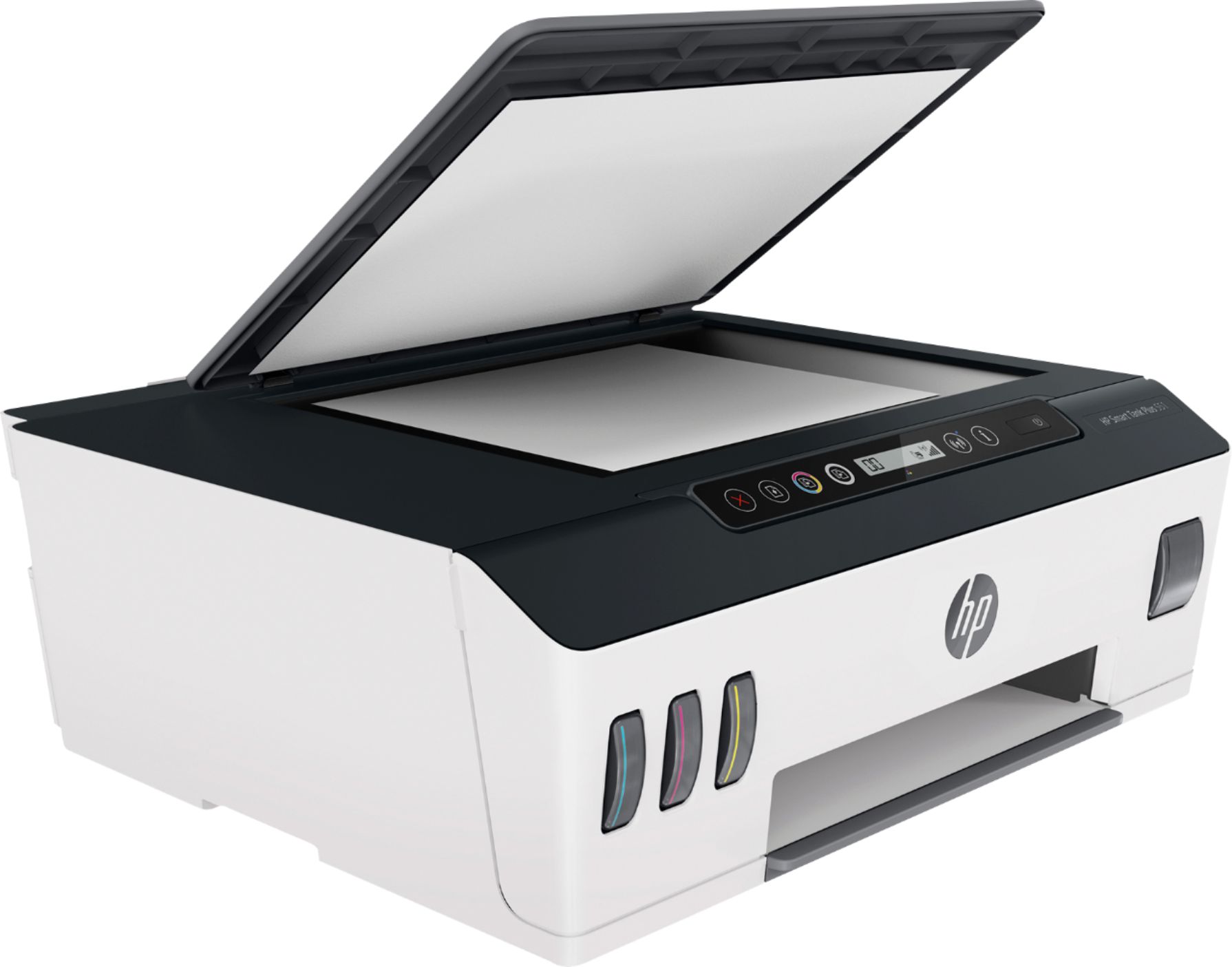
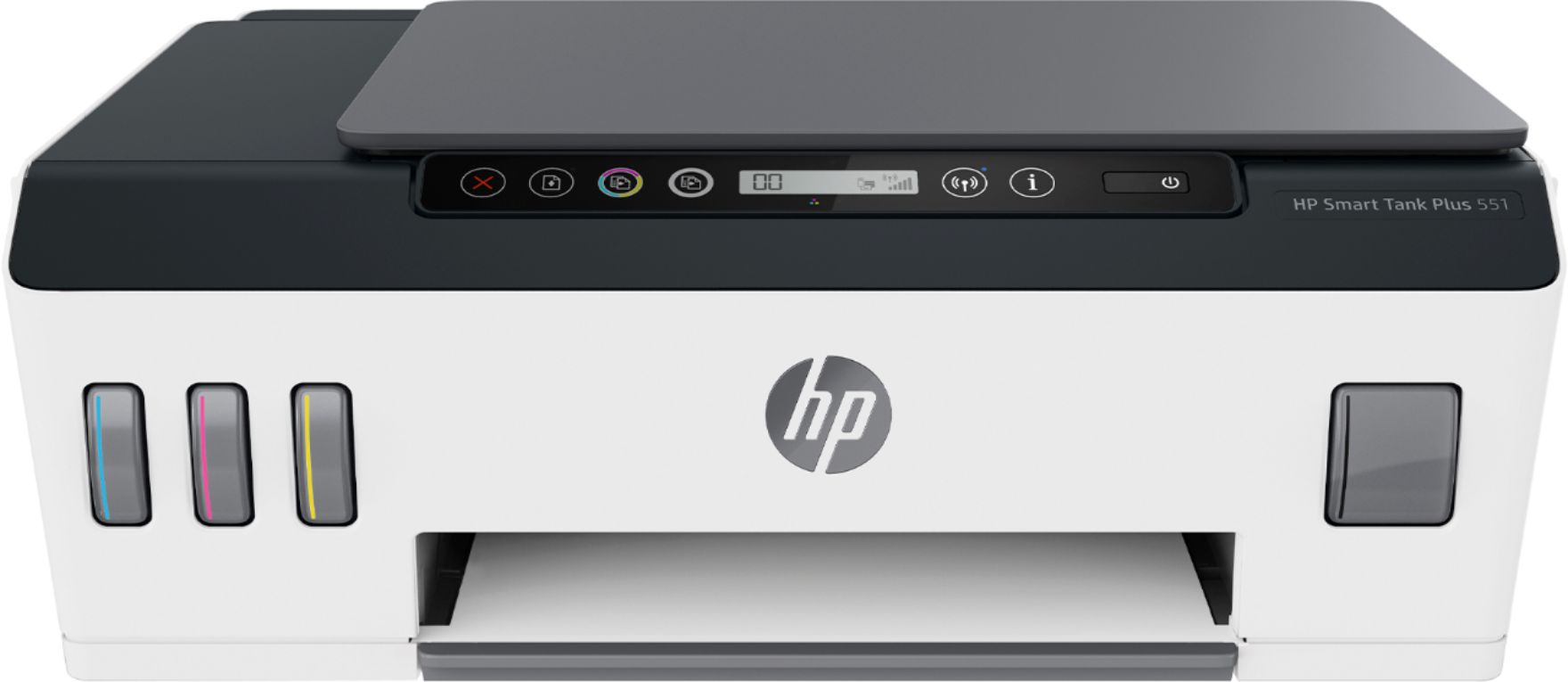
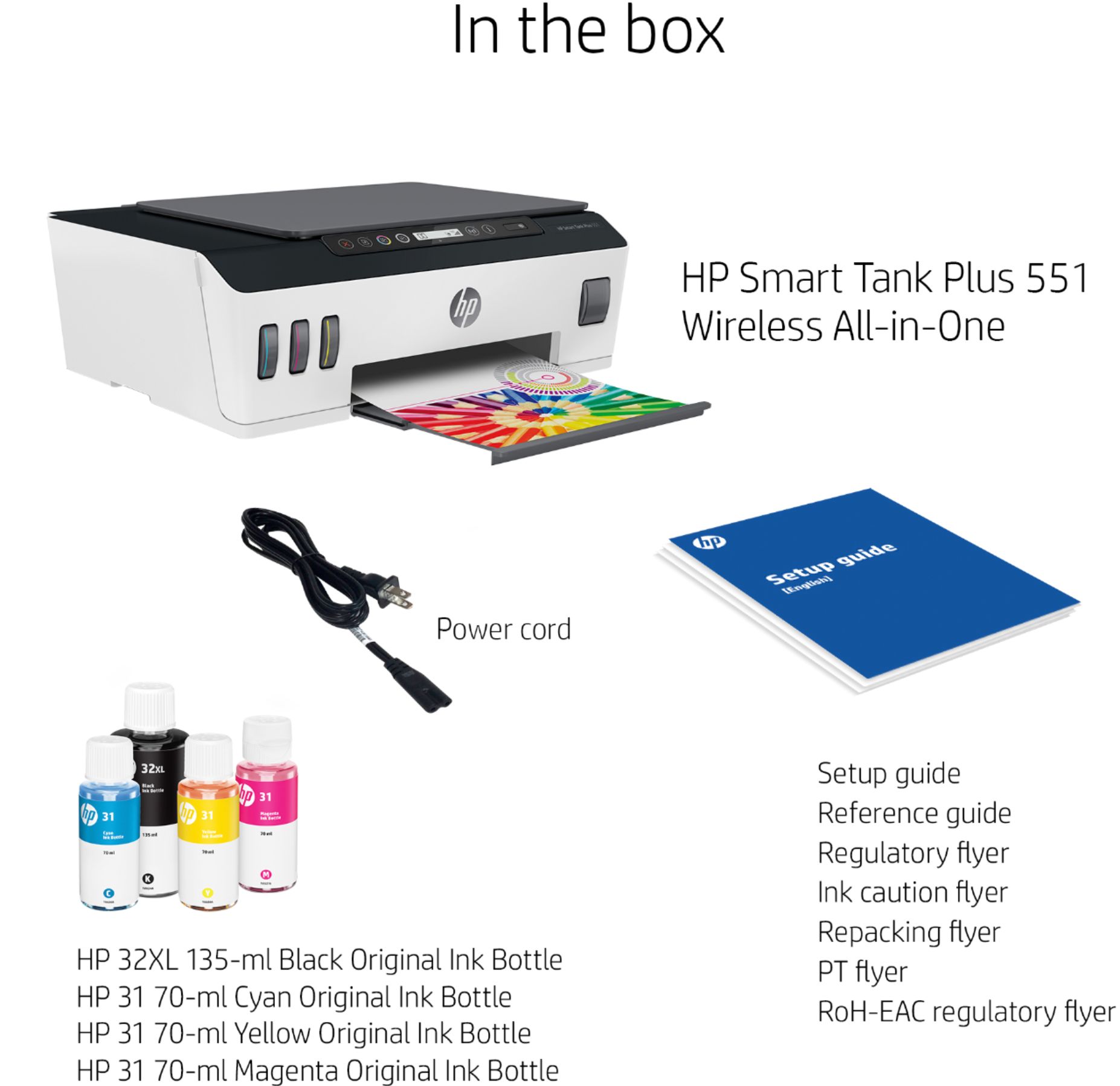
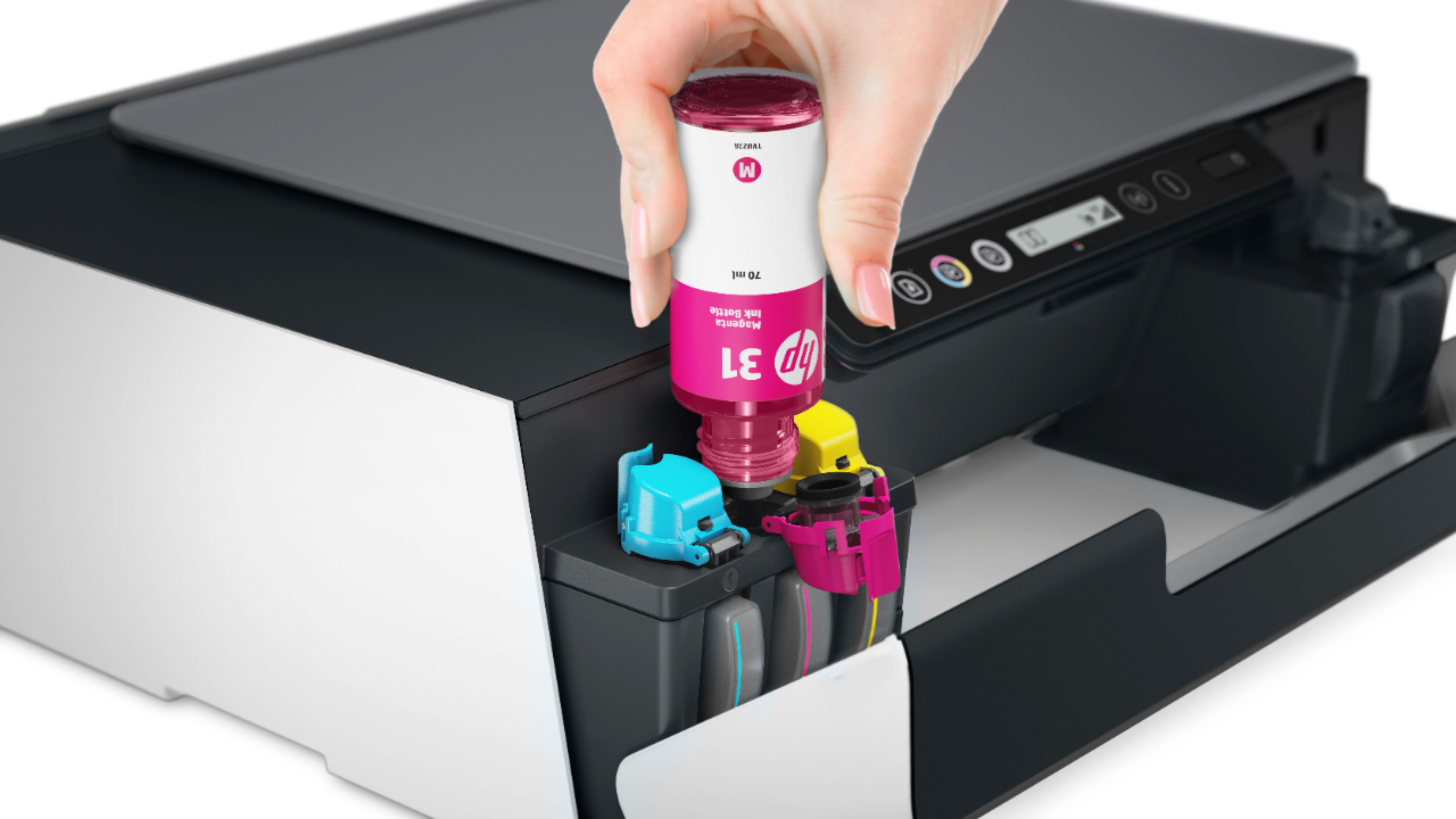
|Posted .This reviewer received promo considerations or sweepstakes entry for writing a review.The HP Smart Tank Plus 551 is quite different from other printers I’ve owned. For example: • Paper: This printer does not have a paper drawer. It has a paper slot at the back of the printer that you slide paper into. A plastic piece slides up from the back of the printer and provides support for the paper. This slot is supposed to handle up to 100 sheets of paper or 30 cards. The output tray, in the meantime, can handle up to 30 sheets of paper. • Ink Cartridges: Instead of using replaceable ink cartridges, this printer has four (4) ink wells. Four bottles of ink are included with this purchase, one with Magenta, one with Cyan, and one with Yellow (all on the left side of the printer), and a bottle of black for the inkwell on the right side. Each inkwell has a cap that you lift, exposing the inkwells top. Open the specific bottle of ink and let the ink drain into it. Doing so is an easy task. The 551 is supposed to hold up to 2 years of ink in its inkwells. I haven’t priced out the cost of replenishing the ink, and hopefully it’ll be two years before I have to do so. • Printer Heads: This printer comes with two (2) printer heads – one for the black ink and one for the other three inks. Following the installation instructions, slide the two print heads into their appropriate mounting slots, which only takes seconds to do, and the print head installation process is done. Doing this was a first for me but was easily accomplished. • Control Panel: I’ve noticed that the newer printers seem to have smaller and smaller Control Panels. This printer’s panel is about 9.25” wide and 1” high. The Panel Display Screen is 1/2 inch by 2 inches. Pretty darn small compared to what I’m used to using. Buttons on the panel include a large “X” (Cancel), a Resume button, a Color Copy button, a Black Copy button, the Wireless button, and an Information button (a large “!”). And of course, a Power button. For color copies, place a copy of what you want on the printer’s scanner face down, then press the Color Copy button if it’s a color copy you want. For multiple color copies, keep pressing the Color Copy button and you’ll see a counter increase on the Panel Display Screen. If you select too many copies, press the Cancel button once to reset the counter back to zero. For black and white copies, follow the same steps as for color copies but use the Black Copy button instead. Setting the unit up for Wi-Fi proved odd. I decided to configure wireless access to the 551 using my Dell desktop. The Dell is different from other devices at home in that it’s connected to the network by Ethernet cable while all other devices are Wi-Fi connected. The Dell does support Wi-Fi, but I believe that it communicates faster using Ethernet. After downloading the HP software from the 123.HP.com site and stepping through the installation process, the installation app suggested that it would be better if I switched the Dell from Ethernet to Wi-Fi. Keeping the Dell connected by Ethernet to my network, the setup kept repeating the same “Move the Dell to Wi-Fi” prompt. After trying to move forward 6 to 8 times, I gave up and turned on the Dell’s Wi-Fi. The installation app immediately continued on with the install. Once the install was completed and the printer was talking to my network, I turned off the Dell’s Wi-Fi and reconnected the Ethernet cable. Everything worked perfectly. Not sure what all the fuss with the Ethernet cable was about; however, all things are happy now. I do a lot of document scanning. As such, I prefer printers that have Automated Document Feeders (ADF). This printer, however, lacks an ADF. That means that I have to manually place documents on the printer scanner when scanning and manually flip each page over if both sides need scanning. This isn’t much of a problem if you only have a few documents to scan. If you have a large number to scan, that’s where an ADF proves its worth. To Scan, select the Scan option from the HP Smart app. The app displays a screen allowing you to specify the following: • Document or Photo • Page Size • Color or Gray • Resolution • Compression Once you’ve scanned a page, another screen appears allowing you to choose the following: • Add Pages • Change Output Filename • Output format, i.e. PDF or JPG • Print • Save • Share • Smart Tasks • Edit The Edit function can be used after each page scanned or can be used after you’ve completed scanning all pages. Edit allows you to rotate each page clockwise or counter-clockwise, Crop, adjust contrast, brightness and/or saturation, straighten, and scale to fit. After all adjustments are completed, you then select either Print, Save, Share or Smart Tasks. I played with this option quite a bit and it works very well. General Assessments – Good Points: • This printer is light weight at 20lbs making it easy to move around, if necessary. • The setup process is easily accomplished and well documented. • It has adequate ink to last up to 2 years. • It comes with replaceable printheads, which is great but makes me wonder what the life-expectancy is for printheads. • It’s very easy to print to the 551 from my desktop and Android phone. • Setting up Wi-Fi is easy to accomplish. • It has the Smart App, which among other functions lets you create customized tasks to save documents to Google Drive or OneDrive, or to Email Documents. General Assessment – Not so good points • It lacks an Automatic Document Feeder (ADF). Some general capabilities of this printer to consider: • Print speed for Black draft is up to 22 ppm. • Color draft is up to 16 ppm. • Black (not draft) is up to 11 ppm. • Color (not draft) is up to 5 ppm. • Resolution ranges from 75dpi to 1200dpi. • It has an expected monthly duty cycle of 1,000 pages. • You get 1-year of 24/7 technical support. Overall, I think this is a nice printer, one that I would be more than happy to recommend.
I would recommend this to a friend