Customer Ratings & Reviews
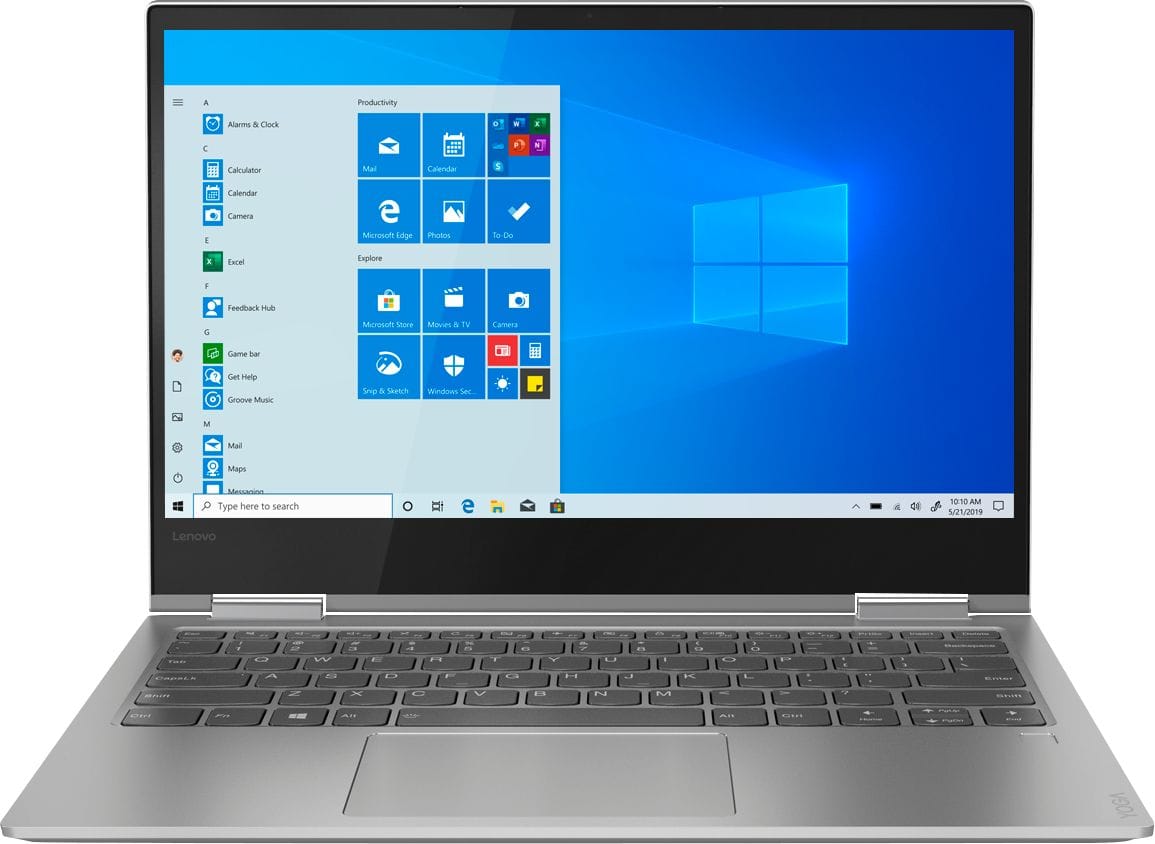

- Model:
- 81CT0008US
- SKU:
- 6201041
Rating by feature
- Battery Life
Rating 4.1 out of 5 stars
- Speed
Rating 4.3 out of 5 stars
- Display
Rating 4.1 out of 5 stars
Customers are saying
Customers are delighted by the Yoga 730's lightweight design, fast performance, and affordable price. They appreciate its long battery life and compact size, making it a great choice for those who are always on the go. However, some users have reported issues with screen flickering, Wi-Fi connectivity, keyboard quality, and speaker volume.
This summary was generated by AI based on customer reviews.
- Cons mentioned:Screen flickering
Light, fast, versatile laptop
Posted .This reviewer received promo considerations or sweepstakes entry for writing a review.I bought this to replace my surface pro 4 and I have to say I am very impressed by the laptop. Build quality is great. Downsides are mainly an at best average screen and at best average battery. I bought this laptop to do some school work but to my surprise, it is actually quite capable of gaming. The thunderbolt 3 ports on this laptop are the fastest available currently (x4 PCIe 3.0 @ OPI 4 GT/s mode). Hooking this up to my external graphics card (GTX 1060 3gb), I was getting >180 fps on overwatch 1080p medium settings. The i5-8250u is a low key beast if you properly undervolt and cool to let it hold its 3.4 ghz turbo boost during load. SSD read/write speeds are fantastic again thanks to the 4x PCIe 3.0 @ OPI 4 GT/s mode. Finally, I'm really glad lenovo went with DDR4 2400 instead of a slower LPDDR3. Im sure this contributes to the middling battery life but honestly makes regular usage so much zippier. All in all, this laptop is fantastic buy and would recommend to anyone that's in the niche of buyers that want a thin and light machine to do work on the go but also likes to game without having to deal with building an extra desktop machine at home.
I would recommend this to a friendBrand response from Lenovo Product Expert
Posted .Thank you for choosing the Lenovo Yoga 730-13. This system ships with an IPS 1920 x 1080 (FHD) resolution screen, with a brightness level of 300 nits. The Yoga 730-13 has a 4CELL 48WH, Lithium Polymer battery, with a battery life of up to 10.5 hours, depending on the work that the device is performing. Be sure there are no unwanted programs running in the background, draining the battery. Here is a link to some tips for finding out what is draining your battery:
https://www.laptopmag.com/articles/battery-saver-windows-10. If there are no unwanted programs running, to maximize battery life, try changing your power management setting to a more conservative one. You can do this in the control panel, in the power management category on your system. Select a more conservative power management setting to extend battery life.
- Pros mentioned:Lightweight
This is it
Posted .This reviewer received promo considerations or sweepstakes entry for writing a review.Great laptop, easy to use and not heavy at all. Purchased for my son for school.
I would recommend this to a friend - Pros mentioned:Price
Great Deal, had some issues
Posted .This reviewer received promo considerations or sweepstakes entry for writing a review.I got this computer for $450 after all discounts - AMAZING DEAL! That said, I did have to get three Lenovo Yoga 730s to get one that worked perfectly. The first one lost MS Office Outlook and the Lenovo Apps - they disappeared. Instead of reinstalling Windows, I returned it. The Second Yoga 730 had bad video and the screen did not sync properly. The third one is working fine so far after a few days. Assuming that this PC works fine, it is a great deal and I use BOTH the Lenovo Pen 1 & 2 with it and use several Thunderbolt 3 devices and I have connected two 2560x1440 external monitors
I would recommend this to a friend - Pros mentioned:Battery life, Fast
Almost 2-years later... I love this cmputer
Posted .This reviewer received promo considerations or sweepstakes entry for writing a review.This computer has held up so well I felt like I had to write a review. It has incredible speed can run multiple computational programs at the same time and battery life is excellent. I have just recently started fully using the Lenovo pen --- it's amazing. Ink to text is incredible. 10/10 would recommend.
I would recommend this to a friendBrand response from Lenovo Product Expert
Posted .Thank you for choosing the Lenovo Yoga 730-13. Model number 81CT0008US of the Yoga 730-13 was first available for sale in March, 2018. We are pleased to hear that the features and performance of the Yoga 730-13 meets your computing needs so well.

- Cons mentioned:Screen flickering
It could have been great, except for a fatal flaw
Posted .This reviewer received promo considerations or sweepstakes entry for writing a review.I really wanted to love this laptop. It's super lightweight, the keyboard feels close to that of a MacBook and the finger print sensor is perfectly calibrated. Unfortunately, I ran into 2 major problems, one that made me return it. 1) The screen is insanely reflective and that makes using this laptop near a window or outside impossible. I expect some glare, but I don't expect to be unable to see my text on the screen at full brightness in the shade. 2) The wi-fi adaptor on this device was defective. I would lose connectivity without 20 minutes of connecting, and have to manually reconnect without fail. I tried trouble shooting, changing power save settings, and multiple wi-fi 's to make sure the problem wasn't with my internet. Unfortunately, in searching for solutions I learned that this is a common problem on this model. Some users have found success by swapping the realtek wifi card for an intel one, but I'm unwilling to buy a new part for my brand new laptop. Fortunately, Best Buy has excellent customer serive and they helped me switch this device for a comparable one that was $50 cheaper.
No, I would not recommend this to a friendBrand response from Lenovo Product Expert
Posted .We are sorry to hear that you had an issue with WiFi connectivity with your Lenovo Yoga 730-13. There is a new RealTek WiFi Card Driver update version currently available. This will correct the WiFi connectivity issue that is currently being found within Lenovo models with the RealTek 8822BE WiFi Card.
Install the new driver version on the computer with the WiFi connectivity issue, RealTek Wireless Driver for Windows 10 (64-bit) Lenovo –
https://download.lenovo.com/pccbbs/mobiles/r0prw12w.exe
If the WiFi signal continues to drop after restarting the computer, manually change the Bandwidth setting under the "Advanced Driver Properties" within the Device Manager, from
80Mhz_40Mhz_20Mhz to 40Mhz_20Mhz. For 2018, Lenovo retained its place for a second year as the best laptop vendor:
https://www.laptopmag.com/articles/laptop-brand-ratings
- Cons mentioned:Screen flickering
Issue with the screen
Posted .This reviewer received promo considerations or sweepstakes entry for writing a review.This computer would have been my favorite if it did not start having screen issues. It would start flickering all of the sudden and would not stop until screen was touched or moved. I did the driver upgrades and online support but it did not help. Then I took it to the best buy and guess what happened? They took my computer since it needed to be sent to other state for a repair and I might not get it within 1-3 week! I bought this laptop for college use. Imagine bot being without a laptop in school! Luckily my husband has one and I could borrow his, but this is ridiculous! I loved the feeling, look and how fast it was but this technical problem was driving me crazy and could not stand it for more then two weeks. So I ended up sending it to geek squad and am still waiting on a repaired device. Hopefully it comes back good, because I just got it two months ago and I was very unhappy with the difficulty it was experiencing! And, after researching I found out that a lot of people are having this problem. So be mindful of this issue. I thought it would not happen to me, but it did!
No, I would not recommend this to a friendBrand response from Lenovo Product Expert
Posted .We are sorry to hear that you are having issues with screen flicker with your Lenovo Yoga 730-13. This issue maybe caused by a recent Windows 10 update that requires an additional update to both BIOS and video driver. This can be easily accomplished by using the Lenovo Utility software on the device. This system has Lenovo utilities installed to help maintain the health of the device and keep the operating system software up to date. Type "Lenovo Vantage" in the Cortana Search window (if Lenovo Vantage is not installed on your device, you can download the APP and install it now). Select Lenovo Vantage from the list. In the window that opens, click on "Health and Support". In the expanded menu, select "Hardware Scan" In the window that opens, select "Run Quick Tests". This will scan your entire system for errors. Follow any directions that may pop up. If the problem continues after this scan, now click on "System Update". First select Windows update from the menu. Scan your system to be sure you have the latest version of Windows 10. Once that scan is complete, select "Additional Updates". This will scan your device to be sure there are no new BIOS/Driver updates needed. Follow any instructions that may pop up. If the issue still continues after these updates, we recommend you call Lenovo Tech Support at: 877-453-6686 for additional help.
Great laptop!
Posted .This reviewer received promo considerations or sweepstakes entry for writing a review.The screen is great size and clear. Runs smoothly and have not had any issues. Love that it’s a touchscreen as well!
I would recommend this to a friend- Pros mentioned:Fast
Perfect for the price
Posted .This reviewer received promo considerations or sweepstakes entry for writing a review.I'm thrilled with this laptop. Just got it a few days ago, and so far it's been exactly what I'm looking for. The keyboard is comfortable and the buttons have the perfect balance of soft and firm. It runs fast, and start up is very quick. I didn't want a touch screen, but I've wound up using it so much more than I imagined. Honestly having a hard time picking a con, if I had to I suppose it's battery life. I know Lenovo will respond the battery on average is xyz. But at the same time I don't know why they didn't add more than a 3-cell battery. It's not flawless, but if you're a student like me who doesn't need an over the top laptop, this the right choice.
I would recommend this to a friendBrand response from Lenovo Product Expert
Posted .Thank you for choosing the Lenovo Yoga 730-13. This model actually ships with a 4CELL 48WH, Lithium Polymer battery, with a battery life of up to 10.5 hours. If you are getting substantially less than that, be sure there are no unwanted programs running in the background, draining the battery. Here is a link to some tips for finding out what is draining your battery:
https://www.laptopmag.com/articles/battery-saver-windows-10. If there are no unwanted programs running, to maximize battery life, try changing your power management setting to a more conservative one. You can do this in the control panel, in the power management category on your system. Select a more conservative power management setting to extend battery life.
- Cons mentioned:Customer service, Screen flickering
Terrible Laptop
Posted .This reviewer received promo considerations or sweepstakes entry for writing a review.The yoga line of laptops are awful and no one should buy them. The 730 had the classic screen flickering and freezing issue after only 4 months out of the box. Lenovo does not offer refunds for their shoddy work and so your only option is to mail in your laptop and have them fix it. I had gotten the 730 to replace a lenovo yoga 720 that had a bad fan after only 3 months out of the box. Lenovo recently changed their policy so you can't even swap out your laptop for a new one anymore like I did. This was extremely inconvenient since I work abroad and only have the US postal service with which to replace my laptop. Do not buy any yoga line laptop, or lenovo product for that matter since they have one of the worst customer service and support departments.
No, I would not recommend this to a friendBrand response from Lenovo Product Expert
Posted .We are sorry to hear that you are having issues with your Lenovo Yoga 730-13. We recommend you call Lenovo Tech Support for help with your specific issues at: 877-453-6686. For 2018, Lenovo retained its place for a second year as the best laptop vendor:
https://www.laptopmag.com/articles/laptop-brand-ratings
- Cons mentioned:Screen flickering
TERRIBLE Screen Flickering
Posted .This reviewer received promo considerations or sweepstakes entry for writing a review.I was so excited about this laptop and for the specs, it's a great deal, however, it had all sorts of screen flickering problems. The flickering would typically start if someone walked loudly on the floor or even just when I sat in bed and the laptop wasn't perfectly balanced on my lap. I had read some reviews indicating that this laptop had this issue and that there were settings to counteract the flickering, but none of this worked for mine and the screen would go out for +30 seconds at a time. When I brought it back to return it (which Best Buy was VERY understanding and easy to work with) the manager made a comment about this being typical for Lenovos. Whether or not my computer was the "bad egg" or not is hard to say. The flickering started about 10 days after my purchase (within the returnable time frame) so if there seems to be ANY flickering at all, chances are it will get worse and there are other computers that do not have this issue. For instance the Dell Inspirion I bought after returning the Lenovo Yoga.
No, I would not recommend this to a friendBrand response from Lenovo Product Expert
Posted .We are sorry to hear that you had issues with screen flicker with your Lenovo Yoga 730-13. This issue may be caused by a recent Windows 10 update that requires both BIOS/Driver software updates. This can be easily accomplished by using the installed Lenovo Utilities. This system has Lenovo utilities installed to help maintain the health of the device and keep the operating system software up to date. Type "Lenovo Vantage" in the Cortana Search window (if Lenovo Vantage is not installed on your device, you can download the APP and install it now). Select Lenovo Vantage from the list. In the window that opens, click on "Health and Support". In the expanded menu, select "Hardware Scan" In the window that opens, select "Run Quick Tests". This will scan your entire system for errors. Follow any directions that may pop up. If the problem continues after this scan, now click on "System Update". First select Windows update from the menu. Scan your system to be sure you have the latest version of Windows 10. Once that scan is complete, select "Additional Updates". This will scan your device to be sure there are no new BIOS/Driver updates needed. Follow any instructions that may pop up. If the issue still continues after these updates, we recommend you call Lenovo Tech Support at: 877-453-6686 for additional help.
- Cons mentioned:Screen flickering
50/50
Posted .This reviewer received promo considerations or sweepstakes entry for writing a review.Screen was flicker from day 1. Exchanged for new one, and same thing... flickering screen. Hardware issue. Ended up researching this was a COMMON issue with these computers. You might get a defective one... you might not. And who is to say it won't start flickering 3 months after purchase... 1 year after purchase. I bought 3-year extended warranty and Geek Squad protection plan, but not worth the trouble for how expensive it is. I have had it a week and have only used it once, due to exchanging defective one and "repairing" new defective one. Sending it for hardware testing/replacement take about 2-4 weeks. I decided to try and exchange for different brand.. I'd like a new computer that actually works. Maybe the next model that comes out will resolve the issue.
No, I would not recommend this to a friendBrand response from Lenovo Product Expert
Posted .We are sorry to hear that you are having issues with your Lenovo Yoga 730-13. The issue you describe sounds like a BIOS/Driver update that is needed after a recent Windows 10 update. This system has Lenovo utilities installed to help maintain the health of the device and keep the operating system software up to date, including the BIOS/Driver software. Type "Lenovo Vantage" in the Cortana Search window (if Lenovo Vantage is not installed on your device, you can download the APP and install it now). Select Lenovo Vantage from the list. In the window that opens, click on "Health and Support". In the expanded menu, select "Hardware Scan" In the window that opens, select "Run Quick Tests". This will scan your entire system for errors. Follow any directions that may pop up. If the problem continues after this scan, now click on "System Update". First select Windows update from the menu. Scan your system to be sure you have the latest version of Windows 10. Once that scan is complete, select "Additional Updates". This will scan your device to be sure there are no new BIOS/Driver updates needed. Follow any instructions that may pop up. If the issue still continues after these updates, we recommend you call Lenovo Tech Support at: 877-453-6686 for additional help.
- Cons mentioned:Customer service, Screen flickering
DO not buy this laptop sucks
Posted .This reviewer received promo considerations or sweepstakes entry for writing a review.Bought this 6 weeks ago for my son. Worked great for a few weeks then started getting screen flickering. Called support who were worthless could not get anything on screen now it is black. Finally got it to go ran all updates including drivers worked fine. Fired it back up today and back to same problem. Can't return to Best Buy so have to go to a Lenovo Service Center which apparently is in Galt (so it says) that is an hour away. This flickering problem is a major issue and Best Buy should not be selling this piece of crap. Also I tried the updates so before you give me the canned response saying it is a Bios issue it is more than that Lenovo.
No, I would not recommend this to a friendBrand response from Lenovo Product Expert
Posted .We are sorry to hear that you are having issues with your Yoga 730-13. The screen flicker issue you mention is due to a recent Windows 10 update. It sounds like there may have been an issue with the Windows 10 update. Since you've tried the BIOS/Driver update, we recommend you try a factory reset. This system is equipped with OneKey Recovery System. There is a very small pin hole on the left side of the device, right near the headphone jack on the device. You will need a pin to push this reset button. Plug the device in. Let the battery charge for about 15 minutes. Push the reset button. The system should boot to a choice screen where you can choose "Restore To Factory Default". Select this. It will delete everything from the hard drive except the original factory install of the operating system. You will need to reinstall all programs and files after the reset. If you don't have copies of the files, try to make one before you restore by selecting "Boot to desktop" and trying to back up your files. Once you've restored the device to factory settings, check for Windows 10 updates, then run the software update scan. This system has Lenovo utilities installed to help maintain the health of the device and keep the operating system software up to date. Use these utilities to make sure you get all of the needed BIOS/Driver updates for your version of Windows 10. Type "Lenovo Vantage" in the Cortana Search window (if Lenovo Vantage is not installed on your device, you can download the APP and install it now). Select Lenovo Vantage from the list. In the window that opens, click on "Health and Support". In the expanded menu, select "Hardware Scan" In the window that opens, select "Run Quick Tests". This will scan your entire system for errors. Follow any directions that may pop up. If the problem continues after this scan, now click on "System Update". First select Windows update from the menu. Scan your system to be sure you have the latest version of Windows 10. Once that scan is complete, select "Additional Updates". This will scan your device to be sure there are no new BIOS/Driver updates needed. Follow any instructions that may pop up. If the issue still continues after these updates, we recommend you call Lenovo Tech Support at: 877-453-6686 for additional help.
- Cons mentioned:Screen flickering
Not reliable
Posted .This reviewer received promo considerations or sweepstakes entry for writing a review.I got this laptop for college and It worked fine for about a month and a half and then the flickering started. I read many other reviews of this laptop and didn’t think the “flickering” issue would happen with mine but I was wrong. The screen turns black and has lines going through it- the laptop is completely unusable. I talked to Lenovo support system two days in a row and did everything they said in order to fix it, nothing worked. Now I am stuck without a laptop for 2 weeks when I need It the most. I got this laptop because I was told It was reliable and would lasts me years..... Extremely disappointed and upset.
No, I would not recommend this to a friendBrand response from Lenovo Product Expert
Posted .We are sorry to hear that you are having issues with screen flicker on your Lenovo Yoga 730-13. The issue you describe may be caused by a Windows 10 update that also requires both a BIOS and video drivers up date separately. This is easily accomplished by using the Lenovo Utility software installed on this device. This system has Lenovo utilities installed to help maintain the health of the device and keep the operating system software up to date. Type "Lenovo Vantage" in the Cortana Search window (if Lenovo Vantage is not installed on your device, you can download the APP and install it now). Select Lenovo Vantage from the list. In the window that opens, click on "Health and Support". In the expanded menu, select "Hardware Scan" In the window that opens, select "Run Quick Tests". This will scan your entire system for errors. Follow any directions that may pop up. If the problem continues after this scan, now click on "System Update". First select Windows update from the menu. Scan your system to be sure you have the latest version of Windows 10. Once that scan is complete, select "Additional Updates". This will scan your device to be sure there are no new BIOS/Driver updates needed. Follow any instructions that may pop up. If you can not boot the device currently because the screen is black, this system is equipped with OneKey Recovery System. There is a very small pin hole on the left side of the device, right near the headphone jack on the device. You will need a pin to push this reset button. Plug the device in. Let the battery charge for about 15 minutes. Push the reset button. The system should boot to a choice screen where you can choose "Restore To Factory Default". Select this. It will delete everything from the hard drive except the original factory install of the operating system. You will need to reinstall all programs and files after the reset. If you don't have copies of the files, try to make one before you restore by selecting "Boot to desktop" and trying to back up your files. If the problem persists after the factory reset, we recommend you contact Lenovo Tech Support at: 877-453-6686.
- Pros mentioned:Fast, Lightweight
Very satisfied with this laptop
Posted .This reviewer received promo considerations or sweepstakes entry for writing a review.Fast, lightweight, and reasonably priced. I purchased a Dell with a sililar configuration and price, but Dell kept giving me blue screen even after a replacement. I haven’t run into any problems with this one.
I would recommend this to a friendBrand response from Lenovo Product Expert
Posted .Thank you for choosing the Lenovo Yoga 730-13. We are pleased to hear that the Yoga 730-13 meets your computing needs so well.
Long lasting laptop
Posted .This reviewer received promo considerations or sweepstakes entry for writing a review.Lasted 5 years before a couple of keys stopped working. It is no longer available, but I would be confident to buy a Lenova product again since it worked well for 5 years.
I would recommend this to a friend- Cons mentioned:Wifi connectivity
Good overall laptop for students
Posted .This reviewer received promo considerations or sweepstakes entry for writing a review.This is a good laptop for college students, but the battery life could be better. Also the computer randomly disconnects from wifi and causes you to restart the computer. This has happened to me during a test for school, luckily my professor reset the test for me. Overall I am happy with the laptop, but they could improve in some areas.
I would recommend this to a friendBrand response from Lenovo Product Expert
Posted .Thank you for choosing the Lenovo Yoga 730-13. For the best WiFi connectivity, be sure you have the latest version of Windows 10 on the computer, then update all of the BIOS files and drivers for that latest version of Windows 10. This is easily accomplished by scanning the computer with the Lenovo Utility software installed on the computer. This system has Lenovo utilities installed to help maintain the health of the device and keep the operating system software up to date. Type "Lenovo Vantage" in the Cortana Search window (if Lenovo Vantage is not installed on your device, you can download the APP and install it now). Select Lenovo Vantage from the list. In the window that opens, click on "Health and Support". In the expanded menu, select "Hardware Scan" In the window that opens, select "Run Quick Tests". This will scan your entire system for errors. Follow any directions that may pop up. If the problem continues after this scan, now click on "System Update". First select Windows update from the menu. Scan your system to be sure you have the latest version of Windows 10. Once that scan is complete, select "Additional Updates". This will scan your device to be sure there are no new BIOS/Driver updates needed. Follow any instructions that may pop up. If the issue still continues after these updates, we recommend you call Lenovo Tech Support at: 877-453-6686 for additional help. Regarding the battery within the Yoga 730-13, this model ships with a 4CELL 48WH, Lithium Polymer Battery, with a battery life of up to 10 hours, depending on the work that the device is performing. Be sure any software you installed is compatible with Windows 10. Incompatible software will cause the battery to discharge quicker. There is no need to install Microsoft Office software. The software is already part of the operating system, you just need to activate the software with a purchased product key. If you have installed a copy of Microsoft Office, this is conflicting with the existing copy on the system and this will slow your system down. If you have installed a 3rd party anti-virus program, be sure that Windows Defender is turned off and that the trial version of McAfee Anti-Virus software is uninstalled. There can only be one anti-virus program on the system. You may need to restore your system to original factory default settings if any of the programing errors have occurred. You can do that by typing "restore" in the Cortana search window. Just click on the magnifying glass icon at the bottom left of your Windows 10 Desktop. Click on "Reset This PC" Then click on "Get Started" and follow the on screen directions to restore to factory defaults. If there is no incompatible software installed on the computer, to maximize battery life, first adjust your battery saver settings. Here is a link to instruction for doing this in Windows 10: https://www.digitalcitizen.life/how-use-configure-battery-saver-windows-10. Next, to maximize battery life, be sure there are no unwanted programs running in the background, draining the battery. Here is a link to some tips for finding out what is draining your battery:
https://www.laptopmag.com/articles/battery-saver-windows-10. Also, to maximize battery life, try changing your power management setting to a more conservative one. You can do this in the control panel, in the power management category on your system. Select a more conservative power management setting to extend battery life. Finally, if the battery life does not improve, a battery reset may help. Here is a link to instructions for reconditioning a non-removable battery, using the Battery Management Software installed on the computer. If you need further assistance, we recommend you call Lenovo Tech Support at: 877-453-6686. Here is the link: https://windowsreport.com/laptop-battery-not-charging-windows-10/
- Cons mentioned:Wifi connectivity
Terrible WiFi
Posted .This reviewer received promo considerations or sweepstakes entry for writing a review.I have only had this 18 hours. Took it home and set it up. Over 4 hours of setup and just moving around on it, the Wifi CONSTANTLY would disconnect, then turn-off. I was only able to stay connected anywhere from 1-4 or 5 mins at a time. Sometimes I could reconnect, othertimes it would take upwards of 10 to 20 times hitting the Connect link, while othertimes i had to reboot it, to only connect for a couple of minutes. This still continued after making sure i had installed all updates. I brought it to work this morning to see how it behaved, it stayed on wifi probably 2 hours, surprisingly, then all of the sudden, drops the wifi connection. I even turned on my cell Hotspot, and tried to connect, still not connecting 10 mins later. The Wifi issues are all over the internet, just do a simple Google search and you will find them. I may end up just boxing it back up and taking back to Best Buy later today. Too bad, because overall, I like the 730.
No, I would not recommend this to a friendBrand response from Lenovo Product Expert
Posted .The Lenovo Yoga 730-13 uses the latest 5G 802.11AC frequency WiFi. Be sure the router you are using has the latest firmware updates from the router manufacturer's web site. If the problem persists, we recommend you call Lenovo Tech Support for help with your specific issue at: 877-453-6686.
Great specs, windows 10 update issue
Posted .This reviewer received promo considerations or sweepstakes entry for writing a review.The laptop is really nice, it has a really nice look to it. The speakers went up to a pretty good volume and the display was beautiful. The keyboard was nice and the keys, although short, still had a nice click to them. The coolest thing about this laptop is the ways you can fold it. My only issue was that when the laptop restarted to update Windows 10, it wouldn't install properly and it would uninstall the audio driver. There would be no way for me to play sound, I had it fixed by Best Buy but then the mousepad stopped working and when this happened I exchanged it for a new one. This new one had the same thing happen after the update where the audio drivers would get uninstalled. I sadly ended up just returning it because I didn't want to risk having anymore problems with the software in the future, and I don't know if it's this specific computer having problems with the update, or if it's other PC's too that have windows 10.
I would recommend this to a friendBrand response from Lenovo Product Expert
Posted .We are sorry to hear that you had issues with Windows 10 updates. Occasionally a Windows 10 update will conflict with existing BIOS settings and drivers on the device. To help with this, there is Lenovo Utility software installed on this device. You can scan the device after a Windows 1o update to be sure you have updated BIOS and driver software too. This system has Lenovo utilities installed to help maintain the health of the device and keep the operating system software up to date. Type "Lenovo Vantage" in the Cortana Search window (if Lenovo Vantage is not installed on your device, you can download the APP and install it now). Select Lenovo Vantage from the list. In the window that opens, click on "Health and Support". In the expanded menu, select "Hardware Scan" In the window that opens, select "Run Quick Tests". This will scan your entire system for errors. Follow any directions that may pop up. If the problem continues after this scan, now click on "System Update". First select Windows update from the menu. Scan your system to be sure you have the latest version of Windows 10. Once that scan is complete, select "Additional Updates". This will scan your device to be sure there are no new BIOS/Driver updates needed. Follow any instructions that may pop up. If the issue still continues after these updates, we recommend you call Lenovo Tech Support at: 877-453-6686 for additional help.
- Cons mentioned:Screen flickering
Not worth the time
Posted .This reviewer received promo considerations or sweepstakes entry for writing a review.had the laptop for two months now, the screen flickering issue is getting worse and worse. The screen will literally flicker with a bunch of lines,black out and cease to function. Im gonna have to send it to manufacturer to get this fixed but what will I do after the one year warranty is over? My classmate has the same laptop and the exact same issue. Super stressful during grad school to have this happen. Also was not happy, that this laptop was recommended to me above all other laptops at best buy. Surely there is a more reliable option to recommend to students. Not worth the time and money. DONT GET THIS
No, I would not recommend this to a friendBrand response from Lenovo Product Expert
Posted .We are sorry to hear that you are experiencing screen flicker issues with your Lenovo Yoga 730-13. The issue you describe may be caused by a recent Windows 10 update that requires a separate BIOS and video drivers update. This is easy to accomplish with the Lenovo Utility software installed on the device. This system has Lenovo utilities installed to help maintain the health of the device and keep the operating system software up to date. Type "Lenovo Vantage" in the Cortana Search window (if Lenovo Vantage is not installed on your device, you can download the APP and install it now). Select Lenovo Vantage from the list. In the window that opens, click on "Health and Support". In the expanded menu, select "Hardware Scan" In the window that opens, select "Run Quick Tests". This will scan your entire system for errors. Follow any directions that may pop up. If the problem continues after this scan, now click on "System Update". First select Windows update from the menu. Scan your system to be sure you have the latest version of Windows 10. Once that scan is complete, select "Additional Updates". This will scan your device to be sure there are no new BIOS/Driver updates needed. Follow any instructions that may pop up. If the issue still continues after these updates, we recommend you call Lenovo Tech Support at: 877-453-6686 for additional help.
Awesome
Posted .This reviewer received promo considerations or sweepstakes entry for writing a review.This labtop has everything you could ask for , good memory it moves smooth, i haven have any issues with it since i bought it
I would recommend this to a friend