Customer Ratings & Reviews
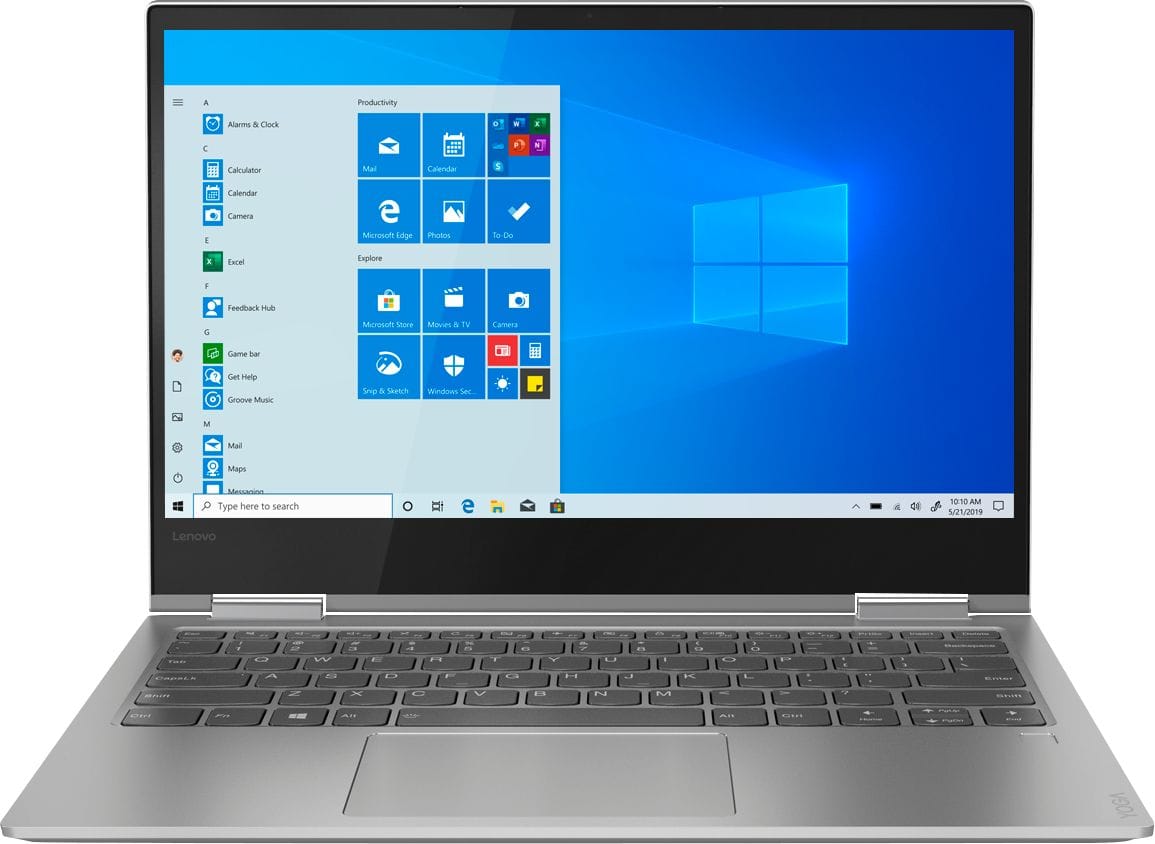

- Model:
- 81CT0008US
- SKU:
- 6201041
Rating by feature
- Battery Life
Rating 4.1 out of 5 stars
- Speed
Rating 4.3 out of 5 stars
- Display
Rating 4.1 out of 5 stars
Customers are saying
Customers are delighted by the Yoga 730's lightweight design, fast performance, and affordable price. They appreciate its long battery life and compact size, making it a great choice for those who are always on the go. However, some users have reported issues with screen flickering, Wi-Fi connectivity, keyboard quality, and speaker volume.
This summary was generated by AI based on customer reviews.
- Cons mentioned:Keyboard, Screen flickering
Loved it for 7 mths and then it died!
Posted .This reviewer received promo considerations or sweepstakes entry for writing a review.I loved this computer until the 7th month when it started malfunctioning. I would be typing and in the middle of a sentence the touch screen, keyboard, and mouse would stop working. I would turn the computer off and it would work for few minutes and then would stop working again. I am back in school and classes were about to start so I needed to get it fixed fast. Best Buy couldn’t see me until 2 weeks from the time I called. So I took it to a computer tech and he said the mother board needed to be replaced. Now I will have to borrow a laptop from someone so I can complete my school work. Unacceptable for a computer that I paid 1200 for!
No, I would not recommend this to a friend - Cons mentioned:Screen flickering
DO NOT BUY! Screen malfunction after a month!
Posted .This reviewer received promo considerations or sweepstakes entry for writing a review.DO NOT and I repeat DO NOT buy this laptop. I bought this $800 laptop thinking that high price means high quality but I was very very wrong. After only a month of usage the screen began flickering. At first it happened periodically throughout the day but after a few days it became unusable because of the constant flickering and blackening of the screen! I even sent it to the Best Buy Geek Squad and it came back to me a week later only for the problem to persist the next day. As a college student I need my laptop at all times and it's ridiculous that I paid for an $800 laptop that I can't even use! This is not Best Buy's fault, it's Lenovo's for selling a garbage laptop. I will NEVER purchase a Lenovo product again! I should've just bought the Macbook like my friends suggested. Or anything other than this Lenovo laptop for that matter.
No, I would not recommend this to a friendBrand response from Lenovo Product Expert
Posted .We are sorry to hear that you are having screen flicker issues with your Lenovo Yoga 730-13. The issue you describe may be caused by a Windows 10 update that requires a separate BIOS and video drivers update. This is easily accomplished by using the Lenovo Utility software installed on this device. This system has Lenovo utilities installed to help maintain the health of the device and keep the operating system software up to date. Type "Lenovo Vantage" in the Cortana Search window (if Lenovo Vantage is not installed on your device, you can download the APP and install it now). Select Lenovo Vantage from the list. In the window that opens, click on "Health and Support". In the expanded menu, select "Hardware Scan" In the window that opens, select "Run Quick Tests". This will scan your entire system for errors. Follow any directions that may pop up. If the problem continues after this scan, now click on "System Update". First select Windows update from the menu. Scan your system to be sure you have the latest version of Windows 10. Once that scan is complete, select "Additional Updates". This will scan your device to be sure there are no new BIOS/Driver updates needed. Follow any instructions that may pop up. If the issue still continues after these updates, we recommend you call Lenovo Tech Support at: 877-453-6686 for additional help.

- Cons mentioned:Screen flickering
Great laptop but...
Posted .This reviewer received promo considerations or sweepstakes entry for writing a review.I purchased this laptop for travel because it is slim, light, and has respectable stats. 6 months in and I start having screen issues. 9 months and it's completely un-useable. I already tried different updates, uninstalls, driver updates but none worked. It is likely a wiring issue, evidently common with these models. No problem it's under warranty right? Wrong. I bought it for travel, so I'm well outside of the U.S.A. and I can't ship it with the built-in battery (spent over $100 figuring this out) and cannot have the warranty fulfilled anywhere within 4000 miles. So I have to carry around an $800 paperweight in my pack and hope I travel to a country where it can be fixed before the warranty expires because Lenovo customer support will do nothing to fix their product other than tell me I have to travel thousands of miles...
No, I would not recommend this to a friendBrand response from Lenovo Product Expert
Posted .We are sorry to hear that you are having issues with the screen image of your Lenovo Yoga 730-13. Resetting the device back to original factory settings, then updating Windows 10 to the latest version with all supporting BIOS files and drivers updated as well. Since you can not boot the device currently, this system is equipped with OneKey Recovery System. There is a very small pin hole on the left side of the device, right near the headphone jack on the device. You will need a pin to push this reset button. Plug the device in. Let the battery charge for about 15 minutes. Push the reset button. The system should boot to a choice screen where you can choose "Restore To Factory Default". Select this. It will delete everything from the hard drive except the original factory install of the operating system. You will need to reinstall all programs and files after the reset. If you don't have copies of the files, try to make one before you restore by selecting "Boot to desktop" and trying to back up your files. Once you have restored the device back to original factory settings, this system has Lenovo utilities installed to help maintain the health of the device and keep the operating system software up to date. Type "Lenovo Vantage" in the Cortana Search window (if Lenovo Vantage is not installed on your device, you can download the APP and install it now). Select Lenovo Vantage from the list. In the window that opens, click on "Health and Support". In the expanded menu, select "Hardware Scan" In the window that opens, select "Run Quick Tests". This will scan your entire system for errors. Follow any directions that may pop up. If the problem continues after this scan, now click on "System Update". First select Windows update from the menu. Scan your system to be sure you have the latest version of Windows 10. Once that scan is complete, select "Additional Updates". This will scan your device to be sure there are no new BIOS/Driver updates needed. Follow any instructions that may pop up. If the issue still continues after these updates, we recommend you call Lenovo Tech Support at: 877-453-6686 for additional help once you return to North America. For 2018, Lenovo retained its place for a second year as the best laptop vendor:
https://www.laptopmag.com/articles/laptop-brand-ratings
- Cons mentioned:Screen flickering
Nothing but problems-stay away
Posted .This reviewer received promo considerations or sweepstakes entry for writing a review.Bought as a family computer. Within a month screen starts flickering and going black. Call Lenovo and they say its a known issue just send it in for warranty repair. So now have to take time with brand new computer and send it in. Whatever. I get it back and check to make sure the screen issue is fixed...seems to be (at least the little I have had it). But now it won't find WIFI signal--which seemed to be fine before. It will find connected devices to our network but will not find the main signal. We have other computers in the house...they all connect. Look up online...appears to be another known issue. I paid $800 for this hunk of junk and now its on sale for $699...still not worth it. The Best Buy rep was pointing me to the MS Surface which was another $500 that I didn't want to spend on a family computer so I asked what direction to go for a bit more mid-range. This was the direction. Stay away--look at all the forums not just the star reviews and don't necessarily trust that the person helping at Best Buy is informed either. If it ever works it might be a nice machine but right now it rates as a big paper weight.
No, I would not recommend this to a friendBrand response from Lenovo Product Expert
Posted .We are sorry to hear that you are having issues with WiFi connectivity with your Lenovo Yoga 730-13. This model uses the latest 5G 802.11AC frequency WiFi. To be sure you have the latest drivers on the computer scan the device with the Lenovo Utility software installed on the device. This system has Lenovo utilities installed to help maintain the health of the device and keep the operating system software up to date. Type "Lenovo Vantage" in the Cortana Search window (if Lenovo Vantage is not installed on your device, you can download the APP and install it now). Select Lenovo Vantage from the list. In the window that opens, click on "Health and Support". In the expanded menu, select "Hardware Scan" In the window that opens, select "Run Quick Tests". This will scan your entire system for errors. Follow any directions that may pop up. If the problem continues after this scan, now click on "System Update". First select Windows update from the menu. Scan your system to be sure you have the latest version of Windows 10. Once that scan is complete, select "Additional Updates". This will scan your device to be sure there are no new BIOS/Driver updates needed. Follow any instructions that may pop up. If the issue still continues after these updates, we recommend you call Lenovo Tech Support at: 877-453-6686 for additional help.
Amazing and lightweight laptop
Posted .This reviewer received promo considerations or sweepstakes entry for writing a review.I went to Best Buy intending to purchase another laptop but they had great sale on this Yoga which put it in my price range. I was initially struck by the light weight and size compared to other 13" laptops I was looking at. I have had this for a week and has been everything I could have wanted. Works well in tablet mode and very fast. Have not had outside or in bright light yet, but screen has been great otherwise. I read some reviews about screen glitches, but I have had not problems yet. The only less-than-perfect is the Fingerprint I.D. can take repeated tries, otherwise have been thrilled with this laptop. It is very light weight and I highly recommend, especially compared to the other 13" laptops I compared to in this price range.
I would recommend this to a friendBrand response from Lenovo Product Expert
Posted .Thank you for choosing the Lenovo Yoga 730-13. With regard to the issues you mention with your fingerprint reader, be sure you have setup the fingerprint reader properly. Here is a link to instructions for setting up a fingerprint reader within Windows 10: https://www.laptopmag.com/articles/set-windows-hello-fingerprint-login
- Cons mentioned:Screen flickering
Crap Product Don't Buy
Posted .This reviewer received promo considerations or sweepstakes entry for writing a review.I bought a brand new laptop from an Amazon retailer. As soon as I got the device I knew something was wrong as the screen would blink when the laptop heated up. I had several conversations with Lenovo tech support and nothing worked to fix it. It actually got worse. I was told I had to send in my device for repair. Ridiculous to have to send in a BRAND NEW DEVICE FOR REPAIR. It was less than 30 days old. Tried to return it and the retailer would do anything. Today I tried to call Lenovo customer service to see the status of my device. NO HELP AT ALL. Couldn't tell me when I'm getting my device back and only just kept saying I'm sorry and telling me what they were repairing. I WILL NEVER BY ANOTHER LENOVO DEVICE BECAUSE THEY ARE APPARENTLY PIECES OF CRAP THAT COME BROKEN AND GETTING THINGS REPAIR REALLY TAKES A VERY LONG TIME. I bought this device for school work and I can't use it for what I need because it is in the black hole of their repair shop. Bad service and crappy products.
No, I would not recommend this to a friendBrand response from Lenovo Product Expert
Posted .We are sorry to hear that you are having an unsatisfactory experience with Lenovo Repair Services. We will look into this for future improvements to our Customer Service.
- Cons mentioned:Screen flickering
Screen Flickering
Posted .This reviewer received promo considerations or sweepstakes entry for writing a review.I am a graduate student at UC and I bought this laptop for college along with 5 other friends 3 months ago. So far, 3 of us faced the same screen flickering issue and one of the friends got their laptop back from service center and its working fine for now. I have contacted the customer care and sent the laptop for service 5 days ago and current status says replacement part is not available and there is no expected ETA for the repair. I think Lenovo should change their standard response of software update and acknowledge the hardware issue. I should have done better research on the product before the purchase and advise others to not to buy this product. Regards, Pavan.
No, I would not recommend this to a friendBrand response from Lenovo Product Expert
Posted .We are sorry to hear that you are having a screen flicker issue with your Lenovo Yoga 730-13. It is possible that the issue you describe is caused by a conflict with a Windows 10 update that requires a separate update of both the BIOS and video driver updates. We recommend you check for software updates by using the Lenovo Utility software installed on this computer. This system has Lenovo utilities installed to help maintain the health of the device and keep the operating system software up to date. Type "Lenovo Vantage" in the Cortana Search window (if Lenovo Vantage is not installed on your device, you can download the APP and install it now). Select Lenovo Vantage from the list. In the window that opens, click on "Health and Support". In the expanded menu, select "Hardware Scan" In the window that opens, select "Run Quick Tests". This will scan your entire system for errors. Follow any directions that may pop up. If the problem continues after this scan, now click on "System Update". First select Windows update from the menu. Scan your system to be sure you have the latest version of Windows 10. Once that scan is complete, select "Additional Updates". This will scan your device to be sure there are no new BIOS/Driver updates needed. Follow any instructions that may pop up. If the issue still continues after these updates, we recommend you call Lenovo Tech Support at: 877-453-6686 for additional help.
- Pros mentioned:Price
Lighter than Air!
Posted .This reviewer received promo considerations or sweepstakes entry for writing a review.The MacBook Air with comparable specs is $300 more. Why pay more for heavier weight, an older generation processor, and less screen resolution? Plenty of PC options were better, but the Yoga had the best price & weight.
I would recommend this to a friendBrand response from Lenovo Product Expert
Posted .Thank you for choosing the Lenovo Yoga 730-13. We are pleased to hear that the features and performance of the Yoga 730-13 meets your computing needs so well.
Issues are touch and go...
Posted .This reviewer received promo considerations or sweepstakes entry for writing a review.I have had a handful of instances where this laptop has failed me. For starters, I had a period of time where my screen would go completely black. All of my programs were running in the background, and I could hear music if I was playing it, but nothing was displayed on the screen. I have also had issues lately with some of the keys not working; specifically, the number keys. I have to press them repeatedly and with great force for them to be able to register. I have had issues with internet connection as well. There have been times where WIFI is not an option. The computer seems to think that only an Ethernet cable is able to provided connectivity to the internet. In these cases, there is no ability to change network settings. Lastly, the battery life diminishes quickly. It started out being perfectly acceptable, but the more use it gets, the worse the battery becomes. It has gotten to the point where I cannot go half the day without charging it. Be sure to get a warranty on this laptop.
I would recommend this to a friendBrand response from Lenovo Product Expert
Posted .We are sorry to hear that you are having issues with your Lenovo Yoga 730-13. We recommend you check to be sure you have the latest version of Windows 10 on the computer, then update all of the BIOS files and drivers, to that latest version of Windows 10. You can easily accomplish this by scanning the computer with the Lenovo Utility software installed on the computer. This system has Lenovo utilities installed to help maintain the health of the device and keep the operating system software up to date. Type "Lenovo Vantage" in the Cortana Search window (if Lenovo Vantage is not installed on your device, you can download the APP and install it now). Select Lenovo Vantage from the list. In the window that opens, click on "Health and Support". In the expanded menu, select "Hardware Scan" In the window that opens, select "Run Quick Tests". This will scan your entire system for errors. Follow any directions that may pop up. If the problem continues after this scan, now click on "System Update". First select Windows update from the menu. Scan your system to be sure you have the latest version of Windows 10. Once that scan is complete, select "Additional Updates". This will scan your device to be sure there are no new BIOS/Driver updates needed. Follow any instructions that may pop up. Once you have updated all of your operating software, if the issues continue, be sure any software you installed is compatible with Windows 10. There is no need to install Microsoft Office software. The software is already part of the operating system, you just need to activate the software with a purchased product key. If you have installed a copy of Microsoft Office, this is conflicting with the existing copy on the system and this will slow your system down. If you have installed a 3rd party anti-virus program, be sure that Windows Defender is turned off and that the trial version of McAfee Anti-Virus software is uninstalled. There can only be one anti-virus program on the system. You may need to restore your system to original factory default settings if any of the programing errors have occurred. You can do that by typing "restore" in the Cortana search window. Just click on the magnifying glass icon at the bottom left of your Windows 10 Desktop. Click on "Reset This PC" Then click on "Get Started" and follow the on screen directions to restore to factory defaults. If the problem persists, we recommend you contact Lenovo Tech Support at: 877-453-6686.
DONT buy. Flickering problem
Posted .This reviewer received promo considerations or sweepstakes entry for writing a review.I bought this laptop 6 months ago because I needed it for college. At first everything worked fine, I was happy with my laptop. But then the flickering happened. I can barely even use my laptop. I went to “Geek Squad” at BestBuy hoping they could AT LEAST tell me what’s wrong with the laptop but this guy, started to assume that it had viruses even when I told him what was wrong and that I didn’t have any viruses. The person who helped me was the absolute worst helper EVER. Not only did he not help but also he lied to me and my parents saying that the warranty the computer has does not cover my problem when it does. I went to office max, to get my computer checked up which ONLY TOOK A DAY when GeekSquad said it would take about 2-3 weeks. I mean, really?? And of course, there was no virus. I’ve tried several times contacting Lenovo support but they are of no help. I’ve updated everything and reboot everything. From going on the “Lenovo Vantage” to going to Lenovo’s additional updates. Many people, MANY, are having this problem. There are forums in where people don’t get their laptop back from Lenovo and when they ask they refuse to say anything. PLEASE DO NOT BUY THIS LAPTOP. I never leave any bad reviews because what’s the point but this laptop costs way too much for it to have this problem and Lenovo isn’t addressing anything.
No, I would not recommend this to a friendBrand response from Lenovo Product Expert
Posted .We are sorry to hear that you are having screen flicker issues with your Yoga 730-13. The issues you describe may be caused by a Windows 10 update that requires an additional and separate update of both BIOS and drivers updates. This is easily accomplished by using Lenovo Utility software installed on the device. This system has Lenovo utilities installed to help maintain the health of the device and keep the operating system software up to date. Type "Lenovo Vantage" in the Cortana Search window (if Lenovo Vantage is not installed on your device, you can download the APP and install it now). Select Lenovo Vantage from the list. In the window that opens, click on "Health and Support". In the expanded menu, select "Hardware Scan" In the window that opens, select "Run Quick Tests". This will scan your entire system for errors. Follow any directions that may pop up. If the problem continues after this scan, now click on "System Update". First select Windows update from the menu. Scan your system to be sure you have the latest version of Windows 10. Once that scan is complete, select "Additional Updates". This will scan your device to be sure there are no new BIOS/Driver updates needed. Follow any instructions that may pop up. If the issue still continues after these updates, we recommend you call Lenovo Tech Support at: 877-453-6686 for additional help.
- Pros mentioned:Lightweight
Worth the money
Posted .This reviewer received promo considerations or sweepstakes entry for writing a review.Returned a Dell with the same specs which was nothing but a headache. This laptop does its job. It's lightweight, boots up quickly, and has a fancy fingerprint scanner.
I would recommend this to a friendBrand response from Lenovo Product Expert
Posted .Thank you for choosing the Lenovo Yoga 730-13. We are pleased to hear that the features and performance of the Yoga 730-13 meets your computing needs so well.
BUYER BEWARE!! FLICKERING!!!
Posted .This reviewer received promo considerations or sweepstakes entry for writing a review.Ok. I NEVER write reviews because I’m usually too lazy to create an account and write the all thing, but in this case, I will make an exception. WORST computer experience I have ever had. I guess it was by mistake not paying any attention and not reading all the reviews. Flickering started just 3 days after I bought the computer. I did everything I could to fix that problem: restoring to factory settings, updating all drivers I could find, using the above-mentioned Lenovo tools – nothing worked !! instead of doing my job those days, I was obsessed to fix that problem. The flickering got so bad that in one point the computer just freeze. After 3 days I gave up. I guess that in my case I lucked out because I bought the computer at Best buy and the flickering started only 3 days upon buying, that so I could use the return policy and return that defective computer with ease. I do thank Best Buy for that. By the way, when I was returning this computer, I was told that a lot of other buyers complained about that flickering issue and returned their computers as well.. I’m not an export but I do have some experience with software engineering. Seriously doubt it is a software problem – feels like and Hardware thing. WOULD NOT RECOMMEND THIS COMPUTER TO ANYONE!!
No, I would not recommend this to a friendBrand response from Lenovo Product Expert
Posted .We are sorry to hear that you had issues with screen flicker with your Lenovo Yoga 730-13. This issue may be caused by a recent Windows 10 update that requires a separate update of both BIOS and Driver software on the device. This is easily done by using the Lenovo Utilities installed on the device. This system has Lenovo utilities installed to help maintain the health of the device and keep the operating system software up to date. Type "Lenovo Vantage" in the Cortana Search window (if Lenovo Vantage is not installed on your device, you can download the APP and install it now). Select Lenovo Vantage from the list. In the window that opens, click on "Health and Support". In the expanded menu, select "Hardware Scan" In the window that opens, select "Run Quick Tests". This will scan your entire system for errors. Follow any directions that may pop up. If the problem continues after this scan, now click on "System Update". First select Windows update from the menu. Scan your system to be sure you have the latest version of Windows 10. Once that scan is complete, select "Additional Updates". This will scan your device to be sure there are no new BIOS/Driver updates needed. Follow any instructions that may pop up. If the issue still continues after these updates, we recommend you call Lenovo Tech Support at: 877-453-6686 for additional help.
- Cons mentioned:Screen flickering
Worst Laptop I have EVER owned!
Posted .This reviewer received promo considerations or sweepstakes entry for writing a review.This is the worst laptop I have ever bought! I bought this laptop for school, I am in college and need a laptop that does well with this travel and doing homework on. This is not the laptop I would recommend to get for school or for any reason at all. I have had this laptop for 8 months and it was great until about month 3. I can't even use my computer anymore because the screen flickers so much. If I had it to do over again I would have never bought this computer. It has gotten so bad that my screen literally stays black more than it stays on.
No, I would not recommend this to a friendBrand response from Lenovo Product Expert
Posted .We are sorry to hear that you are having an issue with your Lenovo Yoga 730-13. We recommend you contact Lenovo Tech Support for help with your specific issue at: 877-453-6686. For 2018, Lenovo retained its place for a second year as the best laptop vendor:
https://www.laptopmag.com/articles/laptop-brand-ratings
- Cons mentioned:Screen flickering
Screen Flickering!!
Posted .This reviewer received promo considerations or sweepstakes entry for writing a review.I bought this laptop because the guy at best buy told me it was a really good laptop and I wouldn't have any problems. Well let me tell you, its been 2 Months since I bought it and my screen has been flickering!!!!!!!! This computer is brand new!!! I wouldn't except it to have any problems. I am very disappointed. At first, I was really excited that I found a prefect laptop for school, but now I have to send it in to the company so they can fix it. So I would not recommend this laptop!!!!! I wish I could have returned it for another one!
No, I would not recommend this to a friendBrand response from Lenovo Product Expert
Posted .We are sorry to hear that you are having issues with your Lenovo Yoga 730-13. We recommend you check to be sure you have the latest version of Windows 10 on the computer and that the supporting BIOS files and drivers are up date. You can easily do this by scanning the computer with the Lenovo Utility software installed on the computer. This system has Lenovo utilities installed to help maintain the health of the device and keep the operating system software up to date. Type "Lenovo Vantage" in the Cortana Search window (if Lenovo Vantage is not installed on your device, you can download the APP and install it now). Select Lenovo Vantage from the list. In the window that opens, click on "Health and Support". In the expanded menu, select "Hardware Scan" In the window that opens, select "Run Quick Tests". This will scan your entire system for errors. Follow any directions that may pop up. If the problem continues after this scan, now click on "System Update". First select Windows update from the menu. Scan your system to be sure you have the latest version of Windows 10. Once that scan is complete, select "Additional Updates". This will scan your device to be sure there are no new BIOS/Driver updates needed. Follow any instructions that may pop up. If the issue still continues after these updates, we recommend you call Lenovo Tech Support at: 877-453-6686 for additional help. For 2018, Lenovo retained its place for a second year as the best laptop vendor:
https://www.laptopmag.com/articles/laptop-brand-ratings
nice computer but...
Posted .This reviewer received promo considerations or sweepstakes entry for writing a review.Had this computer 2 days. I'm having the same problem as others w/ wifi dropping quite a bit. Very annoying. Also, difficulty waking it from sleep. No screen flickering issues, but am a bit concerned as that seems to happen later. As far as wifi, someone said they replaced the Realtek wifi card with another brand & the problem solved, so doesn't seem to be software. Lenovo doesn't replace wifi card. Fan did run hard w several windows open, but to be expected w this level computer. I wish it came w more directions. I don't know what all F keys stand for. It's a nice computer, quick, decent specs. I like having Thundefbolt 3. Just wish it didn't have the wifi issue right away and so many potential problems mentioned by other reviews. Makes me nervous to keep this computer. I would recommend it but buyer beware.
I would recommend this to a friendBrand response from Lenovo Product Expert
Posted .The Lenovo Yoga 730-13 ships with the latest 5G 802.11AC frequency WiFi. Be sure your router has the latest firmware updates available at the router manufacturer's web site. With regard to the HotKeys functions, they are explained on page 28 of the User's Manual, which is available online. Here is the link: https://download.lenovo.com/consumer/mobiles_pub/yoga730-13ikb_hmm_201810.pdf
Why did Lenovo use a limited network adapter?
Posted .This reviewer received promo considerations or sweepstakes entry for writing a review.I'm writing this review as I bought this laptop whilst in the States and I now live in South Africa. From the start, this computer ONLY picks up a router if it sits right next to it. I see that MANY people have had the same problem. I picked up in the comments that one of the solutions is to switch out the network card. Which one should I replace it with? Quite frankly, I am disappointed that Lenovo released a computer that obviously had this as a problem from the start.
No, I would not recommend this to a friendIssues Right Away
Posted .This reviewer received promo considerations or sweepstakes entry for writing a review.Let me start by saying I haven't had a Windows computer in nearly a decade, so I could just be too Mac to hack it, but we purchased this computer several weeks ago and there are some very obnoxious quirks already that will take hours to troubleshoot. #1 - The screen dims randomly, and says it's at it's brightest. #2 - After about a week we quit being able to use the pin OR the fingerprint to login. Random error messages pop up. #3 - My harddrive won't hook up to this laptop, but works flawlessly with my mac. My husband already spent hours trying to troubleshoot this. Next step is testing a USB to just see if there's something wrong with the port. That aside, it is fast, lightweight, and the hinge feels very durable. Will stand up by itself and also folds easily.
No, I would not recommend this to a friendBrand response from Lenovo Product Expert
Posted .We are sorry to hear that you are having issues with your Lenovo Yoga 730-13. First, concerning the screen diming on its own, this may be due to auto brightness being turned on or you unplugged the device and your power settings are set to automatically dim for power efficiency. For auto brightness, Here is a link to instructions for turning off auto-brightness within Windows 10: https://www.itsupportguides.com/knowledge-base/windows-10/windows-10-how-to-disable-automatic-brightness-adjustments/. To adjust the power setting on your device, so it is not set to dim the screen to extend battery life, when on the battery. You can change this in the Control Panel Power settings on your device. You can get to these settings by clicking on the magnifying glass icon at the bottom left of your Windows 10 screen. Type "Control Panel" in the search window. Select Control Panel from the list. In the Control Panel window that opens, type "Power" in the Control Panel Window search box at the top right of the Control Panel Window. It enter and select "Edit power plan" from the list. You will see the power settings for your device currently. Check the power settings for On Battery. There is a slider that adjusts screen brightness. Make sure this is set to match what the Plugged In slider is set at. When you are finished making adjustments, click "Save" at the bottom right of the window. Second, here is a link to instructions for setting up a fingerprint reader in Windows 10: https://www.laptopmag.com/articles/set-windows-hello-fingerprint-login. Third, the reason your external hard drive will not work on this Windows 10 device is because it is formatted for the iOS. You will need a new external hard drive for the Windows 10 operating system. Finally, if any of the issue persist or new questions arise, please give Lenovo Tech Support at call for specific and detail help at: 877-453-6686. We thank you for choosing the Lenovo Yoga 730-13 for your Windows 10 based computer. We want to help you enjoy your experience with Windows 10 and the Yoga 730-13.
- Pros mentioned:Price
Great deal
Posted .This reviewer received promo considerations or sweepstakes entry for writing a review.Was able to get this laptop for an extra $100 off with the student deal. Only $649 for a fast processor and light weight notebook.
I would recommend this to a friendBrand response from Lenovo Product Expert
Posted .Thank you for choosing the Lenovo Yoga 730-13. We are pleased to hear that the value, features and performance of the Yoga 730-13 meets your computing needs so well.
kes do no work1 (aka Keys do NOT work!)
Posted .This reviewer received promo considerations or sweepstakes entry for writing a review.When I first bought the Lenovo Yoga 730 in 2018, I was a broke college student whose chunky old laptop finally gave out. I don't think I bought the warranty (huge mistake) because I couldn't spare the extra money at the time. I was attracted to the touchscreen feature which I still really do like and occasionally use the tablet mode to watch shows. HOWEVER, the biggest problem is that some of the keys do NOT work sometimes! I first noticed it within the first few days of using it but then the keys started working again and I thought it was just a tiny mishap. WRONG! Occasionally certain keys like T, Y, (backspace), left SHIFT, and the volume key will stop working. I've always taken really good care of this laptop since it wasn't cheap and have always had keyboard protectors. After a while (days, weeks, or months), the keys will start working again, but eventually stop. It's so frustrating! I've tried everything to fix it: settings, factory reset, all the youtube videos, and even went as far to buy the specific screw attachment to try to fix the issue. It was a short temporary fix, and how have the same problem where those keys no longer work. Must be a hardware problem. If only all the keys worked, I would have loved to recommend this. I had to buy a separate keyboard to type which is inconvenient to carry around to use a laptop. Here is typing without the keyboard: abcdefghijklmnopqrsuvwxz
No, I would not recommend this to a friend- Pros mentioned:Fast
Great Laptop
Posted .This reviewer received promo considerations or sweepstakes entry for writing a review.This laptop is super fast and has loads of storage space for all of my files and makes surfing the internet real fast.
I would recommend this to a friendBrand response from Lenovo Product Expert
Posted .Thank you for choosing the lenovo Yoga 730-13. We are pleased to hear that the features and performance of the Yoga 730-13 meets your computing needs so well.